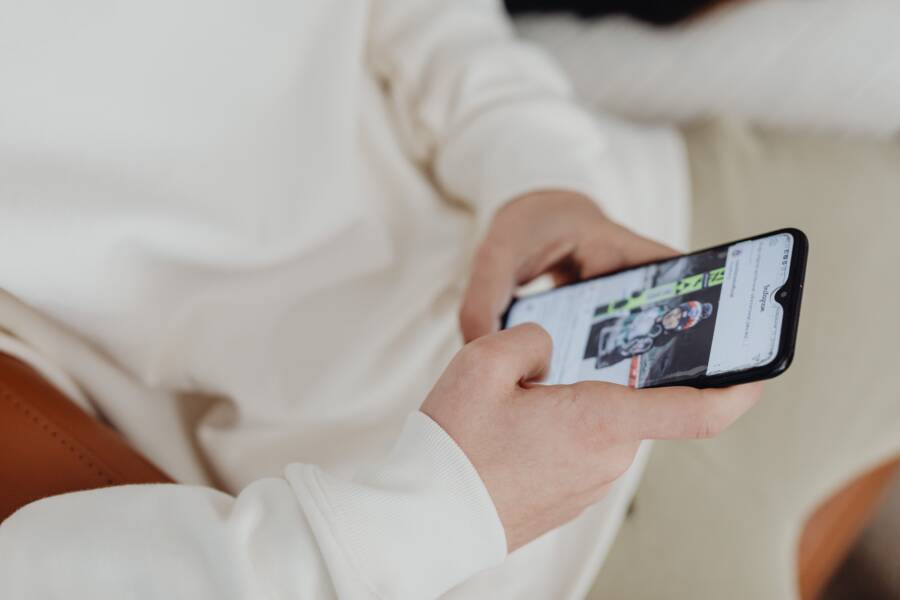
You can create a personal media library by organizing your photos, videos, and documents into a folder structure on your device. This process keeps your files local, accessible, and under your control. By moving away from cloud-only storage, you gain permanent ownership of your most important memories.
A well-organized smartphone acts as a portable digital archive. You no longer need to pay monthly subscription fees to view or sort your collection. Instead, your files stay ready for use even when you have no internet connection.
This guide shows you how to build your own system for long-term storage. You will find simple steps to categorize your data and keep your library manageable.
Why You Need a Localized Media Library
Keeping your files on your own hardware gives you total command over your personal data. When you manage your own storage, you no longer depend on third-party policies to protect your privacy. This shift ensures your media remains yours, regardless of service outages or changes in corporate terms of service. You gain consistency, speed, and privacy by choosing to host your files directly on your smartphone.
The Freedom of Owning Your Digital Files
Data sovereignty describes the principle that your digital property should remain under your direct control. Many users store photos and documents on remote servers operated by massive corporations. While this seems convenient, it creates a layer of dependency. If a provider decides to change its storage structure, lock your account, or shut down a service, you risk losing access to your files instantly.
Local storage removes these barriers because the data resides on your device. You retain access to your library even when you lack a stable internet connection. No external entity can restrict your ability to browse your memories or view your documents. You hold the keys to your archive, which provides security and peace of mind that cloud providers cannot match.
Reducing Your Monthly Subscription Costs
Cloud storage often starts as a small, manageable fee that grows as your library expands. Many providers push users toward higher subscription tiers once they hit storage limits. These recurring costs pile up over several years, creating a significant drain on your personal budget. Moving to a local storage model stops this cycle immediately.
You can save money by using the internal storage of your smartphone or adding a high-capacity memory card. Once you purchase the hardware, you own the storage space for the lifetime of that device. Compare the long-term impact of these two approaches below.
Managing your media locally eliminates the monthly burden of digital storage fees. You gain a self-sustaining system that pays for itself over time. Redirecting your funds away from recurring subscriptions allows you to invest in better hardware instead of renting space for files you already own.
Simple Workflow to Create Your Media Library
Building a library on your smartphone requires a consistent approach to file management. Without a plan, folders quickly become cluttered with temporary screenshots and duplicate images. You can avoid this by establishing a clear routine for your data. This system transforms your smartphone into a organized archive that serves your needs for years.
Sorting and Labeling Your Content
Organization begins with a predictable folder structure. Use a hierarchy based on time to keep your files easy to navigate. A common approach is the Year/Month/Event structure. For instance, you store photos from a beach trip inside a folder labeled “2024,” then “07 July,” and finally “2024-07-15 Beach Trip.” This method places every item in a logical spot.
Keep your naming conventions short to ensure they remain readable on a mobile screen. Avoid long strings of text or cryptic codes. Use dates as the prefix for every file name so that your smartphone sorts them chronologically by default. If you prefer, include a brief description like “2024-07-15-Hiking-Trip” to help you identify specific files at a glance.
Consistency matters more than perfection. If you decide on a naming format, stick to it for your entire collection. When you import new media, move it into the correct folder immediately. This prevents a backlog of unsorted files from forming on your device.
Selecting the Right Backup Hardware
Local storage offers freedom, but it creates a risk if your device breaks. A reliable backup strategy is essential to protect your library. Modern smartphones now support external drives through USB-C ports, making backups faster and simpler. Portable solid-state drives (SSDs) are the best choice for this task. They offer high speeds and high durability in a small package.
If you carry your data often, choose a thumb-sized USB-C flash drive. These connect directly to your smartphone without extra cables. They are lightweight and fit easily into a pocket or wallet. When picking hardware, look for these features:
- USB-C connector: This ensures compatibility with almost every modern smartphone.
- Capacity: Select a drive with at least twice the storage of your phone to allow for future growth.
- Speed: Faster transfer rates save you time when you move large video files.
- Build material: Metal casings provide better heat dissipation than plastic ones during long transfers.
Check the file system format of your external drive before you begin. ExFAT is a standard format that works across most smartphone operating systems and computers. Using this format lets you plug the drive into different devices without needing to reformat or erase your data. Always keep a copy of your library on your smartphone and at least one additional copy on an external drive.
Syncing and Maintaining Your Digital Archive
Building a personal media library on your smartphone requires regular maintenance to stay functional. Without a clear plan, your storage space becomes messy and difficult to navigate. You must establish a routine to move files from your active device memory to your long-term storage locations. This practice keeps your internal storage free for new media and protects your existing files from accidental loss.
Automating Your Backup Habits
Manual transfers often fall by the wayside as your daily tasks pile up. You can simplify this by setting up recurring calendar alerts on your smartphone that trigger every Sunday. These reminders force you to set aside time to review new files and migrate them to your external backup drive.
Some file management apps offer automated sync features that detect when you plug in a storage device. These apps can automatically move files from specific folders to your external drive with one tap. You should investigate the settings within your preferred file manager to find these built-in tools. By reducing the number of clicks required, you eliminate the friction that keeps you from backing up your data regularly. If you keep your process simple, you will complete it more often.
Ensuring Long Term Data Integrity
Data corruption happens when files are interrupted during a transfer or when hardware begins to fail. You prevent this by always using the safe eject feature before unplugging any external drive from your smartphone. Yanking a cable mid-transfer creates incomplete files that you cannot open later. Take a few extra seconds to ensure the operating system confirms the drive is safe to remove.
Hardware quality also plays a role in how long your files remain readable. Stick to reputable brands for your flash drives and cables. Cheap components often fluctuate in power delivery, which can damage the delicate sectors where your data lives. You should also replace your storage media every few years, as solid-state components eventually reach their read and write limits. Always keep two copies of your most important files in different physical locations. This redundancy protects your library even if one drive stops working or gets misplaced.
Common Questions About Personal Media Libraries
Building a personal media library on your smartphone raises practical concerns for most users. You might wonder how to handle storage limits or keep files safe from accidental deletion. These questions often center on hardware compatibility, file organization, and long-term maintenance. Clear answers to these topics help you build a reliable system for your files.
Does internal storage or external hardware work better?
Internal storage provides the fastest access to your files. You do not need to carry extra accessories or plug in cables to view your media. However, local storage on your smartphone fills up quickly as you record high-resolution videos or capture large photo batches. Once the storage is full, you cannot add new items without deleting old ones.
External hardware solves this capacity issue. Portable drives provide nearly limitless space for your growing archive. You can store thousands of photos on a compact thumb drive that fits on your keychain. Using external drives also keeps your smartphone memory clear for apps and day-to-day operations. A hybrid approach often works best, where you keep current files on your phone and move older media to an external drive.
Is my media library safe if I lose my phone?
Local storage puts you in charge of your data, but it also places the burden of protection on you. If your smartphone is lost, stolen, or damaged, you lose access to every file stored only on that device. You must maintain a backup copy of your library to mitigate this risk.
Use these three locations to keep your files secure:
- Keep an active copy on your smartphone for daily use.
- Store a primary archive on an external SSD or flash drive.
- Save a second physical copy on a computer or another drive kept in a different location.
Redundancy is the most effective way to protect your media. Do not rely on a single device for your entire collection. If one drive fails, your second copy ensures you do not lose your memories.
How do I handle file compatibility across different devices?
Different operating systems sometimes struggle to read files from one another. Formatting your storage hardware correctly prevents these headaches. Choose the exFAT file system whenever you prepare an external drive for your smartphone. This format is compatible with Android, iOS, Windows, and macOS devices.
You can format your drive using a computer before you start moving files. Once formatted as exFAT, the drive functions like a universal key for your media. You simply plug the drive into your smartphone to view, add, or delete files. You can then move that same drive to a laptop to organize your folder structure or perform deep cleanups. This compatibility keeps your workflow simple and avoids the need for software that locks your files into a specific ecosystem.
Conclusion
You now possess the tools to transform your smartphone into a secure, portable archive. By moving away from recurring cloud fees and centralizing your files locally, you reclaim full authority over your data.
Start your organization project by selecting one year of photos today. Create a simple folder structure on your device, label your files clearly, and move them into the corresponding directories.
This small habit prevents digital clutter from accumulating. Your smartphone is the primary hub for this archive, but consistent backups to external hardware protect your memories from loss or damage. Apply these steps to take command of your digital life and enjoy the peace of mind that comes with true ownership.