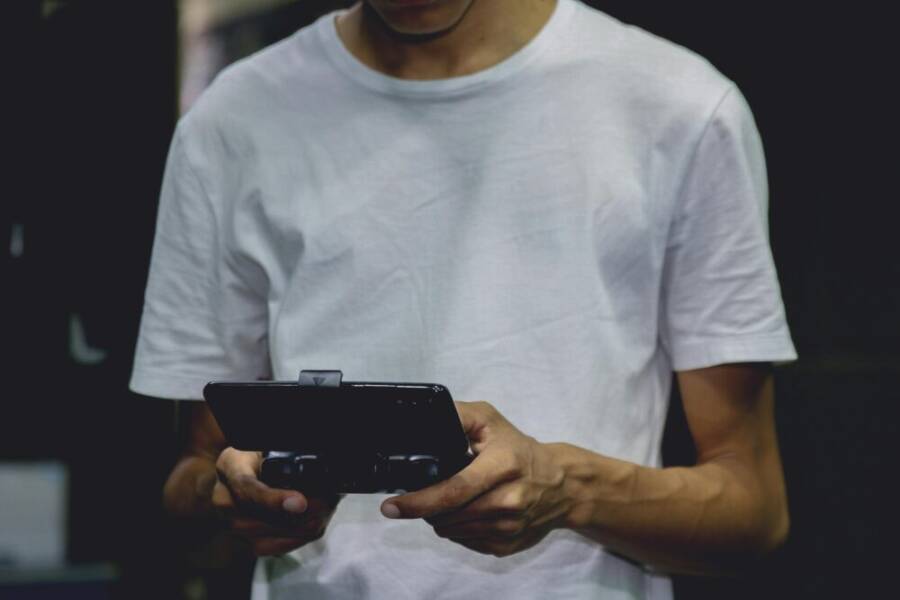
Smartphones can handle big games when paired with a reliable Bluetooth controller, turning a pocket device into a capable gaming rig. This guide walks you through the steps to pair, set up, and optimize your play for comfort and speed.
If you’ve ever struggled with awkward touch controls, you’re not alone. A good controller frees up your thumbs, extends play sessions, and makes precision moves easier in fast paced titles. Whether you’re playing on a phone or tablet, the benefits are clear.
We’ll cover how to choose a controller, how to pair it with your phone, and the setup steps to get started quickly. You’ll also find troubleshooting tips and practical tweaks to improve responsiveness and comfort during long sessions with your smartphone.
Why use a Bluetooth controller with your phone for gaming
Using a Bluetooth controller with your phone can dramatically improve how you play. It brings console-style precision to a handheld device, making fast action titles feel more responsive and enjoyable. A good controller also helps you game longer by reducing finger fatigue and letting you focus on the action instead of touch controls. Below are the key reasons a Bluetooth controller elevates your mobile gaming experience, plus practical tips to choose and pair the right one.
Benefits for mobile gaming
A controller shines in three core genres: platformers, shooters, and racing games. In platformers, precise aiming and jump timing matter. A steady analog stick and well-laded directional pad give you smoother control for tricky sections and boss battles. In shooters, triggers and shoulder buttons provide natural input for aiming, shooting, and switching weapons without covering the screen with fingers. Racing games benefit from quick steering inputs and tactile feedback that helps you throttle and brake with confidence.
Beyond raw control, a controller improves comfort and play sessions. With thumb fatigue reduced, you can play longer without discomfort. Menu navigation becomes easier too; you can scroll menus, select items, and adjust settings with quick thumb-to-button moves rather than dragging your finger across the screen. The overall smartphone gaming experience feels more like a traditional game console, which can extend how long you stay engaged with a title.
If you’re playing on a long flight, a commute, or a couch session, a Bluetooth controller also frees up screen real estate. You won’t block your view with your thumbs, so you can see power-ups, map indicators, and on-screen prompts clearly. For casual players, this translates to less frustration and more time spent enjoying the game. For more competitive play, the reliability and consistency of a controller fosters better rhythm and muscle memory, helping you level up faster.
To see a broad view of how these controllers perform in real life, consider checking user-focused breakdowns and reviews. These resources often compare different models side by side, highlighting how features translate to everyday play. For example, options like the 8BitDo Ultimate Mobile Gaming Controller are designed to fit a wide range of devices and offer robust compatibility across platforms, making them a solid starting point for most players. You can explore specifics on their official page and support resources to confirm fit for your setup. https://www.8bitdo.com/ultimate-mobile-gaming-controller/
Controllers also open up better access to cloud gaming and streaming services. If you use services that run on a console-like backend, a controller can help you feel closer to the experience you get on a big screen. In addition, many controllers support multiple devices, so you can switch between a phone, tablet, or a PC without changing input devices. This flexibility is valuable for people who game on the go but still want a unified control scheme.
For iPhone and Android users alike, there are models designed to work across ecosystems. The Backbone One USB-C, for instance, supports Android devices and iPhone setups, letting you game from anywhere with console-like controls. This kind of cross-compatibility reduces friction when you upgrade or switch devices. https://backbone.com/products/backbone-one-usb-c?srsltid=AfmBOoqUF6qAzl_w9EvHOWGW5LtrqcR3ktlUU855xSrJpDNWwFbUbFBX
Finally, a controller improves accessibility in several ways. If you have difficulty with touch accuracy or fine motor control, physical buttons offer consistent input. You can remap controls to fit your preferences, which helps minimize awkward tapping or swiping in tight moments. For many players, this is the difference between a frustrating session and a smooth, enjoyable one. Reading real-world experiences can help you compare how different controllers feel in hands-on tests. For a broad look at popular options, see reliable coverage like Wired’s guide to mobile controllers. https://www.wired.com/gallery/best-mobile-game-controllers-for-iphone-android/
What to consider before pairing
Choosing the right controller starts with understanding how your phone and your grip will work together. Here are the main factors to consider so you get a setup that feels natural from the first game session.
- Compatibility: Most modern controllers support both Android and iOS, but check official specs. Some models excel on one platform while offering solid cross-compatibility. If you want a single device to cover both ecosystems, look for universally compatible options and confirm with the manufacturer. Learn more about cross-platform options and how they perform in practice on widely read reviews. https://www.wired.com/gallery/best-mobile-game-controllers-for-iphone-android/
- Bluetooth version and latency: Bluetooth 5.x devices generally offer reliable connections with low latency. Latency matters in fast-paced titles, but in casual play, most people won’t notice a slight delay. If you play competitive games, a controller with a solid wireless range and quick response can make a noticeable difference. For practical guidance on how latency shows up and how to minimize it, see discussion threads and expert analyses on reliable tech outlets. https://www.reddit.com/r/EmulationOnAndroid/comments/1c4alzj/having_a_tough_time_deciding_on_a_typec_vs/
- Grip comfort and build quality: A comfortable grip reduces fatigue during long sessions. Look for textured surfaces, balanced weight, and button placement that matches your usual hand position. If you have larger hands or use a phone with a bulky case, verify that the controller design fits without crowding the ports or pressing into the case.
- Battery life: Battery capacity and charging time affect how long you can play before recharging. Some controllers recharge quickly via USB-C or get a pass-through from the phone, while others use replaceable batteries. If you travel often, pick a model with good standby time and easy charging options.
- Phone case size and fit: A large phone case can interfere with some controllers. Measure the device width and compare it to the controller’s clamp or mounting system. Some controllers are designed to work around a protective case, while others require you to remove the case for a snug fit. Look for reviews that mention real-world fit with common cases.
- Latency reality: A small delay is normal in Bluetooth connections, but most casual players won’t notice it. If you’re chasing tournament-level timing, you might want to test different models and read user impressions in real-world tests. You can find practical guidance in controller roundups and hands-on tests from reputable outlets. https://www.gamesradar.com/best-mobile-controller/
- Quick compatibility checks: If you own multiple devices, pick a model that supports switching between them easily. Some controllers offer a dedicated app or easy pairing mode that saves your pairings, so you don’t have to re-sync every time you switch devices. For a snapshot on cross-device support, explore product pages and user guides. https://www.amazon.com/Backbone-Gaming-Controller-Bluetooth-Pro-Level-Console/dp/B0DQM23MLZ
Common myths about latency
Latency myths can make your head spin if you read too many online debates. The key reality is simple: most Bluetooth controller latency is small and often perfectly fine for mobile games. The problem is not always input lag; sometimes what you notice is screen lag or display processing. Distinguishing these helps you manage expectations and improve performance without buying new hardware.
- Input lag versus screen lag: Input lag is the delay between pressing a button and the action on screen. Screen lag is the device’s display reaction time to render the frame. In many mobile setups, input lag is barely noticeable, while screen lag can be the bigger culprit if the display is slow to refresh.
- How to minimize noticeable delay: Keep devices close to each other, avoid crowded WiFi channels, and enable any game mode or performance mode if your phone and controller support it. Reducing background activity can also help by freeing up processing power for the game you’re playing. A practical approach is to test a few sessions with different settings, then choose the setup that feels most responsive to you.
- Real-world expectations: For casual gaming, most players won’t feel a significant difference between Bluetooth controllers and wired options. If you do serious competition, you may notice subtle differences in responsiveness. In that case, trial several controllers and test under the exact game conditions you care about.
- Helpful resources: For a curated list of top controllers and their latency performance, see established roundups and guides that compare devices across platforms. https://www.gamesradar.com/best-mobile-controller/
To wrap up, a Bluetooth controller can turn your phone into a more precise, comfortable, and capable gaming device. It is a practical upgrade for most players, especially if you game for extended sessions or prefer tactile feedback. Start with a widely compatible model, verify fit with your phone and case, and pay attention to latency in real world play. As you try different options, you’ll learn what feels best and what helps you game longer and better. For quick ideas on popular controllers that fit a broad range of phones, explore the links above and read user reviews to find what matches your grip and style.
Setup, pairing and getting started
Getting your phone ready for gaming with a Bluetooth controller is about two things: a solid setup and a smooth pairing process. This section breaks down how to check your gear, pair quickly on both Android and iOS, and get up and running with confidence. Follow these steps to minimize delays and jump straight into your games.
Initial checks and charging
Before you even think about pairing, make sure the controller is ready to go. A charged battery ensures stable connections and consistent button response during play. If the controller supports firmware updates, check for and install any available updates. These can improve compatibility, fix bugs, and reduce input irregularities.
- Charge the controller fully. A quick 15 to 30 minute top-up can be enough for a session, but a full charge ensures you won’t drop out mid-match.
- Verify your phone is on the latest OS. System updates often include Bluetooth improvements and bug fixes that affect device compatibility.
- Confirm Bluetooth is enabled on your phone. Both Android and iOS need Bluetooth active to discover and pair the controller.
- Check for firmware updates on the controller. If you’re unsure how to verify, consult the manufacturer’s support page or companion app. Keeping firmware current can reduce latency and improve button mapping.
If you’re using a compact device or a protective case, you should also confirm the controller fits well. Some clamps and mounts have tight tolerances, especially with larger phones or chunky cases. A quick physical test of the fit avoids frustrating pauses during a game.
For those curious about real-world performance, reference guides and reviews can offer clarity on how updates translate to smoother play. For example, look for manufacturer pages and hands-on tests that show firmware impact and compatibility across devices. You can explore official product resources to confirm fit for your setup. https://www.8bitdo.com/ultimate-mobile-gaming-controller/ If you’re planning on cross-device play, many controllers now support switching quickly between devices. Quick compatibility checks help you verify this before you go all-in on a single setup. https://www.amazon.com/Backbone-Gaming-Controller-Bluetooth-Pro-Level-Console/dp/B0DQM23MLZ
If you want a broader sense of how latency and firmware updates affect play, checking reputable roundups can be helpful. They compare models across platforms and show where updates landed in real-world use. https://www.gamesradar.com/best-mobile-controller/
Finally, ensure your case and grip won’t interfere with the controller’s clamps or buttons. A snug, secure fit lasts longer and reduces the chance of accidental disconnects during action moments.
Pairing steps for Android and iOS
Pairing is usually straightforward, but a quick map of steps helps you avoid common hiccups. Below are the typical steps for both major ecosystems, with notes on small differences you might encounter.
- Turn on Bluetooth on your phone.
- Put the controller into pairing mode. This often involves holding a dedicated pairing button or a combination of buttons near the USB-C port until a light flashes rapidly.
- On your phone, access the Bluetooth menu and look for the controller name in the list of available devices.
- Tap the controller name to pair. If prompted, confirm the pairing code or accept the connection.
- Test the connection by launching a game and verifying that inputs map correctly.
What to expect on Android
- You’ll typically find the controller under Settings > Connections (or Connected devices) > Bluetooth.
- Android often displays the device name and may offer a quick test prompt. Some devices show a notification once pairing completes.
- If pairing fails, toggle Bluetooth off and back on, or restart the controller and phone. It’s also helpful to remove any previous pairings with other devices to avoid conflicts.
What to expect on iOS
- Go to Settings > Bluetooth and look for the controller name under Other Devices.
- On iPhone, you can also reach Settings > General > Game Controller to see connected devices and set default controls if supported.
- If you’re using a game that supports on-screen remapping, you may see quick prompts inside the game to finalize your setup.
Note any minor differences between Android and iOS access. For Android, you often complete pairing in the Bluetooth settings, then return to the game. On iOS, you may manage a controller in the Game Controller settings after pairing, which helps with default configurations. For iPhone users, Apple’s official guidance covers how to connect and manage controllers across devices. https://support.apple.com/en-us/guide/iphone/connect-a-game-controller-iph9d38dd45f/ios
If you want a quick cross-platform sanity check, consider a widely supported model that emphasizes easy pairing. Checking manufacturer guides and user reviews can confirm the process for your exact device. For example, Backbone’s setup and cross-device support are documented on their site. https://backbone.com/products/backbone-one-usb-c?srsltid=AfmBOoqUF6qAzl_w9EvHOWGW5LtrqcR3ktlUU855xSrJpDNWwFbUbFBX
Pairing is usually the hard part. Once connected, you should see the controller as a recognized input device, ready to map to your favorite games. If you ever encounter a stubborn pairing issue, a quick “forget device” in Bluetooth settings and re-pairing often clears the problem without needing to reset the controller.
Testing and calibration
With the controller paired, you want to confirm that every button and stick behaves as expected. Start with a familiar game or a simple quick-session to verify the basics.
- Map confirmation: Open a game and test essential inputs—movement, jumping, firing, and any special actions. If a button seems misassigned, recheck the controller’s button layout and the game’s input settings.
- Use the companion app if available: Some controllers come with an app that lets you adjust button mappings, trigger sensitivity, and stick dead zones. This makes it easy to tailor input to your play style.
- Calibrate sticks if drift appears: Stick drift is common after long use. In many controllers, drift can be corrected by recalibrating the sticks in the companion app or by following the controller’s calibration procedure. If drift persists, you may need a warranty exchange or deeper diagnostics.
How to verify button mapping during play
- Choose a game with straightforward actions so you can quickly tell if a button maps to the intended function.
- Run a practice level or a quick “training” mode if available. This helps you confirm consistent responses without risking progress in a real match.
If you notice any lag or uneven input, try a few practical tweaks. Keep devices close to each other to minimize wireless interference. Close background apps that may drain processing power or bandwidth. If you can, switch to a quieter Wi-Fi channel and enable any game or performance mode your phone supports. These small changes can noticeably improve responsiveness in fast paced titles.
When calibration is needed, here are practical steps to follow
- Access the controller’s companion app (if provided) and locate the calibration option.
- Follow on-screen prompts to reposition sticks to their neutral centers and reprogram button mappings.
- Save your changes and test again in a quick game or training mode.
To see how calibration and mapping vary across devices, check trusted comparative guides and manufacturer pages. They often show real-world examples of how settings translate to in-game performance. https://www.wired.com/gallery/best-mobile-game-controllers-for-iphone-android/ If you’re curious about precise steps for iOS and the Game Controller settings, Apple’s support resources lay out the process clearly. https://support.apple.com/en-us/guide/iphone/connect-a-game-controller-iph9d38dd45f/ios
Final tips for a smooth start
- Keep a short list of your favorite games and confirm that they support external controllers. Some games offer better support or more robust remapping options than others.
- If you game across devices, take a moment to save your preferred controller configuration in the game’s settings or the controller’s companion app. It reduces setup time during future sessions.
- Consider a backup power plan for long sessions. A small portable charger or a power bank can prevent mid-session power loss that interrupts play.
By following these steps, you’ll move quickly from unboxing to action. A well prepared controller makes mobile gaming comfortable, precise, and more enjoyable. You’ll be lining up headshots, precise roping, or smooth racing lines with less fuss and more control. If you want to explore models that pair well with a broad range of devices, start with widely reviewed options and read user feedback to find the best fit for your grip and play style. https://www.gamesradar.com/best-mobile-controller/
Tips to improve gameplay and extend your setup
This section packs practical tweaks to get more from your Bluetooth controller when gaming on a phone. You’ll learn how to tailor in-game controls, minimize latency, work with cloud gaming and emulators, and care for your gear on the go. Along the way, you’ll see quick setup tweaks you can apply today to feel more confident during longer sessions. If you’re using a smartphone and a controller, small changes can translate to smoother play and more comfort.
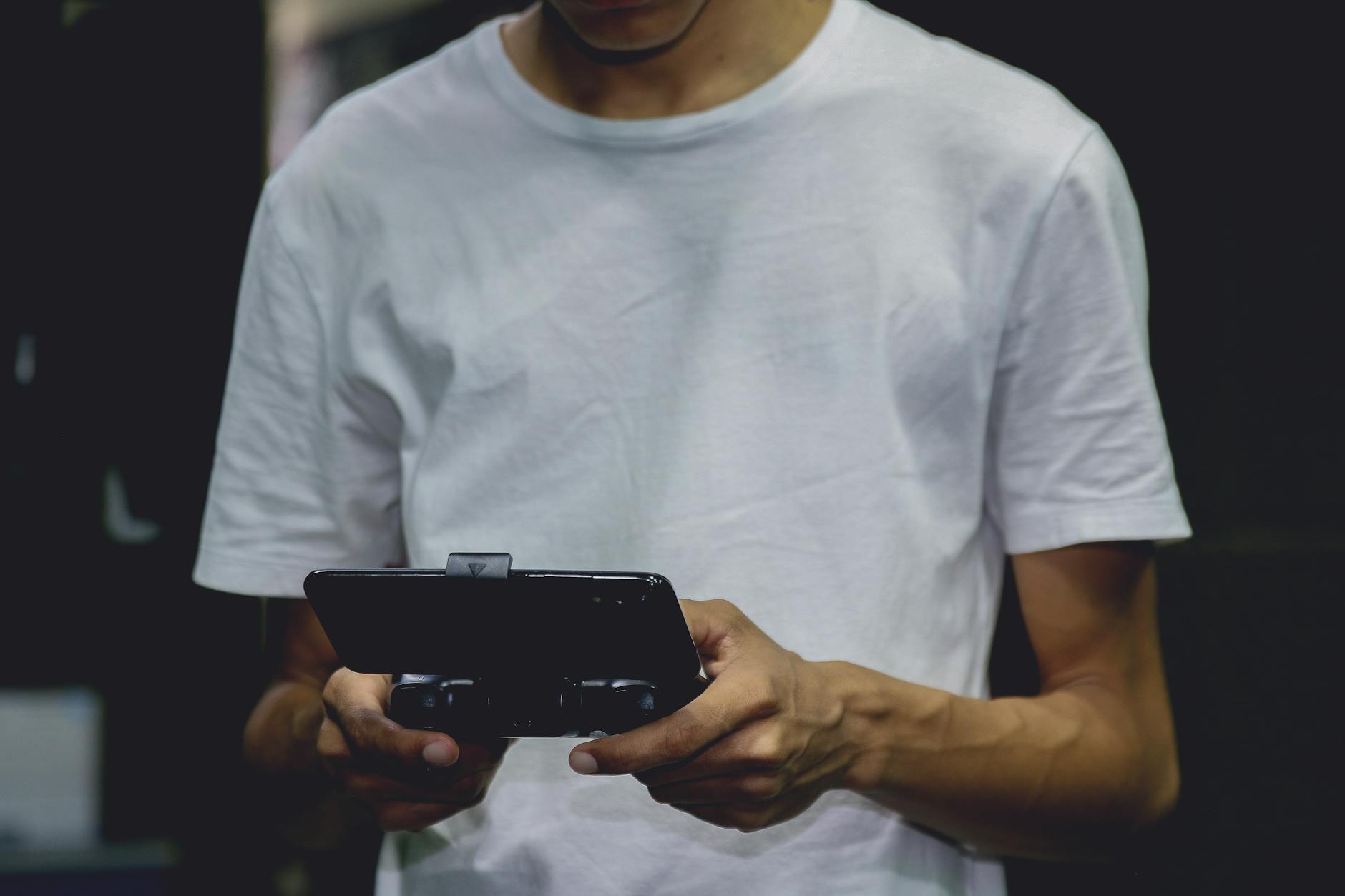 Photo by Nino Souza
In-game settings and button mapping
Remapping controls lets you build a layout that mirrors your preferred play style. Most popular games support customizable button layouts, sensitivity tweaks, and aim assistance options when available. Start with a basic setup, then fine tune for comfort and speed.
- Remapping basics: Look for a controls or input menu in the game. Swap actions to your most accessible buttons, then test in a quick practice run. For example, assign jump to a shoulder button and reload to another easily reachable button to keep your thumbs on the analog sticks.
- Sensitivity and aim: Lower sensitivity gives more precise control, while higher sensitivity helps you target quickly. Try a middle ground first, then adjust in small increments. If a game supports aim assist, enable it and adjust strength to avoid overcompensation.
- Example configurations:
- Config A (Casual shooter): Left stick for movement, right stick for aim, right trigger to shoot, left trigger to aim down sights, A jump, B reload, X melee, Y grenade. Enable moderate aim assist.
- Config B (Platformer racer): D-pad for movement, right stick camera, triggers for accelerate and brake, face buttons for jump and dash. Use tighter dead zones for quicker responses.
Tips to test mappings:
- Use a practice mode or training area to verify all actions map correctly.
- If a button feels awkward, swap it with another that’s used less often, then test again.
- Keep a backup profile in case you need to revert changes quickly.
For cross-platform play, verify that the game supports your controller layout on both Android and iOS. Some games remember your last used layout, while others require reconfiguration per device. If you want broader remapping options, consider companion apps from the controller maker. For example, some models offer built-in software to customize mappings beyond what a game exposes. Explore guides and manufacturer pages for specifics, such as Backbone Pro remapping capabilities. https://help.backbone.com/hc/en-us/articles/30980164375703-Customization-with-Backbone-Pro-Button-Remapping/
Where to look for guidance:
- Check in-game tutorials or official support pages for platform-specific steps.
- Manufacturer support pages often host the latest remap options and new features.
- Community forums can reveal practical tweaks from other players with similar devices.
If you’re curious about how professional setups compare, trusted reviews often show which buttons get used most in popular titles. These insights help you build a robust default layout that works across many games. Compare options like the 8BitDo Ultimate Mobile Gaming Controller for strong cross-platform support. https://www.8bitdo.com/ultimate-mobile-gaming-controller/
Photo by Nino Souza
Latency, interference and range
Bluetooth latency varies by device, environment, and activity. Understanding the basics helps you decide where to game and how to tweak your setup for smoother play.
- Typical latency ranges: In day-to-day gaming, Bluetooth input lag is usually a few milliseconds to a few dozen milliseconds. Real-world performance depends on the phone, controller, and distance.
- Reducing interference: Keep devices close to each other. Turn off nonessential Bluetooth devices that might compete for the same channel. When possible, use a dedicated 2.4 GHz network or a quieter Wi-Fi channel to reduce contention.
- Range matters: Most controllers maintain a solid connection within 10 meters, but walls and obstacles can cut that range. If you notice dropouts, approach the playing area or remove obstacles between the controller and phone.
Practical steps to minimize latency:
- Place the phone and controller within the line of sight.
- Close background apps that might steal CPU cycles or bandwidth.
- If your router supports it, switch to a less congested channel or enable gaming mode on the router if available.
For deeper latency guidance and tested tips, reputable outlets compare latency across popular models. A comprehensive roundup, for example, helps you pick a controller that performs well in real-world play. https://www.gamesradar.com/best-mobile-controller/
When planning cloud gaming or streaming sessions, remember that network quality is a major factor. A low latency, stable connection makes a big difference in responsiveness. Check your connection speed and consider a wired backhaul when possible to keep the experience smooth.
Photo by Nino Souza
Cloud gaming and emulators
Bluetooth controllers pair well with many cloud gaming services and mobile emulators, but results vary by service and device. A strong network matters for cloud gaming, while emulators differ in how they map inputs.
- Cloud gaming: Your controller is typically recognized as a standard input device. A stable connection helps prevent input drops and disconnects during intense moments. If latency spikes, lowering the game’s resolution or toggling performance modes on the phone can help.
- Mobile emulators: Emulators map hardware inputs to on-screen actions differently. Some emulators offer built-in controller mapping tools; others rely on system-level input settings. Test mappings in a controlled environment to ensure keys respond as expected.
- Network quality matters: For cloud gaming, a solid Wi-Fi or mobile data connection reduces buffering and input lag. If possible, use a stable network and minimize competing traffic during play.
If you want a benchmark, check guides and reviews that compare how different controllers perform with cloud services and emulators. These resources reveal real-world performance and any quirks you should know about before you commit to a setup. https://www.wired.com/gallery/best-mobile-game-controllers-for-iphone-android/
There’s also value in joining communities that share setup tips for cloud and emulated play. They often highlight tips like enabling game mode on devices or selecting lower streaming settings to improve responsiveness. A practical read is a trusted round-up that covers popular options across ecosystems. https://www.gamesradar.com/best-mobile-controller/
Photo by Nino Souza
Care, storage and travel
A Bluetooth controller is built to travel, but it needs proper care to stay reliable. Simple habits protect your hardware and keep it ready for action.
- Safe storage: Use a pocket-friendly case or a small bag with padding. A dedicated controller case protects buttons and sticks from accidental presses.
- Cleaning and maintenance: Wipe the controller with a soft cloth and mild cleaner. Avoid harsh solvents that can degrade coatings. Periodically check for loose buttons or creaks and address any issues early.
- Battery care: Charge when needed and avoid letting the battery drain completely. If the controller supports removable batteries, keep a spare on hand for extended trips.
- Case compatibility: Large phone cases or rugged cases can interfere with clamps. Check fit before you travel. If you’re unsure, test mounting with your phone in the case to confirm a snug fit.
Carrying tips:
- Use a compact, padded case to protect the controller during travel.
- Keep charging cables in the same case so you can top up between sessions.
- Consider a lightweight stand or clip for hands-free viewing when you’re not in a game.
If you game on the go often, a case with a dedicated compartment for the controller and cables makes life easier. Look for cases designed for mobile gaming accessories to ensure you can pack everything you need without bulk. A few trusted options and reviews can guide your choice. https://www.gamesradar.com/best-mobile-controller/
Photo by Nino Souza
End of section notes:
- You’ll find cross-device compatibility and easy pairing tips in manufacturer guides and user reviews. For example, Backbone’s setup and cross-device support are well documented on their site. https://backbone.com/products/backbone-one-usb-c?srsltid=AfmBOoqUF6qAzl_w9EvHOWGW5LtrqcR3ktlUU855xSrJpDNWwFbUbFBX
- If you want broader guidance on remapping and latency, reputable sources offer practical comparisons. Check reliable roundups for cross-device performance and user feedback. https://www.wired.com/gallery/best-mobile-game-controllers-for-iphone-android/
Conclusion
Pairing a Bluetooth controller with your smartphone unlocks console-like precision and longer, more comfortable play sessions. The main steps are simple: check compatibility, charge and update the controller, enable Bluetooth, and pair on Android or iOS, then map inputs in your favorite games. The key benefits are clearer controls, reduced thumb fatigue, and the flexibility to game on the go or during cloud play sessions. Give a widely compatible model a try, test a few games, and tailor the button layout to your grip. If you have questions or want tips for a specific game, drop a comment and I’ll help you optimize your setup.