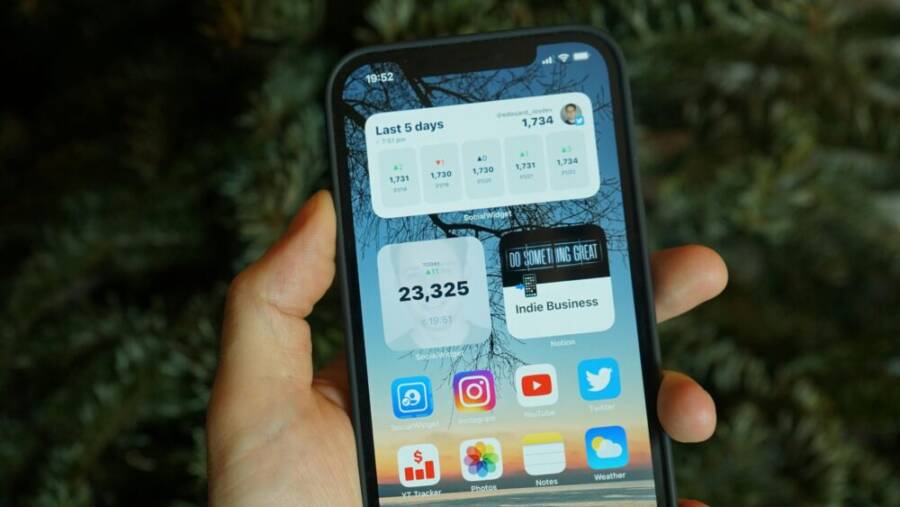
Widgets are tiny windows that sit on your home screen and show important info at a glance. They work on both Android and iPhone, so you can tailor your device to your habits. In this post you’ll find practical steps to find, add, and customize widgets, plus real world ideas you can try today.
Think of a widget as a quick access tool that saves you time. Instead of opening apps, you can see weather, calendar events, or your to do list with a single glance. This makes your smartphone more useful by reducing taps and letting you stay organized on the go.
We’ll cover how to locate widgets on both platforms, how to resize and arrange them, and how to combine multiple widgets into a single glanceable view. You’ll learn which widgets tend to go best with different routines, whether you’re commuting, working, or relaxing.
Real world ideas you can implement now include a weather widget for quick packing decisions, a calendar widget for reminders, and a battery widget to monitor devices without opening settings. Along the way, we’ll point out common issues to watch for, like widget refresh delays or limited app support, and how to fix them quickly. Your phone will feel more capable and easier to use with the right widgets in place.
What Widgets Are and Why They Make Your Phone More Useful
Widgets sit on your home screen and show you useful information at a glance. They are not full apps, but small windows that update with data from apps. Widgets come in different sizes, update at different rates, and respond to taps in ways that help you stay productive. Think of them as tiny dashboards that live on your phone, ready to inform or act without opening an app.
 Photo by Nikita Khandelwal
Understanding Home Screen Widgets
Widgets are small, live views into information you care about. Unlike apps, which you open to use, widgets refresh data in the background and show you the latest at a glance. On Android, widgets are typically more flexible in size and interaction. On iPhone, widgets are layered and can be stacked, with limited direct interactivity beyond tapping to open the related app or trigger quick actions.
- Sizes: Widgets come in small, medium, and large. A weather widget might show today’s high and low in a small tile, a map preview in a medium tile, or an hourly forecast in a large tile.
- Update rates: Android widgets can refresh frequently depending on the widget and app settings. iOS widgets refresh periodically and are designed to be battery friendly.
- Tap actions: A tap usually opens the associated app or triggers a quick action. Some Android widgets support direct actions like playing music or checking off a task right from the widget.
A simple example: imagine you want a weather widget. A small widget might show the current temperature, a medium one could display the forecast for the day, and a large version might show rain chances and wind today. You choose the size based on how much detail you want at a glance and how much space you have on your home screen.
For more context, see how Apple describes widgets for quick information on the Home Screen, and how Android developers design widgets to fit multiple screen sizes. These approaches shape what you’ll see and how you’ll interact with the widgets on your device.
- Apple design guidelines on widgets: https://developer.apple.com/design/human-interface-guidelines/widgets
- Android widget basics: https://www.androidauthority.com/android-vs-ios-stacked-widgets-3567106/
Why Widgets Save Time and Boost Focus
Widgets cut down on phone digging. Instead of searching and opening an app, you get what you need at a glance. This makes it easier to stay focused and reduce interruptions during the day.
- Quick actions: Start a workout, add a task, or check traffic without opening an app. A single tap or swipe can trigger the action.
- Lower interruptions: With essential info on screen, you don’t need to switch apps to check updates.
- Better organization: Group related widgets in a single glanceable view, so the most important data is always visible.
To illustrate, a calendar widget can show today’s events at a glance, a reminders widget can display tasks due today, and a weather widget can flag if you should carry an umbrella. This setup helps you plan without breaking your momentum. For practical ideas, explore Apple and Android widget experiences, including stacked widgets on iPhone and flexible layouts on Android. See how these designs influence your daily workflow.
- Apple widgets overview: https://developer.apple.com/design/human-interface-guidelines/widgets
- Android widget behavior: https://www.androidauthority.com/android-vs-ios-stacked-widgets-3567106/
Common Types You’ll Use Daily
Here are widget types that most readers end up using every day. Each type includes a practical use case and why it belongs on the home screen.
- Calendar: Displays today’s plan and upcoming events. Use it to spot free time or prepare for meetings at a glance. This keeps you on schedule without opening a calendar app.
- Weather: Shows current conditions and a short forecast. It helps with planning outdoor activities or deciding what to wear.
- Reminders/To-Do: Lists tasks due today or soon. It acts as a quick nudge, so important items stay front and center.
- Clock/World Clock: Provides time and date. Great for everyone juggling deadlines or coordinating with others in different time zones.
- Music Controls: Lets you play, pause, or skip tracks without opening a player app. It keeps music accessible while you work or commute.
- Quick Notes: Captures ideas or shopping lists fast. A snap to jot down thoughts without launching a full note app.
Each type solves a real pain point: you get essential information or a direct action without extra taps. The key is choosing a few trusted widgets that align with your daily routine and arranging them where you look most often. For inspiration on practical layouts, consider how others group widgets for commute, work, and downtime.
- For a quick read on widget layouts for different routines, see general widget guidance: https://www.androidauthority.com/android-vs-ios-stacked-widgets-3567106/
- For development best practices and how widgets stay responsive, check: https://cygnis.co/blog/widget-development-in-mobile-apps/
Images and visuals help you picture the setup. A clean, organized widget row can feel like a mini-dashboard you use all day. If you’d like a concrete example, imagine your home screen with a small calendar showing today’s events, a weather tile for the day, and a quick notes tile for last minute reminders. This combination supports both planning and execution without hunting for apps.
Sources and further reading provide broader context on how widgets are designed and used across platforms. You can explore these links to deepen your understanding and refine your own home screen.
- Widgets on iPhone: https://developer.apple.com/design/human-interface-guidelines/widgets
- Android widgets: https://www.androidauthority.com/android-vs-ios-stacked-widgets-3567106/
How to Find and Add Widgets on Your Phone
Widgets are tiny, at-a-glance tools that make your phone feel faster and more responsive. They sit on your home screen or in Today View and pull in the latest data from your apps. With a few taps, you can see weather, reminders, or calendar events without opening an app. This section breaks down exactly how to locate, add, and size widgets on both Android and iPhone, plus a quick example to get you started.
Android Basics: Locating Widgets and Adding to Home Screen
- Open the Home screen and find an empty space. Tap and hold until the screen wiggles or a menu appears.
- Tap Widgets from the options that appear. You’ll see a list of apps that offer widgets.
- Find the widget you want, then drag it onto the home screen. You can place it anywhere that has space.
- Resize by long-pressing the widget and using the resize handles. Drag to a bigger or smaller size to fit your layout.
- Example: adding a weather widget
- Start with a small weather tile showing the current temperature.
- Drag a medium tile to show today’s forecast and high/low temperatures.
- If you want more detail, choose a large weather widget that includes rain chances and wind data.
- If you’re unsure where to start, check the official guidance for adding widgets on Android and the specific steps for your device. For reference, see Google’s help article on adding widgets to your Home screens: https://support.google.com/android/answer/9450271?hl=en
Tips for best results
- Keep related widgets together in a single column or row to reduce scrolling.
- Place frequently used widgets within reach, not tucked at the bottom of the screen.
- Test a few sizes to find the balance between readability and screen real estate.
iPhone Basics: Adding Widgets to Home Screen and Today View
- On the home screen, long press any empty area until the apps jiggle.
- Tap the “+” button in the upper left to open the widget gallery, or choose Edit Home Screen and then tap the plus sign.
- Browse widgets, choose a size (small, medium, or large), and tap Add Widget. Drag the widget to your desired spot on the home screen.
- To place widgets in Today View on older iOS versions, swipe right from the home or lock screen to access Today View, then add widgets from that panel.
- Move widgets around by long-pressing them and dragging to a new position. You can stack widgets by dragging one on top of another.
- Example: adding a calendar widget
- Choose a medium calendar widget to show today’s events.
- Place it near your weather widget for quick planning.
- If you want more detail, use a large calendar widget that shows week view and upcoming events at a glance.
If you’re migrating from an older iPhone or want to learn more, Apple’s widget guidelines offer practical context on how widgets behave on the Home Screen and in Today View. See: Apple’s widget guidelines and related articles.
- Apple widgets overview: https://developer.apple.com/design/human-interface-guidelines/widgets
- General guidance for iPhone widgets: https://developer.apple.com/design/human-interface-guidelines/
Choosing the Right Size and Placement
- Small widgets are ideal for a quick glance. They load fast and don’t clutter the screen.
- Medium widgets strike a balance between information density and space. They’re good for weather with a forecast or a daily agenda.
- Large widgets are best when you want more details at a glance, like a full week view or a detailed task list.
- Placement matters. Keep widgets within your natural line of sight so you don’t have to hunt for information.
- Group related widgets together. A single area for weather, calendar, and reminders creates a mini dashboard you can read in seconds.
Practical tips to avoid clutter
- Limit the number of widgets on any single screen to five to seven maximum. Too many widgets slow you down.
- Use a consistent layout so you know where to look for key information every time.
- If your device supports widget stacks or folders, group related widgets into a single scrollable area. This keeps your home screen clean while preserving access to essential data.
When you’re deciding on size and placement, think about your daily routine. If you spend a lot of time commuting, a small weather widget and a calendar widget might be enough. If you work from home, a larger calendar and reminders stack can help you stay on top of tasks without digging through apps. For more ideas on widget layouts and behavior, explore the Android and iPhone guides linked below.
- Android widget behaviors and layout ideas: https://www.androidauthority.com/android-vs-ios-stacked-widgets-3567106/
- Apple design guidelines on widgets: https://developer.apple.com/design/human-interface-guidelines/widgets
Additional read for practical organization
- Learn how to add and arrange widgets on Galaxy phones, including quick actions from widgets: https://www.samsung.com/ph/support/mobile-devices/how-to-add-apps-and-widgets-on-your-galaxy-phones-home-screen/
In short, the right size and placement make widgets a true shortcut to your day. A clean, well-thought-out layout keeps essential data in view and speeds up everyday tasks. If you’re unsure where to start, try a simple trio: weather, calendar, and reminders. Adjust sizes until the trio feels balanced, then refine as your routines evolve. As you get more comfortable, you’ll find smarter ways to blend widgets into your personal workflow.
Top Widgets to Boost Everyday Tasks
Certain widgets turn your smartphone into a personal assistant for routine chores. They deliver key data right on your home screen. Pick ones that fit your habits to cut time on small actions. Start with these top options in productivity, communication, and health.
Productivity Widgets
Calendar widgets keep your day in view. Pin your daily schedule to spot meetings or free slots fast. A glance shows events, start times, and locations without app opens.
Reminders and to-do lists work the same way. Drag a task manager widget to your screen for overdue items or next steps. Check off tasks with a tap. Apps like Todoist offer clean widgets that sync across devices; see their App Store page for details.
Task managers add power. They group projects or priorities in one spot. You pin a quick note for shopping lists or ideas that pop up.
Sync everything to the cloud for fresh data. Link your calendar or tasks to Google or Apple accounts. Changes on your laptop update the widget in seconds. This keeps you aligned even if you switch devices.
Quick setup tips:
- Choose medium size for today’s agenda and tomorrow’s peek.
- Place near weather for full morning checks.
- Test cloud sync in app settings to avoid stale info.
These widgets build momentum. You stay ahead without constant app checks.
Communication and Apps Widgets
Messages widgets list recent chats at a glance. See who texted last or reply fast. This saves steps when time runs short.
Email previews pull in subjects and senders. Spot urgent notes without full inbox dives. Call shortcuts dial contacts or show missed calls direct from the home screen.
They shine in a rush. Tap to call during drives or read previews in lines. On shared devices, lock sensitive views. Use app permissions to hide previews or require Face ID.
Built-in options from Messages or Mail apps work well. Third-party ones like Spark add stacks for multiple accounts.
Privacy pointers:
- Turn off message previews in notification settings.
- Stack widgets behind a blank one for family phones.
- Resize small to show names only, not content.
You handle talks quicker and safer. No more digging through apps.
Health and Fitness Widgets
Step count widgets track your walks. They show daily progress toward 10,000 steps. Water intake logs remind you to drink with progress bars.
Workout summaries recap sessions. See calories burned or reps from last run. A quick look motivates you to hit goals.
These nudge habits. Place a step widget where you see it often. It pushes you for that evening stroll.
Watch battery use though. Frequent updates drain power. Set refresh to hourly or daily. Avoid large sizes that pull constant data.
Smart habits:
- Pair steps with water for full health view.
- Check once an hour, not every minute.
- Use native Fitness or Health apps for light load.
Wirecutter’s picks for to-do apps include habit trackers with solid widgets too.
You reach targets easier. Health stays top of mind without effort.
Tips to Customize Widgets for Maximum Use
Tailor your widgets to match your daily flow. Place them where you check most often, and trim what you don’t need. This setup turns your home screen into a fast tool that fits your life. On Android or iPhone, small changes make a big difference in speed and ease.
Organize by Usefulness and Frequency
Put your go-to widgets front and center. The ones you check every hour, like weather or calendar, go in easy reach. Tuck less-used ones, such as occasional fitness trackers, to the side or a second screen.
A simple layout beats a crowded one. Start with four to six widgets max per screen. This keeps your smartphone screen clean and quick to scan.
Follow these steps for a smart order:
- Rank widgets by how often you tap them. Daily must-haves top the list.
- Drag high-use ones to the top row or main swipe.
- Move rare checks to stacks or folders.
Users share great layouts on forums. Check Reddit tips for productive homescreens for ideas that balance looks and function.
Create a Daily Widget Mix
Build a core group of five widgets that handle your key tasks. Cover weather for mornings, calendar for plans, reminders for chores, battery status, and music controls. This mix supports your day from start to finish.
Add quick taps for routines. A morning stack might show sunrise time, coffee brew reminder, and traffic. Evening ones could list tomorrow’s tasks and a sleep tracker preview.
Keep it steady but flexible. Test the setup for a week, then swap one if needed. Consistency builds habits.
Sample daily mix:
- Morning: Weather + calendar.
- Work: Reminders + email preview.
- Evening: Battery + notes.
Dan’s Advice on widget organization shows stacks that work for busy days.
Keep It Clean and Accessible
Ditch widgets you ignore after a week. A lean screen loads faster and feels calm. Add labels if your launcher supports them, so names stand out clear.
Match colors and icons for quick reads. Group blues for work tools, greens for health. This lets your eyes find info in seconds.
Boost access with these tweaks:
- Bump font sizes in display settings for better read.
- Pick high-contrast themes to cut eye strain.
- Test in dim light to ensure they pop.
Apple’s guide covers icon tints and clear looks. See iPhone Home Screen customization for steps that apply to all.
Security and Privacy Considerations
Hide sensitive info from plain view. Skip widgets with full email previews or messages on lock screens others might see.
Limit widgets to trusted apps only. Enable screen lock after idle time, and use Face ID or PIN for stacks.
Review permissions fast:
- Go to settings, then apps.
- Tap the widget app.
- Check data access and toggle off extras like location if not needed.
Your smartphone stays safe with these habits. Tight controls mean peace of mind on shared or public spots.
Troubleshooting Common Widget Issues
Widgets are designed to be reliable shortcuts, but they can stall or drift out of sync. When widgets stop refreshing, disappear, or slow down your phone, it can derail your daily rhythm. Use these practical steps to diagnose and fix common problems quickly. The goal is to restore a smooth, glanceable view of the data that matters most to you.
Widgets Not Updating
If a widget looks frozen or shows stale information, start with the simplest fixes and move to targeted tweaks. Most issues boil down to connectivity, cache, or software state. Follow these steps in order and you’ll likely regain live data without heavy troubleshooting.
- Refresh the data
- Open the widget’s related app and look for a refresh option. If there isn’t one, perform a quick action such as syncing accounts or manually updating the data within the app.
- For time sensitive info like weather or stock quotes, a re-opened widget may fetch the new data once you return to the home screen.
- Check internet connection
- Ensure your device has a stable connection. Switch between Wi Fi and mobile data to test if the widget relies on a specific network.
- If you’re on a slow connection, wait a moment and then verify whether the widget updates as data rolls in.
- Reboot the device
- A simple restart can clear background glitches that block updates.
- After the device boots, give the widget a minute to refresh before checking again.
- Update the widget app and system software
- Open the app store and confirm there’s an update for the widget’s companion app. Install it if available.
- Check for a pending OS update on your phone. OS updates often fix widget stability issues and improve background refresh.
- Clear cache and data in simple terms
- On Android: go to Settings > Apps > [Widget app] > Storage > Clear Cache. If updates still lag, you can also try Clear Data, but note this resets any saved preferences.
- On iPhone: there isn’t a direct “clear cache” button for most widgets. Instead, offload or reinstall the app that provides the widget to refresh its cached data. If issues persist, restarting and re-adding the widget can help.
- Check for known issues and workarounds
- Some times updates or server problems affect specific widgets. If multiple users report delays, wait a short while and try again later.
- See discussions about widget update behavior on your platform for tips from other users and official guidance. For example, Apple and Android communities discuss update delays and resets that help many users. You can explore these discussions here:
- Apple support discussion on widget updates: https://discussions.apple.com/thread/255894674
- Android widget behavior and troubleshooting: https://www.androidauthority.com/android-vs-ios-stacked-widgets-3567106/
If updates still fail after these steps, consider removing and re adding the widget. A fresh install often clears stubborn caches and re establishes a clean data link with the app. For a practical example, re adding a weather widget after a restart can restore accurate forecasts and timing.
Helpful tip: keep the widget’s data sources in sync. Linking widgets to cloud accounts (Google or Apple) ensures updates propagate across devices and stay current when you switch phones or reset home screens. This keeps your glance view reliable.
For additional context on common widget refresh patterns and user experiences, check these topics:
- iPhone widget refresh behavior and reset tips: https://discussions.apple.com/thread/255894674
- Android widget update basics and recovery steps: https://www.androidauthority.com/android-vs-ios-stacked-widgets-3567106/
Widgets Disappeared or Misaligned
Sometimes a widget vanishes from the home screen or shifts out of place after an update or a layout change. This is usually a layout or re configuration issue rather than a device failure. The fix is straightforward and focuses on re adding, resetting, and re ordering.
- Re add missing widgets
- On iPhone: long press the home screen, tap the + button to open the widget gallery, select the widget, choose a size, and Add Widget. Position it where you want.
- On Android: long press the home screen, choose Widgets, select the desired widget, and drag it to an open spot. If a widget doesn’t appear, you may need to unlock the home screen or remove a cluttered size.
- Reset home screen layout if needed
- If several widgets are out of place, a quick reset can help. On iPhone, you can move everything back to a simple baseline grid and then re place the widgets in a clean arrangement.
- On Android, you can disable and re enable home screen customization in the launcher settings. This helps restore default placements without losing your apps.
- Re order widgets for a clean setup
- Create a logical flow by grouping related widgets together. For many users a row for weather, calendar, and reminders works well.
- Limit to five to seven widgets per screen to keep things legible. If you need more, use stacks or folders to maintain a clean look.
- Quick sanity checks
- Ensure widgets are enabled in the launcher or home screen settings.
- Verify you didn’t accidentally hide a widget from the gallery or home screen.
- If a widget still won’t appear, remove it, restart the device, then re add it.
Context and examples help. If your calendar widget went missing after a system update, re adding it and placing it near the weather widget can restore a quick planning view. For more guidance on widget placement and layout ideas, these resources can help:
- Android widget organization and layout ideas: https://www.androidauthority.com/android-vs-ios-stacked-widgets-3567106/
- iPhone home screen customization tips: https://support.apple.com/guide/iphone/customize-apps-and-widgets-on-the-home-screen-iph385473442/ios
Battery and Performance Concerns
A common complaint with widgets is their impact on battery life and device performance. Live updating widgets pull data in the background, which can add up if you use several of them. If you notice quicker battery drain or slower performance, take a closer look at how widgets are updating and what data they fetch.
- Recognize signs of widget related drain
- Quick battery drops after installing a new widget or updating an app.
- Widgets that refresh very frequently, especially those pulling data from multiple sources.
- Phone feels warmer after a long period of widget activity.
- Reduce live updating widgets
- Prefer widgets that refresh hourly or daily rather than every few minutes.
- Turn off high fidelity data feeds when you don’t need real time updates.
- Disable or limit location based updates for widgets that don’t require precise positioning.
- Disable unnecessary data refresh
- In widget app settings, switch off background refresh for widgets that aren’t essential.
- If the widget supports it, choose a lower refresh rate in the app’s own settings.
- Use battery saver modes sparingly since some widgets may be affected by aggressive power management.
- Monitor impact and adjust
- After changing refresh settings, monitor battery usage over 24 hours to see the effect.
- Consider removing one rarely used widget to reduce background activity if you still see drain.
A practical example is a weather widget that updates every 10 minutes in a location you rarely change. Reducing its update frequency to hourly can dramatically extend battery life while keeping the essential forecast accurate.
For further context on widget performance and best practices, you can explore these sources:
- Android widget behavior and energy use: https://widget-club.com/article/android-widgets-notshowing
- Remember the Milk widget update behavior discussions: https://www.rememberthemilk.com/forums/help/27340/
Key takeaways
- Start with low impact fixes like adjusting update frequency and clearing cache.
- Limit the number of live updating widgets to minimize background work.
- Regularly update both the widget app and your OS to avoid compatibility issues.
This section covered practical steps to handle common widget problems. If you’re ready to fine tune your setup, the next sections will offer targeted ideas for productivity, communication, and health widgets that fit into everyday routines. For deeper guidance on choosing and arranging widgets, you can reference broader widget strategy discussions in the sources above.
Conclusion
Widgets turn your smartphone into a faster, more capable companion. With a few well chosen tiles, you get weather, reminders, and calendar updates at a glance, freeing time for what matters. A smart layout keeps essential data visible without clutter, so you stay focused on tasks and plans.
As you customize, review privacy and performance. Choose trusted apps, limit data shown on the widget, and keep update frequencies sensible to save battery. If a widget drains power or feels slow, scale back the number you use and adjust refresh rates.
A small setup today can pay off tomorrow. Start with a core trio—weather, calendar, and reminders—and expand only as needed. Share one tip you love or a layout that works for you. Tell us your favorite widgets and how you arrange them on your smartphone.