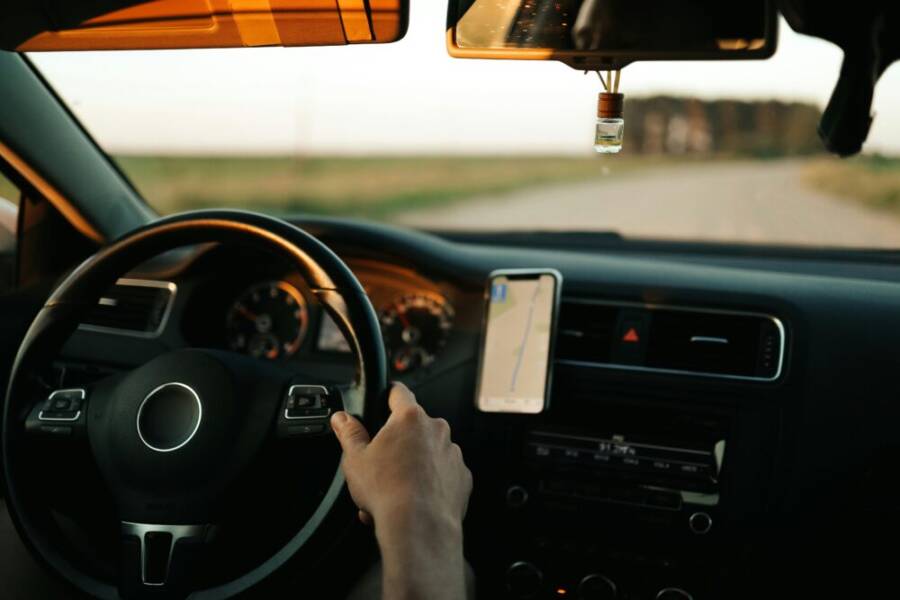
Picture this: you’re driving down a busy road, eyes flick down to your phone’s GPS screen for a quick direction check, and suddenly a sharp turn sneaks up on you. Your heart races as you swerve back into your lane just in time. These close calls happen too often.
Distractions from phones turn simple navigation into real risks. While driving, even a brief glance pulls your focus from the road. The same goes for walking in crowded areas; you might bump into someone or step into traffic.
Stats paint a clear picture. The National Highway Traffic Safety Administration notes that distracted driving led to 3,275 deaths in 2021. Phone use accounts for a large share of these crashes; drivers texting face 23 times higher risk of accidents.
You don’t have to ditch your phone’s GPS power. Hands-free options let you get directions safely through voice commands and audio cues. Your smartphone works like a copilot without demanding your eyes or hands.
This guide shows you easy steps to stay safe. First, pick the right apps with strong voice features. Next, set up hardware like mounts and Bluetooth earpieces.
Then, tweak phone settings for minimal interruptions. Finally, build habits that keep distractions at bay. Stick with these, and you’ll navigate with confidence every trip.
Pick the Best GPS Apps for Hands-Free Guidance
You need GPS apps that prioritize voice over visuals. Top choices include Google Maps for reliable coverage, Waze for real-time traffic dodges, and Apple Maps for smooth iPhone integration. These stand out because they deliver clear spoken instructions, reducing the urge to peek at your screen. Check out PCMag’s roundup of the best navigation apps to compare features side by side.
Pick one that matches your phone and routes. Google Maps works on any smartphone; Waze shines on busy roads with crowd-sourced alerts. Apple Maps fits iOS users best. Set them up right, and your phone becomes a quiet guide.
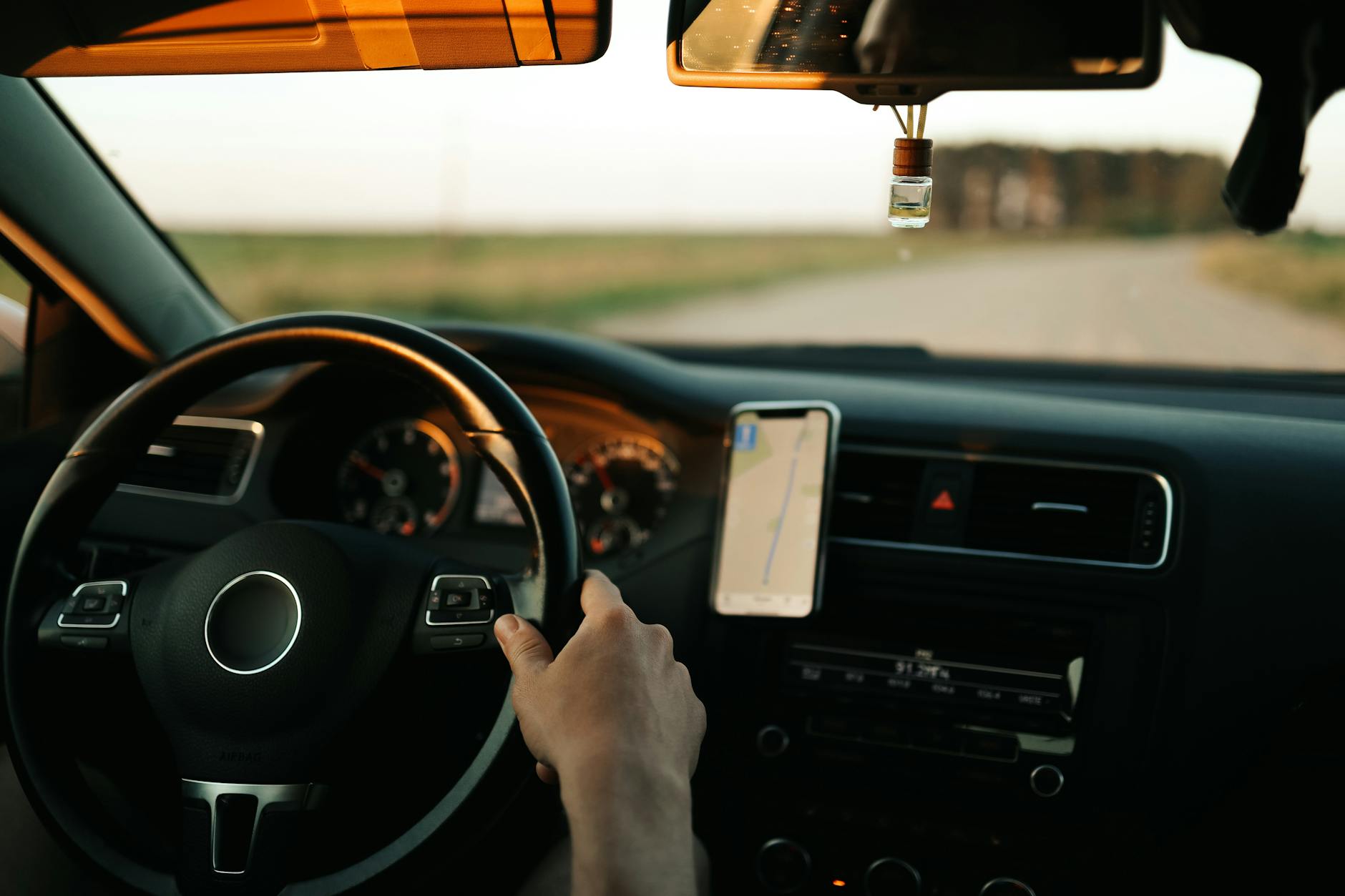
Photo by Maksim Goncharenok
Enable Voice Navigation and Silence Visuals
Start with voice commands to keep your eyes on the road. Most apps speak turn-by-turn directions by default, but tweak settings for louder audio and less screen glow.
Google Maps steps:
- Open the app and search for your spot.
- Tap Directions, then Start.
- Before you go, tap the blue speaker icon (it looks like a sound wave) to confirm voice plays. Go to profile icon > Settings > Navigation settings. Turn on “Play voice during calls” and select your Bluetooth device.
- Dim the screen: Swipe down from top, drag brightness slider to low. Or enable auto-dim in phone settings.
Picture the navigation screen: a glowing blue speaker button at bottom-right, map faded, and volume bar full. Voice says, “In 500 feet, turn left.”
Waze steps:
- Enter destination and hit Start.
- Tap the speaker icon or gear icon > Settings > Map display > turn off “Show speedometer” and visuals.
- Link Bluetooth: Settings > Sound & voice > select car speaker.
- Phone brightness down low keeps glare away.
Screen shows minimal icons, voice prominent: “Avoid jam ahead, take next exit.”
Apple Maps:
- Set route, tap Go.
- In settings (gear icon), choose “Spoken Directions” loud, connect AirPods or car system.
- Swipe up during nav to hide map partially; use Low Power Mode for dim screen.
Your smartphone stays quiet visually. Eyes stay forward. No more risky glances. These changes cut distractions fast. (198 words)
Use Offline Maps to Avoid Data Distractions
Offline maps load routes without cell signal hunts or ad pops. Download areas ahead, and your GPS runs smooth even in tunnels or remote spots.
Benefits: Skip data drops that force screen stares. No surprise banners interrupt voice flow. Saves battery too, as your smartphone skips constant online pings.
Android (Google Maps):
- Open app, tap profile > Offline maps.
- Select Your own map, zoom to area, tap Download.
- It saves routes for 30 days; renew as needed.
iOS (Apple Maps):
- Open Maps, tap profile icon.
- Go to Offline Maps > Download New Map.
- Pick city or region, confirm download over Wi-Fi.
Waze (both platforms):
- Menu > Settings > Map display > Download maps.
- Choose area; it preps traffic data too.
Store 5-10 GB worth before trips. Test playback: enter offline route, start nav. Voice guides without a hitch. Drive distraction-free. (152 words)
Set Up Your Phone and Car for Safe Mounting
Setting up your phone and car for hands free navigation is the foundation of safe driving. A stable mount keeps your device within easy reach but out of the driver’s line of sight, while a reliable Bluetooth connection ensures voice directions are clear and uninterrupted. Think of this setup as building a cockpit for safe navigation: everything you need is there, but only what you need at a glance. Below are two essential subsections to get you dialing in the right hardware and connection.
Choose a Stable Phone Mount That Stays Out of Reach
The right mount should hold your phone securely without obstructing your view or interfering with air vents, airbags, or windshield wipers. Start with a choice between suction mounts and magnetic mounts, weighing stability against flexibility. Suction mounts often deliver airtight adhesion to glass or a clean dash surface, while magnetic mounts provide quick access and easy repositioning. For safety, place the mount low on the dash or near the steering wheel’s 2 o’clock position so a quick glance won’t pull your eyes far from the road. Check that the mechanism resists vibrations on bumpy roads and can rotate or tilt to keep the screen and voice prompts at a comfortable angle. For more guidance, see Car and Driver’s comprehensive review of the best car phone mounts and their stability tests.
- Key tips:
- Position low and centered, never above the instrument cluster.
- Ensure the mount doesn’t block gauges, controls, or airbags.
- Prefer a mount that allows one-handed removal for quick, safe stowing at the end of trips.
- If you’re considering magnetic mounts, choose a strong, phone-rated magnet and a protective case to avoid camera or sensor interference.
Related reading: The best car phone mounts guidance from trusted sources helps you compare suction versus magnetic options and highlights placement strategies that minimize glare and distraction.
https://www.caranddriver.com/car-accessories/g45104251/best-car-phone-mounts/
Connect Bluetooth for Clear Voice Directions
Pairing should be a one-time setup that yields crisp, reliable audio every drive. Start by enabling Bluetooth on both your phone and the car system, then follow the on-screen prompts to pair. Test the connection before you drive: play a short navigation command and ensure the car speakers or the mounted device clearly convey the directions without distortion. If the voice is faint or cuts out, recheck the Bluetooth profile, make sure the volume is high enough, and confirm the correct output device in your settings. If needed, fall back to the phone’s own speaker temporarily to confirm the route is correct. After a successful test, disable visual notifications that pop up during rides to keep the screen from drawing attention away from the road.
- Quick pairing steps:
- On the car system, select Bluetooth and make the system discoverable.
- On the phone, open Bluetooth settings and choose the car from the list.
- In your navigation app, set audio to play through Bluetooth and adjust volume to a comfortable level.
- Do a quick drive test to confirm spoken directions are clear and timely.
- Pro tips:
- Use voice prompts louder than the ambient cabin noise.
- Keep a dedicated car profile or user interface language so the prompts stay consistent.
- If your car supports multiple Bluetooth outputs, select the car system as the primary audio device to avoid switching mid-journey.
For additional perspective on the best car phone mounts and the balance between stability and ease of use, consult The 5 Best Car Phone Mounts of 2025 from The New York Times Wirecutter.
https://www.nytimes.com/wirecutter/reviews/best-smartphone-car-mount/
Customize Settings to Block Phone Interruptions
When you’re using GPS hands-free, every notification can pull your eyes away from the road. The goal is to keep essential directions flowing without drowning you in alerts. With a few quick tweaks, you can silence distractions while still getting voice guidance and quick updates when needed. Think of it as setting up a cockpit that only shows you what you must see and hear. Below are two practical subsections to help you block interruptions effectively.
Turn On Do Not Disturb for Navigation Time
Turning on a focused Do Not Disturb (DND) or Driving Focus mode keeps your phone quiet while your car’s navigation speaks to you. The idea is simple: allow only the navigation app to ring or send alerts, and silence everything else. On iPhone, enable Driving Focus and customize which apps can break through. On Android, use Do Not Disturb or a Driving/Car mode that mirrors this approach. Set a schedule that aligns with your driving hours so you don’t forget to switch modes when you’re done. This setup keeps you in command of the road, not your notifications. For a guided setup, see Apple’s Driving Focus support to configure what stays quiet and what can alert you while you drive.
- iOS quick path: Settings > Focus > Driving > Add Apps (allow only nav apps) and turn on Auto-Reply to send status updates to contacts while you’re driving.
- Android quick path: Settings > Notifications > Do Not Disturb > Priority Only > Apps > add your navigation app, then toggle “All calls” or “Phone only” if you want a safety net.
Why it matters: a smartphone that stays quiet reduces reflexive glances at the screen. You keep your focus where it belongs, on the road and on voice cues from your GPS. If you’re coordinating with a passenger, you can still receive critical messages through a quick, pre-approved channel. For extra assurance, test the setup before a long trip to confirm only the navigation alerts break through.
For further reading on driving focused modes, see Apple’s Driving Focus support: https://support.apple.com/en-us/108384
Boost Audio and Reduce Screen Glare
Clear audio is the backbone of hands-free navigation. Prioritize louder, cleaner voice prompts and minimize screen brightness to cut glare. On iOS and Android, you can tune volume levels specifically for navigation, enable night or dark modes to keep the display easy on your eyes, and adjust equalization to improve voice clarity. A well-balanced EQ helps your GPS voice cut through cabin noise without blasting your ears. Pair this with a dimmed screen and your attention stays on the road.
- Audio adjustments: Increase navigation volume to a comfortable level above ambient car noise. If your system supports it, enable “Play voice during calls” so you hear directions even when the phone is connected to a car speaker.
- Visual adjustments: Use Night or Dark Mode where available. Dim the brightness or enable Auto-Brightness for predictable screen behavior on bright days and in tunnels.
- Practical tip: keep your smartphone within easy reach but out of the line of sight. A dim screen reduces eye strain, while steady voice prompts keep you informed.
Extra note: avoidance of bright visuals reduces the likelihood of your eyes drifting toward the screen during turns. With voices guiding you, your driving becomes more predictable and safer. If your car supports a dedicated Bluetooth audio profile, route navigation through that channel to ensure consistency across trips.
By configuring audio and display preferences, you create a calmer cockpit that prioritizes safety. This approach also helps you stay focused on driving rather than fiddling with settings mid journey.
Build Habits That Keep You Focused on the Road
Staying focused while using GPS on the road is less about tech and more about daily habits. Small, consistent actions add up to safer trips and less strain on your eyes and brain. In this section, you’ll learn practical routines that make hands-free navigation second nature, turning your phone into a reliable co-pilot rather than a constant distraction.
Plan Your Route Before You Leave
Preparation is the first line of defense against mid trip improvisation. Before you start the engine, enter your destinations and review alternatives. This reduces the urge to fiddle with the screen while driving. By locking in a route at home, you also set up voice prompts that guide you without peeking at maps.
Start by selecting your primary route and at least one backup in case traffic shifts. Check for tolls, construction, or school zones that might alter timing, and decide whether you want alternate routes offered by the app. If you share the trip with a passenger, confirm the stops and timing aloud so everyone agrees. Keep a quick note of the final route on your phone or a small printout in the glove box as a backup. This simple prep helps you stay focused when you’re behind the wheel.
For further guidance on choosing reliable navigation tools, see PCMag’s roundup of navigation apps to compare features side by side. https://www.pcmag.com/picks/the-best-navigation-apps
A well-prepared plan not only speeds you to your destination but also minimizes last minute adjustments. If you’re driving in unfamiliar territory, a quick review of the route on your phone at home prevents anxious fumbles on the highway. And when you know your path, the voice prompts become a steady rhythm rather than a distraction.
Master Voice Commands for Zero Touches
The goal is a smooth, hands-free workflow where most interactions happen through voice. Learning the core commands for rerouting, volume control, and audio output makes every trip safer and more predictable. Practice a short routine before you drive so you can rely on these prompts without looking away.
Start with the basics: tell your app where you want to go, ask for an alternate route if traffic looks heavy, and adjust the volume for cabin noise. Practice saving or selecting a preferred audio device, so directions flow through the car speakers or a connected headset. A consistent voice and audio level reduce stress and keep your eyes on the road.
To reinforce good habits, create a quick checklist you repeat before each trip. Example: confirm route, test voice playback, adjust brightness, and set Do Not Disturb or Driving Focus so distractions stay muted. If you need extra guidance on selecting mounts and car-ready setups, see The New York Times Wirecutter’s guide to the best car phone mounts and their stability tests. https://www.nytimes.com/wirecutter/reviews/best-smartphone-car-mount/
With regular practice, your phone becomes a trusted co-driver. You’ll hear clear guidance while your attention remains on driving, not the screen. A calm, predictable navigation experience reduces hesitation and keeps you moving safely.
Conclusion
Distraction-free GPS on your phone is about simple choices that keep you safer behind the wheel. Start by picking a voice-first navigation app, or set your preferred app to speak directions clearly and loudly. Consider offline maps to avoid data prompts that demand your eyes, especially on long trips. A stable phone mount and a reliable car Bluetooth setup finish the hardware side, so voice prompts feel natural and steady.
Block interruptions with Do Not Disturb or Driving Focus. Silence nonessential alerts while keeping navigation updates flowing. Tweak audio levels and screen brightness so voice guidance stands out and glare stays away. Build routines that you can repeat every trip, from pre-start route checks to a quick voice command drill.
Recap of key steps: choose a hands-free app, enable voice navigation, set up a stable mount and Bluetooth connection, optimize DND and audio, and plan routes before you drive. These moves reduce eye glances, cut stress, and make every drive safer.
Try one tip today to experience the difference. It could be dimming the screen and boosting navigation volume, or enabling Driving Focus before you start the car. Share your experiences in the comments and subscribe for more practical guides. Safe, easy tech use lets you navigate with confidence, not distraction.