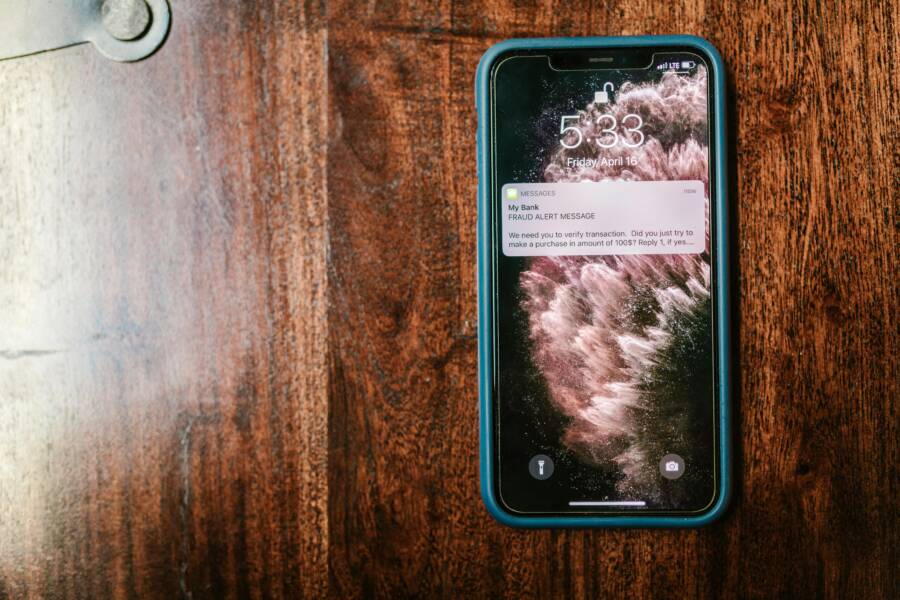
A suspicious login alert can feel alarming, but it’s also a chance to tighten your security. When you get a notice that someone signed in from a new device or location, you want a calm, practical plan rather than a panic response. This guide walks you through clear steps to verify what happened, secure your accounts, and prevent future problems. You’ll learn how to react quickly, check your devices, and put stronger protections in place.
Understanding what the alert is trying to tell you helps you decide your next move. Not every alert means a friend hacked in from a distant city. Some are misread notices, outdated data, or legitimate sign-ins you forgot about after a long trip. The goal is to confirm whether there’s a real risk and, if so, take smart actions that stop intruders and restore your control.
Understand what the alert means
Alerts come from different sources, and each one has clues you can use. A sign-in from a new device might show the device type, the city, and the time. An unfamiliar location can be a red flag especially if it coincides with a time you were nowhere near that place. Some apps send alerts only when there is a change in your security settings or when a new session begins in a different country. Pay attention to the details the notice includes.
Take note of three key questions. First, was the sign-in from a device you recognize, such as a personal phone or your laptop? Second, does the location match a time you actually traveled or used a VPN? Third, were any changes made to your account right after the alert, like a password reset or a new recovery option? If the answer to any of these is no, you probably have a issue that needs action.
Quick actions to secure the account
When a suspicious alert arrives, act quickly but don’t rush. The first moves matter most. Start with steps that stop any ongoing access and prevent new entries.
- Change your password now. Use a strong, unique password that you have not used before. A mix of letters, numbers and symbols creates a strong barrier. If you can, use a password manager to generate and store it securely.
- Enable two factor authentication (2FA) on the account. The most trusted option is an authenticator app (like Google Authenticator or Microsoft Authenticator) or a hardware key when supported. This adds a second layer that a thief cannot easily bypass.
- Review recovery options and contact methods. Update your backup email and phone number to ones you control. Remove old numbers or emails you no longer use.
- Sign out of all active sessions. This kicks anyone out who is logged in now. Then sign back in with your new credentials on a device you trust.
- Check recent activity and devices. Look for unfamiliar devices, apps, or locations. If you see something odd, remove the device or revoke access.
- Keep a record of what you did. Note the alert time, the actions you took, and any changes you made. This helps if you need to contact support later.
Inspect your devices and network
Your phone and the networks you use are part of the security chain. A compromised device or unsafe network can open doors to attackers even when you know your passwords.
- Update the operating system and apps. Security patches close gaps that criminals may try to exploit. Enable automatic updates if possible.
- Run a security check on your smartphone. Use the built-in security features, and consider a reputable security app to scan for malware or suspicious profiles.
- Review installed apps and permissions. Look for apps you don’t recognize or that ask for unusual access. Revoke permissions you don’t need and uninstall suspicious programs.
- Check SIM status and carrier protections. If you suspect SIM swap, contact your carrier right away and ask to add extra protections on your account. Verify that your SIM card hasn’t been replaced or cloned.
- Be careful on public Wi-Fi. If you must use public networks, enable VPN software and avoid logging into sensitive accounts on open networks.
- Look at login timing against your routine. If a sign-in happened in the middle of the night and you were asleep at home, that’s a reason to investigate further.
Audit connected services and apps
Accounts often stay linked to third party services or apps. A suspicious login might be a sign that one of those connections was exploited.
- Review active sessions across services. Most major accounts show all devices currently signed in. If you see a session you don’t recognize, end it.
- Check third party access and app permissions. Revoke access for apps that you rarely use or that you don’t recognize. Pay attention to apps that can read your emails, messages, or contacts.
- Inspect device permissions for each app. Some apps request more data than they need. Narrow permissions to what is essential.
- Update security questions and recovery notes. Use answers that are not easy to guess, and avoid sharing them on social media.
- Align passwords across services with care. Even if you reuse a password in some places, avoid doing so across critical accounts. A password manager helps you keep unique credentials for each service.
Platform specific checks you should know
Different platforms have their own guard rails. Being familiar with the most used services makes it easier to respond when a warning pops up.
Apple ID and iCloud
- Review trusted devices in your Apple ID settings. Remove devices you don’t recognize. If you see a device you don’t own, take action right away.
- Check two factor authentication status. If you rely on SMS codes only, upgrade to an authenticator app or a hardware key if available.
- Inspect account recovery options. Confirm the trusted email and phone number are correct and reachable.
- Look at security alerts and recent sign-ins. Apple emails may include details about the device model and location. If anything looks odd, change your password and reauthorize devices.
Google account
- Open the security page and review your devices. Remove any that aren’t you, especially if you don’t recognize the location.
- Ensure 2FA is enabled. Use an authenticator app or a physical security key for best protection.
- Check third party access and app passwords. Revoke access for apps you do not use, and delete old app passwords.
- Scan your recovery options. Verify that your recovery email and phone number are correct.
Other major services
- Carriers and banks warrant extra caution. If you see an alert tied to your mobile account or online banking, contact support promptly and follow their guidance.
- Social networks and work accounts also send alerts for new sign-ins. If you notice anything unfamiliar, secure the account by changing the password and enabling 2FA.
Preventive measures for the future
Stopping threats before they start saves time and reduces risk. A simple, steady routine keeps your phone accounts safer.
- Use a password manager. It makes it easy to keep strong, unique passwords for every service. This is foundational.
- Keep 2FA on across services. Prefer authenticator apps to SMS codes, and consider a hardware key where it’s supported.
- Lock your devices. A strong screen passcode or biometric lock is essential. Enable auto lock so the device isn’t left unlocked.
- Encrypt data on the device. Encryption protects your information if the phone is lost or stolen.
- Limit what apps can do. Grant only necessary permissions and review them periodically.
- Be careful with public Wi-Fi. If you must use it, avoid logging into sensitive accounts and rely on a VPN.
- Turn on account alerts where available. Many services offer security alerts for new sign-ins, password changes, or changes to recovery options.
- Regular security reviews. Set a reminder to review your accounts every few months. It’s easier than chasing problems after they appear.
When to contact support
Some situations require direct help from the service provider or the carrier. Don’t wait if you suspect a real breach.
- If you see signs of fraud, contact support immediately. Explain what happened, when you noticed it, and what you have done to secure the account.
- Call your carrier if you suspect a SIM swap or changes to your phone plan. Ask for extra protections and verification steps on your account.
- In cases of compromised banking or financial services, use the official channels to report the incident. Follow their steps to freeze or monitor accounts.
- Keep records. Save screenshots, dates, and times of alerts. Note who you spoke with and what actions you took.
A practical example to bring it together
You receive a login alert that says a device in a city you have never visited signed in at 2 a.m. You check the alert, confirm you were home, and your phone shows no new devices. You immediately change your password, enable 2FA with an authenticator app, sign out of all sessions, and review connected apps for unusual permissions. Later that day you notice a notification that a different email address was removed from your recovery options. You restore the recovery email, secure the account again, and monitor for any new activity. The path is clear: verify, secure, monitor, repeat.
A steady mindset for security
Security is not a one time action. It’s a habit you build around your smartphone and the services you use every day. Clear steps, taken promptly, reduce the risk of real harm. You protect personal information, keep access under your control, and make it harder for someone to slip in.
Conclusion
Suspicious login alerts are a wake up call, not a verdict. The right response is a calm sequence of checks and safeguards. Start by confirming the alert details, then secure passwords and enable robust 2FA. Check your devices and networks for signs of compromise, review connected services, and tighten permissions. If needed, reach out to support with a clear history of what happened and what you did to stop it.
By adopting these practices, you build a stronger shield around your phone accounts. Your future self will thank you for the time you invest today. Stay curious, stay cautious, and keep your digital life safe.