
Thousands of People Were Struggling With Money Until They Discovered This One Ancient Secret Hidden in Sound
>>> Unlock It Now <<<

Push notifications are a lifeline for staying in the loop. When Low Power Mode (LPM) kicks in on your smartphone, those alerts can slow to a crawl or stop altogether. LPM is meant to stretch battery life by limiting background work and network activity. That can hit notifications right where they hurt. This guide walks you through a practical, step by step plan to diagnose and fix the issue on both iPhone and Android. You’ll learn what LPM does, what settings to check, and the fixes that usually bring things back to normal.
If you want a quick visual to relate to, see this image below. It shows a phone with a low battery screen, a common scenario when LPM might be active.
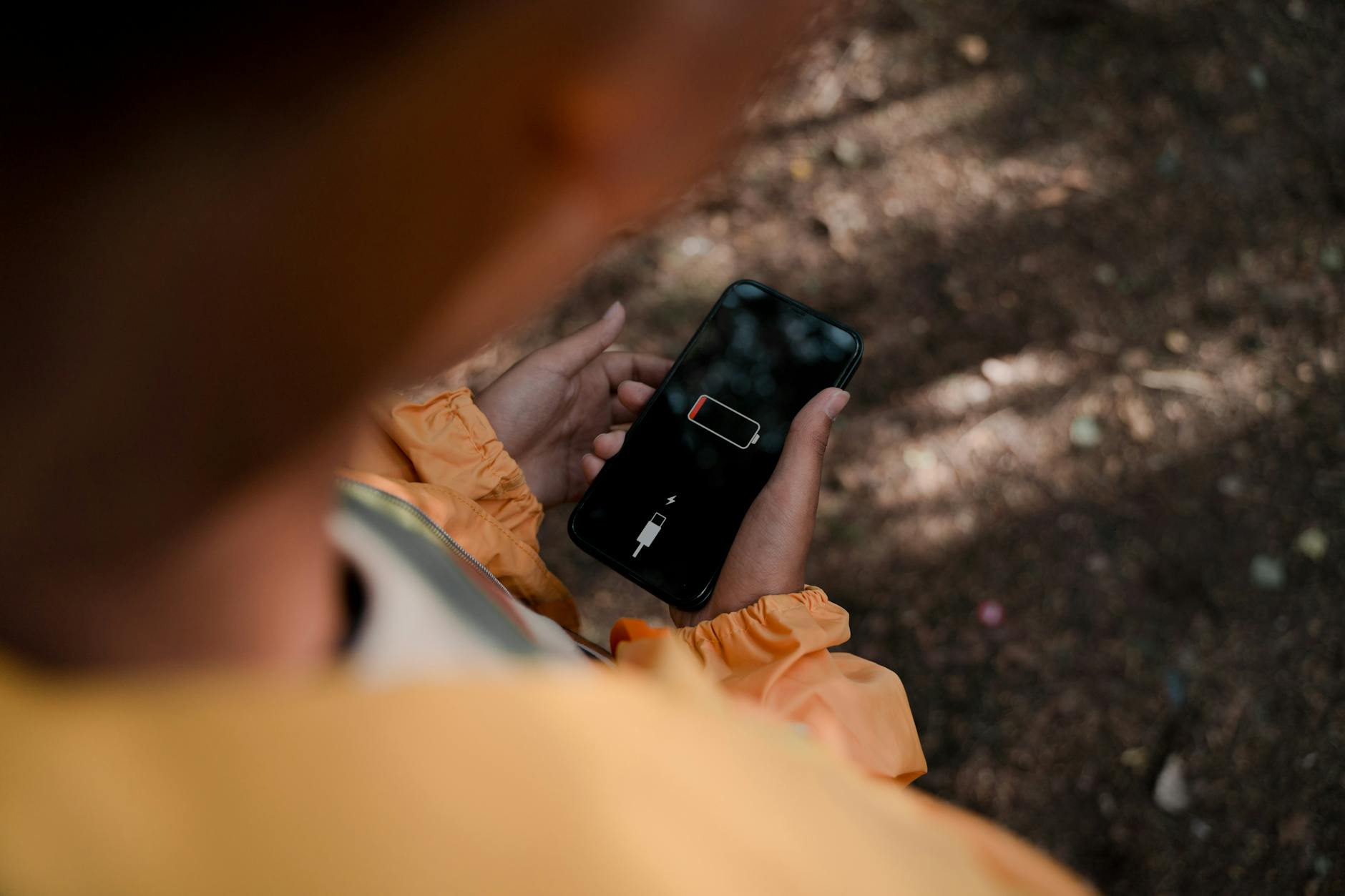
Photo by Ron Lach
What Low Power Mode Does to Push Notifications
There Is a Frequency That the Wealthiest Families Have Used for Generations and Most People Will Never Know It Exists
>>> Open the Door <<<

LPM changes how your phone runs in order to save juice. It is not a global ban on background tasks, but it limits how often those tasks wake up and how much data they can fetch. That means some apps may send alerts more slowly or only when you open them.
Two key ideas help explain what happens in practice.
How Low Power Mode Affects Background Tasks and Network Access
- Background refresh slows down. Apps get fewer chances to check for new data, so new messages and updates arrive later.
- Fetch intervals tighten. The regular rhythm devices use to check for updates is shortened or skipped, so you may not see a ping until you open the app.
- Network activity quiets down. Some apps pause background data use to extend battery life, which can delay notifications or block them temporarily.
If you notice delays, ask yourself whether LPM is on. A quick hint is that you’ll often see the problem only when the screen is off or the phone is idle.
LPM Differences Between iPhone and Android
- iPhone uses Focus modes to control how notifications arrive. If Focus or Do Not Disturb is active, alerts can be silenced or redirected.
- Android uses features like Doze and Adaptive Battery. Doze limits background activity when the device is idle, while Adaptive Battery prioritizes background work for frequently used apps. Both can slow or pause pushes if not configured correctly.
In short, LPM makes a trade-off: longer battery life at the cost of immediate notifications. The practical impact is that you might see delays, or some apps may not push until you open them.
Check Key Settings on iPhone and Android
To fix notification problems tied to Low Power Mode, you need to inspect both system settings and per‑app options. Start with the simplest checks and move to the more detailed ones.
iPhone Settings That Impact Push Notifications
- Turn off Low Power Mode when you need timely alerts. If you plan to keep LPM on, adjust other settings so critical apps can still alert you.
- Settings > Battery > Low Power Mode
- Review Focus modes. Focus can filter or mute notifications based on your activity.
- Settings > Focus
- Check each Focus profile, including Do Not Disturb, Personal, and Work. Ensure important apps are allowed.
- Check per‑app notification settings. Even if the system allows notifications, an app may be blocked at the app level.
- Settings > Notifications > [App]
- Confirm Allow Notifications is on and select alert styles that you want.
- Background App Refresh is limited in iOS when battery saver or Focus is active.
- Settings > General > Background App Refresh
- If it is off for an app, consider enabling it for essential apps.
- Confirm network access permissions. Some apps rely on network access in the background.
- Settings > Privacy & Security > Location Services or Cellular Data
- Ensure the app has permission to use cellular data when needed.
Android Settings That Impact Push Notifications
There Is a Frequency That the Wealthiest Families Have Used for Generations and Most People Will Never Know It Exists
>>> Open the Door <<<
- Battery optimization for apps can block background fetches.
- Settings > Apps & Notifications > [App] > Battery > Battery optimization
- Set to Not optimized for critical apps or look for a workaround in the app itself.
- Background data restrictions can stop alerts when data is off or restricted.
- Settings > Network & Internet > Data usage > Data saver
- Turn Data saver off for apps that need timely alerts, or add exceptions.
- Doze mode behavior can slow background tasks after periods of idle time.
- Settings > Battery > Doze or Adaptive battery
- Check which apps are whitelisted or blocked.
- Adaptive Battery is designed to limit what apps can do in the background.
- Settings > Battery > Adaptive Battery
- If an app you rely on is restricted, you may need to adjust its usage.
- Data Saver settings can affect background activity.
- Settings > Network & Internet > Data Saver
- Add important apps to the allowed list.
Practical Fixes to Restore Push Notifications
You’ll want a mix of quick wins and deeper checks. Try the simple steps first, then move to more thorough actions if needed.
Basic Steps to Reenable Notifications
- Turn off Low Power Mode. If you can live with higher battery use, this is the fastest fix.
- Disable Data Saver or battery optimization for key apps. This helps keep notifications flowing.
- Check that notifications are allowed in app settings. It’s easy for a toggle to get flipped.
- Restart the device. A fresh start can clear temporary glitches.
- Test with at least one app that reliably sends notifications. A quick ping helps confirm if the fix worked.
Advanced Fixes if Problems Persist
There Is a Frequency That the Wealthiest Families Have Used for Generations and Most People Will Never Know It Exists
>>> Open the Door <<<
- Update apps and the OS. Updates often fix background issues and improve compatibility with LPM.
- Sign out and back into accounts within apps that push data. A fresh connection can clear stuck sessions.
- Reinstall problem apps. This resets permissions and settings that may be out of whack.
- Clear cache where possible. Some apps store data that can block new notifications if corrupted.
- Reset network settings if needed. This helps when devices struggle with data flow.
- Recheck notification service status. Some services may be temporarily down; a quick status check can save time.
- Backup your data before resets. A safe plan keeps you from losing important info.
Test, Verify, and Seek Help
After you apply fixes, test thoroughly and know when to reach out for help. A structured test plan makes it easier to spot what works.
How to Test Notifications After Changes
- Trigger or send a test notification from multiple apps. Start with the most important ones you rely on daily.
- Wait a minute and observe. If the alert arrives, note the delay time for future reference.
- Test across different states. Check while the device is idle, screen on, and when in the background.
- Record results. Keep a simple log of what happened with each app.
When to Contact Support
- If notifications still fail after all fixes, you likely need help.
- An old OS version can cause compatibility issues with apps and services.
- Watch for unusual battery drain or rapid battery loss. That can indicate a background service is misbehaving.
To speed up help requests, prepare this information: device model, OS version, the apps involved, steps you tried, and any relevant screenshots or logs. Clear details help the support team diagnose faster.
Conclusion
Low Power Mode helps your phone last longer, but it can slow or block push notifications. Most issues fall into a small set of fixes you can perform without tools or deep tech knowledge. Start with the quick steps, then move to the more thorough checks if needed. With the right tweaks, your important alerts should arrive on time again.
Keep this guide handy for future reference and share it with friends who rely on timely notifications. And remember to keep your devices updated so you get the best balance of battery life and reliable alerts.
If you want more practical guides like this, you’ll find a steady stream of tips on iPro+ 知識酷.
Thousands of People Were Struggling With Money Until They Discovered This One Ancient Secret Hidden in Sound
>>> Unlock It Now <<<