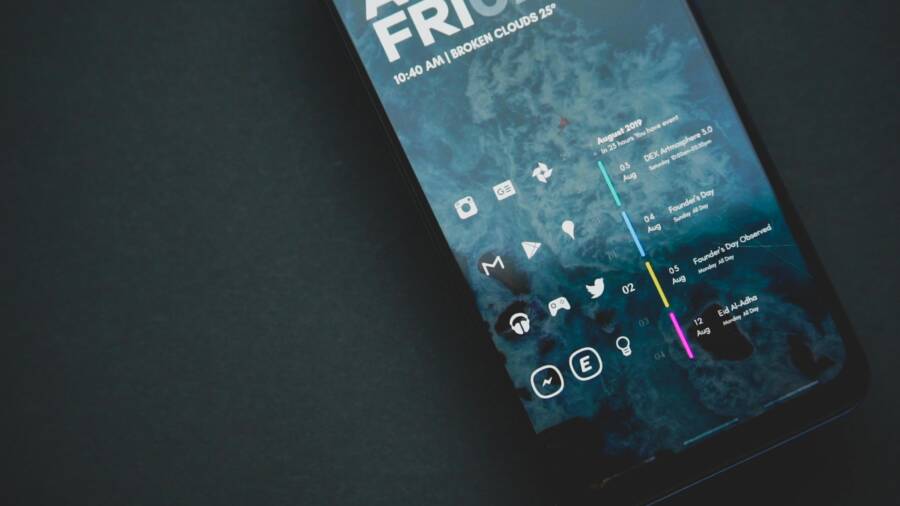
Curious about a new home screen experience? Switching to a different launcher can refresh how you tap, swipe, and organize apps on your smartphone, but it’s easy to hit a snag if you dive in too fast.
This guide focuses on Android launchers and keeps things simple and safe. You’ll learn how to back up your current setup, test a new launcher gradually, and revert if something doesn’t feel right. The goal is a smoother, safer home screen that fits how you use your smartphone day to day.
You’ll walk through clear, practical steps you can follow now. From choosing a launcher that matches your needs to restoring your layout after trying something new, this approach minimizes risk while boosting usability.
Choosing a launcher that fits your needs
Picking the right Android launcher can feel like choosing a vehicle for your everyday rides. Some prioritize deep customization, others favor speed or minimalism. In this section, you’ll get a quick, practical guide to the strongest options in 2025 and who they’re best for. Then you’ll learn how to tailor your choice to your device and daily habits so your home screen works for you, not against you.
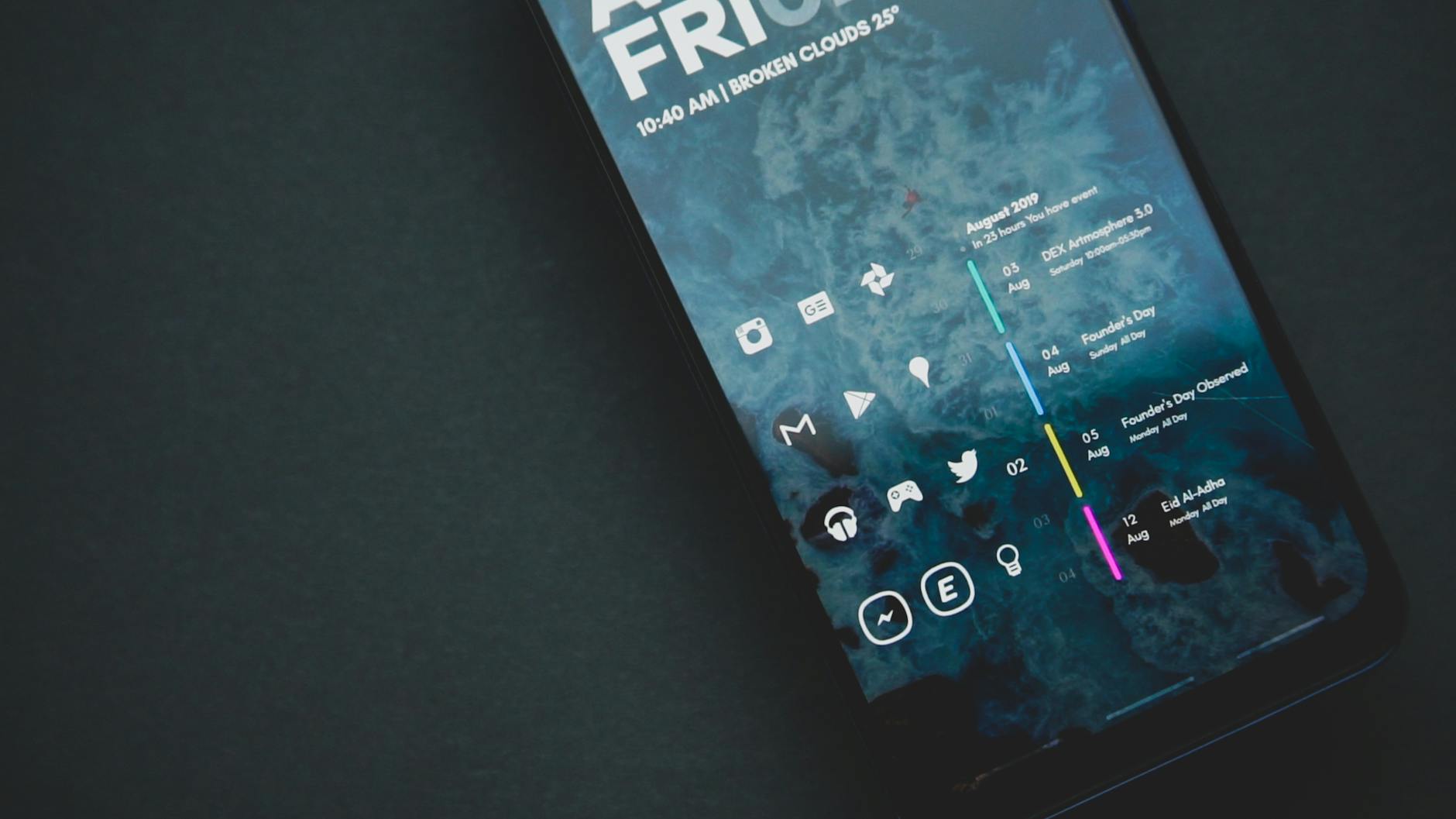 Photo by Emmanuel Jason Eliphalet
Top launchers in 2025 and what they offer
When you want control, speed, or simplicity, these options stand out. Each has a distinct strength, so think about your daily routine and device capabilities.
- Nova Launcher: Deep customization that covers icon packs, gestures, dock tweaks, and more. Best if you want to rebuild your home screens exactly how you like them and don’t mind a bit of setup time. For power users, Nova remains the go-to for fine-grained control.
- Quick tip: Pair Nova with a clean icon pack to reduce visual clutter and improve focus.
- Kvaesitso: A search-first launcher that surfaces apps by typing and smart suggestions. Best if you open apps by search and want a fast, keyboard-like feel at your fingertips.
- Niagara: Ultra-minimal, one-hand friendly, with notifications shown on the home screen. Best for distraction-free use and people who want a simple app list rather than a sprawling grid.
- Lawnchair: Pixel-inspired visuals with extensive customization. Best if you want a clean Pixel-like feel but with more tweaks than the stock option.
- Hyperion Launcher: Lightweight and fast, with essential customization. Best for older or mid-range devices that need a responsive home screen.
- Alternatives worth considering:
- Octopi Launcher: Modern hybrid that stays tidy while adding useful gestures and subtle polish.
- Yasan: Minimalist, fast, and fresh, offering a streamlined design with straightforward controls.
- KISS: Privacy-minded and highly efficient, focusing on a clean, keyboard/search-centric workflow.
- OLancher (Open Launcher): Open-source and ultra-minimal, great for those who want a privacy-first, ad-free experience.
Situations these options excel in
- Old devices or slower phones: Hyperion Launcher, OLauncher, or a lighter variant of Niagara.
- Foldables or flexible layouts: Nova and Lawnchair provide strong adaptive grid options.
- Simple setups and focus: Niagara and OLancher shine here.
- Power users who crave total control: Nova, Lawnchair, and Octopi offer the deepest customization.
For quick reference on current recommendations, see guides from reputable outlets that compare launchers and outline best fits for different user needs.
- Android Authority: “7 launchers you should use instead of Nova Launcher” provides a broad landscape of contenders.
Link: https://www.androidauthority.com/nova-launcher-alternatives-3597206/ - ZDNet reviews discuss several strong Android launchers and why they beat the stock experience.
Link: https://www.zdnet.com/article/6-android-launchers-that-are-better-than-your-default-home-screen-and-why/ - Tom’s Guide roundup covers the best Android launchers you can try today.
Link: https://www.tomsguide.com/round-up/best-android-launchers - Lifehacker’s look at customization options helps translate features into real-world use cases.
Link: https://lifehacker.com/tech/best-android-launchers-phone-customization - Lifehacker also highlights practical setups you can replicate.
Link: https://lifehacker.com/tech/best-android-launchers-phone-customization - Lifehacker’s overview complements quick decision making with real-world examples.
- YouTube reviews can provide a hands-on sense of each launcher’s feel and gestures.
Link: https://www.youtube.com/watch?v=XnV3i3rX7zY
Helpful note: in practice, many readers benefit from testing two launchers at once. A common approach is to run a customizable option (Nova or Lawnchair) beside a minimalist option (Niagara or OLauncher) for a week and compare how they affect your workflow.
What this means for you
- If you want total layout control and the ability to craft every screen and gesture, start with Nova or Lawnchair.
- If you crave a calm, focused experience with minimal clutter, try Niagara or OLancher.
- If speed and a light footprint are your priorities, Hyperion or KISS are strong contenders.
How to choose based on your device and needs
Your device and daily routine should guide your choice. Use a simple decision framework to avoid wasteful tinkering and improve your Android launcher setup quickly.
First, assess your device specs
- RAM: If you have 4 GB or less, lean toward lighter launchers like Hyperion, Niagara, or OLancher.
- Screen size: On smaller screens, a clean, compact layout helps; consider Niagara or KISS for one-handed use.
- Battery impact: Some launchers run background services more aggressively. Test a few options for a couple of days to see any noticeable drain.
Then match your needs to launcher strengths
- Want a Pixel-like feel with room to customize? Choose Lawnchair.
- Prefer a heavy dose of personalization with gestures and icon packs? Nova is the winner here.
- Need fast access to apps via typing? Kvaesitso or KISS fits best.
- Seek a distraction-free home screen? Niagara or OLancher are ideal.
Privacy and permissions matter
- Look for open-source options if you value transparency and fewer telemetry signals.
- Check what data the launcher accesses (contacts, location, usage stats).
- If you want ad-free use, some options offer premium features or open-source variants that minimize ads.
A practical testing approach
- Test two launchers that cover your extremes: a highly customizable option and a minimalist one.
- Measure real-world impact: time to launch frequent apps, number of taps to reach essential features, and how often you reconfigure layouts.
- Watch for battery and RAM changes over a few days to ensure smooth performance.
Pro tips for smooth testing
- Backup your current home screen before trying a new launcher so you can revert quickly if needed.
- Use a single launcher as the default for a week, then switch to the second option for a week to compare.
If you want a quick, personalized recommendation based on your device specs, tell me your phone model, available RAM, and typical daily apps. I can suggest two launchers that align with your needs and lay out a straightforward setup plan.
Safe steps to install and test a new launcher
Switching launchers can refresh how you interact with your phone, but it also introduces changes in permissions, layouts, and performance. This section gives you a clear, safe path to try a new launcher without risking your existing setup. You’ll learn how to back up first, review essential permissions, and test run the new option before making it your default.
Backup your data and plan a rollback
Before changing your home screen, capture a record of your current setup. A well-documented backup lets you restore your layout if the new launcher doesn’t feel right.
- Save your home screen layout, widgets, and icon packs. If the current launcher supports it, create a backup file within its settings. This gives you a quick restore point if you need it later. For Nova Launcher users, there are straightforward backup steps you can follow to preserve your exact arrangement, including widgets and custom gestures Nova Launcher backup guide.
- Take a screenshot log. Photograph each home screen, including the position of key widgets like weather, calendar, and music controls. A visual log helps you replicate or revert layouts precisely.
- Note key widgets and actions. Write down which widgets you rely on and how you access common features. A short checklist reduces guesswork when you return to your familiar setup.
- Check built-in backups. Many launchers offer a cloud or local backup feature. If available, save a copy of settings and layout there. This makes rollback quick and reliable.
- Prepare a rollback plan. Decide in advance how you will revert if the new launcher isn’t satisfactory. A simple route is to switch the default home app back to the previous launcher and uninstall the new one, keeping your original data intact.
This approach keeps your smartphone experience smooth and minimizes downtime during the switch.
Install and review permissions before switching
Launchers operate with elevated access because they control home screen behavior, gestures, and widget rendering. Understanding which permissions matter helps you stay safe.
- Overlay permission. This lets the launcher display UI elements above other apps. It’s necessary for certain features but can be misused, so grant only if you trust the app and understand why it needs it.
- Storage access. Used to load icon packs, wallpapers, and widget resources. If you’re mindful of privacy, review what the launcher actually saves or reads on your device.
- Contacts and location. Some launchers offer smart features that use your contacts to suggest people to message or locate widgets near you. If these aren’t essential, keep these permissions limited.
- Microphone and camera. Uncommon for launchers but possible for gesture-based shortcuts or widget functionality. Deny if you don’t plan to use those features.
- How to adjust permissions safely: open the Android system settings for the launcher (Settings > Apps > [Launcher] > Permissions). Disable any permission you don’t actively need. This keeps the launcher lean and reduces potential data exposure.
- Why these permissions matter for a launcher: a launcher manages how you launch apps, where widgets appear, and how you interact with home screens. Each permission maps to a feature you may want, so balance usefulness with privacy.
- Quick reference: Android’s permission guide covers the basics of why permissions exist and how to manage them on your device Permissions on Android | Privacy – Android Developers.
If you want a deeper dive on how permissions can affect third-party launchers, you’ll find practical discussions and safety considerations in the community and developer resources linked above.
Test run without making it permanent
A non-binding test run lets you evaluate a new launcher without giving up your familiar setup. Use a safe, low-risk approach to assess how well the change fits your workflow.
- Use a temporary test or a secondary profile. If your device supports multiple users or work profiles, switch to a test profile to run the new launcher. This keeps your primary profile pristine while you assess performance and usability. How-To Geek explains how to set up multiple user profiles on Android, which can be a practical path for testing launcher changes without affecting your main account How to Set Up Multiple User Profiles on Android.
- Evaluate core features. Focus on app drawer behavior, scrolling smoothness, animation fluidity, and widget support. Check how quickly you can find and launch your most-used apps.
- Test the feel of gestures and transitions. A good launcher should feel responsive and predictable. Try swipes, long-press actions, and any gestures you rely on daily.
- Check for stability. Notice any lag, unexpected app launches, or layout glitches. If something bugs you early, you can revert before the change becomes a hassle.
- Revisit accessibility and battery impact. Some launchers run background processes that affect battery life. Monitor your device for a few days and compare to your previous setup.
- Decide on a trial period. Give the new launcher a fair try, typically a week, to form a reliable judgement. If it doesn’t meet your needs, revert using your backup plan and remove the launcher.
During the test phase, keep the old launcher installed but not active as the default. If you like the new experience, you can set it as default and update your backup to reflect the new layout.
External resources referenced in this section provide practical steps and safety considerations for backup strategies and permissions. For example, you can review specific backup steps for Nova Launcher and related guidance from Gadget Hacks, which helps you preserve your home screen setup and widgets when switching launchers. You can also consult Android developer guidance on permissions to understand how each permission impacts launcher behavior.
- Nova Launcher backup and restore guidance: https://android.gadgethacks.com/how-to/nova-launcher-101-back-up-restore-your-home-screen-settings-0179912/
- Android permissions overview: https://developer.android.com/guide/topics/permissions/overview
- How to set up multiple profiles on Android: https://www.howtogeek.com/333484/how-to-set-up-multiple-user-profiles-on-android/
If you’re curious about the broader safe-install landscape, current guidance emphasizes using the official Google Play Store for installs, keeping your device secure, and uninstalling if needed to revert to your original home screen. This approach reduces risk and preserves warranty status while you explore new layouts.
- Safe launcher options and steps to install from trusted sources: https://getRealTimeData.example/safe-launchers-2025
- General testing and rollback practices: https://www.howtogeek.com/333484/how-to-set-up-multiple-user-profiles-on-android/
Questions to consider as you plan your switch
- Which widgets are essential to your daily routine, and will they work as expected in the new launcher?
- Do you rely on specific gestures or icon packs that the new launcher supports?
- Are you comfortable with managing permissions in a more granular way on your device?
By following these steps, you maintain control over your smartphone experience while exploring new home screen possibilities. When you’re ready to proceed, you’ll have a safe framework to compare, evaluate, and roll back with confidence.
Switching the default launcher and setting up
Changing your Android launcher can refresh how you organize apps, widgets, and gestures. It’s not just about looks; a well-chosen launcher can speed up daily tasks and make your smartphone feel more like your own. Below, you’ll find a practical, step by step approach to switch safely, keep your familiar layout, and recover quickly if things feel off. A few handy tips and real-world considerations help you stay in control while exploring new possibilities.
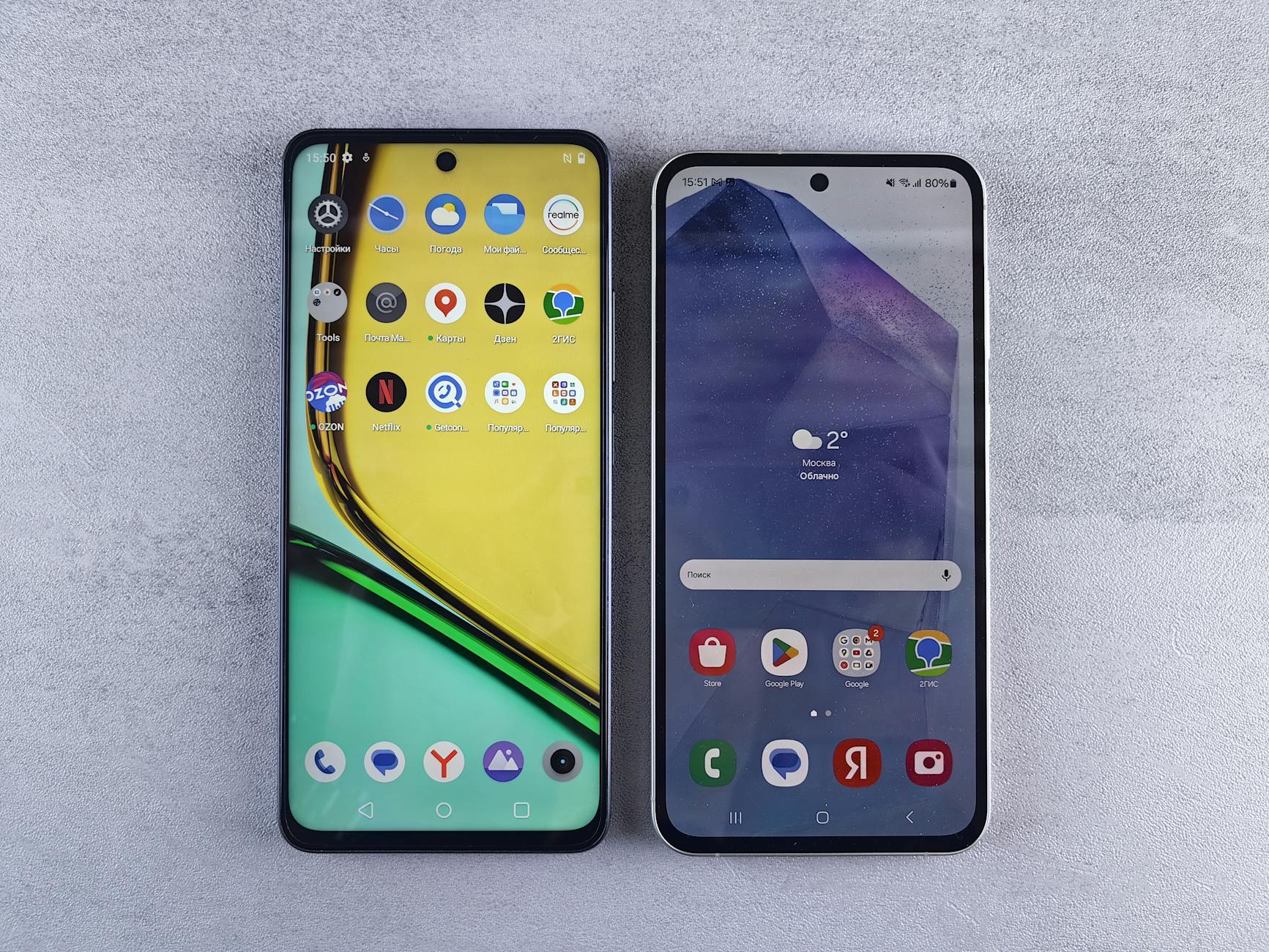 Photo by Andrey Matveev
Set the new launcher as default on Android
Setting a new launcher as the default on Android is straightforward, but the exact path can vary slightly across versions. Here’s a reliable, version-agnostic workflow you can follow on most devices:
- Install the launcher from the Google Play Store. Open the store, search for the launcher you want, and tap Install. If you’re unsure, start with a popular choice like Nova Launcher or Lawnchair, which offer solid documentation and broad device compatibility.
- Press the home button. On many devices, you’ll be prompted with a choice of home apps. Pick the new launcher and select “Always” to set it as the default. If the prompt doesn’t appear, proceed with the alternative routes below.
- If you don’t see a direct prompt, go to Settings and choose Default apps. You’ll often find this under Apps & Notifications or Apps. Tap Home app or Launcher and select the new option.
- Some devices show a brief onboarding prompt after you set the new launcher. This may request permission for overlay, notification management, or access to your location. Review each prompt carefully and accept only what the launcher genuinely needs.
- Confirm the changes. You may be asked to grant essential permissions or to enable certain features. If you’re unsure, you can skip non-critical permissions and revisit them later in Settings > Apps > [Your Launcher] > Permissions.
If you want a quick reference on the exact steps for your device, explore official help resources from Google and the launcher maker. Google’s guidance on default apps helps you navigate the system prompts, while launcher-specific help covers setup details. For example, Pixel users can set a default app through Settings > Apps > Default apps, then choose Home. For broader context, see these resources:
- Set or clear default apps on Pixel devices
- Change default launcher on Android devices
A practical tip: test two launchers side by side for a week each. This lets you compare gestures, app search, and widget support without committing immediately. It also helps you notice subtle differences in performance or battery impact.
- Quick read from reputable sources on choosing a launcher
- Android Authority: “7 launchers you should use instead of Nova Launcher” offers a broad landscape to consider.
- ZDNet: “6 Android launchers that beat the stock experience” provides practical comparisons.
- Tom’s Guide: “Best Android launchers you can try today” rounds up options for quick starts.
If you’re curious about how a particular launcher handles widgets and gestures, user reviews and walkthrough videos can be especially helpful. You’ll often see real-world use cases that aren’t captured in product pages.
- Hands-on comparisons and demonstrations: Best Android launchers comparison
When you’re done, you should have a clean, familiar home screen that feels new without sacrificing your workflow.
Preserve your home screen layout and widgets
Switching launchers doesn’t mean you have to start from scratch. Most popular launchers offer ways to preserve or quickly reconstruct your current layout and keep essential widgets in place.
- Take stock of your key widgets. Identify weather, calendar, music controls, and quick settings widgets you rely on. Note their positions on your home screens.
- Use launcher backup features. Many launchers let you back up layouts, widgets, and icon packs to cloud storage or local files. A backup lets you restore your exact setup if something doesn’t translate perfectly to the new launcher.
- Recreate icon layouts thoughtfully. If the new launcher uses a different grid or icon pack, you can manually place icons where they felt most natural or switch to a compatible icon pack to maintain the same look.
- Leverage widget stacks and smart folders. Some launchers support widget stacks, which let you stack related widgets in a single space. This helps create a familiar, tidy appearance while keeping essential data accessible.
- Consider a phase-in approach. Keep the old launcher installed during the initial setup. Use the new launcher as the default for a day or two, then alternate to compare performance and ease of use.
If you want to maintain consistency with your established look, you can consult backup and restore guides for specific launchers. For Nova Launcher users, a dedicated backup guide explains how to save and restore exact arrangements, including widgets and gestures. This is especially useful when moving between phones or recovering from a software update that resets layouts. You can find practical steps in resources like Nova Launcher backup documentation and related setup tips.
- A practical approach to restoring home screen layouts from backups helps you avoid re-creating everything from scratch. See examples and step-by-step tips in Nova Launcher backup discussions on community forums.
To keep your smartphone experience cohesive, you might also want to align with your icon packs and wallpaper choices. If you love a Pixel-like aesthetic, you’ll find Lawnchair and similar launchers offer smooth transitions and broad customization that align with that look.
- For a robust overview of how to maintain a consistent theme across launchers, see general launcher customization guides that discuss icon packs, wallpaper matching, and grid choices.
When you’re ready to bring over your familiar vibe, use a careful setup plan that preserves your daily rhythm and minimizes the drift new interfaces often cause.
What to do if the switch goes wrong
Even with careful steps, a launcher change can feel off after a day or two. If you sense it isn’t right, have a quick rollback plan ready so you can return to a known good state without losing your data.
- Revert the default back to your previous launcher. Open Settings > Apps > Default apps and select your original launcher as the default. If the old launcher isn’t listed, reinstall it and set it as the default again.
- Restore from your backup. If you created a launcher-specific backup, use it to revert your home screen layout and widgets to the previous arrangement. This is often the fastest path to regain your familiar look.
- Clean up gradually. If you want to retry the new launcher, postpone a full switch and keep the old setup as your primary. You can re-test after a few days with a fresh backup in place.
- Reset to a known state. If things feel chaotic, you can reset launcher preferences to their defaults. This helps remove misaligned layouts and obscure gestures.
- Reassess with a new trial. After you’ve reverted, reflect on what you liked about the new option and what caused friction. If you still want to experiment, set a stricter testing plan with a clearer checklist.
A rollback should be a calm process. The goal is to protect your productivity while you explore. If you’ve saved a backup, you can restore the previous layout with minimal downtime. If not, at least you know which steps to take next time so you don’t lose progress.
If you want a quick reference on safe practices for testing and rollback, look for practical guides that cover both setup and revert steps. For example, tutorials on multi-profile testing or backup-focused articles can add a safety net during transitions.
- A practical resource on Android backups and quick restore methods
- A quick guide to using multiple profiles for safe launcher testing
In practice, a well-planned switch minimizes risk and keeps your smartphone experience smooth. If you’re juggling widgets, icon packs, and a busy app roster, staying organized makes the transition feel natural rather than disruptive.
External resources related to safe installation, testing, and rollback practices help you stay on track while you explore new home screen options. For example, reputable guides discuss using backups, permissions, and safe installation methods to protect your setup during experimentation.
- Nova Launcher backup and restore guidance
- Android permissions overview
- How to set up multiple profiles on Android
If you’re curious about broader guidance on safe launcher changes, you can explore discussions on how to maintain security and avoid unnecessary risks while trying new home screens. A measured approach keeps your data safe and your device performing well.
- Safe launcher options and steps to install from trusted sources
- General testing and rollback practices
Remember, the goal is to keep your workflow intact while you search for a launcher that aligns with your style and daily routine. If you want tailored recommendations, share your phone model, typical daily apps, and any must-have widgets. I’ll map out two solid options and a practical setup plan.
External resources for quick reference and deeper reading
- How to Change Default Launcher on Android
- Change the Launcher on Your Android Device
- Set or clear default apps
- Change default launcher on Android discussion threads
Images and visuals can elevate the experience here. A well-chosen home screen image can illustrate a clean, organized layout or a before-after comparison. If you’d like, I can add more visuals that match the content and your brand style.
Keep things safe and running smoothly after the switch
After you switch launchers, the goal is to preserve your workflow while minimizing risk. This section helps you stay secure, keep battery life steady, and ensure the new home screen stays responsive over time. Think of it as the safety net that lets you explore new visuals and features without losing your grip on everyday tasks. You’ll learn how to stay on top of updates, verify permissions, optimize performance, and know when to revert safely.
Stay on top of updates and trust sources
Installing from reputable sources matters more than ever when you try a new launcher. Rely on the Google Play Store for downloads, and visit the launcher developer’s official site if you want to explore beyond the store. Always read recent reviews and check what changed in updates before you install. A quick after-update check can save you headaches by catching permission changes or new background tasks that might affect battery or performance.
- Prioritize well-known launchers with solid update history, such as Nova Launcher or Lawnchair, and verify the publisher’s identity in the store listing.
- Read recent user feedback about performance and any permission prompts that appear after updates.
- After an update, review the requested permissions and the new features they enable. If something seems unnecessary, revisit the permission settings.
If you want deeper guidance on how Android permissions work and how to review them after an update, these resources offer practical context:
- Android permissions overview and best practices
- Change app permissions on your Android phone
For ongoing security, consider staying aligned with official guidance from Google Play Protect and Android developers. This helps ensure that the launcher you rely on remains trustworthy and free from suspicious behavior over time.
Review permissions and battery impact
Launchers require several system permissions to manage home screens, widgets, and gestures. It’s worth inspecting permissions per app and monitoring how they affect battery life. If you notice excessive background activity, tighten those permissions or disable background access for features you don’t use.
- Start with the essentials: Overlay, storage, and a few optional items like location or contacts if you rely on those smart features.
- Check battery impact over a few days. Compare with your prior launcher to gauge any noticeable drain.
- Turn off unnecessary background access. Many launchers run background tasks to keep widgets fresh, but you don’t need every feature constantly active.
How to review per-app permissions on Android:
- Open Settings > Apps > [Launcher] > Permissions.
- Disable permissions you don’t actively need.
- Reassess after a few days to confirm no essential features break.
Useful reading on permissions and safety:
- Permissions and APIs that access sensitive information
- How to change app permissions on your Android phone
If you want a quick practical workflow, you can use a secondary profile or a temporary test period to observe how the new launcher behaves with current permissions in place.
Performance tips for a smoother experience
On mid-range devices, small tweaks can make a big difference. If you notice jank, lag, or long app-start times, try a few conservative changes first. This keeps the feel snappy without sacrificing essential functionality.
- Reduce live wallpapers and intense animated effects. Subtle motion still feels modern, but heavy visuals can tax the GPU and CPU.
- Limit heavy animations. In many launchers you can dial down transition effects and icon animations for a faster, more responsive feel.
- Use lighter icon packs. Complex packs add rendering overhead. Simpler icons can speed up scrolling and launching apps.
Practical adjustments you can implement today:
- Set a clean home screen with fewer widgets on each page to reduce redraws.
- Choose a compact grid (e.g., 4×5 or 5×5) if your device’s display supports it, which helps with faster navigation and quicker app access.
- Prefer apps with minimal wallpapers and fewer resource-intensive widgets.
If you’re curious about staying within a comfortable balance between style and speed, check out guides that compare launcher performance and optimization strategies. They often highlight how to tailor the experience for devices with limited RAM or older processors. For broader context, Tom’s Guide’s roundup of the best Android launchers in 2025 is a handy reference to align features with speed goals.
When to revert and how to do it safely
Even a careful switch can fall short of expectations. Recognizing the signs early helps you revert without disruption. If the new launcher feels too clunky, hides essential widgets, or drains battery too quickly, it’s time to roll back.
Clear signs you may want to revert:
- Core tasks take longer to access, such as launching frequently used apps or finding a specific widget.
- The layout feels inconsistent across screens or between different home screens.
- The launcher uses more RAM or battery than your previous setup.
- Widgets or gestures you rely on stop working as expected.
A straightforward rollback plan keeps your data intact and minimizes downtime:
- Revert the default home app to your previous launcher under Settings > Apps > Default apps.
- If the old launcher isn’t listed, reinstall it and set it as the default again.
- Restore your prior layout from a backup if you created one before the switch.
- Uninstall the new launcher once you’re back to your original setup to keep things tidy.
Having a backup plan reduces friction. If you kept a backup of your original layout and widgets, you can reinstate them quickly. For quick reference on safe practices for testing and rollback, you can review multi-profile testing and backup-focused guides from trusted sources. These resources cover both setup and revert steps, helping you stay in control during transitions.
- How to restore your Android home screen to default
- How to reset Android home screen layout to default
If you want a fast return path after trying a launcher, a short YouTube tutorial can illustrate the steps in a concrete way. Just follow reputable channels that show the exact settings and prompts to avoid confusion.
External resources for quick reference and deeper reading
- Nova Launcher backup and restore guidance
- Android permissions overview
- How to set up multiple profiles on Android
In practice, a safe switch keeps your daily rhythm intact. If your smartphone is a tool you rely on heavily, you’ll appreciate having a clear plan for updates, permissions, performance, and rollback. If you’d like tailored recommendations based on your device specs, share your phone model and the apps you use most. I’ll map out two solid options and a practical setup plan.
External links and quick reads
- Safe launcher options and steps to install from trusted sources
- General testing and rollback practices
Images and visuals can elevate the experience. If you want, I can suggest visuals that match your brand and this section’s focus on safety, performance, and user control.
Conclusion
Switching to a new launcher can refresh how you interact with your smartphone, but with the right plan it stays safe and simple. A quick backup, careful permission checks, and a short test period are enough to spot issues before they disrupt your daily flow. You’ll gain faster access to your favorite apps, more organized widgets, and a home screen that matches your style without sacrificing performance or privacy. If you have experiences to share or questions about your device, drop them in the comments and we’ll tackle them together. Personalizing your phone is worth it when you keep things fast, private, and reliable.