She Pressed Play on a Strange Audio Track and Within Days Her Financial Reality Started Shifting in Ways She Could Not Explain
>>> See How It Works <<<

Are you tired of your smartphone quietly logging every move you make? This guide shows you how to curb location tracking without losing the benefits of your device. You’ll learn quick, actionable steps to limit who sees your location, why it matters, and how to protect your privacy in everyday use.
How location tracking works on modern smartphones
Smartphones constantly process signals to determine where you are. This section breaks down the core technologies behind location estimation, so you can see what data is being used and how it comes together. The goal is to give you a clear picture of how location becomes available to apps, services, and the cloud, so you can make informed privacy choices.
What technologies reveal your location
Smartphones use a combination of signals to pinpoint your position, and each method comes with its own strengths and caveats.
- GPS satellites provide the most accurate location outdoors. A phone orients itself to several satellites in orbit and calculates your latitude and longitude by timing signals. Think of it like triangulating your position with a high-precision beacon in the sky.
- Wi Fi network signals help indoors where GPS signals are weak. By comparing the signals from nearby access points to a vast database, your phone can estimate location based on known hotspots. This method is faster than waiting for satellites and often improves accuracy in crowded indoor spaces.
- Bluetooth beacons are tiny transmitters that broadcast identifiers. In venues like stores or airports, your phone can measure proximity to these beacons to determine a rough spot or to trigger context-specific actions, such as notifications or in-store directions.
- Cell tower triangulation uses signals from multiple cellular towers to estimate position. Even when GPS is unavailable, the network can provide a coarse location based on how strong the signals are from nearby towers.
- IP address estimation looks at where your device appears on the internet. When apps or websites fetch data from servers, the server can infer a broad region from your IP address, which is useful for content localization but less precise than GPS or Wi Fi.
In practice, these methods work together. A modern phone often runs aGPS (assisted GPS), which combines satellite data with cellular and Wi Fi information to deliver faster and more reliable location results. This collaboration makes location feel seamless, but it also means multiple data sources are contributing to a single location estimate.
What If the Only Thing Between You and the Life You Deserve Is a Hidden Wealth Code Waiting to Be Activated
>>> Open the Door <<<

Further reading on how location data is gathered
Photo by Eric Sanman
Why this is a privacy issue for everyday users
Location data can reveal a lot about you beyond your current spot. When a phone shares this data with apps, advertisers, and cloud services, it becomes part of a much larger trail.
- Advertisers and data brokers can build a detailed map of your daily moves. That information helps tailor ads and can influence what products you see, when you see them, and how often you are targeted. Some data brokers aggregate location data from many apps and devices, creating a comprehensive view of your routine.
- Apps may request or use location you did not intend to share. A game may ask for location for a few features, but a second app might track you more aggressively. Even when you stop actively using an app, background location requests can keep running.
- Cloud sync of location history means your past movements can be stored, searched, and cross-referenced across devices. A single location history can reveal patterns about where you live, work, and spend your time.
To keep it concrete, imagine you go to a gym every morning, then a cafe, then a yoga class. If several apps record your movements and share them with advertisers or data brokers, you could start seeing targeted promotions for those exact spots at times you’re there. More troubling, this data could be used for more than ads, such as analyzing your routine for marketing or even access to sensitive information about your life.
More on location data and consumer privacy
Where you might be tracked without knowing
The tracking happens even when you think you’ve turned things off. Here are common backdrops where location data quietly flows.
- Background location requests are a frequent culprit. Apps may keep location access on in the background to deliver features like real-time updates, offline maps, or location-based reminders. You might not be actively using the app, but it still checks in.
- Find My and Google account syncing can push location history to the cloud. When you sign in to services across devices, your location history can be stored and accessible from other platforms.
- Some apps track even when not in use. A single permission can enable ongoing data collection, even if you open the app only briefly. This is why locating settings and permissions regularly is essential.
Regularly review permissions and opt for the most restrictive settings that still support your needed features. For many people, turning off background location for non-essential apps and disabling location history can substantially reduce passive tracking.
- Review app permissions in Settings: disable location for apps that don’t need it.
- Consider turning off location history in your account privacy settings.
- Use a guest or secondary account on devices you share with others to limit data exposure.
For a broader view on why protecting location data matters, see resources from consumer protection authorities and privacy news outlets that highlight cases where data appeared in ways users did not expect. How Websites and Apps Collect and Use Your Information from the FTC offers practical guidance on data practices and consumer rights.
Photo by Eric Sanman
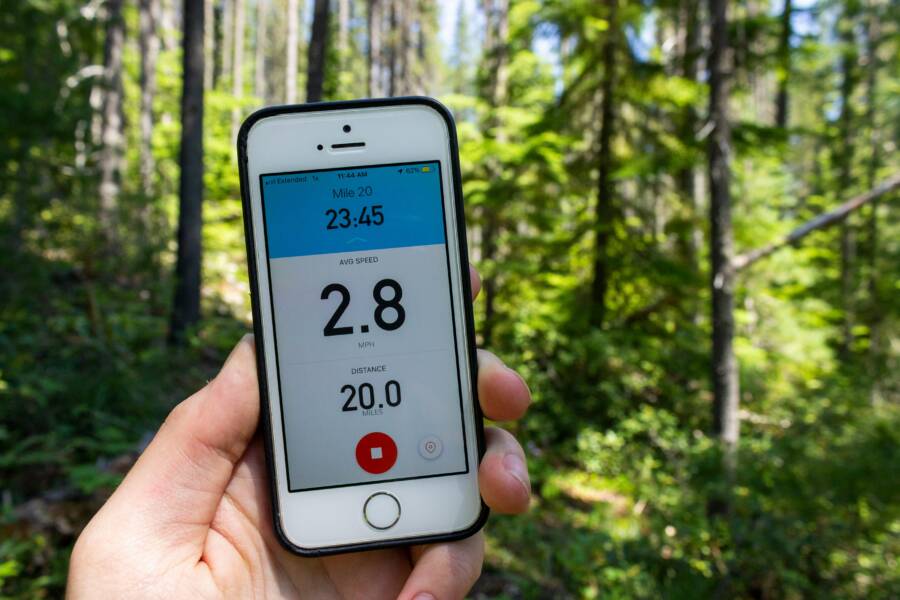
Images are included to support visual comprehension of how location technology operates in real life. If you’d like to see more visuals on how signals converge to produce a location fix, this diagram explains the basics of how GPS, Wi Fi, and cell data cooperate to determine your position. The photo below shows a smartphone displaying tracking data in a forest setting, highlighting how technology can be present even in nature.
 Photo by Eric Sanman
Practical steps to cut tracking now
Taking back control of location data doesn’t have to be a thorny task. These practical steps walk you through quick wins and thoughtful tweaks you can apply today. Think of your phone as a trusted helper, not a beacon for every app and service. By tightening settings on your iPhone and Android devices and trimming browser and cloud-synced activity, you can significantly reduce passive location sharing without losing essential functionality.
Lock down location services on your iPhone
Start with a global switch, then tailor permissions for each app. This approach minimizes the chance that a random background process will ping your location behind the scenes.
- Turn off global Location Services if you don’t need it. This stops your iPhone from sharing location data with the system and apps by default.
- Revisit each app’s permission. Go to Settings > Privacy & Security > Location Services. For apps that don’t need location, choose Never or Only While Using the App for essential features.
- Understand System Services. Some iPhone features rely on location in the background, like Significant Locations and Location-Based Suggestions. If you’re not using these, consider turning them off or limiting their use to when you actively need them.
- Use precise vs. approximate location. For apps that don’t need exact coordinates, grant approximate location instead. This preserves useful functionality, such as finding nearby eateries, while masking precise whereabouts.
- Review Find My and iCloud sharing. Location history and device sharing can populate in the cloud across devices. If you don’t need this cross-device visibility, disable it or limit history retention.
- Consider a minimal test period. After you tweak permissions, monitor a few days of app behavior to ensure essential features still work, then adjust further if needed.
For a deeper look at how to manage location permissions on iPhone, Apple provides clear steps and explanations. See how to turn Location Services and GPS on or off for individual apps, and how to grant or deny access, in Apple’s support guide. Turn Location Services and GPS on or off on your iPhone
To learn more about the privacy controls available on iOS, including Location Services, check Apple’s privacy overview. It walks through what you control and how those controls affect data sharing. About privacy and Location Services in iOS, iPadOS, and watchOS
If you want to go even more granular, Apple’s guide to controlling the location information you share on iPhone covers per-version steps and options. This helps you tailor settings as new iOS updates arrive. Control the location information you share on iPhone
Practical takeaway: set Location Services to off globally if you’re comfortable with it, then re-enable only for apps that truly need it. This simple pattern reduces the chances of covert tracking by background processes.
Tighten controls on Android
Android gives you strong tools to limit location data without breaking essential app functionality. A careful, stepwise approach keeps your phone useful while cutting down on tracking.
- Turn off location globally if your day rarely requires location-based actions. You’ll still be able to use maps, rides, and nearby services when you need them by granting permission per app.
- Disable Google Location Accuracy. This feature can push extra data to Google’s servers even when apps aren’t actively using location. Turn it off to reduce background reports.
- Manage per-app permissions with the Permission Manager. Go to Settings > Location > App location permissions. Review which apps have access “Always,” “Only this time,” or “Deny.” Revoke access for apps that don’t need it.
- Reconsider background location usage. Some apps request location in the background for features like real-time updates. If a feature isn’t essential, disable background access for that app.
- Break up data sharing. Where possible, disable integration with Google services that sync location history across devices. This reduces a central repository of your movements.
- Test and refine. After you adjust permissions, use your phone normally for a few days and watch how often location prompts appear. Fine-tune as needed.
Official guidance from Google helps you identify which apps use location and how to adjust permissions on Android devices. It also shows how to review and change app-level access efficiently. Manage location permissions for apps
For a broader look at changing app permissions on Android, Google’s support pages outline steps to find which apps use location and how to adjust access. Change app permissions on your Android phone
If you want a straightforward path to per-app controls, the Android Help article on managing location permissions lays out the steps clearly. Manage location permissions for apps
Practical takeaway: start with the most permission-hungry apps and work backward. Apps that barely need location should be denied, while essential services get the minimum access required.
Limit tracking in your browser and accounts
A surprising amount of location data leaks through the web and cloud accounts you rely on daily. A few thoughtful adjustments can curb this leakage without slowing you down.
- Turn off cross-site tracking in your browser. Modern browsers offer anti-tracking features that block third-party trackers from following you across sites. Enable these protections to slow down ad networks that use location data to tailor ads.
- Limit ad tracking in your browser and device settings. Many browsers and operating systems offer a simple “limit ad tracking” toggle. While not perfect, it reduces how often advertisers can tie your activity to your location.
- Review Find My and cloud account settings. Automatic sharing and location history can be stored in your cloud accounts. If you don’t need a complete history, disable location history, or switch to a more limited sharing model.
- Be mindful of linked accounts. When you sign in with a social or email account, you may implicitly allow access to location when using services tied to that account. Revisit connected apps and revoke access where it’s not essential.
- Regularly audit privacy dashboards. Most major cloud services provide a privacy dashboard showing which devices, apps, and services have location access. Periodically review and prune permissions.
For a practical framework on browser privacy, you can start with guidance from trusted consumer privacy resources that explain how tracking works and what you can do about it. How Websites and Apps Collect and Use Your Information
If you want a deeper dive into browser-level protections, many major browsers offer robust settings to block third-party trackers and limit data sharing. This helps you maintain better privacy without sacrificing convenience.
Finally, a quick reminder about cloud-based location history. If your Find My or cloud account automatically stores location data, you might be surprised by what history shows across devices. You can disable or shrink this history to minimize exposure.
Putting these browser and account controls into practice creates a shield around your daily online activity. It’s not perfect, but it’s a meaningful barrier against constant location sharing.
External resources can help you navigate these settings with confidence. Learn more about how Find My and cloud-backed location history work, and how to reduce its footprint on your accounts, in Apple and Google documentation linked above. These guides provide concrete steps that align with what most readers already use every day. For example, Apple’s location controls and Find My settings give you a path to minimize exposure across devices. About privacy and Location Services in iOS, iPadOS, and watchOS and Google’s guidance on app permissions helps you trim location access across platforms. Change app permissions on your Android phone
There Is a Frequency That the Wealthiest Families Have Used for Generations and Most People Will Never Know It Exists
>>> Open the Door <<<

If you want a short, practical checklist to start today, here are the key actions to complete:
- Global vs per-app controls: turn off global location where possible, then enable only for essential apps.
- Review every app: revoke location access for apps you don’t trust with that data.
- Tune browser privacy: enable anti-tracking features and limit ad personalization.
- Audit cloud settings: disable location history and reduce cross-device sharing where feasible.
And if you’d like visuals to accompany this section, you can reference diagrams and illustrations that show how GPS, Wi Fi, and cell data converge. They can help readers grasp why location data is so pervasive and how each control reduces exposure.
Links and resources cited here provide concrete steps you can follow without leaving your device. They’re written to be followed as you read, making the process smoother and less overwhelming.
Platform specific privacy playbooks
If you want to stop your phone from quietly sharing every move, start with platform-specific playbooks. These quick, practical guides are designed to help you reduce location leakage without stripping away essential features. You’ll learn where to pause data flows, how to tighten permissions, and what to monitor as settings change with updates. Think of it as a safety check before you rely on your smartphone for everyday tasks.
iPhone privacy playbook
Your iPhone offers robust privacy controls, but they only work if you customize them. Begin with a global stance and then fine-tune per-app permissions. This keeps your essential apps functional while cutting down on background location pings.
- Turn Location Services off globally when you don’t need it. Then re-enable only for apps that truly require it.
- For each app, choose Never or Only While Using the App if location access isn’t essential. You’ll find these options under Settings > Privacy & Security > Location Services.
- Review System Services that rely on location in the background. Turn off or limit services you don’t actively use, such as Significant Locations and Location-Based Suggestions.
- Use approximate location where possible. If an app doesn’t need precise coordinates, grant approximate location to preserve privacy while keeping useful features.
- Manage Find My and iCloud sharing. Location history across devices can be stored in the cloud. Disable cross-device sharing or limit how long history is retained.
- Test after changes. Use your phone normally for a few days and adjust any features that break unexpectedly.
Apple’s official guides walk you through granular controls, from turning Location Services on or off to per-version location settings. For a step-by-step on global and per-app controls, start here: Turn Location Services and GPS on or off on your iPhone. For a deeper dive into what you share and how to adjust it, see: Control the location information you share on iPhone. If you want a proactive privacy routine, the Apple Personal Safety guides also offer strategies to limit location exposure: Checklist 2: Manage location information.
Practical takeaway: start with the global switch off, then re-enable only where necessary. This simple pattern reduces covert background tracking.
Android privacy playbook
Android gives you strong, granular control over location data. A careful, stepwise approach keeps your phone useful while trimming back unwanted tracking.
- Turn off location globally when it isn’t essential. You can grant permissions per app so you still get necessary features without constant location access.
- Disable Google Location Accuracy. This setting can push extra data to Google’s servers even when you aren’t actively using location. It’s a quick toggle in Settings.
- Use the Permission Manager to manage per-app access. Go to Settings > Location > App location permissions and revoke access for apps that don’t need it.
- Limit background location usage. If an app only needs location when open, disable background access to reduce passive data collection.
- Limit data sharing across Google services. If possible, disable cross-device location history and related sync features.
- Test and adjust. After changes, use your phone for a few days and watch for location prompts. Fine-tune as needed.
Google provides clear guidance on which apps use location and how to adjust permissions. Start with the step-by-step to find which apps have access and then tighten controls: Manage location permissions for apps. For broader per-app control guidance, see: Change app permissions on your Android phone. To specifically manage Location History, use: Manage your Location History – Google Account Help. And for a general overview of your Android device’s location settings, see: Manage your Android device’s location settings.
Practical takeaway: begin with the most permission-hungry apps, revoke for those that don’t need location, and keep background access off unless essential.
External resources cited above provide concrete steps you can follow without leaving your device. They’re written to be followed as you read, making the process smoother and less overwhelming. If you want a quick practical check, these guides align with what most readers use daily and help you stay in control of your location data.
Beyond the phone: networks, apps, and daily habits
Your phone isn’t the only source of location data. Networks, apps, and everyday routines all play a part in how much you’re tracked. In this section, you’ll find practical guidance to minimize exposure while staying connected. We’ll cover trusted privacy tools, habits that cut back on data leakage, and when location sharing is actually necessary.
Use privacy mindful tech at home and on the move
Smart privacy starts with the tools you choose and how you use them. When you’re at home or traveling, rely on two principles: minimize data exposure and keep tasks offline when possible. A solid privacy setup includes a trusted VPN, private DNS, and a careful approach to public Wi Fi. These choices guard your data as it travels between your device and the internet.
- Trusted VPNs give you a shield on public networks and when you want to prevent routine tracking by advertisers. Look for providers with strong no-logs policies, robust encryption, and transparent privacy practices. For a current roundup of reliable options, see reviews from technology outlets that test performance and privacy claims.
Example resources: detailed roundups from CNET and PCMag help compare mobile VPNs across platforms.
(Helpful reads: Best Mobile VPN of 2025, The Best VPNs for Android in 2025) - Private DNS can block many tracking attempts at the network level. By using a DNS resolver focused on privacy, you reduce the amount of telemetry that apps and services can rely on when you connect to the internet.
- Avoid public Wi Fi for sensitive tasks. If you must use a public network, pair it with a VPN and private DNS for an extra layer of protection.
- Offline maps as a privacy friend. When you don’t need live directions, offline maps keep you out of the tracking loop. You can download regions ahead of time and navigate without actively sharing location with a service in real time.
- Be selective about what you enable on your devices. Disable automatic location sharing where it isn’t essential and keep Find My or similar services limited to necessary scenarios.
For further guidance on choosing reliable privacy tools, you can explore trusted VPN comparisons and official support documents that explain how these services work.
- Learn about mobile VPN options and what to look for in a private DNS setup on smartphones. See: Best Android VPNs for privacy and security, and DNS privacy guides from reputable security sites.
References you can consult as you implement these choices:
She Pressed Play on a Strange Audio Track and Within Days Her Financial Reality Started Shifting in Ways She Could Not Explain
>>> See How It Works <<<
- Best Mobile VPN of 2025: Enjoy Privacy Protection on the Go
- The Best VPNs We’ve Tested for Android in 2025
- DNS Resolvers and privacy guidance
- AdGuard DNS overview and setup
A practical takeaway: set up a privacy-focused DNS on your home network and install a reputable VPN for any time you’re on the move. This combination reduces exposure without requiring you to change core habits.
Smart habits to reduce accidental sharing
Accidental data sharing happens more often than you think. The easiest guardrails are built right into how you manage permissions, apps, and your daily routines. Start with a simple habit: review permissions regularly and deploy default settings that prompt you before sharing location. Then prune apps you no longer use that might still be quietly collecting data.
- Regular permission reviews keep sneaky trackers in check. Set a quarterly reminder to audit location access for every app. Revoke for anything that isn’t essential to core features.
- Use default settings that ask before sharing. On both iPhone and Android, you can set permissions to ask before accessing location. This forces a conscious decision each time an app wants your position.
- Delete unused apps. Apps you haven’t opened in months can quietly continue tracking. Removing them reduces your data footprint and cuts potential exposure.
- Keep an eye on background activity. Some apps only need location when in use, but they keep it on in the background. Disable background location where possible and limit notifications tied to location.
- Minimize cloud-synced history. If an account stores your location history across devices, consider turning it off or setting a shorter retention window.
These habits pay off in real terms. You’ll notice fewer location prompts, and your daily movements become less of a resource for advertisers and data brokers. To support this approach, you can consult official guidance on how to manage location permissions and privacy settings across platforms.
For readers who want a quick start, combining basic permission audits with per-app location controls delivers meaningful results fast. If you’d like a deeper dive into per-app controls on iOS and Android, you can reference official help resources that explain how to adjust permissions and restrict background activity.
- iPhone: Turn Location Services off globally when possible, then re-enable per app as needed, and consider limiting background services.
- Android: Use the Permission Manager to revoke location access for apps that don’t need it, and disable Google Location Accuracy to reduce background data.
External references you can explore for granular steps:
- Turn Location Services and GPS on or off on your iPhone
- Manage location permissions for apps
- Change app permissions on your Android phone
A practical takeaway: treat permissions like a house with locked doors. Only open the doors you truly need to open, and keep the rest shut.
When location sharing is necessary and safe
There are scenarios where sharing your location makes sense. Emergencies, safety apps, and certain family or care services can rely on location to function effectively. The goal is to limit exposure while staying connected to what you truly need.
- Emergencies. In crisis situations, location data helps responders reach you faster. If you use emergency services or safety apps, ensure you enable location sharing only when you’re actively using the feature. Recheck permissions after the situation resolves.
- Safety and caregiving apps. Some apps you rely on for loved ones or for personal safety use location data to provide alerts or keep caregivers informed. Configure these apps to share only the minimum necessary data and keep automatic sharing turned off when possible.
- Work and travel. Some job-related apps or travel tools require location to function, but you can often restrict data to precise moments or use approximate location. This keeps essential capabilities while reducing continuous exposure.
- Device and family sharing. Modern devices often offer options to share location with family members or trusted devices. Limit the audience to people you truly trust and disable cross-device sharing when not needed.
To maximize safety without flooding your trail with data, balance needs with privacy. Use coarse location whenever possible and keep precise tracking off unless a specific feature requires it. If you’re unsure about a certain app, review its privacy policy and settings to understand exactly what is shared and when.
For more context on how location sharing works in different ecosystems, the official help articles on iOS and Android provide guidance on how to grant or restrict access in sensitive situations.
- iPhone safety and privacy resources: Learn how to manage location information and safety features in iOS.
- Android location sharing controls: Review how to enable and disable location sharing for apps and services.
A concrete example helps: you might enable location sharing in a safety app during a hiking trip but disable it when you’re indoors or in familiar areas. This keeps you connected when it matters while reducing exposure the rest of the time.
If you want additional reading on platform specific controls, you can explore the official privacy playbooks for iPhone and Android. They offer focused steps to tighten permissions while keeping essential features accessible.
- iPhone privacy playbook: detailed steps for global and per-app controls.
- Android privacy playbook: targeted guidance on per-app access and background location.
External resources for deeper understanding:
- About privacy and Location Services in iOS, iPadOS, and watchOS
- Manage location permissions for apps
A practical takeaway: save location sharing for moments when it truly adds safety or value. Keep it as a tool you control, not a default setting you forget.
External links and references used in this section are chosen to provide actionable steps and current best practices. They guide you through concrete changes you can make today to gain back control over your location data without sacrificing essential features.
Conclusion
You can significantly reduce constant location tracking by tightening global and per app controls on your smartphone, while preserving essential features. Remember, 100 percent privacy is hard to reach, but a focused plan makes it doable and practical. By combining careful permission management, browser privacy tweaks, and selective cloud settings, you keep your movements under your control without losing everyday convenience. Your smartphone can stay useful and private at the same time.
Quick checklist to implement this week
- Turn off global location services, then re enable only for apps that truly need it.
- Review app permissions and deny location access for non essential apps.
- Enable approximate location where exact coordinates aren’t necessary.
- Disable background location for apps that don’t need it.
- Turn off cross device location history and limit cloud sharing where possible.
- Turn on anti tracking in the browser and limit ad personalization.
- Use offline maps for areas where live tracking isn’t needed.
If you stick to these steps, you’ll build a stronger privacy routine that fits into daily life. Share your results or questions below and I’ll help tailor the plan to your exact devices.
Thousands of People Were Struggling With Money Until They Discovered This One Ancient Secret Hidden in Sound
>>> Unlock It Now <<<
