There Is a Frequency That the Wealthiest Families Have Used for Generations and Most People Will Never Know It Exists
>>> Open the Door <<<

Are you stuck with your smartphone repeatedly downloading the same update, draining data and battery in the process? This happens on both Android and iPhone and can look like a loop you can’t escape.
This quick guide explains why it happens and runs through practical fixes, starting with checking storage space and confirming a stable Wi-Fi connection, then clearing update caches and restarting. You’ll learn how to stop the repeated downloads without losing data or getting stuck in a longer process.
By following these straightforward steps, you’ll regain control of your device and keep updates from reappearing again and again. Ready to stop it?
Common Causes of Repeated Update Downloads on Your Phone
Updates are there to protect and improve your device, but when your phone keeps re-downloading the same update, it becomes more of a nuisance than a necessity. Understanding the underlying causes helps you fix the problem quickly without losing data or resorting to drastic measures. Below are the main reasons this happens and how to address each one.
He Was Drowning in Bills and Burnout Until a Simple Daily Ritual Rewired His Brain for Wealth in Less Than a Week
>>> Start Your Shift Today <<<

1) Incomplete or failed installations
When an update begins but doesn’t finish, the phone may treat the process as if the update never completed. This is common if the device runs out of battery mid-install, loses network connectivity, or the update file becomes corrupted. In this scenario, the system re-downloads the update because it still believes the install needs to occur. A simple way to test this is to try the update again with a full charge and a stable Wi-Fi connection. If the issue recurs, you may need to complete a full update while the device is calm and not in heavy use.
- Ensure the phone is charged to at least 80% before starting an update.
- Connect to a stable, fast Wi-Fi network during the process.
- Avoid interrupting the update by opening other heavy apps.
Research and user reports show that many devices struggle with updates failing mid-install, which triggers repeated download attempts. For Android devices, the update chain can be especially fragile because of the involvement of manufacturers and carriers, which sometimes introduces partial installs. On iPhones, the system is typically more streamlined, but a bad download or interrupted install can still trigger repeated downloads. See more on how incomplete installs prompt repeated downloads in practice.
External reference: Apple support discussions about app and system update reappearances can help illustrate how interruptions affect the process. iOS updates reappear in the list after installation attempts.
2) Software glitches or reporting errors
Even when the update is installed, the device’s software may misreport that the update didn’t finish. This miscommunication leaves the device convinced a new download is needed, so it starts the process again. This issue can stem from a bug in the update itself or from background services that misinterpret the installation state.
- After installing an update, restart the phone to reset the internal state trackers.
- If the device continues to re-download, check for any follow-on patches or fixes from the manufacturer.
For Android users, this can be tied to the way the update system handles patches on a fragmented ecosystem. Apple devices tend to have fewer moving parts, but glitches still occur, particularly with large or complex updates that require multiple components to install correctly. If you see frequent re-downloads tied to a specific app or feature, investigate whether a recent app update or system patch correlates with the behavior.
External reference: A discussion on repeated app updates in iOS can highlight how reporting issues interact with the Store and OS state. iOS: App updates reappear multiple times
What If the Only Thing Between You and the Life You Deserve Is a Hidden Wealth Code Waiting to Be Activated
>>> Open the Door <<<

3) Storage space constraints
Low storage can cause updates to download repeatedly because there isn’t enough room to complete the installation. The system might download the update again after a failed install, or it may attempt to stage multiple components of an update that require additional space. Clearing space or moving content to the cloud often resolves this quickly.
- Free up space by removing unused apps, large caches, and media you don’t need.
- Consider offloading photos and videos to a cloud service or computer temporarily during updates.
- If you have a microSD card, use it for storage management on Android devices to maximize available space for updates.
Storage issues are a frequent culprit in both Android and iPhone update behavior. Ensuring there’s ample room before starting the update can prevent a cascade of failed installs and repeated downloads.
External reference: A guide on preventing unwanted app downloads highlights how storage problems can cascade into repeat download cycles for Android devices. Why Is Android Phone Downloading Apps by Itself?
4) Update server or version confusion
Sometimes the update server or the versioning of a patch can cause multiple, similar downloads. Manufacturers release patches in waves or issue minor revisions to fix edge cases found after the initial rollouts. If your device receives several near-identical updates in quick succession, it might re-download each one as the patches are published.
- Check for a list of available updates and verify if a newer revision has replaced a prior version.
- Avoid initiating manual updates while the rollout is still stabilizing, especially in regions where carriers or manufacturing partners provide different timing.
This scenario is more common with Android, given its multi-layered update path that involves OEMs and carriers. It can lead to confusion if you expect a single, smooth update but the device keeps pulling down subsequent patches.
External reference: Reports on repeated updates and patch sequences illustrate how version confusion can trigger multiple downloads. One UI Update keeps trying to update repeatedly
5) Background services and automated update checks
Updates are often managed by a set of background services. If these services misfire, they may re-check for updates repeatedly or re-download components that are already present. This can feel like a loop, especially if the device keeps pinging the update server while you’re on mobile data or a slower connection.
- Disable or constrain background data for updates if your device supports it.
- Set updates to occur only when connected to Wi-Fi and plugged in, if the option is available.
- After adjusting settings, monitor whether the behavior stops.
Android devices occasionally show this pattern more often due to the flexible update framework and the interaction with carrier-specific settings. On iPhones, background checks are typically tightly controlled, but glitches can still trigger repeated downloads in some cases.
External reference: A practical guide discusses how Android devices can download apps by itself due to background controls and parental or security settings. Why Is Android Phone Downloading Apps by Itself?
6) Update strategies and user behavior
In some cases, repeated downloads reflect a broader update strategy rather than a single fault. For instance, a device may fetch multiple small patches after a major update, especially if the patch addresses security flaws or compatibility issues discovered after release. While this ensures protection, it can feel repetitive if you’re not expecting it.
- Review the update notes to understand what each patch covers.
- If you see a pattern of frequent, minor patches, consider timing updates at a moment when you can leave the device undisturbed for a longer period.
- Keep a note of when the problem started. If it began after a specific update, you can trace whether a known issue was addressed in subsequent patches.
Understanding update strategies helps you distinguish between a real problem and a normal maintenance pattern that simply looks odd in the moment.
Quick practical checklist to stop repeated downloads
- Ensure at least 80% battery and a stable Wi-Fi connection before updating.
- Free up storage space by removing unused files and apps.
- Restart the device after an update, and then check that the installation state indicates success.
- If the problem persists, try updating via a computer or reset the network settings to rule out connection issues.
- Monitor for patterns tied to specific apps or patches, and check for official advisories from the device maker.
For readers who want deeper context, explore community discussions about update behavior and fixes for both Android and iPhone devices. For example, Apple’s support discussions offer insights into how update reappearances arise, while Android communities discuss carrier and OEM interactions during updates. See these real-world discussions for additional perspectives:
- Apple: iOS app updates reappear after installation attempts. Discussion
- Samsung: One UI update keeps trying to update. Community thread
- General tips on update behavior for Android. Android update discussion
Images to illustrate key moments

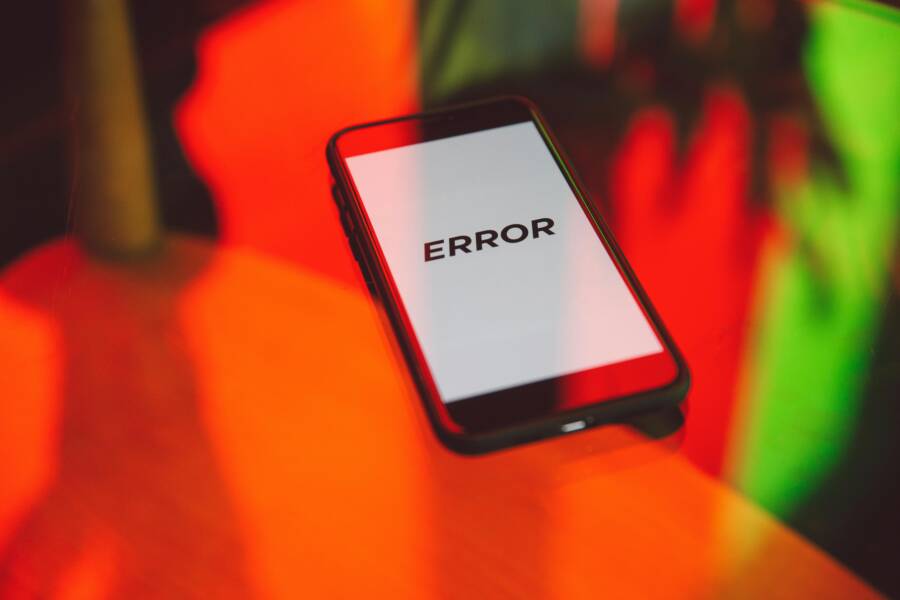
Photo by Polina Zimmerman
Capturing the moment of update frustration helps readers connect with the content visually. The image shows a phone with error-like signals, a cue that something is not going smoothly in the update process.
If you’re dealing with repeated update downloads on your device, approach the problem with a methodical plan. Start with the simplest fixes—ensuring a stable connection and ample space—then move to more involved steps like manually updating from a computer or performing a reset if necessary. By understanding the common causes, you can stop the loop and keep your phone up to date without the hassle.
Step-by-Step Fixes for Android Phones Stuck on the Same Update
If your Android device keeps re-downloading the same update, you’re not imagining it. It can drain data, waste battery, and stall your workflow. Here are practical, straight-to-the-point fixes you can apply in a few minutes. Work through them in order, and you’ll likely stop the loop without losing data.
Turn Off Automatic Software and App Updates
Stopping automatic updates breaks the loop at its source. Here’s how to do it:
- Path: Settings > Software Update > Auto download off.
- For apps: Play Store profile > Settings > Auto-update apps > Don’t auto-update.
Turning off auto updates helps because the phone won’t automatically fetch new patches or re-download existing ones while you’re trying to stabilize the current state. If you’re worried about missing important security fixes, you can schedule checks during a time you’re near Wi-Fi and battery, rather than letting updates run in the background. A useful tip is to enable updates only over Wi-Fi to avoid data blasts. If you want a quick reference, see guidance on disabling auto updates in Android: How do I disable auto-updates on Android?
Additionally, you can rely on official Play Store settings to prevent automatic app updates, which often cause the same update to reappear after installation attempts. For a quick walkthrough, check the Google Play Help article on updating apps.
- Quick tip: keeping updates offline until you’re connected to Wi-Fi prevents accidental re-downloads on mobile data.
External resources:
- How do I disable auto-updates on Android? (link)
Clear Cache and Data from the Update App
A clogged cache or stale data can cause the update service to misread its own state. Clearing cache and data resets that miscommunication.
- Path: Settings > Apps > Software Update > Storage > Clear cache / Clear data.
- Then restart your device.
What this does is clear temporary files and the app’s memory of past updates. It doesn’t delete your personal data, but it does reset the update agent so it can re-evaluate the current state of the system. After the restart, try the update again or monitor whether the loop returns. If the issue persists, you may be dealing with a larger software glitch that requires additional steps, like a factory reset, which is covered later.
If you want a deeper dive, many readers find it helpful to review articles on clearing cache and app data for Android. See a detailed guide on Clearing Cache and App Data on Android (Android 12–15).
External references:
- How to Clear Cache and App Data on Android (Android 12–15)
Free Up Storage and Restart Your Phone
Low storage is a frequent culprit behind update loops. When space runs short, the system may fail to complete an install and try again, leading to repeated downloads.
- Check storage: Settings > Storage.
- Free up space by removing unused apps, large caches, and media you don’t need.
- Move photos and videos to the cloud or a computer temporarily during updates.
- If you have a microSD card, use it to expand available space for updates.
After freeing space, perform a clean restart and attempt the update again. A refreshed system state can stop the re-download cycle and help the update finish properly. This fix targets a common root cause and often resolves the issue quickly.
For practical context on storage management during updates, you can review tips on clearing cache and freeing space on Android.
External references:
- How to Clear App Cache on Android (Manually & in Bulk)
Last Resort: Factory Reset Your Android
If nothing else works, a factory reset wipes the device to its original state and can resolve stubborn update loops. This option should be a last resort because you’ll lose personal settings and downloaded apps unless you back up first.
- Backup first: Use your Google account to back up key data.
- Path to reset: Settings > General management > Reset > Factory data reset.
- Pros: Clears software glitches, frees up space, and resets the update state.
- Cons: You’ll need to reinstall apps and reconfigure settings.
- When to skip: If you rely on a device you can’t reconfigure quickly, or you don’t want to risk data loss.
Before you reset, confirm you’ve backed up your essential data to Google Drive or another secure location. If you opt for a reset, plan to re-install apps and re-log into services afterward. This step often resolves stubborn update loops when other fixes fail.
External considerations: If you’re curious about how factory resets have helped others with update issues, see discussion threads on Android forums and official support channels.
Links to related guidance:
- How to reset on Android and what to expect
By following these steps in sequence, you’ll build a stable baseline for future updates and reduce the chance of the same download looping back. If you notice patterns tied to specific apps or patches, note them and check for official advisories from your device maker. For readers who want deeper insight, consider exploring community discussions that surface practical tips and real-world experiences with repeated update behavior:
- iOS discussions on update reappearances (for cross-platform context)
- Android community threads about patch sequences and repeated downloads
Images to illustrate key moments
Photo by Polina Zimmerman
If you’re dealing with repeated update downloads on your device, approach the problem step by step. Start with the simplest fixes—turning off automatic updates and clearing caches—then move to storage management and, if needed, a factory reset. Each step is designed to address a common cause and help you regain control quickly.
He Was Drowning in Bills and Burnout Until a Simple Daily Ritual Rewired His Brain for Wealth in Less Than a Week
>>> Start Your Shift Today <<<
Simple Ways to Stop iPhone Update Download Loops
When your iPhone keeps re-downloading the same update, it can feel like a stubborn loop that wastes data and battery life. In many cases, the fix is straightforward: disable automatic updates, clear out any stuck update files, and ensure the device has enough space. Below are two concise subsections that address the most common culprits. Each step is designed to be quick to implement and easy to reproduce if the problem reappears on your smartphone.
Disable Automatic Updates on iPhone
Disabling automatic updates tackles the problem at its source. If your iPhone keeps trying to pull down the same iOS update, turning off automatic downloads prevents new or repeated downloads from triggering while you stabilize the current state. Start by turning off both software updates and app updates, then set a manual update routine that fits your schedule.
- Exact path: Settings > General > Software Update > Automatic Updates. Toggle off both options.
- For apps: Settings > App Store > App Updates (Automatic Downloads) > toggle off.
Why this works for partial downloads: when an update is flagged as incomplete or stalled, automatic rechecks can trigger another full download. By stopping these background checks, you prevent the device from looping back to the same file while you address the root cause. This approach keeps your data plan intact and preserves battery life during a fix. If you want to dive deeper, see how Apple addresses automatic update controls for iPhone and iPad in their official guidance and community discussions. Apple support discussion and guidance and for app updates specifically, you can review how Apple handles app updates in Settings. Update apps from the App Store on iPhone.
Key takeaway: preventing automatic downloads gives you predictable control. You can schedule checks during a low-stress window, like when your iPhone is plugged in and on Wi-Fi. For readers who want a quick reference, consider the broader approach of turning off automatic app updates on iPhone as a backup. How to turn off automatic app updates on iPhone.
External note: If you suspect storage or network issues are causing the loop, you’ll want to pair this step with a storage check and a network reset. Apple’s own resources outline clear steps for managing space when updates are needed. If you need more space for an update and If your iPhone or iPad won’t update.
Smartphone tip: after disabling automatic updates, use a regular, deliberate update window. This keeps you in control and reduces the chance of surprise re-downloads.
Restart iPhone and Check for Space Issues
A simple restart can clear stubborn update state information that makes the phone think a new download is required. After a reboot, the system re-evaluates the update status, which often stops the loop immediately. If the problem persists, a more thorough space check is usually the next best move.
- Restart method: Hold the volume up button and the side button until the Apple logo appears, then release. Allow the device to boot normally.
- Space check: Go to Settings > General > iPhone Storage to see a breakdown of what’s occupying space.
Space management tips to prevent future loops:
- Offload unused apps to reclaim storage while preserving data.
- Move photos and videos to iCloud or another cloud service temporarily during updates.
- If your device supports it, expand available space by relocating content to external storage or a computer.
Why space matters: if there isn’t enough free space to install the update, the download may fail and the system could retry it, creating a loop. Clearing room helps ensure the update can complete in one pass. For practical guidance, see Apple’s space management recommendations and update prerequisites. Apple Support: If you need more space for an update and If your iPhone or iPad won’t update.
Real-world context shows that even a quick restart combined with space clearance resolves many loop scenarios. If you’re troubleshooting a persistent issue, consider combining these steps with a network settings reset to rule out connectivity problems. Reset Network Settings guidance offers community-driven tips on similar cases.
Transitioning from a reset mindset, you can also explore updating via a computer if OTA paths remain unreliable. This method often completes the process without triggering repeated downloads, as it bypasses flaky wireless checks. Official guidance and practical threads provide a clear path to updating through Finder or iTunes when needed. Update via computer support.
Note: regular reboots and space checks keep your smartphone responsive. If you notice patterns tied to a specific update or app, track them and consult official advisories from Apple for any known issues.
Images to illustrate key moments
Photo by Polina Zimmerman
If you’re dealing with repeated update downloads on your iPhone, approach the problem with a calm plan. Start with the simplest fixes—disabling automatic updates and a quick restart—then move to space management. This structured approach helps you regain control quickly and reduces the chance of a recurring loop.
Pro Tips to Avoid Update Problems in the Future
Keeping your smartphone up to date is essential, but future-proofing that process saves time, data, and frustration. This section lays out practical, field-tested habits you can adopt to minimize re-downloads, partial installs, and stuck updates. Think of it as a reliability checklist you can reuse with every major patch.
Establish a predictable update routine
A consistent cadence reduces surprises. Rely on automatic updates only when you’re ready to let the device do its work, and schedule updates for times when your phone is plugged in and connected to reliable WiFi. This approach prevents partial downloads caused by low power or flaky networks. In practice, set a window you can trust, such as early evenings or overnight, and keep that slot free for maintenance.
- Turn off automatic updates if you want full control. This is especially useful for a busy smartphone user who wants to avoid random re-downloads.
- When you do run updates, do a quick health check first: confirm battery is above 80 percent, and test the connection with a fast, stable network.
This mindset shifts update behavior from reactive to planned. It also makes it easier to spot when a problem begins, helping you trace it back to a specific patch or app change. For broader context on controlling updates, see guidance from trusted sources on disabling automatic updates and managing patches.
External reference: Apple discussions about automatic updates offer insight into how background checks can trigger re-downloads if a prior install stalled. iOS update controls and behavior
Free up space before you update
Storage space is often the quiet culprit behind repeated downloads. If the system can’t complete an installation, it may try again and push the same update across multiple passes.
- Before you start, review available space in Settings > Storage and aim for a healthy buffer.
- Remove unused apps, purge large caches, and back up or offload photos and videos to the cloud or a computer.
- If your device supports it, use an SD card or external storage to create breathing room for the update process.
Keeping ample space not only reduces the chance of a loop but also speeds up the installation. It’s one of the simplest, most reliable fixes you can apply.
External reference: A guide on preventing unwanted downloads highlights how storage problems cascade into repeat download cycles. Why Is Android Phone Downloading Apps by Itself?
Manage background activity and update checks
Background services are powerful, but they can also trigger repeated checks or downloads if they misfire. Tuning these services reduces the odds of getting stuck in a loop.
- Disable or restrict background data for updates if your device supports it.
- Set updates to occur only on WiFi and when plugged in, when possible.
- Periodically review which apps or system components trigger update checks and adjust permissions or settings accordingly.
Android devices tend to show this pattern more often due to their flexible update framework. On iPhone, background checks are usually strict, but glitches still occur. If you notice repeated updates tied to a specific app or patch, look for a known issue or a follow-up fix from the manufacturer.
External reference: A practical guide discusses how Android devices can download apps by themselves due to background controls. Why Is Android Phone Downloading Apps by Itself?
Stay informed about update versions and rollout timing
Version confusion is a frequent source of repeated downloads. Patches often ship in waves or as minor revisions to address edge cases. Being aware of this helps you avoid needless re-downloads.
- Check the official notes for each patch. If a newer revision replaces a prior version, you can skip redundant downloads.
- Avoid manual updates while a rollout is still stabilizing, especially in regions with carrier or partner delays.
- If you see a string of near-identical updates, recognize this as a staged approach and plan around it.
This practice is particularly relevant for Android devices, where multi-layered update paths can blur the timeline. Keeping an eye on vendor advisories helps you distinguish normal maintenance from a real problem.
External reference: Reports on patch sequences and repeated downloads illustrate how version confusion can trigger multiple downloads. One UI Update keeps trying to update
Use official update channels and verification steps
Rely on trusted sources for updates rather than third-party tools or unvetted installers. When you pull an update through official channels, the system has a better chance of finishing cleanly and avoiding loops.
- For Android, prefer the built-in Software Update path and store-supported update methods.
- For iPhone, use Settings > General > Software Update and App Store updates within official menus.
- If you ever use a computer-based update method, ensure you’re following the device maker’s official instructions.
Keeping to official routes minimizes the risk of partial installs or misreported states that can trigger repeat downloads. It also makes it easier to locate official fixes when problems arise.
External reference: MacRumors outlines how iPhone users can customize software update options in a safe way. Prevent iPhone Automatically Installing Software Updates
Regularly back up and plan for recovery
A reliable backup habit reduces the fear of trying more involved fixes. If an issue escalates to a factory reset, you’ll be glad you backed up first.
- Back up essential data to the cloud or a computer on a regular basis.
- Create a quick emergency plan for updates that fail. This could involve updating via a computer if OTA paths stall.
- After any major fix, verify that a restore point exists and is accessible.
Backing up is not just about data; it also speeds up recovery and reduces downtime when you must take corrective steps. It keeps you confident that you can ride out a stubborn update issue without losing important information.
External reference: Guidance on updating via computer and managing space for an update can help when OTA paths fail. Update via computer guidance
When to seek official help and community insight
If you notice a persistent pattern that a particular update or app triggers a loop, don’t hesitate to seek guidance. Community discussions and official support channels can reveal known issues and workarounds that aren’t immediately obvious.
- Monitor trusted forums and official support threads for patches or advisories.
- Compare your experience with other users in your region to identify whether the issue is widespread.
- Use official contact routes for your device maker if you suspect a bug or a faulty update package.
Real-world chatter often surfaces practical tips or workarounds that aren’t in official doc. It’s a good complement to your own testing and observation.
External reference: Apple discussions and Android community threads provide a pulse on ongoing issues and fixes. Discussion: iOS update reappearances and Samsung community thread on repeated updates
Quick reference checklist for future updates
- Ensure your smartphone has a clear storage headroom and a stable WiFi connection.
- Disable automatic updates if you want to stage installs on your terms.
- Restart after updates and verify the installation status.
- Consider updating via a computer if OTA paths aren’t reliable.
- Track any recurring patch patterns and check official advisories when in doubt.
For deeper context on common causes and practical fixes, see additional discussions and guides from industry sources:
- iOS update behavior and automatic controls from Apple discussions. Apple support discussion
- Android update practices and avoiding automatic downloads. Android update discussion
Images to illustrate key moments
Photo by Polina Zimmerman
If you follow these practices, you’ll reduce the chance of future update loops. A calm, controlled approach keeps data usage predictable and battery life intact, while ensuring your device stays protected with timely patches. If you notice patterns tied to a specific patch or app, document them and check for official advisories from the device maker. This proactive stance pays off with fewer surprises down the road.
Conclusion
If your phone keeps re-downloading the same update, you now have a clear, practical playbook you can follow in minutes. For Android and iPhone, start with the simplest fixes—disable automatic updates, clear the update cache, and make sure you have ample storage. These steps target the most common loops without risking data loss.
Next, tackle the install state by restarting after an update and, if needed, updating via a computer. This approach helps reset misread installation flags and can bypass flaky OTA checks. Keep a small log of when the problem appears and which patch you were applying; it makes it easier to spot patterns and apply the right follow up.
If the loop persists, expand the plan to restore network settings or perform a factory reset as a last resort. Back up first, then reinstall only what you need. In many cases, freeing space and ensuring a stable, wired or well managed wifi connection ends the cycle and allows the update to finish cleanly.
Adopt a future proofing routine to reduce repeats. Schedule updates for a time when your device is charging and connected to solid wifi, and routinely clear space before major patches. Stay alert to patterns tied to specific apps or patches, and consult official advisories when something looks off.
Share your experience in the comments and consider subscribing for more hands on guides. With these moves, you’ll waste less data and battery, and keep your smartphone protected with the right fixes at the right moment.
What If the Only Thing Between You and the Life You Deserve Is a Hidden Wealth Code Waiting to Be Activated
>>> Open the Door <<<