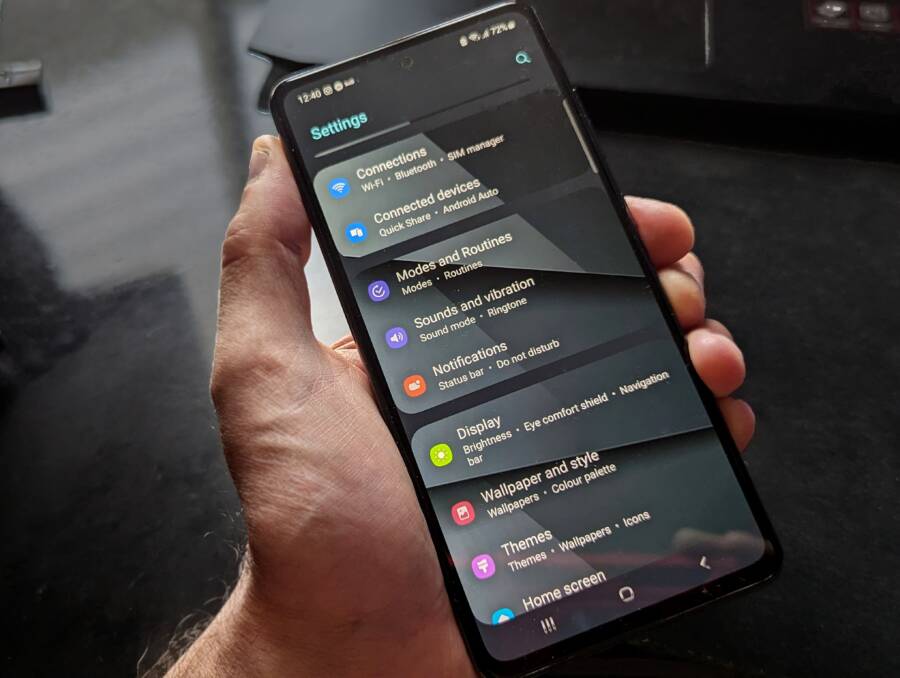
When your smartphone cannot see nearby shared files, the issue usually stems from incorrect settings, physical distance, or temporary software glitches. Most connection problems resolve quickly once you adjust your wireless permissions or restart your device.
This guide helps you troubleshoot these common connectivity barriers so you can share your documents and photos again. Follow these steps to restore your file-sharing features immediately.
Essential Checks for Your Smartphone Connectivity
Connectivity issues often hide in plain sight. Before you assume your smartphone has a hardware defect, you must confirm that the necessary wireless radios are functioning correctly. File sharing services like AirDrop, Nearby Share, or Quick Share rely on a handshake between two active devices. If one device lacks the proper radio signals, the other device remains invisible.
Verifying Bluetooth and Wi-Fi Settings
File sharing services require both Bluetooth and Wi-Fi to work in tandem. Bluetooth establishes the initial connection to identify nearby devices, while Wi-Fi handles the actual transfer of data packets at high speeds. If you turn off either setting, the discovery process fails immediately.
You can verify these settings by following these steps:
Open the Settings app on your smartphone.
Locate the Bluetooth menu and ensure the toggle is in the on position.
Return to the main menu and select the Wi-Fi settings.
Verify that Wi-Fi is active and that your phone is not in a restricted network mode.
If these settings are already on, you should still toggle them off and then back on again. This action forces your smartphone to broadcast its availability to the local network. Wait about five seconds between turning each setting off and on to allow the system to clear its cache.
Disabling Airplane Mode to Restore Signal
Airplane mode acts as a master kill switch for all wireless communication. When you enable it, your smartphone shuts down cellular data, Wi-Fi, and Bluetooth simultaneously. While this helps save battery or prepares the device for flight, it also serves as a quick way to resolve stuck connections.
Toggling Airplane mode serves as a soft reset for your phone radios. If your device fails to broadcast its presence for file sharing, this procedure often fixes the problem:
Swipe down to access your control panel or quick settings menu.
Tap the Airplane icon to enable it and wait for all icons to grey out.
Leave it on for at least ten seconds to ensure the internal controllers fully power down.
Tap the icon again to disable Airplane mode and restore your signal.
This process forces the operating system to re-initialize your network stack. Often, this step resolves communication errors that keep your device invisible to others. If your phone still does not show up, ensure your software is up to date, as older versions sometimes struggle with modern sharing protocols.
Adjusting Visibility and Sharing Permissions
Your smartphone must explicitly signal its availability to other devices before a file transfer can begin. If your privacy settings are too restrictive, your device hides itself from the network to prevent unwanted incoming files. You can correct this by updating your visibility preferences and ensuring that your sharing permissions grant the necessary access to nearby devices.
Setting Your Device to Be Discoverable
Most modern operating systems offer three levels of visibility for file sharing. These include hidden, contacts only, or everyone nearby. When your phone is set to hidden or contacts only, it may fail to appear on a device that is not recognized or saved in your address book. Changing this setting is often the quickest way to resolve discovery failures.
Open your Settings menu and locate the section labeled Connected Devices or Share.
Select the sharing service you want to use, such as Quick Share or AirDrop.
Look for an option titled Device Visibility or Who can share with you.
Switch the setting to Everyone or Everyone nearby.
Once you change this, your smartphone starts broadcasting a presence signal to the local area. Try the transfer again immediately after making this switch. If it works, you can adjust the visibility back to a more restrictive mode later to maintain your preferred privacy level. Keep in mind that some devices revert to contacts only after a set period to protect your security.
Checking File Sharing Permissions
System-level permissions act as gatekeepers for your data. If you recently updated your operating system or installed a new security patch, these permissions sometimes reset or restrict access for core system apps. If your file sharing service does not have permission to access your Bluetooth, Wi-Fi, or storage, it will fail to see nearby devices.
You should verify these access rights within your main system settings:
Navigate to your Apps menu inside the Settings app.
Search for the specific file sharing app or service, such as System UI or Quick Share.
Tap on Permissions and ensure that Nearby Devices, Location, and Storage are toggled to Allow.
Restart your smartphone to apply these changes to the operating system.
Some security apps also block background communication to save power or prevent data leaks. If you use a third-party firewall or a restrictive battery optimization profile, these tools may prevent your smartphone from scanning for local peers. You can test this by temporarily disabling any battery saver modes. If the devices connect, you know your power settings were the culprit.
Troubleshooting Software and Proximity Issues
Wireless file sharing relies on precise radio wave synchronization between two devices. When a smartphone cannot locate a nearby counterpart, the cause is often a physical obstruction or an outdated software environment. You can resolve most of these failures by reducing the physical gap between your devices and ensuring your operating system runs the latest code.
Moving Devices Closer for Better Range
Bluetooth and Wi-Fi Direct protocols have limited operational ranges. While manufacturers often advertise broad coverage, real-world conditions significantly reduce effective distance. Physical barriers like thick walls, metal furniture, or even your own body can absorb radio signals and prevent a handshake between your smartphone and the receiving device.
For the most stable connection, you should place your devices within two feet of each other. If you attempt a transfer across a room, the discovery signal might be too weak for the receiving device to recognize. Keep these tips in mind when you encounter connectivity gaps:
Remove bulky metal or magnetic phone cases that block antenna output.
Clear the direct line of sight between the two devices.
Move away from large electronics or microwaves that cause radio frequency interference.
If the transfer continues to fail, hold the devices side by side during the discovery phase. This positioning maximizes signal strength and helps the smartphone negotiate the initial connection parameters. Once the transfer begins, you can move the devices slightly further apart, but staying close remains the best way to maintain high data speeds.
Updating Your Operating System
Outdated software is a common culprit behind erratic file sharing behavior. Developers frequently release patches to fix bugs within the networking stack and update the security protocols that govern wireless discovery. If your smartphone runs an older version of its operating system, the sharing service might fail to communicate with newer hardware.
An outdated system often leads to incomplete handshakes where the devices see each other, but the transfer fails or stalls. You can check for pending updates through your system settings menu. Follow these steps to verify your status:
Open the Settings app and navigate to System or General.
Select the Software Update option.
Tap the button to check for new available downloads.
Install any pending patches and restart your device.
Restarting is vital because it clears the cache for wireless services and forces a fresh initialization of all background processes. If you find your phone is fully updated but still fails to see other devices, check the manufacturer support site for specific known issues with your model. Regular maintenance of your software ensures that your smartphone maintains compatibility with the evolving standards used by modern sharing applications.
Advanced Steps for Persistent Connection Failures
When standard troubleshooting fails to restore file sharing, you may face deeper software conflicts or corrupted network configurations. These persistent issues often require more aggressive intervention to reset the communication pathways on your device. By clearing temporary memory blocks or performing a full network reset, you remove the hidden errors preventing your smartphone from interacting with nearby hardware.
The Power of a Simple Device Restart
A full restart does more than turn your screen off and on. It clears the Random Access Memory (RAM) of all active processes and background tasks. Many file sharing glitches originate from a process that hangs or becomes unresponsive during the handshaking phase. When you power down your smartphone, the operating system terminates every stuck operation.
Once the device reboots, the system reloads all core services from a clean state. This includes the drivers responsible for Bluetooth and Wi-Fi Direct discovery. If a background app previously claimed control over your wireless radio, a restart forces it to release that access. Most users find that a fresh start eliminates the underlying software conflicts that cause temporary visibility errors. Always prioritize this step before trying more complex repairs on your device.
Resetting Network Settings Safely
If your smartphone still cannot see or connect to other devices, your stored network configurations might contain corrupted data. A network settings reset clears all saved Wi-Fi networks, passwords, cellular settings, and Bluetooth pairings. This action returns your connectivity profile to the state it was in when the phone first left the factory. It is a highly effective way to resolve deep connection bugs that remain trapped in your system files.
Because this process deletes your stored connections, you must prepare to re-enter your home Wi-Fi password and re-pair your Bluetooth accessories afterward. You will not lose your personal files, photos, or apps during this reset. Follow these steps to initiate the process:
Open the Settings app on your smartphone.
Navigate to the System or General Management menu.
Look for the Reset options or Transfer or Reset menu.
Select Reset Network Settings and confirm your choice.
Your device will restart automatically once the process finishes. After it reboots, try scanning for shared files again. Many users report that this clean slate solves persistent visibility issues that resisted every other troubleshooting method. While the process requires you to reconnect to your local network, the trade-off is a restored ability to transfer files with nearby devices.
Conclusion
Most file sharing issues stem from basic configuration errors rather than hardware defects. You can typically restore your connectivity by checking your Bluetooth and Wi-Fi toggles, confirming that visibility settings allow nearby access, and keeping your system software current.
Proximity matters, so keep your devices close to one another during the initial handshake. If these steps do not work, a quick restart or a network settings reset often clears the hidden conflicts blocking your transfer. Your smartphone is now ready to share files again.