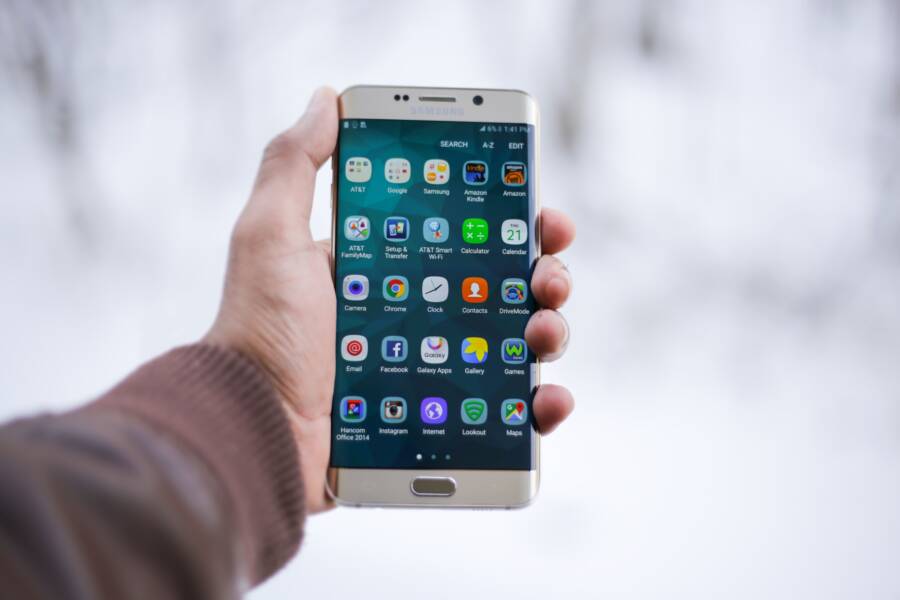
You can stop your smartphone from downloading app updates over cellular data by adjusting your settings menu. This simple change prevents your device from burning through your mobile data plan without your permission.
Unexpected data usage often stems from default settings that prioritize automatic updates regardless of your connection type. Taking control of these updates protects your monthly budget and ensures you only download large files when connected to Wi-Fi.
The following steps explain how to modify these settings on your specific device.
Understanding Why Automatic Updates Use Your Cellular Data
Your smartphone behaves in ways that prioritize consistency and security over data conservation. Manufacturers design these devices to keep every application current, often without verifying the type of connection available. This proactive approach helps prevent software bugs and security vulnerabilities, but it often works against your monthly data limits.
The Role of System Defaults in Data Management
Operating systems usually ship with settings enabled to perform tasks in the background. By default, many devices permit automatic updates over any available network. This configuration ensures that critical security patches reach your smartphone as quickly as possible. If a popular app has a flaw that puts your private data at risk, the manufacturer wants that fix installed immediately.
Engineers favor this path because an outdated app is a liability for the entire ecosystem. They weigh the cost of a few megabytes of mobile data against the potential disaster of a compromised user account. While this strategy protects you from bad actors, it creates an silent drain on your mobile plan. Unless you intervene, the phone treats your cellular connection exactly like a high-speed home network.
Identifying Apps That Consume the Most Data
If you notice your data usage climbing unexpectedly, you can pinpoint the specific culprits in your system settings. Both iOS and Android provide detailed logs that show how much data each application uses over a set period.
On an iPhone, follow these steps:
Open the Settings app and tap Cellular or Mobile Data.
Scroll down to the list of apps under the Cellular Data section.
Observe the number listed directly below each app name to see its total data consumption.
Note which apps consume the most, as these are likely the ones performing heavy background updates.
If you own an Android device, the process is similar but varies slightly by model:
Access your Settings menu and look for Network & Internet or Connections.
Select Data Usage or Mobile Data Usage to view a breakdown by application.
Tap on specific apps to see a detailed report of foreground and background data usage.
Use this information to decide which apps you should restrict from updating over your cellular connection.
Reviewing these logs once a month helps you catch apps that update too frequently. You can then toggle off mobile data access for those specific programs. This simple habit keeps your data plan intact without sacrificing the performance of your smartphone.
Quick Fixes for Your iPhone Settings
Adjusting specific system configurations on your iPhone stops unnecessary data consumption immediately. You gain control over your monthly mobile plan by modifying how the operating system handles updates and background tasks. These changes require only a few moments and prevent your device from wasting bandwidth on non-essential processes.
Disabling Cellular Downloads in the App Store
Apple sets your iPhone to download app updates automatically by default. This preference often ignores whether you use a Wi-Fi connection or cellular data. You can restrict these downloads to Wi-Fi only through the main settings menu.
Follow these steps to change your update preferences:
Open the Settings app on your iPhone.
Scroll down until you find the App Store menu and tap it.
Locate the Cellular Data section toward the bottom of the screen.
Toggle the switch for Automatic Downloads to the off position.
Tap App Downloads just below that to ensure you select Always Ask or Ask If Over 200MB.
Disabling this setting forces the smartphone to pause large updates until you connect to a stable Wi-Fi network. You save significant amounts of data, especially when multiple apps release updates on the same day. This configuration serves as a primary defense against unexpected mobile bill increases.
Restricting Background App Refresh
Background App Refresh allows applications to update their content even when you are not actively using them. While this keeps information current, it also forces your smartphone to use cellular data in the background. Disabling this feature for non-essential apps preserves both your data plan and battery life.
Access these settings to manage your background activity:
Launch the Settings app.
Select General from the main list.
Tap on Background App Refresh.
Toggle the switch to off if you want to stop all background activity entirely.
Alternatively, scroll through the list of apps and manually turn off the feature for data-heavy programs.
Turning off this setting prevents social media, news, or shopping apps from fetching new content while you keep your phone in your pocket. You still receive notifications, but the actual data-heavy updates only occur when you open the application. Most users find that disabling refresh for non-essential apps improves battery longevity throughout the day. This simple adjustment ensures that only the tasks you prioritize use your limited mobile data allowance.
How to Configure Android Data Usage for App Updates
You can stop your smartphone from consuming cellular data by adjusting the update settings within the Google Play Store. These settings act as a gatekeeper, ensuring your device waits for a Wi-Fi connection before pulling down large installation files. Controlling these preferences prevents your data plan from disappearing during large update cycles.
Changing Google Play Store Network Preferences
The Google Play Store provides a simple way to restrict updates to Wi-Fi only. This method forces your smartphone to pause any pending app updates until you connect to a stable wireless network. Once you set this, the store remembers your choice for future updates.
Follow these steps to update your preferences:
Open the Google Play Store app on your smartphone.
Tap your profile icon located at the top right corner of the screen.
Select Settings from the menu that appears.
Tap the Network preferences drop-down to expand the options.
Select App download preference and choose Over Wi-Fi only.
Tap Auto-update apps and select Over Wi-Fi only to ensure all background updates follow this rule.
After completing these steps, your device stops downloading updates while you use mobile data. If you move away from Wi-Fi, the store puts all pending updates into a queue until you return to a trusted connection.
Using Data Saver Mode as a Safety Net
Data Saver is a powerful built-in feature on most modern smartphones that prevents background applications from using mobile data. When you activate this mode, your device restricts apps from fetching data, syncing, or updating unless you actively open them. It acts as an effective safety net for users who want to keep total control over their data usage.
You can enable this feature through your system settings:
Open the Settings app on your smartphone.
Tap Network & internet or Connections.
Select Data usage or Mobile data usage.
Find the Data Saver option and toggle it to the on position.
Once enabled, your smartphone displays a small icon in the status bar to show that Data Saver is active. Some apps might stop sending notifications or updating content in the background, so keep this in mind if you rely on real-time alerts for specific programs. You can choose to allow certain essential apps to bypass this restriction if needed by selecting them under the Unrestricted data access menu within the same settings page. This feature keeps your monthly bill predictable by stopping silent data leaks.
Common Questions About Data Management
Managing mobile data is a common concern for many smartphone owners. You likely have questions about how background processes and app updates impact your monthly usage. Understanding these patterns helps you prevent unexpected charges on your mobile bill.
Does turning off automatic updates affect app security?
Disabling automatic updates does not compromise your security. Apps still function correctly, and you can update them manually whenever you connect to Wi-Fi. You remain in control of when your smartphone consumes data for these processes. If a critical update is necessary, you can visit the store and initiate the download yourself.
Will my phone run slower if I stop background updates?
Your smartphone performance remains stable even when you restrict background updates. These background tasks typically consume battery life and data rather than boosting speed. Disabling them might actually improve your battery performance throughout the day. You will still receive notifications and alerts from your apps as usual.
How often should I check my data usage settings?
Checking your data usage settings once a month is a good habit. You can look at these logs after your billing cycle resets to identify apps that use more data than expected. This brief check ensures you catch silent data drains before they accumulate. If you notice a high-usage app, you can restrict its data access immediately.
Can I allow updates only for specific apps?
Both iOS and Android allow you to manage data access for individual apps. You can block cellular data for social media or video apps while leaving it enabled for essential tools like maps or messaging. This approach provides flexibility while protecting your data plan. You should review your app list in the settings menu to toggle these permissions based on your personal needs.
Are there any risks to using Data Saver mode?
Data Saver mode is a safe and effective way to lower data consumption. It prevents most apps from sending or receiving data while they remain in the background. You might notice that some apps stop syncing content until you open them, but this is expected behavior. You can always add specific apps to an unrestricted list if you need them to stay active at all times.
Conclusion
You can stop your smartphone from wasting mobile data by adjusting specific store and system settings. The most effective methods include toggling off automatic updates in the App Store or Google Play Store and limiting background data activity. These simple configurations ensure your device waits for a Wi-Fi connection before downloading large files.
Taking control of these preferences stops unexpected data charges and improves overall battery efficiency. Periodically reviewing your data logs helps you maintain this balance and keeps your mobile usage under your direct management.
Check your current data settings today to avoid unwanted surprises on your next monthly bill.