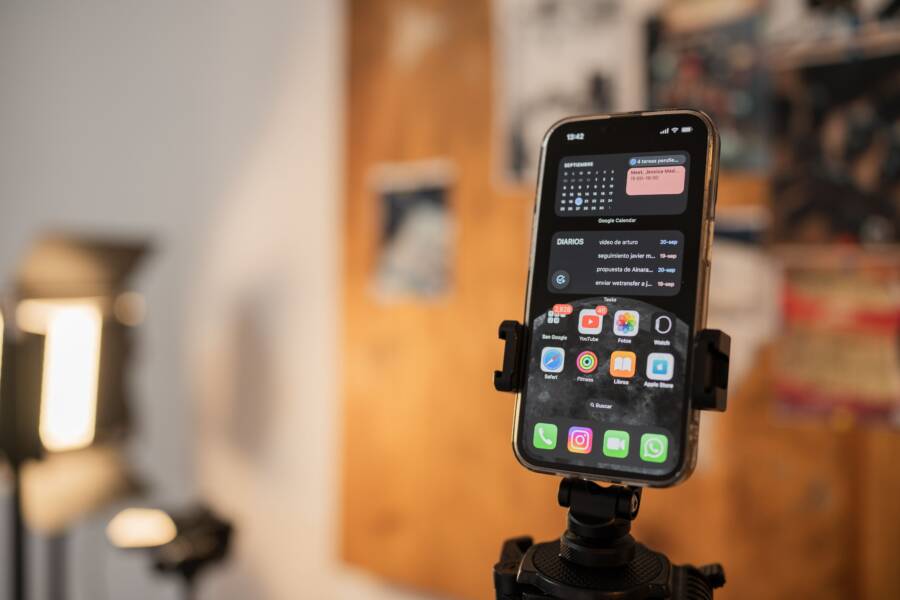
Shared calendar sync errors on your smartphone usually stem from incorrect account permissions, background data restrictions, or outdated application software. You can typically restore your schedule by re-verifying your login credentials or toggling the sync settings within your device menu.
These glitches often prevent important updates from appearing across your linked devices. A brief adjustment to your configuration often resolves the conflict and ensures your appointments remain current.
The following steps explain how to identify the source of your sync issues and apply the correct fixes. You will soon have your shared calendars working correctly on your smartphone again.
Initial Checks to Restore Calendar Connectivity
Sync issues on your smartphone often result from simple environmental or configuration errors. Before you attempt complex account resets, verify these two primary factors. A stable connection and correct internal timing allow your calendar to communicate properly with remote servers. If these settings are misaligned, your device will fail to pull or push new event data.
Verifying Your Internet Connection Stability
Data flow requires a stable path to your calendar service. Wi-Fi connections often provide high speed, yet they can experience signal drops or firewall restrictions on public networks. Mobile data is typically more consistent for background services, but it might be restricted by low-data-mode settings on your smartphone.
Test your current connection by opening a mobile browser. Try to load a news site or a search engine page. If the page fails to open or takes too long to respond, your network is likely the culprit. You can try the following steps to refresh your path to the web:
Toggle Airplane Mode on for ten seconds, then turn it off to reset your network radio.
Switch from Wi-Fi to mobile data, or vice versa, to see if the sync resumes.
Restart your smartphone to clear temporary network cache files that might block specific sync ports.
Ensuring Date and Time Settings Are Correct
Your smartphone relies on an accurate internal clock to establish secure connections. Calendar services use SSL encryption to protect your private schedule data. If your date or time is off by even a few minutes, the SSL handshake will fail because the security certificates appear invalid to the server.
Most devices handle this automatically through your network provider. However, if you recently traveled across time zones or manually adjusted your clock, the synchronization will break. Navigate to your system settings to verify that your time is set to automatic. If it is already enabled, toggle it off and back on to force a re-sync with the network time protocol. An accurate clock ensures that your security tokens remain valid for the duration of your sync request.
Correcting Account Sync and Permission Settings
If your calendar remains unresponsive after checking your connection, the issue often lies with the account itself or the access rights granted to your app. A corrupted sync token or a restricted permission setting will prevent your smartphone from communicating with your mail server. You can resolve these conflicts by re-authenticating your credentials and verifying that your system allows the app to function properly.
How to Remove and Re-add Your Account
When your smartphone calendar stops syncing, the security token that authenticates your session may have expired or become corrupted. Removing the account from your device and adding it again forces the system to request a fresh token from the server. This process clears out old handshake data that often causes persistent sync errors.
Follow these steps to reset your account credentials on your smartphone:
Open your phone settings and look for the Accounts or Passwords menu.
Select the specific email account that hosts your shared calendar.
Tap the option to remove the account from your device.
Restart your phone to ensure all cached data for that account disappears.
Return to the same menu and add the account back with your current login details.
After you log back in, the system initiates a full handshake with the server. This refresh usually pulls in any missing event data within a few minutes. Avoid interrupting the process while the initial synchronization finishes.
Managing App Permissions for Seamless Sync
Even with a correct password, your calendar app cannot sync data if the smartphone operating system denies it access to your files or background processes. Apps require specific permissions to read your calendar events and write changes back to the cloud. You should verify these settings if you recently updated your software or installed a new security patch.
Navigate to the Privacy or Apps section in your system settings to audit these access rights. Find your calendar application in the list and check the permissions category. You need to ensure that the app has active access to your calendar, contacts, and background data.
Use this checklist to confirm your settings are optimal:
Check that the calendar permission is set to Allow or While Using the App.
Confirm that background data usage is enabled so the app can sync while you are not actively using it.
Verify that battery optimization does not put the calendar app into a restricted state.
If these settings are already correct, toggle them off and back on again. This action acts as a soft reset for the internal permission registry. Most sync delays disappear once the system recognizes the renewed request for data access.
Optimizing Your Smartphone for Background Data
Your smartphone manages background processes to preserve battery life and reduce mobile data consumption. However, these aggressive power-management features often block your calendar app from reaching the server when the screen is off. If your calendar fails to update automatically, you should adjust your system settings to ensure the application maintains a persistent connection.
Disabling Battery Saver Mode Restrictions
Power-saving modes restrict or suspend background activities to extend the duration of your charge. When these modes activate, your smartphone prioritizes energy conservation over real-time synchronization. This often causes shared calendar updates to stall until you manually open the app and force a manual refresh.
To ensure your calendar remains active on Android devices, navigate to your battery settings menu. Look for options labeled Battery Optimization or Adaptive Battery. Select your calendar app from the list and switch its status to Don’t Optimize. This setting tells the operating system to ignore this specific app when applying power-saving rules.
On iOS devices, the Low Power Mode feature also limits background tasks. Go to your settings menu and select Battery to verify if Low Power Mode is currently enabled. If it is, toggle the switch to the off position. You should also check the Background App Refresh menu under General settings to ensure that your calendar app is toggled on. These adjustments allow the operating system to process calendar updates even when the device is idle.
Allowing Unrestricted Background Data Usage
Beyond battery limitations, your smartphone might restrict the amount of data your apps consume while running in the background. If you rely on mobile data rather than Wi-Fi, the device might automatically block the calendar from syncing to prevent overages. Providing your calendar app with unrestricted access allows it to communicate with the cloud server without these limitations.
On Android, locate the Apps or Manage Apps menu in your system settings. Select your calendar app and find the Data Usage or Mobile Data section. Enable the toggle for Background Data so the system allows the app to pull information over your mobile network at all times. Some newer versions of Android also include an Unrestricted Data Usage toggle that bypasses data-saving filters entirely.
iPhone users can manage this through the Mobile Data or Cellular settings menu. Scroll down to find your calendar app in the list of installed programs. Confirm that the toggle next to the app is set to the on position. This ensures that the application maintains permission to use cellular data for synchronization tasks while you are not actively using the app. Once you verify these settings, your shared calendar should receive updates promptly regardless of whether you have the application open.
Troubleshooting App Cache and Software Updates
Persistent sync errors on your smartphone often result from stale data or outdated system software. When your calendar app stops updating correctly, the problem usually stems from cached files that contain old configuration info. Clearing these files or updating your software often restores connection to your calendar servers.
Clearing Outdated Cache and Temporary Files
Your calendar app stores small pieces of data locally to improve performance. Over time, these temporary files can become corrupted or conflict with new entries from the server. Clearing this data removes the conflicting files without deleting your actual calendar events. Because your events exist on the cloud server, they will automatically reappear once the app performs a fresh sync.
Follow these steps to clear the cache on most Android devices:
Open your phone settings and tap on the Apps menu.
Locate your specific calendar application in the list.
Tap on Storage or Storage and Cache.
Select Clear Cache to remove the temporary files.
On iOS devices, the system handles cache management automatically. You cannot manually clear specific app cache files like you do on Android. Instead, you can force a refresh by toggling the calendar sync off and back on within the Accounts menu. This action clears the local sync state and forces the device to pull a clean copy of your schedule from the server.
Keeping Your Apps and Operating System Current
Running old versions of your software often triggers sync errors because your smartphone cannot communicate with newer server protocols. Developers frequently update apps to fix bugs or security gaps that prevent proper data flow. If your calendar app or operating system is out of date, the sync process might fail repeatedly.
Check for updates using these methods:
Visit your app store and search for your calendar application. If an Update button appears, tap it to install the latest version.
Navigate to your phone settings and look for the Software Update or System Update menu. Download any pending patches to ensure your system remains compatible with current security standards.
Enable automatic updates in your app store settings to prevent future version mismatches.
Software updates contain crucial fixes for how your smartphone interacts with cloud services. Keeping everything current ensures that your device uses the most efficient methods for fetching shared event data. Regular updates solve most persistent sync problems that stem from outdated code.
Conclusion
Restoring shared calendar sync on your smartphone often requires only a few targeted adjustments to your settings. By verifying your internet connection, checking time settings, and refreshing your account credentials, you solve most common connectivity errors. You can usually clear stubborn sync blocks by auditing app permissions and allowing background data access.
If these steps do not restore your calendar updates, the issue may stem from your service provider or internal network restrictions. In these cases, contact your organization’s IT department or the official support channel for your calendar service to investigate potential server-side blocks.
Maintaining a clear, updated schedule is essential for effective daily planning. Once your device syncs properly, your shared events will remain accurate and visible across all your linked platforms.