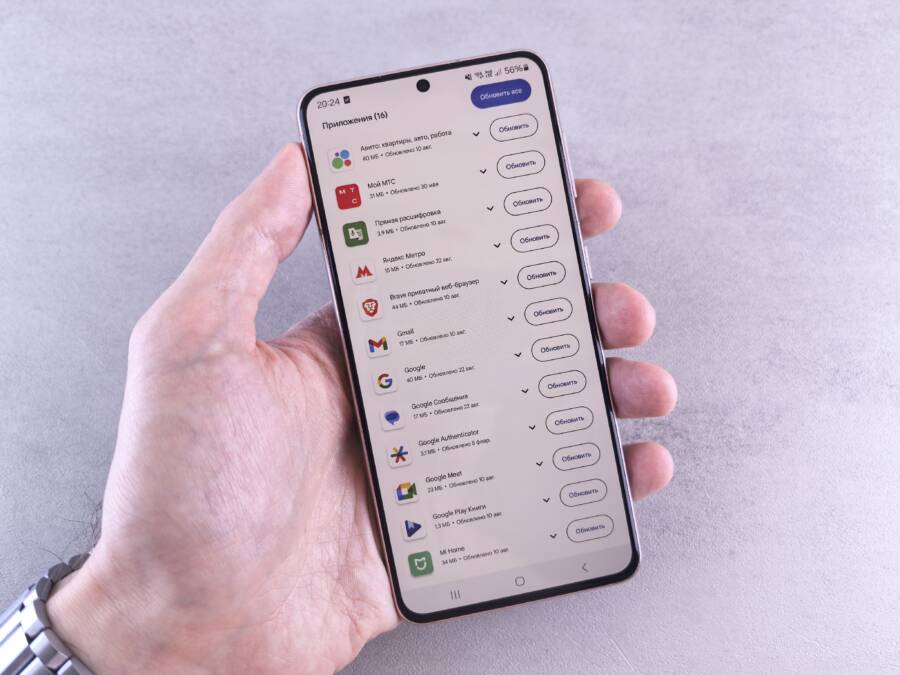
When your smartphone freezes during a system update, you are likely dealing with a storage bottleneck, a corrupted installation file, or an unstable internet connection. You can resolve this issue by clearing your temporary cache, checking your available space, or restarting the update process under a stable network.
These technical hiccups are frustrating, but they rarely indicate permanent hardware damage. By following a few targeted troubleshooting steps, you can force your device to complete the installation and return to normal operation.
Checking the Basics Before You Try Again
Before you attempt another system update, verify the fundamental conditions of your smartphone. Most failed updates occur because the device hits a wall during the final installation phase. By confirming you have enough space and a reliable internet connection, you avoid the most common triggers for interruption. These initial checks take only a few minutes and save you from the frustration of a mid-process crash.
Making Sure You Have Enough Storage
System updates require more than just the space needed to download the package. While a file might only be 2GB in size, your smartphone needs several gigabytes of additional room to unpack the files, verify the data, and prepare the installation. If you hover near your storage limit, the system fails to create the temporary files necessary to complete the transition.
To check your available capacity, navigate through your device settings:
Open the Settings app on your smartphone.
Select the General or Storage menu.
Look at the bar graph displaying your used versus total storage.
If your device shows less than 5GB or 10GB of free space, you must delete unnecessary data. Start by reviewing large video files or clearing the cache of social media apps that accumulate massive amounts of temporary data. Once you free up enough space, the operating system can comfortably decompress the update files without stalling. Remember that a lack of headroom often causes the phone to hang during the final phase of the process, leaving you with a half-installed update.
Verifying Your Internet Connection Stability
A stable connection matters most during the final handshake with the update server. Your smartphone performs a security verification at the end of the download, which confirms the integrity of the patch. If your signal drops for even a second during this window, the device rejects the installation because it cannot confirm the data is complete or authentic.
Cellular data connections often fluctuate depending on your location, interference, and network traffic. These micro-drops are invisible during normal web browsing, but they are fatal to a system update. For the highest reliability, connect your smartphone to a stable home or office Wi-Fi network rather than using mobile data.
Avoid public Wi-Fi: Networks at cafes or airports often have timeouts or firewalls that block the specific ports needed for system updates.
Stay close to the router: If you use a home network, ensure your signal strength is at its maximum to prevent packets from getting lost in transit.
Disable VPNs: Virtual private networks sometimes interfere with server communication; turn them off before you begin the update process.
By moving your device to a consistent, high-speed connection, you remove the primary cause of corrupted download packets. If the update previously failed at a specific percentage, a solid connection is usually the missing piece of the puzzle.
Advanced Troubleshooting Steps for Persistent Errors
When basic storage checks and connection stability do not resolve your update issues, you need to address the underlying software artifacts. These persistent errors often stem from temporary files or system configurations that conflict with the new firmware. By performing the following advanced steps, you clear out hidden obstacles and realign your settings without losing your personal data.
Clearing the Temporary Cache Data
Your smartphone creates temporary files during daily use to speed up app loading and system processes. Sometimes these files become corrupted or conflict with the new software, causing the update installation to halt unexpectedly. Clearing the system cache partition removes these stale files, which gives the update process a clean environment to complete its work.
You can perform this action using the recovery mode on your device. This process does not erase your photos, contacts, or installed apps. Follow these steps to trigger the cache wipe:
Turn off your smartphone completely.
Press and hold the volume down and power buttons simultaneously until you see the device logo or a special startup screen.
Use the volume keys to navigate to the “Wipe cache partition” option.
Press the power button to confirm your selection.
Select “Reboot system” once the process finishes.
Removing these temporary files solves many update failures because it eliminates residual data fragments that trigger installation crashes. If your phone was stuck in a boot loop or halted at a specific percentage, this step often resolves the interference.
Checking Date and Time Synchronization
An incorrect date or time setting creates a hidden conflict during the update process. Modern smartphones require precise time synchronization to verify security certificates issued by the manufacturer servers. If your device thinks it is in a different year or time zone, the server rejects the request as a potential security risk. This mismatch prevents the device from initiating the download or finalizing the installation.
To fix synchronization issues, verify your date settings in the system menu:
Open the Settings app.
Navigate to the System or General Management menu.
Select the Date and Time category.
Ensure the toggle for “Set time automatically” or “Use network-provided time” is turned on.
If the toggle was already active, turn it off and back on again to force the device to refresh its connection with the network time servers. Manual time adjustments often cause errors during background tasks like system updates. Keeping your settings on automatic mode ensures your device remains aligned with the server authentication requirements, which prevents unauthorized installation blocks and allows the patch to proceed normally.
Safe Mode and Software Conflicts
Safe mode is a diagnostic environment that loads only the essential operating system components required for a smartphone to function. When your device fails to complete a system update, software conflicts are often the culprit. Third-party applications, background services, or custom configurations may interfere with the installation script, causing the update to hang or abort. By booting into safe mode, you temporarily disable these external variables to see if the core software can finish its task without interruption.
Identifying Software Conflicts
Conflicts usually arise from applications that run persistent background processes. These programs might attempt to access system files or network ports at the exact moment the update service needs them. If your smartphone has recently become sluggish or if you installed new software shortly before the update failure, a conflict is likely present.
You can determine if an app is responsible by observing your device behavior. If the phone performs normally in safe mode but crashes during standard operation, you have confirmation that a third-party app is causing the problem. Most modern devices provide a way to access this mode through a specific button combination during startup. Once you enter this state, the phone will display a badge or text indicating it is in safe mode.
Resolving Issues Through Safe Mode
Once your smartphone is in safe mode, you can attempt to finalize the update or perform maintenance tasks that were previously blocked. If the update fails, you might need to identify and remove problematic apps. Focus on programs that require administrative permissions, custom launchers, or battery optimization overrides.
Follow these steps to manage apps effectively:
Open your settings menu and locate the app manager.
Review recently installed or updated applications.
Uninstall any software that runs in the background or monitors system activity.
Restart your device normally to exit safe mode and retry the system update.
Removing software that aggressively modifies system settings gives the update manager the access it needs to replace core files. If the process succeeds, you can reinstall your applications one by one to see if the conflict returns. This method isolates the specific software causing the interference, allowing you to keep your phone updated while maintaining your preferred app ecosystem.
Understanding App Interference During Updates
Not all conflicts are obvious. Some apps store data in protected directories that the update process needs to overwrite. When an app refuses to release these files, the installer encounters an access violation and halts. Safe mode bypasses these locks by preventing the apps from launching at startup.
If you still encounter failures after uninstalling suspicious apps, look for services that sync data continuously. Cloud storage tools, messaging platforms, and social media apps are common sources of conflict because they constantly write to the disk. Disabling these features or logging out of your accounts before starting the update provides the system with the clearance it needs to perform its work.
While it is rarely necessary to reset your entire device, clearing the cache or uninstalling conflicting software in safe mode addresses the vast majority of software-related update failures. This systematic approach saves you the trouble of losing your personal settings while ensuring your smartphone stays secure and current.
When to Use a Computer to Force the Update
Sometimes, an update fails because the internal software environment on your smartphone becomes too cluttered or corrupted to process new changes. When the device itself cannot complete the update through the settings menu, you must bypass the local OS and use a desktop computer. This method is effective because it forces the update package to download and install from an external source, which ignores any internal software conflicts or temporary file errors present on the handset.
Using Official Desktop Software
Connecting your smartphone to a computer allows for a clean reinstall of the operating system software. By utilizing official desktop tools, such as iTunes for Apple devices or manufacturer-specific companion software for Android, you essentially provide your device with a stable, external engine to push the update through.
The desktop software communicates directly with the manufacturer servers to verify the firmware integrity before pushing it to your hardware. Because this process occurs through a hard-wired connection, it eliminates the risks associated with Wi-Fi instability or battery depletion during the critical installation phase.
Install the official support software provided by your smartphone manufacturer on your computer.
Connect your device using a high-quality USB cable, preferably the one that came in the box.
Open the desktop application and look for the option to update or restore the device.
Allow the software to download the full installation package to your computer storage before it sends the data to your phone.
Keep your smartphone connected until the computer application confirms the update is complete.
This approach resolves deep-seated bugs because it replaces corrupted system files that standard over-the-air updates often miss. If the phone is stuck in a loop or displays a frozen error screen, the desktop software often triggers a recovery mode that clears the persistent error and installs the latest firmware fresh. Since the computer manages the download and file extraction, your device only needs to focus on the final installation, which significantly reduces the chances of a mid-process failure. This is often the final solution for persistent software issues that resist basic troubleshooting techniques.
Conclusion
Fixing a stubborn system update is usually a matter of clearing storage space or stabilizing your network connection. If these basic steps do not work, wiping the system cache or using a computer to reinstall the firmware will resolve the underlying software conflicts.
A factory reset serves as your final option if all other methods fail to push the update through. Always back up your personal data before taking this step to prevent permanent loss. Keeping your smartphone software current remains the most effective way to maintain device security and overall performance.