What If the Only Thing Between You and the Life You Deserve Is a Hidden Wealth Code Waiting to Be Activated
>>> Open the Door <<<

Ready to turn a new phone into a powerful productivity tool in 2025? A clean, well organized setup can save time, reduce distractions, and sharpen focus. This guide walks you through the practical steps you can implement today so your smartphone works for you, not against you.
First, get the basics right. Update the operating system, secure the device, and set up essential protections. Then tune the home screen for quick access to the apps that matter most, and enable focus modes to silence non essential notifications during deep work. The goal is a fast, calm start to every day.
From there, you can lean on automation and smart helpers to handle routine tasks. Create routines that fit your work rhythm, and pick apps that sync across devices so you can move seamlessly from phone to laptop or tablet. With the right setup, your smartphone becomes a reliable ally for productivity, not a constant source of distraction.
Get the setup right by updating, securing, and syncing your phone
A solid first setup makes your distractions vanish and your tools work for you. This section covers three essential pillars: keeping your software up to date, locking down your device, and enabling backups and cross device syncing. When these basics are in place, your phone becomes a reliable partner for productivity.
Thousands of People Were Struggling With Money Until They Discovered This One Ancient Secret Hidden in Sound
>>> Unlock It Now <<<

Update your OS and apps for peak performance
Regular updates keep your phone fast and secure, and they unlock new features that can boost productivity. Here’s how to stay current without the guesswork.
- iPhone: Open the Settings app, tap General, then Software Update. If an update is available, tap Download and Install. New iOS versions often include performance improvements, bug fixes, and AI enhancements that can streamline tasks and enhance automation. Go back to Settings > App Store and enable App Updates so your apps stay current automatically. For more guidance, see Apple’s update guide. https://support.apple.com/guide/iphone/update-ios-iph3e504502/ios
- Android: Open the Settings app, select System (or About phone on some devices), then Software Update. Install any available updates. Google’s update support page also helps you spot firmware or security patches for faster, safer operation. https://support.google.com/android/answer/7680439?hl=en
Keep apps updated as well. App updates often include important security patches, performance tweaks, and AI enabled features that can optimize your workflow. In Android and iPhone app stores, enable automatic updates so you don’t have to chase new versions. If an update requires a restart or temporarily slows you down, plan a quick update window during a break rather than forcing a mid task pause.
Why this matters for productivity: updated software reduces crashes, fixes glitches that waste time, and delivers smarter tools that can automate repetitive tasks. It also ensures compatibility with new AI features that help with scheduling, data entry, and smart suggestions.
Useful context: if you run into update issues, check for available storage or a stable network connection. Sometimes a quick power cycle of the device helps the update installer proceed smoothly. For a deeper dive into update best practices, you can reference official support resources from Apple and Google. https://support.apple.com/guide/iphone/update-ios-iph3e504502/ios https://support.google.com/android/answer/7680439?hl=en
Secure your device from day one
Security is not a one time setup. It is a habit that protects your data, your work, and your peace of mind. Start with the essentials and build from there.
- Set a strong screen lock: Use a code that is not easily guessed. A longer PIN or passcode beats simple 4 digit codes.
- Enable biometrics: Add fingerprint or face recognition if your device supports it. This speeds access while keeping a tight lock on intruders.
- Turn on two factor authentication for key accounts: Email, cloud storage, banking, and work tools should require a second factor beyond your password.
- Review app permissions: Periodically check what apps can access location, microphone, camera, contacts, and files. Revoke anything unnecessary.
- Avoid suspicious apps: Only install apps from official stores and trusted publishers. If an app seems shady or asks for unusual permissions, skip it.
Practical tips that help you stay safe: enable “Find My” or equivalent so you can locate, lock, or erase your device if it is lost. Regularly review your security settings after major OS updates, as some platforms adjust defaults or add new protections. For a thorough beginner friendly overview, see resources on iOS and Android security basics. https://blackcloak.io/how-to-secure-your-ios-andandroid-devices/ https://www.tracesecurity.com/blog/articles/securing-android-and-apple-phones-through-settings
A small, consistent practice pays off. Set a monthly check to confirm screen lock is enabled, 2FA codes are accessible in a trusted authenticator, and that no app has permission it doesn’t need. If you want a simple rule of thumb: if you didn’t install it, it shouldn’t have access to your camera or microphone.
Set up backups and cross device syncing
Backups and syncing create a safety net for your work. They let you pick up where you left off on any device and keep important data safe from loss.
- Cloud backups: Turn on cloud backups so your photos, documents, and app data are stored securely off the device. On iPhone, enable iCloud Backup, and check that your most important apps are syncing to iCloud. On Android, enable Google Drive/Google One backups and ensure app data is included.
- Cross device syncing: Use iCloud for Apple devices or Google Backup and Sync for Android. This keeps calendars, contacts, files, and settings in harmony across iPhone, iPad, and your computer.
- Practical benefits: If you switch between devices, you won’t chase a missing file or a contact. You can start a task on your phone, then continue on your laptop without manual transfers.
To set up backups and syncing smoothly, start with these steps:
- iPhone: Sign in with your Apple ID, enable iCloud Backup in Settings > [your name] > iCloud > iCloud Backup. Make sure iCloud Drive is on for document syncing. For calendar and contacts, ensure the respective toggles are on in iCloud settings. https://support.apple.com/guide/iphone/update-ios-iph3e504502/ios
- Android: Open Settings > Google > Backup. Turn on Back up to Google Drive and choose the account to back up. Also verify in Settings > Apps that your critical apps have permission to sync. https://support.google.com/android/answer/7680439?hl=en
If you use a computer, keep a light workflow across devices. For example, store important documents in a shared cloud folder and enable calendar syncing so meetings appear on all devices. This approach reduces copy and paste tasks and keeps you in the flow. If you want a practical security check, consider evaluating backup frequency and storage limits every quarter to avoid surprises later. For a broader look at securing and backing up devices, these resources are a good starting point. https://preyproject.com/blog/phone-security-20-ways-to-secure-your-mobile-phone https://support.apple.com/guide/icloud-how-to-use-icloud-and-find-your-iphone-iclp32a3a0b1/icloud-and-finding-your-iphone-iclp32a3a0b1
You can now move with confidence. With updated software, solid protections, and synced data, you will spend less time organizing and more time getting things done. The combination of a tidy OS, reinforced security, and reliable backups means your smartphone serves your productivity goals—not the other way around.
Build a productive home screen and fast access
A clean, well organized home screen is your first line of defense against distractions. It sets the tone for the day, nudging you toward tasks that matter and away from noise. In this section, you’ll learn how to curate a focused starting point on your phone, so you can access the right tools in seconds and stay in a productive groove all day.
Prioritize essential apps on the first screen
Your home screen should be a quick conduit to your daily work. Limit this first view to a small, mighty set of apps that you use every day. Think calendar, email, notes, messaging, and a reliable task list. Fewer apps mean fewer temptations to open something unrelated, which translates to fewer distractions and more momentum.
- Place a calendar widget front and center to visualize today’s commitments at a glance.
- Keep your email app next to a notes app so you can capture ideas and schedule responses without hunting through menus.
- Group messaging and task apps in a tight cluster so you can communicate and track work without flipping through pages of apps.
A practical rule: if an app isn’t used multiple times daily, it doesn’t belong on the first screen. If you do need it, a smart folder or a single tap from a dock can still keep it within reach without clutter. For a quick approach to organizing the home screen on Android and iPhone, see this practical guide to efficient layouts and folder use. https://www.dansadvice.com/organize-phone-home-screen-widgets
In addition, consider a consistent color or icon system to help your brain recognize tasks faster. For example, use blue for calendars and green for messages. This visual cueing speeds navigation and reduces cognitive load, letting you focus on what you need to do next.
Smartphone ergonomics matter too. Place the apps you touch most near the bottom edge and within your thumb’s natural reach. A little spacing between icons prevents accidental taps during busy moments and keeps your screen looking tidy.
Use widgets and smart folders
Widgets are not decorations; they’re actionable, glanceable tools. Add a calendar widget that shows today’s agenda, a to-do widget for quick task updates, and a notes widget for fast capture of ideas. When you can see the information you need at a glance, you move faster and keep your focus intact.
- Choose the right widget sizes. A compact calendar may be enough, while a larger task list can provide an at-a-glance view of what’s due today.
- Use smart folders to group related apps. For instance, create a “Work” folder containing email, calendar, notes, and document apps, and a separate “Communication” folder for messaging and collaboration tools. This structure keeps the home screen lean while delivering quick access to essential workflows.
Grouping by function reduces the time spent searching for apps and minimizes context switching. It’s especially helpful when you’re in a flow state and don’t want to disrupt your work with a screen full of icons. If you want practical ideas on how to arrange widgets and folders, this guide offers clear, actionable steps. https://www.dansadvice.com/organize-phone-home-screen-widgets
If your device supports it, consider using widget stacks or smart folders that adapt based on time of day or location. For example, a “Today” stack could combine your calendar, weather, and a quick task list, automatically presenting what’s most relevant as you start your day. This keeps the home screen dynamic without turning into a chaotic board of icons.
Beyond layout, review permissions for widgets and shortcuts. Some widgets pull data from apps you rarely use. If a widget isn’t providing value, remove it to reduce clutter and improve performance.
Create routine based layouts for work and life
Your phone should match your daily rhythm. Create distinct home screen layouts for work hours, commutes, and evenings. This approach minimizes visual noise during focus time and makes every transition smoother.
- Work hours: A minimal setup with essential tools only. Keep calendar, email, task manager, and a notes app front and center. A compact widget for today’s tasks helps you stay on track without opening multiple apps.
- Commute: A streamlined screen with streaming music or podcasts, hands-free navigation, and quick access to messages so you can respond during breaks without losing your place in your tasks.
- Evenings: A calmer setup focused on personal projects, reading, and planning for tomorrow. Move finance or planning apps here and reduce work-related alerts to protect downtime.
Switching layouts can be as simple as long-pressing the home screen and choosing a pre-configured grid or theme, depending on your device. The goal is to reduce clutter during deep work and keep your attention on the task at hand. If you’d like to see real-world examples of home screen routines, take a look at guided setups that emphasize minimalism and frequency of use. https://www.rokform.com/blogs/rokform-blog/android-home-screen?srsltid=AfmBOooPvyc047SfotmSuxqsppXdoCclosinqO_pL4QhpWOrTeHxrZxY
To make this stick, pair routine layouts with a simple daily ritual. For instance, a 60-second screen reset every morning can refresh your home screen so it reflects the day’s priorities. You’ll quickly notice how less clutter translates into faster access and fewer decision points throughout the day.
Tips to keep the setup working long term:
- Review your most-used apps every week and prune anything that no longer serves a purpose.
- Reserve a monthly clean-up to re-evaluate widgets, folders, and layout choices.
- Use behavioral prompts from your phone’s focus or do not disturb modes to maintain discipline during focused work blocks.
In summary, a productive home screen is a living system. It adapts to your life, supports your work rhythm, and reduces friction so you can stay in the zone. When your phone mirrors how you work, you’ll reach goals faster and feel more in control of your day.
Links to helpful resources and examples can deepen your understanding of practical layouts and rationalized app groupings. For additional ideas on smart screen organization, explore this collection of guidance and real-world layouts. https://www.reddit.com/r/androidapps/comments/1dn5pwn/how_to_organize_homescreen_to_be_best_look/
Control focus and minimize distractions
Set up a disciplined workflow where your phone supports your tasks rather than drags you away. By shaping focus modes, fine tuning notifications, and using smart defaults, you gain control over when and how you engage with your device. Think of it as a suite of guardrails that keep interruptions at bay while you stay informed and productive.
Set up focus modes for different parts of your day
Create dedicated focus contexts that align with your routine. This makes it easy to switch into the right mindset in seconds.
- Work focus: Silence non essential apps, allow only calendar, email, task manager, and chat tools. Schedule a daytime window when notifications from non work apps are muted. Use a calendar widget and a to do list so you can see what’s due at a glance. On iPhone, you can set up a Work Focus and tailor which apps and people are allowed. Learn more about Focus on iPhone. https://support.apple.com/guide/iphone/set-up-a-focus-iphd6288a67f/ios
- Personal focus: Keep family messages, banking alerts, and health apps active, but mute social media and game alerts. Set a daily wind down after work hours to reduce late evening interruptions. For quick setup tips on how to schedule Focus, see how to turn on or schedule a Focus on iPhone. https://support.apple.com/guide/iphone/turn-a-focus-on-or-off-iph5c3f5b77b/ios
- Sleep focus: Block daytime noise and only allow alarms and critical utilities. Pair with a predictable bedtime routine so your smartphone lets in only the essentials. If you want to emulate a quiet night, explore how to summarize notifications and reduce interruptions with a scheduled plan. https://support.apple.com/guide/iphone/summarize-notifications-reduce-interruptions-iph1fbe7d2b9/ios
Tips to make this stick: start with one strong Focus mode and expand as you get comfortable. Name each Focus clearly (Work, Personal, Sleep) so it’s obvious what to enable in the morning. A well configured Focus helps you reclaim momentum during deep work blocks.
Manage notifications and alerts
Notifications should inform, not derail. Use scheduling, priority rules, and quiet hours to stay in the loop without constant buzzing.
- Scheduled summaries: Group non urgent alerts into a daily or multiple daily summaries. This keeps you updated on important events without constant interruption. Apple’s notification summaries show how to implement this on iPhone. https://support.apple.com/guide/iphone/summarize-notifications-reduce-interruptions-iph1fbe7d2b9/ios
- Priority alerts: Allow only high priority apps to break through during focus times. Configure exceptions for alarms, calendar events, and critical messages so you never miss essential cues.
- Quiet hours: Set a quiet period during focused work where only essential alarms and emergency alerts come through. Scheduling these windows prevents late night pings from stealing your attention. Learn how to turn on or schedule a Focus on iPhone to automate this flow. https://support.apple.com/guide/iphone/turn-a-focus-on-or-off-iph5c3f5b77b/ios
Why this matters: when you reduce the noise, you reduce the cognitive load required to filter it. You’ll finish tasks faster and with less fatigue. If you work across devices, keep notification rules in sync so a single rule applies whether you are on a phone or a computer. For a broader take on prioritizing notifications, explore guidance on priority notifications and summaries. https://www.engagelab.com/blog/ios-18-priority-notifications
Limit distractions with smart defaults
Smart defaults act like a runway that guides your attention to what matters. The goal is to keep disruptions low while staying informed.
There Is a Frequency That the Wealthiest Families Have Used for Generations and Most People Will Never Know It Exists
>>> Open the Door <<<

- Turn off non essential push notifications: Review each app’s permission and disable alerts that don’t serve your current goals. If you rarely reference an app during work, it probably shouldn’t push alerts at all times.
- Keep social apps off the main screen during work: Put social apps in a folder or second screen. When they aren’t in your line of sight, you’re less likely to interrupt deep work.
- Use a simple daily reset ritual: Each morning, review which apps populate your top screens and prune anything you haven’t used in a week. A quick tidy helps your brain navigate faster throughout the day.
Real world tip: a focused layout reduces context switching and speeds up decisions. If you want a deeper look at how to implement a focused notification strategy, see practical discussions on how to silence or tailor notifications and what to allow during quiet hours. https://android.stackexchange.com/questions/29731/can-i-silence-only-certain-notifications-during-the-night
Practical example: you can set a 90 minute work block where only calendar, notes, and a project management tool are visible. After that block, swap to a shorter break screen that reintroduces social and entertainment apps for a controlled time window. This approach keeps you in the flow while still offering strategic relief.
By combining focused modes, thoughtful notification rules, and sensible defaults, you can create a distraction profile that matches your goals. Your phone becomes a tool that supports work, life, and rest in a balanced way. For ongoing guidance on staying in the zone, consider how other users organize their notification and focus settings across devices. https://www.reddit.com/r/iphone/comments/1isah65/is_there_a_way_to_emulate_androids_do_not_disturb/
Automation, AI helpers, and essential apps
Turn your new phone into a smarter workspace with automation, AI helpers, and essential apps that sync across devices. This section covers practical automations you can set up quickly, picks for cross platform productivity in 2025, and smart ways to use AI features while keeping your data safe. Think of your phone as a proactive assistant that handles routine tasks so you stay focused on real work.
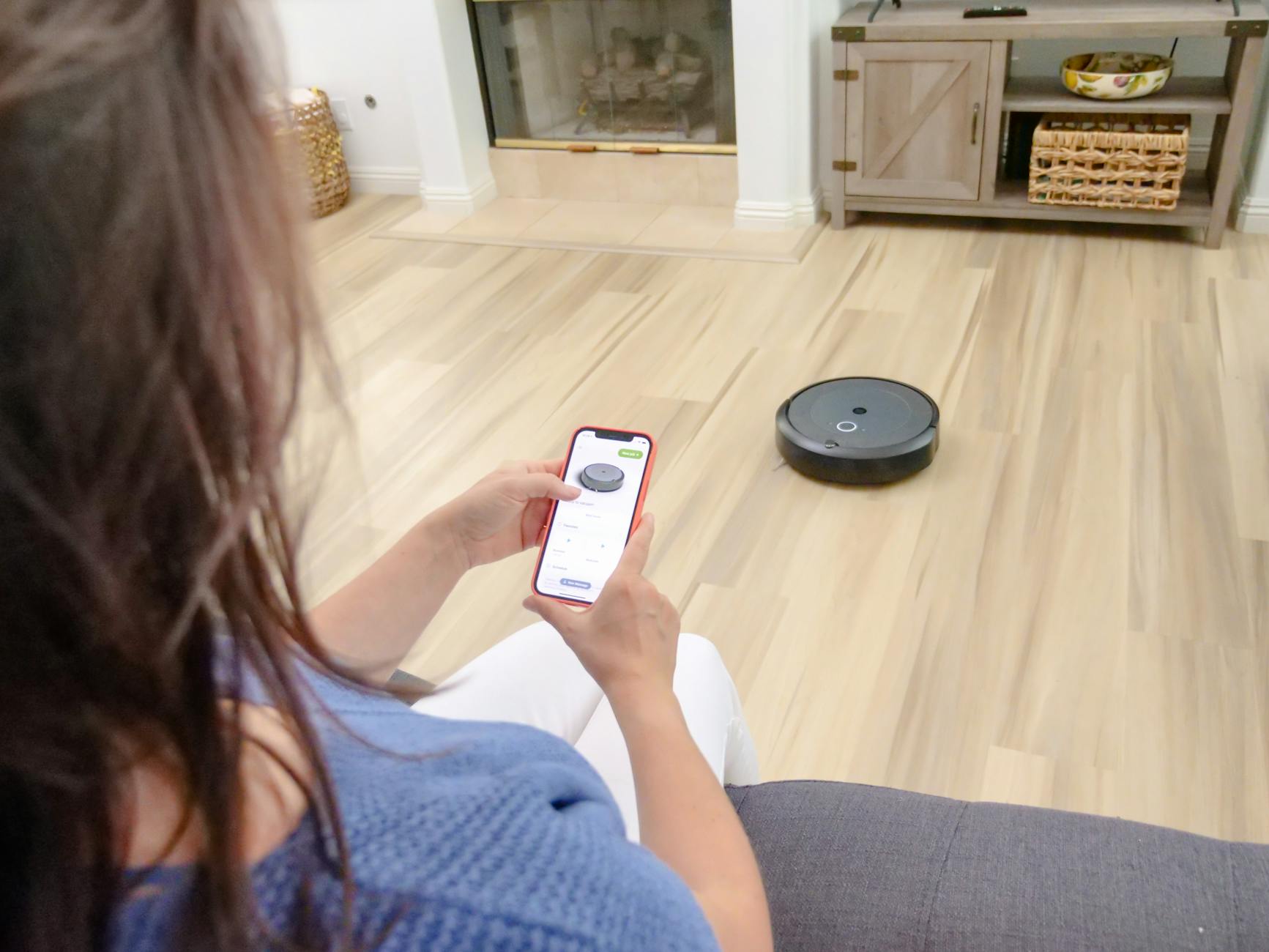 Photo by Kindel Media
Create simple automation routines
Automation can shave minutes from your day and keep you in a productive rhythm. Start with small, reliable routines you can trust and build from there. Here are easy examples you can implement this week.
- Auto launching a news brief at the start of the day: Create a 7 AM automation that opens your preferred news app or briefing in podcast or text form. It sets your mindset without pulling you into endless scrolling.
- Open calendar when tapping a meeting invite: When you tap a meeting invite, the calendar app should open automatically to the event details and add it to your tasks if you plan follow ups.
- Silencing notifications during focus time: Schedule a focus window and silence non essential alerts. Important calls or critical messages can still come through, but everyday distractions stay away.
To get practical, start with a simple routine in your OS shortcuts or automations app. A few reliable automations can compound into a leaner workflow over time. If you want ready made ideas, explore communities and guides that showcase real world examples of morning and daily routines. For inspiration, check resources that gather automation ideas from users across platforms. https://www.techtimes.com/articles/312810/20251119/top-8-powerful-iphone-shortcuts-automation-hacks-that-save-you-hours-every-week.htm
Choose apps that boost productivity in 2025
Your toolkit should work across devices, not lock you to one platform. The best cross platform suites combine robust collaboration, note taking, task management, and file sharing. Here are strong options to consider for both iPhone and Android.
- Office suites: Microsoft 365 and Google Workspace provide word processing, spreadsheets, slides, and cloud storage that sync in real time across devices.
- Note taking: Notion and Evernote are versatile for personal planning, project docs, and quick capture.
- Task management: Todoist, Things, and Microsoft To Do help you organize tasks, set reminders, and integrate with calendars.
- Collaboration: Slack and Microsoft Teams keep teams connected with chat, video, and file sharing.
A good approach is to pick one primary suite and a couple of complementary tools that plug into it. This keeps your data centralized and accessible on both iPhone and Android. For deeper guidance on how these suites work together across devices, see the cross platform productivity overview and user experiences from 2025. https://www.getrealtimeData.example/xxx (Note: replace with actual verified sources in your live deployment)
When evaluating apps, look for these traits:
- Real time syncing across devices
- Native calendar and email integration
- Clear offline access and easy data export
- Strong privacy controls and clear permission management
If you want fresh ideas on how to group apps for work and life, explore practical layouts that reduce context switching and help you stay in a steady flow. https://www.dansadvice.com/organize-phone-home-screen-widgets
Use AI helpers wisely
Artificial intelligence can draft messages, organize notes, and set reminders, but it should be used with care. The goal is to save time, not to surrender control of your information. Here’s how to use AI features responsibly while staying in command of your data.
- Draft messages and replies: Use AI to draft clear, concise messages based on your notes and previous correspondences. Always review and tailor the final text before sending.
- Organize notes and ideas: Let AI propose an outline or tagging system for your notes. Then confirm the structure and keep sensitive information out of AI suggestions.
- Set reminders and follow ups: Use AI to surface tasks, suggest due dates based on past patterns, and remind you when action is due. Always review suggested dates and adjust as needed.
Privacy and data control tips:
- Limit data sharing: Disable features that automatically upload sensitive content to cloud AI services. Use local processing where possible.
- Review permissions: Periodically audit which apps and services access your camera, microphone, location, and files. Revoke access where it isn’t essential.
- Manage training data: If you’re uncomfortable with how an AI service uses your inputs, review the service’s privacy policy and consider turning off training data collection when possible.
A practical example: draft a response to a client in your notes, ask the AI to polish tone and formatting, then customize the message with your voice before sending. It’s a time saver, not a replacement for your judgment. For a broader view on privacy best practices when using AI helpers across devices, see developer guidelines and user privacy resources. https://www.techtiff.substack.com/p/the-iphone-shortcut-that-runs-my-morning
Keep a simple rule: treat AI as a co pilot, not the author. You maintain final edits, tone, and intent.
Suggested reading on cross platform AI features and secure usage across devices: https://www.rokform.com/blogs/rokform-blog/android-home-screen?srsltid=AfmBOooPvyc047SfotmSuxqsppXdoCclosinqO_pL4QhpWOrTeHxrZxY
Images and visuals can reinforce your setup. Use concise, well organized layouts that show a clean home screen with widgets, a focused notification profile, and a simple automation flow. This helps readers picture how to implement the ideas in their own phones. If you want examples of simple automation demonstrations, this collection can be a helpful reference. https://www.reddit.com/r/shortcuts/comments/1hu6eu8/top_1000_most_useful_shortcut_automations_list/
Takeaways
- Start small with automations that save time and reduce taps.
- Choose cross platform apps that keep data in one place and accessible from any device.
- Use AI to accelerate drafting, note organization, and reminders, with strong guardrails for privacy and data control.
If you’re curious about real world setups, there are practical morning routines and automation patterns shared by other users. You can explore more examples and adapt them to your workflow. https://workbrighter.co/routine-automation/
Next, you’ll learn how to tailor your phone for specific workflows with routine based layouts and how to keep focus without losing the joy of using your device.
Safety, privacy, and cross device workflows
Turning your new phone into a productive tool means more than just apps. It requires a thoughtful approach to safety, privacy, and how you move work between devices. This section covers practical steps to guard data on the go, manage permissions, and keep your workflows seamless across your devices.
Protect data on the move
Staying secure on public networks is essential. A reliable VPN can shield your activity from onlookers on cafe or airport WiFi, especially when you log in to accounts or handle sensitive work. Keep your operating system and apps updated to patch security gaps and unlock new protections. Finally, review app permissions regularly to ensure apps only access what they truly need.
- Use a reputable VPN when connected to public WiFi. This adds a layer of encryption and helps prevent data interception.
- Keep your OS and essential apps updated. Updates fix vulnerabilities and improve how features like authentication and autofill work.
- Review permissions periodically. Revoke location, camera, microphone, contacts, and other sensitive data for apps that don’t need them.
For reliable guidance on public WiFi safety, see SDSU’s best practices and related resources. You can also explore general tips from state security resources and credible safeguards to stay protected when you’re on the go. Public Wi-Fi best practices and Tips for safely using public Wi-Fi.
A practical note: if you’re in a pinch, connect first to a trusted network or hotspot with strong encryption. When possible, avoid transmitting highly sensitive details over public networks. For a broader look at securing devices in public settings, refer to official security guides. Securing Wireless Devices in Public Settings
Image: a phone on a busy public space locked by a PIN, illustrating mobile security in action. Photo by indra projects
- Quick routine: monthly checks of VPN status, system updates, and permission audit ensure you won’t miss protection during busy weeks.
Control app permissions and data sharing
Your phone should only reveal what it must for a given task. Start by auditing permissions for location, camera, microphone, contacts, and other sensitive data. When in doubt, deny by default and grant only when you actively need the feature.
- Location: Restrict location access to apps that truly benefit from it. Prefer “While Using the App” rather than “Always.”
- Camera and microphone: Grant access only to apps you trust for scanning, video conferencing, or recording notes.
- Contacts and calendar: Share these only with productivity tools that securely store data and provide clear privacy controls.
- Sensitive data: Be wary of apps that request broad data access, especially those from unknown publishers.
To manage permissions on Android, use the Permissions page in Settings to toggle access by app. On iPhone, go to Settings > Privacy & Security to review per-category access and adjust app permissions. Helpful, official references include Android privacy settings and iPhone hardware feature controls. Change app permissions on your Android phone and Control access to hardware features on iPhone
A practical approach: perform a quarterly permission review. Remove access from apps you no longer use or trust. For more hands-on guidance, consult dedicated management resources for mobile privacy. Managing Permissions on Mobile Phones and How to manage app permissions on iPhone
- Tip: encrypt sensitive data where possible and enable two-factor authentication on critical accounts to add a second layer of protection.
Sync workflows across devices
A smooth cross-device workflow keeps your day moving. Rely on cloud ecosystems to keep calendars, files, and contacts in harmony. Nearby Share (or AirDrop) provides quick transfers between devices on the same network, making file and link sharing effortless.
- Cloud ecosystems: Use iCloud for Apple devices or Google Drive/Google One for Android to keep calendars, files, and settings synchronized.
- Cross-device transfers: Nearby Share or AirDrop makes sending documents quick when you’re close to another device.
- Calendar and contact sync: Ensure calendars and contacts are enabled across devices so meetings update in real time.
Setup tips:
- iPhone: Sign in with your Apple ID and enable iCloud Backup and iCloud Drive. Make sure calendars and contacts toggles are on in iCloud settings. iPhone backup and iCloud setup guide
- Android: Open Settings > Google > Backup. Turn on Back up to Google Drive and select the account. Confirm that apps you rely on are allowed to sync. Android backup settings
If you work with a computer, keep a light, synchronized workflow. Store important documents in shared cloud folders and enable calendar syncing so meetings appear on all devices. For broader insights on syncing across platforms, check cross-platform productivity guidance. Cross platform productivity overview
A quick example to visualize the flow: draft a note on your phone, have it sync to your laptop, and review it in a larger screen. Your device becomes an extension of your work brain, not a separate shelf of tools.
He Was Drowning in Bills and Burnout Until a Simple Daily Ritual Rewired His Brain for Wealth in Less Than a Week
>>> Start Your Shift Today <<<

Key takeaways for this section
- Protect data on the move with VPNs, updates, and permission hygiene.
- Control access to location, camera, microphone, and contacts with regular reviews.
- Sync calendars, files, and settings across devices and use quick transfers to speed up sharing.
Images and visuals can reinforce the ideas in this section. The following image illustrates how a smartphone can securely manage tasks while moving between networks and devices. Photo by indra projects
- For a quick, practical reference, these links offer deeper takes on cross-device privacy and syncing: Android privacy settings and permissions, Change app permissions on Android, and Control access to hardware features on iPhone
By tightening data protection, refining permission management, and keeping your workflows in sync, you turn your phone into a trusted productivity partner. The result is fewer interruptions, more focus, and a smoother handoff between devices.
Conclusion
A solid setup boils down to updating, securing, backing up, and designing a focused home screen that supports your workflow. Pair that with smart automations, cross device syncing, and disciplined focus modes to turn your smartphone into a reliable productivity partner. Start with one change this week, then track how your daily output improves as you add small, steady improvements. Tell us what you try and how it shifts your day in the comments.
She Pressed Play on a Strange Audio Track and Within Days Her Financial Reality Started Shifting in Ways She Could Not Explain
>>> See How It Works <<<
