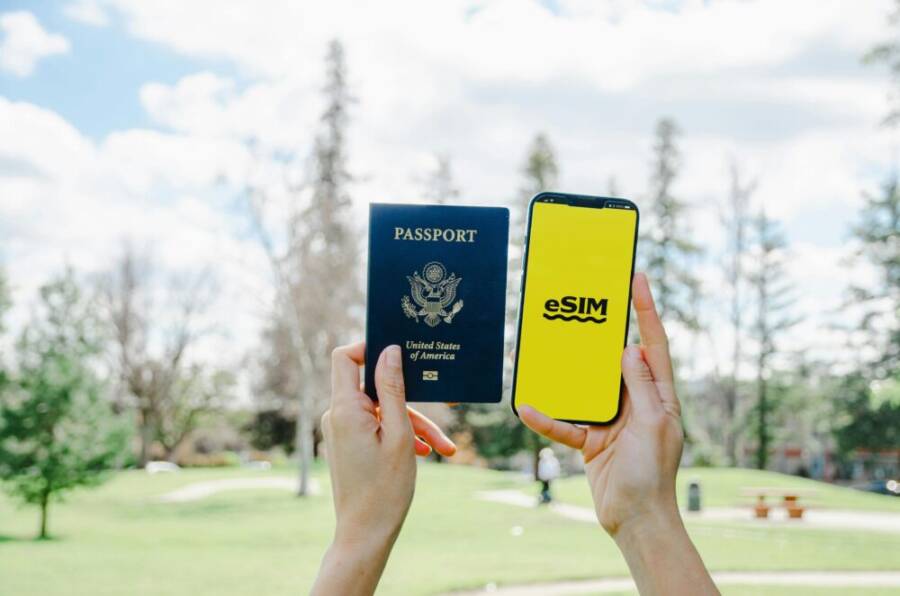
I hit the road in a new city and realized I was cut off the moment I needed directions. With no data, every step felt guesswork, and scrolling offline maps wasn’t enough. That moment made me rethink how we stay connected while traveling.
When you’re abroad, your phone tends to burn through data faster. Maps update in real time, photos and videos load quickly on social apps, and background apps keep checking in for updates. The result is more data used than you expect, even with a small screen and careful browsing.
This post offers 10 simple tips that work for any smartphone user. You’ll learn practical, easy strategies to cut data usage without sacrificing convenience, whether you’re navigating a busy city or sharing your travels with friends.
data saving on the go becomes a habit you can rely on, so you’ll stay connected and in control no matter where you travel.
Pick the Best Data Plan Before You Leave
Choosing the right data plan before you depart can save you hundreds of dollars and keep your travels stress-free. The goal is to stay connected where you need it most without paying for data you won’t use. In this section, you’ll compare roaming and local SIM options, and explore how eSIMs can simplify data control across multiple countries. The choices you make now will shape how smoothly your trip unfolds.
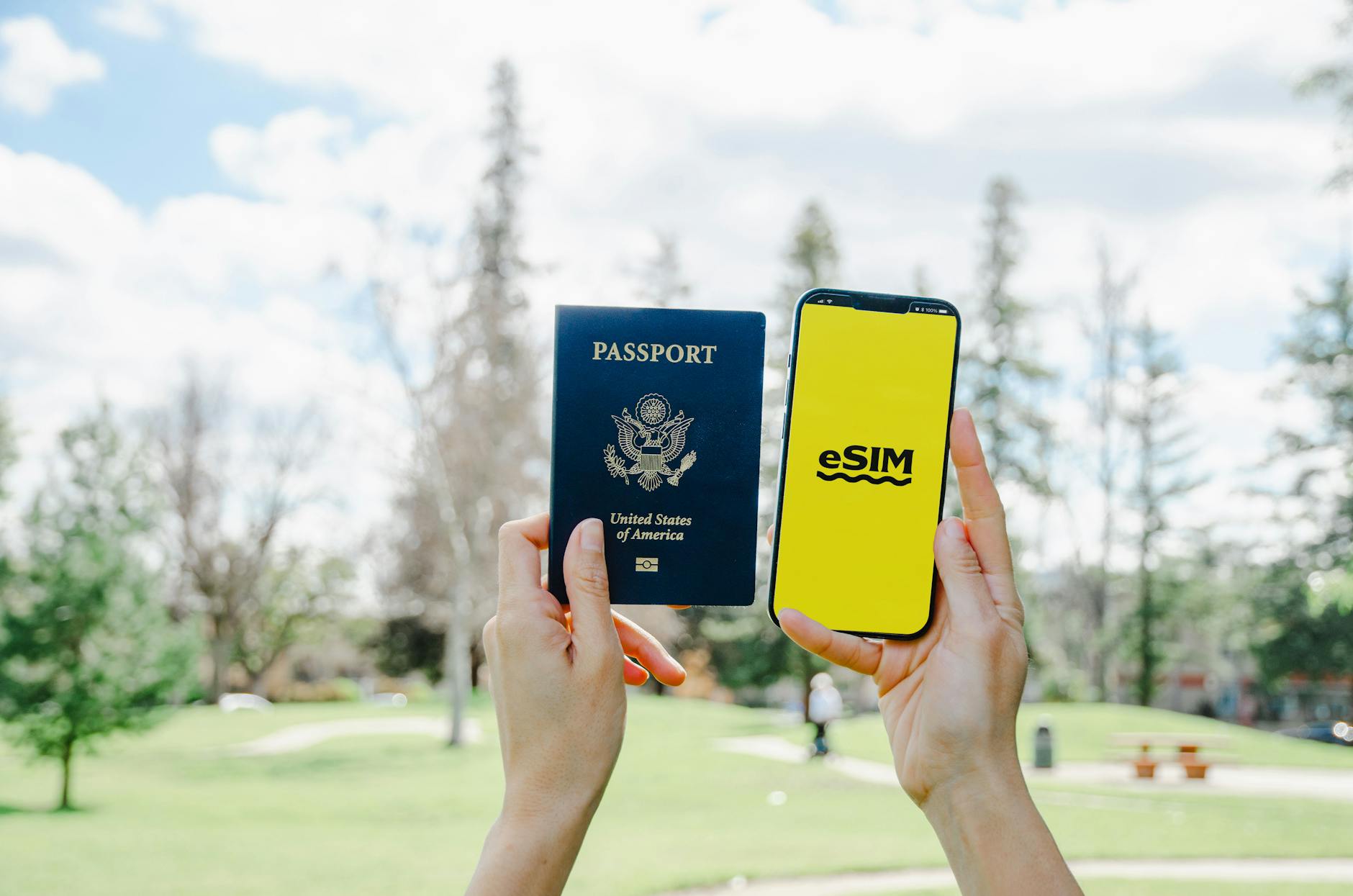 Photo by Jacob
Roaming vs Local SIM: Which Saves More?
For many travelers, roaming charges from your home carrier feel like a trap you can’t escape. The truth is you usually pay a premium for the convenience of staying on your existing plan. Local SIMs, on the other hand, offer data at local rates, which can be substantially cheaper. A common scenario shows roaming data costs at roughly $10–$15 per 1GB, while a local SIM might provide 1–2GB for a fraction of that price, depending on the country and provider.
To assess costs quickly, compare two simple examples:
- Example A (Roaming): 3GB of data in a week at $12/GB = $36 total.
- Example B (Local SIM): 3GB of data in the same period for $15 total, plus a small upfront SIM cost of $2–$5. Even when you add activation fees, local SIMs typically come out ahead over a typical 1–2 week trip.
How to spot airport SIM deals without getting burned:
- Look for local providers with visible airport kiosks offering short-term data bundles. They’re convenient, but prices vary widely by country.
- Check the plan’s duration and data caps. Short trips often benefit from flexible 1–2GB daily or weekly packages.
- Avoid “global” SIMs at the airport if you only need data for one country. They can be pricier than local options.
Be mindful of scams and bait pricing:
- If a stall promises unbelievably high data for tiny money, walk away. Hidden fees and auto-renewals are common tricks.
- Always read the fine print about activation requirements, upfront deposits, and whether a SIM works with your device model.
Swapping SIMs safely, step by step:
- Back up your contacts and essential messages before swapping.
- Power off the device before removing the SIM tray.
- Reinsert the new SIM, power on, and follow on-screen prompts for setup.
- Test by loading a webpage or map before you head out for the day.
- If you’re traveling with a phone that uses a nano SIM, carry an inexpensive SIM ejector tool to avoid damaging the tray.
If you want to compare the economics more formally, this resource explains why local SIMs are typically cheaper than roaming plans and highlights common pitfalls to avoid. You can read more about local SIMs versus roaming plans here: Local SIM Cards vs Data Roaming Plans.
Practical takeaway: for most trips, local SIMs beat roaming on price and often on data speed as well. If you’re visiting multiple countries in a single trip, a regional or multi-country plan can reduce hassle while keeping costs predictable. For a deeper dive, see more on international versus local SIM choices here: International vs Local SIM Cards: Which One to Choose?
Switch to eSIM for Easy Data Control
eSIMs simplify data management by letting you switch profiles without swapping physical SIMs. This is especially handy if you split your time across several countries or want to keep your home line active for calls and messages while using data locally.
Top eSIM providers worth knowing:
- Airalo: Offers regional, global, and country-specific eSIMs. Great for quick setup in many destinations.
- Holafly: Known for straightforward regional options and reliable data speeds.
- Wonderbond and GigSky: Good options for frequent travelers who need coverage across multiple continents.
How to install an eSIM on iPhone or Android:
- iPhone: Go to Settings > Cellular > Add Cellular Plan.Scan the QR code from your eSIM provider, or enter the details manually if required. Follow prompts to label each plan (for example, “Home,” “Europe,” “Asia”) and set a preferred data plan.
- Android: Open Settings > Network & Internet > SIM cards > Add Carrier > Scan QR code. Label each profile and decide which to use as the default for data when abroad.
- Switch carefully: disable the data connection on your primary line if you want to avoid accidental roaming charges, and assign a preferred eSIM for data.
Benefits of using eSIM across multiple countries:
- Convenience: no physical SIM swapping when you move between countries.
- Faster setup: activation is often instant with a QR code.
- Flexibility: maintain a local data plan while keeping your home number for calls or messaging apps that support WiFi or VoIP.
A quick comparison to help you decide:
- Local SIM with physical SIM: cheapest in many scenarios, but requires swapping and can be inconvenient for multi-country trips.
- Global or regional eSIM: higher upfront costs but significantly easier when visiting many destinations.
- Roaming: the simplest but usually the most expensive option.
For a broader perspective on eSIM travel, check out this guide on the pros and cons of eSIM cards for travel: Pros & Cons of eSIM Cards for Travel.
If you’re planning a multi-country itinerary, an eSIM approach often provides the best balance of cost and convenience. For more on international plans versus local options, see this comprehensive comparison: The Pros and Cons of International SIM Cards vs. International Roaming Plans.
Images and real-world tips:
- If you’re switching to eSIM, carry a backup plan in case a carrier’s QR code won’t scan or an activation fails. This small safeguard can save you hours of frustration in a foreign city.
- In practice, many travelers pair an eSIM with a local micro-SIM for devices that require two SIMs, ensuring you have data without losing access to your home line.
External links and resources
- Local SIM Cards vs Data Roaming Plans: Expat Network
- International vs Local SIM Cards: WorldSIM
- Pros & Cons of eSIM Cards for Travel: Travel Like Anna
- The Pros and Cons of International SIM Cards vs. International Roaming Plans: Journey with Us
- Local SIMs vs Global eSIMs: Reachumi
In short, a well-chosen data plan before you leave can cut your travel stress in half. Start by weighing roaming costs against local SIM prices, then consider an eSIM if you expect to travel across several countries. Pairing these options with a practical setup routine will keep you connected when you need it most and minimize surprises at the airport or on the road. If you want a quick summary of the best approach for typical itineraries, aim for a local SIM for a single country or a regional eSIM if your trip spans multiple destinations.
Adjust Phone Settings to Cut Data Use
When you’re abroad, every megabyte counts. Small adjustments to your phone’s settings can dramatically reduce data consumption without sacrificing essential features like maps or messages. In this section, you’ll learn two practical adjustments you can implement today to keep data use under control while you travel.
Turn On Data Saver Mode Right Away
Data saver modes curb background activity and curb how aggressively apps fetch updates. On iPhone, you can activate Low Data Mode to reduce background network usage. On Android devices, Data Saver or similar settings pause nonessential tasks behind the scenes. The benefit is simple: fewer background updates means less data used without you having to think about it during the day.
How it works on different phones:
- iPhone: Settings > Cellular > Data Options > Low Data Mode. This reduces background activity and lowers network chatter, especially in apps that frequently update in the background.
- Android: Settings > Network & Internet > Data Saver. Turn it on to limit background data use across most apps; you can whitelist essential apps if you need them to stay updated.
What it blocks:
- Background app refresh and automatic media updates.
- Auto-loading high-detail content in apps when you’re not actively using them.
- Some push notifications may be delayed until you open the app.
Quick toggle steps:
- iPhone: Open Settings, tap Cellular, select Data Options, then switch on Low Data Mode.
- Android: Open Settings, go to Network & Internet, choose Data Saver, and toggle it on. If you want specific apps to keep working, add them to the Allowed data list.
If you’d like a deeper dive with step-by-step screenshots, this Apple support guide shows how to view and adjust cellular data settings on iPhone, including options that help travelers reduce data usage: View or change cellular data settings on iPhone.
External resource for broader context on data saver practices during travel: Data Saver for Travel: iOS & Android Settings That Cut Usage.
Stop Background Apps from Eating Data
Background activity is the sneakiest data drain. Email sync, cloud backups, and social apps routinely pull updates in the background. The goal is to pin down the worst offenders and set them to update only when you open the app.
Start with the biggest data culprits:
- Email apps (Gmail, Outlook): Set fetch to manual or push only when connected to WiFi, not on cellular.
- Cloud syncs (Drive, iCloud, OneDrive): Pause automatic backups over cellular, or schedule them for when you’re on WiFi.
- Messaging apps (WhatsApp, Messenger): Disable auto-downloads for media over cellular, especially for photos and videos.
Practical steps you can take now:
- Open each app’s settings and locate data usage options. For WhatsApp, turn off auto-download of media and set it to download only on WiFi.
- In your device’s settings, limit background data for nonessential apps. On iPhone, this can be managed with Low Data Mode and per-app settings. On Android, you can restrict background data per app in the App Info screen.
- Consider a temporary air travel profile: disable or restrict background activity for apps you don’t use actively every day.
Example approach you can implement:
- WhatsApp: Turn off automatic media download over cellular. Keep text messages flowing but stop heavy files from loading in the background.
- Email: Set fetch to manual or push with a short interval and disable large attachments from auto-downloading.
- Cloud storage: Pause automatic photo backups while in roaming or in regions with expensive data.
A quick reference link with practical steps for travel-focused data management: Data Saver Mode for iPhone and Android, plus tips for turning off background data in major apps.
To round out your understanding, check out a practical guide that walks you through essential data-saving steps for travelers: Roam wisely: Essential tips to keep your mobile data in check. This resource covers both iPhone and Android workflows and helps you tailor settings to your itinerary.
By tightening background activity and enabling data saver modes, you’ll notice a meaningful drop in data usage. The synergy between these two adjustments gives you a reliable baseline, so you can focus on exploring without constantly hunting for a WiFi signal. For travelers who move across countries, combine these settings with a local SIM or eSIM plan to maximize efficiency and minimize costs.
Master WiFi and Offline Tricks
Staying connected while traveling can feel like a tightrope walk between data costs and reliable access. This section bundles practical, battle-tested strategies to keep your smartphone functioning smoothly abroad. You’ll learn how to maximize offline resources, locate safe WiFi, and manage data without juggling multiple devices or hefty bills. Think of it as your pocket guide to keeping critical apps ready, even when signals are spotty. And yes, you’ll still get the most out of your smartphone for maps, translation, and travel planning.
Download Essentials for Offline Access
Offline access is the backbone of stress-free connectivity when you roam. Before you leave home, curate a small offline toolkit that covers navigation, language help, and your travel itinerary. The goal is to keep you moving even if data is scarce or roaming rates spike.
Start with offline maps that work without a live connection. Apps like Ulmon CityMaps2Go and similar offline map services let you pin must-see spots, save routes, and search for nearby landmarks without pulling data. This is especially useful when you’re wandering through crowded neighborhoods or historic centers where WiFi can be unpredictable. For a quick sense of what’s available, consider trying one of the leading offline map options and read a practical review to decide which fits your style of travel best: Ulmon CityMaps2Go review. If you want a broader look, check out curated lists of top offline map apps and how they stack up against each other.
Beyond maps, load up translation and travel itinerary apps offline. A reliable translator with offline dictionaries can save you from miscommunications in markets, restaurants, and museums. Save your day-by-day plan, reservations, and activity details in a single offline folder or note that you can access without data. This approach keeps everyone on the same page, whether you’re coordinating with a travel buddy or sharing updates with family back home.
If you’re streaming music or movies for offline moments, pre-download playlists and shows while you’re connected to WiFi. Netflix and Spotify offer offline downloading, so you can enjoy favorites in transit or on long flights without burning through data. A quick checklist to prepare offline media:
- Download your top Netflix titles and a few short episodes for in-flight or layover downtime.
- Save a couple of offline playlists and podcasts in Spotify or your preferred music app.
- Save essential documents and travel guides as PDFs or note files for easy access without data.
As you assemble your offline kit, keep these tips in mind:
- Prioritize apps you actually use on the trip. Too many offline options can complicate finding what you need in a pinch.
- Regularly refresh offline data before long trips to ensure maps, translations, and itineraries stay current.
- Test offline access during a practice session at home to avoid surprises abroad.
For readers who want a deeper dive into offline map options and how they compare, a well-regarded roundup can be a helpful reference. For example, you can explore additional offline map reviews and learn how to import custom data into offline maps for even more flexibility.
External links and resources
- Ulmon CityMaps2Go Review: Best offline travel map app
- The best offline travel maps: a practical roundup
In short, downloading the right offline resources and preloading essential media gives you a dependable safety net. With a well-prepped offline toolkit, your smartphone becomes a reliable travel partner even when bars are low and data is tight. It also means you stay in control of costs while you stay in control of your itinerary.
Find and Use Safe WiFi Spots Abroad
Public WiFi can be a lifesaver when you’re abroad, but not all networks are created equal. The trick is to locate safe hotspots and connect with precautions that protect your data and devices. This section walks you through practical ways to find reliable networks, manage passwords, and avoid risky corners of the city.
First, use trusted apps to locate nearby hotspots. Reputable map and travel apps often include user-generated reviews about speed, reliability, and security. When you mix reliable location tools with a little street smarts, you can cut down on time spent hunting for a good connection. Look for networks that require a login through a captive portal rather than open, anonymous access. A password-protected network is always preferable to an open one, even if it requires a quick login.
Always verify the network before connecting. If a hotspot asks you to sign in through a prompted browser window, check the URL for authenticity and avoid entering sensitive information. When in doubt, ask staff at a cafe or hotel for the official network name and password. This simple step can prevent eavesdropping or fake access points that mimic legitimate networks.
Protect your device while you’re online. Turn off sharing features on your phone, and enable a VPN if you have one. A VPN encrypts your traffic, making it harder for others to intercept data on public networks. It’s a small step with a big impact on security, especially when you’re handling personal emails, banking, or ride-hailing apps on the go.
Password tips help you stay secure on shared networks:
- Use a unique, strong password for the WiFi network when possible.
- Avoid saving passwords on your device unless you’re certain the connection is trusted.
- If a network asks you to accept a new certificate, proceed with caution and confirm the legitimacy with staff.
There are times you should avoid public WiFi altogether. When you’re about to perform sensitive tasks—banking, transfers, or logging into critical work accounts—prefer using cellular data or a trusted VPN connection over a secured network. If you must use public WiFi, limit the exposure by turning off auto-sign-in features and sticking to essential tasks.
When you’re choosing where to connect, consider country-specific safety nuances. In some places, login portals are ubiquitous, and mixed networks can pose risks. Keep an eye out for networks with unusually long login pages or requests for unusual permissions. Trust your instincts: if something feels off, skip the network and use your data plan instead.
Practical tips that make a real difference on the ground:
- Bookmark a handful of dependable cafes, libraries, or hotel lobbies that consistently offer secure WiFi.
- Prefer networks with visible organization and legitimate staff oversight.
- Have a fallback plan. If a hotspot looks unreliable, switch to your own data connection and save the public networks for quick lookups, not for sensitive tasks.
If you want to explore more about safe WiFi strategies for travel, you can read practical guides that compare public networks and discuss how to set up a travel-friendly offline plan while staying secure on the road. For a broader look at travel connectivity, consider resources that analyze real-world WiFi reliability and how to balance public networks with mobile data.
External links and resources
- Safe WiFi practices for travelers: practical guide
- Public WiFi security for travelers: tips and trends
By combining smart hotspot hunting with solid security habits, you can stay productive without exposing yourself to unnecessary risk. A careful approach to WiFi access keeps your data safe and your plans intact, whether you’re navigating a new city or coordinating a group trip. And with the right offline tools in your pocket, your smartphone remains a dependable anchor in your travel routine.
Track Usage and Fix Common Data Drains
Staying on top of data usage is essential when you’re traveling. A quick check can reveal which apps are sipping data in the background and help you tune settings without losing the conveniences you rely on. This section shows you how to identify high data drains and block them effectively so you stay connected without breaking the bank.
 Photo by Jacob
Spot and Block High-Data Apps
Review your usage statistics to spot which apps are responsible for most data. Common offenders include media-heavy apps like Instagram Reels and YouTube, as well as background syncing services. The goal is not to delete these apps, but to limit their data impact while you’re abroad.
How to identify the culprits:
- On iPhone: open Settings > Cellular (or Mobile Data) and scroll to see data usage by app. Look for apps with unusually high activity.
- On Android: open Settings > Network & Internet > Data usage > App data usage. Tap an app to see its background data and foreground usage.
What to do next:
- Limit background data for the high-usage apps. On iPhone, enable Low Data Mode under Settings > Cellular > Data Options to curb background updates. On Android, turn on Data Saver and whitelist only the apps you need to stay current.
- Disable auto-play and background refresh. In social apps, turn off auto-playing videos and reduce auto-downloads for media.
- Set per-app data restrictions. Some devices let you restrict data for specific apps when you’re roaming.
- Schedule data-heavy tasks for when you’re on WiFi. If an app syncs large files, do it at a cafe or hotel rather than on the move.
Practical example:
- Instagram: Disable auto-play for videos and limit background data during travel.
- YouTube: Use the offline mode when possible and avoid automatic downloads on cellular.
- Email: Set fetch to manual or push with a longer interval; skip large attachments on mobile data.
If you want more steps, this guide explains how to check and reduce data usage on iPhone and Android: How to check and reduce data usage on iPhone, Android. For Android specific tips, you can also review: Android reduce data usage.
Key takeaway: start by identifying the top data drains and then apply targeted restrictions. You don’t have to stop using these apps; you just tailor when and how they use data.
Additional resources for smarter data management:
- How to check and reduce data usage on iPhone, Android
- Android reduce data usage tips and best practices
External links:
- How to check and reduce data usage on iPhone, Android: https://www.asurion.com/connect/tech-tips/how-to-check-and-reduce-data-usage/
- Android data saving guide: https://www.eskimo.travel/en/blog/android-reduce-data-usage
Tips to keep data in check across devices:
- Use a single data saver profile during travel and switch off only for essential apps.
- Regularly review app data usage during a trip and adjust as needed.
- Pair this with a solid data plan, such as a local SIM or eSIM, to maximize savings.
By systematically identifying and throttling high- data apps, you preserve data for essential tasks like maps and translation. This approach gives you more control over roaming costs while keeping your travel routine intact. If you’re using a multi-country itinerary, combine these steps with a smart data plan to minimize surprises at checkout or in the app store.
Bonus Habits for Non-Stop Data Savings
Small, consistent habits beat big one-off tweaks. These bonus practices keep your data usage low without slowing down your travel. Think of them as daily rituals that compound into a huge savings over a multi country trip. The key is to stay proactive and adapt to each destination.
 Photo by Jacob
Pre-trip data hygiene: audit and assign
Before you leave, run a quick audit of how your phone will use data. Create a simple plan that assigns data responsibilities to each app. For example, decide which apps can auto-update, which should stay offline, and which can rely on WiFi only.
- Audit apps with heavy data use and set them to manual sync.
- Label your data plans in the phone settings so you can switch quickly when crossing borders.
- Turn off roaming data globally if you’ll be using a local SIM or eSIM most days.
A practical pre-trip move is to compare local SIM and eSIM options as you plan destinations. This helps you map data costs across countries and avoids surprises at checkout. For additional context, explore guides that compare local SIMs with roaming plans and how an eSIM can simplify multi country trips.
External resources:
- Local SIM Cards vs Data Roaming Plans: Expat Network
- Pros & Cons of eSIM Cards for Travel: Travel Like Anna
In-trip micro-habits: ship data only when needed
While you roam, tiny adjustments add up. Adopt micro-habits you can perform in a minute or less, every day.
- Use WiFi whenever available for heavy tasks like streaming or large downloads.
- Keep push notifications on for essential apps only, and mute non essential ones.
- When you must use mobile data, do a quick data check at the start of the session and set a cap for that session.
These small routines prevent data from slipping away in the background. If you want a structured approach, you can use a simple checklist to guide daily decisions. For broader ideas, see how travelers balance public WiFi with mobile data across multiple countries.
Helpful references:
- 5 Smart Ways to Stay Connected When Traveling Abroad: NerdWallet
- Roam wisely: Essential tips to keep your mobile data in check: WithFaye
Post-trip review: learn and tighten for next adventures
After you return, review what worked and what didn’t. A quick post trip audit helps you refine your data plan for the next journey.
- Note which destinations offered the best value for data and which required a fallback plan.
- Update your device profiles based on real world experiences, such as which eSIM regions performed best or which local SIMs were easiest to activate.
- Save any configuration changes you made during travel so you can reuse them.
A smart post trip review turns travel into a data saving system you can reuse. If you’re curious about deeper analyses, you can read guides that compare multi country data strategies and how to balance local SIMs with eSIMs for future trips.
External links:
- How to Save Mobile Data While Traveling: Upesim
- 5 Best Ways to Use Your Phone When Traveling Abroad: NerdWallet
Key takeaway: small, repeatable habits create a reliable, data efficient travel routine. Combine pre trip audits, in flight micro habits, and post trip reviews to keep data costs low while staying connected. For travelers who move across countries, pairing these habits with a flexible data plan—like a regional eSIM—can reduce shocks at the checkout and keep your itinerary on track.
Conclusion
Saving data while you travel comes down to five simple ideas you can put into practice today. Pick a suitable data plan, fine tune your phone settings, maximize safe WiFi and offline use, track what drains data most, and build small daily habits. Try turning on Low Data Mode now and see how it changes your day in a new city. Your smartphone will thank you with fewer hiccups and lower bills.
If you found this guide helpful, share your experiences in the comments below and tell us which tip you plan to adopt first. For readers seeking more, check our related posts on travel apps to streamline planning, navigation, and language help while abroad.