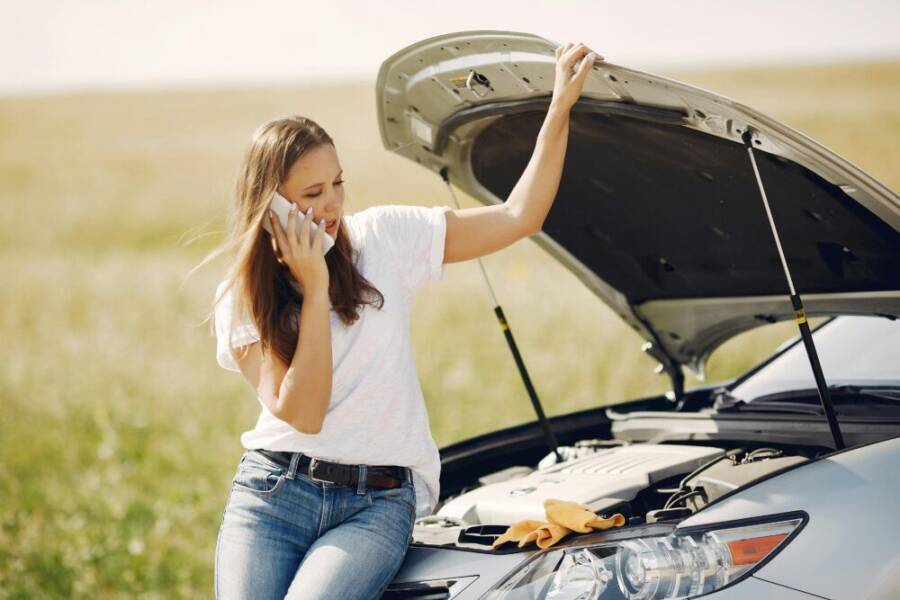
Imagine you’re wandering through a new city and a sudden emergency hits. Without quick access to the right numbers, every second counts and a missed call or wrong contact can stall help. This guide shows you how to save emergency numbers on your phone for different countries, so you’re covered wherever you roam.
Local rules vary, and home country numbers often don’t work abroad. In some places police, fire, and medical services share one number, while others use separate lines. The right contacts can mean faster assistance, fewer mistakes, and less stress during a crisis. It’s about turning your phone into a reliable lifeline, no matter where you travel.
We’ll cover practical steps you can follow now. You’ll learn how to identify country specific numbers, how to format them for quick dialing, and how to store them in a way that’s easy to access when you need it most. The tips are simple enough for a quick setup, yet thorough enough to be trusted in real emergencies.
By the end, you’ll have a clear plan for saving emergency numbers that fits any itinerary. You’ll know what to check before you depart, how to keep numbers updated, and why a well organized contact list matters for peace of mind. If you’ve ever worried about getting help fast abroad, this guide has you covered. For travelers who want practical, reliable guidance, you’ll find it here.
Key Emergency Numbers for Top Travel Spots Around the World
When you travel, knowing the right emergency numbers can be the difference between a quick resolution and a stressful delay. This section highlights the essential numbers you should have at hand for major regions, with notes on routing and language options. Save these alongside your other critical contacts, and keep a backup copy in your notes as you pack.
North America, Europe, and Australia Essentials
In North America, dialing 911 connects you to police, fire, and medical services in the United States and Canada. Mexico also uses 911 for emergencies, and many mobile networks route to the same central service. In Europe and the UK, 112 works across the European Union and on GSM networks worldwide, with local numbers like 999 available in the UK. Australia and New Zealand centralize emergencies on 000 and 111 respectively, and both regions also support 112 as a universal roaming option on many networks. When you call these numbers, you’ll often be offered language support; you can request the language you prefer, or rely on the operator to connect you with a speaker who can assist you. If you’re unsure which service you’ll reach, stay calm, state your location clearly, and describe the incident in simple terms. For travelers, it’s wise to store both home and destination numbers in your contacts and to test a quick call to verify accessibility before you depart.
For practical usage, consider these quick tips:
- Save emergency numbers in your phone with a clear label, like “US Police” or “UK Ambulance.”
- Include the country code when storing abroad numbers; for example, +1 for the US, +44 for the UK.
- Note any language options or regional call centers that are commonly used in the places you visit.
Images:
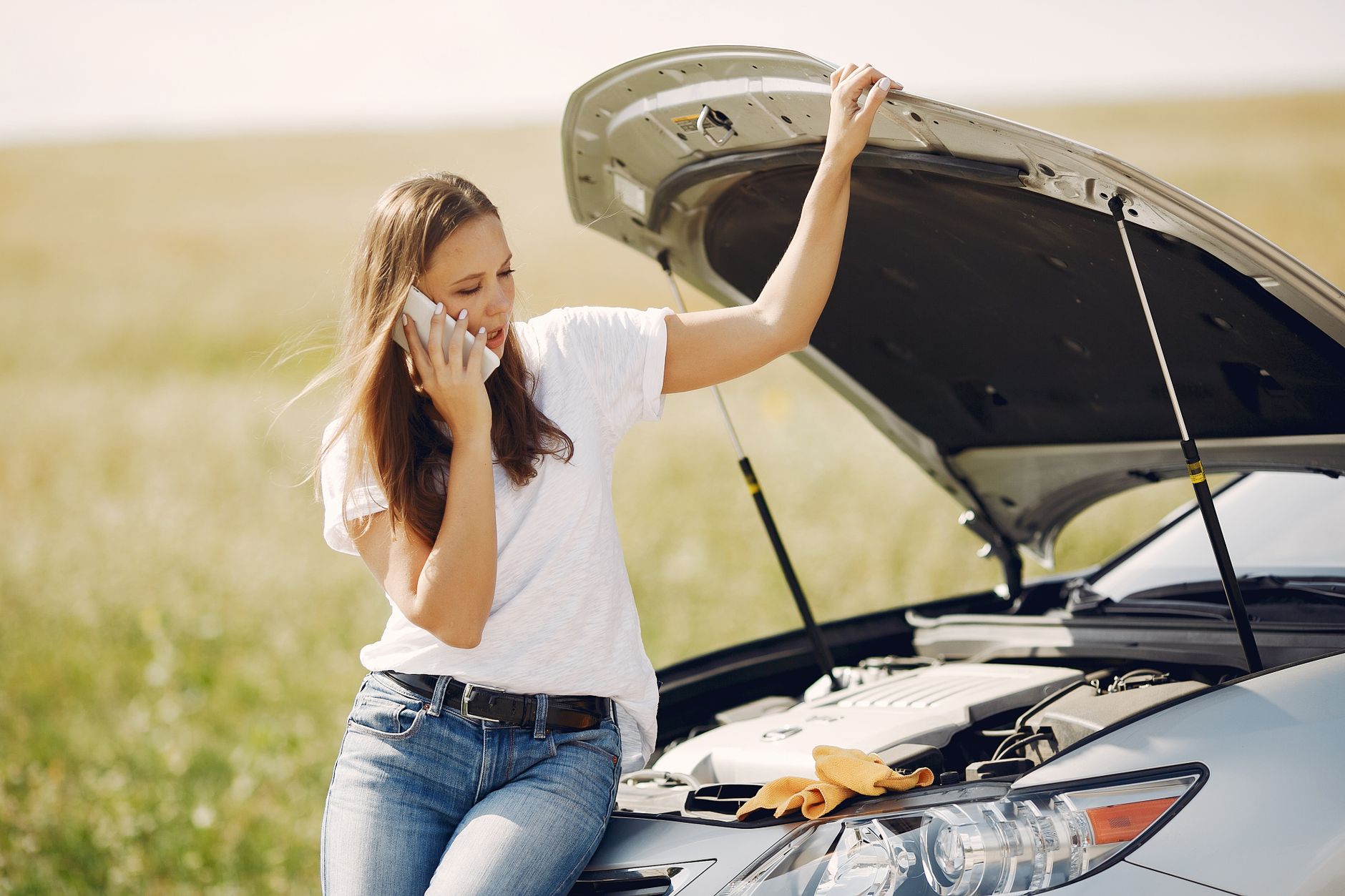 Photo by Gustavo Fring
Asia Must-Know Numbers for Safe Trips
Asia features a mix of shared emergency numbers and country-specific lines. In Taiwan and Japan, you’ll typically use the local numbers for police, fire, or medical emergencies, but many tourist areas support international dialing. South Korea uses 112 for emergency calls, with 911 becoming more common on international networks. In China, emergency numbers include 110 for police, 119 for fire, and 120 for medical help, and it helps to know basic Mandarin phrases for assistance. India relies on 100 for police, 101 for fire, and 108 for medical emergencies; these services are widely used, and many urban centers offer English-speaking operators. In Southeast Asia, the Philippines uses 911 in many areas and 112 is increasingly supported on roaming networks; Vietnam uses 113 for police, 114 for fire, and 115 for medical emergencies. It’s essential to save both your home number and the local emergency line on your phone, along with your hotel or embassy contact, so you can call quickly in unfamiliar surroundings. Always verify the current numbers before traveling and test accessibility in a safe setting.
To help you plan, here are a few handy references you can consult:
- Emergency numbers by country and region, with cross-border guidance
- Official travel resources that outline how to contact local authorities during your stay
Images: (No image required here if not a natural fit)
External links for further reading and official references:
- List of emergency telephone numbers
- 911 Abroad guide for travelers
- Emergency numbers by country and region reference
Note: When you travel, keeping a running list on both your device and a small printed card can save precious time. For added reliability, share your trip details with a trusted contact so they know where you are and which services to reach. If you need a printable sheet with numbers for your next destination, I can tailor one to your itinerary.
How to Save Emergency Numbers on Android Phones Step by Step
Having emergency numbers saved on your Android device can shave precious seconds off a response time. This section breaks down a clear, repeatable process you can follow today. You’ll learn fast ways to add critical contacts, create one-tap shortcuts, and set up emergency information that helps responders in any country you visit. The goal is to keep your phone a reliable lifeline, not a puzzle to solve in a crisis.
Add Numbers to Your Contacts App Fast
Speed matters when you need help fast. Start with a quick, consistent labeling system so you can spot critical numbers at a glance. Open your Contacts app and create a new entry for each emergency service you want to reach. Use a name like “Emergency Police [Country]” or “Ambulance [Country]” so you can identify them immediately.
- Enter the country-specific emergency number, including the correct code if you’re abroad. For example, use the plus sign and country code when storing numbers so you can dial from anywhere.
- Add a photo or assign a star to highlight these contacts for quick access. This makes them easier to spot on a crowded contact list.
- Consider grouping these numbers into a dedicated “Emergency” group or label. When you need them, you can filter by that group and dial without scrolling.
- If you want extra speed, store a backup copy in your notes app or a secure envelope of information in case your contacts get scrambled during travel.
If you’d like a tested reference, you can review official Android guidance on sharing information during emergencies and setting up quick access to trusted contacts. It explains how to add a contact and what information to share with emergency services, which complements the steps above. For device-specific paths, you can also check guidance from major manufacturers like Samsung and Google for emergency contact setup. For more details, see the general Android support page and manufacturer steps.
External references:
- https://support.google.com/android/answer/9319337?hl=en
- https://www.samsung.com/uk/support/mobile-devices/how-to-use-galaxy-device-in-an-emergency-to-contact-emergency-contacts-and-view-important-medical-information/
Pin Shortcuts to Your Home Screen for One-Tap Access
One-tap access saves precious seconds when minutes matter. Pin the most important emergency numbers to your home screen so a single tap places the call. On most Android phones, you can long-press the contact in the Phone or Contacts app and choose “Add to Home” or a similar option. This creates a dedicated shortcut on your home screen that you can tap to dial instantly.
- If your device supports it, you can also use third-party tools like Shortcut Maker to tailor the shortcut icon and name to your preference. This helps you quickly distinguish police, ambulance, or hospital lines at a glance.
- After adding the shortcut, test the dial to confirm it routes correctly to the local emergency service. Do this in a safe environment first, so you’re prepared in a real situation.
- This approach works across brands and interfaces, whether you’re on Samsung, Google Pixel, OnePlus, or other Android devices.
Using shortcuts is especially helpful when you’re traveling between countries with different emergency numbers. It keeps your most critical lines visible and reachable without hunting through menus. For further setup specifics and screenshots, you can consult device specific guides from major brands. Practical tips and step by step visuals can be found in official support resources and trusted tech communities.
External references:
- https://support.google.com/android/answer/9319337?hl=en
- https://www.rochesterregional.org/hub/emergency-contact-medical-information
Set Up Emergency Info and Widgets
Beyond numbers, having a concise medical and contact profile can be a lifesaver. On many Android devices, you can fill out emergency information in Settings so responders see critical details even if your phone is locked. Go to Settings > Safety & emergency and add your essential info, such as allergies, medications, and emergency contacts. This data can be accessed by responders in an emergency, depending on your lock screen settings.
- Create a dedicated widget for quick dialing of saved emergency numbers. A widget provides at-a-glance access without unlocking your phone.
- If you travel offline, ensure your emergency data is available without a network connection. Some devices persist essential information locally, which can be accessed even when you’re out of service.
- Keep this information up to date. Review it before each trip and refresh any changes in your medical status or contacts.
For step by step guidance on locating the Safety & emergency area and adding information, you can refer to official Android support pages and device specific manuals. These resources help you customize what appears on your lock screen and widget area, making emergency access straightforward in unfamiliar environments.
External references:
- https://support.google.com/android/answer/9319337?hl=en
- https://www.samsung.com/uk/support/mobile-devices/how-to-use-galaxy-device-in-an-emergency-to-contact-emergency-contacts-and-view-important-medical-information/
Simple Ways to Save on iPhone for iOS Users
Whether you’re traveling or just trying to stay organized, keeping emergency numbers and critical contacts easy to reach on your iPhone is essential. The right setup saves time, reduces stress, and can make a real difference in an urgent moment. Below are three practical approaches that work well on iPhone devices, with quick steps you can implement today. Think of your phone as a trusted ally, not a cluttered device full of forgotten numbers.
Save in the Contacts App Quickly
A clean, labeled Contacts list is the fastest path to dialing help. Start by creating dedicated entries like “Emergency Police [Country]” or “Ambulance [Country]” so you can spot them at a glance. Use the plus sign to add a new contact, enter the correct country code (for Google and Siri to read correctly), and save the number with a clear name. Adding a photo or assigning a star can help these entries stand out in a crowded list.
- Label clearly: e.g. “Italy Police 112” or “UK Ambulance 999.”
- Include the country code: +39 for Italy, +44 for the UK, and so on.
- Add to Favorites for quick speed dial. Then use Siri to call a favorite with a simple phrase like “Call Italy Police 112.”
- Consider a dedicated Emergency group or label to filter quickly and dial without scrolling.
Pro tip: keep a backup copy of these numbers in your notes or a secure app in case your contacts get scrambled while traveling. For a quick reference on saving contacts from the Phone app on iPhone, see Apple’s guidance here: Use contacts from the Phone app on iPhone.
Build One-Tap Shortcuts with the Shortcuts App
One-tap access is a game changer when every second counts. The Shortcuts app lets you create a dedicated button on your Home Screen that calls an emergency contact with a single tap. Start by opening Shortcuts, tapping New, and adding an action labeled “Call.” Choose your important contact, then add the shortcut to your Home Screen. Give it a distinctive name and icon so you can recognize it at a glance.
- Name the shortcut with the destination or service, such as “Call Police [Country]” or “Emergency Medical [Country].”
- Customize the icon color or symbol to avoid confusion in stressful moments.
- Place the shortcut on your Home Screen for instant access. Test it in a safe setting to confirm it routes correctly.
If you want extra reassurance, create multiple shortcuts for different services in the places you visit most. While there isn’t one universal guide here, Apple’s support resources cover how to use Shortcuts to automate common tasks and streamline access to contacts.
Use Medical ID and Emergency SOS
Medical ID and Emergency SOS streamline help when your device is locked or you can’t speak. In the Health app, create a Medical ID with critical details and emergency contacts. In Settings, enable SOS auto-call to automatically alert authorities when you trigger the feature. Location sharing can help responders find you faster, but review your privacy preferences to keep data safe.
- Fill in essential details: allergies, medications, blood type, and emergency contacts.
- Ensure the Emergency SOS setting is turned on and understand how to trigger it on your iPhone.
- Review and update this information before every trip or if your medical status changes.
These features provide vital context to responders and can reduce the time it takes to get help. For more guidance on using the iPhone’s emergency features and how to access Medical ID quickly, you can refer to Apple’s support resources as needed.
Smart Traveler Tips to Keep Emergency Access Ready
When you travel, keeping emergency access ready on your phone is not about paranoia. It’s practical, empowering, and a confidence booster. These tips help you move through unfamiliar places with a clear plan, so you can focus on the trip itself. Below you’ll find concise, actionable steps you can implement today. Each subsection stays sharp and useful, and you’ll find careful reminders to test, update, and print backups as part of a reliable safety habit.
Test Your Setup Safely Before Leaving
Before you depart, run a quick safety check to confirm everything works as intended. Dial the local emergency numbers from your destination country using a safe environment, or test with non-emergency lines to verify dialing paths and language support. If you’re traveling with a local SIM, validate the network’s response and ensure your device accepts international formats. Create a minimal test list that mirrors real requests, such as police or medical lines, then confirm the calls connect and the operator language matches your needs. This reduces friction when every second counts.
- Verify that numbers use the correct country code and the + prefix for easy dialing abroad.
- Label each contact clearly, for example “Emergency Police [Country]” or “Ambulance [Country].”
- Keep a printed backup of these numbers in your travel kit in case your device is temporarily unavailable.
- If you’ve got a smartphone, test a quick call in a safe setting to ensure your setup is reliable.
For quick reference, the 112 numbering system in Europe is widely supported on roaming networks, while the 911 standard covers the Americas. If you need official guidance on testing abroad dialing, consider resources from travel authorities and device makers. See 911 Abroad and emergency numbers references for more context.
External references:
- https://travel.state.gov/content/dam/students-abroad/pdfs/911_ABROAD.pdf
- https://www.smartertravel.com/emergency-numbers-around-the-world/
- https://www.fcc.gov/news-events/blog/2010/12/01/emergencies-abroad-what-do-you-dial
Backup Plans for No Signal or Lost Phone
What if your phone dies or you lose connection in a remote area? Have offline backups that you can access without a data signal. Print a compact list of critical numbers, and save a copy in a notes app that syncs locally for offline access. Consider traveler-friendly apps that store offline emergency contacts, plus a small, printable card you can keep in your wallet. Also enable Find My (iPhone) or similar services on Android so you can locate or remotely access essential data if your device goes missing. A plan like this keeps you covered.
- Print a one-page sheet with country codes and core services, plus a hotel or embassy contact.
- Save emergency numbers in a dedicated “Emergency” group or label for quick filtering.
- Use offline notes or a trusted app that works without data to store backup contacts.
- Enable device tracking and remote locking for peace of mind.
When you lose signal, your printed card and offline app data become your safety net. You can also email or message a trusted contact with your itinerary and emergency contacts so someone back home can assist if needed. If you want ideas for offline-friendly apps and printables, look to travel resources that outline practical emergency planning and cross-border guidance.
External references:
- List of emergency numbers by country and region (Travel resources and official guides)
Common Mistakes and How to Fix Them
Even a well-planned setup can stumble if you fall into common traps. The most frequent issues are wrong numbers, ambiguous labels, and a dead battery at a critical moment. Start with a clean, easily readable labeling system and verify every entry. Double-check the country code and ensure the plus sign is present so dialing works from anywhere. Attach a small, dedicated label or photo to each contact to reduce misdialing. Finally, bear in mind battery life; keep emergency lines accessible with a charged device or portable power bank. Simple fixes save precious minutes.
- Use explicit names like “Ambulance UK” or “Police US” to avoid ambiguity.
- Include country codes and the plus sign for international dialing.
- Add a quick-dial shortcut on the home screen to minimize taps.
- Carry a small power bank and a backup printed list in your wallet or bag.
Avoid rushing through setup, and test your numbers from your travel destination or a country with a similar network. If you’re unsure about a particular country’s system, consult official travel safety guides or local authorities. Quick checks can prevent delays in real emergencies.
External references:
- 911 Abroad and Emergency Numbers by Country guidance
Conclusion
Saving emergency numbers on your phone in different countries is a small prep that pays off in big moments. On Android, recap the steps: add country specific lines to your Contacts, set up one tap shortcuts on the home screen, and enable emergency info so responders see essential details even if your phone is locked. On iOS, build dedicated favorites, use the Shortcuts app for one tap dialing, and enable Medical ID plus Emergency SOS so help can reach you quickly when you cannot speak. Remember to include the correct country codes and label each entry clearly for fast recognition.
Keep a quick reference for key numbers at hand, plus a printed card as a trusted backup. Test dialing from your destination before you travel, and refresh numbers for any new trips. This simple routine keeps your smartphone as a reliable lifeline, not a puzzle to solve in a crisis. If you travel often, store both home and destination numbers and note language options so operators can assist with ease.
Setup now and protect your next trip. Share this post to help fellow travelers, and drop your own tips in the comments so others can learn from your experiences. Safe travels and may you move through every destination with confidence and calm.