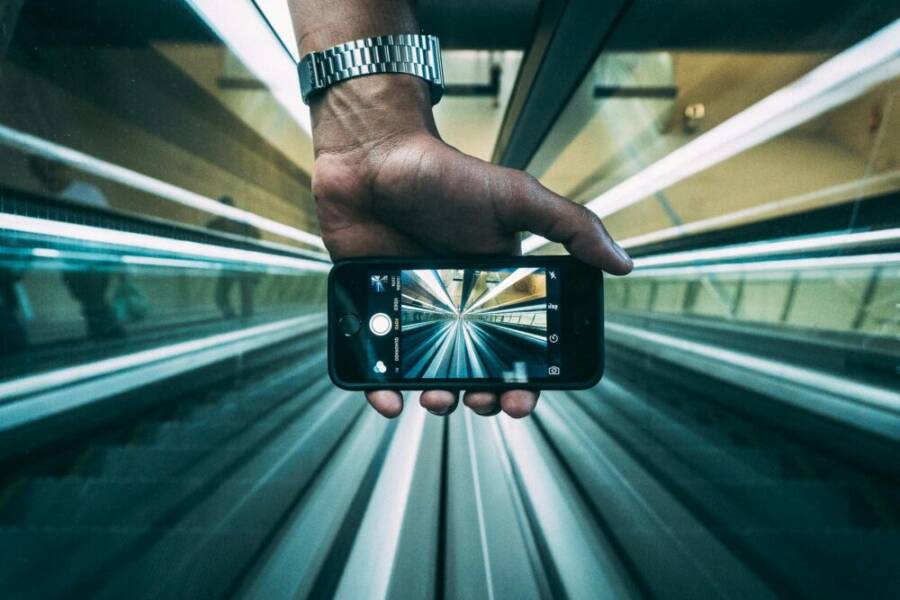
We all know how a washed out sunset can ruin a photo, but the fix is simpler than you think. A few quick manual tweaks can turn a bland shot into something close to pro level. This guide shows you how to take back control of your camera with confidence.
Smartphone cameras are amazing tools, yet auto mode often ignores the scene you want to capture. By learning a few core settings you can push your photos toward the look you imagine. You’ll see sharper detail, richer color, and better balance in tricky lighting.
First, understand the basic knobs you can adjust. ISO controls how sensitive the sensor is to light, shutter speed stops motion or blurs it, and exposure helps you get the brightness you want. White balance keeps colors true, and focus lets you lock onto your subject. Together, these controls unlock a lot of creative potential.
In practice, start by fixing exposure before you snap. Tap to meter the scene, then adjust ISO or shutter speed to keep highlights from blowing out. Use a faster shutter for moving subjects and a slower one for still scenes. If you want dramatic color, experiment with white balance to warm or cool the mood.
On both iPhone and Android, you can access these controls without special gear. Explore your camera app’s pro or manual mode, then try quick on screen adjustments to build a workflow that fits your style. Modern smartphones make this easy, letting you iterate and learn with every shot.
By embracing manual controls you unlock sharper images, creative effects, and pro results without fancy gear. This approach helps you capture moments more accurately, whether you’re traveling, shooting landscapes, or documenting everyday life. The next sections cover practical steps and simple tips to apply right away.
Access Manual Mode on iPhone and Android Phones
Taking control of your camera can feel like a leap from auto to pro, but the transition is smoother than you think. In this section, you’ll learn practical, step by step ways to use native controls and popular apps to dial in focus, exposure, and color. Whether you shoot landscapes, portraits, or action, these techniques help you lock in the moment with confidence.
iPhone Manual Controls: Native and App Tricks
iPhone cameras offer quick ways to lock exposure and focus right on the screen, plus a handful of app options that bring more granular adjustments to your fingertips. The core idea is simple: you tap to meter a point, then hold or swipe to lock AE (auto exposure) and AF (auto focus). From there you can nudge exposure with on screen sliders and apply subtle color shifts to shape the mood of your image.
- Hold to lock AE/AF: Find a subject with the light you want, press and hold on the subject area on the iPhone screen until you see AE/AF Lock appear. This keeps brightness and focus stable even if you reframe or momentarily lose light. For a quick reference, Apple’s official guide explains how to enable and use Camera Control and Lock Focus and Exposure. You can read more about this method here: Use the Camera Control on iPhone.
- Swipe for exposure adjustments: After you lock exposure, you can swipe up or down on the screen to fine tune brightness without losing focus. This gesture keeps the scene balanced, especially in mixed lighting where a single tap alone isn’t enough.
- App sliders for precision: If you want more granular control over exposure, white balance, and ISO, consider dedicated camera apps. Apps like Camera+ and ProCamera give you precise sliders for each parameter, making it easier to dial in your preferred look without hunting through menus.
- RAW advantages on newer models: Shooting in RAW captures more image data, enabling greater flexibility when you edit later. On newer iPhones, RAW capture through native or third‑party apps preserves latitude in highlights and shadows, which is especially helpful for landscapes and high contrast scenes.
- Simple gestures you can rely on: Learn a small set of reliable gestures—tap to focus, hold to lock AE/AF, slide to adjust exposure, and pinch to zoom carefully. A consistent workflow reduces stress in changing lighting and helps you stay in the moment.
For a deeper dive into AE/AF lock and practical examples, check out the guidance on how to use iPhone AE/AF Lock and related tips from iPhone photography resources like AE/AF Lock tutorials. Pro cameras in pocket form work best when you practice a predictable sequence: compose, meter, lock, adjust, and shoot.
If you want even more pro tilt, ProCam and ProCamera offer robust manual controls that mimic a dedicated camera. In ProCam, long pressing AE, AF, and white balance allows you to lock exposure, focus, and WB with a visual cue that the setting is locked. You’ll see a small indicator that confirms the lock, helping you stay on track during dynamic shoots. ProCamera similarly emphasizes raw capture and full manual control, turning the iPhone into a true creative tool. For an overview of how these apps work, you can review the tutorials available on their official pages.
Useful links
- Use the Camera Control on iPhone: https://support.apple.com/guide/iphone/use-the-camera-control-iph0c397b154/ios
- ProCam tutorials: https://www.procamapp.com/tutorials.html
- ProCamera App Store page: https://apps.apple.com/ua/app/procamera-raw-manual-camera/id694647259
As you gain comfort with these features, aim to build a simple, repeatable workflow. For portraits, lock AE/AF on the subject’s eyes, then adjust exposure to prevent blown highlights. For landscapes, lock on a midtone in the sky or terrain and fine tune with the exposure slider to preserve detail in both shadows and highlights. The goal is consistency: a dependable method you can apply in almost any scene.
Android Pro Mode: Built-in Power on Pixel and Samsung
Android devices offer a spectrum of approaches to manual control, from the most polished built‑in modes to capable third party apps. The best experience comes from devices that provide a true pro mode with direct access to exposure, focus, ISO, shutter speed, and white balance. On Pixel devices, Google’s native pro mode is designed to be straightforward but powerful. Samsung’s camera app includes a dedicated Pro mode with advanced sliders, letting you tailor your shot in real time.
- Google Camera Pro: tap the mode selector and switch to Pro or Manual. Here you’ll find sliders for ISO, shutter speed, white balance, and focus. It’s a clean interface that makes it easy to learn because everything you need is in one place. The Pro mode is especially strong for landscapes and night photography where precise exposure matters.
- Samsung Pro: open the More tab, then pick Pro. Samsung’s interface emphasizes tactile sliders and real time feedback. You can adjust exposure, ISO, shutter speed, white balance, and focus with immediate results on screen, which is great when you’re chasing fast action or changing light.
- OnePlus and Huawei equivalents: many Android brands offer a similar Pro or Manual mode, sometimes under names like Pro, Manual, or Expert. The controls typically mirror those on Pixel and Samsung, with live preview helping you gauge the impact of each adjustment.
- Sliders as your friends: Exposure, ISO, shutter speed, and white balance are the four pillars. Adjust them in sequence to protect highlights, keep color accurate, and maintain sharpness. A small tweak can change mood dramatically, so experiment with modest changes first.
- A no app option works for most: While Google and Samsung provide strong built‑in options, you can still achieve solid results with the default camera app on many Android devices. If you want more control, try a free third‑party app that supports RAW capture and manual sliders.
- Practical tips for steady shooting: use a tripod or stable surface for long exposures, enable a timelapse or long exposure mode when appropriate, and shoot in RAW if your device supports it to maximize post processing flexibility.
To see how these modes look in practice, you can explore the official Google Camera Pro and Samsung Pro guides, as well as general tutorials that compare built in options across brands. For example, Pixel users benefit from a clean Pro mode layout with direct sliders, while Samsung fans enjoy the tactile feel of traditional dials and live exposure previews. If you’re exploring third party options, there are free apps that unlock RAW capture and manual controls without a price tag, offering a strong starting point for beginners.
Useful links
- Google Camera Pro tips: https://support.google.com/camerareleasep?hl=en (official help and feature overview)
- Samsung Pro mode guide: https://www.samsung.com/global/galaxy/how-to/camera/pro-mode/ (official guidance and shortcuts)
- General Android manual controls overview: https://www.android.com/
Take what you learn here and practice with quick, real world scenes. A quiet morning light, a busy street, or a dim restaurant can reveal how well you understand exposure and focus. Practice builds confidence, and confidence yields better photos more consistently. With a few deliberate moves, you turn auto into a tool you control, not a default setting you settle for.
Master ISO for Bright, Noise-Free Shots
If you want crisp, movie-like photos from your smartphone, controlling ISO is a surefire way to keep noise in check while preserving detail. ISO is the sensor’s sensitivity to light, and it works in tandem with shutter speed and aperture (where available) to shape exposure. The goal is simple: use the lowest viable ISO for the lighting you have, then adjust other settings to keep your image bright and sharp. In practice, this means making smart choices about daylight scenes and knowing when you need to push ISO higher without turning your shot into a grainy mess. Below are two practical subsections that cover common scenarios and how to handle them like a pro.
Choose Low ISO for Clean Daylight Photos
Sunny scenes respond best to a low ISO. A setting around ISO 100 keeps colors true and preserves fine detail, so skies stay blue and textures stay sharp. Pair this with a fast shutter to freeze motion and avoid overexposure in bright light. When you keep ISO low, you’ll notice less noise in the shadows and midtones, which translates to cleaner portraits and landscapes.
- Start with ISO 100 and meter the scene. If highlights threaten to clip, widen the histogram by slightly lowering exposure or using a neutral density workaround if your phone supports it.
- Use a faster shutter speed for anything with movement. This helps prevent motion blur while still exploiting the brightness of daylight.
- Keep white balance in check. In bright sun, a slight shift toward cooler tones can prevent colors from looking oversaturated or fake.
- Consider RAW capture if your phone offers it. RAW retains more data for post processing, so you can recover highlights or pull down shadows without introducing noise.
If you want to dive deeper into how pro mode can shape daylight photos, see practical guides that compare native controls and third‑party apps. For context, resources from reputable photography sources walk through how to maximize daylight shots with low ISO and precise exposure. For an actionable reference, check the article on mastering smartphone photography at night and related pro mode discussions.
Useful links
- Mastering Smartphone Photography at Night: https://www.photographytalk.com/mastering-smartphone-photography-at-night/
- Pro mode on your phone camera and how to use it: https://medium.com/@abhayaditya/pro-mode-on-your-phone-camera-isnt-scary-here-s-how-to-use-it-a305d97de154
In everyday practice, the habit is simple: shoot daylight scenes with the lowest workable ISO, then adjust brightness with the shutter or exposure compensation as needed. This discipline protects image quality and gives you a solid baseline for post processing.
Handle Low Light: High ISO Without Grainy Results
When light fades, bumping ISO becomes essential to keep the shot usable. The trick is to find the sweet spot where you gain brightness without inviting heavy noise. For many smartphones, a practical target is around ISO 1600 for indoor or dusk scenes, paired with careful handholding or a stable surface. If your device offers a dedicated night or pro mode, use it to apply smarter noise reduction and longer exposures where appropriate.
- Use steady support. In low light, a tripod or a solid rest makes a dramatic difference. If that’s not possible, lean on a stable barrier or place your phone on a stable surface to minimize shake.
- Enable live preview in your camera app. Seeing the effect of ISO changes in real time helps you avoid overexposure or excessive noise.
- Move gradually with exposure adjustments. Start at a modest ISO boost and test the look. Small increments keep grain under control.
- Take advantage of noise reduction options in apps. Some apps include targeted noise reduction that preserves detail in highlights and textures.
When you need guidance on how high to push ISO and which modes work best, look at tutorials and community guides that compare built‑in pro modes across brands and models. These resources offer practical benchmarks and show you how different devices behave in low light, helping you tailor your technique to your own phone.
Useful links
- Pro mode tips for night and low light: https://support.google.com/camerareleasep?hl=en
- Samsung Pro mode guide: https://www.samsung.com/global/galaxy/how-to/camera/pro-mode/
Practical tips for consistent results
- Shoot in RAW when possible. It unlocks more latitude for post processing, especially when you recover highlights or pull shadows.
- Keep a consistent workflow. Meter the scene, lock exposure if your app allows it, then adjust as needed.
- Don’t chase grain for its own sake. If grain distracts from the subject, add light or stability first, then consider a controlled noise reduction in editing.
This approach—low ISO in bright conditions and thoughtful high ISO in darker ones—lets you keep noise in check while preserving color accuracy and detail. With practice, you’ll move seamlessly between scenes, producing pro-like results from a device that fits in your pocket. For more context on how these settings translate across devices, explore additional practical guides that compare native modes and third party apps.
External resources and further reading
- Mastering smartphone photography in night scenarios, including practical ISO management
- Pro mode navigation across Pixel, Samsung and other Android devices, with real‑world examples
If you’d like, I can tailor these subsections to fit a specific smartphone model you plan to feature in your article, or add a quick step‑by‑step checklist readers can bookmark for on‑the‑go shooting.
Control Shutter Speed to Freeze or Blur Motion
Mastering shutter speed lets you decide how motion appears in your photos. A fast shutter freezes action, turning fast movements into sharp moments. A slow shutter blurs motion, creating a sense of speed or grace. On a smartphone, you don’t need a big camera to achieve dramatic results. With a few simple settings, you can control motion like a pro.
 Photo by Kaique Rocha
Fast Shutter for Sharp Action Shots
When subjects move quickly, you want a shutter speed around 1/500s or faster to freeze the action. This is ideal for sports, pets, or fast-moving events where blur would ruin the moment. Here’s how to nail it on a smartphone:
- Set shutter speed to 1/500s or higher if your app supports it. If you’re using native camera modes, switch to Pro or Manual to access the shutter control.
- Increase ISO only as needed. In bright light, you can keep ISO low to avoid noise; in dim scenes, a higher ISO helps maintain a fast shutter without underexposing.
- Use continuous focus or lock focus on the subject. This keeps the main subject sharp even if it moves across the frame.
- Precompose and track your subject. Frame the action ahead of time, then follow through with a smooth pan to preserve context while the subject freezes in place.
- Enable burst or high-speed capture if available. A rapid sequence increases the chance of getting at least one perfectly sharp frame.
For practical examples and deeper guidance on freezing motion on smartphones, you can read resources that compare pro modes and real-world results. A solid reference shows how shutter speed translates to motion control across devices, including popular models. For additional depth, explore tutorials that demonstrate freezing motion in daylight and in indoor arenas.
Useful links
- Manual shutter and motion control basics: https://www.photographytalk.com/mastering-smartphone-photography-at-night/
- Pro mode comparisons and real-world tips: https://washingtonphotosafari.com/news/take-control-of-your-camera-use-manual-mode/
Image credit: Kaique Rocha on Pexels
Slow Shutter for Artistic Motion Blur
Slow shutter speeds open up a world of creative possibilities. Try 1/10s or slower with stabilization, and watch how trails and smooth motion transform ordinary scenes into something dreamy. This technique suits flowing water, light trails, or busy crowds where you want motion to tell the story rather than freeze it.
- Use stabilization or a tripod. Even slight camera shake at slow speeds can ruin the image, so a stable base makes a big difference.
- Pick a scene with a clear motion element. Waterfalls, cars at night, or people walking with glow sticks work well.
- Keep ISO as low as possible. A longer exposure lets in more light, but higher ISO can introduce noise. If needed, raise ISO slightly and compensate with a smaller aperture or stabilization.
- Let the light paths shape the mood. Light trails from cars create dynamic lines, while a softly blurred waterfall feels serene.
- Apps can auto-align for longer exposures. Some camera apps support multi-shot stacking to reduce noise in long exposures.
If you want to see how slow shutter looks in practice, look for guides that illustrate motion blur and light trails with both native modes and third-party apps. These resources walk you through the steps of composing, timing, and stabilizing for best results. For photographers who love creative storytelling, slow shutter is a versatile tool worth mastering.
Useful links
- Shooting fast moving subjects and stopping blur: https://digital-photography-school.com/shooting-fast-moving-subjects-how-to-stop-the-blur/
- Take control of camera exposure and motion using manual modes: https://washingtonphotosafari.com/news/take-control-of-your-camera-use-manual-mode/
Photo by Kaique Rocha on Pexels
Tips to maximize results with slow shutter:
- Use a low ISO to keep noise down while the shutter is open longer.
- If your phone supports RAW, shoot RAW for more latitude in post processing.
- Consider a neutral density filter option if you shoot in bright daylight to prevent overexposure.
These moves give you a simple framework: fast shutter for crisp action, slow shutter for expressive motion. Practice both, and you’ll add real range to your smartphone photography. For quick inspiration, check out hands-on comparisons that show how different devices handle motion in real scenes. You’ll notice how the same scene can look entirely different with a single setting change.
Perfect Exposure and Focus for Every Scene
Elemental control over exposure and focus unlocks the full potential of your smartphone camera. When you can guide brightness and sharpness, you avoid blown skies, lost detail in shadows, and soft or misfocused subjects. This section shows two core techniques you’ll use in nearly every shot: locking exposure to preserve highlights and sharpening focus for precise subject rendering. You’ll gain confidence quickly by building a repeatable workflow you can apply in almost any situation.
Lock and Adjust Exposure to Save Highlights
Exposure control is about balance. It decides how bright or dark your image will look, and it has a direct impact on whether skies stay blue or wash out into white. The simplest and most reliable method is to lock exposure at the point you want to meter, then fine tune with a targeted adjustment. This lets you protect bright areas while preserving detail elsewhere.
- Lock exposure on your subject: Find a bright or important part of the scene, tap and hold on that area until you see a confirmation that exposure is locked. This AE/AF lock keeps brightness steady even if the light changes as you reframe. For iPhone users, this is a straightforward step described in Apple’s Camera Control guidance; you can read more here: Use the Camera Control on iPhone.
- Fine tune after locking: Once exposure is locked, slide your finger up or down on the screen to nudge brightness without losing focus. This is ideal when you’re balancing a bright sky with a darker foreground.
- Preserve skies, skin tones: When you want to keep the sky punchy yet avoid blowing highlights, lock exposure on the sky, then reduce brightness slightly. For portraits, lock on the subject’s face to keep skin tones even and natural.
- Use RAW when possible: RAW captures more data, giving you extra latitude to recover highlights or pull detail from shadows during post processing. If your phone or app supports RAW, enable it for scenes with high contrast.
- Quick references and extra help: If you’re learning AE/AF lock, check tutorials that explain how to lock exposure and focus on iPhone. A solid starting point is the official iPhone guidance on AE/AF lock and exposure controls, along with practical tips from photography educators that break down real-world scenarios.
Practical tip: in bright environments, aim for a lower ISO and a faster shutter to maintain detail. In high contrast scenes like a landscape with a bright sky, lock exposure on the sky to protect highlights, then use a subtle pull of exposure to keep texture in the land below. For more hands-on guidance, see how iPhone users apply AE/AF lock in common situations through reputable tutorials and official resources like the Camera Control guide mentioned above.
Useful links
- Use the Camera Control on iPhone: https://support.apple.com/guide/iphone/use-the-camera-control-iph0c397b154/ios
- How To Use iPhone AE/AF Lock For Perfect Focus & …: https://iphonephotographyschool.com/ae-af-lock/
- Use iPhone camera tools to set up your shot: https://support.apple.com/guide/iphone/set-up-your-shot-iph3dc593597/ios
Section takeaway: Locking exposure gives you a stable base to work from. You can then dial in just enough brightness to preserve detail in both highlights and shadows, keeping skin tones natural and skies intact.
Manual Focus for Precision on Any Subject
Sharp focus is the difference between a snapshot and a photo that feels deliberate. Manual focus helps you place the plane of critical detail exactly where you want it, whether you’re shooting a close-up flower, a distant bird, or a fast-moving scene. On most smartphones, you’ll use a combination of tapping to focus and a dedicated MF control to refine depth of field and clarity.
- Use the MF slider for precision: When you switch to manual focus, you’ll often see an MF slider. Dragging this control lets you fine tune focus with pixel-level accuracy. This is especially useful for macro work or when the subject is at a tricky distance.
- Magnification for accuracy: Many camera apps offer a magnified view while you adjust focus. This makes it easier to lock onto tiny details, like the pistil in a flower or the eye of a perched bird.
- Macro and distant subjects: For close-ups, enable macro focus if your device supports it and use the MF control to nail the smallest details. For distant subjects, found through a precise focus point, you’ll still benefit from magnification to avoid chasing blur due to depth of field.
- Consistent focus workflow: A reliable sequence helps you stay sharp in changing light. Frame, tap to focus, then switch to manual focus if needed to hold that critical plane despite slight camera movement.
- Helpful resources: Several camera apps mimic traditional camera controls and provide robust manual focus features. If you want deeper context on manual focus workflows, look to resources that cover MF routines and practical examples.
For more context on how to achieve precise focus on iPhone, you can explore the AE/AF lock tutorials and MF guidance from reputable sources. These resources illustrate how to combine tap-to-focus with manual adjustments to lock onto a subject with precision.
- Use the Camera Control on iPhone: https://support.apple.com/guide/iphone/use-the-camera-control-iph0c397b154/ios
- How To Use iPhone AE/AF Lock For Perfect Focus & …: https://iphonephotographyschool.com/ae-af-lock/
External guidance isn’t limited to iPhone. Android users can also benefit from manual focus workflows in pro modes, where you’ll often find an MF or focus ring control mapped to a slider on screen. If you’re exploring options, you’ll discover that many apps and built-in modes offer magnified focus during MF adjustments, making it easier to lock onto precise details in any scene.
Section takeaway: Manual focus lets you decide where the viewer’s eye should land. When you pair it with stable exposure, your images gain crispness and impact that auto can’t match.
Bringing it all together
- Build your workflow: Meter the scene, lock exposure, adjust brightness, and then lock or refine focus as needed. A predictable sequence reduces stress and helps you stay in the moment.
- Adjust with intention: Small, deliberate changes beat large, hit-or-miss tweaks. Use the smallest adjustment that achieves your goal.
- Practice in varied lighting: Daylight, shade, dusk, and indoor lighting each demand a slightly different balance of exposure and focus. Practice across these settings to build confidence.
External references and further reading
- Use the Camera Control on iPhone: https://support.apple.com/guide/iphone/use-the-camera-control-iph0c397b154/ios
- How To Use iPhone AE/AF Lock For Perfect Focus & …: https://iphonephotographyschool.com/ae-af-lock/
If you want, I can tailor these subsections to a specific smartphone model you plan to feature in your article, or add a quick step-by-step checklist readers can bookmark for on-the-go shooting.
Fine-Tune White Balance and Bonus Settings
White balance is the quiet workhorse behind true to life colors. When light shifts, auto WB can drift, giving sunsets that look sickly or whites that read as off. This section covers two practical steps you can apply in minutes: matching white balance to the light source, and capturing in RAW to keep every color in your post processing kit. Both tactics help you nail color accuracy and maintain flexibility for edits later on.
Match White Balance to Light for True Colors
Color accuracy starts with recognizing the light in the scene. Indoors, auto white balance often misreads the mix of bulbs and windows, leaving skin tones or whites looking unnatural. A deliberate white balance choice makes colors pop instead of looking washed out.
- When auto WB fails indoors, select a light source that matches the dominant light in the frame. Common choices include:
- Fluorescent: good for offices and some classrooms where the light is cool and greenish.
- Shade or cloudy: warms up indoor scenes with cooler windows and mixed lighting.
- Use the eye dropper tool if your camera app supports it. Tap a neutral area in the frame (a white shirt, a gray sidewalk, or a neutral tile) to set a reference point. A neutral reference helps the camera recalibrate the color cast across the entire image.
- Build a simple workflow you can repeat: meter the scene, choose the closest light option, then fine tune with a small WB adjustment if needed. This keeps your color consistent across similar lighting.
- Beware mixed lighting. If you’re mixing tungsten and daylight, aim for a balance point that preserves skin tones while keeping highlights from clipping. Don’t be afraid to tilt slightly cooler or warmer to suit the mood.
- For portraits, slight WB tweaks can flatter skin tones. A touch warmer WB often yields more natural warmth, while cooler WB can lend a modern, clinical look.
Practical tip: if you’re unsure which WB setting to start with, pick the closest lighting type to what dominates the frame and then refine with the eyedropper. A quick comparison of two frames taken in nearby lighting can reveal which setting reads truer to the scene. For readers who want a deeper dive into WB tools, see how white balance selector tools neutralize color casts in professional photography tutorials.
Useful links
- Mastering the White Balance Selector Tool: https://www.iphotography.com/blog/mastering-the-white-balance-selector-tool/
- Pro Mode on Your Phone Camera Isn’t Scary: https://medium.com/@abhayaditya/pro-mode-on-your-phone-camera-isnt-scary-here-s-how-to-use-it-a305d97de154
A quick example to try next time you shoot indoors: frame a subject near a window with daylight mixing in, then set WB to “Shade” or use the eyedropper on a neutral area in the jacket or shirt. Compare it to the auto setting and notice how color fidelity improves across skin tones and fabric.
Capture in RAW for Pro Editing Power
RAW files hold more color information and dynamic range than JPEGs. When you edit later, you’re less likely to lose detail in shadows or highlights and you’ll have more latitude to correct WB, exposure, and color balance without introducing artifacts.
- Enable RAW capture in apps that support it. Even if your default camera saves JPEGs, many apps offer a RAW option for the same shot. RAW is especially valuable for high contrast scenes like sunsets, backlit portraits, or urban night scenes.
- Expect larger file sizes. RAW takes more storage, but the upside is richer data for adjustments. If you’re shooting on the go, consider a quick offload to the cloud or a microSD adapter if your device supports it.
- Use Lightroom or similar editors for color work. RAW gives you precise WB controls and better color grading latitude. When you import RAWs, you’ll see more nuanced color shifts and cleaner recoveries in highlights and shadows.
- Keep a simple editing workflow: first correct WB if needed, then adjust exposure and contrast, and finally fine tune color saturation and vibrance. With RAW, don’t rush the white balance correction; let the data guide your adjustments.
- Try tone mapping and color grading after WB. Subtle shifts can enhance mood without making colors look oversaturated. A gentle curve or HSL adjustments lets you target specific color ranges.
If you’re new to RAW on mobile, start with a single scene you know well—perhaps a family portrait or a landscape at golden hour—and compare edits from RAW versus JPEG. The difference in post is often striking enough to justify the extra steps.
Practical takeaway: RAW is your safety net. It preserves color and detail you can recover in post, making your white balance work more forgiving and precise. To explore more on RAW workflows and mobile editing, check out credible tutorials and product pages that walk through best practices for RAW capture on smartphones.
External reading and resources
- Mastering smartphone RAW workflows for editing flexibility
- Pro mode considerations across major Android devices and how RAW helps color recovery
By pairing thoughtful white balance with RAW capture, you set a solid foundation for pro results. You’ll see truer colors in mixed lighting, stronger skin tones, and more options when you edit later. The next sections expand on how to apply these ideas in real shoots, from fast action to controlled studio-like setups.
Conclusion
You now have a clear path to taking back control of your phone camera and turning it into a reliable creative tool. The main win is tighter, more predictable results you can trust in varied light, motion, and color. With practice you’ll notice faster setup, better detail, and richer tones than auto alone delivers, all without extra gear. A few small, steady habits keep you moving forward and reduce guesswork.
Try one tip this week and share the result to reinforce what you learn. For example, lock exposure on a subject and tweak the brightness with a quick slider, then compare before and after shots. This simple test shows how much smoother your workflow becomes. If you want more options, explore apps like ProCam, Camera FV-5, or Open Camera to expand your manual controls and RAW capture.
As you experiment, keep your aim in mind: better control equals bolder images. The more you practice with real scenes, the faster you’ll build a repeatable routine that fits any situation. If you have a favorite scene, post it and tell readers which setting made the difference. Your journey toward pro results starts with one confident shot, so go capture it.