Your friend hands you a shiny new smartphone. It’s your first beginner phone. But right away, buzzes flood in from apps you never heard of. The screen overflows with icons and options that make your head spin.
She panics at every ping. Full notifications bury important texts. Cluttered apps slow everything down. Confusing menus hide simple tasks.
New users face these issues daily. Too many alerts steal focus. App overload creates mess. Endless choices lead to stress.
You don’t need tech skills to fix this. Simple steps tame your beginner phone fast. You’ll gain control and cut stress in under an hour.
This guide shows you how. Start with home screen tweaks to clear clutter. Master notification control to silence the noise. Pick smart app choices that matter.
Then handle settings basics for smooth runs. Build daily habits that keep it simple. Follow these, and your phone works for you, not against you.
Simplify Your Home Screen in Minutes
Your home screen greets you every time you unlock your beginner phone. Clutter there drains energy fast. Icons pile up from preloaded apps and quick downloads. You feel lost in the mess. Good news: clear it in minutes. These steps work on most smartphones, like Android or iOS. Start now. You’ll breathe easier with space to think.
Remove Icons and Apps You Skip
Look at your home screen. Spot apps you ignore. Long-press one icon until it jiggles or lifts. Drag it to “Remove” or “Delete” at the top. This pulls it off the screen without erasing data. On Android, swipe up for the app drawer first if needed. iOS shows a minus sign after pressing.
Delete fully unused ones. Tap “Uninstall” or “Delete App.” Free up storage too. But skip factory apps like Settings or Phone; you can’t remove those. Hide them instead. Press and hold, then select “Remove from Home Screen.”
This cuts visual noise right away. Your screen shows only what you use. No more scanning rows of forgotten games or tools. For more tips on decluttering, check how to organize your Android home screen. Freedom hits quick. Your mind clears with each swipe.
(Word count: 152)
Group Apps into Easy Folders
Folders pack similar apps together. They shrink clutter to one icon. Drag one app icon over another. Release when a folder outline appears. It opens with both inside.
Name it smart. Tap the name. Type “Social” for Facebook, Instagram, and Messages. Or “Tools” for Calculator, Notes, and Flashlight. Keep 4-5 apps max per folder. More makes it crowded.
Examples fit daily life. Put banking apps in “Finance.” Games go in “Fun.” Weather and Calendar in “Daily.” Open a folder with one tap. Scroll if needed. Access beats hunting.
Benefits stack up. Folders speed your routine. Less swipe, more focus. Your home screen holds just key spots now. Try it: drag Messages over WhatsApp. Watch calm return. See folder ideas in this home screen organization post.
(Word count: 148)
Pick a Calm Wallpaper and Simple Widgets
Busy wallpapers tire your eyes. Switch to plain ones. Go to Settings > Wallpaper or long-press home screen > Wallpapers. Pick a solid color or soft gradient. Blues or grays work best for calm.
Add simple widgets next. Long-press empty space. Choose Widgets. Grab a clock for time at a glance. Or weather for your spot. Place one or two only. Resize by dragging edges.
Steps stay easy. On Android, hold screen, tap Widgets tab. iOS: press and hold, select widget stack. Avoid photo grids or news feeds. They add noise back.
This setup soothes fast. Clean background lets icons pop without fight. Widgets give info without apps. Your smartphone feels fresh. Eyes rest between checks. For minimalist setups, read this step-by-step guide.
(Word count: 149)
Tame Notifications for Quiet Focus
Phone alerts can hijack attention and make a simple task feel overwhelming. This section gives practical, quick wins to reduce noise while keeping the alerts that truly matter within reach. You’ll learn how to mute non essential apps, set a peace preserving Do Not Disturb schedule, and keep key alerts front and center so you don’t miss important moments. The goal is a calmer device that supports your focus, not one that competes with it.
 Photo by Daniel Moises Magulado
Mute Non-Important App Alerts
If your phone buzzes every time a game sends a push or a social app pings, you need a quick cleanup. Start by opening your device’s settings and finding the notifications area. From there, scan the list of apps and switch off alerts for non essential ones. Focus on quieting games, social media, and shopping apps first; these are often the most disruptive. For a faster win, disable banners and sound alerts while leaving the banner on screen if you must still see messages. The result is fewer buzzes and more control when you choose to check your phone.
In practice, you don’t have to mute everything at once. Try a two step approach: first silence apps you rarely use, then tackle one or two that still disrupt your flow. If you want a deeper dive, you can explore how to mute alerts from individual apps on Android and iOS, including short cut methods like long pressing a notification to reveal app specific options. These strategies align with the goal of preserving awareness without constant interruption. For more practical how tos, see guides like How to Silence Notifications from Individual Apps on Your Android Phone and related community tips.
- Example apps to quiet first: social media, news readers, and casual games.
- Result: fewer buzzes, steadier focus, and a calmer home screen.
References and additional reading:
- How to turn off notifications for individual apps on Android and iOS
- How to silence notifications from individual apps on your Android phone
- Shortcuts for focus modes on iOS
Image Focus: Mute, Not Silence
To keep balance, you can mute without losing control. This means you keep the ability to see a notification when you choose, but you’re not pulled into it automatically. Use the notification settings to set silent or banners only, and consider a per app focus rule for minutes or hours when you need intense concentration. This approach helps you stay in control while still being able to respond when it matters.
If you want real world steps, you can reference community guides that walk through per app adjustments and the nuances of each platform. A quick look at user experiences shows that starting with the simplest apps first often yields the fastest relief. You can also check practical tips on muting notifications for specific apps on Android and iOS in the linked discussions.
(Word count: ~150)
Set Up Do Not Disturb for Peace
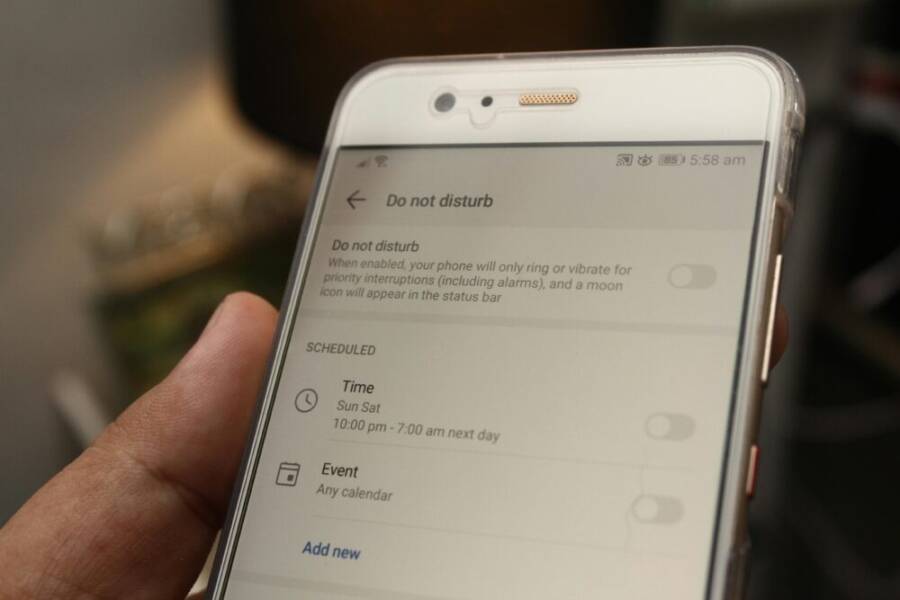
Do Not Disturb (DND) is your quiet room in a noisy world. Set a schedule that fits your day, especially for sleep or deep work. Start by opening the DND settings and choosing a time window when alerts should be muted. Then configure exceptions so important calls can still get through. A common pattern is to allow favorites or frequent contacts to ring through, while everything else stays quiet. This simple setup makes focus periods predictable and reduces the stress of constant pings.
Try an on/off toggle for quick control. When you finish a task, flip DND off and review any missed items. A quick test helps you confirm that the right people can reach you in emergencies. For many, this becomes a healthy routine, turning a phone into a tool rather than a source of constant noise. If you want a deeper look, there are guides that walk you through schedule based focus modes and how to enable them for both Android and iOS.
- Schedule ideas: work blocks, study times, and wind down periods.
- Exceptions: favorites and emergency contacts only.
References and additional reading:
- How to set focus modes and DND on Android
- How to use Focus and Do Not Disturb on iOS
Keep Key Alerts Front and Center
Not all alerts are the same. When you need to stay in the loop about family, emergencies, or reminders, place those alerts on a high priority while keeping others quiet. Start by naming a few apps or contacts that you want to hear from in real time. If your device supports custom sounds, assign a distinct notification tone to these critical alerts. If not, a visible banner or a vibrate pattern can be enough to catch your attention.
The balance is crucial: you want to be aware without being overwhelmed. Review your priorities every week and adjust as needed. For most people, this means keeping family texts and important reminders audible, while less urgent updates stay silent or delayed. If you ever feel you are missing something truly important, recheck your DND exceptions and tweak the allowed alerts.
For further guidance on fine tuning alerts, you can explore community discussions and how to tailor priority notifications on both Android and iOS platforms. This approach helps you stay connected with what matters most while preserving quiet.
References and additional reading:
- How to customize notification priority on Android
- How to set emphasis for important notifications on iOS
Choose Just the Right Apps to Start
Starting fresh with a beginner phone can feel overwhelming. The key is to pick a small set of essential apps that cover daily tasks without adding clutter. This section helps you choose the right toolkit, so your device supports you instead of stealing your time. You’ll learn which apps to install, how to evaluate them quickly, and how to keep your setup tidy as you go. Think of this as laying a sturdy loom for a simple, reliable digital life.
List of 10 Essential Beginner Apps
Curate a core set that covers the basics: a browser, email, maps, camera, notes, calendar, messenger, weather, calculator, and a file manager. Each app should be free or offer a solid free tier. A good browser keeps you connected to information, while a reliable email app helps you manage messages without juggling multiple accounts. Maps point you where you need to go, and the camera app lets you capture memories without hunting for third-party tools. Notes and calendar keep ideas and plans organized, and a clean messenger keeps conversations accessible. A weather app helps you plan your day, a calculator handles quick math, and a file manager makes it easy to find documents. For starters, try these commonly recommended free options: a popular browser, a trusted email client, and a reputable maps app. If you want a quick reference to app alternatives, explore Android’s app catalog and a curated list of beginner-friendly picks like those found in Android and iOS roundups.
- Browser: Chrome or Firefox (free)
- Email: Gmail or Outlook (free)
- Maps: Google Maps or Apple Maps (free)
- Camera: Built-in camera app (free)
- Notes: Google Keep or Apple Notes (free)
- Calendar: Google Calendar or Apple Calendar (free)
- Messenger: WhatsApp or Messages (free)
- Weather: Weather Channel or Apple Weather (free)
- Calculator: Built-in or Google Calculator (free)
- File manager: Files by Google or Built-in Files (free)
Tip: start with one option per category and switch later if you need better fit. For quick inspiration on free beginner apps, see resources like Android Apps on Google Play and curated lists for Android smartphones.
References and additional reading: - Android Apps on Google Play: https://play.google.com/store/apps/collection/cluster?gsr=SmtqGGdoV2xqMng1YksxbFpHUzB0TnNvRXc9PcICTgodChljb20uYWd1cy5tYXJvYy5jYWxlbmRyaWVyEAcYCDABOABKIQgBEAAaFU1hcm9jIENhbGVuZHJpZXIgMjAyNSAAKAAwAFAAWAFgAA%3D%3D:S:ANO1ljKxmqI
- 10 best apps for Android smartphones: https://www.techradar.com/phones/android/10-best-apps-for-android-smartphones
- 12 Free Apps Every Android User Should Have Installed: https://www.slashgear.com/1500206/apps-every-android-user-should-have-installed/
(Photo)

Photo by ready made: https://www.pexels.com/@readymade
Download Apps the Safe Way
When you add new apps, safety matters as much as usefulness. Stick to official stores, read reviews, and check permissions before installing. Sideloading from unknown sources can open doors to security risks and unneeded clutter. A quick scan saves you headaches later. Start by opening the App Store or Play Store, then search for well-reviewed options with solid developer reputations. Look at permission requests and only grant what’s essential for the app to function. If an app asks for access to contacts when it’s not needed for its core feature, skip it. After installation, review the app’s notification and background activity settings so you stay in control.
Keep a lean list of trusted sources. Install from the stores you recognize, and prefer apps with recent updates and clear user feedback. For those who want concrete examples, you can browse related guides on how to pick apps for Android and iOS. When you’re unsure, start with the big names in each category and read recent user experiences. For more practical how tos, see guides like How to Silence Notifications from Individual Apps on Android and related community tips.
- Key practice: verify at least one strong, reputable app per category from the official store.
- Quick scan tips: read permissions, check reviews, and note recent update dates.
References and additional reading:
- Android Apps on Google Play: https://play.google.com/store/apps/collection/cluster?gsr=SmtqGGdoV2xqMng1YksxbFpHUzB0TnNvRXc9PcICTgodChljb20uYWd1cy5tYXJvYy5jYWxlbmRyaWVyEAcYCDABOABKIQgBEAAaFU1hcm9jIENhbGVuZHJpZXIgMjAyNSAAKAAwAFAAWAFgAA%3D%3D:S:ANO1ljKxmqI
- 10 best apps for Android smartphones: https://www.techradar.com/phones/android/10-best-apps-for-android-smartphones
Clean Up Apps Every Month
A monthly cleanup keeps your device friendly to use and free from clutter. Start by spotting the idle apps you never touch. Open settings, check storage or apps list, and note the open date or last used timestamp. Batch delete those you haven’t touched in weeks. This reduces background activity and frees space for the essentials. Use built-in storage cleaners to remove cached data and temporary files. Aim to keep your total app count under 50; fewer apps mean less to monitor and less risk of notification overload. Set a recurring reminder on your calendar to perform the cleanup, so it becomes a habit rather than a task.
When you remove apps, review what you kept. You’ll often find you can replace multiple tools with one more capable option, or you can rely on your browser for some tasks. For inspiration on curating a small, efficient toolkit, explore minimalist home screen ideas and related topics. If you want a broader perspective, check out practical guides that discuss managing app libraries and storage efficiency.
- Spot unused apps by viewing “Last used” or “Last opened” dates.
- Batch delete to save time and avoid regret.
- Use built-in cleaners to remove caches and junk files.
- Keep under 50 apps to maintain clarity and speed.
References and additional reading: - Android Apps on Google Play: https://play.google.com/store/apps/collection/cluster?gsr=SmtqGGdoV2xqMng1YksxbFpHUzB0TnNvRXc9PcICTgodChljb20uYWd1cy5tYXJvYy5jYWxlbmRyaWVyEAcYCDABOABKIQgBEAAaFU1hcm9jIENhbGVuZHJpZXIgMjAyNSAAKAAwAFAAWAFgAA%3D%3D:S:ANO1ljKxmqI
- 12 Free Apps Every Android User Should Have Installed: https://www.slashgear.com/1500206/apps-every-android-user-should-have-installed/
This approach keeps your beginner phone clean, fast, and easy to use. You’ll notice fewer distractions and more focus on what matters most each day.
Adjust Settings for Simple Daily Use
If you want a beginner’s phone to feel friendly rather than intimidating, start with the settings you interact with most. The goal is a device that works with you, not against you. Small adjustments can shrink clutter, save battery, and protect privacy without blocking access to what you actually need. Think of these tweaks as a gentle onboarding tour for your everyday life with a smartphone. You’ll notice quicker responses, longer battery life, and fewer moments of frustration when you reach for it.
Fix Battery Drain and Screen Brightness
Battery life often determines how pleasant a smartphone feels to use daily. Start by turning on auto-brightness so the screen adapts to lighting without manual fiddling. Pair this with a dark mode, which can reduce energy use on many screens. Enable a power saver or battery saver mode during long days to curb background activity and keep critical apps running. Close background apps you’re not using to prevent constant refreshing. Check usage stats to see which apps drain power the most and trim permissions or background activity for those. If you want a quick, practical read on extending battery life, see guides like 5 quick fixes to extend Android battery life and tips from ZDNet on battery saving. These steps are simple, fast, and do not require technical know‑how.
- Example quick wins: disable always‑on display, switch to dark theme, schedule battery saver from sunset to sunrise.
- Helpful reference: How to get the most life from your Android device’s battery.
Add Shortcuts to Favorites
A streamlined interface speeds up every task. Put a few high‑use actions front and center with shortcuts or quick tiles. For example, enable one‑tap access to the camera for snapshots, and a flashlight tile for emergencies or late‑night tasks. If your device supports gestures, set up a simple gesture to open your favorite app or feature with a single swipe. The aim is to reduce taps and decisions, not add complexity. Customize these shortcuts with minimal steps so you can adjust later as you grow more confident. This approach keeps your phone from feeling like a maze. For ideas on practical home screen shortcuts, you can explore beginner layouts and tutorials.
- Quick wins: camera, flashlight, notes, or weather in a single row for fast access.
- Reference ideas: explore curated lists for beginner friendly shortcuts and home screen layouts.
Handle Basic Privacy Choices
Privacy doesn’t have to be a burden. Start with the basics you can manage in minutes. Turn off location access for apps that don’t need it, especially background services. Set up a simple passcode to prevent accidental purchases or unlocks. Regular software updates matter for security and performance, so enable automatic updates if you trust the device. Review app permissions during installation and after updates, denying non essential access like contacts or microphone when it’s not needed for core features. A straightforward privacy setup makes your daily use smoother and safer. For concrete steps, refer to guidelines on how to turn off location for individual apps and how to set up a basic passcode on Android and iOS.
- Practical steps: restrict location where unnecessary, enable a basic screen lock, keep software current.
- Quick references: official Android and iOS privacy and security updates.
External resources you may find useful:
- Battery life tips and quick fixes: https://www.pcmag.com/how-to/quick-fixes-extend-android-phone-battery-life
- Battery saving strategies and Android tips: https://www.android.com/intl/en_in/articles/tips-to-extend-android-battery-life/
References and additional reading:
- Get the most life from your Android device’s battery
- Tips to extend Android battery life
Notes: The guidance above helps keep a beginner’s phone friendly. By tuning battery, shortcuts, and privacy, you create a device that accommodates your routines rather than interrupting them. For further practical examples and deeper dives, consider guides that focus on step by step privacy and security settings for Android and iOS.
Conclusion
Keeping a beginner’s phone from feeling overwhelming comes down to four steady steps: clean the screen, quiet alerts, choose the right apps, and simplify settings. A tidy home screen reduces first impressions of chaos and makes the device easier to scan. Fewer notifications lets you act with intention rather than react to every ping.
With a calm notification setup, you protect focus while still catching what matters. Mute non essential apps, set a Do Not Disturb window, and keep key alerts visible. This balance lets you work, learn, and connect without constant interruptions.
Choosing a small, reliable app set keeps the phone useful, not noisy. Start with essentials that cover daily tasks, then add only if it really helps. When you keep the toolkit lean, every tap feels purposeful and predictable.
Finally, tune the main settings for daily use. Shortcuts speed tasks, privacy stays simple, and battery life lasts longer. A well tuned device becomes a quiet partner, not a source of stress.
If you try this today, you’ll likely notice more momentum and less overwhelm in a short time. Share your wins in the comments so others can copy your approach. The goal is simple: a calmer, more confident phone experience that helps you get things done. When the phone serves you, your day feels lighter and more in control.