Are you tired of seeing an app blamed for battery drain it didn’t cause? You’re not alone. Wrong battery usage stats can make a perfectly healthy phone feel exhausting to use and punishing to troubleshoot.
This post shows you what those stats really mean and why they matter. When your device reports strange numbers, it can mislead you about which apps sip power, which in turn nudges you toward unnecessary fixes or even hardware worries. Understanding the signals helps you act, not guess.
We’ll map out the common culprits behind inaccurate readings, from software quirks to background activity and recent updates. You’ll learn how Android and iPhone handle power tracking differently and why a simple misread can skew your daily routine. The goal is to give you clear, practical steps you can take right away.
You’ll get a practical, step by step guide to identify the real power hogs and to fix the stats without tearing down your habits. We’ll cover quick checks like software updates, app management, and settings tweaks that restore accurate reporting. You’ll also see a few diagnostic tips that don’t require technical skills.
By the end, you’ll know what to trust and what to ignore in your battery dashboards. And you’ll walk away with a lean routine for keeping your smartphone healthy and efficient. The result is less guesswork, more control, and a device that behaves the way you expect.
Common Causes of Wrong Battery Usage Stats
When your device reports strange battery numbers, it can be hard to know what to trust. Wrong stats often come from a mix of software quirks and real hardware changes. Understanding the main culprits helps you cut through the noise and fix the issue faster. Below are two common sections that cover why your readings can mislead you and what to do about them.
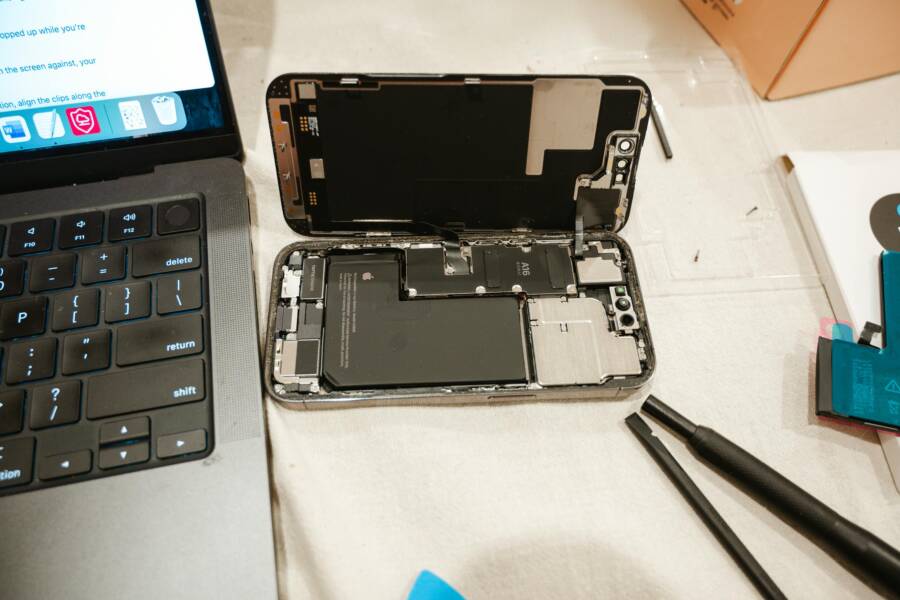
 Photo by Harry Tucker
Software Glitches and Background Tasks
Software quirks can make battery usage look worse or better than it really is. Background processes, syncing, and data collection run invisibly and draw power even when you don’t notice them. Some apps may stay active in the background, recording usage data or performing tasks without clear prompts. This can skew the numbers in your battery stats, making it look like a single app is draining power when the drain is spread across several hidden tasks. In some cases, the operating system misreports capacity or usage due to a bug, especially after updates. Regular software updates and occasional recalibration can help keep readings honest. For iPhone users, recalibration updates have addressed earlier misreporting in certain models, and Android devices have started adding warning labels for battery-heavy apps in some app stores. If you notice odd spikes after a recent update, check recent app activity and look for hidden or background processes. See how calibration and background management come into play with these guides: How to Fix Inaccurate Charge Percentages by Calibrating Your Phone’s Battery and Google Play will warn Android users about apps that drain battery. For deeper reading on how background activity can distort readings, you can also explore discussions on Apple support forums and related tech blogs.
- Check for recently installed or updated apps that might run in the background.
- Review background activity permissions and disable unnecessary processes.
- Consider a quick battery calibration if readings look inconsistent.
Battery Health and Wear Over Time
As a battery ages, its capacity slowly declines, and the reportable charge can become unreliable. When a battery drops below about 80 percent of its original capacity, the stats may show odd results or sudden transitions. This is not always a fault in the software; it is a natural effect of aging. Most devices include built-in health tools you can use to gauge actual capacity and peak performance. If you notice battery readings that don’t match real usage, run the health check in Settings and compare it to expected drift. For iPhone, recalibration and health reporting updates have addressed earlier misreporting on certain models, and Android devices often benefit from health benchmarks and calibration steps. If the health reading seems low, trust the hardware data more than a single app’s report. Learn more about recalibration and health reporting here: About recalibration of battery health reporting in iOS 14.5 and later and How to Fix Inaccurate Charge Percentages by Calibrating Your Phone’s Battery.
Note: This section introduces the main areas where wrong battery stats creep in. The next sections will dive into practical checks you can perform without specialized tools, so you can restore accurate readings quickly.
Quick Fixes for Any Phone to Reset Battery Stats
If you’ve been staring at battery stats that don’t add up, a quick reset can clear out small glitches and bring your numbers back in line. These fixes are safe, require no special tools, and work on both Android and iPhone. Think of it as a quick reboot for your phone’s power readings. You’ll often find that a simple restart or targeted app management restores trust in your battery dashboard, making it easier to spot real drains rather than phantom ones. Let’s walk through two practical actions you can take right now.
Restart Your Phone Right Now
A hard restart is the fastest way to flush temporary glitches that accumulate as your smartphone runs. For Android, press and hold the power button until the power menu appears, then tap Restart. If your device isn’t responsive, hold the power button for about 10 seconds to force a reboot. For iPhone, press and hold either volume button and the side button until the slider appears, then slide to power off. After a moment, power it back on. This resets volatile memory and clears stray background tasks that may be skewing battery usage readings. In most cases, you’ll see the stats settle back to a realistic pattern. If you want a deeper read on calibration after a restart, here’s a helpful guide: How to Calibrate iPhone Battery for Accurate Percentage. A fresh start can also help if you’re juggling multiple smart home apps or wellness trackers that run in the background.
Check and Limit App Usage
You don’t have to guess which app is draining power. Start by opening the battery usage menu to identify the top consumers. On Android, go to Settings > Battery > Battery usage to see which apps consumed the most power. On iPhone, open Settings > Battery to view Activity and Battery Usage by app. If you notice a single app or a handful of apps with unusually high drain, take action: force stop or force quit those apps, then monitor for changes. For Android users, you can disable background activity for high-drain apps or restrict their background data. On iPhone, revoke background app refresh for apps that don’t need it. This keeps chip activity lean and prevents hidden tasks from skewing the stats. If you want a practical reference on stopping background drains, check resources like How to Find and Stop Apps from Draining Your Android Battery and How to turn off background apps on your iPhone and Android. For ongoing learning, you can also explore Android’s tips on identifying energy drainers and the broader guidance from Lifehacker and MakeTechEasy to keep power use under control.
Fix Inaccurate Battery Stats on Android Phones
When battery stats misreport usage, it can feel like you’re chasing shadows. This section helps you verify readings and restore trustworthy data by focusing on practical, repeatable steps. You’ll learn how to keep software in sync and how to clean up data that can skew results. The goal is to make your battery dashboard reflect real behavior, so you can spot true drains without chasing phantom culprits.
Update Software and Clear App Cache
Keeping your device up to date is the first line of defense against inaccurate battery readings. System updates often include bug fixes and improvements to power reporting that address misreads after software changes. On most Android devices, go to Settings > System > Advanced > System update and install any available updates. If you notice odd stats after an update, a fresh install can restore proper reporting.
Next, clear cache data for apps that might be misreporting or running hidden tasks. Open Settings > Apps and select the apps you suspect, then go to Storage > Clear cache. This removes temporary files that can influence how power usage is tracked. For additional guidance on battery calibration and related misreporting, see resources like How to Fix Inaccurate Charge Percentages by Calibrating Your Phone’s Battery and Google’s guidance on battery drain and optimization.
- Update path quick reference: Settings > System > Advanced > System update.
- Cache clean path quick reference: Settings > Apps > [App] > Storage > Clear cache.
- When in doubt, perform a restart after updating or clearing caches to reset the power tracker.
For deeper background on why updates can trigger stat shifts and how calibration helps, you can review articles like the HowToGeek guide on battery calibration and the Google Pixel Help page on fixing battery drain problems.
Links for further reading:
- How to Fix Inaccurate Charge Percentages by Calibrating Your Phone’s Battery
- Fix battery drain problem – Pixel Phone Help
Use Battery Optimization Tools
Android devices include built in tools that manage app activity to extend battery life. Using these features correctly helps ensure the power readings reflect actual usage rather than background nudges. Start by checking your device’s battery optimization settings. Go to Settings > Battery > Battery optimization (or a similarly named path on your model). From there, you can opt into or out of optimization for individual apps. For apps that routinely run in the background, consider adding them to the optimized list or restricting background activity where appropriate.
Additionally, enable/verify features like Adaptive Battery, which learns your usage and prioritizes core tasks while reducing background work for idle apps. If you’ve recently updated your OS, these tools may recalibrate how power is tracked over time, leading to more accurate metrics.
- Android’s official battery optimization guidance is available in Pixel Help resources, which include steps to fix drain by adjusting optimization settings.
- After enabling optimization, monitor the battery usage screen again to confirm readings align with real activity.
Helpful reference:
- Fix battery drain problem – Pixel Phone Help
By following these steps, you’ll improve the reliability of your battery stats on Android. You’ll see clearer distinctions between apps that genuinely drain power and background processes that shouldn’t be part of the equation. This clarity makes it easier to tune settings and extend your device’s daily life.
Turn Off Background Refresh and More
When battery stats look off, the first step is to trim what runs in the background and review how your device tracks power. This helps you separate real drains from phantom activity. Start with the basics: turn off or restrict background refresh for apps that don’t need to stay in reserve. On a smartphone, this can dramatically reduce stray power draw and produce more reliable readings. Then dive into the battery and health menus to check what’s actually consuming energy and how your battery is aging. Remember, a misread can appear after updates, so recalibration sometimes restores honest numbers. If you want a deeper refresher, see guides that explain calibrating battery readings and how Android and iPhone handle background tasks differently. For example, a calibration pass can improve accuracy after software changes, while Android’s battery optimization tools help curb hidden background activity. How to fix inaccurate charge percentages by calibrating your phone’s battery Google Play will warn Android users about apps that drain battery
What to check first
- Background refresh: disable for seldom-used apps.
- Battery usage by app: identify the actual culprits rather than assuming a single name carries the whole burden.
- Health indicators: compare the reported health with real performance.
If you see odd spikes after updates, review recent app activity and look for hidden or background processes. A quick recalibration cycle can be enough to align readings with reality. For broader context, Apple’s support pages explain how recalibration and health reporting work, helping you interpret any mismatches with confidence.
- Apple support on recalibration and health reporting: https://support.apple.com/en-us/119954
- Understand your iPhone battery usage and health: https://support.apple.com/guide/iphone/understand-iphone-battery-usage-health–iphd453d043a/ios
In practice, you’ll notice the battery dashboard becoming steadier. You won’t chase phantom drains, and you’ll have a clearer view of which apps truly tax power. Keeping background activity lean makes the phone feel faster and more predictable, especially when you’re relying on it all day.
Reset Settings Without Losing Data
If misreads continue after targeted tweaks, a broader reset can clear stuck tracking data without erasing your content. Resetting all settings returns system preferences to their defaults while preserving your apps and data. Think of it as a factory reset for the sensors that track power, not for your personal files. After the reset, recheck battery stats and, if needed, reconfigure essential settings. Offloading apps is a gentler step that frees storage and reduces app clutter, which can also influence how power usage is reported. This approach is especially helpful when small configuration quirks or corrupted preferences skew the numbers. For iPhone users, understand that a complete clear of battery history isn’t exposed as a one-click option, but a settings reset effectively starts fresh without data loss. If you want a video walkthrough, there are practical visuals that outline the steps and expectations.
- Steps to reset all settings on iPhone or Android devices: navigate to Settings > General > Reset (iPhone) or Settings > System > Reset options (Android).
- Offload unused apps to free space and reduce background checks: Settings > General > iPhone Storage (iPhone) or Settings > Apps & notifications > See all apps > [App] > Storage > Offload (Android).
What you gain
- Fresh system defaults for power tracking.
- A cleaner slate for background management.
- Fewer old preferences that silently distort readings.
If you ever worry about losing data, remember that this reset does not wipe your photos, messages, or files. It simply resets system-level settings and app behaviors. For additional context, Apple’s official guidance covers recalibration and health reporting steps after a reset, which helps you interpret any new numbers accurately. You can also find practical references on how resets interact with battery history and app behavior.
- Understand your iPhone battery usage and health: https://support.apple.com/guide/iphone/understand-iphone-battery-usage-health–iphd453d043a/ios
- How to delete or remove battery usage history on iPhone (noting that iOS does not offer a direct clear option, but a full settings reset can reset tracking): https://www.youtube.com/watch?v=eAZwC_K-PtM
As you reassemble settings after the reset, keep an eye on the battery graph for a few days. If readings settle into a stable pattern and reflect real usage, you’ve likely eliminated the misreporting. This approach helps you regain trust in the numbers without sacrificing your data or daily routines.
Prevent Battery Stat Errors in the Future
You can reduce the chances of misleading battery readings by building simple, repeatable habits into your routine. The goal is to create a steady, honest picture of how your smartphone uses power so you can trust the numbers and act accordingly. Think of it like keeping a car’s fuel gauge honest by regular maintenance and a clear view of what each component is doing. Here are practical, non-technical steps you can implement now to prevent stat errors from creeping back.
Calibrate and Recalibrate Regularly
Calibration helps your phone report charge levels more accurately and keeps power tracking on track after software updates. A quick calibration cycle reset aligns the battery indicator with actual capacity, so you’re less likely to chase phantom drains. For iPhone users, recalibration guidance from Apple can help interpret health data after changes in iOS. Android users can follow calibration concepts from trusted guides to keep readings honest over time. See credible how-tos like the How to Fix Inaccurate Charge Percentages by Calibrating Your Phone’s Battery and Android calibration guidance from NextPit for a clear, step-by-step approach.
- Calibrate on a flatter, fully charged cycle when readings seem off.
- Don’t overdo it; a single calibration every few months is usually enough unless you notice new inconsistencies.
- After calibration, monitor a few days of usage to confirm readings line up with real activity.
External reads for deeper context:
- How to Fix Inaccurate Charge Percentages by Calibrating Your Phone’s Battery
- How to Calibrate the Battery on Your Android Device
Build a Routine for Background Activity
Background tasks are the stealth drain that often skews stats. Set up a lean background routine so apps don’t quietly chew power and muddy your data. Prioritize apps that truly need to run in the background, and restrict or disable those that don’t. A well managed background plan helps the battery dashboard reflect real behavior, not hidden nudges. On Android, you can customize background activity permissions and use Adaptive Battery to limit idle work. On iPhone, review Background App Refresh and grant it only to essential apps.
Tips to keep readings clean:
- Review battery usage by app and disable or restrict those with unexpected spikes.
- Turn off Background App Refresh for nonessential apps on iPhone.
- Enable Adaptive Battery on Android where available to reduce background work for idle apps.
Helpful context links:
- Get the most life from your Android device’s battery
- Understand your iPhone battery usage and health
Maintain Battery Health Without Overreacting
Battery aging is natural, and as capacity declines, readings can feel off. Track health indicators alongside usage to separate aging from software quirks. Use built‑in health tools to compare actual capacity with what the dashboard reports. If readings consistently diverge from observed performance, consider recalibration and a targeted cleanup of apps known to push usage. Remember, a healthy battery will still show some fluctuation, but you should see a stable relationship between real use and the numbers.
Practical steps:
- Check battery health in Settings and compare to typical capacity for your model.
- If health looks low, rely more on real-world performance than a single stat.
- Pair health checks with calibration when you notice drift.
Authoritative references on health reporting and recalibration can provide concrete steps for both iPhone and Android devices.
External reads for deeper reading:
- Understand your iPhone battery usage and health
- If the battery in your iPhone or iPad drains too quickly
Use a Minimalist Testing Window
When you test changes, keep the testing window small and controlled. A focused 24 to 48 hour window gives you a clean view of how new settings affect power reporting. During the test, avoid installing new apps or enabling new features that could introduce fresh variables. This approach helps confirm whether adjustments actually improve accuracy or just hide issues longer.
Guided approach:
- After any change, record battery stats for two days to compare with the prior period.
- Note any spikes tied to specific apps or activities and adjust permissions accordingly.
- If you need a quick sanity check, a quick restart can reset transient glitches without affecting long-term data.
External context on practical testing:
- Get the most life from your Android device’s battery
- Understand your iPhone battery usage and health
By combining calibration, disciplined background management, and steady health checks, you’ll keep battery usage stats accurate going forward. The result is less guesswork, fewer phantom drains, and more predictable performance from your smartphone, whether you’re on Android or iPhone. For ongoing learning, you can explore Apple support and Android help pages that address recalibration and power tracking with real-world guidance.
Conclusion
Accurate battery stats come from a simple mix of quick checks and smart habits. For Android, start with a quick calibration or reset of battery stats, install any available system updates, and clear app caches to remove stale data. Tweak battery optimization and limit background activity for apps that aren’t essential. These steps restore trust in the dashboard and help you separate real drains from phantom ones in a smartphone.
For iPhone, check Battery Health and, if needed, calibrate by cycling between 0 and 100 percent. Keep iOS up to date and review Analytics Data for anomalies. If readings remain off, a settings reset can clear stubborn tracking quirks without touching your files. In many cases, these moves bring readings back to reflect actual usage in your smartphone.
Now is the time to try these fixes. Run through the steps you haven’t yet attempted and watch how the numbers settle. A cleaner battery picture means less guesswork and more control over your daily power needs.
Have you seen real improvement after any of these tweaks? Share your experience in the comments below and tell us which step mattered most. If you’re unsure about your battery health, check it in Settings and compare with your model’s typical capacity. Here’s to longer battery life and a more reliable smartphone experience.