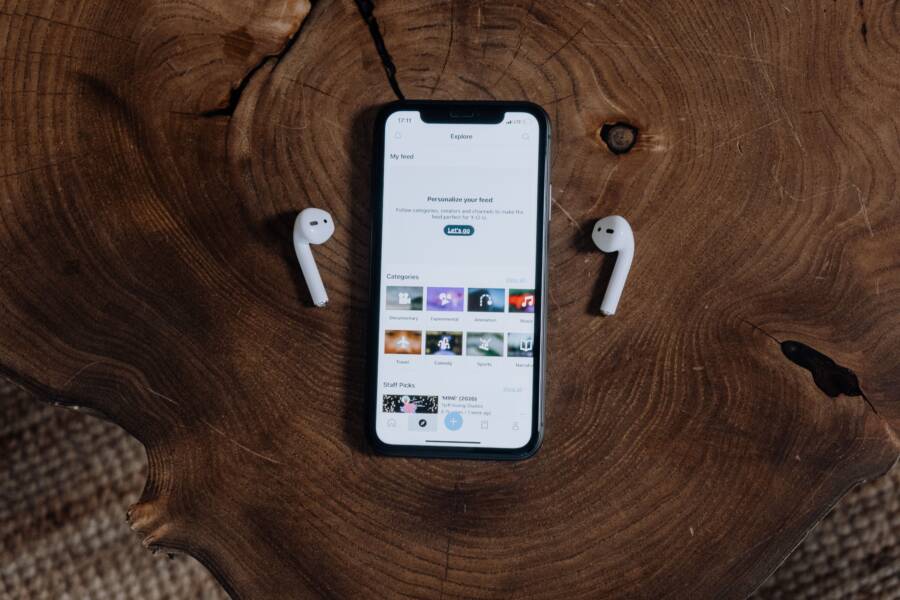
When your smartphone stops detecting your headphones, the problem usually stems from a minor software glitch, debris lodged in the audio port, or incorrect sound output settings. You can often restore audio by restarting your device or cleaning the connection point.
These technical hiccups are frustrating, but they rarely indicate permanent hardware failure. Most users resolve this issue in a few minutes without needing professional repair services.
Follow these steps to diagnose and fix your connection problems.
Quick Checks to Fix Your Audio Connection
Before you consider professional repairs, perform these basic checks on your smartphone. Many audio detection issues arise from simple blockages or incorrect software configurations. Following these steps often restores sound in just a few minutes.
Clean the Charging and Headphone Port
Your smartphone collects debris such as pocket lint, dust, or fabric fibers throughout the day. When this material builds up inside the port, it prevents the headphone jack or USB-C connector from making firm contact with the device. This physical barrier stops the phone from recognizing that headphones are plugged in.
Use a soft, non-metallic brush or a gentle burst of compressed air to remove the obstruction. Direct the air toward the port to dislodge trapped particles without pushing them further inside. Be extremely careful when using tools, as the internal pins are sensitive and prone to bending or breaking. Avoid inserting metal objects like needles, as these can cause short circuits or permanent damage to the charging circuitry.
Verify Your Bluetooth and Audio Settings
Sometimes your smartphone connects to a nearby wireless speaker or a pair of earbuds without your immediate awareness. If your device maintains an active Bluetooth link to another peripheral, it may route all audio output there instead of your wired headphones.
You should check your current output settings to verify where the sound is directed. On an iPhone, open the Control Center and look for the audio card in the top right corner. Ensure that your wired headphones or the internal speaker are selected as the output source. Android users can usually find this toggle within the sound settings menu or by tapping the media output button in the notification shade.
If the issue persists, toggle your Bluetooth settings off completely to force the phone to drop all wireless connections. Follow these steps to reset your local connection:
Open the settings menu on your smartphone.
Select the Bluetooth or Connections tab.
Turn the Bluetooth toggle off to disconnect all current pairings.
Plug your headphones back in firmly to test the audio.
If the sound returns, you can re-enable Bluetooth if necessary.
These steps identify if a software conflict or a hidden wireless pairing is the cause of your silence. If the phone still fails to detect your headphones after clearing the port and resetting your Bluetooth connection, the problem might involve a deeper software error or a damaged hardware component.
Advanced Troubleshooting for Persistent Connection Issues
When simple fixes fail, deeper configuration errors or hidden physical faults often remain. You need to verify if the smartphone software blocks your connection or if a component needs professional care. These steps focus on isolating the root cause when basic troubleshooting provides no results.
Resetting Network Settings and Audio Preferences
Corrupted system files often interfere with how your smartphone manages hardware inputs. Resetting your network settings clears saved Bluetooth pairings, Wi-Fi passwords, and cellular configurations. This process restores the audio subsystem to its factory state without deleting your photos, contacts, or apps.
On an iPhone, navigate to General settings, select Transfer or Reset, and choose Reset Network Settings. Your device will restart and clear existing connection logs. Android users can follow a similar path within the System or General Management menu. Look for the Reset Options section and choose Reset Wi-Fi, mobile, and Bluetooth.
This reset acts as a clean slate for your smartphone. It removes faulty configuration data that prevents your device from recognizing wired or wireless peripherals. After the device reboots, plug your headphones in again to see if the system correctly identifies the hardware.
Identifying Hardware Failures and External Adapters
If software resets do not help, perform a cross-device test to rule out hardware failure. Plug your headphones into a laptop, tablet, or another smartphone. If the audio functions correctly on those devices, your smartphone port is the likely culprit.
Consider these factors when testing your equipment:
Damaged internal pins inside the port often prevent a secure connection.
Third-party adapters can fail due to internal wire breaks or chip incompatibility.
Liquid exposure sometimes causes slow corrosion on port contacts, even if the device appears dry.
If you use a USB-C or Lightning-to-3.5mm adapter, test a different adapter cable first. Many connection problems stem from a faulty dongle rather than the port itself. A replacement adapter is a cost-effective way to confirm if your current one is broken.
If you have cleaned the port, performed a network reset, and tested with a known working adapter, the issue probably lies with the internal hardware of the phone. At this stage, take your smartphone to an authorized service center. Professional technicians can inspect the motherboard connection or replace a faulty headphone jack module. Do not attempt to open the device yourself, as this often voids your warranty and risks damaging fragile internal components.
Best Practices to Keep Your Audio Port Healthy
The audio port on your smartphone is a high-traffic area that often faces neglect until a connection fails. Dust, lint, and moisture accumulate inside this opening every day, which eventually prevents your headphones from making a clean signal path. Maintaining a clean port prevents these persistent detection errors before they happen.
Routine Maintenance for Audio Ports
Small habits go a long way in protecting the fragile internal contacts of your smartphone. You should inspect the port visually once a week, especially if you store your device in pockets or bags where debris gathers quickly. Using a bright light helps you see if any foreign material is resting at the bottom of the jack.
If you notice lint, use a can of compressed air to clear the space. Hold the can upright and apply short, controlled bursts to avoid pushing the debris deeper into the chassis. Avoid blowing into the port with your mouth, because your breath contains moisture that can corrode the delicate metal pins over time.
Safe Cleaning Techniques and Tools
Many people make the mistake of using household items to clear their ports. Metal pins inside the jack are incredibly sensitive, and a single slip with a paperclip or safety pin causes permanent damage. Never insert sharp or conductive objects into the opening.
Instead, use a soft, non-metallic tool to nudge out stubborn lint. A wooden toothpick works well for this task if you are extremely gentle. Perform these actions slowly to avoid snagging the internal components. If the debris does not move with light pressure, stop immediately and seek professional help rather than forcing the issue.
Protecting Your Connection Point
Prevention is the most effective way to keep your audio experience reliable. When you put your smartphone into a pocket, place the charging and audio ports facing upward. This orientation reduces the amount of pocket lint that falls directly into the open socket.
Consider using a protective case that includes port covers or flaps. These accessories act as a physical barrier against dust and environmental hazards while you commute or travel. If you spend significant time in dusty environments, a simple port plug provides an extra layer of security. Taking these small precautions keeps your connection points functional for the life of your device.
Conclusion
Most headphone detection issues on your smartphone originate from simple software glitches or minor physical debris. Regularly cleaning your port and resetting your Bluetooth settings will resolve these problems for most users.
If these steps fail to restore audio, you likely face a deeper hardware fault. At that point, contact an authorized repair center to inspect your device. Professional support is the safest way to address internal component failure without risking further damage to your hardware.