What If the Only Thing Between You and the Life You Deserve Is a Hidden Wealth Code Waiting to Be Activated
>>> Open the Door <<<

How to Fix Phone Flash Not Working (Android & iPhone)
Picture this: you’re out at night, trying to capture a memory with your phone, but the flash stays dark no matter what you do. That blurry, underexposed shot ruins the moment. It happens to everyone with Android or iPhone devices.
Your phone’s flash makes all the difference in low light. It brightens subjects for sharp photos and videos. Without it, your smartphone camera struggles in dim rooms or after sunset.
Several issues cause a flash to fail. Low battery or power saving mode often disables it first. Overheating, app conflicts, software bugs, dirt, a thick case, or even physical damage play roles too.
Don’t worry; most problems have simple fixes. Start with quick checks like charging up, restarting, or cleaning the lens. Move to software resets or updates if needed, and consider pro repair for hardware faults.
He Was Drowning in Bills and Burnout Until a Simple Daily Ritual Rewired His Brain for Wealth in Less Than a Week
>>> Start Your Shift Today <<<

This guide walks you through step-by-step solutions for both Android and iPhone. You’ll get your flash working again fast, whether it’s a glitch or something more. Follow along, and snap better shots tonight.
Start with These Quick Basic Checks
Before you dig into software updates or resets, tackle these simple steps. They fix the flash on many smartphones right away. Low power settings or physical blocks cause most basic problems. Spend a few minutes here, and you might skip the rest.
Check Battery and Power Settings
Your phone cuts the flash when the battery runs low. It saves power for essentials. Low-power mode does the same thing. Samsung phones often disable it below 5% battery, while iPhones block it around 20%.
Charge your phone first. Plug it in for 30 minutes, then test the camera flash. If it works, keep the battery above that threshold.
Turn off low-power mode too. On Samsung Galaxy models, swipe down twice for Quick Settings. Tap the battery icon and switch off Power saving. Or go to Settings > Battery and device care > Battery > Power saving, then disable it.
For iPhone, open Settings > Battery. Toggle off Low Power Mode. Users report this fixes flash issues fast, as seen in Apple community discussions.
Restart after changes. Open the camera app. Tap the flash icon. It should light up now.
Remove Cases and Covers
Thick phone cases block the flash LED. They scatter light or create shadows in photos. Rubber or leather edges around the camera cutout often cause this.
Take off your case. Clean the flash lens with a microfiber cloth. Test a photo in a dark room.
Snap a few shots. Compare with and without the case. If the flash works bare, pick a thinner case next time. Apple’s support page recommends this check first for iPhone camera woes: test without accessories.
Some cases have raised lips that work fine. Others don’t. Your smartphone deserves clear light paths.
Test the Flashlight Function Alone
The flashlight uses the same LED as the camera flash. Test it solo to spot hardware faults.
On Android like Samsung, swipe down for Quick Settings. Tap the Flashlight icon. It turns on from the top screen edge.
For iPhone, swipe down from upper right (newer models) or up from bottom (older). Tap the Flashlight button in Control Center.
Hold for 10 seconds. If it fails to light or flickers, you likely face a hardware issue. The LED or connections need repair.
If the flashlight works but camera flash doesn’t, blame software or app settings. This quick test narrows it down fast. Sites like this troubleshooting guide confirm it points to the root cause.
Fix Common Software Glitches Fast
When your phone flash won’t cooperate, a quick, targeted approach can save you time and frustration. This section covers practical, fast fixes focused on software and settings. You’ll learn why some glitches pop up and exactly what to do to get the flash working again without a full reboot of your device. Think of it as a fast diagnostic toolkit for Android and iPhone users.
 Photo by Kelvin Valerio
Close Background Apps and Restart
Background apps can steal processing power or interfere with camera functions, including the flash. Start by closing any apps that might be using the camera or running in the background, then perform a clean restart of the device. On Android, you can often swipe recent apps away or use a force stop for the Camera app in Settings > Apps. On iPhone, double-click the Home button or swipe up from the bottom to reveal open apps, then swipe them away. After you’ve cleared space, reboot the phone. A fresh start often reinitializes the flash hardware and clears transient software hiccups.
- Pro tip: When you restart, open the Camera app first and test the flash. If it lights up, the issue was a temporary hiccup. If not, move to the next steps.
- If the flash still won’t fire, check for app conflicts. Some third party camera apps can override system settings and block the flash. Consider temporarily disabling or deleting suspect apps to see if the built-in Camera app then works as expected.
For more context on quick resets and app management, see guidance from Apple community discussions on camera and flash issues: Why isn’t my device’s camera flash working? – Help Center.
Update Your Phone Software
Software updates fix known bugs and tighten the integration between the camera, flash, and other hardware features. Keeping the OS current reduces the chance of a flash misfire caused by a software glitch. On Android, check Settings > System > Software update or Settings > About phone > System update depending on the device. On iPhone, go to Settings > General > Software Update. If an update is available, install it and then test the flash again.
- Why updates help: developers fix compatibility issues, repair bugs that affect camera functions, and improve power management so the flash behaves predictably in low light.
- After updating, restart the phone and re-test the flash in the Camera app.
If you want a quick reference on common camera fixes that include software updates, you might find this guide useful: How to Fix iPhone Camera and Flashlight Not Working and related resources connected to camera health across devices.
Photo by Kelvin Valerio
Note: If the problem persists after these steps, hardware issues may be the cause. In that case, consult a professional technician or the device manufacturer’s service options to avoid further damage.
Adjust Camera App Settings and Permissions
If your flash still acts up after the quick checks, adjusting the camera app settings and rechecking permissions can save you time. This section walks you through toggling essential options, clearing app data when needed, and ensuring the right permissions are in place. Small tweaks can remove stubborn glitches and restore reliable flash performance for both Android and iPhone users.
Toggle Flash Settings in Camera
Sometimes the issue is as simple as a misconfigured option within the camera app. Start by opening the camera, then locate the flash settings. Make sure the flash is set to Auto or On, depending on your shot needs. If you have a dedicated Night mode, verify whether it automatically disables the flash in favor of higher ISO and longer exposure. In most camera apps, you can access these settings from the top or bottom of the screen by tapping the gear icon or the flash symbol, then toggling between On, Off, and Auto.
If your camera supports different flash modes for video, check that you aren’t in a mode that suppresses the flash during recording. Some devices also let you set flash intensity or use a secondary LED for improved illumination in low light. After adjusting, take a quick photo in a dark room to confirm the flash fires consistently. If it’s flickering or not lighting at all, note this as a clue that the issue may be hardware or permissions rather than a simple setting.
Why this matters: misconfigured flash or conflicting modes can masquerade as a hardware failure. A quick toggle confirms whether the problem is in the app’s control panel or deeper in the system.
Clear Cache and Data for Camera App
Over time, cached data or corrupted app data can cause odd behavior in the camera. Clearing this data resets the app to its default state without erasing your photos. The exact steps differ between Android and iPhone.
He Was Drowning in Bills and Burnout Until a Simple Daily Ritual Rewired His Brain for Wealth in Less Than a Week
>>> Start Your Shift Today <<<
- Android: Go to Settings > Apps (or Apps & notifications) > Camera (or the specific camera app you’re using) > Storage & cache. Tap Clear Cache first, then Clear Storage or Clear Data if problems persist. This forces the camera app to rebuild its temporary files when you reopen it.
- iPhone: iOS handles cache more invisibly, but you can still achieve a fresh start by offloading or reinstalling the camera app. Offloading removes the app but keeps documents and data, while reinstalling gives you a clean slate. If you’re using a built-in Camera app, a full device restart often clears residual cache and refreshes system-level caches. You can also clear Safari cache, which sometimes affects web-based camera features or companion apps, through Settings > Safari > Clear History and Website Data.
If you rely on a third party camera app, follow the same Android approach for clearing cache and, if needed, delete and re-download the app. For iPhone users, a reinstall can be the fastest path to a clean start. See official guidance for related steps on Android and iPhone:
- Android permissions and app management: Change app permissions on your Android phone
- iPhone camera and device settings: Change advanced camera settings on iPhone
- iPhone cache and data management: Clear your cache and cookies on iPhone
Why this matters: stale or broken data can block the camera from accessing the flash, especially after updates or app repairs. A clean slate often clears up persistant issues without deeper troubleshooting.
Verify App Permissions
Permissions control whether an app can access the camera and related hardware. If an app can’t access the camera, the flash won’t fire for photos. Making sure the right permissions are granted is a quick and reliable fix that applies to both platforms.
- Android: Check Settings > Apps > Camera (or your camera app) > Permissions. Ensure Camera is Allowed. If your device runs newer Android versions, you may also see Location, Microphone, and Storage permissions; granting these as needed prevents other features from stalling. If a particular camera app behaves oddly, you can temporarily revoke and then re-grant permissions to reset the access flow. For a step-by-step reference, see Change app permissions on your Android phone.
- iPhone: Go to Settings > Privacy & Security > Camera. Confirm that the camera is enabled for the apps you use. If you’re using a third party camera app, ensure that the app has access to the camera in Settings > Privacy > Camera. If you disable the flash feature within an app, re-enable it or adjust the app’s in-app settings to restore normal behavior. For additional details, refer to Change advanced camera settings on iPhone.
Pro tips:
- Always grant camera permission first. If an app still won’t access the flash, check for other linked permissions like Microphone or Storage, which can indirectly affect camera performance.
- After changing permissions, restart the camera app and test with a quick shot in low light to confirm the flash engages correctly.
Why this matters: missing or denied permissions are a common reason a flash fails to illuminate your scene. A simple permissions reset can resolve many nagging issues without hardware intervention.
External resources for deeper dives:
- Change camera settings and enable or disable features like night mode or flash on Google Camera and similar apps
- Change camera permissions and advanced camera settings on Android and iPhone
- Clear cache or reset camera settings on iPhone and Android
If you’d like to explore more about camera behavior and how to optimize flash performance across devices, check the official guides linked above. These official resources provide precise, device-specific steps to ensure you’re following the correct path for your model.
Spot Hardware Problems and Know When to Repair
When your phone flash stops working, the issue could be hardware or software. Spotting hardware problems early helps you avoid wasting time on software tweaks that won’t fix a broken LED. Use a simple checklist to decide whether you can fix it yourself or you should seek professional repair. The goal is to protect your device and your photos, without throwing money at the wrong problem.
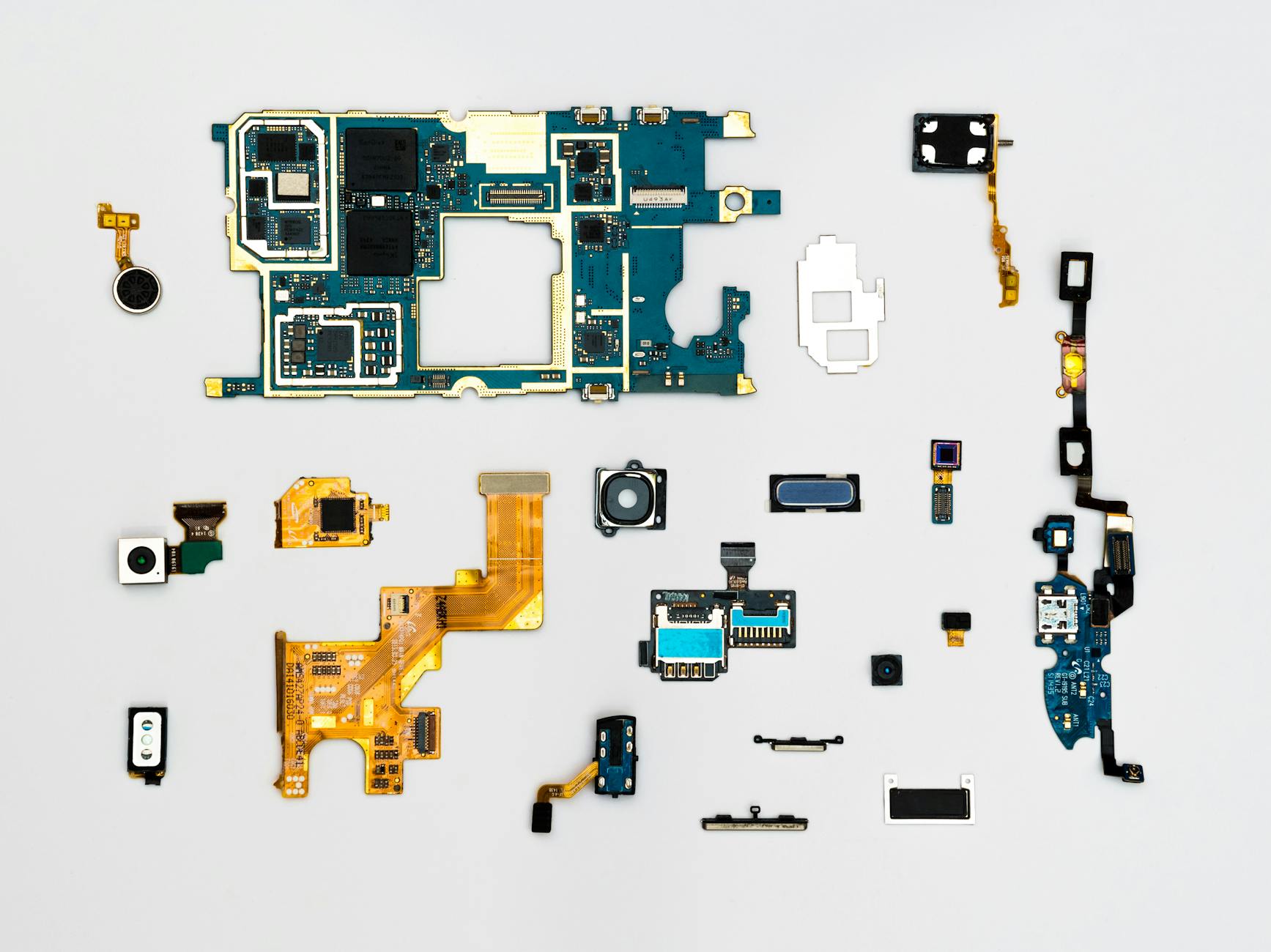 Photo by Dan Cristian Pădureț
He Was Drowning in Bills and Burnout Until a Simple Daily Ritual Rewired His Brain for Wealth in Less Than a Week
>>> Start Your Shift Today <<<
Look for Physical Damage Signs
Physical damage is the most obvious reason a flash stops functioning. Look for these signs and categorize them quickly:
- Drops and impact marks around the camera module. A loose or misaligned LED can fail to trigger when you snap a photo.
- Water exposure or signs of liquid ingress. Liquid can corrode contacts or short the flash circuit.
- Repair history or evidence of prior camera work. A history of DIY fixes can leave the LED or its wiring weakened.
What to do now:
- Inspect the camera area with good lighting and gently wiggle the camera housing to feel for looseness.
- Check for condensation or water spots around the lens and flash. If you suspect moisture, power down the device and seek professional help promptly.
- Compare results with a known good flash test (for example, the flashlight function) to determine if the problem is isolated to the camera flash.
If you spot damage, you’ll likely need a professional repair. For a quick reference on water damage, see guides like Water Damage and corrosion timelines and next steps, which explain how early action can save your device. https://phone-expert.com.au/phone-water-damage-and-corrosion-timeline-explained-with-next-steps/
When the flash housing or LED is physically damaged, a repair shop can often replace just the module or resecure connections. In many cases this is faster and cheaper than replacing the entire camera assembly.
Try Factory Reset as Final Software Fix
If the hardware looks sound, a factory reset can confirm whether a software fault is at fault. A reset returns your device to its original state, erasing personal data, apps, and settings. It’s a powerful move that often uncovers whether the flash issue is tied to system software or apps.
Before you reset, back up everything you value. On Android, use Google Drive or your device’s own backup service. On iPhone, back up to iCloud or a computer with iTunes or Finder.
Steps to perform a factory reset:
- Android: Settings > System > Reset options > Erase all data (factory reset). Choose to erase all data and confirm.
- iPhone: Settings > General > Transfer or Reset iPhone > Erase All Content and Settings. Sign back in and restore from your backup.
After the reset, open the Camera app and test the flash in a dark room. If the flash works, the problem was software related, likely a conflicting app or corrupted setting. If the flash still won’t fire, this points toward a hardware issue or a deeper system fault.
Keep in mind that not all devices support a clean rollback of every setting, and some manufacturers warn that certain resets will remove more data or alter carrier or app configurations. If you need a structured backup and reset guide, you can consult general reset resources for Android and iPhone, and verify steps for your exact model.
If you’re curious about more detailed fault-finding after a reset, Apple’s support and other reputable guides cover camera and flash behavior after software changes. See related guidance on camera issues and resets from trusted sources. https://www.tuneskit.com/ios-repair/iphone-camera-and-flashlight-not-working.html
If the flash still reveals a problem after a factory reset, you’re very likely dealing with a hardware fault. At that point, professional repair is the safest path to protect the camera and ensure ongoing reliability.
Get Professional Repair Help
When the signs point to hardware or the issue persists after software fixes, professional repair becomes the safest option. Look for authorized service for your device brand—Apple Authorized Service Providers for iPhone and Samsung Authorized Service for Galaxy devices. These centers follow official repair procedures, use genuine parts, and provide warranties on repairs.
Where to start:
- For iPhone: Find an Apple Authorized Service Provider or Apple Store. They can diagnose camera flash issues and perform LED or board-level repairs if needed.
- For Samsung and other Android devices: Seek out Samsung Authorized Service Centers or official repair partners in your region. They handle front and rear camera modules as well as flash components.
Why choose authorized service:
- Genuine parts and manufacturer-approved repair methods.
- Clear diagnostics and accurate problem isolation.
- Warranty coverage on repairs, reducing the risk of recurring issues.
If you’re unsure where to start, search for “authorized service for iPhone” or “Samsung authorized service center” plus your city to locate nearby options. You can also consult device support pages for guidance on repair options and service locations.
Tips for selecting a repair shop:
- Read reviews about reliability and turnaround times.
- Ask about parts quality and whether they offer a warranty on the repair.
- Confirm whether the technician can test the flash after the repair and provide a flashlight test as proof of success.
In some cases, a camera module replacement is needed. A skilled technician can replace the LED, the camera module, or the logic board connection, depending on the root cause. If you’re facing a rapidly worsening issue or a sudden flash failure after a drop or water exposure, don’t delay repair. Early service can prevent further damage to other smartphone components.
External resources for finding repair options and understanding service quality:
- Apple support on camera and flash issues and service options
- Manufacturer repair centers and service availability by location
- General guidance on camera hardware faults and repair timing
By accurately distinguishing between hardware and software problems, you save time and money. If you notice any signs of physical damage or the flash remains unresponsive after a reset, plan your next steps with a professional opinion. Your photos will thank you.
Conclusion
Starting with the basics is crucial when a phone flash stops working. Begin with simple checks like ensuring the battery isn’t drained and that any power saving mode is off. Remove bulky cases that might block the LED, and test the flashlight separately to confirm hardware health.
If the basics don’t fix it, tackle software next. Close background apps, restart the device, and update the system where available. Verify camera settings and permissions, clear cached data if needed, and reset the camera app to its default state. A quick factory reset can reveal whether a stubborn software bug is to blame, but back up first.
Hardware issues require a different path. If the flash still won’t fire after software fixes, consider professional help. Authorized service centers provide genuine parts and tested repairs, reducing the risk of further damage. If there is visible physical damage or moisture, avoid further use and seek expert service.
Finally, protect your flash long term. Avoid exposing your device to water, heat, or rough drops, and keep the lens clean so light can pass through clearly. A little preventive care goes a long way for reliable smartphone photography.
If you’ve tried these fixes, share your results in the comments. Your experience helps others decide which steps to take next. Simple, steady fixes can bring your flash back and make smartphone photos easier to capture with confidence.
There Is a Frequency That the Wealthiest Families Have Used for Generations and Most People Will Never Know It Exists
>>> Open the Door <<<
