There Is a Frequency That the Wealthiest Families Have Used for Generations and Most People Will Never Know It Exists
>>> Open the Door <<<

How to Fix Low Music Volume on Your Phone (Android & iPhone)
Tired of trying to hear your music over every background noise while working out or commuting? If the volume feels stuck at a whisper, you’re not alone. A surprising number of users face low music volume on their phones due to simple settings, dirt, or a quick software hiccup.
In this post, you’ll find a few practical fixes that you can try in under 10 minutes. We’ll cover quick volume tweaks, simple cleaning steps for the speaker and port, and a few software checks. You’ll also get platform specific tips for Android and iPhone so you can tailor the fix to your device.
Ready to crank up the volume? This guide walks you through easy, step by step actions that restore sound to your music, podcasts, and calls. We’ll keep the steps clear and doable, with quick checks you can run before and after you adjust settings. By the end, you’ll know exactly where the problem lies and how to fix it, so you can enjoy your favorite tunes again on your smartphone.
Quick Volume Settings Tweaks to Get Louder Music
If you’re tired of blasting music only to hear a whisper over ambient noise, a few quick tweaks can make a big difference. This section covers fast, practical steps to ensure you’re hearing your audio at full, clear volume. We’ll walk through accessing media volume separately from ringer, turning off silent modes, and cleaning up Bluetooth connections that may be routing audio away from your speakers. These tweaks are designed to work for most Android and iPhone users, with platform-specific notes to help you zero in on the culprit quickly.
What If the Only Thing Between You and the Life You Deserve Is a Hidden Wealth Code Waiting to Be Activated
>>> Open the Door <<<

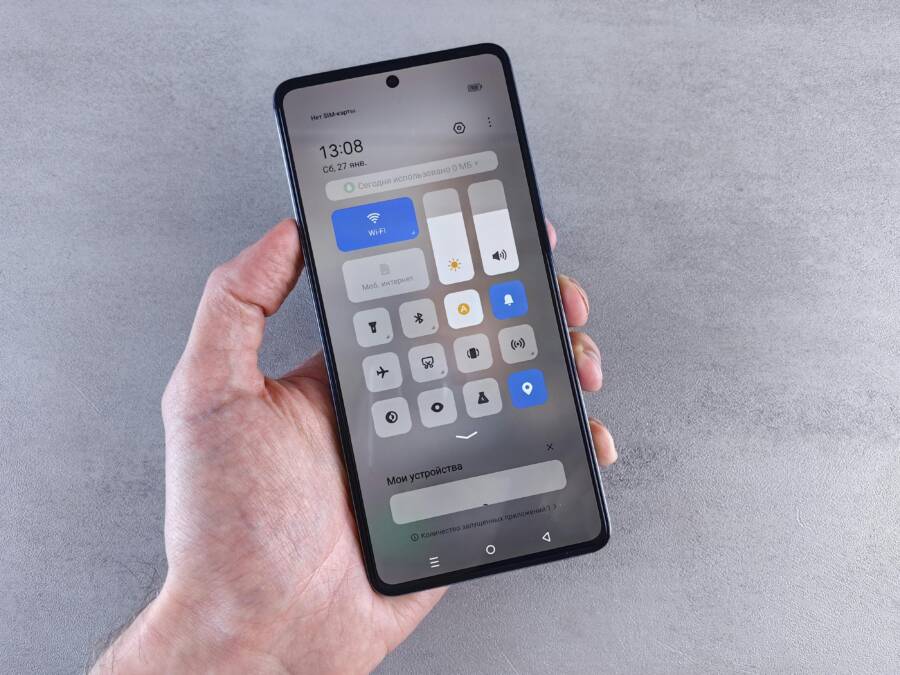
 Photo by Andrey Matveev
Slide Up the Media Volume Slider
On Android devices, media volume is separate from the ringer. To adjust it precisely, pull down the notification shade and slide the media control to a higher level. This keeps calls and alarms at their usual volume while you pump up music playback. On iPhone, the volume related to playback is controlled with the hardware buttons during playback. Press the volume up button while a track is playing to reach a safe peak without distortion. If you’re unsure about the right level, aim for a level where music is loud but not clipping, which you can feel as a slight edge in the sound before it begins to hiss. Don’t forget to check app-specific volume settings inside your music player or streaming app, as sometimes the in-app slider sits separate from system controls. For a more in-depth explanation of volume control on both platforms, see guidance on how to separately control ringtones, alarms, and media. https://www.tapsmart.com/tips-and-tricks/volume-explained/
Switch Off Silent Mode and Do Not Disturb
Silent modes mute all sounds, including media playback, so turning them off can restore audio output. On iPhone, flip the side switch or open the Control Center to disable Silent mode, then verify Do Not Disturb is off or schedule-based modes aren’t active during listening. On Android, swipe down to access Quick Settings and toggle Do Not Disturb or Silence. Do Not Disturb can mute media in some situations, so check the app’s exception settings. If you rely on music apps during focus time, add exceptions so playback stays loud even when DND is active. You can also create a Focus or custom mode that allows media audio while silencing notifications. For more, see how to stop iPhone notifications from interrupting music playback and Android Do Not Disturb guidance. https://www.idownloadblog.com/2025/06/16/stop-music-interruption-by-app-notifications-iphone/
Unpair Nearby Bluetooth Devices
Bluetooth can route audio away from your speakers if a nearby device is connected. Start by opening the Bluetooth settings and checking the list of paired devices. Forget any devices you don’t use often or that recently caused odd routing, such as a car system or wireless headphones you no longer own. Reconnect only the devices you actually use for listening. If you still hear low volume, try testing with wired headphones to ensure the issue isn’t the Bluetooth stack. Common culprits include AirPods and car systems, but a simple unpair and re-pair can refresh the connection and restore full volume. For detailed steps across Android and iPhone, see how to remove paired Bluetooth devices on Android and iPhone audio troubleshooting. https://www.howtogeek.com/how-to-remove-paired-bluetooth-devices-on-android
Clean Speakers and Ports for Clearer Sound Output
Dirt and debris can quietly mute your music, podcasts, and calls. A quick, careful cleaning routine keeps your smartphone sounding its best without risking damage. Below are practical, zero-fuss steps you can follow to maintain clean speaker grills and tidy ports. Keep in mind that many devices have multiple speakers and ports arranged differently; a little attention to location can prevent over-aggressive cleaning that hurts performance. Treat your device like a small speaker system you rely on daily, and you’ll hear the improvement in no time.
Wipe Dust from Speaker Grills
Dust builds up in and around the speaker holes, muffling sound and dulling highs. Start with a soft brush or a dry microfiber cloth to remove surface grime. If you see stubborn dust in the mesh, use a gentle, circular motion to loosen it. A can of compressed air works well for hard-to-reach particles, but keep the nozzle at a safe distance and use short bursts. For a more targeted approach, a piece of clean, narrow tape pressed and released over the grill can lift out loose dust. Remember to distinguish between bottom and top speakers on your device; bottom speakers often handle louder, bass-forward output and may collect more debris near the grill edges. Always be gentle and avoid scrubbing hard, which can bend the grill or push debris deeper. Regular, light cleaning helps preserve audio clarity and volume. For a quick expert reference on proper speaker cleaning, see how to properly clean your phone’s speakers. https://www.androidauthority.com/how-to-clean-phone-speakers-3221320/
She Pressed Play on a Strange Audio Track and Within Days Her Financial Reality Started Shifting in Ways She Could Not Explain
>>> See How It Works <<<

Clear Debris from Charging and Headphone Ports
Lint and dust in charging and headphone ports are common culprits behind muffled sound or charging troubles. Use a toothpick or a plastic tool to gently loosen trapped material. Avoid metal picks that can scratch contacts. After loosening debris, use a soft brush or compressed air from a safe distance to dislodge particles. If you see stubborn lint, repeat the process with a fresh sweep rather than forcing the material out in one hard motion. This routine helps both the charging port and the audio jack, since a dirty port can cause intermittent grounding or weak audio paths, especially with wired headphones or adapters. To reduce future buildup, consider port protectors or dust plugs when the device is stored in dusty pockets or bags. For practical prevention and cleaning steps, refer to guide on cleaning your Android or iPhone charging port. https://www.asurion.com/connect/tech-tips/how-to-clean-out-your-android-or-iphone-charging-port/
Update Software and Apps to Restore Full Volume
If your music still sounds faint after trying quick tweaks, the issue might be software related. Updating your device and apps can fix volume drivers, improve audio routing, and remove bugs that mute playback. Think of it as giving your smartphone a fresh tune-up. In this section, you’ll find practical steps to keep your system and apps current, plus a few cautions to avoid new problems. After updating, recheck your volume at the source and in the playing app to confirm a real improvement.
Install the Latest System Updates
Keeping Android and iPhone software up to date is one of the most reliable fixes for volume quirks. System updates can include driver and audio stack improvements that restore full playback power. On Android, navigate to Settings > System > Updates and install any available updates. On iPhone, go to Settings > General > Software Update and install if an update is available. After updating, a quick reboot helps the changes take effect. If you still notice low volume, it might be worth revisiting the media volume slider and testing audio in a few different apps. For official guidance on updating Android devices, check Google’s Android Help resources, and for iPhone updates, see Apple’s iOS update guide.
- Android: Check and update your system at Settings > System > Updates.
- iPhone: Check and update at Settings > General > Software Update.
- Tip: After updating, restart the device to ensure drivers initialize correctly.
- Caution: If you’re using a company phone, confirm updates won’t conflict with management profiles.
Links for deeper updates guidance:
He Was Drowning in Bills and Burnout Until a Simple Daily Ritual Rewired His Brain for Wealth in Less Than a Week
>>> Start Your Shift Today <<<

- Android updates overview: https://support.google.com/android/answer/7680439?hl=en
- iOS update overview: https://support.apple.com/guide/iphone/update-ios-iph3e504502/ios
Refresh Your Music Streaming Apps
If your volume came back after a system update but still feels off in certain apps, the culprit may be the app itself. Streaming apps can cache data or misread device volume after updates. Start with a simple refresh: open the Google Play or App Store and make sure your music apps like Spotify or Apple Music are current. On Android, clear the app cache to remove stale data that can affect playback. If problems persist, a clean reinstall often fixes stubborn issues and resets in-app volume controls to their defaults. When you reinstall, sign back in and test playback with a fresh track.
- Check for updates in your music apps from the store.
- Android cache reset: Settings > Apps > [App] > Storage > Clear Cache.
- Reinstall if needed: remove the app, then reinstall from Google Play or App Store.
- If the problem moves with the app, try a different streaming service to confirm where the issue lies.
Useful references:
- Spotify reinstall guidance: https://community.spotify.com/t5/FAQs/Perform-a-clean-reinstall-of-the-app/ta-p/4746485
- Clear Apple Music cache: https://drmare.com/apple-music/clear-apple-music-cache.html
- Spotify cache how-to: https://www.wikihow.com/Clear-Spotify-Cache
Enable Built-in Equalizer for Extra Bass and Volume
A built-in equalizer can dramatically improve perceived loudness by shaping the sound output. On Android, look for the equalizer in Settings > Sound or within your device’s audio enhancements. On iPhone, some Music apps include their own EQ or you can enable the system’s EQ in the Music app settings. Choose presets like “Loud” or create a custom boost that emphasizes mids and highs without causing distortion. A word of caution: boosting bass and highs too aggressively can strain speakers, especially on older devices. If you hear crackling or clipping, reduce the boost and test again. For tone shaping, you can also explore dedicated EQ apps if your built-in options are limited.
- Android: Settings > Sound > Equalizer (or similar path).
- iPhone: Check Music app EQ options or built-in audio settings.
- Start with a modest boost, then dial in carefully to avoid distortion.
- If you’re curious about EQ options, see recommendations for best EQ apps on Android and iPhone.
Helpful resources:
- Bass booster and EQ app on iPhone: https://apps.apple.com/us/app/bass-booster-volume-boost-eq/id1475414196
- Best Android and iPhone equalizer apps: https://www.soundguys.com/best-eq-apps-73891/
- Android speaker and equalizer basics: https://play.google.com/store/apps/details?id=music.basss.booster.effect.equalizer&hl=en_US
By keeping your software current and fine-tuning how sound is routed and processed, you’ll often recover full volume without resorting to external gear. If you test these steps on a smartphone regularly, your listening experience stays crisp, even in noisy environments.
Android vs iPhone Fixes for Stubborn Low Volume
Struggling to hear your music clearly on either Android or iPhone can be frustrating. Some devices simply need a few targeted tweaks to unleash fuller, louder sound. In this section, you’ll find platform specific tips designed to be quick, effective, and easy to follow. Whether you’re working out, commuting, or just trying to enjoy a quiet moment, these fixes aim to restore confident volume without distortion.
Android Tricks to Max Out Music Sound
Android gives you several knobs to tune volume beyond the basic slider. Start with the Absolute Volume setting, which can sync or separate your device’s volume from Bluetooth devices. If it’s causing odd jumps, consider leaving it on or off depending on your headphones and car setup, then test with a familiar track. Next, third party equalizers like Wavelet can shape the sound to feel louder without pushing the hardware to distortion. Wavelet’s “equal loudness” features help preserve perceived loudness across frequencies, which often makes music sound louder at the same real volume. Be mindful of the bass boost and treble emphasis; too much boost can crackle on older speakers, so adjust gradually.
Remember to turn off any media volume limiter if your device has one. This cap can quietly mute your playback, especially in streaming apps. When you adjust, keep an eye on app-specific volume controls as some apps bypass system volume. If you’re not sure where to start, try a modest boost with a clean sweep from the midrange up and listen for clarity rather than sheer loudness. For practical guidance on Wavelet and related apps, see the Wavelet overview and user tips. https://play.google.com/store/apps/details?id=com.pittvandewitt.wavelet&hl=en_US
Another quick check is to review Bluetooth behavior. If you frequently connect to wireless speakers or a car system, Absolute Bluetooth Volume can either help or hinder. If you notice volume jumps or very quiet playback, toggling this setting off and re-pairing devices can reset how sound is routed. For a deeper dive, see articles that explain how to disable absolute Bluetooth volume and regain control over your Android sound. https://www.androidauthority.com/wavelet-equal-loudness-3466696/
While you’re at it, confirm there’s no unintentional DND exception silencing media in your standby profiles. A focused approach—adjust system volume, check in-app sliders, and verify Bluetooth routing—usually yields a noticeable gain in output without sacrificing sound quality. If you want a quick reference on cleaning up Bluetooth volume behavior, you can explore practical guides on managing Bluetooth volume on Android. https://seymour.ccohs.ca/android-disable-absolute-bluetooth-volume
In short, start with Wavelet or a similar EQ, disable any media limiter, and ensure a clean Bluetooth setup. These steps deliver a tangible improvement for most Android devices and pair well with a quick in-app tweak session. For further reading on Android EQ choices and how to boost loudness safely, check out recommended apps and setup notes. https://www.androidauthority.com/wavelet-equal-loudness-3466696/
Conclusion
Three fixes stand out for restoring louder, clearer music on your smartphone: tighten the settings, clean the speakers and ports, and update software. Start by checking the media volume separately from ringer and disable silent or Do Not Disturb modes. Then clean the grills and ports to remove dust that mutes sound. Finally, install the latest system and app updates to fix any buried sound bugs.
Regular checks help prevent future drops in volume. Periodically review in-app volume controls, test Bluetooth connections, and keep the speaker grills free of dust. A quick sweep of the charging and headphone ports after workouts or travel can save you from muffled playback. Consider a simple routine: monthly cleaning, quarterly updates, and a quick volume test in a few apps.
If you try these steps, share your results in the comments. Your experience helps others decide which fix works best on their smartphone. For more practical tips, consider subscribing to stay guided with clear, practical tech advice. Here’s to better listening and fewer volume woes in the weeks ahead.
She Pressed Play on a Strange Audio Track and Within Days Her Financial Reality Started Shifting in Ways She Could Not Explain
>>> See How It Works <<<