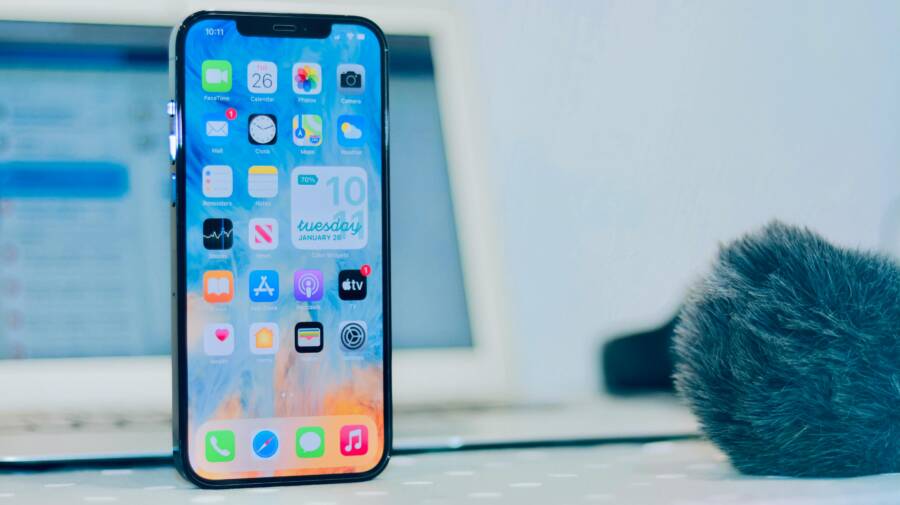
When your iPhone or Android Wi-Fi keeps turning off, it can disrupt calls, streaming, downloads, and even simple web browsing. The cause is often something small, like a settings conflict, a battery-saving feature, a software bug, or a router issue.
In some cases, the problem comes from the phone itself, and in others, the router drops the connection and makes it look like your smartphone is the issue. iPhone and Android use different menus, but many of the fixes are the same, and most are easy to check without special tools.
A few quick changes can stop the dropouts and help you find out whether the problem is on your phone, your network, or your hardware. Start with the basics, then move through the fixes below to get your Wi-Fi stable again.
Start with the fastest fixes that solve the most common Wi-Fi drops
When your phone keeps dropping Wi-Fi, begin with the simplest checks first. These quick fixes often clear a stuck connection, reset a glitchy router link, or expose a weak signal problem before you waste time on deeper settings.
Turn Wi-Fi off and back on, then reconnect to the network
A quick Wi-Fi reset can clear a connection that got stuck in a bad state. Your phone may still show a network name, but the link behind it can freeze or fail to renew properly.
Start by turning Wi-Fi off, waiting a few seconds, then turning it back on. If the signal keeps dropping, open the saved network, choose Forget This Network on iPhone or Forget on Android, then join it again with the password.
That fresh connection can fix small profile errors and force the smartphone to build a new handshake with the router. If the connection stays stable after that, the problem was likely a corrupted or stale network save.
A saved network can look fine on the surface while the connection underneath keeps failing.
Restart your phone and power cycle the router
If reconnecting does not help, restart both sides of the connection. The issue may be on the phone, the router, or both.
First, restart your phone. Then unplug the router and modem for a short time, usually about 30 seconds, before plugging them back in. Give the lights a minute or two to settle, then reconnect your phone to Wi-Fi.
This simple reset clears small network errors, refreshes the internet link, and often fixes random dropouts. It also helps when a phone and router stop communicating cleanly after an update or power glitch.
Move closer to the router and check for weak signal areas
Sometimes Wi-Fi looks like it turns off, when the phone is really losing signal. Distance, walls, and interference can make the connection drop for a few seconds at a time.
Try standing closer to the router and test the connection again. Thick walls, metal appliances, microwaves, cordless phones, and crowded apartment networks can all weaken the signal. If the drops happen in one room but not another, you have likely found the trouble spot.
A smartphone can also struggle when the router is tucked behind furniture or placed near other electronics. If the signal is strong near the router but poor elsewhere, the fix may be as simple as moving the router to a more open spot.
Check the settings that can shut phone Wi-Fi off without warning
Some Wi-Fi problems are not really Wi-Fi problems at all. A setting in the background can change how your phone uses power or data, and that can make the connection look unstable.
Start by checking the options that manage battery use, network switching, and sleep behavior. These settings can reduce background activity, pause wireless use, or move your phone onto mobile data when the signal looks weak.
Review battery saver and low power mode settings
Battery saver tools can trim background tasks to stretch charge life. On some phones, that also limits network activity, delays sync, or reduces how often the device checks for updates.
If your phone drops Wi-Fi more often when the battery gets low, this setting is a strong suspect. Look for Low Power Mode, Battery Saver, or a similar option in your settings, then test with it turned off for a while.
A smartphone may also cut back on wireless behavior when power saving is active. That can make a stable connection feel random, especially during long days away from a charger.
If Wi-Fi problems get worse at 20% battery or below, power-saving settings are worth checking first.
Turn off Wi-Fi assist, adaptive connectivity, or similar auto-switching features
Some phones try to move you from Wi-Fi to mobile data when the connection seems weak. That switch can happen so quickly that it looks like Wi-Fi turned off, even though the phone is just choosing another path online.
iPhone has Wi-Fi Assist, while Android phones may use Adaptive Connectivity, Switch to mobile data, or a similar setting. The name changes by device, but the behavior is the same, the phone tries to stay connected by changing networks for you.
Try turning off one auto-switching feature at a time, then test your connection. If the dropouts stop, you found the setting that was causing the handoff.
A quick way to test it:
- Turn off the feature.
- Stay on Wi-Fi for several minutes.
- Open a few apps or load a site.
- Watch whether the phone still jumps to mobile data.
Check auto-join, sleep, and smart network options
Some settings disconnect your phone from certain networks, pause Wi-Fi during sleep, or prefer another connection when the screen goes dark. Those options can be useful, but they can also create the impression that Wi-Fi keeps shutting off by itself.
Look for features such as auto-join, smart network switch, sleep Wi-Fi, or disconnect when idle. These settings often sit inside Wi-Fi, battery, or device connection menus, so they can be easy to miss.
The best way to test them is to change one setting at a time. If your phone stays connected after a single change, you know where the problem started. If not, turn that option back on and try the next one.
A careful test matters here because more than one setting can affect the same connection. Changing them one by one makes it easier to spot the real cause instead of guessing.
Update software and reset network settings the right way
Software problems can make Wi-Fi act unstable even when the router is fine. A phone update, carrier update, or network reset can clear bugs that keep a smartphone dropping its connection for no clear reason.
Start with updates first. They are safer, faster, and less disruptive than a reset. If the problem stays after that, a network reset can wipe out stuck settings and give the connection a clean start.
Install the latest iPhone or Android system update
System updates often fix Wi-Fi bugs, Bluetooth glitches, and security issues that affect how your phone connects. If your device has been holding back an update, that old software can keep the problem alive.
Check for pending updates in your settings and install them when you can stay on a stable connection. If Wi-Fi keeps cutting out, use a trusted cellular connection or another reliable network long enough to finish the download. A partial update can create more trouble than it solves.
After the install, restart the phone and test Wi-Fi again. Even a small patch can change how the phone handles saved networks, background scans, and sleep behavior.
Update carrier settings, router firmware, and key apps
Wi-Fi trouble does not always start on the phone. Carrier settings, router firmware, and a few apps can also interfere with how the connection behaves.
On iPhone, check for a carrier settings update in the Settings app. If one appears, install it. On Android, carrier updates usually arrive with system updates or through the SIM and network settings, so keeping the phone current still matters.
Your router matters too. Log in to the router app or admin page and look for a firmware update. Router updates often fix wireless bugs, band-switching problems, and security gaps that can trigger random dropouts.
A few apps can also get in the way, especially VPNs, firewall tools, parental control apps, and some security apps. If Wi-Fi turns off after you install one of those, pause or remove it and test again. A well-behaved app should not fight your network in the background.
Reset network settings when nothing else works
If the problem still comes back, reset the network settings. This step clears saved Wi-Fi passwords, Bluetooth pairings, and mobile network settings, so the phone can rebuild them cleanly.
It sounds serious, but it is a safe fix for stubborn connection problems. You are not erasing photos, messages, or apps, only the network data tied to your connections.
Use this step when Wi-Fi keeps dropping after you have already tried updates, restarts, and signal checks. Once the reset finishes, reconnect to Wi-Fi, re-pair Bluetooth devices, and re-enter your network details. In many cases, that fresh start is what finally holds the connection steady.
Rule out apps, VPNs, and security tools that interfere with Wi-Fi
If your phone still drops Wi-Fi after the basic fixes, look at the apps and security tools running in the background. VPNs, device management profiles, battery apps, and data savers can change how your phone connects, and some of them can make a stable network act shaky.
This matters because the problem may not be your router at all. A smartphone can stay connected to Wi-Fi, then hand off traffic, pause traffic, or block parts of the connection without making it obvious. Test the settings and apps below before you move on.
Disable VPNs and device management profiles for a test
VPN apps route your traffic through another server, and that extra step can cause unstable behavior on weak or crowded networks. Device management profiles, which are common on work phones, can also enforce connection rules that interfere with normal wireless use.
Turn off any VPN briefly and see whether Wi-Fi stays on longer. On iPhone, also check for a management profile in Settings if the phone belongs to a company or school. On Android, look for work profiles, security apps, or device admin tools that may control network access.
If the connection becomes stable with these tools off, you have found a likely cause. You can then decide whether to keep them disabled, adjust their settings, or ask the organization that manages the phone for help.
A VPN can hide the real source of the problem, so test Wi-Fi without it first.
Look for apps that save battery or manage data too aggressively
Some apps try to help by limiting background activity, but they can go too far. Cleaner apps, battery boosters, data savers, and phone security tools are common troublemakers because they may block normal wireless behavior or kill processes the system needs.
Check for apps that promise to:
- save battery life
- reduce data use
- clean memory or junk files
- control app access in the background
- optimize signal or speed
If one of these apps was installed recently, disable it or uninstall it for a test. A phone should not need aggressive cleanup tools to keep Wi-Fi steady, and a smartphone that loses connection after installing one of these apps is giving you a clear clue.
Test the phone in Safe Mode or with fewer background apps
Android users can use Safe Mode to check whether an app is causing the issue. In Safe Mode, only system apps run, so if Wi-Fi stays on there, a third-party app is likely the problem.
On iPhone, there is no Safe Mode in the same way. If the issue started after a recent app install, remove the most recent apps one by one and test after each change. Start with VPNs, security apps, battery tools, and anything that claims to optimize your connection.
A simple test helps narrow it down:
- Turn off the suspected app or feature.
- Reconnect to Wi-Fi.
- Use the phone for a few minutes.
- Watch for drops, handoffs, or disconnects.
If the connection stays stable, you can keep trimming the list until the troublemaker is clear.
When the problem is the network, not the phone
Sometimes the phone gets blamed for a Wi-Fi problem it did not create. If the connection drops on more than one device, the network is the weak link, and the phone is only showing the symptom.
That matters because the fix changes. Instead of digging through phone settings, you need to look at the router, the signal, and the internet line itself. A smartphone can only stay connected if the network behind it is stable.
Check whether other devices lose Wi-Fi too
Compare the phone with a laptop, tablet, or another smartphone on the same network. If all of them lose Wi-Fi at the same time, the router or internet service is the likely cause.
Test the same spot on each device, then try another room if you can. A laptop that stays connected while the phone drops out may point to a phone setting or antenna issue. If everything cuts out together, the network is the better place to look.
A simple way to narrow it down is to watch what happens when one device fails:
- If only the phone disconnects, the phone may be the problem.
- If several devices drop together, the router or ISP is more likely at fault.
- If devices work on one network but not another, the issue may be tied to that specific router.
This kind of comparison saves time. You avoid resetting a phone that is working exactly as it should.
Change the Wi-Fi band, channel, or router location
Routers usually broadcast on 2.4 GHz and 5 GHz bands, and they behave differently. The 2.4 GHz band reaches farther and often handles walls better, while 5 GHz is faster but can be less stable at a distance.
If your phone keeps dropping on one band, switch to the other and test again. One may hold steady where the other keeps fading. In crowded apartments or office buildings, the problem may be a busy channel rather than the band itself.
Channel congestion can pile up when nearby networks overlap. A router app or admin page may let you pick a less crowded channel, which can reduce interference from neighboring networks.
Router placement matters too. Keep it in an open spot, away from thick walls, metal objects, microwaves, and large electronics. A router buried in a cabinet works like a flashlight under a blanket, the signal reaches less of the room.
Look for router firmware problems, overload, or ISP outages
Old router firmware can cause random drops, especially if the router has not been updated in a long time. Check the router app or admin page for updates, then install them if one is available.
Too many connected devices can also strain a home network. If several phones, TVs, speakers, and laptops are active at once, the router may slow down or drop connections. Disconnect a few devices and see whether the Wi-Fi becomes steady again.
An internet outage can look like a Wi-Fi problem even when the wireless signal is fine. If the router lights show a lost internet connection, or your service provider has an outage in your area, the issue sits outside the phone.
When this happens, the fix is usually simple:
- Restart the router and modem.
- Check whether other devices still connect.
- Review the router status page or app.
- Contact the ISP if the line stays down.
If the drops happen on every device, focus on the network first. That gives you a clearer path than chasing phone settings that were never the cause.
Know when the phone may need repair or expert help
After you’ve tried the software fixes, pay attention to the pattern. If Wi-Fi still shuts off on its own, the problem may be inside the phone rather than in the settings. That usually points to hardware damage, a loose internal part, or a deeper fault that normal resets won’t touch.
Watch for signs of hardware damage or water exposure
A dropped phone can do more than crack the screen. Even if the display looks fine, the Wi-Fi antenna or its internal connection can shift, loosen, or break. Cracked corners, bent frames, and screens that lift away from the body are all warning signs.
Heat is another clue. If the phone gets hot during light use, then Wi-Fi drops soon after, the wireless parts may be struggling. Water exposure can cause the same kind of trouble, even if the phone still powers on. A splash, a wet pocket, or hidden moisture inside the case can corrode connections over time.
Look for these signs before you keep troubleshooting:
- recent drops or pressure damage
- cracked glass or a warped frame
- overheating during normal use
- water exposure or moisture alerts
- Wi-Fi failing in every location, even near the router
If the phone has physical damage, software fixes may only hide the real problem for a while.
Use warranty, carrier support, or a repair shop if drops continue
If the phone still disconnects after every software and network fix, it’s time to get help. Start with the warranty or manufacturer support, since they can check for known hardware faults and repair options. Your carrier may also help if the issue is tied to the device or the SIM setup.
Before you hand over the phone, back it up first. Save photos, messages, and files, then write down everything you already tried. A clear list saves time and helps support staff avoid repeating the same steps.
Bring details like these:
- When the drops started.
- Which Wi-Fi networks fail.
- What fixes you already tested.
- Whether the phone has been dropped or exposed to water.
If the issue keeps showing up across networks, apps, and settings, a repair shop can test the antenna, internal board, and connectors. At that point, the goal is simple, find the failing part before it causes more problems.
Conclusion
When an iPhone or Android phone keeps dropping Wi-Fi, start with the simplest fixes first. Restart the phone and router, reconnect to the network, then check battery saver, auto-switching, and app conflicts before moving to updates or a network reset.
If the problem stays, compare other devices on the same network and test the router band, channel, and location. In most cases, the issue comes from a setting, software bug, or the network itself, not a broken smartphone.
Work through the steps one by one and stop when the connection stays steady. If Wi-Fi still cuts out after every check, repair support is the next smart step.