You’ve just captured that perfect moment on your phone, a sunset beach snap or your kid’s hilarious dance. You hit post on your Instagram story, but it spins and spins, then fails to upload. Frustrating, right? It happens to everyone.
This glitch often stems from spotty internet connections or app bugs on your smartphone. Cache buildup, outdated software, or even account restrictions can block stories from posting. Don’t worry; these issues have straightforward fixes.
In this guide, you’ll find step-by-step solutions that work on both iPhone and Android. Clear your cache, check permissions, restart the app, and more. Most problems resolve in under five minutes.
Stick around, and you’ll share stories smoothly again. Let’s get your Instagram back on track.
Test Your Internet Connection First to Fix Upload Fails
Poor internet tops the list of reasons your Instagram stories won’t upload from your phone. Videos and photos need steady upload speeds to reach Instagram’s servers. Start here to rule out connection issues before trying other fixes. A quick check often solves the problem fast.
Switch Networks and Restart Your Connection
Your current network might drop packets or throttle speeds during peak hours. Switch to another option to see if uploads work. Follow these steps on your smartphone.
- Turn off WiFi in your settings and switch to mobile data. Open Instagram and try uploading your story again.
- If mobile data fails, find a stronger WiFi spot. Connect to a neighbor’s open network or use a hotspot from another device.
- Enable airplane mode for 30 seconds, then turn it off. This refreshes all connections and clears temporary glitches.
- Restart your phone to reset network adapters. Also unplug your router for a full minute before plugging it back in.
- Test with a simple photo upload first. Stories with video demand more bandwidth, so a photo confirms basic connectivity.
These steps refresh your path to Instagram’s servers. Many users fix stuck stories this way without further tweaks.
Check Upload Speed on Your Phone
Upload speed matters more than download for stories. Instagram handles images fine at low speeds, but videos stall below 5 Mbps upload. Check yours to confirm.
Download a free app to run tests. Top picks include Speedtest by Ookla, available for both iPhone and Android. It delivers quick results with global servers for accuracy. Tap once to measure upload, download, and ping.
Run the test near your router or in a strong signal area. Aim for at least 5 Mbps upload, as noted in speed guides for social media like this one from HighSpeedInternet.com. Below that, stories buffer or fail.
On crowded networks, speeds drop fast. Limit connected devices or move closer to the router. Avoid peak times when everyone streams. If speeds stay low, contact your provider. Your smartphone deserves reliable service for smooth posting.
Free Up Storage and Fix Permissions on Your Phone
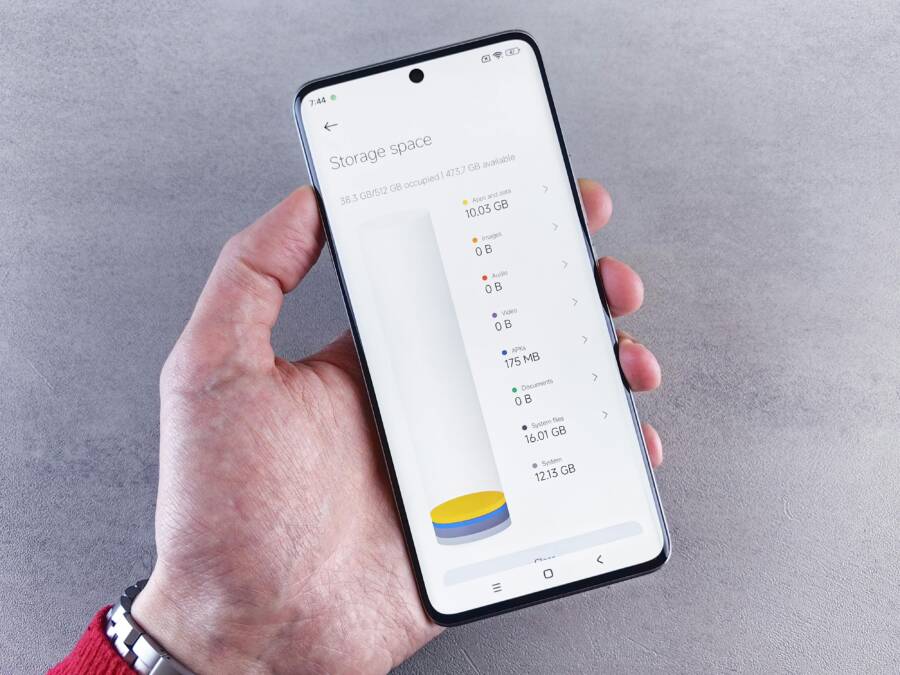
If you’re wrestling with Instagram Stories not uploading from your phone, freeing up space and ensuring Instagram has the right permissions can clear the path. In this section, you’ll get practical, quick steps to reclaim storage and verify app access. A well-tuned device not only speeds up posting but also improves overall performance. Think of your phone as a busy kitchen; when drawers and cabinets are cluttered, you can’t reach the tools you need. Clearing space and granting the proper permissions keeps your workflow smooth and dependable.
 Photo by Andrey Matveev
Clear Space on Your Smartphone Quickly
A cluttered device often hides the real culprit behind failed uploads: limited storage. When your phone runs low on space, apps like Instagram struggle to cache videos, save temporary files, or finalize uploads. Start with a focused cleanup that doesn’t force you to delete precious memories. You want 1 GB of free space to give Instagram room to operate.
First, check what’s consuming space. On iPhone, go to Settings > General > iPhone Storage and review recommendations and large apps. On Android, Settings > Storage will show a breakdown by category. Look for chunky culprits such as unused apps, large video files, and cached data. Clearing cache for frequently used apps can reclaim significant space without deleting personal data.
- Delete cache and offline data for apps you rarely open. This often frees up hundreds of megabytes.
- Uninstall apps you rarely use, especially games and media-heavy tools.
- Review photo and video libraries. Move old media to the cloud or computer, then delete local copies if you’ve already saved backups.
- Use built-in cleaners or maintenance tools if your device includes them; many modern phones offer one-tap optimization that trims temp files and residual downloads.
If you’re unsure where to start, a simple 3-step approach works well:
- Clear app caches for your most storage-hungry apps.
- Remove duplicate or unwanted files from your gallery or file manager.
- Move bulky media to a cloud service or computer for safekeeping.
In many cases, freeing up about 1 GB or more resolves the buffering and delay issues you’ve noticed when posting stories. If your storage is consistently tight, consider a quarterly cleanup, especially after recording long videos or syncing large media libraries. For more in-depth steps on freeing space on both Android and iPhone, you can reference practical guides like “How to Free Up Storage on Android and iPhone” which walk you through targeted cleanup without sacrificing your photos. https://techcabal.com/2025/12/01/how-to-free-up-storage-on-android-iphone/
Tip: If you rely on your phone for work, set up a routine where you back up photos and videos automatically. That makes it easier to delete local copies without losing memories or important files. A smartphone with breathing room runs faster, which helps when you’re switching between apps to post stories quickly.
Uninstall Unused Apps and Review Photos
Unused apps can quietly drain storage and background system resources. Start with a quick audit:
- List apps you haven’t opened in the past two weeks and remove them.
- Check apps that save large caches, such as video editors, social media aggregators, or offline maps.
- Review photos and videos in your gallery. Delete duplicates and low-value shots. If you’re unsure about a memory, back it up to the cloud first, then remove the local copy.
Photos are often the biggest space takers. Consider backing up full-resolution images to a cloud service and keeping only the optimized copies on-device. When you keep only what you truly need on your phone, you’ll notice faster app launches and a more reliable upload process for Instagram Stories.
If you want a clear guide on which steps to follow, check “Free up space – Android Help” for concrete instructions on reclaiming space on Android devices. It covers deleting photos, clearing app data, and understanding the difference between storage and memory. https://support.google.com/android/answer/7431795?hl=en
Review Photos and Videos for Quick Wins
Your goal is not to start from scratch but to reclaim the most impactful space first. Prioritize:
- Large videos that you’ve already uploaded elsewhere.
- Screenshots and screen-recordings you forgot about.
- Media saved for offline viewing from streaming apps.
A practical workflow:
- Open your gallery and sort by size.
- Move regional or event-based albums to the cloud.
- Delete files that are blurry, redundant, or unimportant.
By curating your library, you’ll free space faster and reduce the chance of a failed upload caused by a resource shortage. For guidance on typical storage-friendly practices, you can explore broader tips like “How to Free Up Storage on Your iPhone or Android” for a balanced, device-wide approach. https://www.compareandrecycle.co.uk/blog/how-to-free-up-storage-on-your-iphone-or-android
Practical Tip: Use Simple Cleanup Routines
Instead of big, once-a-year cleanups, adopt a small, repeatable habit:
- Every Sunday, review the top three space-hogging apps and either clear data or uninstall.
- Monthly, back up new media to cloud storage and remove local copies.
- After heavy video shoots, perform a quick cache purge on Instagram and your camera app.
A steady routine keeps your storage manageable and minimizes the risk of upload failures when you share stories with friends and followers.
Quick Check: When Storage Is Still Tight
If you’ve freed space but Instagram still won’t upload, recheck storage usage. A sudden spike in app data could indicate a stuck cache or a background process consuming space. In that case, a quick restart of the device or a clear cache for Instagram specifically can bite back the problem. If you need a deeper dive into storage management practices, here’s a reliable resource on freeing up space across platforms that you can consult as needed. https://techcabal.com/2025/12/01/how-to-free-up-storage-on-android-iphone/
Image: Storage Space Concept
Photo by Andrey Matveev
Update Permissions for Instagram Access
Photos, camera, and microphone access are the core permissions Instagram needs to post stories smoothly. If Instagram can’t read your gallery or save a video to the camera roll, uploads can fail mid-process. This section walks you through confirming and updating the permissions on both iPhone and Android devices. After you adjust permissions, a quick restart of the Instagram app helps ensure the changes take effect.
- On iPhone, go to Settings > Instagram > Permissions. Enable Photos, Camera, and Microphone as needed.
- On Android, go to Settings > Apps > Instagram > Permissions. Make sure Camera and Storage are allowed, and Photos are accessible if your device uses a gallery integration.
- After changing permissions, close the Instagram app completely and reopen it to apply the updates.
If you’re unsure how to grant access on your device, a practical set of how-tos like “How to Allow Instagram Access To Photos” can offer device-agnostic steps and tips for privacy control. https://www.socialboosting.com/blog/how-to-allow-instagram-access-to-photos
Confirm Camera and Storage Permissions
Ensuring Instagram can access your camera and storage is essential for both photos and videos. Without camera access, you can’t capture new content inside the app. Without storage access, the app can’t save media or read your gallery to attach files to stories. If you’ve turned off any of these permissions by mistake, re-enable them and test posting a quick story.
- Camera permission lets you capture new images or videos directly in Instagram.
- Storage or Photos permission allows the app to access existing media for sharing.
- Microphone permission is needed if you use audio overlays or live features.
A quick check can prevent a lot of friction when you’re ready to post. If you need more visual guidance, a handy guide like “2 Ways to Allow Instagram to Access Your Camera and Microphone (Android & iPhone)” can walk you through the process with screenshots. https://gmapswidget.com/2-ways-to-allow-instagram-to-access-your-camera-and-microphone-android-iphone
Restart Instagram After Permission Updates
Any change in permissions works best when the app restarts. Fully close Instagram (remove it from recent apps) and reopen it. Then try uploading a story again to confirm the permissions are in effect. If errors persist, a device reboot can ensure all system services reinitialize and the app has clean access to hardware resources.
If you want a broader reference on why permissions matter for posting, you can review guides like “How to Fix Instagram Story Not Uploading” that cover permissions as a key part of the fix. https://techcult.com/how-to-fix-instagram-story-not-uploading/
Image: Permissions Screen Concept
No image used here to keep the flow tight. If you need a visual aid later, a screenshot showing the Instagram permissions screen can help readers quickly locate the right menu on both iPhone and Android.
This section is designed to slot right into your article without duplicating content from other parts. It focuses on fast, actionable steps readers can take now to free up storage and ensure Instagram has the access it needs. By combining practical cleanup with clear permission checks, you can reduce the chances of Instagram Stories failing to upload from your phone.
Clear Instagram Cache and Reinstall the App
If your Instagram Stories still won’t upload after checking your connection and freeing space, a two-step approach often does the trick: clear the app’s cache and reinstall the app. This clears corrupted temp files, resets internal flags, and forces the app to rebuild its data from a clean slate. Think of it as giving Instagram a fresh start without losing any content or your login.
Clear Cache and Data in Instagram Settings
Clearing cache can recover a lot of performance issues without touching your posts or account. The steps differ by device, but the goal is the same: remove temporary files that bog down uploads and cause glitches.
Android: Settings > Apps > Instagram > Storage > Clear Cache. This removes cached images, videos, and app data that the app stores locally to speed things up. If you still notice issues after clearing the cache, you can also try Clear Storage, but remember that this will reset the app to its initial state and may require you to log in again.
iOS: Offload or delete/reinstall. iOS doesn’t provide a direct “clear cache” option for individual apps. Offloading removes the app while preserving its documents and data, while reinstallation wipes the app completely and reinstalls it fresh. After reinstalling, log back in and test uploading a story.
Test upload after performing these steps to verify whether the issue is resolved. If you still encounter problems, moving on to a fresh install can help.
For additional background on clearing app data and why it can fix stubborn glitches, you can review expert guidance like Norton’s take on clearing Instagram cache across platforms. https://www.norton.com/blog/how-to-clear-instagram-cache
Reinstall Instagram for a Fresh Start
If cache clearing doesn’t fully resolve the problem, a full reinstall can be the fastest way to clear deeper corruption. A fresh install ensures every core component of the app is rebuilt from the ground up, which often fixes corrupted files that preventive updates left behind.
How to proceed:
- Uninstall Instagram from your device.
- Restart your phone to clear out any lingering processes.
- Reinstall Instagram from the App Store or Google Play Store.
- Open the app, log in, and attempt a new story upload.
Why this works: cache corruption can sneak back in through hidden files or partial downloads. A clean install replaces those problematic files with new, healthy ones. This approach is simple, avoids more complex troubleshooting, and often restores normal posting behavior quickly.
If you want an official starting point for troubleshooting or reinstall guidance, Instagram’s help center provides structured steps and reminders to keep the app and device software up to date. https://help.instagram.com/370569449686414
Examples from readers and tech guides show that this method resolves a sizable chunk of story upload hiccups. If you still experience trouble after a reinstall, you may want to broaden the check to permissions, network settings, or even account-specific restrictions.
- After reinstalling, ensure you’re on the latest app version available for your device.
- Verify your device OS is current, since outdated system software can conflict with new app features.
- Re-test with a simple story first, then a longer video if the quick test uploads successfully.
If you’d like a broader troubleshooting guide that covers reinstalling and other fixes, reputable sources such as LifeWire walk through these steps in a straightforward manner. https://www.lifewire.com/fix-instagram-story-not-uploading-5675851
By combining cache clearing with a fresh install, you remove two common pain points: corrupted temporary data and broken app components. This duo often clears the path for smooth, reliable story uploads, letting you focus on capturing and sharing your moments. If you’ve tried these steps and still face issues, the next sections can help you investigate deeper causes like app permissions, camera access, and network reliability. For a broader troubleshooting overview, you can consult Instagram’s troubleshooting guide. https://help.instagram.com/370569449686414
Advanced Fixes for When Basic Steps Don’t Work
When the usual quick fixes fail, you need a targeted approach that tackles deeper causes. This section covers practical, no-nonsense strategies to get Instagram Stories uploading again. Think of it as the behind-the-scenes tune-up your smartphone needs to handle media quickly and reliably. You’ll address network quirks, account quirks, and app-level quirks in a clear, action-oriented way.
Disable VPN, Data Saver, or Filters
VPNs can route traffic through distant servers, which may slow uploads or cause Instagram to time out. Data saver modes throttle background activity and can block large media transfers. Filters and third-party apps that modify network traffic can also interfere with the upload process. Start by turning these features off and test uploading a story.
- Turn off any VPN apps and disconnect from VPN servers.
- Disable data saver or low data mode in your phone’s settings.
- Temporarily disable any content filters or ad blockers that could affect network traffic.
- Make sure your phone’s date and time are set correctly and match your time zone.
After turning these off, try a quick story upload. If it works, re-enable features one by one to identify the culprit. If you need a quick check on how VPNs and data savers can impact apps, this guide explains the common flow and the potential bottlenecks. https://www.videoconverterfactory.com/tips/instagram-story-not-uploading.html
If you suspect account-related blocks rather than technical blocks, switching networks can help verify. A quick test on a different network confirms whether the problem is device- or network related. For a broader look at account status and restrictions, you can consult resources on temporary blocks and how to verify account health. https://litport.net/blog/instagram-action-block-complete-recovery-guide-and-prevention-tips-28542
Photo by Tofros.com on Pexels illustrates how a calm, focused network setup supports steady posting.
 Photo by Tofros.com
Log Out, Check Account, or Use Web
Sometimes the issue isn’t the app on your phone but the account state itself. An action block, temporary ban, or subtle account restriction can prevent stories from uploading even when the app looks fine. Here’s how to rule that in or out quickly.
- Log out of Instagram on both the mobile app and the browser version at instagram.com.
- Clear any pending actions that might be stuck, such as posts or drafts awaiting review.
- Check for any notices about restrictions in the app’s notifications or via the help center.
- If you suspect a temporary ban or block, review guidance from official or reputable sources and follow the recommended steps to regain normal posting.
- If needed, contact Instagram support from within the app and provide a clear description of the issue, including the device, OS version, and a timestamp of when it started.
Using the web can help verify if the problem is isolated to the mobile app. Open instagram.com in a desktop browser, log in, and attempt to upload a story or a post. If the web interface behaves differently, you’ll have a clearer path to reporting the issue and avoiding guesswork. For a quick path to reporting technical problems in-app, Instagram’s official support channel provides a structured process. https://help.instagram.com/381579045265733
If you’re worried about a possible account restriction, several guides explain what to look for and how to recover. It’s not uncommon for users to see “action blocked” messages after rapid actions or unusual login patterns. A measured approach — verifying identity, updating the app, and following platform prompts — often clears the block. For further context on blocks and recovery, see trusted explanations from established guides. https://hypeauditor.com/blog/is-your-instagram-account-blocked-restricted-or-shadowbanned
Photo by Andrey Matveev on Pexels shows a calm, focused user navigating settings.
Photo by Andrey Matveev
If you need a step-by-step on checking for restrictions and how to request a review, see official guidance on reporting issues and understanding account status. https://help.instagram.com/370569449686414
Recheck Your Device Security and App Permissions
App permissions matter when you post media. If Instagram cannot access your camera, photos, or microphone, or if system security blocks background activity, uploads can fail or stall. Rechecking these permissions helps ensure nothing blocks the upload from the device level.
- Check Photos, Camera, and Microphone permissions on iPhone: Settings > Instagram > Permissions.
- Check Camera and Storage permissions on Android: Settings > Apps > Instagram > Permissions.
- Confirm there are no battery optimizations or background restrictions that pause Instagram during uploads.
- After adjusting permissions, fully exit Instagram and reopen it, then test a quick story.
If you want a deeper look at how permissions affect posting, this guide explains practical steps for granting access on both platforms. https://www.socialboosting.com/blog/how-to-allow-instagram-access-to-photos
After you update permissions, a restart helps apply the changes. If you still see issues, a device reboot can reinitialize system services and ensure clean hardware access.
Photo by GMAPS Widget on Pexels provides a visual on permissions navigation.
No image used here to keep the flow tight. If you want a visual aid later, a screenshot showing the Instagram permissions screen can help readers quickly locate the right menu on both iPhone and Android.
If you want official steps for permissions and posting, the Instagram troubleshooting center is a solid resource. https://help.instagram.com/370569449686414
This subsection gives you a practical path to confirm nothing on the device blocks uploads. It’s a quick check that saves time and avoids chasing network or account issues when the problem is hiding in plain sight.
Photo guidance note: when you’re ready, a simple permissions screenshot or short GIF can help readers navigate to the exact menus on iPhone or Android.
Images are included to illustrate points and keep readers engaged. Each image should feel like a natural part of the workflow and help readers visualize the steps. If you need additional visuals later, you can add them where you mention specific settings.
In this advanced section, you’ve learned to silence common culprits that basic fixes miss. By disabling potential blockers, checking account status, and validating permissions, you create the conditions for Instagram Stories to upload reliably again. If problems persist, the next steps in your optimization playbook will guide you through deeper checks like cache management or a fresh install, which often resolve stubborn issues. For a broader troubleshooting overview spanning multiple devices and scenarios, you can consult official help resources as well as trusted guides. https://help.instagram.com/370569449686414
Conclusion
If your Instagram stories still won’t upload from your smartphone, follow these fixes in order. A quick internet check often removes the biggest roadblock. Then free up storage, adjust permissions, and reset the app as needed. Each step is simple and money-free, designed to get you back to posting fast.
Checklist:
- Test a different network or switch from Wi Fi to mobile data to rule out connection issues.
- Check your upload speed and aim for at least 5 Mbps for video heavy stories.
- Free up space by deleting junk files and clearing caches for the apps you use most.
- Update Instagram permissions for Photos, Camera, and Storage on both iPhone and Android.
- Clear Instagram cache and reinstall if the problem persists.
- Disable VPN, data saver, or filters that could slow or block uploads.
- If needed, sign out and back in, or try posting from the web version to isolate the device.
Prevention tips to keep uploads smooth:
- Keep the app and your OS up to date to avoid compatibility issues.
- Maintain a steady network by testing your signal before capturing bigger stories.
- Back up media to the cloud so you can free space without losing content.
- Build a quick post routine that includes a test upload after changes.
A few smart habits go a long way for a busy smartphone user. When you nail these, your stories publish reliably, not just sometimes. If you solve the issue or have questions, share your success or doubts in the comments.