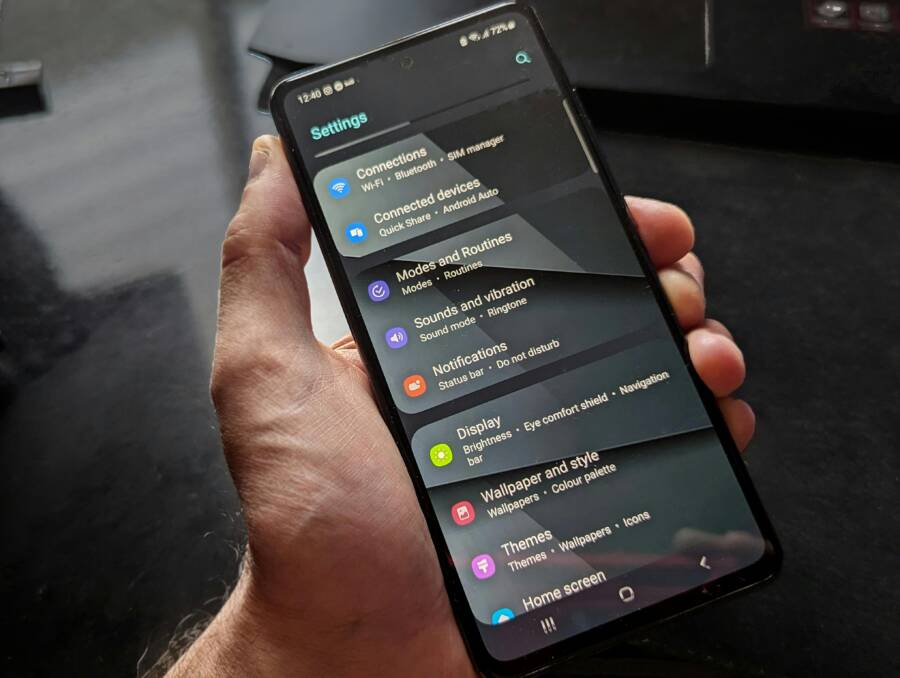
Are your email notifications not showing on your phone, leaving you missed messages and empty inbox anxiety? This guide walks you through quick fixes and deeper checks to get push alerts back in action.
You’ll learn practical steps that work for both iPhone and Android, from simple toggles to more involved mail app settings. By the end, you’ll have a clear, step by step plan you can follow without tech help, with practical troubleshooting tips and what to check if alerts still don’t arrive.
Start with the basics: check phone and app notification settings
Before you dive into deeper troubleshooting, verify that your phone and the mail app are configured to show alerts. A small misstep here is the most common reason you miss new messages. This section covers the essential checks on both iPhone and Android and sets the foundation for reliable, timely email notifications.
 Photo by Watford London Media
Enable notifications for your email app
To ensure you actually receive alerts, confirm the mail app has permission to show notifications on both platforms.
- iPhone (iOS)
- Go to Settings > Mail (or your specific mail app) and tap Notifications.
- Make sure alerts are enabled and that you’ve chosen a notification style (Banners or Alerts), Sounds, Badges, and Lock Screen notifications.
- For the strongest reliability, enable all basic options. If you use multiple mail accounts, apply these settings to each account or enable them at the app level when available.
- For a step-by-step reference, see Apple’s guidance on setting email notifications on iPhone: https://support.apple.com/guide/iphone/set-email-notifications-iphc13a970c8/ios
- Android
- Open Settings > Apps > Mail > Notifications.
- Ensure notifications are turned on and review the options for banners, sounds, and vibration. Enable lock screen notifications if you want alerts even when the phone is locked.
- If your device uses a specific mail app (like Gmail), you may need to enable notifications for the app under the device’s notification manager as well. Example reference: Change Gmail notifications – Android: https://support.google.com/mail/answer/1075549?hl=en-GB&co=GENIE.Platform=Android
- Practical tip: After you enable notifications, send a test email to confirm the alert appears as expected. If you don’t see a test alert, double-check the app’s own notification settings in its in-app menu, not just the system settings.
Check Do Not Disturb or Focus modes
DND and Focus modes quietly silence alerts, even when the app is allowed to push. A misconfigured Focus can hide mail notifications at critical times.
- iPhone
- Open Settings > Focus (or Do Not Disturb in older iOS) and review any active Focus profiles.
- Ensure your Mail app is allowed to send notifications in the Focus settings. You can either disable Focus entirely or add Mail to the allowed list for the times you need alerts.
- Quick tip: If you use Focus, you can customize behavior for different contexts like work or personal time.
- Android
- Swipe down to open Quick Settings and tap Do Not Disturb or a named Focus mode.
- Check the exceptions for Mail. If the app isn’t allowed, add it to the allowed list so notifications get through even when DND is on.
- If you rely on routine silence, consider scheduling a Focus or DND window that excludes your Mail app.
- Quick checks
- Temporarily disable DND/Focus to see if emails start coming through. If they do, you know the mode is the culprit. Then re-enable with an exception for the mail app.
For extra guidance on Focus on iPhone, see: Allow or silence notifications for a Focus on iPhone https://support.apple.com/guide/iphone/allow-or-silence-notifications-for-a-focus-iph21d43af5b/ios For Android Do Not Disturb guidance, see: Limit interruptions with Modes & Do Not Disturb on Android https://support.google.com/android/answer/9069335?hl=en
Confirm notification banners, sounds, and badges
If alerts exist but feel muted or confusing, verify the banner style, sound, and home screen badge behavior in both platforms.
- iPhone
- In Settings > Mail > Notifications, confirm the banner style is set to Temporary or Persistent as you prefer. Check that a non-silent alert tone is selected and that Badges are turned on so the number of unread messages shows on the Home Screen.
- If you’re using iOS 18+ options, also review any per-account notification customization to ensure all accounts are included.
- Android
- In the Mail app and the system notification settings, confirm that the banner style is appropriate for your device. Make sure a notification sound is enabled and that the Home Screen badge (if available) shows unread mail counts.
- Android naming and locations vary by device and OS version. If needed, look for per-app notification categories within the app’s settings.
- Quick troubleshooting tip
- Turn the mail notifications off, then back on. A quick toggle can prompt a fresh alert and help you verify the sound and banner appear correctly.
- Quick reference
- iOS: Customize Notifications for Mail in Settings, including Alerts, Sounds, and Badges. See Apple guide: Customize your Mail notifications on your iPhone or iPad https://support.apple.com/en-us/108412
- Android: Manage Gmail notifications by device and app settings. See Change Gmail notifications – Android https://support.google.com/mail/answer/1075549?hl=en-GB&co=GENIE.Platform=Android
If you’re curious about how Focus interacts with Mail on iPhone, you can explore more here: How to Associate a Mail Account With a Focus (MacRumors guide) https://macrumors.com/how-to/associate-mail-account-with-focus
- Final sanity check
- Confirm the mail app is the default handler for mail notifications if you use a third party mail app.
- Verify there are no silent or quiet hours configured within the app itself. Some apps offer a “Mute” or “Quiet mode” option that bypasses alerts during certain times.
Review your email app and account settings
Before you chase notification bugs, take a moment to review how your email app talks to your account. A quick audit here can save hours of troubleshooting later. Think of it like tuning a car: you adjust the parts most likely to cause issues, then test the ride. You’ll get faster, more reliable alerts and fewer missed messages. If you’re reading this on a smartphone, you’ll want to keep the checks tight and actionable so you can fix things on the go.
Adjust fetch vs push and sync frequency
Real time alerts come from push, which keeps a constant line open so new mail is delivered the moment it arrives. Fetch, by contrast, checks for new messages at preset intervals. If your device isn’t set to push where it’s available, you’ll end up with delays because the app only checks on a timer or when you open the app.
Where to find these options varies by platform and app, but here’s the quick path you can follow.
- iPhone and iPad (iOS)
- Open the Mail app settings or the specific account settings inside Settings. Look for options labeled something like Fetch, Push, or New Message Fetch.
- If push is available for your account, enable it. When you can’t use push, choose a frequent fetch interval that fits your data plan.
- If you manage multiple accounts, apply Push to each account if possible; otherwise set a sensible fetch cadence for all accounts.
- For a solid reference, see Apple’s guidance on setting email notifications on iPhone: https://support.apple.com/guide/iphone/set-email-notifications-iphc13a970c8/ios
- Android
- Open the email app settings, then navigate to Sync, Fetch interval, or similar terms.
- Enable push where available. If you need to rely on fetch, pick a cadence that aligns with your data limits and how often you expect new mail.
- Some devices require you to enable per-app notifications in the system settings as well. For context, see how Gmail notifications are managed on Android: https://support.google.com/mail/answer/1075549?hl=en-GB&co=GENIE.Platform=Android
Practical note: keep push enabled for real time alerts when you can. If data limits are a concern, don’t push fetch too aggressively. A balanced approach protects both speed and data usage.
Verify account and server settings (IMAP/POP, SMTP)
Correct server settings are the backbone of reliable mail delivery. If the app can’t log in or can’t sync, you’ll see delays, errors, or missing messages. Start with the basics: the incoming mail server (IMAP or POP) and the outgoing server (SMTP). Confirm you’re using the right ports and security options, and be aware that some accounts require app passwords or two factor authentication.
Key details to check
- Incoming server settings
- Protocol: IMAP is preferred for sync across devices; POP downloads mail and can remove it from the server.
- Common ports: IMAP over SSL/TLS typically uses 993, IMAP with STARTTLS can use 143; POP3 over SSL/TLS is usually 995.
- Outgoing server settings
- SMTP with SSL/TLS often uses port 465 or 587 with STARTTLS on 587.
- Security options
- Always enable encryption where the option exists. If your provider supports OAuth, that can simplify logins.
- Passwords and authentication
- If login errors appear, re-enter your password. Some services require app-specific passwords or two factor authentication for third-party apps.
- Special cases
- Some accounts, especially corporate or specialty email services, may require app passwords or an OAuth flow rather than a traditional password.
If you’re setting up or reconfiguring for a new account, it helps to copy the exact server details from your provider’s help pages. For general protocol guidance, see what’s covered in reliable tutorials about POP3, IMAP, and SMTP: https://www.siteground.com/tutorials/email/protocols-pop3-smtp-imap/
For iPhone users, you can also review steps for adding and removing accounts and ensuring the proper mailbox is in use: https://support.apple.com/guide/iphone/add-and-remove-email-accounts-iph44d1ae58a/ios
If you’re dealing with iCloud or Apple’s mail, a quick check against Apple’s support can save time: https://support.apple.com/en-us/102578
Tighten login reliability
- Re-enter passwords when you see login prompts or authentication errors.
- If your account uses two factor authentication, consider signing in with a new app password if the app doesn’t support the latest OAuth flow.
- When in doubt, log in to the provider’s web interface to verify the account is active and there are no security prompts blocking access.
Check storage and archiving rules
Even with perfect server settings, a full mailbox on the server can block new messages from syncing. If the server can’t accept new mail, you won’t see fresh messages on your device, even if your app is set up correctly.
What to inspect
- Mailbox quotas and server storage
- Check the total storage used on the server. If you’re close to the limit, new messages may bounce or fail to sync.
- Folders and archiving rules
- Look in the Sent, Archived, and other non-inbox folders. Some rules automatically move messages out of the inbox after a set period or when certain conditions are met.
- Auto-archive or retention policies
- Some accounts (especially business or school accounts) apply auto-archive rules that move messages to other folders. If you’re looking for new messages, confirm they aren’t being archived too aggressively.
- Local vs server storage
- A device with limited local storage may struggle to fetch large attachments. Keep an eye on both device free space and server storage.
Quick cleanup checklist
- Empty the Trash and Spam folders regularly to free up server space.
- Archive or delete old messages you don’t need to keep in the inbox.
- Review and disable overly aggressive auto-archive rules if they interfere with incoming messages.
- Confirm there’s enough quota for new messages and that your provider hasn’t flagged your account for unusual activity.
For guidance on storage basics and what happens when Gmail storage fills up, you can consult practical overviews like these: https://clean.email/clean-gmail-inbox/what-happens-to-emails-when-gmail-is-full and https://www.multcloud.com/tutorials/gmail-storage-full-not-receiving-emails-1003-gc.html
A quick server-side sanity pass
- Log in to your provider’s web mail interface and verify that new mail arrives there as well.
- Check if there are any server-side filters that move incoming mail away from the inbox.
- If you use multiple devices, confirm none of them are switching to offline mode or pausing sync due to low storage.
Bonus tip: keep your apps in sync with platform changes
- App updates often tweak how push and fetch operate. Install the latest version of your mail app when available, and review the notification options again after updating.
- If you use Focus or Do Not Disturb, make sure your mail app is allowed to override those settings during the times you expect alerts.
External references and deeper reading
- If iCloud Mail isn’t working, Apple’s guide has solid steps you can follow to restore mail flow on iPhone and iPad: https://support.apple.com/en-us/102562
- For a broader view on mail protocols and ports across providers, see general tutorials on POP, IMAP, and SMTP: https://www.siteground.com/tutorials/email/protocols-pop3-smtp-imap/
- For insights into Gmail storage and how it can impact receipt of new messages, review practical explainers: https://clean.email/clean-gmail-inbox/what-happens-to-emails-when-gmail-is-full
If you’re trying to secure access for third party apps, Apple and Google both offer paths that avoid app passwords in most cases. On iPhone, Apple prefers you use “Sign in with Apple” or the native OAuth flow when available. On Android, Google encourages OAuth with Google accounts to simplify sign‑in and reduce password management.
By reviewing these sections and applying the right settings, you’ll get a clean, reliable flow of email alerts to your smartphone. If you still don’t see notifications after these checks, you’re ready to move to more advanced steps in the next part of this guide.
Platform specific fixes
When notifications still misbehave after the basics, platform specific fixes can make the difference. This section dives into actionable steps tailored to iPhone and Android. You’ll learn precise tasks, why they matter, and how to test results so you know you’re done.
iPhone and iPad users: reset notification preferences and reinstall Mail app
If alerts are inconsistent or vanish after an update, resetting notification preferences for the Mail app and then reinstalling can resolve stubborn glitches. This approach clears corrupted settings and re-establishes a clean foundation for push alerts. After you reset, you’ll reinstall if needed and retest with a real email to confirm the sound, banner, and badge appear as expected.
Steps to reset notification settings
- Open the iPhone Settings app and go to Mail (or the specific mail app you use).
- Tap Notifications and switch off all alerts, then reset to default by toggling the permission off and on again. If your device supports per-account notification controls, repeat the process for each account.
- To ensure there are no residual settings, navigate to Settings > General > Transfer or Reset iPhone > Reset, then choose Reset Location & Privacy (if you see this option). This helps eliminate misapplied permissions that could affect mail alerts. Note: this step doesn’t erase data, only resets app permissions.
Reinstalling the Mail app
- Delete the Mail app from your home screen. If you’re using a third party mail app, delete that one instead.
- Reinstall from the App Store. Sign back in with your account credentials and re-enable notifications when prompted.
- Open the Mail app and verify that the account(s) are reconnected. If prompted, grant all required permissions for mail, notifications, and background refresh.
Update and sign back in
- Check for iOS updates: Settings > General > Software Update. Install any available updates to ensure compatibility with the latest notification frameworks.
- Sign back into your mail accounts within the app. If you use two-factor authentication or app passwords, complete those prompts to restore access.
- After reinstallation, enable notifications again: go to Settings > Mail > Notifications and configure the banner style, sounds, and badges. It helps to enable all the essential options to maximize reliability.
Testing after reinstall
- Send a test email from another account or a webmail interface.
- Watch for the alert on your iPhone screen. Confirm you hear the sound, see the banner, and the inbox badge updates.
- If you rely on Focus or Do Not Disturb, temporarily disable them to verify the alert behavior without silencing it inadvertently.
Helpful reference
- Apple’s official guide on customizing Mail notifications provides step by step visuals and options to tailor alerts to your preference: https://support.apple.com/en-us/102578
- For deeper guidance on changing notification settings, Apple’s change notification settings page is a solid reference: https://support.apple.com/guide/iphone/change-notification-settings-iph7c3d96bab/ios
Why this approach helps
- It removes corrupted or conflicting permission states.
- It ensures the Mail app re-syncs with your accounts under fresh conditions.
- It catches issues tied to recent iOS changes or app updates that standard toggles miss.
What to watch out for
- If you have multiple mail accounts, you may need to reconfigure push and fetch settings for each account after reinstall.
- Some enterprise or school accounts require specific server or authentication methods; verify there are no ongoing restrictions from your IT administrator.
When to skip
- If you recently upgraded to a major iOS version and still see issues after a reinstall, combine this step with a check of Focus/Do Not Disturb interactions and verify server-side settings in the next subsection.
External reading and help
- If you’re troubleshooting iCloud Mail specifically, Apple’s guidance on restoring mail flow can be a helpful companion: https://support.apple.com/en-us/102578
- For a broader look at notification customization on iPhone, see Apple’s guide: https://support.apple.com/guide/iphone/change-notification-settings-iph7c3d96bab/ios
Android users: clear cache, reset app preferences, and disable battery optimization for the email app
Android devices present a different set of quirks. Clearing cache, resetting app preferences, and adjusting battery optimization can resolve hidden issues that block push notifications or cause delays. This approach tackles data fragments, permission conflicts, and power-saving rules that quietly throttle the mail app.
How to clear cache and data
- Open the device Settings and go to Apps or Apps & notifications.
- Find your mail app (Gmail, Outlook, or the third‑party client you use) and select it.
- Tap Storage & cache (or just Storage) and choose Clear cache. If you’re experiencing persistent issues, you can also choose Clear storage/data — note this will reset the app to its original state, requiring you to sign in again and reconfigure settings.
- After clearing, reopen the app and sign in if prompted. Re-establish sync preferences and notification settings.
Why clearing cache helps
- It removes corrupted cache files that can cause missed or delayed alerts.
- It resets in-app notifications that may have become stuck after an update.
Resetting app preferences
- Go back to the app settings and choose Reset app preferences (this may be under a three-dot menu). This resets default permissions for all apps without removing any data.
- This step fixes hidden permission conflicts that can block notifications from the mail app or cause it to misbehave with other apps.
Why this matters
- Some apps rely on a precise set of permissions (background data, notifications, battery optimization). Resetting ensures there are no conflicting defaults.
Battery optimization and exceptions
- Open Settings > Battery (or Battery optimization, depending on your device).
- Locate your mail app. If it’s set to optimize battery life, switch it to “Not optimized” or add the app to the exceptions list.
- If your device uses a battery saver mode, disable it for the mail app or set it to allowed background activity while the app runs.
- Some devices place the mail app in a “Unrestricted” or “Never optimize” list; use that setting to ensure continuous background syncing.
Testing the changes
- Send a test email to the account on the Android device.
- Observe whether the notification arrives promptly and with the expected sound and banner behavior.
- If the alert still doesn’t appear, try a second test email after restarting the device.
Additional tips
- If you use Gmail, Outlook, or another major provider, some devices require you to grant per‑app notification access in the system notification manager as well. Check that the mail app’s notifications are enabled there.
- Consider limiting background data only for rarely used accounts to save battery while preserving essential alerts.
Test message you can use
- Send a message from a webmail interface to your account and wait for the push. If you receive it, the fix is successful. If not, re-check battery exemptions and notification categories within the app.
External reading and help
- For a common Gmail notification issue, see Gmail Help on notifications and background data: https://support.google.com/mail/thread/322379715/gmail-app-suddenly-stopped-sending-me-notifications?hl=en
- If you’re curious about reducing Gmail battery drain while keeping alerts, this guide offers practical steps: https://www.youtube.com/watch?v=XluFfuuMcVw
How these steps fit into the overall troubleshooting flow
- Android devices often reveal issues tied to power management. By broadening the approach to include cache, permissions, and battery optimization, you address a broad range of hidden blockers.
- After applying these steps, run a test by sending a message from another account to confirm the alert appears reliably.
Together, these platform-specific fixes complement the general checks covered earlier. They close gaps that often hide in plain sight on iPhone and Android devices, helping you regain timely and trustworthy email notifications on your phone. If you still encounter trouble after this section, you’re ready to move into deeper diagnostics and provider-specific settings in the next portion of the guide.
Advanced diagnostics and prevention
In this section we move beyond the basics to protect your email alerts from drift and silence. You’ll learn practical checks that catch the stubborn issues, plus repeatable habits to keep notifications reliable over time. Think of it as a health check for your smartphone’s inbox alerts. A few disciplined steps now save hours later.
 Photo by Daniel Moises Magulado
Check service status and outages for your provider
Before chasing your device, verify the service you rely on is functioning. Outages at the email provider level can masquerade as device issues. Start by checking status dashboards and recent updates from the provider. If you find a reported outage, wait a bit and retest, as providers typically resolve problems quickly.
- How to verify
- Check the official status dashboard for your email service, such as the Google Workspace Status Dashboard. This page shows current and past incidents and updates on Gmail and other core services. If there’s an outage, you’ll see incident details and estimated resolution times.
- Look at the provider’s help center or social updates for real-time notices. Posts on Twitter/X or equivalent can reveal hotfix windows or workarounds.
- If you confirm an outage, plan to retest after a short delay. In many cases, alerts resume normally once the issue is resolved.
- Quick references
- Google Workspace Status Dashboard: https://www.google.com/appsstatus/dashboard/
- Gmail status (Downdetector): https://downdetector.com/status/gmail/
- General outage insights: https://www.youtube.com/watch?v=aveTmceZLQI
Why this matters: a global outage affects all devices, not just one mailbox. If the issue is provider-side, your best move is to monitor the status page and wait for the fix.
Test with a different email app to isolate issues
If you’re stuck, a second mail app can reveal where the fault lies. Install a different app, sign in, and test notifications. If the second app pushes alerts, the problem is likely with the original app. If not, the issue is more likely device or system related.
- How to proceed
- Install a second email app and configure the same account.
- Send a test message and watch for notifications in the new app.
- Compare results: both apps alerting means a device-level or OS-level setting is involved; only one app alerting points to the original app’s configuration.
- Related guidance
- Testing push notifications across platforms: https://testsigma.com/blog/test-push-notifications/
- Android testing strategies for push notifications: https://www.browserstack.com/guide/test-push-notification-on-android-devices
Why this helps: it quickly narrows the search. You’ll know where to focus next, saving time and effort.
Keep software and apps updated and review privacy and battery settings
Updates fix known bugs and improve how alerts are delivered. At the same time, privacy and battery optimizations can silence notifications without you realizing it. Create a simple monthly routine to stay on top of these.
- Monthly checklist
- Update the OS and the mail app to the latest version.
- Review app permission requests and ensure background activity is allowed.
- Inspect battery optimization settings and whitelist the mail app.
- Verify notification categories or channels in the app are correctly configured.
- Quick tips
- Periodic updates can reset notification behavior, so re-check after each upgrade.
- If you notice a sudden drop in alerts, re-run the basic toggles first, then move to deeper checks.
- External reading for deeper understanding
- How to turn off battery optimization in iOS and Android: https://www.rokform.com/blogs/rokform-blog/how-to-turn-off-battery-optimization?srsltid=AfmBOopx21KO5atZUoFmUyIaCPteIWOBqOxrdlQT89VcSYEPTPsrYK2h
- Android battery saving basics: https://www.android.com/articles/how-to-save-battery-android/
Why this matters: keeping software fresh prevents a lot of irregular notification behavior. It also ensures you aren’t fighting legacy bugs that have already been fixed.
Best practices to prevent future notification problems
Prevention beats reaction. Adopt routines that minimize the chance of missed alerts and reduce firefighting later.
- Set predictable sync times
- Align fetch intervals with your routine. For busy times, push where possible; avoid aggressive fetch schedules that drain data and battery.
- Don’t fight mail app with heavy battery saves
- Avoid blanket battery saver rules for mail. Instead, create exceptions for continuous background activity.
- Periodic testing
- Schedule a quick test every two to four weeks. Send a test email from another account and confirm the alert appears, a simple reminder that things are working.
- Keep a bootable backup of key settings
- Maintain a reproducible setup: screenshots or a short checklist of the current notification preferences, per account if needed.
- Create a small, repeating routine
- A two-minute weekly check can flag issues before they become noticeable. Put it on your calendar as a recurring reminder.
- Extra context
- To understand broader notification management, explore how to tame notifications on Android: https://theverge.com/24132122/android-notification-settings-turn-off-how-to
- Quick tips to stop annoying notifications: https://www.usatoday.com/story/tech/columnist/komando/2021/02/21/smartphone-notifications-driving-you-nuts-how-turn-them-off/4490897001/
Takeaway: steady habits protect you from lapses. A small, regular review keeps alerts reliable over time.
External reading and deeper dives
- For iOS specific notification customization, see Apple’s guidance on changing notification settings: https://support.apple.com/guide/iphone/change-notification-settings-iph7c3d96bab/ios
- For Gmail and general mail protocol nuances, helpful resources include: https://clean.email/clean-gmail-inbox/what-happens-to-emails-when-gmail-is-full
In this section you’ve learned how to diagnose advanced gaps and build a durable, low-effort routine. If you still see issues after these checks, you’re ready to tackle provider-specific settings and deeper diagnostics in the next part of this guide.
Conclusion
This guide walks you through the essentials first, then moves to deeper checks, all with a clear, repeatable flow for your smartphone. Start with the basics, verify app and system notifications, then move through platform specific fixes and advanced diagnostics. Save the checklist and follow the steps in order to minimize backtracking on your smartphone problems. If you found a fix that worked, share it in the comments so others can benefit, and don’t forget to bookmark this guide for future reference.