Thousands of People Were Struggling With Money Until They Discovered This One Ancient Secret Hidden in Sound
>>> Unlock It Now <<<

Waking up to a charging pause message can feel like a glitch, especially when you just want your phone ready for the day. In truth, this is a safety feature that protects your battery from heat damage. It affects many smartphones, notably Samsung Galaxy models and certain iPhones, but most cases can be fixed quickly at home.
This guide walks you through simple, practical steps you can take right now. You’ll learn how to cool your phone, adjust charging habits, and spot if a software update or sensor issue is to blame. By the end, you’ll know how to prevent this message from popping up again, so your smartphone stays reliable when you need it most.
If you’re charging overnight or in a warm room, the error is more likely to appear. The fixes are designed to be easy and safe, not technical. Start with the basics and move to small adjustments you can make without special tools. In many cases, a quick cooldown and a slower charger will do the trick. If the problem persists, you’ll have a clear path to further checks or professional help while protecting the battery you rely on every day.
Common Causes of the ‘Charging Paused Temperature Too High’ Error
When your phone shows a charging pause due to high temperature, it’s not just a nuisance. It’s a built in safety feature to protect the battery from damage. In many cases, the fix is simple and can be done at home. Below are the most common causes and practical checks you can perform to identify which one is at play.
What If the Only Thing Between You and the Life You Deserve Is a Hidden Wealth Code Waiting to Be Activated
>>> Open the Door <<<

Signs Your Phone Is Actually Overheating
Heat during use is more than just a warm glow. Real heat signs show up in several tactile and behavioral ways. If your phone feels noticeably hot to the touch after a session of gaming, navigation, or video streaming, that’s a strong indicator heat is building up. Thick cases can trap this heat, keeping the device warmer longer and making it harder for the phone to shed it. Charging in a warm room or under direct sunlight compounds the issue, because ambient temperatures add to the device’s internal warmth. Fast chargers and wireless pads can worsen the problem. A fast charger pours more energy into the battery quickly, which speeds up heat generation, while wireless charging can create extra surface heat where the back of the phone sits on the pad. If you notice a lag in performance or the screen brightens less reliably, these are reliable clues heat is interfering with charging. For context, review guidelines on how temperature management works on devices like iPhones, which explains how ambient temperature affects charging and overall battery health. Understand Thermally Limited Charging on iPhone
- When heat is visible: the device remains warm even after a short charging session.
- Quick rule of thumb: if you’re gaming or using GPS while plugged in, expect more heat than during passive use.
- Surface heat: cases with poor venting trap heat; consider removing the case during charging if it gets hot.
- Ambient impact: keep charging away from direct sun and in a cooler room if possible.
If overheating feels persistent rather than occasional, it’s worth a deeper look at cooling strategies. Take a brief break from heavy tasks, move the phone to a cooler spot, and avoid charging in hot cars or sunny windows. For further guidance on how overheating can affect battery health and charging behavior, see support articles that outline safe operating temperatures for iPhone devices. If your iPhone or iPad gets too hot or too cold
When Faulty Sensors or Ports Are to Blame
Sometimes the error isn’t the heat itself but how the phone senses it. Faulty temperature sensors or dirty charging ports can trigger a false heat warning or a halted charge. Dust, lint, or moisture in the charging port can create a poor connection, forcing the phone to interpret abnormal readings. This is especially common if the device has been exposed to dust or humidity in the pocket, bag, or during outdoor use. Quick checks help you separate sensor issues from real overheating: inspect the port with a bright light, look for visible debris, and gently remove any specks with a small, non metal tool or compressed air. If moisture is suspected, avoid charging until the port is completely dry to prevent short circuits. In some cases, the sensor itself may be faulty and require professional service or a software reset to recalibrate readings. For practical perspectives on overheating from the user side, see guidance for major brands and sensor related faults. Is your Samsung phone overheating? Here’s what you can do
- Quick port checks: shine a light into the port, check for lint, and remove cautiously.
- Sensor concerns: if cleaning doesn’t help, a calibration or replacement may be needed.
- Moisture red flags: avoid charging until you confirm the area is dry and the port is free of residue.
If you want insight from real questions and community answers about charging pauses tied to temperature readings, you can explore a widespread thread on a well known tech Q&A site. It highlights how users solved similar sensor and port issues across devices. Charging paused. Battery temperature too high or too low
For broader context on how manufacturers guide users when heat becomes a factor during charging, the official guidance from major brands emphasizes safe temperatures and proper charging practices. Samsung Mobile Device heats up while charging the battery | Samsung SG
This section helps you pinpoint whether the problem is real heat or a sensor/port fault. If the issue persists after cleaning and repositioning, it’s time to investigate software or hardware fixes in the next sections.
Quick Fixes to Resume Charging Right Away
When your phone shows a charging paused message due to high temperature, it’s a sign to cool down and reassess. You can try quick, at-home fixes that often restore charging without risking battery health. Below are two practical steps you can complete in minutes. Each step includes real-world tips to help you move from frustration to a normal charging flow, so your device is ready when you need it.
Cool Down and Clean Your Phone Port
Start by moving the phone to a cooler area. A shaded table or a well ventilated room makes a big difference. If it feels warm to the touch after a short use, give it a little break before you try charging again. Once the device is in a cooler environment, wipe the port with a clean microfiber cloth to remove dust and smudges. If lint is visible, gently work it free with a small, non metal tool or a gentle puff of compressed air. Avoid metal objects that could scratch or short the connectors. After cleanup, recheck the port for any sticky residue or moisture. If the environment is hot, remove the case while charging to improve airflow. For more on safe port cleaning methods, see practical guides from established sources that walk through safe techniques for smartphone charging ports. How to Clean Your iPhone Charging Port the Right Way
Test with a Different Charger or Cable
Cheap or third party accessories can heat up quickly, causing the phone to slow or pause charging. Try the original charger and cable that came with the device, or use a reputable alternative with the correct wattage for your model. If you don’t have the original on hand, a PC USB port can be a slower but safer charging option for short periods. The key is to avoid power bricks that push more current than the battery can safely handle, especially in warm rooms or when the device is hot. This reduces the chance of rapid heat buildup that triggers the temperature safety feature. If you notice the phone charges normally with a trusted accessory, you’ve identified the likely culprit. For deeper context on how charging heat is affected by different adapters, see resources that explain why lower quality chargers can cause overheating. Why Does My Phone Get Hot When Charging? (How to Fix)
Advanced Troubleshooting for Stubborn Errors
When the charging paused temperature too high message shows up, it can be tempting to skip straight to drastic fixes. In reality, a calm, methodical approach beats guessing. This section sharpens your toolkit with two practical routes: booting into safe mode to rule out software interference and checking for hardware or sensor issues that might trigger the warning. Implement these steps in order, and you’ll distinguish between a software quirk and a hardware fault more quickly. For best results, stay patient and follow the prompts exactly as your device guides you.
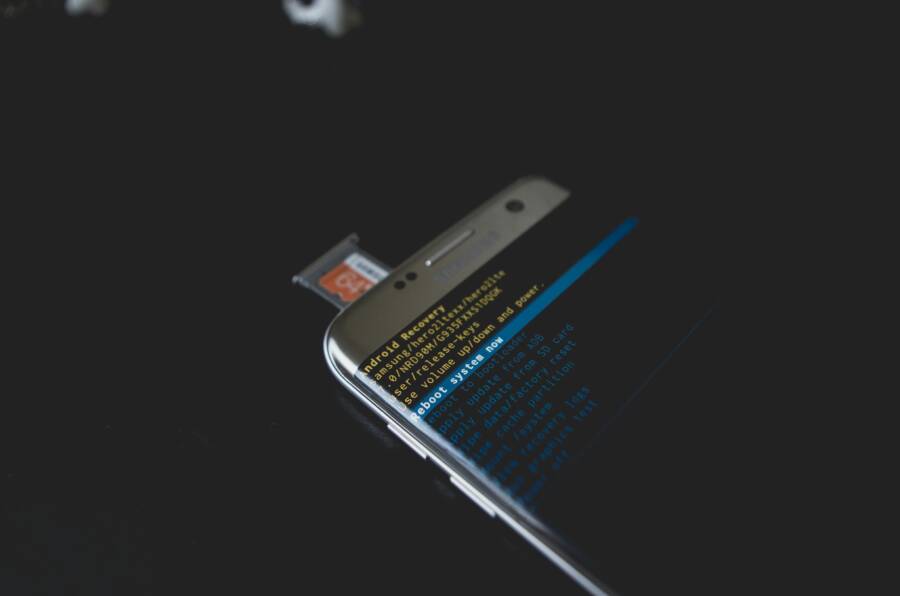
 Photo by Kelvin Valerio
Boot into Safe Mode and Update Software
Safe mode helps you see if a third-party app is causing the charging pause. On Android, power off, then restart while holding the volume down or using the power button’s long-press sequence until the device boots into safe mode. If charging works normally in this state, a recently installed app is likely the culprit. Once you’re in, go to Settings > System > System Update to check for available OS updates; install any that appear. Updates often include fixes for battery management and sensor calibration. On iPhone, safe mode per se isn’t a standard option, but you can restart and update iOS in Settings > General > Software Update to rule out a bug. If the device remains stable in safe mode or after updating, you’ve narrowed the issue to software interactions. For broader guidance, see how to enter safe mode on Android devices and how to use recovery mode on iPhone when needed. How to enter safe mode on Android devices If you can’t update or restore your iPhone or iPod touch
- Quick check: remove recently installed apps one by one while testing charging.
- Update cadence: aim to keep the OS and essential apps current to prevent driver or sensor mismatches.
- If safe mode fixes the problem, reinstall apps carefully and avoid known conflicting tools.
If you want extra context on safe mode for Pixel devices, review the official guide from Google. It’s a solid reference for how to isolate problem apps and restore normal behavior. Find problem apps by rebooting to safe mode – Pixel
Reset or Check for Hardware Damage
If software checks don’t reveal a culprit, it’s time to look at hardware, starting with simple diagnostics and moving to repairs if necessary. Begin with a full backup in case you need to perform a factory reset. A reset can clear miscalibrated sensors or corrupted charging routines without touching personal data on some devices, but always confirm the exact steps for your model. During a reset, observe if the device still heats up while charging. If so, you may have a hardware issue rather than a software one.
Signs of hardware trouble include moisture indicators near the charging port, visible corrosion, or liquid contact damage. Most modern phones use moisture stickers that turn red when exposed to moisture; a red sticker means you should avoid charging and seek service promptly. If you notice bent connectors, frayed cables, or irregular charging feedback (sparks, buzzing, or the charger not seating properly), stop using the cable and replace it with an original or certified charger.
She Pressed Play on a Strange Audio Track and Within Days Her Financial Reality Started Shifting in Ways She Could Not Explain
>>> See How It Works <<<

When to visit a repair shop is clear: if the port is loose, the cable produces intermittent connections, or you see moisture after drying. A professional can test the battery, port, and internal sensors with specialized tools and calibrate or replace as needed. For readers who want deeper context on iPhone recovery options and sensor concerns, Apple’s official guidance provides a solid foundation, including recovery mode paths if updates or resets fail. If you can’t update or restore your iPhone or iPod touch How to Put Your iPhone in Recovery Mode + Troubleshooting Options How to put an iPhone into Recovery Mode
- Port hygiene matters: clean the charging port using a soft brush or compressed air, then reinsert the cable.
- Moisture handling: dry the area completely before attempting to charge again.
- When in doubt, opt for a professional evaluation to avoid further damage.
This approach helps you determine whether the issue is software related, a sensor misread, or genuine hardware failure. If you still see the temperature warning after a reset and port checks, the next steps will focus on practical charging habits and long-term prevention.
Prevent the Temperature Error from Coming Back
Once you’ve resolved the immediate charging pause, the goal is to keep it from returning. This section covers practical habits and safeguards that protect your battery and keep charging smooth. Think of it as a routine for your smartphone that reduces heat build up, avoids sensor glitches, and minimizes the chance of the temperature warning popping up again.
Manage charging environments and habits
Your surroundings have a bigger impact than you might expect. Hot rooms, direct sun, or a car that sits in the sun will push your device’s temperature higher during charging. To prevent a repeat of the error:
- Charge in a cooler space whenever possible. If you’re at a desk, use a shaded area or a fan to improve airflow around the device.
- Remove bulky or heat-trapping cases during charging. A case with poor venting can trap heat and slow cooling.
- Avoid using the phone for intensive tasks while it’s charging, especially in warm conditions. Gaming, navigation, or video editing can push heat levels up quickly.
- Use a charger that matches your device’s recommended wattage. A high wattage brick can speed charging but also increase heat. When in doubt, opt for the charger that came with the phone or a reputable equivalent.
If you notice the device warms up even in a cool room, switching to a slower charging option can help. This is especially true for devices that are older or have a battery that’s nearing the end of its life. Monitoring ambient temperature and sticking to moderate charging speeds are smart moves to keep the temperature in a safe zone.
For context on how temperature management affects charging behavior, see official guidance about safe operating temperatures from Apple. If your iPhone or iPad gets too hot or too cold
Optimize charging routine and scheduling
Smart charging habits reduce heat production and extend battery life. Try these practical adjustments:
- Schedule charging for cooler parts of the day when possible. If you’re charging overnight, place the phone in a cooler room away from direct sunlight.
- Enable features that optimize charging based on your usage patterns. On iPhone, for example, features like Optimized Battery Charging can help, but always ensure your software is up to date so battery management works correctly. Regular updates can also fix charging quirks and sensor calibrations. See guidance on how to manage iPhone charging behavior in official support resources. If your iPhone or iPad gets too hot or too cold
- Keep the device hydrated with firmware updates. System updates often include fixes for battery management and sensor calibration, reducing false heat readings.
If you publish a daily charging routine, you’ll notice fewer interruptions. A predictable pattern helps the device anticipate when to limit fast charging and switch to slower charging modes automatically.
Thousands of People Were Struggling With Money Until They Discovered This One Ancient Secret Hidden in Sound
>>> Unlock It Now <<<
Maintain the sensor and port health
Even with the best environment, sensor glitches and dirty ports can trigger false heat warnings. Regular checks prevent surprises:
- Clean the charging port gently with a microfiber cloth and, if needed, a small non-metal tool or compressed air. Remove dust and lint that can trap heat and interfere with charging.
- Inspect the cable and charger for wear. A frayed cable or a loose connector can cause intermittent contact and heat buildup.
- If you notice moisture or corrosion, stop charging and seek professional help. Moisture can cause short circuits and long-term damage to the battery and motherboard.
Understanding that sensor accuracy matters, you should treat any recurring false positives as a signal to reset or calibrate. If cleaning and inspection don’t fix the issue, a device service might recalibrate the sensor or replace a faulty component. For the broader context of sensor faults and consumer guidance, check out user-focused discussions and official resources from major brands. Is your Samsung phone overheating? Here’s what you can do
Establish a quick post-check routine
After you’ve cooled the device and cleaned the port, run a simple check to confirm stability:
- Reconnect a trusted charger and monitor charging behavior for a few minutes. If the temperature stays steady, you’re likely done.
- Test charging with a different cable or charger to confirm consistent performance. If the device charges normally with another accessory, you’ve identified a potential bottleneck in the original charger.
- Watch for recurring patterns. If you consistently see the message in warm rooms or after certain apps run, you may need a longer term adjustment to how you use the phone while charging.
A concise post-check routine helps you catch problems early and keep your device ready when you need it.
Keep software current and monitor battery health
Software updates often include important fixes for charging control and heat management. Staying current reduces the chances of software quirks causing a temperature warning. Additionally, pay attention to battery health:
- Regularly check battery status in settings. If you notice sharp drops in capacity or rapid heat under light use, it might be time for a battery evaluation.
- Install OS updates promptly. Updates frequently fix calibration issues that can misread temperature sensors.
- If you’ve noticed persistent temperature-related warnings after a reset, a software repair or a factory reset may be necessary. Always back up data first and follow device-specific recovery steps.
For reference on broader guidelines and recovery options for iPhone users, see Apple’s support resources. If you can’t update or restore your iPhone or iPod touch
This section provides a practical playbook to prevent the temperature warning from reappearing. By controlling the charging environment, refining your charging habits, and keeping sensors and software in good shape, you reduce heat risk and keep your smartphone reliably ready for the day ahead. If you’re curious about deeper hardware checks or specific model quirks, you can explore brand-specific guides and community Q&As for more model-tailored tips. For additional reading on overheating prevention strategies, see popular guides from credible tech publishers. Steps You Can Take Right Now to Avoid an Overheated Phone
Conclusion
Most charging pauses from high temperature are fixable with a simple, ordered routine. Start by cooling the device in a shaded, well ventilated space and cleaning the charging port to remove dust or lint. If you still see the warning, try a different charger or cable, ideally the one that came with the phone, and disable any rapid charging features temporarily.
Next, restart the phone and check for a software update. Software fixes often recalibrate sensors and improve battery management, reducing false heat readings. If the problem persists, boot into safe mode (Android) or update iOS (iPhone) to rule out a rogue app or temporary bug. A factory reset, after backing up data, is a last resort for stubborn software quirks.
If the warning persists after all software checks, hardware health becomes the likely factor. Inspect the charging port for moisture or corrosion, test with known good accessories, and consider professional help to check the battery, port, and sensors. Don’t risk long term damage by forcing a charge.
Keeping the issue at bay comes down to sensible habits. Charge in cooler environments, avoid heavy tasks while plugged in, and use the right wattage for your model. Periodic port cleaning and firmware updates help, too. If you’ve found a routine that works, share your experience so others can benefit. For quick next steps, skim our related guides and return to this checklist anytime you need a refresher. Your smartphone deserves a reliable charging flow.
There Is a Frequency That the Wealthiest Families Have Used for Generations and Most People Will Never Know It Exists
>>> Open the Door <<<
