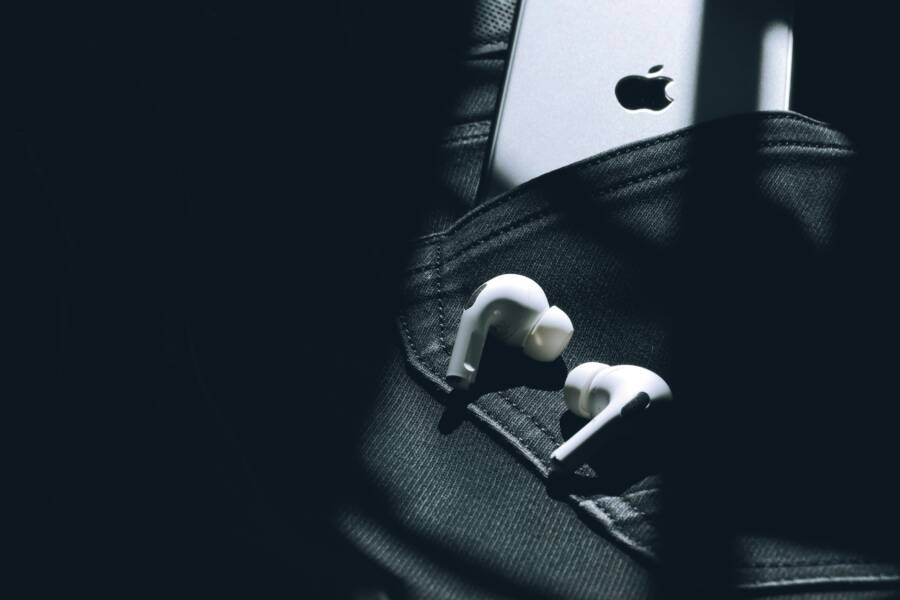
If you’ve ever bumped along with choppy music or muffled calls while your phone sits in your pocket, you’re not alone. The pocket creates a perfect storm for Bluetooth stuttering because your body can block the signal just enough to drop audio quality at the worst moments. This guide breaks down why it happens and how to fix it quickly.
The core issue is a simple one: weak Bluetooth signals travel poorly through your body and thick fabric, especially when the phone is pressed close to you. You’ll notice the problem most when you’re moving, in crowded places, or outdoors where interference is higher. The good news is that most fixes are straightforward and work for both Android and iPhone users.
This post walks you through practical steps you can try right away, from adjusting where you carry the phone to tweaking settings and checking for interference. You’ll learn how to test fixes one by one and decide which combination gives you stable audio or reliable calls. With these adjustments, you can enjoy crisp sound even when you keep the phone in your pocket.
Top Causes of Bluetooth Stuttering in Your Pocket
When your phone sits in your pocket, several factors can conspire to degrade Bluetooth audio or calls. This section highlights the main culprits and how they play out in real life. Understanding these causes helps you test quickly and fix the issue without guesswork. We’ll cover how your body and environment interact with signals, plus practical tests you can run to confirm what’s happening.
How Your Body Blocks the Bluetooth Signal
Your body acts like a partial shield when you’re moving with a phone in a pocket. The human body contains a lot of water, which absorbs radio waves. When the phone is pressed close to you, the fabric and skin on one side can absorb or reflect the signal, weakening what reaches your ears. Movement makes the problem worse, as signals bounce around inside clothing and through layers. A quick test is to take the phone out of your pocket and listen for a moment. If the stuttering improves, body blocking is a key factor. Use a well-placed pocket or carry it higher on your torso to reduce the obstruction. Photo by Ravi Roshan. Photo by Ravi Roshan
Interference from Wi-Fi and Other Devices
Bluetooth shares the 2.4 GHz band with Wi-Fi and many other gadgets. When you’re near a router or crowded with devices like smartwatches, wireless headphones, or a fitness band, the airwaves get crowded. This overload can cause jitter and dropouts. If you notice stuttering in environments with active Wi-Fi, test by turning off Wi-Fi on the phone for a few minutes to see if the performance improves. Reducing the number of active Bluetooth devices around you also helps. Keep in mind that old or cheap Bluetooth adapters can amplify these issues.
Software Glitches and Battery Savers
Software quality matters just as much as hardware. Outdated OS versions or apps can cause Bluetooth to misbehave, and headset firmware that hasn’t been updated can create a mismatch with your phone. Battery saver modes often disable or limit Bluetooth activity to save power, which leads to stuttering or brief cutouts. Check for pending OS updates, firmware updates for your headphones or earbuds, and any power management settings that might turn off Bluetooth during playback or calls. Keeping software current is a simple, effective fix.
Quick Fixes to Restore Smooth Bluetooth Audio
When your Bluetooth audio stutters while your phone sits in your pocket, the fix is usually simple and quick. These practical moves target the common culprits: body interference, extra connected devices, and competing signals. Try them one by one to restore steady playback or clear calls without digging into complex settings.
Reposition Your Phone for Better Signal
Move the phone out of your pocket and test a few carrying positions to reduce body blocking. When the device sits directly against your body, water-rich tissues absorb the 2.4 GHz signal, and fabric adds extra resistance. That combination can cause dropouts and choppy sound, especially during movement. Start with the easiest swap: keep the phone in a front pocket or near the chest, then try an armband or a handheld position for a few minutes of playback. If the stutter fades, you’ve confirmed body interference as the main culprit. A simple rule of thumb follows: the clearer the path between your phone and the buds, the crisper the audio. For shorter commutes or workouts, consider a belt clip or armband to keep the phone away from your torso. Photo by Ravi Roshan. Photo by Ravi Roshan
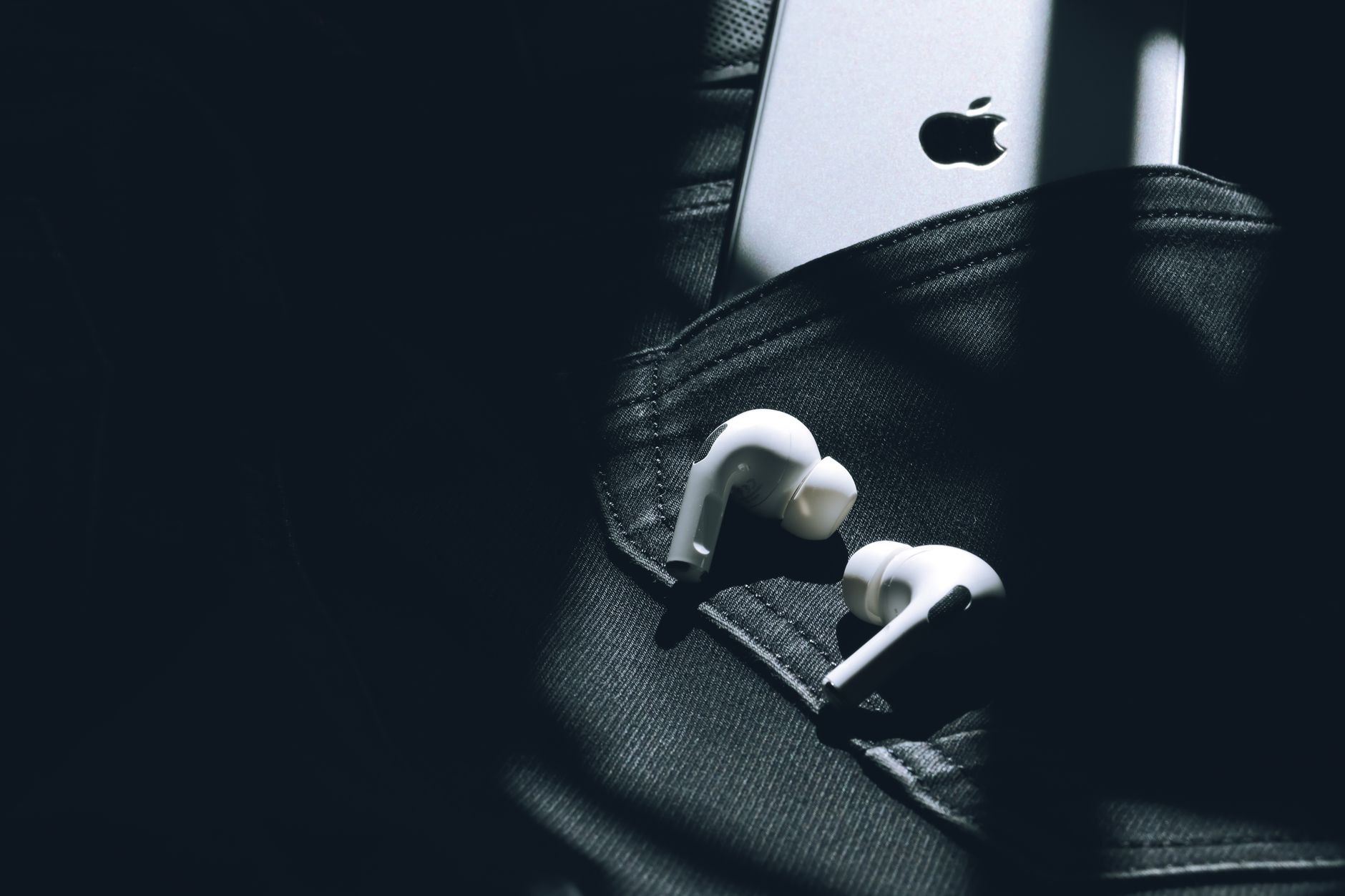 Photo credit: Photo by Ravi Roshan
Disconnect Extra Bluetooth Devices
Too many nearby connections can crowd the airwaves and create instability. Start by cleaning up the devices your phone routinely recognizes. On iPhone, open Settings > Bluetooth, look at the list of paired devices, and tap the info icon next to each extra accessory. Choose Forget This Device for anything you don’t use often, then turn Bluetooth off and back on to reinitialize the stack. On Android, go to Settings > Connected devices or Bluetooth and disconnect or forget each unfamiliar or unused headset, speaker, or watch. After every removal, test audio briefly to gauge improvement. If you still hear stutter, repeat the test with a different leftover device deselected. The goal is a lean, predictable Bluetooth environment with only your primary audio device active. Then re-pair the preferred headset if needed and re-test. This approach minimizes interference without sacrificing convenience. Photo by Ravi Roshan. Photo by Ravi Roshan
Photo credit: Photo by Ravi Roshan
Advanced Tweaks for Stubborn Bluetooth Issues
If you’ve tried the basics and Bluetooth still stutters when your phone is in your pocket, it’s time to go deeper. These advanced tweaks target the less obvious culprits that can quietly degrade the connection. You’ll mix targeted software updates, firmware health checks, and precise launcher settings to squeeze out a steadier signal. Follow these steps in order and test after each one to see what moves the needle.
Update Software and Clear Caches
Keeping your devices current is the simplest path to stability. Start with the phone, then cover connected accessories like earbuds or speakers. On Android and iPhone, install the latest OS update when it appears. Check for firmware updates for your headphones via the maker’s app or the device’s settings. Clearing caches can also help when minor software hiccups cause stuttering.
- For Android: Settings > System > Software update. If an update is available, download and install. Then open Settings > Apps, select Bluetooth, and clear cache.
- For iPhone: Settings > General > Software Update. If an update exists, install it. Restart after updating to refresh Bluetooth stacks.
- Headphones/earbuds: Use the maker app to check for firmware updates. Pair the device, open the app, and look for a Software Update option. Apply any available updates and retry.
Clear caches is typically enough to fix odd pauses and random drops. After updating, re-pair the audio device if needed and test playback with a short song or a quick call to gauge stability.
Reset Connections and Adjust Settings
Sometimes the simplest reset is the most effective. Forget the Bluetooth device, re-pair it from scratch, and adjust a few settings to improve reliability. If you use power saving, ensure it isn’t throttling Bluetooth during critical moments.
- Forget and re-pair: On iPhone, Settings > Bluetooth, tap the “i” next to the device, choose Forget This Device, then re-pair. On Android, Settings > Bluetooth, hold the device name, select Forget, then pair again.
- Check power save behavior: Disable aggressive power saving for Bluetooth in Settings. If you must use it, limit it to other apps so calls and audio aren’t impacted.
- Developer options (Android): Enable Developer options, then review Bluetooth related tweaks. Look for the option to enable Bluetooth HCI snoop log for diagnostics, and test audio after toggling. If you see improvements, keep notes on what helps and revert when it doesn’t.
- Test with a clean slate: After re-pairing, play music and make a quick call while walking to see if the connection holds. If stuttering returns, try a different codec in the Bluetooth settings to find the most stable pairing for your gear.
These adjustments give you a clean baseline and a reliable test environment. With the device reconnected and settings dialed in, you’ll be better positioned to identify which tweak makes the real impact.
Prevent Future Bluetooth Stuttering in Pockets
Even after you fix the momentary dropouts, it helps to set up habits that prevent stuttering from returning. By reducing the chances of interference, keeping devices healthy, and choosing the right setup, you’ll enjoy steadier sound no matter where your smartphone sits.
Optimize how you carry your phone
The position of your phone matters just as much as the model you use. If you tend to keep your device in a tight pocket or pressed against your hip, you’re more likely to experience blocks and reflections that disrupt the signal. Try these practical placements:
- Front pocket or chest pocket: Allows the signal to travel with fewer obstructions.
- Arm or hand during activity: Keeps the phone away from dense fabric layers.
- Belt clip or armband: Great for workouts, especially if you’re streaming music or taking calls.
For many people, a small change in pocket choice delivers noticeable improvements. If you often multitask outdoors, this simple tweak can become part of your routine without adding clutter.
Manage environment and interference
Your surroundings play a big role in Bluetooth stability. Two easy habits can dramatically cut down on stutter:
- Limit active devices: Only the headset or speaker that you use should stay connected. Temporarily disable or forget extras you don’t need.
- Watch for crowded radio spaces: In places packed with Bluetooth and WiFi signals, performance can drop. If you’re in a busy cafe or gym, consider temporarily turning off nearby devices or switching to a quieter setting.
A quick rule of thumb: the fewer devices sharing the 2.4 GHz band, the cleaner the signal between your smartphone and headphones.
Keep software and firmware current
Software quality is a major driver of stability. Regular updates for your phone, earbuds, and accessories fix bugs and improve compatibility. Here’s a simple maintenance routine:
- Check for system updates weekly and install when available.
- Update headset firmware through the manufacturer’s app or settings.
- Clear app caches if you notice odd pauses after updates.
With current software, you reduce the odds of subtle glitches that cause stutters during everyday use.
Choose the right codecs and connection settings
Not all Bluetooth connections are created equal. The codec you use can influence stability, latency, and audio quality. If your device and earbuds support multiple codecs, test a few to see which one stays steady in your typical environment. In general:
- Prefer stable codecs over the highest quality when you notice drops.
- If your gear supports it, experiment with switching to a lower latency or more robust option during busy times.
- Some devices let you lock the codec to a preferred option for consistency.
When you settle on a codec that feels reliable, you’ll notice fewer interruptions during long listening or calls.
Battery health and power management habits
Low power can quietly throttle Bluetooth performance. Both ends of the chain benefit from solid charging habits:
- Keep your phone and earbuds above 50% during important uses.
- Avoid letting devices run completely dead before a big session.
- Disable aggressive power-saving features during music playback or calls if you notice stuttering when you move.
Good battery hygiene reduces the chance of sudden drops in performance at crucial moments.
Routine checks and quick tests
Build a habit of quick daily checks. A 2-minute test can save you from long sessions of uncertain audio:
- Play a short track and make a quick call while moving around your usual routes.
- Note when stuttering happens and whether it correlates with certain pockets, locations, or devices.
- Rebalance your setup based on findings, and re-test after each change.
This ongoing testing helps you keep a baseline of stability tailored to your actual use patterns.
Document your settings for quick restoration
When things work well, you don’t want to lose that setup. Create a simple reference:
- List the positions you prefer for carrying your phone.
- Note the codecs you tested and which one stayed most stable.
- Record any specific settings you’ve adjusted in Bluetooth and power management.
Keep this note handy so you can replicate a reliable arrangement if you switch devices or reinstall apps.
When to consider hardware upgrades
If you’ve tried all the practical adjustments and still face persistent stuttering in pockets, hardware may be the bottleneck. Consider:
- Trying a different pair of earbuds or a speaker known for strong Bluetooth reception.
- Testing with another smartphone to determine if the issue is device specific.
- Evaluating accessories like high-quality cases or shields that minimize signal loss.
A targeted hardware change can clear up long-standing trouble that software tweaks can’t fully fix. In many cases, a well-matched pair of earbuds and a phone with solid Bluetooth support yields the most noticeable improvement.
Conclusion
If you want steady Bluetooth audio with the phone in your pocket, start with the simplest fixes and test in order. Move the smartphone to a better position, then trim the airspace by disconnecting extra devices, and finally update software and firmware before you tweak advanced settings. Most users see a solid improvement with these steps, and many enjoy stable sound 80 to 90 percent of the time after the basics are in place.
Keep a small, repeatable routine: carry position first, reduce interference second, and keep software current third. When you find a setup that works, note the codecs and settings you used so you can restore them quickly if you switch devices. If stuttering still shows up, share your experience in the comments to help others troubleshoot and consider subscribing for future tips.