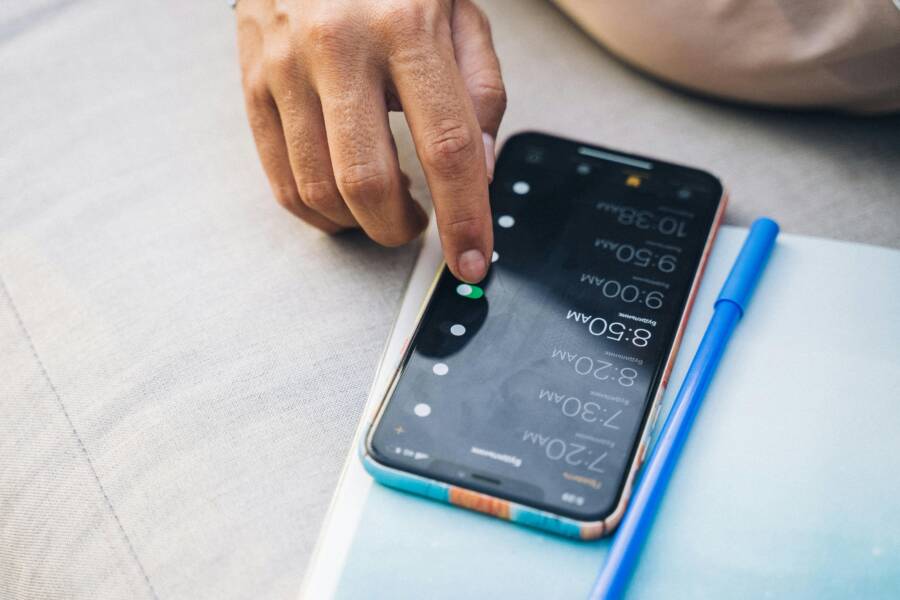
Blue light filters help you wind down after a long day. When they stop turning off on their set schedule, it can throw off your sleep and make your evenings feel off. This guide walks you through practical, step by step checks so you can fix the issue quickly. You’ll learn how to identify conflicts, adjust settings, and get back to a reliable schedule on your smartphone.
Blue light filters come in many forms. Some are built into the operating system, others come from third party apps. The goal is the same: limit blue light during certain hours. When the schedule fails, it usually points to a setting conflict, a software hiccup, or a time misconfiguration. Let’s start with the easiest fixes and move toward more thorough checks.
Why the blue light filter might stay on or ignore its schedule
If the filter refuses to switch off, ask yourself these questions. Is the schedule set for the right times? Could another app be turning it on? Are there accessibility or display features that override your settings? A misconfigured clock can also cause misfires. In many cases a quick toggle or update fixes the problem. In tougher cases you may need to reset a setting or reinstall a component of the system.
Understanding the common culprits helps you avoid repeating the same mistake. It also keeps you from overreacting to a minor glitch that will fix itself after a simple adjustment.
Check built in schedule settings
Most phones offer a built in night mode or blue light filter that can be scheduled. The exact names vary by brand, but the approach is similar. Start by examining the display settings and the schedule options. The goal is to ensure the filter is enabled only during the intended hours and that there are no automatic overrides.
iOS devices
On iPhone and iPad the feature is called Night Shift. It can be set to a schedule or to sunset to sunrise automatically. If you notice the filter staying on past your chosen time, check these steps:
- Open Settings and go to Display & Brightness.
- Tap Night Shift. Check that it is scheduled to the hours you want.
- If you see Sunny or Time Based options, adjust them to your preferred window. You can set a specific start and end time.
- Make sure the “Manually Enable Until Tomorrow” option is not active. If it is, turn it off.
If Night Shift is off but the screen still looks warmer, try toggling it off and on again. A brief restart of your device can also help clear odd state issues.
Android devices
Android uses different names depending on the maker. Common terms include Night Light, Blue Light filter, or Schedule. The steps below apply broadly:
- Go to Settings, then Display.
- Find Night Light or Blue Light filter and open its page.
- Confirm that a schedule is set. If there is an option for sunrise sunset, choose manual times if you want precise control.
- If there is a toggle for “Turn on automatically,” ensure it is enabled only during your chosen hours.
- Turn the filter off, then back on to confirm the new schedule sticks.
If the feature still won’t switch off at the right time, try turning it off for a short test period. If the screen color changes correctly, the issue is most likely a conflict with another setting or app.
Look for third party apps that control blue light
Third party apps are a frequent source of odd behavior. They can override the system setting or reapply the filter after you turn it off. Common culprits include apps with names like Night Mode, Twilight, or Blue Light Filter.
How to identify suspected apps
- Review recently installed apps and those with display or accessibility permissions.
- Open the app list and inspect any blue light related tools. Pay attention to apps that claim to reduce eye strain or improve sleep.
- Check for apps that run in the background. Some apps stay active even after you close them.
What to do if you find them
- Disable or uninstall the app temporarily to test if the schedule behaves normally.
- If you must keep the app, review its own scheduling options. Some apps let you define multiple schedules or override system settings at specific times.
- Restart your phone after removing or disabling the app to ensure the change takes effect.
A clean sweep often reveals whether a third party tool was driving the problem. If the issue stays even after removing suspect apps, move to the next checks.
Verify system time and region settings
Time settings influence when a schedule starts and stops. A wrong clock can cause the filter to apply at the wrong moments or not at all.
iOS time and region checks
- Open Settings, then General, and choose Date & Time.
- Enable Set Automatically. If it was off, turning it on usually fixes timing problems.
- Check the time zone shown. If you travel or have multiple devices, confirm the zone matches your current location.
Android time and region checks
- Go to Settings, then System, and pick Date & Time.
- Turn on Automatic date and time. If you rely on a local network, this helps keep clocks in sync.
- Verify the time zone is correct. Mismatched zones can throw off any schedule you set.
After syncing the clock, test the blue light filter by setting a short schedule window. If the filter turns off in time, you have your answer.
Understand focus modes and accessibility features that affect scheduling
Some phones use Focus modes or accessibility tools to manage how the screen behaves. These features can override display settings and keep the blue light filter active longer than you expect.
iOS Focus and Screen Time
Focus modes can silence notifications and adjust other settings, sometimes including display preferences. If a Focus profile is active during your schedule, it may keep the color warmth setting in place.
- Open Settings and tap Focus. Review which Focus is active and what it does to display settings.
- Look at the Options for each Focus to see if Night Shift is affected.
- Temporarily disable Focus or set it to a schedule that does not conflict with the blue light filter.
Android Do Not Disturb and Accessibility
On Android, Do Not Disturb and certain accessibility options can influence how the screen looks. If a profile is on during your evening hours, it could reconnect the filter when it should be off.
- Check Settings, then Sound or Notifications, for Do Not Disturb. See if a schedule is in place that might override color adjustments.
- Review Accessibility settings for any color adjustments or display simplifications that could interact with the blue light filter.
- Disable the conflicting setting and run a test to confirm the filter behaves as expected.
If you still see a mismatch after these adjustments, a deeper reset could be warranted. But start with these checks as they fix most cases quickly.
When to reset settings or reinstall
If none of the above steps resolve the problem, you may be facing a deeper software issue. Reset options help restore normal behavior without losing your data.
- Reset network settings. This can clear odd interactions between apps and system services.
- Reset all settings. This preserves your data and apps but returns system preferences to defaults.
- As a last resort, perform a factory reset. Back up important data first.
Always back up before a factory reset. For iOS devices, use iCloud or iTunes to preserve photos, messages, and app data. For Android, back up to Google Drive or your preferred cloud service.
Back up and prepare for a safer reset
A careful approach to resets minimizes risk. Here’s a quick checklist:
- Back up photos, documents, and app data.
- Make a note of essential app settings that you want to restore.
- Confirm you can re-download any paid apps after the reset.
- Save Wi Fi passwords and Bluetooth device lists.
After a reset, reapply only the essential settings. Then reintroduce apps one by one, testing the blue light filter after each addition. This process helps you identify the exact cause if the problem returns.
Real world tips and quick checks
- Test with a simple schedule. Set the filter to turn off at 9 pm for a day. If it stays on past 9, you know it is not the intended window.
- Keep one device at a time under test. If you have several devices, fix them individually. A conflict on one phone does not always mirror on another.
- Watch for app updates. A new version can reset permissions or introduce a new setting that overrides your schedule.
- Use a spare timer to verify the schedule. Sometimes a visual clue in the control panel helps confirm what the system is doing.
- If you are concerned about eye strain, you can temporarily adjust the hue instead of turning off the filter completely.
If you want to keep your smartphone friendly to night use, consider pairing the blue light filter with a calming evening routine. Dim lighting, a warm screen, and a short wind down period can help you sleep more easily.
Practical step by step recap
- Review built in schedule: toggle between on and off, set exact times, verify sunrise sunset options.
- Look for other apps: list all apps with display or accessibility permissions and test by disabling them.
- Check time settings: ensure automatic date and time is on and time zone is correct.
- Inspect focus and accessibility: confirm no Focus mode or color adjustments override the schedule.
- If needed, perform a reset: back up first, then reset settings or the device itself.
- Reintroduce one variable at a time: test the blue light filter after each change.
By following these steps you should be able to pinpoint the cause and restore a reliable schedule on your phone. The goal is a simple, predictable rhythm that supports healthy evenings without surprises.
Final tips to keep your schedule steady
- Keep your phone’s software up to date. Soft updates fix known bugs and improve compatibility with blue light features.
- Maintain a clean app environment. Regularly review apps that claim to reduce eye strain and ensure they align with your system settings.
- Set a consistent wind down routine. A predictable end of day helps your mind prepare for sleep even if the filter has a hiccup.
If you run into a stubborn case, a fresh look at the simplest steps almost always helps. Start with the built in settings and a quick test, then proceed to the more involved checks.
Conclusion
A blue light filter that refuses to turn off on its schedule is typically a sign of a small misconfiguration or a competing setting. By methodically checking the built in schedule, scanning for third party apps, confirming time settings, and inspecting focus and accessibility features, you can restore reliable behavior on your phone. If a reset becomes necessary, approach it with a solid backup plan so your data stays safe. With patience and a steady approach, you’ll have your evenings back in balance and breathe easier as you wind down each night. Share this guide with friends who might face the same issue, and check out more practical phone troubleshooting tips on iPro+ 知識酷.