
He Was Drowning in Bills and Burnout Until a Simple Daily Ritual Rewired His Brain for Wealth in Less Than a Week
>>> Start Your Shift Today <<<

You’ve called your doctor’s office or customer service line. The main number rings through fine. But when it’s time for the extension, nothing happens. It hangs up or skips right past.
This issue hits many smartphones. Your phone dials the extension too fast. It skips the needed pauses between the main number and extension digits.
It affects both Android and iPhone users. Common causes include missing pauses in your contacts. App glitches or carrier settings can play a role too.
Don’t worry. This guide shows you how to fix a phone that cannot dial extension numbers automatically. You’ll learn to diagnose the problem first.
He Was Drowning in Bills and Burnout Until a Simple Daily Ritual Rewired His Brain for Wealth in Less Than a Week
>>> Start Your Shift Today <<<
Then try quick fixes that work right away. Follow step-by-step instructions for Android devices. Get the same for iPhones too.
If those don’t solve it, check extra tips for deeper help. These simple steps save you time on every call. You’ll dial extensions smoothly from now on.
Diagnose Why Your Phone Won’t Dial Extensions Automatically
When a call goes through but the extension doesn’t get dialed, it can feel like you’re stuck in a loop. This section helps you pinpoint the exact reason your phone isn’t tacking on the extension automatically and what you can do about it. Use the steps here to verify whether the issue is with your contacts, the dialer, or the device itself. By the end of this section, you’ll have a clear path to get calls to reach the right extension every time.
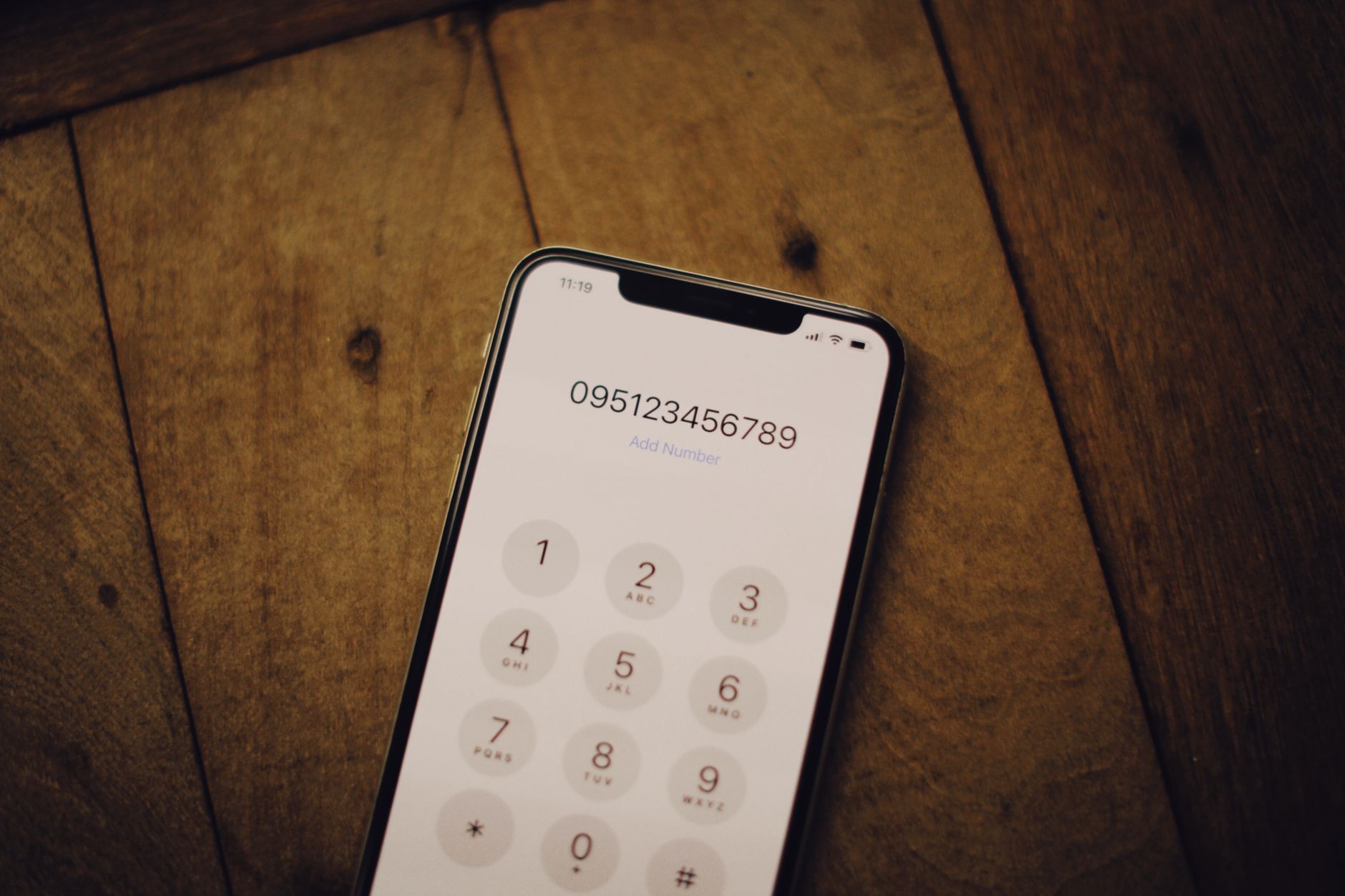 Photo by Alexey Demidov
Test Manual Dialing for Pauses
If a call works when you dial the main number but fails once you add the extension, test it manually to confirm the pause is the issue. Open your phone app and enter the main number, followed by a comma, then the extension, and tap call. The comma creates a short pause before dialing the next digits. A 2-second pause is typical for most dialers.
- Steps to reproduce: open the phone app → enter main number,,extension → press call.
- What you’re testing: whether the 2-second pause via the comma actually works on your device.
- Important note: if this works when you dial manually but not when you use a saved contact, the problem is tied to how the contact stores the number rather than the dialer itself.
If the manual test works, the issue is likely with how the extension is saved in contacts or with the saved format. If it doesn’t work, there may be a dialer or system setting blocking the pause or altering the sequence.
Check Your Saved Contacts for Errors
Saved contacts are a common culprit. A small formatting mistake can cause the dialer to skip the extension or misinterpret the pause.
- Open your Contacts app and locate the office or main line entry.
- Check the number formatting for pauses. The standard formats are two commas for a longer pause or a specific pause character if your dialer supports it.
- Compare with a working example: replace a number like 555-1234,,567 with the exact format your carrier expects. Some examples you might see include 555-1234,,567 or 555-1234#567 depending on the system. If you see a single comma or a different separator, adjust to two commas.
- Save changes and test by calling from the contact. If it still fails, recheck the main number and extension sequence.
Common errors to watch for:
- Missing pauses after the main number: 555-1234,567
- Using a semicolon or a single comma incorrectly: 555-1234;567 or 555-1234,567
- Including spaces or letters in the number portion: 555 1234,567
A quick fix is to standardize to a simple, repeatable pattern in all contacts. For example, use 555-1234,,567 for every extension. If your carrier uses a different method, follow that exact format consistently.
Identify Your Phone Type and Settings
Knowing whether you use Android or iPhone helps tailor the steps. The dialer options and how pauses are interpreted can differ between OS versions and carrier apps.
- Android: Check if the system dialer uses a comma for a pause or if a special character is needed. Some Android dialers require you to enable special dialing rules in the settings.
- iPhone: iPhones typically support the comma for a pause in the default dialer, but verify how the contact stores the number and whether the OS version affects the behavior.
- OS version: Go to Settings > About Phone or Settings > System > About Phone to confirm your current version. If an update is available, review the update notes for any changes to the dialer or contact formatting.
- VoIP and carrier apps: If you rely on a VoIP app or a carrier-specific dialer, the pause mechanism may differ. Some apps require a pause to be entered in a specific way or may not support pauses at all.
After confirming your device family and OS version, try the manual pause test again on the same device. If the behavior remains inconsistent, you may need to adjust your contact formats or use a dedicated dialer app that handles pauses more reliably.
If you want to keep this simple, start with Android users on a recent OS and iPhone users on the latest iOS. For other setups, proceed with the next steps to explore deeper fixes or contact support.
Quick Fixes That Work on Any Phone
When a call goes through but the extension doesn’t dial automatically, the quickest relief comes from simple, proven steps. These fixes apply to most phones and carriers, so you can try them in order without needing specialized tools. Think of them as a short routine you can run before seeking deeper help. We’ll cover three practical ideas that address common hiccups and get your calls to reach the right extension more reliably.
Restart Your Phone and Update Apps
A fresh start can clear many small glitches that block the dialer from adding a pause or extension. Here’s a simple, reliable sequence:
- Restart your device: press and hold the power button, select restart, and wait for the phone to boot back up.
- Update essential apps: open the App Store or Google Play, check for updates to the dialer or phone app, and install them.
Why this helps: updates fix bugs, improve compatibility, and reset temporary settings that can interfere with automatic dialing. A quick reboot also clears memory that may cause the dialer to skip a digit or extension.
Clear Phone App Cache and Data
Corrupted cache or data can make the dialer behave oddly. Clearing this information returns the app to its default state and often resolves extension dialing issues.
- Android: Settings > Apps > Phone > Storage > Clear cache. If needed, you can also Clear data, then reopen the app and re-enter any needed settings.
- iPhone: Offload the Phone app or reset its cache by restarting, then test the dial again. If the problem persists, reinstalling the app is a further option.
After clearing, test by dialing a main number with an extension to confirm the pause still works. If you’re using a saved contact, re-enter the number with the correct pause format to ensure it’s stored properly.
Toggle Dialer Settings Like Touch Tones
Dialer behavior can change with certain sound or keypad options. Enabling or re-enabling touch tones can fix how the system handles pauses or extension entries.
- On Android and iPhone, locate the dialer settings. Look for an option related to touch tones, keypad sounds, or dial pad feedback.
- Enable touch tones if it’s off, then try dialing the extension again. If it’s already on, toggle it off, save, and then re-enable.
Why it matters: some devices treat the presence of keypad sounds as a cue for how to process number input. A quick toggle can reset this interpretation and allow the pause to be recognized correctly.
If you follow these steps and the extension still doesn’t dial automatically, consider checking the exact format you store in contacts or testing with a fresh contact entry. These quick fixes are designed to work on most phones, but a minor formatting issue or an app quirk can still slip through. In that case, use the next sections to dig a little deeper and identify the precise cause.
Android Solutions for Automatic Extension Dialing
When a call connects but the extension doesn’t, you need reliable, practical fixes you can implement quickly. This section focuses on Android tools and methods to ensure dialing pauses and extension prompts work smoothly. You’ll learn concrete tweaks you can apply to contacts, dialer behavior, and even app choices to improve reliability on most Android devices.
Add Pauses with Commas in Contacts
Pauses are essential when you need to reach a department or mailbox and then enter an extension. The easiest way to create that pause is by adding commas in the contact’s phone number. A comma tells the dialer to wait before sending the next digits.
She Pressed Play on a Strange Audio Track and Within Days Her Financial Reality Started Shifting in Ways She Could Not Explain
>>> See How It Works <<<

- Open your Contacts app and edit the entry for the number you call most often.
- After the main number, insert two commas, then the extension. For example: 555-1234,,567.
- If your dialer requires a longer pause, add more commas (commas usually translate to a couple of seconds each, but check your device).
- Save the contact and test by calling from the saved entry.
Long-pressing the comma key in the dialer can sometimes insert the pause more consistently. If the extension still doesn’t dial automatically, recheck the format and confirm that the pause appears exactly as you saved it. Consistency matters, so use the same pattern across all similar contacts.
Use Semicolons for Wait Prompts
Some phones treat a semicolon as a signal to wait for a tone or prompt before continuing the dial sequence. This can help when the system expects a prompt after the main number.
- In the contact, replace the comma with a semicolon, using a format like 555-1234;ext or 555-1234;567 depending on how your system reads prompts.
- Test the call to hear whether the device pauses for the prompt before dialing the extension.
- Compare results between comma and semicolon formats to see which one consistently works on your device and with your carrier.
- If you rely on a third party dialer, verify how that app handles pauses and prompts, since behavior can vary.
The key is to find a pause method that the dialer recognizes reliably. Some devices respond better to semicolons, others to double commas. Once you identify the most dependable format, apply it uniformly to all relevant contacts.
Install a Better Dialer App
If the built-in dialer is inconsistent, a third party dialer can provide more robust handling of pauses and extensions. Look for dialers that explicitly support pauses and dynamic prompts.
- Free options to consider: Drupe, Simple Dialer, and similar apps. These often offer clearer controls for inserting pauses and longer waits.
- Steps to set up auto-pauses:
- Install the app from the Google Play Store.
- Open the dialer and go to its settings.
- Find options related to pauses, separators, or wait prompts.
- Enable the feature that lets you insert pauses in saved numbers or create extension-friendly formats.
- Test by saving a contact with a main number and extension, using the app’s pause format, and dialing from the dialer.
- Pros: These apps tend to handle extensions more reliably, especially when combined with a dedicated contact format. They also provide clearer indicators of how pauses are processed.
If you frequently call offices or support lines with extensions, a capable dialer can reduce misdialing and the need for manual input. Choose a well-reviewed app, try its pause features, and keep your contact formats consistent across the board.
iPhone Fixes to Dial Extensions Effortlessly
When you call a business or office line, reaching the right extension should feel automatic. If your phone hesitates, it can waste time and money. In this section, you’ll learn practical, repeatable steps to make those extensions dial smoothly on your iPhone. Think of it as a quick, trusted playbook you can pull out whenever you hit this snag with your smartphone. You’ll test, fix, and verify in short bursts so you can move on to the next call without second guessing.
Edit Contacts with Pause Symbols
A small tweak in how you store numbers can make a big difference. By adding a pause between the main number and the extension, you tell the dialer to wait before sending the next digits. The result is a dial sequence that behaves the way you expect every time.
- Open the Contacts app and select the entry you call most often.
- Tap Edit and update the number by inserting a pause. On iPhone, you typically use a comma to create a short pause and a semicolon for a longer wait if needed.
- Save the changes and test by calling the contact. You should hear the pause and then the extension dial automatically.
- If the contact still misbehaves, recheck the exact pause pattern and ensure there are no spaces or extra characters between the digits.
Pro tips:
- Use a consistent format for all internal numbers, such as 555-1234,,567. This makes it easier to train your dialer and reduces mistakes.
- If your carrier or iOS version responds to a different symbol for a pause, adapt and keep the same symbol across similar contacts.
- After updating, run a quick test with the saved contact to confirm the extension is triggered reliably.
Phone App Long-Press Tricks
Your iPhone keypad can do more than just dial. Long-pressing a key can insert a pause or a wait, letting you construct the full number in real time. This approach helps you confirm how pauses are interpreted by your device and carrier before you formalize the contact format.
- In the keypad, long-press the star (*) for a pause or the hash (#) for a wait, depending on what your setup supports.
- Build a number on the fly: main number, pause, extension, and then call to verify the sequence works as expected.
- If you see differences between repeated tests, note which method yields consistent results and apply it to saved contacts.
- This technique also helps when you must call a new extension on the fly without editing the contact.
Why this matters: sometimes the dialer treats pauses differently in live dialing versus saved contacts. The on-demand test shows you the behavior you can rely on and helps you set up a robust pattern for future calls.
Create Siri Shortcuts for Frequent Calls
Automation saves time on repetitive tasks. If you dial the same extensions often, a Siri Shortcut can dial with the appropriate pauses automatically. This approach keeps your workflow simple and predictable, so you don’t have to remember pause syntax every time.
- Open the Shortcuts app and create a new shortcut.
- Add an action to Dial number and insert pauses in the sequence (for example, 555-1234,,567).
- Test the shortcut by running it from the Shortcuts app, then assign a Siri phrase like “Call Office Extension.”
- Place the shortcut on your Home Screen or trigger it with Siri for hands-free operation.
- If you use multiple extensions, create separate shortcuts or a single shortcut that asks for the extension as input.
Benefits:
- Consistent results across calls.
- Quick access for frequent offices or departments.
- Easy to tweak if a pause pattern changes with a carrier update.
By setting up a few well-tuned shortcuts, you reduce the chance of misdialing any extension and keep your workflow efficient. This is especially handy for busy weeks or when you need to place calls while multitasking.
If you want to keep this section tight and practical, these three approaches cover the most common causes of extension dialing issues on iPhone. Start with editing contacts to embed the pause, verify the behavior with the keypad, and then add Siri Shortcuts for frequent calls. This combination gives you immediate relief and a scalable process for future calls.
Still Stuck? Advanced Help and Alternatives
When basic fixes don’t fix the issue, it’s time to widen the net. Advanced help can identify carrier quirks, device quirks, or app behaviors that block automatic extension dialing. This section offers practical paths you can take to move past a stubborn extension problem without guessing. You’ll find two solid avenues: checking with your carrier for line issues and exploring VoIP apps that offer more reliable control over pauses and extensions. Use these options in sequence to pinpoint the bottleneck and regain smooth dialing.
She Pressed Play on a Strange Audio Track and Within Days Her Financial Reality Started Shifting in Ways She Could Not Explain
>>> See How It Works <<<
Contact Your Carrier for Line Checks
Sometimes the problem sits with the line itself rather than your device. Getting a quick line check from your carrier can reveal PBX or VoLTE issues that block the pause between the main number and the extension. A few focused questions can save hours of trial and error.
- Call support and explain the symptom: calls connect, but the extension isn’t dialed automatically.
- Ask about PBX routing, VoLTE behavior, and any recent changes to the network that might affect automatic dialing.
- Request a reset or refresh of network settings if your carrier offers it. This can clear glitches that cause pauses to disappear or be misread.
- If possible, have them test the line on their end. A quick test can confirm whether the issue stems from the carrier network or your device.
What to expect after the call: you may be advised to update carrier settings, re-provision your SIM, or reconfigure SIM or APN settings. If a carrier-side fix is required, follow their steps precisely and re-test after each change. This approach stops you from chasing problems that aren’t on your device.
When you finish the call, do a controlled test. Dial the main number plus a standard extension using a saved contact and a fresh manual entry to compare behavior. If the carrier confirms no issues on their side, you’ll know the next steps point back to your device or software.
Try VoIP Apps for Better Control
A reliable VoIP app can provide more consistent handling of pauses and prompts than a traditional dialer. These apps often support clearer pause notation, better prompts, and more predictable extension dialing, especially when you call organizations that use complex routing.
- Google Voice, Skype, and similar services can manage extensions more reliably in many cases. They provide explicit controls for pauses and waiting prompts that aren’t always present in the built-in dialer.
- Setup guide:
- Install the chosen VoIP app from the store.
- Create or sign in to your account and configure the app to use your primary number.
- In the contact entry, insert the extension with a clear pause format supported by the app (for example, two commas “,,” to create a pause, or a semicolon if the app uses that convention).
- Save the contact and perform a test call to verify that the extension dials automatically.
- Test different pause formats if needed. Some apps recognize double commas better, others respond to a semicolon or a specific prompt trigger.
- Pros and cons: VoIP apps can improve reliability but may add steps to your workflow or require data connectivity. They are worth trying when your built-in dialer falters on a regular basis.
If you rely on a business line with frequent extension needs, a VoIP solution can be a practical long-term fix. It gives you more predictable behavior and easier management of contact formats. Use it as a complementary approach to fix the root cause, not just as a workaround.
Conclusion
If your phone won’t dial extensions automatically, you have practical fixes that work. The core ideas to test are simple pauses in the number, keeping contacts up to date, and confirming the platform steps you use. Start by checking contact formats, then try a quick update and a restart. These steps cover most cases and act fast on any smartphone.
Pauses are the most reliable tool. Two commas after the main number almost always trigger the pause you need before sending the extension. If your device behaves differently, try a semicolon or an on demand test with the keypad to confirm what the dialer accepts. Keeping a consistent pause pattern across all relevant contacts saves time.
Updates and app behavior matter too. A fresh phone, plus current dialer or system software, fixes small bugs that block automatic dialing. Clear the dialer cache or data if you notice odd clicks or skipped digits. A quick reboot after updates can clear lingering quirks.
If you still struggle, consider a different dialer app or a VoIP option for repeat calls. These choices give more reliable control over pauses and prompts, especially with busy office lines.
Test one method now and see how it works. Which fix helped you? Leave a comment below and share your results. Bookmark this page for future reference. You’ll dial extensions smoothly soon.
She Pressed Play on a Strange Audio Track and Within Days Her Financial Reality Started Shifting in Ways She Could Not Explain
>>> See How It Works <<<