You’re scrolling on your phone and suddenly a flood of popups takes over the screen. It happens on both Android and iPhone and it ruins a moment you meant to spend browsing or messaging. This trouble usually comes from adware, shady apps, or misbehaving websites that slip into notifications and browser data.
In this post you’ll get a practical, step by step guide that covers Android and iPhone. You’ll see quick wins at the top, followed by deeper fixes that tackle the root causes. The goal is a smoother, safer smartphone experience without guesswork.
You’ll learn how to spot the culprits, stop intrusive ads, and protect your device going forward. We’ll walk through easy wins like disabling suspicious notifications and clearing data, then show how to clean up apps and set stronger defenses. By the end you’ll have a clear action plan to reduce popups and keep your smartphone fast and private.
Identify the real causes of random pop ups on your phone
Random pop ups are more than a nuisance. They can slow your device, drain battery, and expose you to scams. In this section, you’ll learn the real culprits behind these interruptions and how to quickly pinpoint the offender. By knowing what to look for, you can stop the repeating ads and get back to normal browsing with less worry.
Common culprits to check first
Pop ups usually come from a few familiar sources. Start with a quick sweep of these areas to identify the likely offender in just a few minutes.
- Recent app installs or updates: A new app or a recent update can inject adware or trigger push notifications. If the problem starts right after you installed something new, that app is a strong suspect.
- Adware from shady apps: Some free apps include adware that spams your screen with ads and redirects. If you notice a surge in banners after using a particular app, you’re likely dealing with adware.
- Websites sending notifications: Websites you’ve visited may ask for permission to send push notifications. If you allowed this in the past, you might start seeing pop ups even when the app isn’t open.
- Browser hijacks: A compromised or misconfigured browser can redirect you to phishing pages or display nonstop ads. This can happen if you click on misleading banners or install a suspicious extension.
- Browser extensions or profiles: Extensions or device profiles can change how your browser behaves, injecting ads or redirecting traffic. It’s easy to overlook a rogue extension because it sits quietly in the background.
- Quick diagnostic tips to run:
- Inspect app permissions and look for unusual access like overlay or drawing over other apps.
- Check which apps have notification access and disable anything you don’t recognize.
- Test if the issue follows one app or one site by using a clean browser or a guest profile and noting when the pop ups appear.
- If the problem disappears in Safe Mode, a third-party app is the likely offender.
- Practical path to a quick verdict: Start with the newest or recently updated apps, then move to browser-related causes. If the pop ups persist after removing suspect apps and disabling extensions, you’ve narrowed the field and can move to stronger solutions. For reliable guidance on removing adware and cleaning your device, see expert resources like articles on Android adware and how to remove it from reputable security sites. Android adware: What is it, and how do I get it off my device
How pop ups affect your data and privacy
Pop ups touch more than your screen. They touch your data, battery life, and trust in your device. Explaining these risks in plain terms helps you take action without feeling overwhelmed.
- Data tracking and misuse: Many pop ups come with trackers that collect what you view and tap. This data can be used to tailor ads or worse.
- Unwanted ads and misleading prompts: Aggressive ads can imitate legitimate warnings, nudging you to click. This increases the risk of phishing or accidental downloads.
- Battery drain and data waste: Constant notifications and heavy ad content use more power and data, making your phone feel slow and costly to operate.
- Real-world examples you might recognize: A sudden redirect to a fake virus scan when you open a site, or a banner ad that appeared after you tapped a link. These are not random glitches; they’re designed to hijack attention.
- A quick safety mindset: If it feels off, investigate. Tighten permissions, block suspicious sites, and remove problematic apps. Sticking to trusted sources and well-known stores reduces risk. For a deeper look at why these risks matter and how to minimize them, see consumer-focused guides on adware and mobile privacy. For instance, learn how adware can sneak onto devices and what to do about it. Adware on the Rise—Why Your Phone Isn’t as Safe as You Think
Malware vs aggressive ads: how to tell
Distinguishing between real ads and malicious software is essential. Keep the language simple and use concrete signs to decide your next move.
- Simple signs of malware or adware:
- Strange or unfamiliar apps appear on your home screen or app drawer.
- A surge in notification permissions or a flood of alerts from apps you don’t recognize.
- Unusual battery drain or data usage spikes that don’t match your activity.
- Redirects in your browser to unfamiliar pages or ads, especially after tapping links.
- A basic decision tree you can follow:
- If you see a new app with permission to draw over other apps, consider removing it first. These permissions can let an app pop up above everything else.
- If your browser shows dangerous redirects or keeps loading suspicious sites, focus on clearing data and blocking those sites. Disable or remove suspicious extensions.
- If pop ups occur in apps you already trust, investigate recent updates or interactions with those apps. Sometimes an update introduces new permissions or ad content.
- How to act on each clue:
- Remove suspicious apps and reset browser data to stop adware from persisting.
- Block known malicious sites and turn off risky push notifications.
- Revisit app permissions regularly and revoke anything unnecessary.
- Reader-friendly takeaway: don’t panic if you spot a problem. Use a simple, repeatable process to identify, isolate, and remove the offender. For more on telling the difference between adware and malware, check trusted security guides. You can explore resources like how to spot browser hijackers and remove them. What are browser hijackers? Removal + prevention tips
- Quick note on safe browsing and tool choices: When in doubt, use reputable security guidance to guide your cleanup. For practical steps to remove pop ups on Android and iPhone, reputable guides offer step-by-step routines you can follow without technical jargon. Remove unwanted ads, pop-ups & malware – Android
- Real-world scenario example: A user notices a lot of pop ups only after updating a specific game. They remove the game, reset browser data, and disable notification access for newly installed apps. The problem disappears and the device returns to normal performance. This pattern shows how quickly a single culprit can cause disruption and how fast a clean slate can restore control.
- For a broader perspective on recognizing and avoiding pop ups and fake warnings, see help center guides from security vendors. Pop-up Ads and Fake Warnings: How to Spot and Avoid It
- Another useful reference on keeping Chrome safe and free of pop ups: how to block or allow pop ups in Chrome. Remove unwanted ads, pop-ups & malware – Android
- If you want a compact summary on signs your phone may be hacked and what to do, you can review quick checks from reputable security blogs. How to know if your phone is hacked
- For ongoing protection, consider a trusted security suite that covers malware and adware. Articles from major vendors often include practical, user-friendly steps to remove infections and prevent reinfection. 7 Signs Your Phone Has a Virus and What You Can Do
- If you want to read more about what adware is and how to block it, a complete guide can be helpful. What is Adware? Complete Guide to Protect Your Devices
- To keep your browsing clean, you can also explore guidance from reputable sources on spotting and preventing browser hijackers and other pop up related threats. What are browser hijackers? Removal + prevention tips
- Final reminder: stay vigilant and trust your instincts. If a pop up asks you to install something or enter personal data, pause and verify with a trusted source before taking any action. For up-to-date steps and troubleshooting, look to security-focused guides from renowned vendors. How to know if your phone is hacked
- If you’re curious about general pop up behavior and confirmed signs, McAfee’s overview on virus indicators is a quick reference. 7 Signs Your Phone Has a Virus and What You Can Do
- Finally, for user-friendly, practical steps on removing adware from Android devices, PoperBlocker offers focused guidance. How to Remove Adware from Android Phones and Tablets
- For browser-specific guidance on stopping pop ups and hijackers, Google’s official support hub is reliable and easy to follow. Remove unwanted ads, pop-ups & malware – Android
This combination of checks, signs, and sources helps you quickly separate the real causes from mere annoyances. With a calm, methodical approach, you can reclaim a clean, private, and efficient smartphone experience.
Fast fixes for Android devices
When popups hijack your screen, a quick, systematic approach can restore control in minutes. This section focuses on fast, practical moves you can perform on an Android device to pinpoint the culprit, reduce interruptions, and set you up for safer browsing. You’ll move from immediate relief to solid long-term habits, all with steps you can follow without technical jargon. Think of it as a triage for your smartphone that gets you back to normal faster.
Pinpoint the culprit app or website
Identify what is actually triggering the popups so you can remove the offender without sacrificing useful apps or data. Start with a fast review of recent changes and a quick isolation test.
- View recent apps and behavior: Open your Recent apps pane to see what you were using just before the popups appeared. If a particular app is tied to the moment the popup shows up, that app is a strong suspect. If you’re unsure, note the timing when the issue starts and compare it to the last set of apps you used.
- Check app permissions and notification access: Go to Settings > Apps & notifications. Inspect each recently installed or updated app for permissions that don’t fit. Look for permissions to draw over other apps or access notifications. Revoke any suspicious permissions for apps you don’t recognize.
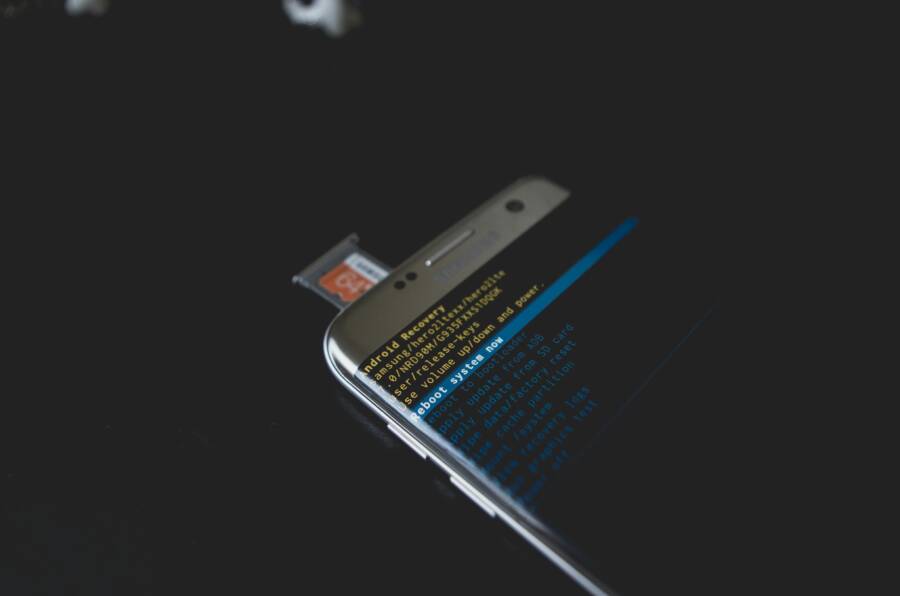
- Observe Safe Mode as a diagnostic tool: Reboot into Safe Mode to disable third-party apps temporarily. If the popup stops in Safe Mode, a nonessential app is likely the offender. Here’s how to get there quickly: press and hold the power button, then tap and hold Power off until you see the option to reboot in Safe Mode.
- Narrow down with a clean slate: Test by using a clean browser profile or a different browser. If the problem disappears, it’s browser-related or tied to a specific site or extension.
- Practical verdict path: Start with the newest or recently updated apps first. If removing those doesn’t fix the issue, move on to browser data and extensions. For more on Safe Mode and problem apps, see Google’s guidance on rebooting to safe mode and identifying noisy apps. Find problem apps by rebooting to safe mode on Android.
Links for quick reference:
- Find problem apps by rebooting to safe mode on Android
- Block or allow pop-ups in Chrome – Android
- What are browser hijackers? Removal + prevention tips
Clear browser data and block notifications
Many popups come from the browser itself or from sites that push notifications. Clearing data and tightening site permissions can stop most of the noise in minutes.
- Clear browser data on major Android browsers:
- Chrome: Open Chrome > Menu > Settings > Privacy and security > Clear browsing data. Choose a time range and clear cookies, cached images and files, and optionally site data. Clearing data may log you out of sites, but it resets misbehaving connections.
- Other popular browsers (Firefox, Samsung Internet, Edge): Access Settings within each app and locate Privacy or History sections to clear cache, cookies, and site data.
- Block suspicious sites and push notifications:
- In Chrome, go to Settings > Site settings > Notifications. Review the sites allowed to show notifications and remove any you don’t recognize.
- Do the same for other browsers by looking for a “Notifications” option under Site settings or Privacy.
- If a site keeps pestering you with push notifications, block it permanently and consider reporting or removing permissions for that site.
- Quick cache reset as a helper:
- Clearing the cache can resolve loading glitches that trigger weird popups. It won’t affect saved passwords but may log you out of sites, so be ready to sign back in.
- A quick note on protections:
- After clearing data, avoid re-enabling problematic sites or extensions. Use reputable sites and trusted extensions from the official stores.
- Handy reference for Chrome and more:
- Block or allow pop-ups in Chrome – Android
- Remove unwanted ads, pop-ups & malware – Android
External references for deeper reading:
- Remove unwanted ads, pop-ups & malware – Android
- Block or allow pop-ups in Chrome – Android
- How to Stop Chrome Browser popup notifications on your Android
Use Safe Mode to disable suspicious apps
Safe Mode is a powerful, simple test to separate system functions from third-party interference. When you boot into Safe Mode, only core Android services and preinstalled apps run. If the popup issue vanishes, you’ve likely found a rogue app or extension.
- How to boot into Safe Mode:
- Most devices: press and hold the Power button, then tap and hold Power off until you see the Safe Mode prompt. Confirm to restart in Safe Mode.
- If your device has a different method, check your model’s official guidance. Safe Mode removes widgets, so you may want to screenshot your home screen first to restore layout afterward.
- What to expect and how to test:
- While in Safe Mode, use your device normally and monitor whether the popups return. If the behavior stops, it’s a third-party app problem.
- Exit Safe Mode by restarting the device; it returns to normal mode with all apps available again.
- Next steps after Safe Mode confirms a culprit:
- Reboot back to normal mode and uninstall recently added or updated apps one by one. After removing each app, restart the device and test for the popup behavior.
- If you removed an app and the problem persists, also consider clearing browser data and checking site permissions, as the culprit may be browser-based rather than app-based.
- Cautions and preparation:
- Back up important data before removing apps, especially if they hold local data you care about.
- If data loss seems possible, pause large removals and consult a trusted guide or support resource for your device.
Useful safety references:
- Find problem apps by rebooting to safe mode on Android
- Turn off this Android setting now (App Permissions)
- How to Remove Unwanted Pop Up Ads & Malware on your Android device
Engaging readers with practical steps:
- A common scenario: you notice a sudden flood of full-screen ads after installing a new game. In Safe Mode, you confirm the ads disappear. You return to normal mode, uninstall the game, and the problem is gone. This kind of scenario shows how quickly a single culprit can disrupt your day, and how a quick Safe Mode test helps you act with confidence.
If you want more in-depth guidance on Safe Mode and app management, official Android help and reputable security guides offer straightforward routines you can follow without technical jargon. For example, Google’s safety resources include steps to reboot into Safe Mode and identify problematic apps, which complements the steps above. Find problem apps by rebooting to safe mode on Android.
Fast fixes for iPhone users
If you’re seeing random popups on your iPhone, you’re not imagining things. A quick tune-up can cut down interruptions and restore a calmer browsing experience. This section focuses on fast, practical steps you can take right away. Think of it as a targeted sprint to reclaim control of your smartphone without digging through every setting. You’ll start with Safari specific tweaks, then move to data cleanup, and finally check for apps or profiles that might be pushing ads.
Block pop ups in Safari and tighten settings
Safari on iPhone includes built in protections, but they work best when you turn them on and keep an eye on site permissions. Start here to reduce intrusive popups and suspicious prompts.
- Turn on blocking and warnings:
- Go to Settings > Safari.
- Enable Block Pop-ups. This prevents most full screen and banner popups from appearing.
- Turn on Fraudulent Website Warning. This helps flag deceptive sites before you interact with them.
- Refine privacy and site data:
- In the same Settings > Safari area, tap Advanced > Website Data and choose Remove All Website Data for a clean slate. This clears cached data that can feed persistent popups and redirects.
- If you want a lighter reset, you can also remove data from individual sites rather than all at once.
- Quick verification and ongoing protection:
- After making these changes, test a few sites to confirm popups are reduced. If you still see aggressive prompts, consider clearing Safari history as well. Learn more about how to block pop-ups in Safari from Apple’s official guide: Block pop-up ads and windows in Safari.
Tip: a quick scan for suspicious sites is smart. If a site keeps prompting you despite the settings, avoid it and consider clearing its data in Safari and blocking it in Site Settings.
Clear history and data and review notifications
A large chunk of random popups come from cached data and push notifications that you didn’t fully revoke. Clearing these leftovers and tightening notifications can make the phone feel fresher in minutes.
- Clear Safari data to reset the browser state:
- Go to Settings > Safari.
- Tap Clear History and Website Data. This removes cookies and cached content that can trigger odd behavior, while logging you out of sites.
- Review and tighten app notifications:
- Open Settings > Notifications.
- Scroll through the list and disable notifications for apps that seem suspicious or rarely used. If something looks unfamiliar, turn it off.
- Review ongoing app behavior:
- After you adjust notifications, use your iPhone normally for a bit. If popups drop dramatically, you’ve likely isolated the culprit to push alerts or outdated site data.
- For a deeper dive on Safari data management and notifications, see Apple’s guidance on deleting history and data: Delete your Safari history, cache, and cookies on iPhone.
takeaway: clearing data and fine tuning notifications works wonders. It’s a simple reset that often stops many random popups and leaves your device feeling lighter.
Uninstall suspicious apps and check for profile installs
Some popups originate from apps that were added recently or from configuration profiles that push ads. A quick sweep can remove the offender and restore trust in what your iPhone shows you.
- Remove recently installed apps:
- Long press the app icon and choose to delete. If you’re unsure which one caused the issue, start with apps installed around the time the popups began.
- After removing an app, restart the iPhone and see if the behavior returns.
- Check for configuration or device management profiles:
- Go to Settings > General > VPN & Device Management (or Profiles & Device Management on older iOS versions).
- If you see a profile you don’t recognize, tap it and choose Remove Profile. This can stop ad networks from pushing prompts through the system.
- Keep it simple:
- If you’re unsure about a profile, search for the profile name online before removing it. If it’s legitimate, you’ll find official guidance. If it’s unfamiliar or suspicious, removing it is a safe bet.
- When to escalate:
- If removing apps and profiles doesn’t fix the issue, consider contacting Apple Support or visiting an Apple Store for a deeper check.
For reference on blocking pop ups and reviewing Safari settings, Apple’s official Help Center provides direct steps: Block pop-ups in Safari on iPhone.
Pro tip: keeping an eye on recent changes to your device helps catch new ad networks early. A quick audit now prevents bigger headaches later.
External resources and further reading:
- Block pop-ups in Safari on iPhone: https://support.apple.com/guide/iphone/block-pop-ups-ipha49a83ae8/ios
- Delete your Safari history, cache, and cookies on iPhone: https://support.apple.com/en-us/105082
- What to do if you see persistent popups after a new app: https://www.mcafee.com/blogs/tips-tricks/a-guide-to-remove-malware-from-your-iphone/
This three-pronged approach—tackling Safari, cleaning data and notifications, and auditing apps or profiles—offers a fast, practical route to quieter iPhone use. In the next part, you’ll learn how to keep this momentum going with smarter habits and ongoing protection, so your smartphone stays fast and private.
Long term prevention and best practices
Keeping popups from hijacking your smartphone is a daily discipline, not a one-time fix. The goal is to build defenses that work in the background, so you can browse, message, and multitask without constant interruptions. This section covers long term habits that prevent popups, protect your data, and keep your device running smoothly. Think of it as a lightweight, repeatable safety routine you can stick with for months to come.
Install only trusted apps and review permissions
Choose apps from official stores and read reviews before installing. Trusted stores have review systems and screening processes that weed out questionable software, but you still need to do a quick check on permissions.
- How to pick safe apps: Prefer apps with a strong download history, consistent update cadence, and a solid rating from many users. When you’re unsure, look for independent security guidance about the app or developer.
- Review requested permissions: After installation, open the app’s settings and scan what it can access. Be wary of apps asking for overlay, notifications, or access to data you don’t need for the app’s core function.
- Common risky permissions to revoke if not needed: Drawing over other apps, access to notifications, location, microphone, camera, and broad storage. Regularly audit permissions by app.
- Quick checks you can do now: Inspect recent updates, test whether the issue follows a specific app, and run a cleanup if you suspect adware or intrusive extensions. For a solid reference on why app permissions matter and how to manage them, see guidance on understanding app permissions. Understanding App Permissions
Tip: If you discover a suspicious permission, revoke it and observe whether the behavior changes. A careful permission audit is a simple but powerful safeguard.
Use ad blocking DNS and security apps
Blocking ads and trackers at the network level reduces the chance of rogue popups showing up across apps and browsers. Rely on reputable DNS services and security tools that focus on privacy without slowing you down.
- Safe DNS options: Ad-blocking DNS services can filter out ad networks and known trackers before they load. Examples include AdGuard DNS and similar providers. These work across apps and browsers without needing rooting.
- Reputable security apps: Look for security suites that scan for adware and block suspicious domains, while being mindful of performance impact.
- How to set Private DNS on Android: Go to Settings > Network & Internet > Private DNS and select a provider like dns.adguard.com or another trusted option. This hooks the DNS lookup to a privacy-friendly filter.
- iPhone compatibility note: Ad blocking and DNS options exist, but the effectiveness and setup can vary by platform. Some solutions work best on iOS, while others pair with browser extensions for Safari. If you’re curious, try AdGuard DNS or reputable ad blockers available for iPhone.
- Helpful reads and options: AdGuard DNS, Blokada, and similar tools are commonly recommended for blocking ads and trackers. See the AdGuard DNS overview for more details. AdGuard DNS — ad-blocking DNS server and AdGuard DNS
- For perspective on iOS and Android compatibility, consider trusted reviews and setup guides from reputable sources. A practical overview for blocking pop ups and ads on mobile includes official guidance and user-tested solutions. Block pop-ups in Safari on iPhone
- Reader note: if you want a quick overview of popular ad blockers, you can explore App Store listings or reputable security sites to compare features and privacy promises.
Create a simple maintenance routine
A monthly maintenance routine keeps your device clean and calm. Short, repeatable steps reduce the risk of hidden issues piling up.
- Monthly mini-checklist:
- Review installed apps and revoke unnecessary permissions.
- Clear browser data and cache to reduce tracking and stale data.
- Update the OS and apps to patch known vulnerabilities.
- Review notification settings and disable unneeded alerts.
- Run a quick scan with a security app if available.
- Why this matters: Regular checks catch new permissions, suspicious behavior, or updates that might introduce adware or prompts. A steady routine is easier than chasing problems after they escalate.
- Quick reading on monthly checks: Simple Android security checks you can perform every month provide a template you can adapt to your device. Simple Android security checks everyone should do monthly
Back up data and know when to reset
A solid backup plan protects you from data loss during cleanup or a factory reset. Having a recovery plan makes it easier to restore important content after any drastic action.
- Backup options:
- Cloud backups: Sync photos, contacts, messages, and app data to your preferred cloud service.
- Local backups: Keep a physical copy on a computer or external drive for extra safety.
- Factory reset readiness:
- Know when a reset is warranted. If popups persist despite removing suspect apps, clearing browser data, and updating software, a reset can help. Prepare by backing up essential data first.
- Post-reset restore: After a reset, restore your data from the backups you created and reinstall only trusted apps. Keep a careful eye on permissions during reinstallation.
- Quick reference for backing up:
- Android back up data to your Google account and local storage. Learn more about backing up and restoring your Android data. Back up or restore data on your Android device
- For a broader backup guide across devices, see reputable sources that walk through cloud and local options. Phone Backup Guide: How to Backup Your Phone (2024)
- Why it matters: a reliable backup is your safety net. It lets you restore photos, messages, and essential settings with minimal downtime.
- Quick action: set a reminder to perform a monthly backup, then test the restore process from one of your saved backups to confirm it works.
- Extra reassurance: a clean, prepped reset can remove stubborn adware or profile-based prompts that survive other cleanup steps. If you plan a reset, you’ll find step-by-step guidance in trusted backup resources. Back up Android data and restore it
By instilling these long term practices, you fortify your smartphone against the persistent push of popups. You’ll reduce risks, save time, and keep your device focused on what matters most. For continued learning and practical reading, explore reputable sources about safe app permissions and ongoing protection, which supplement the habits outlined here. What to do if you see persistent popups after a new app
When to seek help and how to recover data
Data loss from persistent popups and adware can feel daunting, but you don’t have to face it alone. This section walks you through practical signs that you should seek expert help, plus clear paths to recover your data if a reset or cleanup becomes necessary. You’ll learn when to call a technician, what a professional can do for you, and how to restore your important files with confidence.
 Photo by Kelvin Valerio — https://www.pexels.com/@kelvin809
Backup strategies for safety
Before you make any drastic moves, establish reliable backups for photos, contacts, messages, and apps. A solid backup plan minimizes downtime and protects your data if you need a reset. Start with a simple routine you can repeat monthly.
- Photos and videos: Use cloud photo libraries like iCloud, Google Photos, or similar services. Enable automatic backups so new media lands in the cloud without manual effort.
- Contacts and messages: Ensure contact data is synced to the cloud. Most platforms offer messaging backups that can be restored on a new device.
- Apps and app data: For apps with local data, check whether your cloud account can restore settings and progress. Some apps store data in their own cloud, others rely on device backups.
- Cloud backups versus local backups:
- Cloud backups provide easy access across devices but rely on internet connectivity.
- Local backups to a computer offer a quick offline restore and a secondary layer of protection.
- Test restores regularly:
- Perform a quick restore every few months to verify your backups work.
- Check photos, contacts, and key messages on a different device to confirm data integrity.
- Handy resources:
- iPhone backups to iCloud or computer. See: Backup methods for iPhone or iPad. https://support.apple.com/en-us/108771
- Android backups to Google Account. See: Back up or restore data on your Android device. https://support.google.com/android/answer/2819582?hl=en
- General backup guidance for phones. https://www.hp.com/us-en/shop/tech-takes/how-to-backup-your-phone
Guidance for when to reset or contact support
When popups persist, a reset can be a powerful tool, but it also risks data loss. Use the criteria below to decide if a reset is warranted and when to reach out to the device maker or your carrier. A quick pre-reset checklist helps minimize data loss and downtime.
- When to reset:
- After trying targeted cleanups (removing suspect apps, clearing browser data, updating software) and the issue remains.
- After a malware or adware infection that blocks normal app performance or security settings.
- When the device behaves unpredictably across apps and sites, and you cannot isolate a single culprit.
- When to contact support:
- If you suspect the problem is hardware related, or if your device is under warranty and the issue recurs after a reset.
- If you rely on carrier diagnostics or insured repair plans for more complex data recovery needs.
- If your data backup has gaps or you’re unsure how to restore safely.
- Quick pre-reset checklist:
- Back up essential data (photos, contacts, messages) to cloud and local storage.
- Note down essential app credentials and configure two-factor authentication where possible.
- Sign out of accounts you don’t need during the reset to minimize post-reset friction.
- Disable unnecessary notifications and unregister any rogue device profiles.
- If you must reset, choose a conservative option first (e.g., a data reset that keeps user files intact) and only perform a full factory reset if necessary.
- When to seek professional guidance:
- If you depend on unique app data that isn’t easily backed up.
- If you see repeated malware indicators after resets or suspect a firmware issue.
- If you want a clean sweep with expert verification for security.
External resources offering guidance on reset decisions and professional help:
- How to reset your Android device and what you need to know beforehand. https://www.android.com/intl/en_in/articles/how-to-reset-android-device/
- How I removed persistent adware pop-ups from Android without a factory reset. https://dev.to/mustafaelhelbawy/how-i-removed-persistent-adware-pop-ups-from-my-samsung-phone-without-a-factory-reset-1g5p
What a pro can do for you
A technician brings a focused set of tools to remove stubborn adware, scan for deep malware, and secure the device. Remote support can save time and protect your data by guiding you through safe steps without exposing your device to new risks.
- Remove stubborn adware and malicious extensions:
- A technician can identify hidden apps or browser extensions that standard cleaning misses.
- They can guide or perform safe removal and help ensure no remnants remain.
- Deep malware checks:
- Comprehensive scans can detect rootkits or low-profile infections that typical cleaners miss.
- They can verify the integrity of the operating system and restore legitimate system components.
- Device hardening and secure setup:
- After cleanup, a pro can help reconfigure permissions, install trusted security apps, and set up a stronger defense posture.
- Remote diagnostic steps can confirm that settings are correct and data is protected.
- Why remote support helps:
- Real-time guidance reduces the chance of data loss during fixes.
- A professional can adapt steps to your device model and OS version for accuracy.
- When to consider in-person help:
- If the device shows hardware symptoms or you need hands-on assistance with data extraction.
- If you lack a reliable backup and want a careful recovery plan.
External reading on data recovery and professional help:
- Remote Virus Removal Services | Online Malware Cleanup. https://geeksoncommand.com/computer-repair/virus-removal-service/
- How to remove adware from an Android device. https://comparitech.com/antivirus/remove-adware-android/
- How to perform mobile data recovery. https://www.acronis.com/en/blog/posts/how-to-perform-mobile-data-recovery/
This section gives you a practical framework for deciding when to reset, when to call for support, and how a pro can safely recover data while preserving your privacy and speed.
Conclusion
Most random pop ups on Android and iPhone can be stopped with a calm, methodical cleanup of apps, browser data, and notifications. Start with the easiest fixes, like removing suspicious apps and tightening browser and site permissions, then move to Safe Mode or reset if the noise continues. Build simple habits that keep your smartphone clean: review app permissions monthly, clear cache and browsing data, and use trusted security tools. If you need a helping hand, a professional can handle stubborn adware and ensure your device stays private and fast. Ready to get control back now by tackling the simplest fix first and progressing as needed.