Thousands of People Were Struggling With Money Until They Discovered This One Ancient Secret Hidden in Sound
>>> Unlock It Now <<<

Have you ever missed an alert because your phone only shows notifications after you unlock it? This common issue can feel frustrating, but the fix is usually straightforward. In this guide we’ll walk you through quick checks for both Android and iPhone so you can get alerts as soon as they arrive.
First, we’ll look at how battery and background activity can stall alerts. Deep sleep modes, adaptive battery, or app limits can keep notifications quiet until you wake the device. We’ll cover simple steps to whitelist apps, adjust background activity, and verify each app’s notification settings.
Next, we’ll review lock screen and Do Not Disturb settings that hide alerts until unlock. You’ll learn where to enable visible alerts on the lock screen, how to disable restrictive modes, and how to test notifications with a couple of quick sends. This plan helps you pinpoint the source and fix it fast, so your smartphone stays responsive across both Android and iPhone.
Check the basics: lock screen and Do Not Disturb settings
Before diving into app specifics, confirm your lock screen and DND settings aren’t quietly hiding alerts. This section covers where these controls live on Android and iPhone, what to choose (show content vs hide content), and how changes impact all apps. A quick test at the end lets you verify the changes took effect.
She Pressed Play on a Strange Audio Track and Within Days Her Financial Reality Started Shifting in Ways She Could Not Explain
>>> See How It Works <<<

Verify global lock screen notification content is allowed
On both Android and iPhone, the content of lock screen notifications can be restricted or shown in full. If you want every alert to appear with details, you need to enable show content on the lock screen; if privacy is a concern, hide content and show only the banner or icon.
- Android: Open Settings > Notifications > Lock screen. Choose between:
- Show content: Displays message details on the lock screen.
- Hide content: Keeps previews private until you unlock.
- Tweak per-app display here as well if you see a list of apps. If you want certain sensitive apps to stay private, set them to hide content.
- Test: Have someone send a message to a chat app while the phone is locked. If you chose “Show content,” you should see the message text on the lock screen. If you chose “Hide content,” you should see only the app name or icon.
- iPhone: Go to Settings > Notifications and select an app to adjust its lock screen behavior. Look for options like Show Previews:
- Always shows previews on the lock screen
- When Unlocked shows previews only when the device is unlocked
- Never hides previews on the lock screen
- Global setting impact: In iOS, there is also a Focus or Do Not Disturb control that can override per-app choices. For a blanket test, trigger a notification while the phone is asleep and locked to observe whether previews appear.
Test tip: After you adjust, lock your device and ask a friend to send a message or email. If you see content on Android or previews on iPhone, the setting is working. If not, revisit the steps or check for an OS-wide focus/lock screen rule that might override app-specific choices.
- Helpful references:
- Android lock screen notification control: https://support.google.com/android/answer/9079661?hl=en
- iPhone notification content controls: https://support.apple.com/guide/iphone/change-notification-settings-iph7c3d96bab/ios
Image: A smartphone screen showing a lock screen with notifications in clear detail. Photo credit: Photo by Noah Erickson
Review Do Not Disturb and app exceptions
Do Not Disturb (DND) can silence lock screen banners or feeds, even if you’ve enabled other notification settings. The key is to place exceptions for essential apps so they can still push alerts.
- Android:
- Open Settings > Sound & notification > Do Not Disturb.
- Choose a schedule or manual mode, then add exceptions for apps you want to break through.
- Tip: Add messaging, email, and calendar apps as exceptions to ensure critical alerts come through even when DND is active.
- Quick test: Put the phone in DND and send a test message from a trusted app to confirm the exception works.
- iPhone:
- Open Settings > Focus (or Do Not Disturb in older iOS versions).
- Create a Focus or edit an existing one, then select People and Apps allowed to notify during that Focus.
- You can allow calls or messages from favorites or specific groups, and you can allow notifications from certain apps to break through.
- Quick test: Enable a Focus, then send test alerts from allowed vs disallowed apps to verify behavior.
- Quick checks for both OS families:
- Confirm that DND or Focus modes aren’t turned on in the background when you expect alerts.
- Ensure per-app exceptions exist for the most critical apps.
- After changes, perform a controlled test by sending a few test notifications from different apps.
- Quick references:
- iPhone Focus and DND settings: https://support.apple.com/en-us/105112
- Android Do Not Disturb with exceptions: https://www.zdnet.com/article/how-to-add-exceptions-to-do-not-disturb-on-android/
Image: A phone showing the Focus/Do Not Disturb screen with exception lists. Photo credit: Photo by Noah Erickson
Inspect per‑app notification settings
Individual apps may override global rules. Check each affected app to confirm it has permission to post on the lock screen and that the correct notification style is enabled.
- Messaging apps (e.g., Messages, WhatsApp): Ensure notifications are allowed and lock screen display is on where available. If an app can post on the lock screen, you’ll see message previews or banners with details rather than a silent alert.
- Email apps (e.g., Gmail, Outlook): Turn on notifications and enable lock screen display so urgent messages appear as soon as they arrive.
- Social and utility apps: Some may offer in-app notification controls that override system settings. Review within the app’s own settings if you still don’t see alerts on the lock screen.
Steps you’ll take:
- For each affected app, open its notification settings.
- Confirm both “Allow notifications” and “Lock screen display” are enabled if you want visible alerts.
- If an app isn’t showing on the lock screen, recheck the device’s global lock screen setting and DND/Focus status.
- Useful reference:
- Change notification settings on iPhone: https://support.apple.com/guide/iphone/change-notification-settings-iph7c3d96bab/ios
- Android per-app notification controls: https://support.google.com/android/answer/9079661?hl=en
Image: A collage showing Android notification settings and iPhone notification settings side by side. Photo credit: Photo by Noah Erickson
Enable background data and auto start for essential apps
Even with the right on-device settings, some apps stall when they’re paused in the background. Enabling background data and auto start helps ensure timely delivery of alerts.
- Android:
- Settings > Apps & notifications > [App name] > Battery > Unrestricted (or Background activity on) to allow background fetch.
- Also check Settings > Battery > Background restriction for any global rules that might throttle background activity.
- After enabling, test by triggering a notification from the app while the screen is off.
- iPhone:
- Settings > General > Background App Refresh.
- Turn it on for the apps you rely on, and consider enabling Wi-Fi + Cellular data if you use mobile data often.
- For critical apps like messaging and email, keep Background App Refresh on to ensure alerts arrive promptly even when the app isn’t open.
Why this matters: background activity keeps apps quietly checking for new data, so you don’t miss important alerts when you haven’t opened the app recently. If the background feature is off, you may see delays or silence on the lock screen.
- Helpful links:
- What is Background App Refresh and how it works: https://truely.com/blog/what-is-background-app-refresh
- Apple’s guidance on Background App Refresh: https://support.apple.com/en-us/105112
Image: A phone displaying settings screens for background activity on Android and iPhone. Photo credit: Photo by Noah Erickson
End of section: The next part will dive into practical testing steps to confirm all changes are functioning, including a repeatable test sequence you can perform anytime. If you want, I can tailor the testing checklist to your exact phone models and OS versions.
Tackle power management and background activity
Power management is the silent culprit behind notifications that only appear after you unlock. By smoothing out how your phone handles background work, you can keep alerts timely across your apps. This section breaks down practical steps you can take on both Android and iPhone devices. Think of it as a ballast for your smartphone, ensuring critical messages arrive when they should.
Disable battery optimization for affected apps
Battery optimization can throttle or pause apps in the background to save power. Excluding the apps you rely on helps ensure they can fetch data and push notifications without delay.
Android
- Open the Settings app and go to Apps & notifications.
- Choose the specific app, then tap Battery.
- Select Unrestricted or Background activity on to remove the power-saving barrier.
- If your device has a global battery optimization setting, make sure it isn’t restricting background activity for this app.
- Test by sending a notification from the app while the screen is off.
Quick tip: Some devices require you to disable Doze or App Standby for the app as well. You can read more about Android Doze and app standby here to understand how these features affect background activity: https://developer.android.com/training/monitoring-device-state/doze-standby
iPhone
- Open Settings > Battery > Battery Health & Charging (or the app’s own settings if available).
- Ensure the app is allowed to refresh in the background by enabling Background App Refresh for the app in Settings > General > Background App Refresh.
- Return to the app’s notification settings to confirm that lock screen and banner delivery are not blocked.
- Test with a real notification while the device is idle.
For a deeper look at how iOS handles background tasks, see Apple’s guidance on Background App Refresh and related settings: https://support.apple.com/en-us/105112
Why this matters: when an app is restricted, it might not check for new data until you open it. Excluding it from battery optimization keeps push notifications reliable.
Check manufacturer power saving features
OEM power save modes often throttle background work. Knowing the name and how to adjust it helps you decide whether to turn it off or whitelist the affected apps.
- Common names you may encounter
- Samsung Power Saving or Adaptive Battery
- MIUI Battery Saver on Xiaomi devices
- OnePlus Optimized or similar battery management modes
- What to do
- Open the device’s Settings and locate the power or battery section.
- Look for the feature name above and disable it, or whitelist the affected apps.
- If you can’t disable it entirely, switch the app to a “whitelist” or “no restrictions” profile.
- Context and references
- Android developers discuss Doze and App Standby, two built-in power-saving modes that affect all apps on Android 6.0 and newer: https://developer.android.com/training/monitoring-device-state/doze-standby
- For device-specific steps, check your manufacturer’s support pages, such as Samsung Galaxy Battery Optimization guides: https://www.samsung.com/us/support/galaxy-battery/optimization/
- Why this matters: OEM tweaks can quietly mute notifications in the background. If you don’t see alerts until you unlock, power-saving features are a likely factor.
Prevent apps from sleeping in the background
Some devices aggressively stop apps from running in the background. Keeping key apps “awake” avoids delayed notifications.
Android
- In the Apps settings, ensure the app isn’t listed as restricted or sleeping.
- Check Battery settings for any global sleep rules and remove them for the essential apps.
- If your device offers a “pin to memory” or “keep in memory” option, enable it for those apps to prevent them from closing in the recent apps view.
- When possible, keep the screen off testing: trigger a notification and confirm it arrives promptly.
Quick reference on preventing background sleep on Android devices: https://www.androidpolice.com/prevent-apps-from-sleeping-in-the-background-on-android/
iPhone
- iOS manages background activity differently, but ensuring Background App Refresh is on for critical apps helps avoid delays when the app is idle.
- Keep the app allowed to fetch data in the background, especially for messaging and email.
Caveats
- Keeping apps always awake can drain battery faster and may impact device performance.
- Use selective whitelisting for only the apps that truly need it.
Quick check: After enabling, send test notifications from several apps with the screen off to verify behavior.
Helpful context
- Learn how to keep apps running in the background on Android: https://support.google.com/pixelphone/thread/6068458/how-to-keep-apps-running-in-the-background
- For Galaxy users, see guidance on sleeping apps and related settings: https://www.samsung.com/us/support/galaxy-battery/optimization/
Understand wake locks and notification delivery
Wake locks are a tool apps use to stay awake long enough to finish certain tasks. If misused, they can keep the device awake too long or fail to deliver timely notifications.
- What wake locks are in plain terms
- A wake lock prevents the device from going into a deep sleep, letting an app complete urgent work. If wake locks are released too soon or used poorly, notifications can lag or miss the moment.
- How wake locks relate to notifications
- Proper wake lock usage helps ensure a notification arrives when it should, even if the device would normally sleep.
- If an app is allowed to sleep too aggressively, its wake lock may not run long enough to push a notification.
- Practical checks
- Review app behavior during idle times. If you notice delays, verify that the OS isn’t suspending the app too soon.
- Use system tools or developer options to inspect wake lock activity for critical apps.
- Useful reference
- Understanding wake locks in Android and how they affect background tasks: https://www.geeksforgeeks.org/android/understanding-wake-locks-in-android-13/
- Takeaway
- Ensuring the OS allows timely background work is key. If you narrow down to a single app, you can test wake-lock behavior and adjust settings to align with how you use that app.
跨-section note: If you want a tailored, device-specific checklist, I can assemble a testing routine for your exact phone models and OS versions.
External resources for deeper reading and troubleshooting
- Android Doze and App Standby overview: https://developer.android.com/training/monitoring-device-state/doze-standby
- Pixel help on background app behavior: https://support.google.com/pixelphone/thread/6068458/how-to-keep-apps-running-in-the-background
- Galaxy battery optimization guidance: https://www.samsung.com/us/support/galaxy-battery/optimization/
If you’d like, I can tailor this section further to match your target devices or OS versions.
Manage lock screen privacy and display options
Your lock screen is the first line of defense for your privacy and the first window into your notifications. Balancing what you show on the lock screen with how quickly you get alerts can be tricky. In this section, you’ll learn practical, device-friendly ways to control what appears on the lock screen while keeping important notifications accessible. We’ll cover visible content, Always On Display indicators, and strategies to protect sensitive apps without sacrificing timely alerts.
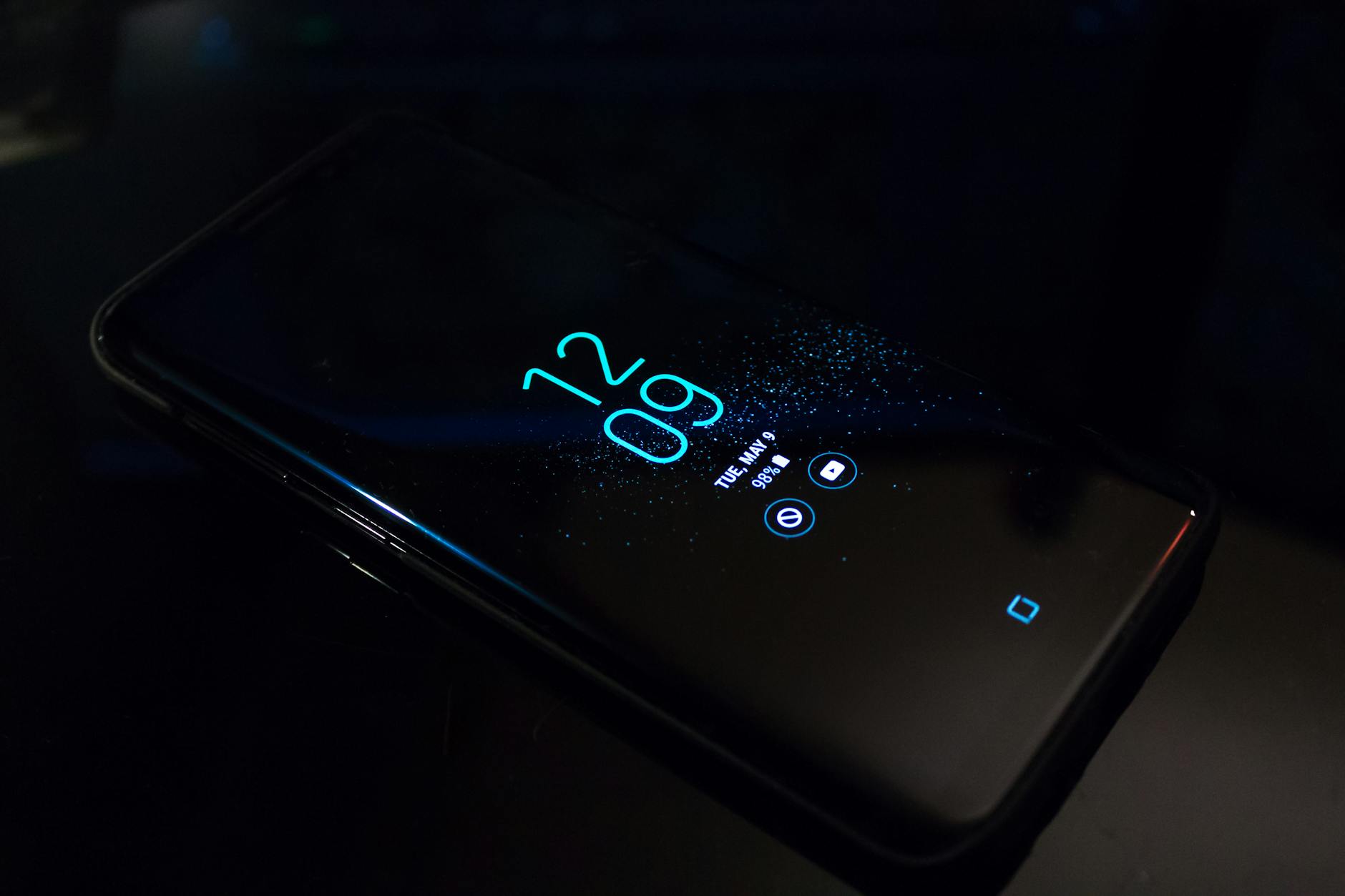 Photo by Noah Erickson
Show notification content on lock screen
Visible content on the lock screen can be convenient but also poses privacy risks. Decide what level of detail you’re comfortable sharing when the phone is locked, and adjust per your privacy needs.
- Android
- Go to Settings > Notifications > Lock screen.
- Choose between Show content or Hide content.
- For sensitive apps, set them to hide content even if other apps show content.
- Test by asking a friend to send a message while the phone is locked. If you chose Show content, you should see the message text; if you chose Hide content, you’ll see only the app name or icon.
- iPhone
- Open Settings > Notifications and pick an app.
- Set Show Previews to Always, When Unlocked, or Never.
- Global Focus or Do Not Disturb can override per-app choices, so test with the device locked.
- Practical tip
- If privacy is your top priority, use a staggered approach: show content for non-sensitive apps and hide content for banking, emails, or messages. This reduces risk while keeping you informed about critical alerts.
- Quick test
- Lock the device and trigger a notification from a few apps. Confirm that the previews or content behave as you expect.
- Helpful references
- Android lock screen notification control: https://support.google.com/android/answer/9079661?hl=en
- Change notification settings on iPhone: https://support.apple.com/guide/iphone/change-notification-settings-iph7c3d96bab/ios
Photo by Noah Erickson
Review Do Not Disturb and app exceptions
Do Not Disturb (DND) or Focus modes can silence lock screen banners even when you’ve allowed other settings. Add exceptions for essential apps so you don’t miss urgent alerts.
- Android
- Settings > Sound & notification > Do Not Disturb.
- Create a schedule or use manual mode, then add per-app exceptions.
- Quick test: Send a message from an allowed app while DND is on to confirm it breaks through.
- iPhone
- Settings > Focus (or Do Not Disturb).
- Create or edit a Focus, then allow specific people and apps to notify during that Focus.
- Quick test: Turn on a Focus and compare alerts from allowed versus disallowed apps.
- Quick checks for both
- Ensure DND/Focus isn’t inadvertently on in the background.
- Verify per-app exceptions cover the most critical apps.
- After changes, run a few test notifications to verify behavior.
- Helpful references
- iPhone Focus and DND settings: https://support.apple.com/en-us/105112
- Android Do Not Disturb with exceptions: https://www.zdnet.com/article/how-to-add-exceptions-to-do-not-disturb-on-android/
Photo by Noah Erickson
Inspect per‑app notification settings
Some apps bypass global rules. Checking each app ensures you don’t miss alerts because of app-specific choices.
- Messaging apps (Messages, WhatsApp): Ensure lock screen display and notification permission are on where available.
- Email apps (Gmail, Outlook): Enable notifications and lock screen display for urgent messages.
- Social and utility apps: Some apps offer in-app controls that override system settings. Check the app’s own notification settings as well.
- Steps to follow
- Open each affected app’s notification settings.
- Confirm both “Allow notifications” and “Lock screen display” are enabled if you want visible alerts.
- If an app isn’t showing on the lock screen, revisit global lock screen and DND/Focus settings.
- Useful references
- Change notification settings on iPhone: https://support.apple.com/guide/iphone/change-notification-settings-iph7c3d96bab/ios
- Android per-app notification controls: https://support.google.com/android/answer/9079661?hl=en
Photo by Noah Erickson
Enable background data and auto start for essential apps
Back-end delays can hide notifications on the lock screen. Allowing background data helps ensure alerts arrive promptly.
Thousands of People Were Struggling With Money Until They Discovered This One Ancient Secret Hidden in Sound
>>> Unlock It Now <<<
- Android
- Settings > Apps & notifications > [App] > Battery > Unrestricted or Background activity on.
- Check any global battery optimization that might throttle background activity.
- Test by triggering a notification with the screen off.
- iPhone
- Settings > General > Background App Refresh.
- Turn it on for the apps you rely on; consider enabling Wi-Fi + Cellular data if you move between networks often.
- Why this matters
- Background activity lets apps fetch updates without opening them, so critical alerts stay timely.
- Helpful links
- What is Background App Refresh and how it works: https://truely.com/blog/what-is-background-app-refresh
- Apple’s guidance on Background App Refresh: https://support.apple.com/en-us/105112
Photo
End of the subsection: The next part will explore practical testing steps to confirm all changes are functioning, including a repeatable test sequence you can perform anytime. If you want, I can tailor the testing checklist to your exact phone models and OS versions.
External references and deeper reading
- Android Doze and App Standby overview: https://developer.android.com/training/monitoring-device-state/doze-standby
- Pixel help on background app behavior: https://support.google.com/pixelphone/thread/6068458/how-to-keep-apps-running-in-the-background
- Galaxy battery optimization guidance: https://www.samsung.com/us/support/galaxy-battery/optimization/
- Android privacy settings and permissions: https://android.com/privacy
Image: A smartphone showing lock screen notification settings on Android and iPhone side by side. Credit: Photo by Noah Erickson
Check network, push services, and app re-registration
A stable network and responsive push services are the backbone of timely notifications. If your phone only shows alerts after unlocking, start with a quick network sanity check and verify that push tokens stay current. This section walks you through ensuring reliable background data, confirming that push services can reach the device, and re-registering tokens when needed. Think of it as a triage for your mobile messaging ecosystem, so you don’t miss important alerts in the future. You’ll test with a simple message to confirm everything works as expected.
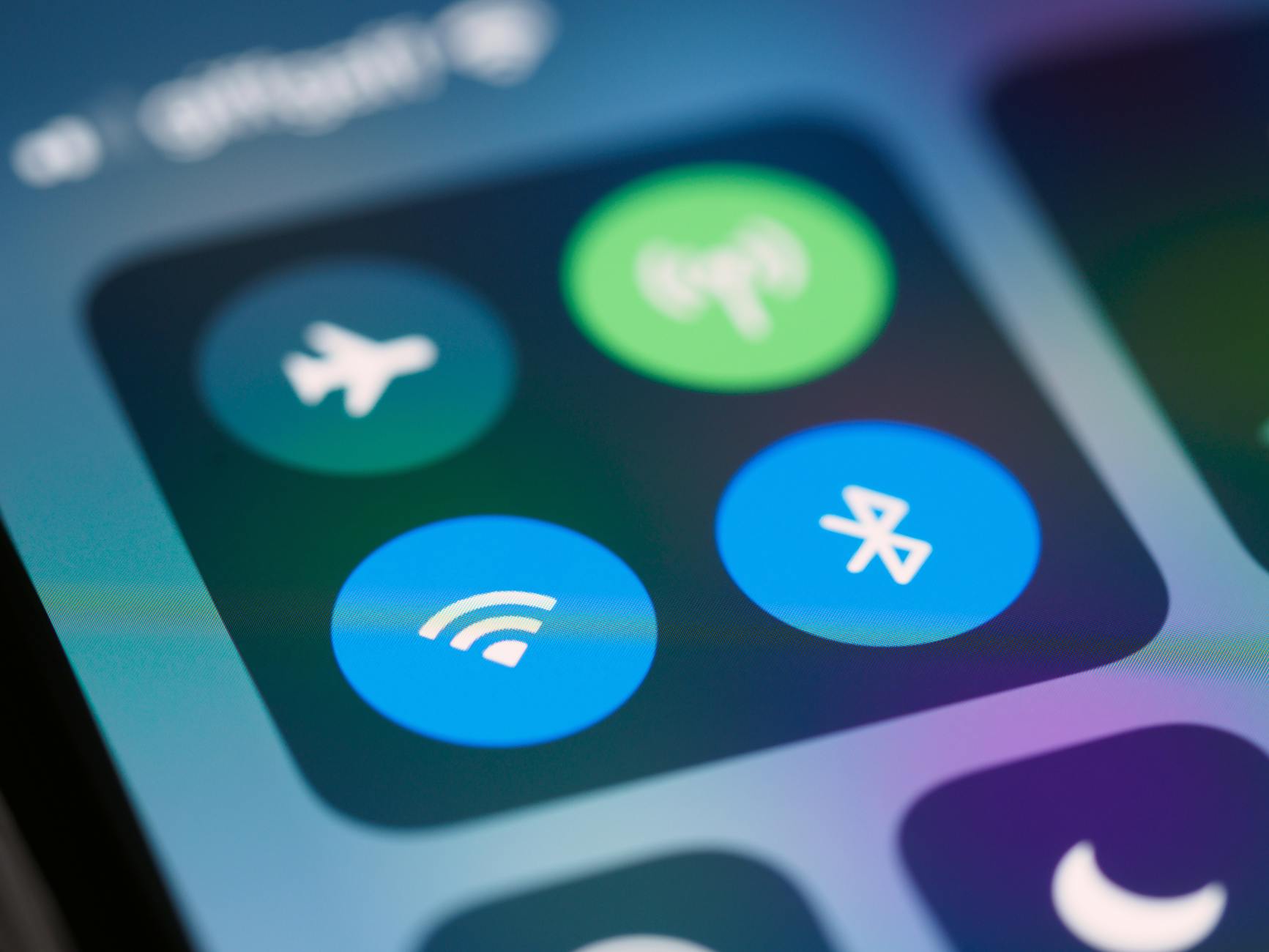 Photo by Brett Jordan
Ensure stable network and background data
Constant background data is essential for push services to wake up and deliver alerts promptly. If a device struggles to maintain a solid connection, or if background data is throttled, you’ll see delays or missed notifications. Here’s how to keep the pipeline clear:
- Check the basics
- Make sure you have a steady data connection, whether Wi-Fi or cellular.
- Verify that data saver or metered connections aren’t blocking background activity for key apps.
- Allow background data for the apps you rely on
- On Android, ensure background data is allowed for the messaging, email, and calendar apps you depend on.
- On iPhone, enable Background App Refresh for these apps so they can fetch updates in the background.
- Test with a simple message
- Have a friend send a quick text or notification from a nonessential app while you keep the phone idle.
- If you see the message on the lock screen or in the notification shade without unlocking, background data is functioning as expected.
Helpful references:
- Android lock screen notification control: https://support.google.com/android/answer/9079661?hl=en
- iPhone notification content controls: https://support.apple.com/guide/iphone/change-notification-settings-iph7c3d96bab/ios
Re register push tokens by reinstalling the app
OS updates can disrupt how an app registers for push tokens. Reinstalling the app forces the system to generate a fresh token and re-subscribe to the correct push channel. This often fixes silent or delayed alerts after a system update.
- Why token registration can fail
- OS changes may invalidate old tokens.
- The app may crash during startup while renewing tokens.
- Permissions or background limits can block token updates.
- Quick how-to for Android
- Uninstall the app from Settings > Apps > [App] > Uninstall.
- Reinstall from the Play Store, open the app, and sign in if required.
- Trigger a test notification to confirm delivery.
- Quick how-to for iPhone
- Long-press the app and choose Remove App or delete from Settings > General > iPhone Storage > [App] > Delete App.
- Reinstall from the App Store, open the app, and complete setup.
- Send a test notification to verify the token is active.
Why this helps: a fresh token aligns the device with the push service, reducing latency and ensuring alerts reach you reliably.
Related resources for deeper reading:
- Best practices for FCM token management: https://firebase.google.com/docs/cloud-messaging/manage-tokens
- Push token management in iOS apps: https://medium.com/@Ilia-/push-notification-token-management-in-ios-apps-a-kotlin-spring-3e09db329d9e
Clear cache, data, or reset app preferences if needed
If you continue to see delays after token re-registration, a clean slate can resolve stale configurations that block notifications.
- When to clear cache or data
- If an app behaves oddly or shows repeated errors related to notifications.
- If you’ve recently updated the app and the UI or settings seem out of sync.
- How to reset app preferences
- This restores system defaults for notification behavior, which can fix overrides that block alerts.
- Use this as a last resort when per-app settings and global controls seem correct but behavior remains inconsistent.
- Quick testing approach
- After clearing cache or data, reopen the app and reconfigure essential notification preferences.
- Send test alerts from multiple apps to ensure consistent behavior across the screen.
External reading you may find useful:
- Best practices for notification token management: https://firebase.google.com/docs/cloud-messaging/manage-tokens
- Why devices may not receive push notifications on Android: https://doc.batch.com/developer/troubleshooting/why-is-my-device-not-receiving-push-notifications-on-android
Image: Background data and token management in action
If you want, I can tailor these steps to your exact phone model and OS version for a precise checklist. The goal is to confirm that your device consistently receives alerts the moment they arrive, without waiting for you to unlock.
Photo by Noah Erickson
End of this section: The next part will dive into practical testing steps to confirm all changes are functioning, including a repeatable test sequence you can perform anytime. If you want, I can tailor the testing checklist to your exact phone models and OS versions.
Quick fixes, testing, and when to seek help
If your phone only shows notifications after you unlock, start with a fast round of checks. These quick wins can fix common culprits without more than a few taps. After each change, test a notification to confirm whether the issue is resolved. When the problem persists, you’ll have a clear path to share with support or a technician. Think of this as a lightweight triage for your smartphone that saves time and frustration.
Try quick wins now
Start with simple, low-effort tweaks. These actions often reset the notification pipeline and reveal whether the problem is app specific or system wide.
- Restart the device. A fresh boot can refresh background processes that control alerts.
- Toggle key settings off and on. For example, switch on/off lock screen display, Do Not Disturb, and background data permissions.
- Test notifications after each change. Send messages from a few apps and check both the lock screen and notification shade.
Concrete steps you can take right away:
- Android: Turn off and then turn on lock screen content, Do Not Disturb, and background activity for the most-used apps. Then test a message from a chat app with the screen locked.
- iPhone: Toggle Show Previews and Focus settings, then send test alerts from messaging and email apps while the device is locked.
- If you’re unsure which change made the difference, revert to the original state and test again one setting at a time.
External references for quick OS guidance:
- Android lock screen notification control: https://support.google.com/android/answer/9079661?hl=en
- Change notification settings on iPhone: https://support.apple.com/guide/iphone/change-notification-settings-iph7c3d96bab/ios
Image: A smartphone screen showing a lock screen with notifications in clear detail. Photo credit: Photo by Noah Erickson
Update the OS and apps
Updates matter for notification delivery. New system and app versions fix bugs, improve background behavior, and tighten privacy controls. Skipping updates can leave gaps that prevent timely alerts.
- Why updates help
- System updates fix security and performance issues that can affect how notifications are processed.
- App updates ensure the latest notification protocols, server tokens, and background fetch methods are in place.
- How to check and install updates
- Android: Settings > About phone > System updates to check for OS updates. If an update is available, follow the on-screen prompts. For apps, open the Google Play Store, go to Updates, and install any pending updates.
- iPhone: Settings > General > Software Update to install the latest iOS version. For apps, open the App Store and update all available apps.
Helpful links for deeper reading:
- Update your device – Android Help: https://support.google.com/android/answer/15728187?hl=en
- Check & update your Android version – Pixel Phone Help: https://support.google.com/pixelphone/answer/7680439?hl=en
- Update iOS on iPhone – Apple Support: https://support.apple.com/guide/iphone/update-ios-iph3e504502/ios
Image: A person updating a smartphone screen with software update prompts. Photo credit: Photo by Noah Erickson
What to gather when you seek help
When you reach out for support, having a clear snapshot of the problem speeds up diagnosis. Prepare a concise brief and a small set of facts readers can share with a technician or support agent.
Pre-contact checklist:
- Device model and current OS version (Android or iPhone)
- Affected apps and their versions
- Exact sequence of steps you tried
- A brief description of the issue, including when it started and any recent changes (updates, new apps, or settings)
- What you’ve tested so far and the results of those tests
What support may need from you:
- Screenshots or short screen recordings showing the behavior
- Timestamps of when notifications appeared and when you unlocked the phone
- A list of all relevant settings you changed during troubleshooting
Quick tip: Create a short note or checklist on your phone and keep it handy for future tech questions. It helps keep conversations productive and focused.
Image: A tidy checklist on a phone screen. Photo credit: Photo by Noah Erickson
Thousands of People Were Struggling With Money Until They Discovered This One Ancient Secret Hidden in Sound
>>> Unlock It Now <<<
External references and deeper reading
- Android Doze and App Standby overview: https://developer.android.com/training/monitoring-device-state/doze-standby
- Pixel help on background app behavior: https://support.google.com/pixelphone/thread/6068458/how-to-keep-apps-running-in-the-background
- Galaxy battery optimization guidance: https://www.samsung.com/us/support/galaxy-battery/optimization/
If you’d like, I can tailor this section further to match your target devices or OS versions.
Conclusion
Fixing notifications that only appear after you unlock is mostly about trimming background limits and tightening lock screen controls. By checking global lock screen content, Do Not Disturb or Focus rules, per app settings, and background data, you can restore timely alerts across your smartphone. If you still see delays, a quick token refresh, a clean app reinstall, or a fresh OS/app update often resolves the issue.
Printable quick-checklist
- Confirm lock screen shows content for non sensitive apps
- Verify Do Not Disturb or Focus has no essential apps blocked
- Enable background data for key apps
- Disable battery optimization for those apps
- Test notifications with the screen off, then on
- Reinstall a troublesome app if needed
- Update OS and apps to the latest version
- Check weather, travel, or other non essential alerts to verify timing
If trouble persists, tell us your device model and OS version so we can tailor a precise fix. Share a quick note with the smartphone you’re using and the exact version of Android or iPhone you have. For ongoing learning, explore related iPro+ tips for smartphone optimization to keep your device running smoothly.
She Pressed Play on a Strange Audio Track and Within Days Her Financial Reality Started Shifting in Ways She Could Not Explain
>>> See How It Works <<<