Thousands of People Were Struggling With Money Until They Discovered This One Ancient Secret Hidden in Sound
>>> Unlock It Now <<<

If Slack messages in direct messages (DMs) don’t arrive on your phone, you miss important conversations. It’s frustrating when a trusted tool stops doing what it’s meant to do. This guide walks you through practical steps to get Slack notifications back on track, whether you’re using iPhone or Android. The goal is simple: fast, reliable alerts for your Slack DMs.
Slack and your phone work as a team. A notification that doesn’t show up can come from settings inside Slack, settings on your device, or a mix of both. Start with the easiest fixes and move to the more involved ones if needed. You’ll find clear steps, quick checks, and tips to prevent this problem in the future.
Quick checks to start now
Before diving into settings, run through a few fast checks. They often fix the issue without changing any apps.
- Confirm you have internet access. A weak cellular signal or unstable Wi Fi can delay or block alerts.
- Make sure Slack is installed on the phone you use most for work. If you use multiple devices, DMs may show on one device and not the other.
- Check your Slack status. If you are set to away or offline, notifications can behave differently.
- Update Slack to the latest version. An older build can miss new notification features or bug fixes.
- Look for a broader phone issue. If other apps aren’t sending alerts either, the problem might be device wide.
If none of these help, it’s time for a deeper look at Slack settings and the phone’s notification system.
There Is a Frequency That the Wealthiest Families Have Used for Generations and Most People Will Never Know It Exists
>>> Open the Door <<<

Check Slack notification settings inside the app
Slack has its own notification controls that often override or complement system settings. A DM notification can be silenced by a workspace setting or a user choice.
- Open Slack and go to Settings. On iOS or Android, find Notifications in the account or workspace menu.
- Verify that Direct messages are enabled for notifications. If you see a mute option for DMs, turn it off.
- Check the alert style. Choose banners or alerts that show up clearly on your screen.
- Confirm sound alerts are enabled if you rely on audio cues.
- Review Do Not Disturb or focus exceptions within Slack. Some DMs can be silenced if DND is on, even when the rest of Slack is functional.
If Slack settings look correct but DMs still don’t appear, move to the device’s notification controls. The app can be allowed to push, but the phone must also permit it.
Confirm device notification settings by operating system
Phone OS controls notifications differently. Review the settings for iOS and Android separately to ensure Slack is allowed to send alerts.
iOS (iPhone)
- Go to Settings > Notifications > Slack.
- Ensure “Allow Notifications” is on and that Alerts are enabled.
- Turn on Sounds and Badges if you want auditory and visual cues.
- Check that your Focus or Do Not Disturb modes aren’t suppressing Slack alerts. If Focus is on, allow Slack as an exception.
- Make sure Background App Refresh is enabled for Slack, so the app can fetch messages in real time.
Android
- Open Settings > Apps > Slack > Notifications.
- Ensure notifications are allowed and not muted for DMs.
- Review any notification channels inside Slack if your device uses granular controls.
- Check Battery or Power Saving modes. Some devices restrict background activity to save power; you may need to whitelist Slack.
- Confirm background data is allowed for Slack so new DMs can be pushed even when the app is not open.
If you find a mismatch between Slack’s in-app settings and the OS settings, sync them. The two layers must cooperate for timely alerts.
Do Not Disturb and Focus modes: the usual suspects
Do Not Disturb or Focus modes are designed to quiet interruptions. They are the usual culprits when Slack DM alerts vanish.
- On iOS: Focus modes can silence Slack unless you add Slack to allowed apps or people. Review each Focus profile and disable it temporarily to test notifications.
- On Android: Do Not Disturb can silence calls and alerts. Some devices also offer “Priority only” lists where Slack may be blocked or allowed by exception.
If you’ve recently turned on DND or Focus while messaging colleagues, disable the mode or add Slack as an exception. A quick test after changing these settings can confirm whether DND was the root cause.
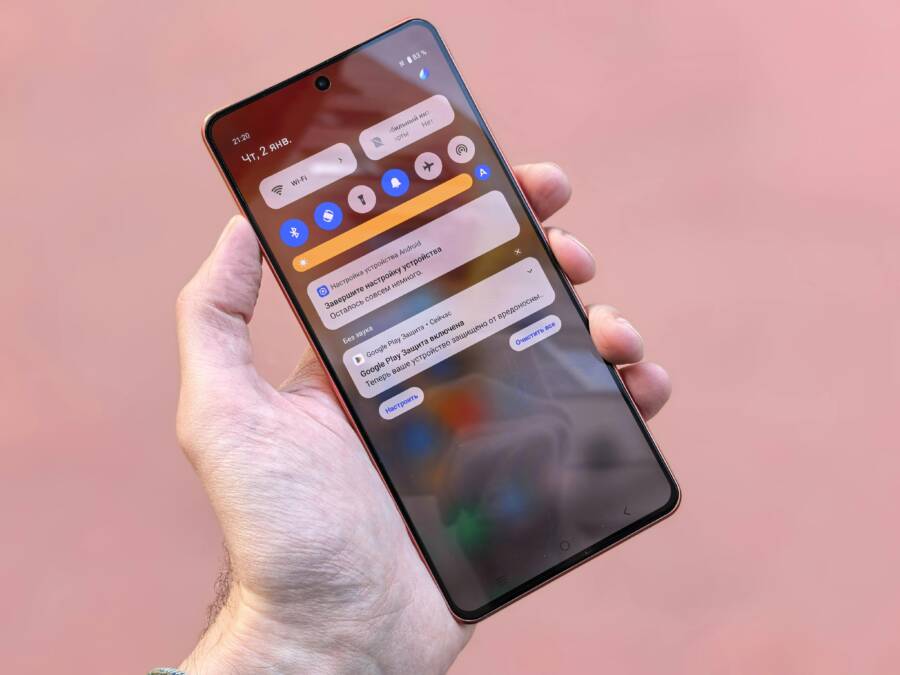
Photo by Daniel Moises Magulado on Pexels shows a phone with a Do Not Disturb setting, a visual reminder of how quiet modes affect alerts.

Photo by Daniel Moises Magulado
Troubleshooting common causes beyond DND
If you’ve verified Slack and OS settings, consider other common blockers that can stop DM notifications from appearing.
There Is a Frequency That the Wealthiest Families Have Used for Generations and Most People Will Never Know It Exists
>>> Open the Door <<<
- Battery optimization on Android. Some devices optimize battery at the OS level and restrict background activity. Set Slack to “Not optimized” or exempt it from battery saver rules.
- Data saver modes. Data limits can throttle background data, delaying messages. Disable data saver for Slack or allow unrestricted data usage.
- App permissions. Slack may need notification access or storage permissions on some devices. Review the app permissions and grant what Slack requires.
- Background refresh or sync. When Slack is not allowed to run in the background, DMs may arrive slowly or not at all. Ensure background refresh is enabled.
- Workspace level notification settings. In Slack, some workspaces allow admins to mute DMs for certain channels or users. Confirm with your workspace owner or admin that DMs are enabled for you.
Take a moment to cross-check each of these areas. Small misconfigurations add up to missed messages.
There Is a Frequency That the Wealthiest Families Have Used for Generations and Most People Will Never Know It Exists
>>> Open the Door <<<
Clearing the path: practical steps you can take now
If the issue persists, try these concrete steps in order. They’re simple and effective for most users.
- Restart the device. A quick reboot clears temporary glitches that can block notifications.
- Update Slack to the latest version. Developers fix bugs and improve compatibility in updates.
- Sign out of Slack and sign back in. This refreshes session data that could be interfering with DMs.
- Reinstall Slack. Remove the app and reinstall from the App Store or Google Play. A clean install can fix stubborn glitches.
- Test with a new DM. Have a friend or colleague send a DM to confirm whether the notification arrives.
If the DM alert still fails after these steps, you should consider deeper checks or reach out for support.
Advanced checks: workspace settings and account status
Slack lets you tailor notifications by workspace. A mismatch here can mask the issue even when personal device settings are correct.
- In Slack, open Preferences > Notifications. Confirm that Direct Messages and mentions are set to the desired level of alert.
- Ensure you haven’t muted the specific conversation. Temporary mutes can silence DMs from certain users.
- Check workspace admin policies. Some admin settings limit or quiet DMs for teams. If you suspect this, contact the workspace admin to review policies.
- Verify your account status. If your account is on hold or there are security flags, notifications might be affected until the issue is resolved.
If you’re unsure how to access workspace preferences, you can typically find them in the Slack app under your profile or the workspace name menu.
When to escalate and seek help
If you have methodically tested all the usual suspects but still don’t get Slack DM alerts, it’s time to escalate.
- Check for OS updates. A system update can fix notification-related bugs.
- Inspect Slack service status. A Slack outage can affect delivery of DMs even if your settings are correct.
- Contact Slack support with a detailed description. Include your device model, OS version, Slack version, and the exact steps you’ve taken.
- Reach out to device support. If other apps have similar notification issues, there might be a device-specific problem.
Documenting your steps helps the support team diagnose the issue more quickly. A concise report saves time for everyone involved.
Preventive habits for reliable Slack notifications
Preventing future missed alerts is easier than fixing them after the fact. Build a routine around these habits.
- Regularly update Slack and your device OS. Updates bring fixes and compatibility improvements.
- Keep a minimal set of active Focus or DND profiles. If you use them often, create a short rule that doesn’t block DM alerts.
- Limit battery saver rules to essential apps. Whitelisting Slack keeps alerts flowing through power-saving modes.
- Periodically review notification settings for Slack. A quick check after major updates helps you stay in sync.
These habits make notification reliability part of your routine rather than a recurring puzzle.
Practical tips and real-world scenarios
- You’re in a meeting with the phone on silent. A DM arrives, but you miss it. After checking, you realize Focus was on and Slack wasn’t allowed as an exception. A simple tweak fixes it for the next time.
- You switch from Android to iPhone during a project. Slack notifications behave differently on the two devices. A side-by-side check of OS settings ensures consistency across devices.
- A teammate sends an urgent DM during off hours. Your phone is in low-power mode. Whitelisting Slack or allowing background activity ensures you don’t miss critical messages.
In each scenario, the fix is the same: align Slack’s internal alerts with your phone’s notification system.
Conclusion: a reliable path to steady Slack DMs
Missed Slack DMs are more than an annoyance. They can slow decisions and disrupt teamwork. By starting with quick checks, confirming both Slack and phone settings, and moving through the do-not-disturb and battery controls, you can restore reliable notifications quickly.
Keep Slack updated, review workspace preferences, and maintain a small routine of checks for your device settings. If issues persist after all these steps, don’t hesitate to contact support. A calm, methodical approach usually reveals the root cause and brings back smooth communication.
You deserve alerts that help you stay connected. With these steps, you’ll keep Slack DM notifications running sharply, no matter which phone you use.
What If the Only Thing Between You and the Life You Deserve Is a Hidden Wealth Code Waiting to Be Activated
>>> Open the Door <<<
