If your microphone works on speaker but fails during standard calls, it is likely a software glitch or a blocked primary microphone, not a broken phone. Most users find this issue stems from a minor setting error or accumulated debris rather than permanent hardware damage.
Troubleshooting your smartphone begins with checking for physical obstructions near the primary microphone. Once you rule out dirt or a faulty case, you can address the software settings to restore normal audio performance.
Follow these steps to identify the cause and restore your microphone function.
Understanding Why Your Smartphone Microphone Acts Differently
Modern phones use multiple microphones to handle different tasks. When your microphone works on speaker but fails during a standard call, it usually means the primary microphone is blocked or disabled. A standard call relies on the bottom microphone, while speakerphone mode switches to a secondary or top microphone for better audio pick-up in a room. This design explains why one mode succeeds while the other fails.
Physical Blockages Affecting Internal Hardware
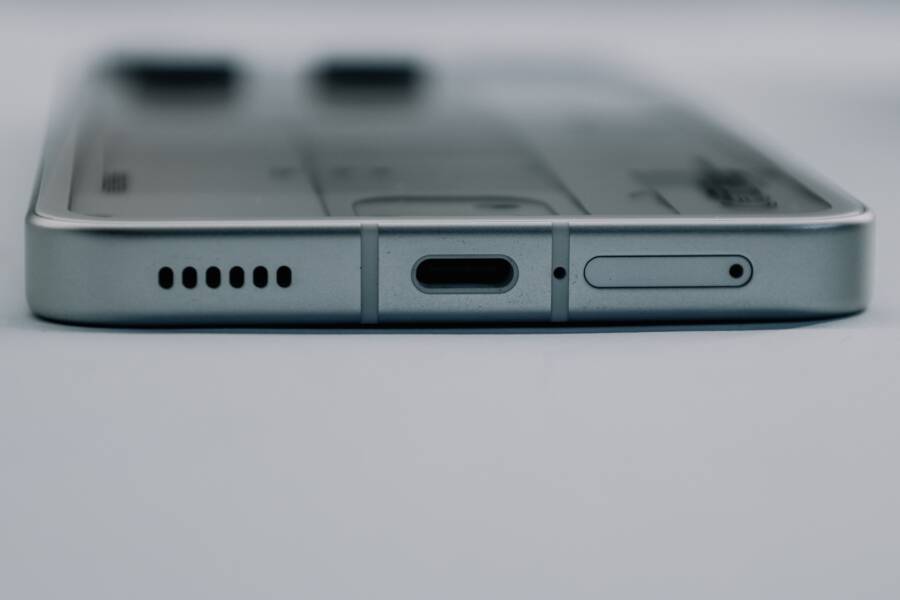
Debris often collects in the primary microphone port located at the bottom of your smartphone. Pocket lint, dust, or small particles can cover the tiny opening. When this hole is obstructed, your voice cannot reach the sensor during a handheld call. Speakerphone avoids this issue because it switches to a separate microphone located near the earpiece or the top of the device.
Check the bottom edge of your device for small holes or mesh covers. If you spot dirt, clean it gently with a soft, dry toothbrush. Avoid inserting needles or metal picks into these ports. Metal tools can puncture the internal moisture seal or damage the delicate microphone membrane. A gentle brush often clears enough dust to restore audio clarity.
Software Glitches and Sensor Conflicts
Your operating system manages which microphone inputs are active based on the app or call mode you choose. Sometimes, a software bug prevents the primary microphone from waking up when you initiate a standard call. This happens if an app has frozen in the background or if your cache files contain errors.
Rebooting your smartphone often forces the system to reset these hardware drivers. If the problem persists after a restart, consider checking the following software areas:
Permission settings for your phone app
Bluetooth connections that might be stealing your audio input
Temporary software conflicts from a recent update
Bluetooth Interference Patterns
Bluetooth devices often disrupt microphone selection without your knowledge. Your phone might still be connected to a pair of wireless earbuds sitting in a bag nearby. Because earbuds use their own microphones, your phone stays silent while waiting for input from the distant device.
Check your Bluetooth menu to see if any headsets are active. Turn off Bluetooth temporarily to confirm if the issue is a connection error. If the microphone works normally after disabling Bluetooth, you know the phone hardware is healthy. The issue is simply a routing conflict between your device and a secondary accessory.
Simple First Steps to Fix Your Microphone Issues
Getting your microphone working again often requires only a few minutes of effort. Most problems occur because of minor physical blockages or temporary system errors. Before you visit a repair shop, try these manual checks to rule out common culprits. You will often find the fix involves nothing more than cleaning your device or adjusting a hidden setting.
Cleaning the Microphone Ports Safely
Dust and pocket lint frequently build up inside the tiny microphone openings at the bottom of your smartphone. When these openings stay clogged, sound cannot travel to the internal sensors. You should clean these ports with care to avoid damaging the delicate hardware.
Follow these steps to clear the area without causing harm to your device:
Locate the primary microphone port on the bottom edge of your smartphone, which is usually a small hole next to the charging port or speaker grille.
Use a soft, dry toothbrush to sweep the area. Apply light pressure and move the bristles in small, circular motions across the opening.
Tilt your device downward while brushing so that any loosened particles fall out rather than pushing further inside.
If you have compressed air, use a very short, light burst from at least six inches away to clear stubborn debris. Do not spray directly into the hole.
Avoid using needles, toothpicks, or paperclips. These items are too sharp and can puncture the moisture-resistant membrane inside the microphone housing.
After you finish cleaning, test the audio again. Many users notice an immediate improvement in call clarity after removing just a small amount of compacted lint.
Testing Your Hardware with Built-in Apps
You need to verify if the hardware itself works before blaming software settings. Your smartphone includes a built-in voice recorder app that serves as an excellent diagnostic tool. By recording clips with different microphones, you can isolate exactly where the signal loss occurs.
Perform these tests to confirm your hardware status:
Open the Voice Recorder or Memo app on your device.
Start a new recording and speak directly into the bottom microphone, which is the one you use for standard calls.
Play the file back at a high volume. If the audio is silent or distorted, the primary microphone likely has a hardware or driver conflict.
Switch to speakerphone mode during a new recording. This forces the device to use the secondary microphone, typically located at the top or near the earpiece.
Record your voice again while speaking toward the top of the phone.
If the bottom microphone recording remains silent while the speakerphone recording is clear, your primary microphone is definitely the source of the trouble. If both recordings fail, the issue might reside in the core audio processing system or a recent software update. Identifying which component fails helps you decide if you need a professional repair or a simple software reset.
Troubleshooting Software Settings and Glitches
When your hardware is physically clean, software errors often prevent the primary microphone from engaging during calls. These issues occur because your smartphone routes audio signals based on specific app permissions and internal system rules. If an app lacks the necessary access or a background process conflicts with your voice input, the microphone might stay dormant. You can often restore functionality by auditing these system settings and clearing out conflicting background operations.
Checking App Permissions for Microphone Access
Your phone relies on a strict permission system to protect your privacy. If the Phone app or a specific communication tool does not have explicit permission to use the microphone, it will default to silence during calls. You must verify these settings to ensure the operating system allows audio input.
Open the Settings app on your device and locate the Apps or Privacy menu.
Select Permission Manager or App Permissions to see a list of features.
Tap on Microphone to view every app installed on your smartphone that requests audio access.
Ensure that the default Phone app and any third-party messaging tools you use are set to Allow or While using the app.
Toggle the permission off and back on if it already appears active, as this sometimes forces a system refresh.
If you find an app that should work but doesn’t, try revoking its access and restarting your device before granting permission again. This simple reset clears out cached permission states that might be stuck in an error loop.
Managing Background Apps and Noise Cancellation
Background software often creates silent conflicts by attempting to seize control of your audio hardware. If you have several communication apps running at once, they may compete for the same microphone signal. This conflict can leave your primary mic disabled while the system switches to the speakerphone hardware to maintain a connection.
Noise cancellation features also trigger issues if they malfunction. These systems use secondary microphones to filter out ambient sound during a call. If the software responsible for this processing glitches, it might misinterpret your voice as background noise and mute the primary input entirely.
You can address these software glitches with the following steps:
Close all unnecessary background applications to stop potential signal hijacking.
Disable advanced noise cancellation settings in your sound or call menu if the issue remains unresolved.
Check for recent operating system updates, as manufacturers frequently release patches for known microphone driver bugs.
Restart your device in Safe Mode to see if a third-party application is the source of the interference.
If the microphone works while in Safe Mode, you know a recently installed app is causing the conflict. Remove your most recent downloads until you identify the specific program responsible for the glitch. Maintaining a clean software environment prevents these types of internal routing errors from disrupting your calls.
Advanced Software Fixes for Persistent Audio Problems
If you have already ruled out physical damage and basic settings, a deeper software conflict might be preventing your microphone from engaging. These persistent audio issues often stem from corrupted system caches or misconfigured network protocols that dictate how your smartphone communicates with cell towers. While these problems feel complex, you can resolve them by resetting specific system parameters.
How to Reset Network Settings Without Losing Data
Resetting network settings is a practical way to force your smartphone to re-establish its connection to cellular and audio services. This action wipes saved Wi-Fi passwords, Bluetooth pairings, and cellular configuration files. It does not erase your photos, apps, or contacts, so your personal data remains safe during the process.
Your device relies on these specific network configurations to manage call routing and audio synchronization. When these files become corrupted, the phone may struggle to activate the primary microphone during standard calls while still allowing the speakerphone mode to function normally. By clearing these files, you allow the system to rebuild its communication protocols from scratch.
Follow these steps to perform the reset on your device:
Open the Settings menu and look for General or System options.
Search for a Reset or Transfer menu.
Select Reset Network Settings.
Enter your passcode when prompted and confirm the action.
Your smartphone will restart automatically after this process. Once it powers back on, you must reconnect to your known Wi-Fi networks and re-pair any Bluetooth accessories you use regularly. This refresh often clears hidden routing conflicts that prevent the microphone from working as expected during handheld calls. If the issue remains after this step, you can be confident that the problem is not a simple misconfiguration of your network settings.
When to Contact a Professional for Repair
You should seek expert help when basic troubleshooting fails to restore your microphone. If you have cleaned the ports, reset your network settings, and verified app permissions without success, a hardware failure is likely. Professionals have the tools to open your smartphone without damaging the internal seals or the screen.
Recognizing Hardware Failure Symptoms
Internal components often fail due to drops, moisture exposure, or age. You can identify potential hardware issues by watching for specific signs during your daily use. If your voice recording tests remain silent in every app, the physical microphone module is often the culprit.
Contact a repair shop if you notice these signs:
The primary microphone works only when you apply firm pressure to the bottom of the device.
You hear persistent static or crackling sounds during recordings even in quiet rooms.
Your phone suffered a recent drop or liquid spill just before the audio problems started.
External microphones, such as those on wired headsets, work perfectly while the built-in one remains completely silent.
Navigating Warranty and Authorized Service
Manufacturer support is your first stop if your smartphone remains under warranty. Authorized service centers provide repairs that maintain your device integrity and water resistance. Attempting an amateur repair on a device covered by a warranty often voids your protection.
Check your warranty status through your manufacturer website or the settings menu on your device. Many companies cover hardware defects at no cost if you have not caused accidental damage. A professional technician can run diagnostic tests to verify if the microphone is a factory defect or a result of external force. This evaluation saves you time and ensures your device receives genuine parts during any necessary replacement.
Assessing Repair Costs Versus Replacement
Professional repairs for a microphone are usually affordable compared to buying a new smartphone. Most shops provide a free estimate after a quick inspection of your hardware. Ask about the turnaround time and the origin of the replacement parts before you commit to the work.
If the cost of the repair exceeds half the value of your device, consider upgrading instead. However, a faulty microphone is a common repair that extends the life of a perfectly functional phone by several years. Choosing a professional repair service is often the most sustainable and cost-effective path when your software tests show a permanent hardware failure.
Conclusion
Most microphone issues on your smartphone are simple software bugs or minor blockages rather than permanent hardware failures. You can often restore audio function by clearing debris from the ports or resetting your device network settings.
These steps allow you to troubleshoot the problem at home before spending money on professional repairs. Most users find that a quick restart or a permission check fixes the error immediately.
If you still experience audio silence after trying these solutions, you should contact a certified repair center. They can test your internal components and verify if a hardware replacement is necessary.