How to Film Q&A Videos on Your Phone: A Practical Beginner Guide
Are you ready to start filming engaging Q A videos with just your smartphone? This guide shows you how to nail the basics quickly, so you can publish confident, clear answers without expensive gear. You’ll learn setup, lighting, audio, and simple editing tips that lift your content from good to great.
If you struggle with shaky footage, muffled sound, or dull visuals, you’re not alone. The problem is not your topic, it’s the setup. With a few practical tweaks, you can transform any room into a capable video studio using only your phone.
By the end, you’ll have a simple, repeatable workflow for planning, recording, and posting Q A videos that feel professional and approachable. Expect practical steps you can try today, plus fast editing and optimization ideas to help your video reach the right audience.
Choose the right setup for your Q A on a phone
Setting up for a Q A on your phone means balancing comfort, credibility, and clarity. The right setup helps your audience focus on your answers, not your surroundings. In this section, you’ll learn practical ways to position your camera, keep the shot stable, and light your speaker for maximum readability. You’ll also find quick pointers tailored to portrait and landscape filming so you can adapt to different platforms.
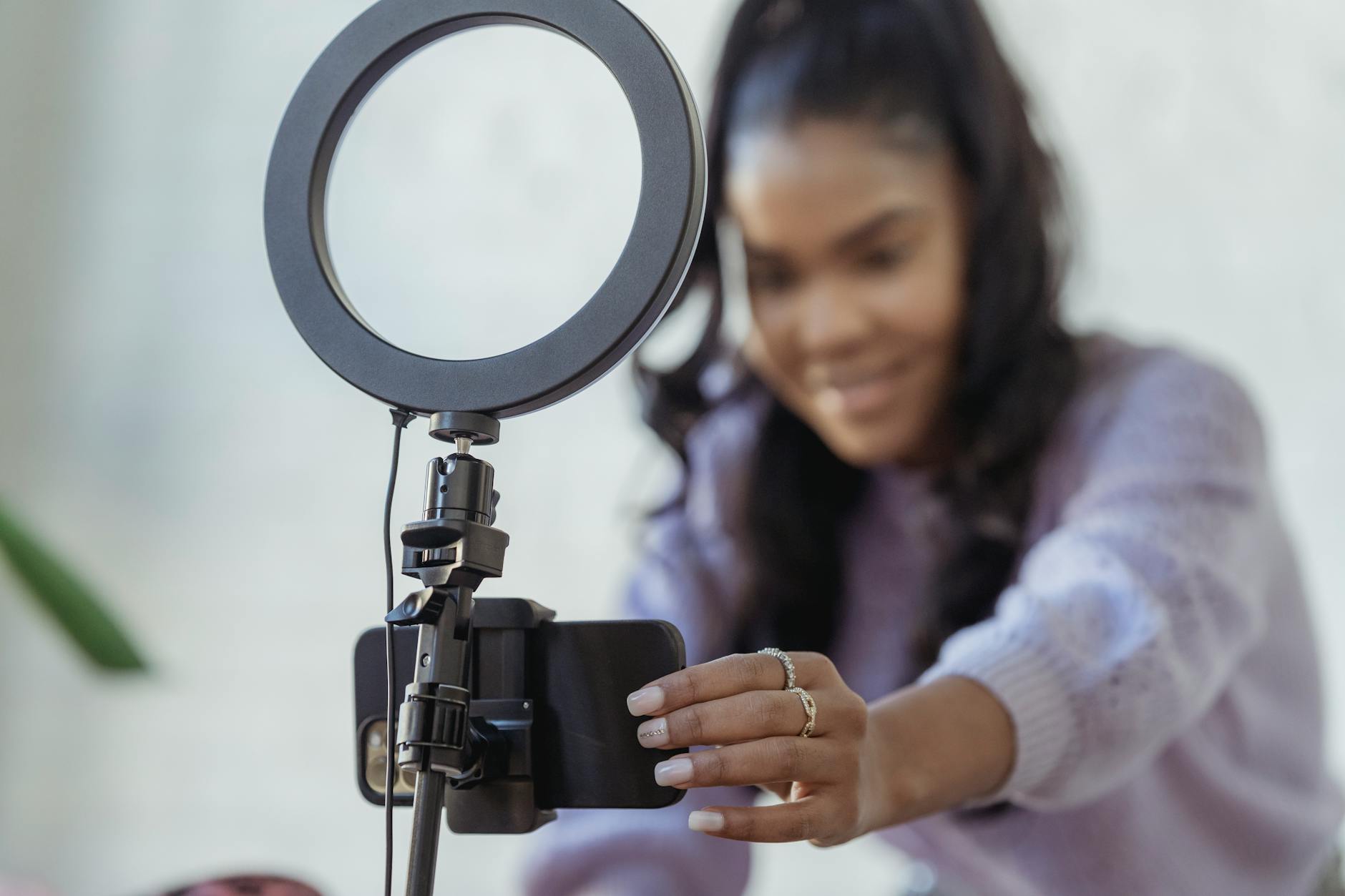 Photo by George Milton
Pick a good camera angle and framing
Eye level positioning helps viewers feel like you’re talking directly to them. Position the lens around your eye line, so your head and shoulders fill the frame without you looking down or up. This creates a natural, engaging connection and reduces the sense that you’re performing for the camera.
The rule of thirds is a simple guide to keep the shot balanced. Imagine two vertical and two horizontal lines dividing the frame into nine equal parts. Place your eyes close to the top horizontal line and toward one of the vertical lines for a more inviting composition. This setup feels natural and professional.
Keep the subject within the frame without crowding. For example, in portrait orientation you want your head, shoulders, and a bit of the upper chest visible, with some space above your head. In landscape orientation, allow space to look toward a potential interviewer or audience that might appear on screen, which helps maintain balance.
A steady shot matters as much as the right angle. If you’re moving toward a conversation, lock into a stable stance first and then gradually adjust your distance to keep your face in the same frame. Backgrounds should be simple and non-distracting. A cluttered backdrop can pull attention away from your answers and reduce perceived credibility.
Quick examples
- Portrait: Hold the phone around 1–2 meters from you, camera at eye level, head and shoulders filling the frame, a bit of space above your head.
- Landscape: Place the camera slightly above eye level, with your eyes around the upper third, more room on the left or right for potential interview prompts off-screen.
Related tips you can apply today
- If you’re filming in a tight space, lean into the rule of thirds by placing you off-center to leave empty space for graphics or lower-thirds.
- Use a neat, uncluttered background: a plain wall, a tidy shelf, or a simple plant can add visual interest without distraction.
- Test a quick 15-second take to ensure your framing feels right in both orientations.
For a deeper dive into the rule of thirds and framing, you can review beginner-friendly guides like “A beginner’s guide to the rule of thirds” and quick framing tips from smartphone videography communities. Here are a few solid resources:
- A beginner’s guide to the rule of thirds
- Tips and tricks on framing for smartphone videos
Stabilize with a tripod or stand
Stability is the backbone of readability and credibility. A steady shot makes your audience feel you are in control and helps them focus on your answers rather than on shaky footage. You don’t need heavy gear to achieve it; simple, affordable options work well.
Try these easy setups
- A small desk stand: Perfect for desk setups or on a table. It’s light, portable, and quick to adjust.
- A mini tripod: A compact option that raises the phone to eye level and steadies while you move slightly to emphasize a point.
- A phone clamp on a regular tripod: If you already own a tripod, add a clamp to secure your phone. This is a budget-friendly way to get solid framing.
Quick setup steps
- Mount the phone on the stand and tighten the clamp.
- Extend the legs to a stable height at eye level.
- Use a Bluetooth remote or timer to start recording, keeping your hands free.
- Check that the shot remains steady during minor head movements.
Why stability matters
- Readability: Clear visuals help viewers read your expressions and cues.
- Credibility: A smooth presentation signals preparation and professionalism.
- Audience retention: Minimal motion keeps viewers engaged for longer.
Budget-friendly tip
- Look for second-hand tripods or multipurpose stands. A small investment now pays off with steady, repeatable setups for future videos.
Optional accessories that can help
- A simple phone clamp with a wide base for stability on smooth surfaces.
- A lightweight ring light or clip-on LED if you’re filming in dim rooms.
If you want a quick visual guide on setting up camera support, you can search for beginner-friendly setup videos and buy guides that show a range of desk stands and mini tripods.
Control lighting for clear faces
Good lighting makes your face easy to read and your tone easy to hear. The best setup places light in front of you, not behind you. Natural light is often the simplest option, but you can recreate it with household items if you don’t have a dedicated setup.
Lighting tips you can apply now
- Place a light source in front of you at roughly head height. This minimizes shadows and reveals facial expressions clearly.
- Use natural light when possible. Sit facing a window so the light falls evenly on your face.
- Avoid harsh backlighting. If a window is behind you, consider drawing a light curtain or turning off the window light to prevent a strong silhouette.
- Diffusion options: a white sheet, a white shower curtain, or a small diffuser can soften harsh shadows. Even a white pillowcase over a desk lamp helps.
- Screen brightness: Turn on screen brightness to improve visibility if you’re filming in a bright room, but avoid glare on the lens.
A simple two-light setup works well for most Q A videos
- Key light: A main light in front and to one side to create gentle depth.
- Fill light: A softer light on the opposite side to reduce shadows.
As you practice, you’ll discover the best angle and brightness for your space. If you’re often filming in the same room, consider investing in a compact LED panel to maintain consistency across videos. For a reliable lighting reference, see guides on front-facing lighting setups and diffusion basics.
Getting the lighting right is easier than it sounds. Start with a single bright, diffuse light in front of you and adjust based on how your face reads on camera. If you publish on multiple platforms, ensure your lighting looks good in both vertical and horizontal formats.
Where to find practical lighting tips
- Front lighting tutorials that explain light placement and diffusion basics
- Quick setup checklists for single-source lighting
Images and visuals can illustrate lighting setups and framing. If you want a quick visual reference for how lighting affects facial features, you can search for simple lighting diagrams and beginner-friendly tutorials.
External resources
- A beginner’s guide to the rule of thirds
- Tips & Tricks on smartphone video framing
Note: The above resources provide helpful background on framing, lighting, and composition that complements this section. They can be useful as reference material when you’re planning your shoot.
In sum, the right setup for your Q A on a phone is about finding a balance between a flattering angle, stable support, and even lighting. With these basics in place, you can deliver clear, confident answers that keep your audience engaged from start to finish.
Sound and environment that keep viewers listening
Clear audio and a calm environment are the invisible gears that keep viewers engaged. If your voice is hard to decipher or the room sounds hollow, even the best questions can fall flat. This section covers practical, repeatable steps to improve sound quality and reduce distractions, so your audience stays focused on your answers. You’ll learn how to choose the right mic, tame room echo, and verify audio before you hit record.
Use an external mic or phone mic best practices
Choosing the right mic can dramatically improve your Q A videos. Here’s a quick comparison and how to get solid results with both phones and simple gear.
- Lapel (lavalier) mic: Small and unobtrusive, it stays close to your mouth for consistent levels. It’s ideal for sit-down Q A sessions where you want minimal on-screen gear. Position the mic about 6–8 inches from your mouth, clipped to the collar or lapel. Keep the clothing fabric from rubbing the microphone to avoid rustling noises. A windscreen is rarely needed indoors, but if you’re near a window or air vent, a small windscreen helps.
- Small handheld mic: Great for moving slightly between answers or emphasizing points. Hold it about 6–12 inches from your mouth; speak toward the top of the microphone for stronger, cleaner pickup. This type works well when you share the frame with an interviewer or when you want a hands-on feel. Outdoors, shield the mic from wind with a foam windscreen.
- Built-in phone mic: It’s convenient but more susceptible to room noise and proximity issues. If you must use it, get close to your mouth (about 6–8 inches) and speak clearly. Use the phone’s built-in noise reduction features if available, and consider a small foam windscreen for outdoor shoots.
Quick setup steps for iOS and Android
- Connect the external mic to your phone and confirm it’s recognized in your camera or recording app.
- Clip or hold the mic in the optimal position (lapel around 6–8 inches from mouth; handheld at 6–12 inches).
- Do a short test recording in your filming location.
- Watch the waveform and listen for consistent levels; adjust distance if needed.
- Enable wind protection outdoors and keep cables tidy to avoid snagging.
If you’re evaluating mics, these sources offer concise comparisons and practical advice worth checking:
- Wireless mics for celebrity interviews: Lavalier vs handheld guides
- How lavalier microphones improve interview audio, even in casual setups
- A buyer guide to wireless microphones for video recording
Remember, the goal is steady, clear voice with minimal handling noise. A small investment in a simple external mic can pay off in every future video.
Reduce echo and background noise
A quiet, controlled space makes a big difference. Here are easy, low-effort room setup tips that make your voice stand out.
- Soft surfaces absorb sound: Use rugs, curtains, cushions, or a thick blanket on hard walls. The more soft textures you introduce, the less echo you’ll hear.
- Turn off fans and air conditioning when possible: Background hum is easy to pick up and can require extra editing later.
- Outdoor quick fix: A cheap foam windscreen helps cut wind noise without muffling your voice.
Practical room ideas
- Use a small, carpeted area or place a rug under your setup to dampen footstep noise and general ambience.
- Hang a thick curtain behind you to cut reflections from the wall and improve vocal clarity.
- Add a portable softbox or a lightweight blanket draped over a chair when filming in a sparse room.
For those who film outside occasionally, a simple foam windscreen on the microphone is a quick lifesaver. It doesn’t require a lot of setup and it reduces wind gusts that can overwhelm your voice.
If you want quick visual guidance on sound treatment and setup ideas, you can explore beginner-friendly content about diffusion basics and practical room treatments. These resources can help you tailor a space that fits your room size and budget.
External resources to consider
- Front lighting tutorials and diffusion basics for better overall video quality
- Quick setup checklists for single-source lighting
Test audio before recording
A 30 second test can save you from hours of re-shoots. Use this simple routine to confirm voice levels, reach, and noise.
- Record a 30 second snippet: Say a few lines as you would in the video, then pause for a breath and continue. This captures your typical cadence and dynamic range.
- Check the essentials: Is your voice at a comfortable level, not too quiet or peaking? Is there background noise or wind that needs attenuation? Do you hear any handling noise?
- Listen critically: Play back with headphones. Focus on clarity, warmth, and whether the mic seems to sit naturally in the mix.
A practical 4-step audio readiness checklist
- Voice is clear and at a consistent level.
- Mouth-to-mic distance stays roughly the same throughout the clip.
- Background noise is minimal and non-distracting.
- Any wind or handling noise is absent or controlled.
If you’re unsure about your test, compare it against a short reference clip recorded in a known-good setup. Subtle differences in room tone or mic position become obvious when you listen side by side.
External resources referenced in this section
- Lavalier vs handheld vs built-in mic comparisons for clear interview audio
- Wireless microphone options for video recording
By following these practices, you ensure your Q A videos sound professional without turning your space into a full studio. The right mic, a quiet room, and a quick test all contribute to a smooth, engaging listening experience that keeps viewers focused on your answers.
Plan, film, and edit your Q A
A strong Q A video starts with a clear plan, smooth filming, and simple editing. This section breaks down a practical workflow you can follow with just your phone. You’ll learn how to gather viewer questions, structure your segments, and keep editing quick and beginner friendly. Use these steps to build a repeatable process you can apply to every Q A video you produce.
Prepare questions and prompts
Collect questions from viewers in a way that makes filming easy and natural. Start by inviting questions in the comments, under a pinned post, or via a short story or reel. Group similar questions by theme so you can answer ideas efficiently without repeating yourself.
- Group by theme: topics like tech setup, lighting, audio, or workflow. This helps you create cohesive prompts.
- Write short prompts: turn each theme into a single sentence that you can naturally expand in dialogue. For example, “What’s your quick lighting fix for a dim room?” or “How do you handle wind outdoors and keep sound clean?”
- Leave space for follow ups: plan a few prompts that invite a brief pause for listener questions or spontaneous replies. This keeps your talk feeling conversational rather than scripted.
- Encourage natural talking: aim for a flowing, chatty tone. If you stumble, keep going. Viewers respond to authenticity more than perfection.
- Write in advance, but stay flexible: a rough outline works best. You can deviate to address a viewer question you didn’t anticipate.
Practical tip: create a three-column note sheet—Theme, Prompt, Follow-up. This helps you stay on track while allowing room for spontaneity. If you want a quick example, use prompts like “Your go-to lighting setup in a small room” and “What you would do differently next time.”
To find inspiration for prompts, browse beginner-friendly guides on Q A video planning and audience engagement. These resources provide framing ideas you can adapt to your style.
Record in segments and keep it engaging
Filming in short blocks makes it easier to stay energized and captures sharper takes. Aim for segments in the 3 to 5 minute range. This length holds attention while giving you enough depth to answer thoughtfully.
- Break the script into chunks: start with a quick intro, then tackle each theme as a separate segment.
- Use a quick intro and a recap: 15 to 20 seconds at the top to state the topic and a 20 to 30 second recap at the end reinforce key points.
- Vary the pace: mix fast answers with a slightly slower, more reflective moment to emphasize important points.
- Keep it mobile friendly: shoot in portrait or landscape based on where you plan to publish, then adapt during editing if needed.
- Include light transitions: simple fades or quick cuts between segments keep the flow natural without feeling choppy.
Tip for pacing: film a first pass with just your mouth moving and no extra visuals. Then re-shoot a version with a few on-screen prompts or lower-thirds to emphasize key ideas. This approach gives you options during editing without requiring a perfect first take.
A practical approach to building segments
- Intro segment (30–45 seconds): greet viewers, state the topic, and outline what you’ll cover.
- Core segments (3–5 minutes each): address each theme with concise answers and brief examples.
- Wrap segment (30–60 seconds): summarize, invite more questions, and call to action.
If you’re new to this, practice a quick 10-minute run. Record, watch back, note timing, and adjust before the final shoot. Your confidence grows with each attempt.
Simple editing steps on a phone
Editing on a phone should feel approachable, not intimidating. Focus on a handful of tasks that polish your video without slowing you down. Here are beginner friendly steps you can apply right away.
- Trim and assemble: remove any dead air, stutters, or long transitions. Keep each segment tight and purposeful.
- Add smooth transitions: simple crossfades or quick cuts signal a shift between topics without breaking the rhythm.
- Captions: add short captions for key points. They improve comprehension and reach.
- Color tweaks: adjust brightness and contrast to make faces pop. If your space has a consistent look, color balance helps maintain it across clips.
- Branding: include a small logo or intro/outro graphic. This builds recognition over multiple videos.
- Check audio levels: ensure voices sit in the same range across segments. A bit of normalization helps reduce jarring shifts.
Keep the workflow simple. Start with trimming, add one or two clean transitions, then drop in captions for the core prompts. Finish with basic color balance and your branding. If you’re unsure where to begin, many beginner editing apps provide guided edits that walk you through these steps.
A quick example workflow
- Import segments in your editing app.
- Trim each clip to the essentials.
- Place a short intro clip before the first segment.
- Add captions to key moments.
- Apply a light color balance and drop in your branding.
- Export in the target format for your chosen platform.
For consistent results, decide on a color and font style for all videos. A cohesive look helps viewers recognize your content instantly.
Additional tips for mobile editing
- Use keyboard shortcuts or presets to speed up repetitive tasks.
- Preview often on a small screen to catch any readability issues.
- Save multiple export versions for different platforms.
If you want more guidance, consider links that compare popular editing apps and show practical, beginner friendly tutorials. Using a smartphone for editing can be incredibly fast once you lock a basic routine.
External resources can offer practical guidance as you grow your editing skill. Explore beginner tutorials that walk through trimming, captions, and color balance to reinforce what you learn here.
In this section, you’ve seen how a simple plan, short filming blocks, and a lightweight edit flow can turn a basic Q A into a polished video. With a steady setup, thoughtful prompts, and a straightforward edit, you’ll deliver clear, engaging answers that keep viewers coming back.
Publish, promote, and protect your Q A
Your Q A video is ready. Now publish it with smart steps to protect participants, reach more viewers, and boost engagement. Add captions for wider access, secure consent to build trust, and tweak details for search success. These moves help your content connect and perform well on platforms like YouTube or Instagram.

Photo by Liza Summer
Get captions and accessibility
Captions make your Q A videos open to everyone. They aid deaf or hard-of-hearing viewers and help people watch in sound-off mode, like during commutes. Platforms favor videos with captions, which lifts your reach and watch time.
Auto captions save hours. Apps like CapCut generate them fast on your smartphone. Start a project, import your clip, tap Text, then select Auto Captions. The tool transcribes speech in seconds. YouTube offers this too: upload your video, go to Subtitles, and pick Auto-generate.
Clean them up for polish. Play the video while editing. Fix wrong words, like homophones or accents. Adjust timing so text matches speech. Shorten lines to three to five words for quick reads. Style with bold fonts or colors that pop against your background.
Test on a small screen. Captions boost retention by 12 percent on average. Viewers stay longer when they follow along easily.
For step-by-step help, check how to add captions in CapCut or easy methods with apps like CapCut.
Respect privacy and consent
Guests in your Q A deserve care. Always get clear consent before you film or share. This builds trust and avoids issues down the line.
Ask for permission upfront. Record a quick verbal yes on camera, or use a simple form. Explain what you’ll show and where it goes. Let them review the clip before you post.
Blur faces if asked. Most editing apps have tools for this. Select the area, apply a Gaussian blur, and track movement. Keep it subtle so it doesn’t distract.
Skip private details. Don’t share addresses, full names without okay, or sensitive stories. Focus on general advice.
Use this quick checklist before you publish:
- Did I get verbal or written consent from everyone?
- Do guests approve the final edit?
- Are faces blurred if requested?
- No personal info like locations or contacts?
- Content feels safe and respectful?
Follow these steps every time. Your audience values creators who handle privacy right.
Optimize for search and engagement
Smart tweaks help your Q A video get found. Craft titles with key phrases like “film Q A on phone tips.” Keep them under 60 characters for full display in search.
Write descriptions that hook. List timestamps for questions, add keywords naturally, and include a transcript snippet. End with links to related content.
Tags matter too. Use 10 to 15 like “Q A video phone,” “beginner video tips,” and “smartphone filming.” Match what viewers search.
Pick a thumbnail that grabs eyes. Show your face with a smile and bold text overlay like “Phone Q A Secrets.” Test bright colors on mobile screens.
Add a call to action. Say “Drop your questions below” or “Like if this helped.” It sparks comments and shares.
Post at peak times. Check analytics for when your audience logs on, often evenings or weekends. Cross-post clips to TikTok or Instagram Reels. Shorten to 60 seconds, add hooks, and link back to the full video.
Track results after a week. Adjust based on views and watch time. These steps grow your channel steady.
Troubleshooting and pro tips for mobile Q A videos
Even with a solid setup, issues pop up during Q A filming on your phone. You might face dim lighting that hides expressions or audio buzz that drowns your voice. These fixes keep your workflow smooth and your videos sharp. Follow these targeted tips to spot problems fast and solve them on the spot.
Common problems and quick fixes
Filming glitches happen to everyone. Spot them early with a quick test clip, then apply these straightforward solutions.
Poor lighting washes out faces or casts harsh shadows. Move to face a window for soft natural light, or bounce light from a desk lamp off a white wall. This evens tones without extra gear. For more ideas on lighting pitfalls, check 7 Common Mistakes to Avoid in Mobile Videography.
Buzzing sounds from fans or electronics muddle your answers. Turn off nearby devices and close windows to block hums. If it persists, record farther from outlets or use your phone’s noise reduction in the camera app. A simple foam cover on the mic cuts electrical buzz too.
Shaky footage distracts viewers from your points. Clamp your phone to a steady surface or prop it against books for instant stability. Breathe steadily and limit hand gestures to keep motion minimal. See 10 Mistakes to Avoid When Recording Video on Your Phone for extra stability hacks.
Overheating slows your smartphone during long takes. Pause every 10 minutes to cool the device, and film in a shaded spot. Clear background apps before starting to free resources.
Wind outdoors ruins clips with gusts. Shield the mic with a soft fabric or your hand, and pick calm days. These tweaks save hours of re-recording.
Quick diagnostic routine: Play back a 20-second test. Check visuals for shake or shadows, audio for buzz or wind, and heat buildup. Fix one issue at a time for clean results.
Battery, storage, and performance tips
Long Q A sessions drain your phone fast. Smart habits extend runtime and keep files manageable so you edit without frustration.
Lower screen brightness to half and turn off auto-sync before filming. Close unused apps to save power; this adds 20-30 percent more recording time. Charge via a power bank if shoots run over 45 minutes.
High-res clips fill storage quick. Shoot at 1080p instead of 4K unless needed, and delete test takes right away. Compress files in your gallery app post-shoot to halve sizes without quality loss.
Editing apps lag with big files. Work in short segments and clear cache midway. Restart your phone before edits to boost speed.
Backup plan in four steps:
- Offload raw clips to a cloud drive like Google Drive or iCloud during breaks.
- Use an SD card adapter for Android phones to expand storage.
- Export drafts to a secondary folder, then delete originals after review.
- Sync to a computer weekly for permanent saves.
These steps prevent mid-shoot crashes. Your smartphone stays responsive for back-to-back videos.
Best apps for iOS and Android
The right apps simplify recording and editing on your phone. Pick ones with clean interfaces for beginners. Here’s a rundown of top picks with setup basics.
For iOS:
- FiLMiC Pro (recording): Pros include manual controls for focus and exposure; cons are the learning curve and cost. Setup: Open app, tap record mode, lock exposure, hit slate for takes.
- iMovie (editing): Pros are free and intuitive drag-and-drop; cons limit advanced effects. Setup: Import clips, trim timeline, add text overlays.
For Android:
- Open Camera (recording): Pros offer free manual settings and stabilization; cons lack pro polish. Setup: Switch to video pro mode, adjust ISO, start with volume button.
- CapCut (editing): Pros feature auto-captions and effects; cons include watermarks on free version. Setup: New project, add clips, tap effects for transitions.
Start with built-in camera apps, then upgrade to these for control. Test one per platform to match your style. Both handle Q A edits in under 30 minutes once you practice.
Conclusion
You’ve got the tools to film sharp Q&A videos right on your smartphone. Nail the setup with eye-level framing, steady stands, and front lighting. Pair it with clear audio from a lapel mic, a quiet room, and quick tests. Plan prompts, shoot short segments, edit with captions and tweaks, then optimize for search before you post.
Grab your phone now and film a 2-minute practice Q&A on a simple topic. Share your results in the comments; we’d love to see your progress.
Subscribe for more smartphone tips that make content creation easy. Your next video awaits.