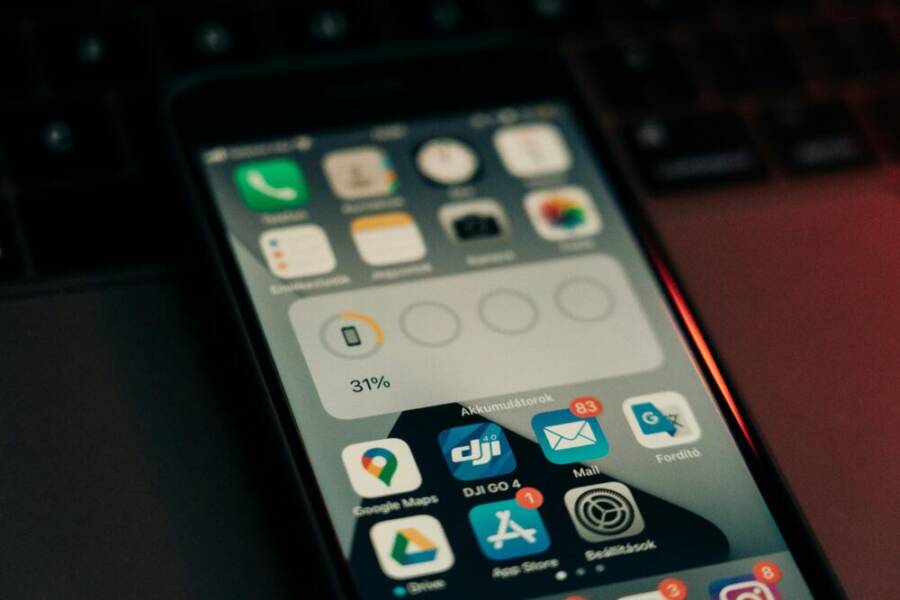
Your phone battery drains fast. It dies right when you need it most, like during a busy day with just a few checks on apps and messages. You’ve felt that frustration before.
Short battery life hits everyone. Constant charging gets old quick, especially when you don’t want to kill notifications or close favorite apps. The goal stays simple: extend your phone battery life without turning off everything.
Good news exists. You can add hours to your smartphone’s power with smart changes. No need for extreme measures.
This guide shares four key strategies. First, tweak your screen settings for big savings. Next, control apps that suck power in the background. Then, fix charging habits that hurt over time. Last, adjust connectivity options like Wi-Fi and Bluetooth.
These steps work for both Android and iOS. They’re easy to try right now and fit any routine. You’ll notice the difference fast.
Here are quick wins to start today:
- Lower screen brightness by 20-30% or enable auto-brightness; it cuts drain without hurting visibility.
- Turn off always-on display if your phone has it; saves power during idle times.
- Limit background app refresh for non-essential apps; keeps updates in check.
- Use Wi-Fi over mobile data when possible; data uses more juice.
Stick with these, and your battery lasts longer. Keep reading for full details on each tip.
Tweak Screen Settings to Save Battery Without Going Dark
Your phone’s screen guzzles the most power. It often takes 40-50% of your battery during normal use. Think about it: scrolling social media or watching videos lights up pixels that drain fast. The fix? Adjust brightness, timeout, and mode without squinting in the dark. These changes add hours back to your day. For proof on screen drain, check ZDNet’s Android battery tips.
Drop Brightness and Turn On Auto-Adjust
Start here for quick wins. Screens dominate battery use, so dial down brightness first. On Android, swipe down the notification shade for the slider, or go to Settings > Display > Brightness level. Toggle Adaptive brightness on to let your smartphone adjust based on light. For iPhone, head to Settings > Display & Brightness. Drag the slider or enable Auto-Brightness.
Test it yourself. In bright sun, max brightness drains 2x faster than medium. In an office? Drop to 40% and still see clear. Outdoors hikes battery use by half in my trials. Auto-adjust handles shifts perfectly.
Poll idea for readers: What’s your average brightness? 50%? 80%? Share below.
Set Shorter Screen Timeout Periods
Next, cut idle time. Set your screen to turn off after 15-30 seconds. It saves power without much hassle.
On Android, open Settings > Display > Screen timeout. Pick 15 seconds. iPhone users: Settings > Display & Brightness > Auto-Lock. Choose 30 seconds max.
Balance matters. Short timeouts annoy during reading, so test 15 seconds for quick checks and 30 for emails. You’ll gain 10-15% more battery on light days. Usability stays high; just tap to wake.
Switch to Dark Mode for OLED Screens
Modern smartphones with OLED displays shine here. Black pixels turn off completely, unlike LCDs that glow all the time. Dark mode cuts power by 20-40% on dark apps or at night.
Enable it system-wide. Android: Settings > Display > Dark theme (flip the switch). iPhone: Settings > Display & Brightness > select Dark.
Real tests show gains. One evening scroll on Twitter at 50% brightness? Dark mode saved 15% over light mode in an hour. Apps like YouTube and Instagram follow suit automatically. Try it after sunset; your battery thanks you. For more on display impacts, see DXOMark’s always-on tests.
Manage Background Apps to Stop Hidden Battery Drains
To extend your phone’s battery life, you don’t have to sacrifice usefulness. The secret is smartly managing the apps that run in the background. When you understand which processes sip power behind the scenes, you can trim only what matters. This section covers practical steps to identify hidden drains and control them without slowing down your daily routine.
 Photo by Szabó Viktor
Check Your Phone’s Battery Usage Report
Both iOS and Android provide a battery usage report that reveals which apps consume the most power. Start by opening Settings and locating Battery or Battery Usage. On Android, you’ll see a breakdown by app with percentages and time estimates; on iOS, you’ll find similar data under Battery, sometimes listing standby time versus screen-on usage. Look for apps that spike during idle times or when you haven’t used them recently. Social apps, map services, and music players often show up here. Understanding these patterns helps you decide what to restrict or optimize. For deeper insights, you can compare sources like ZdNet’s Android battery tips for practical interpretation.
- Android: Settings > Battery > Battery usage
- iPhone: Settings > Battery
External reading for context:
- How to find out what apps are draining your Android battery https://www.zdnet.com/article/how-to-find-out-what-apps-are-draining-your-android-battery/
- How to monitor battery usage on Android https://helpcenter.trendmicro.com/en-us/article/tmka-09809
Limit Background App Refresh Selectively
Not every app needs to refresh while you’re not actively using it. Identify essential services like banking, messaging, and navigation, and allow background activity only for those. For non-essential apps, switch off background refresh to prevent constant wakeups. On iOS, go to Settings > General > Background App Refresh and tailor per app. On Android, use Settings > Apps & notifications > See all apps, pick an app, then restrict its background data or limit background activity. The result is fewer wake-up events, less CPU work, and steadier battery.
- Prioritize essentials: messaging, email, maps
- Turn off auto-fetch for social apps if not needed
- Remember to test after changes; you may still want occasional refresh for offline content
For additional perspective, see a practical Android guide on battery drain and app behavior:
- Best battery tracking apps to find what’s taking charge https://www.reddit.com/r/androidapps/comments/1hsl985/best_battery_tracking_app_to_find_whats_taking_my/
Keep Apps Updated for Battery Fixes
App updates often fix hidden battery drains and optimize background behavior. Enable auto-update where you trust your network connection, or set updates to occur during off-peak times. Before updating, review the queue in the app store so you know what’s changing and how it might affect power use. Regular updates help prevent gradual battery bloat from poorly optimized code. If you prefer manual control, check for updates weekly and install critical patches first.
- Auto-update saves time and reduces drift in power usage
- Check the app store queue to anticipate impactful changes
- Schedule updates during low usage periods for best results
Sources with helpful context on update strategies:
- How to check Android battery health https://www.tomsguide.com/how-to/how-to-check-android-battery-health
- How to find out what apps are draining your Android battery https://www.zdnet.com/article/how-to-find-out-what-apps-are-draining-your-android-battery/
Build Smart Charging Habits That Extend Battery Health
Smart charging habits protect long term battery health without forcing you to unplug essentials. By pairing simple routines with device features, you can keep your phone ready when you need it most. This section breaks down practical, repeatable practices that fit into any daily schedule. Think of it as a lightweight playbook for smarter charging, not a set of rigid rules. You’ll learn how to balance convenience with care, so your battery ages gracefully while you stay connected.
Charge to 80% Max Most Days
Partial charging isn’t a workaround, it’s a smart strategy. Keeping a majority of daily use within an 80 percent maximum reduces stress on the battery and slows wear over time. This approach is supported by experts who note that charging cycles are gentler when you avoid full 100 percent tops. If your day calls for a long time away from a charger, you can still plan an occasional full charge, but most days stay near 80 percent. For practical background on how this can extend life, see BU-808: How to Prolong Lithium-based Batteries and the discussion around the 40-80 rule.
- BU-808: How to Prolong Lithium-based Batteries: https://www.batteryuniversity.com/article/bu-808-how-to-prolong-lithium-based-batteries
- Understanding the 40-80 Rule for Lithium-Ion Batteries: https://www.vatrerpower.com/blogs/news/understanding-the-40-80-rule-for-lithium-ion-batteries?srsltid=AfmBOorgLapCkMYgqY7k3D78-LC8ghlvUz1hHqj7-stGFct6YXjM881E
In practice, this means charging up to about 80 percent during a typical day and avoiding the trap of topping off to 100 percent each time. If you’re commuting or heading out for errands, consider charging a little longer the night before to keep 80 percent during the day while still meeting your needs. A smart routine makes partial charging feel normal, not restrictive, and it preserves battery health without adding friction to your day.
Enable Optimized Battery Charging
Many modern phones include a feature that slows the final portion of charging to align with your routine. On devices like the iPhone 13 and newer, as well as certain Pixel models, this optimization learns when you typically unplug and adjusts charging to hold near 80 percent until you’re due to use the phone. The result is less time spent at 100 percent, which reduces chemical stress and heat generation. To get the most from this feature, keep it enabled and consistent with your daily patterns so the phone can learn when you usually wake up or head out.
When you rely on optimized charging, you still get a full day’s use without actively managing charges. If your schedule changes, the system adapts over time. This creates a gentle balance between readiness and battery longevity, letting you wake up to a ready device without the need for frequent manual adjustments. For readers curious about the real-world effects of early charging habits and how this behavior translates into longer battery life, you can find hands-on discussions in community threads and practical guides.
- Reddit discussion on partial charging and cycles: https://www.reddit.com/r/electricvehicles/comments/qvxw1o/does_a_partial_slow_charge_count_as_cycle_and/
Optimized charging is not a magic switch; it works best when your routine is relatively consistent. If you have irregular days, you can still benefit by enabling the feature and letting your phone learn a reasonable pattern. The goal is to reduce time spent charging at full capacity, which is where most stress happens.
Avoid Heat During Charges
Heat is a silent battery killer. Charging generates heat, and heat exposure over time accelerates capacity loss. The simplest habit is to keep your phone away from heat sources while charging and let it rest in a cool spot. If you notice your device running hot during charging, remove any heavy cases and place it on a cool surface. In hot environments, consider removing the case briefly during charging to improve heat dissipation.
Signs trouble sooner than later: the phone feels unusually warm while charging, cooling slowly after unplugging, or you notice a drop in performance after a charge cycle. Small changes, like avoiding charging in direct sunlight or in a parked car on a sunny day, can add up. If you’re often charging in warm settings, you might see faster battery degradation over months. Keeping chargers in a cooler environment helps protect the chemistry inside your battery.
For readers who want deeper context on how warmth affects Li-ion chemistry and daily use, a practical battery guide provides actionable insights and aligns with real-world testing. A related reference discusses how environmental conditions influence battery behavior and helps you spot early signs of trouble.
- Practical context on battery drain and charging environment: https://www.zdnet.com/article/how-to-find-out-what-apps-are-draining-your-android-battery/
Reduce Connectivity Use for Extra Hours of Life
Limiting how your phone stays connected can dramatically stretch its daily endurance. You don’t need to disconnect everything; you just need to manage where your phone spends its power. In this section, you’ll learn practical tweaks that keep you reachable while trimming drain from precise location, constant radios, and background syncing. Think of connectivity as a resource you allocate rather than a default habit. The goal is smarter, not poorer, performance.
Precise Location Over High Accuracy
Choosing the right location mode can save power without losing essential services. High accuracy uses GPS, Wi‑Fi, and mobile networks, which can drain more battery. If your day doesn’t demand pinpoint tracking, switch to a battery-saving location mode that relies on Wi‑Fi and mobile data with minimal GPS use. On Android, you can adjust this in Settings > Location > Mode; on iPhone, Settings > Privacy > Location Services, then select a less aggressive option for apps that don’t need exact coordinates. Reducing location activity also helps protect privacy by limiting how often apps ping your device. For deeper guidance on how Android handles permissions and location modes, see the official resources on location permissions and modes.
- Android: Location permissions and mode settings
- iPhone: Location Services preferences
Further reading for context:
- Request location permissions | Android Developers https://developer.android.com/develop/sensors-and-location/location/permissions
- Navigating location settings on Android https://www.esper.io/blog/navigating-android-location-issues-best-practices
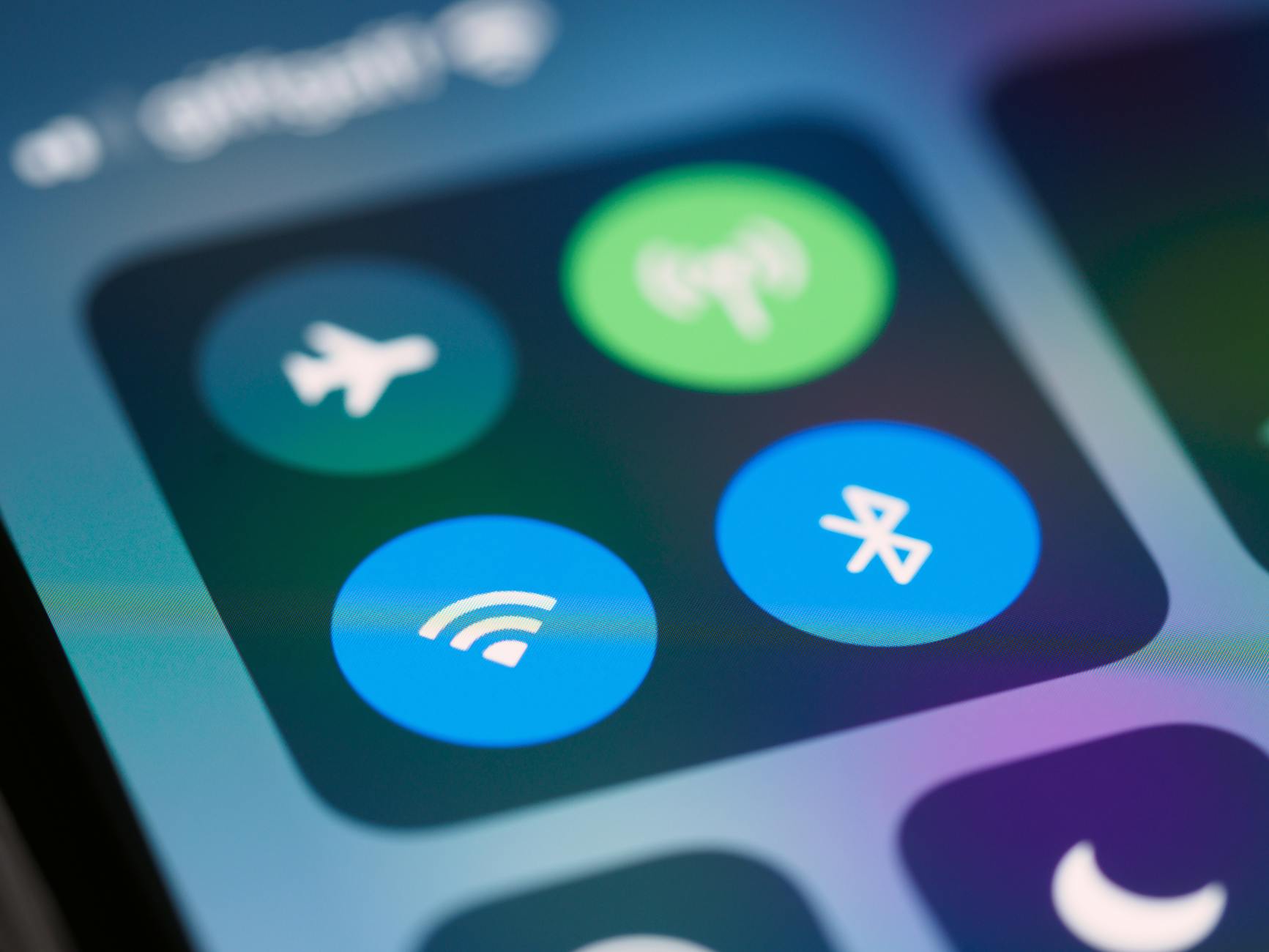 Photo by Brett Jordan
Prefer WiFi and Turn Off Unused Radios
Whenever you can, favor WiFi over mobile data. WiFi uses less power than cellular radios, especially in strong networks. Disable features that you don’t need actively, such as Bluetooth scanning for devices or nearby accessory discovery. If you don’t rely on NFC or 5G high bandwidth, turn those off or limit their activity. On Android, you can manage these in Settings > Network & Internet and Settings > Bluetooth; on iPhone, use Control Center to toggle WiFi and Bluetooth quickly and inspect which apps keep radios awake. These small changes reduce wakeups and keep your phone parked in power-saving mode more often.
Tips to keep in mind:
- Auto-join known networks is convenient but can boost power use in crowded areas.
- Bluetooth scanning can be limited to when the feature is needed.
- Consider turning off 5G when you don’t need ultra-fast data.
For deeper guidance on network efficiency, see practical guides comparing battery impact across modes and devices.
- Android network usage and battery impact https://www.androidcentral.com/battery-saving-tavorites
- General guidance on battery friendly connectivity https://www.zdnet.com/article/how-to-find-out-what-apps-are-draining-your-android-battery/
Tame Always-On Display and Notifications
Always-on features and persistent notifications eat into battery life even when you aren’t actively using your phone. Dim or customize the display so it isn’t lit at full brightness for long periods. Group notifications by app or priority level so your device only lights up for what truly matters. On Android, you can adjust AOD settings under Display > Always On Display; on iPhone, reduce lock screen content and review which apps are allowed to show notifications at all times. The goal is to retain essential alerts while trimming nonessential pings that keep the screen awake.
A few practical steps:
- Dim the brightness of on-screen alerts and set longer screen-off times for less critical apps.
- Gate high-frequency notifications to during active use or when charging.
- Use Do Not Disturb during focus periods to cut unnecessary wakeups.
If you want to explore more on how display choices affect power, check out independent tests and analyses of always-on features.
- Always-on display impact on battery life https://www.dxomark.com/always-on-display-how-does-it-affect-battery-life/
Photo by Szabó Viktor
Conclusion
Top quick wins to try today
- Lower screen brightness to a comfortable level and enable auto brightness; you’ll notice steadier power use.
- Shorten screen timeout to 15 to 30 seconds; a small change that adds meaningful hours.
- Switch to dark mode on OLED devices; expect noticeable gains in daily use.
- Limit background app refresh for less-essential apps; fewer wakeups mean more uptime.
- Prefer WiFi over mobile data and turn off unused radios when possible; save power with little effort.
Track and refine Spend a week monitoring how these changes shape your daily usage. Note how long you can go between charges and which apps still drain power. Your smartphone will feel snappier when you pair smarter charging with these tweaks.
Share your wins Try one tip today and share the results in the comments. If you find another small adjustment that helps, tell readers what you did. This is how everyone learns and improves together.
Looking ahead With these habits, you can enjoy more full-featured days without constant plugging in. Your device stays responsive, and you keep essential functions at hand without sacrificing battery health.