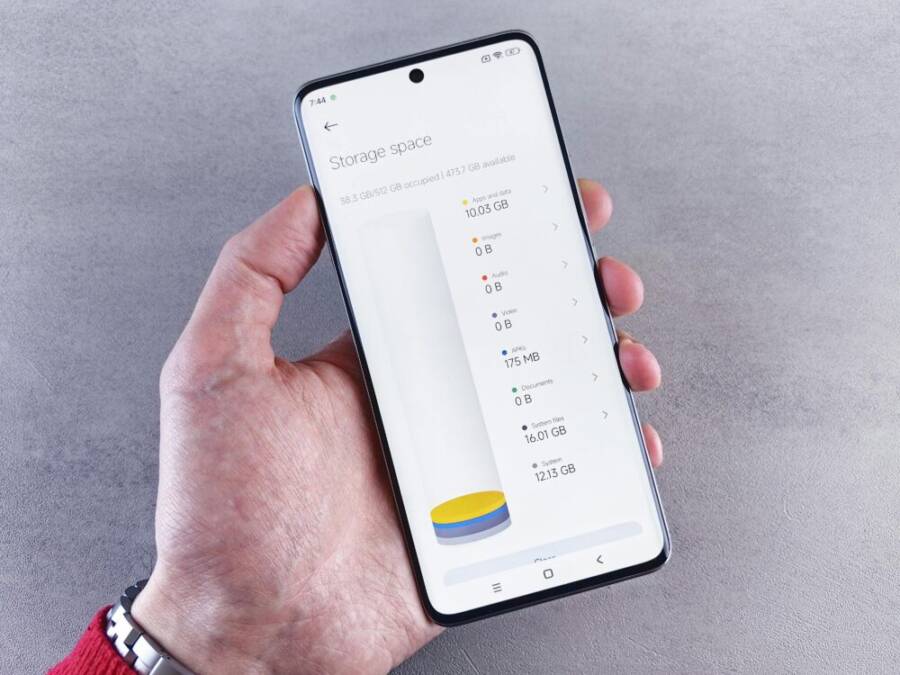
Decluttering your phone files can feel overwhelming, but the payoff is real. When your files are tidy, your phone runs faster, storage stays open, and you can find what you need in seconds. This guide covers both iPhone and Android with simple, actionable steps you can start today.
If your device is piling up with downloads, photos, and old conversations, you’re not alone. The goal is practical: delete what you don’t need, organize what you keep, and back up important files. You’ll gain speed, breathing space, and peace of mind knowing your data is safe.
Across platforms, you’ll follow a straightforward routine: trim unnecessary files, create clear folders, and schedule quick weekly cleanups. By the end, you’ll have a streamlined system that feels like a fresh start for your smartphone.
Why Cleaning Phone Files Matters
Keeping your phone files tidy isn’t just about looking neat. It directly affects how your device feels and how smoothly your data moves between your phone and the cloud. When clutter piles up, it becomes harder to find what you need, spaces fill up faster, and backups slow down. This section explains why a quick cleanup pays off in real, tangible ways for both iPhone and Android users.
 Photo by Andrey Matveev
More Space, Faster Device
Small file clutter can stealthily slow your device down. Think of it like a desk piled with papers. When there are dozens of tiny files everywhere, the system spends extra time indexing, scanning, and organizing. Your apps may start slower, and even a simple task like scrolling through photos can feel laggy.
- Old downloads and forgotten attachments clog up storage in the background.
- Duplicate files create wasted space that the OS still tracks.
- Messy app caches can bloat while you’re not looking.
Clear, focused cleanup helps the system run lean. For example, deleting a few dozen duplicate screenshots from last year can free gigabytes without touching your essential files. You’re not just reclaiming space; you’re restoring snappiness to daily tasks like opening messages, launching maps, or switching between apps. A tidy file set means less work for the device to do, and that translates to faster wake times and smoother performance.
Easier Backups and Sync
Tidy files make cloud backups simpler and cheaper. When you know exactly what you have, your backup tool only transmits what matters. That efficiency reduces data transfer time and lowers storage costs.
- Fewer large, unnecessary files mean quicker backups. Your next backup may finish in minutes rather than hours.
- Smaller backups consume less cloud space, which can lower monthly costs or free up space for important data.
- Clean libraries speed up sync. When you add a new photo, the service detects only the new item, not a pile of duplicates, speeding the process.
A practical approach is to review what actually needs to stay in the cloud. Move critical documents to a dedicated folder, keep only recent photos in your main album, and archive or delete old files you’ll never open again. This habit reduces the time and bandwidth needed for periodic backups, giving you more reliable restore points if something goes wrong. For more on decluttering and deep cleaning your phone, see practical tips from experts who translate cleanup into meaningful savings and speed. https://www.thehappyspaceco.com/blog/7-easy-steps-to-organize-and-declutter-your-phone
Remember, a cleaner file system not only saves space but also boosts the efficiency of cloud services you rely on every day. If you want to cut cloud storage costs and speed up syncing, start with a focused pass on the items you truly use. A small effort now can prevent bigger headaches later. For additional insights into how clutter affects performance over time, this guide can help you understand the long-term benefits: https://www.pullupphonerepair.com/blog-posts/how-to-declutter-and-deep-clean-your-phone
[End of section content]
Quick Wins to Declutter in 10 Minutes
A quick declutter can reset your phone’s performance in under ten minutes. These focused steps help you reclaim space, speed up tasks, and make your device feel lighter. You’ll identify what to remove, tidy your essentials, and set up a simple routine to stay organized.
Uninstall Unused Apps
Identify apps you haven’t touched recently and remove them to free space and reduce background activity. Start by scanning the home screen for apps you rarely open, then check the App Library on iOS or the app drawer on Android to find others you might have forgotten.
- On iPhone: Press and hold an app on the Home Screen to enter wiggle mode, then tap the minus sign (or choose Delete App in App Library) to remove it. If you offload unused apps, you’ll see how much space each app consumes before you decide. For a quick reference, see Apple’s guide on removing or deleting apps. https://support.apple.com/guide/iphone/remove-or-delete-apps-iph248b543ca/ios
- On Android: Open Google Play Store, tap your profile icon, go to Manage apps & devices, then Manage. Review installed apps and uninstall those you no longer use. https://support.google.com/android/answer/13627402?hl=en
Tips to maximize impact in 10 minutes:
- Target apps with large data footprints first, like games and messaging clients.
- Remove apps you only installed for a single task or trip.
- Don’t delete essential system apps or services you rely on daily.
If you’re unsure about a preinstalled app, a quick test uninstall can work. If the app is a core system component, you’ll see a warning; skip it and leave it alone.
Clean Downloads and Temporary Files
Downloads and temporary data accumulate fast and waste valuable space. A quick sweep can dramatically improve how smoothly your device performs. Use built-in tools on both platforms to clear these files without losing important data.
- iPhone: Open Settings, go to General > iPhone Storage. You’ll see a list of apps with the amount of space they use, plus recommendations to optimize storage. Clear downloaded files from apps that store caches or media, and offload or delete large attachments from Messages if needed. For guidance on managing downloads and data, check user tips from Apple discussions. https://discussions.apple.com/thread/255534828
- Android: Settings > Apps > [App Name] > Storage & cache, then Clear Cache. Repeat for other apps that store temporary files. If you notice many large files in Downloads, open the Files app or your file manager to delete duplicates. For a broader approach to clearing cache, see Google’s article on clearing caches and cookies. https://www.android.com/articles/clear-cache-and-cookies/
Fast wins to try now:
- Clear cache for the top five apps you use daily (messaging, navigation, camera, social media, streaming).
- Delete old downloads from your Downloads folder, especially large media files.
- Empty the “Recently Deleted” or “Trash” folder in any apps that use it to free immediate space.
Move Media to Cloud or Computer
Media files, especially photos and videos, quickly crowd your device. Moving them to cloud storage or a computer frees space and simplifies backups. Choose a destination that fits how you work and how you want to access files later.
- Cloud options to consider: iCloud Photo Library for Apple devices, Google Photos for cross-platform access, and Microsoft OneDrive for integrated storage with Windows. Set up automatic backup to your preferred service to keep your library up to date without manual work.
- If you prefer a local backup, connect your device to a computer and copy the photo and video folders to a dedicated drive. This gives you a quick, offline copy you can access anytime.
Practical steps:
- On iPhone: Enable iCloud Photos in Settings > [your name] > iCloud > Photos, then choose “Optimize iPhone Storage” to keep smaller versions on-device while full-resolution originals stay in iCloud.
- On Android: Open Google Photos, enable Backup & Sync, and choose high-quality or original quality. For a local backup, connect the phone to your computer and copy the DCIM folder to a dedicated folder on your machine.
- If you already use cloud services, consider creating a dedicated archive folder for older media. This helps backups move only new files going forward.
Organize while you move:
- Create a simple folder structure in the cloud or on your computer, such as “Camera Roll – 2024,” “Work – Media,” and “Personal – Family.” This makes future backups fast and predictable.
- Schedule a monthly quick pass to review media and prune duplicates. A little discipline now saves a lot of time later.
If you want a quick start with trusted storage options, consider these resources for reliable file backup practices:
- Apple support for iCloud Photos and storage management. https://support.apple.com/guide/iphone/iphone-storage-iph2559d2b2/ios
- Google Photos help for cloud backup and organization. https://support.google.com/photos/answer/6220791
- Microsoft OneDrive setup and backup basics. https://support.microsoft.com/onedrive
Consistent, small cleanup sessions keep your phone responsive and your memories accessible without overhauling your workflow. A 10 minute cleanup now can save hours later when you need to find a photo, share a document, or switch devices.
[End of section content]
Organize Photos, Videos, Downloads, and Documents
A well-organized media and document library makes every task faster. When photos, videos, and files are neatly grouped, you can back up with confidence, find items in seconds, and avoid duplicate clutter. Use simple, consistent naming and a predictable folder structure so you can pick up where you left off on any device, whether you’re using an iPhone or an Android smartphone.
Create Clear Photo Albums and Remove Duplicates
Photos can quickly multiply, but the right approach keeps your library tidy and easy to navigate. Start by organizing into clear albums and using date-based sorting to locate memories quickly. If you notice duplicates, delete them or merge similar shots to reclaim space.
- Use albums to separate events, people, and themes. This makes it easy to browse a trip or a week of activities without scrolling through a long feed.
- Search by date or location to locate batches of photos from a specific time period.
- Remove duplicates to reclaim space and simplify backups. Most photo apps offer a built-in duplicates feature or a simple merge option; use it to consolidate similar shots.
Backing up to the cloud remains a crucial safety net. When you back up regularly, you protect irreplaceable memories and keep your local library lean. For guidance on wildcard cleanup strategies and duplicate management, Apple’s discussions offer practical tips for iPhone users, and Android users can find duplicate removal approaches in community threads and help articles.
- iPhone users can explore the built-in Duplicate detection and merging options within the Photos app.
- Android users can leverage tools in Photos by Google or third-party apps to identify similar images and streamline your library.
If you want a quick jumpstart, explore a few reliable paths for photo organization:
- Create an album structure like “Family Events 202X” and “Trips 202X” to keep memories sorted.
- Move older or less-frequently viewed photos to a dedicated archive album to speed up daily browsing.
- Regularly review and prune, especially after trips or events when the camera roll grows fastest.
Cloud backup is your best friend here. It not only keeps memories safe but also helps you manage duplicates more efficiently across devices. For additional reading on cleaning up phone photo libraries, see discussions and guides from reputable sources that detail practical steps for organizing and removing duplicates.
- Practical approaches to organizing photos and removing duplicates on iPhone
- Guidance for cleaning up and organizing photos on Android
Organize Files in the Phone’s File Manager
The built-in file manager is a powerful ally for keeping everything in its place. Create a simple, predictable folder structure and stick to consistent naming. When you can tell at a glance where a file lives, you spend less time hunting and more time doing.
- Create top-level folders such as “Work,” “Personal,” and “Travel.” This keeps work documents separate from personal files and media.
- Inside each top-level folder, use subfolders like “2024-ProjectX” or “2024-Travel” to group related items.
- Adopt consistent naming conventions such as
yyyy-mm-dd_topic(for example,2024-07-18_budget-review.docx). This helps with sorting and quick searching across apps and devices.
On iPhone and Android, the Files app supports folder creation and organization. For iPhone users, you can create and manage folders directly within the Files app and elsewhere on iOS. Android users can create folders in the Files app or using a third-party file manager if you prefer a different interface. Apple’s support articles walk you through organizing apps and folders on iPhone, while Android guides show how to create folders and keep items tidy in the Files app.
- iPhone: Organize with folders in the Files app and keep related documents together.
- Android: Use the Files by Google or your preferred file manager to structure folders and keep a clean workspace.
A consistent naming approach makes cross-device syncing predictable. If you have a project that travels across devices, the yyyy-mm-dd_topic format helps you sort by date and topic without opening each file.
For extra reliability, save a copy of important templates or forms in a dedicated “Templates” folder inside “Work” or “Personal.” This reduces search time when you need a standard document.
Useful tips:
- Set a quick folder template you can copy, such as
Work/Projects/Year-ProjectNameandPersonal/Receipts/Year. - Use a single source of truth by keeping receipts and important documents in one place.
- Review folder names periodically to ensure they still match your workflow.
Explore the Files app capabilities with these resources:
- How to organize apps and folders on iPhone
- How to create folders on Android with the Files app
Manage Downloads and Documents
Downloads and documents can drift into chaos if not kept under control. A clear structure helps you find important files fast and prevents clutter from seeping back in. Start with a Documents folder structure and move key files into it. Then schedule a yearly cleanup to archive or delete older items.
- Establish a dedicated Documents folder for work, receipts, legal papers, and other critical items.
- Create subfolders by year and topic, such as
Documents/2024/TaxesorDocuments/2025/Contracts. - Move important files into the Documents folder and keep a separate “In Progress” area for items you’re actively working on.
Yearly cleanups are essential. When you set aside time to archive or delete old files, you prevent buildup and keep backups streamlined. Archive items you might need later to a separate drive or cloud archive, and delete items you know you’ll never open again. Regular discipline makes backups faster and restores more reliable.
A practical way to handle documentation is to build a lightweight taxonomy that mirrors your work or personal life. This makes it easier to locate contracts, invoices, and project briefs across devices. If you’re unsure how to start, the following resources provide guidance on organizing documents and maintaining a clean file system.
- Apple support for iCloud storage and document management
- Google Drive help for organizing documents and folders
- OneDrive help for file structure and backup basics
By keeping a clear folder system and a yearly prune habit, you reduce search time, speed up backups, and protect important documents. You’ll feel more in control every time you need to locate a file, share a document, or prepare a quick report.
[End of section content]
Set Up a Simple Filing System and Routine
A clean filing system isn’t a one-time task. It’s a practical routine that keeps your phone’s contents easy to find, backing up happens smoothly, and you stay ahead of clutter. Below you’ll find a straightforward structure you can implement today, plus quick maintenance steps to keep it predictable week to week.
Folder Structure That Fits Your Life
A sensible folder structure mirrors how you actually work and live. Keep names short, clear, and consistent so you can locate items in seconds across devices.
- Work: Create top-level folders like Projects and Receipts. Inside, use subfolders such as 2024-ProjectX or 2024-TaxDocs. This helps you separate client work from personal files.
- Personal life: Use broad categories like Finance, Health, and Home. Within Finance, have subfolders for Bank Statements, Invoices, and Budgets.
- Travel: A simple setup works well, with folders like Bookings, Itineraries, and Photos by trip.
- Media: Separate by type and purpose, for example Photos, Videos, and Downloads with date-based subfolders when helpful.
- Receipts: A single place for digital receipts keeps tax time painless. Use year-based folders like Receipts/2024/Meals or Receipts/2025/Work Supplies.
Choose folder names that describe content at a glance. For example, use “Contracts-2025” rather than a vague “Docs.” If you share files with others, use consistent naming so teammates understand the structure without asking.
To see how to start organizing files in the native file managers, check guides like Apple’s instructions for organizing files in Files on iPhone and similar Android tips. You can read about creating and naming folders in the Files app here: https://support.apple.com/guide/iphone/organize-files-and-folders-iphab82e0798/ios. On Android, you’ll find practical steps to create folders in the Files app and other file managers here: https://www.samsung.com/au/support/mobile-devices/create-new-folders-in-my-files-app/?srsltid=AfmBOorXSwacBrYNfxRiZvZLOGnGhhjmVH_9zUBfnyjWXh0PtfstDZN7
A quick tip: pick a simple starting template you can copy, such as:
- Work/Projects/Year-ProjectName
- Personal/Receipts/Year
Then use a yearly prune to keep the structure tight and focused. This habit saves time during backups and makes cross-device syncing predictable.
Backups and Sync Made Simple
Automatic backups and device sync remove the guesswork from safeguarding files. Set up cloud backups that run in the background and enable sync so you always work with the latest version.
- Enable cloud backups on both iPhone and Android. On iPhone, iCloud Backup and iCloud Photos ensure recent files are safe, while on Android, Google Drive and Google Photos handle most needs. Set these to run automatically after initial setup.
- Turn on device syncing where you work. For example, enable Documents in the cloud and make sure your cloud service is set to sync new items automatically across devices.
A simple approach is to designate one cloud service as your primary archive. Move critical documents into a dedicated folder within that service, and keep recent items in a separate, frequently accessed folder. This reduces the amount of data you back up during each run and speeds up restores if needed.
If you want a quick overview of how to organize cloud-backed files and folders, Apple’s guide covers iCloud storage and document management, while Google Drive and OneDrive help you align files across platforms: https://support.apple.com/guide/iphone/iphone-storage-iph2559d2b2/ios
For practical cloud backup basics and setup tips, explore Google Drive and OneDrive resources: https://support.google.com/one drive/ or https://support.microsoft.com/onedrive
Create a Quick Maintenance Schedule
A small, repeatable routine keeps clutter under control without taking a lot of time. Plan a monthly 15-minute declutter and a weekly 5-minute quick check. Tie these tasks to a reminder that’s hard to ignore.
- Monthly 15-minute declutter: Scan recent downloads, recent documents, and the top-level folders you use most. Delete duplicates, offload old items, and prune large attachments you no longer need. In practice, this might mean trimming a few dozen cached files, removing outdated project drafts, and moving older media to an archive.
- Weekly quick check: Open your main folders and confirm that new items have a home. If something sits in the root directory for more than a week, move it to the appropriate subfolder or delete it if it’s not needed. This is a quick sweep you can perform while taking a coffee break.
A printable checklist can keep you on track. Create a simple one like:
- Review top-level folders for new items
- Move 5–10 files to their proper folders
- Delete duplicates and old downloads
- Confirm cloud backups ran this week
- Check for items you can archive
If you prefer ready-made templates, you can borrow a simple PDF or printable checklist and customize it. For inspiration on establishing file upkeep routines, see guides that translate cleanup into real savings and speed, such as practical tips from reputable sources: https://www.thehappyspaceco.com/blog/7-easy-steps-to-organize-and-declutter-your-phone and a broader look at decluttering and deep cleaning your phone: https://www.pullupphonerepair.com/blog-posts/how-to-declutter-and-deep-clean-your-phone
A steady cadence turns a daunting cleanup into a routine that fits your life. It protects your data and keeps your devices nimble when you need them most.
[End of section content]
Conclusion
Decluttering your phone files pays off in clear thinking, faster performance, and easier backups. By trimming unused apps, cleaning downloads, moving media to the cloud or computer, and organizing with a simple folder system, your smartphone becomes a reliable tool again. A tidy library means quicker searches, smoother updates, and less stress when you need to share or restore data.
Start today with a 10 minute pass to remove duplicates, offload old media, and set a monthly maintenance routine. Your future self will thank you for the time saved and the calm of a well organized smartphone. If you have tips that worked for you, share them and help others simplify their digital lives.