A calm, quicker start to your day begins with a simple choice: a productivity focused home screen. Tiny changes add up, saving minutes that compound into momentum. This guide walks smartphone users through plain steps that anyone can follow.
Think of your home screen as a small, controlled workspace. By prioritizing apps, widgets, and shortcuts that support focus, you create fewer distractions and more flow. You’ll learn practical tweaks you can apply right away, without overhauling your phone or juggling clever hacks.
What you’ll gain is clear: faster access to tasks, reminders that actually surface when you need them, and a layout that mirrors your daily routine. The approach is practical, not fussy, and designed for real life. Start with a couple of changes, test what sticks, then expand gradually.
If you want a steadier morning and more time to think, this is a friendly, repeatable path. You’ll see how small adjustments to your home screen can save time, reduce friction, and keep you centered on what matters. The result is a smarter, calmer start to the day, driven by simple, effective choices for your smartphone.
Define the goal of a productivity focused home screen
A productivity focused home screen is more than a tidy layout. It’s a deliberate workspace that minimizes friction and nudges you toward action. The goal is to create instant access to what matters, reduce the pull of distractions, and support your daily rhythm. When your home screen aligns with your priorities, you start your day with momentum rather than rummaging for tasks. This section explains how to set a clear objective and translate it into practical steps you can implement today.
Identify your daily tasks
Your first step is to list the tasks that move you forward each day. Start with 5 to 7 items and group them into simple categories. Think in terms of broad actions rather than specific to-dos. For example, you might have categories like Communication, Planning, Capture, and Quick Actions. This structure keeps your screen focused and your mind calm.
- Communication: respond to important messages, check-in with teammates, and manage urgent emails.
- Planning: review today’s schedule, set priorities, and prepare for tomorrow.
- Capture: save ideas, forward receipts, and clip important information.
- Quick Actions: calendar add, timer start, note quickly, or map navigation.
To make this actionable, use a printable template you can fill out each morning. Here is a simple layout you can copy or print:
Date: ___________________
Top 5–7 tasks for today
- ___________________________ (Category: __________)
- ___________________________ (Category: __________)
- ___________________________ (Category: __________)
- ___________________________ (Category: __________)
- ___________________________ (Category: __________)
- ___________________________ (Category: __________)
- ___________________________ (Category: __________)
Notes or focus themes for the day:
Template options you can print or customize
- Free and customizable to-do list templates from Canva: https://www.canva.com/templates/s/to-do-list/
- Printable daily task lists from OnPlanners: https://onplanners.com/category/daily-task-list-templates
- Free printable to-do list PDFs from First Printable: https://firstprintable.com/to-do-list-template/
Using a simple template keeps you honest about what you actually need to do, instead of chasing every shiny app or notification. When you can physically write down tasks, you create a mental contract with yourself to complete them. Printouts or reusable scans of your list become quick anchors on your home screen, guiding your taps rather than luring you into endless browsing.
Know your distractions
Distractions are not random events; they follow patterns. The moment you know what pulls you off track, you can set up deliberate barriers. Start by naming your common interruptions, then map them to practical controls on iOS and Android.
Common interruptions to watch for
- Unnecessary app notifications that ping you for no reason.
- Social apps that tempt you to scroll instead of work.
- Open tabs or widgets that draw you into low-value browsing.
- Background activity like silent emails piling up in your inbox.
Practical controls that actually work
- Focused mode or Focus Sessions: choose apps that are allowed and block the rest during work blocks.
- Do Not Disturb with exceptions: allow only critical contacts and urgent alarms.
- App limits and time budgets: cap social media, news, and entertainment apps for the day.
- Short, predictable breaks: set timers for 25 minutes of work with 5 minute resets to avoid burnout.
On your home screen, reflect these controls in what you place front and center. A focused home screen shows your highest priority apps first, followed by utilities that support your workflow. This arrangement reduces the impulse to check distracting apps and makes it easier to stay in flow.
For readers seeking ready-made templates and ideas, consider templates that emphasize task lists and focus blocks. These resources help you design a clean, distraction-resistant interface that mirrors how you work. For example, Canva’s to-do list templates offer clean layouts you can customize for daily planning, while printable templates from First Printable provide compact, easy-to-fill formats you can print and carry. You can browse these options here: Canva templates, First Printable to-do lists. A well-structured home screen pairs with disciplined habits to keep your day moving in the right direction.
Plan the layout before you touch your phone
A productive home screen starts with a plan. Before you move any apps or widgets, take a moment to outline how you want your phone to support your day. This step keeps you from drifting into a sea of icons and notifications. The goal is a clean, fast interface that surfaces your priorities and minimizes distractions. Below are practical ways to map out your layout and turn that plan into a confident, repeatable setup.
Decide what to put on the home screen
Begin with a small, essential set of icons and widgets. Think of quick access points that you actually use every day, not every feature your phone can host. A calendar snippet, a to do list, a quick notes app, a weather shortcut, and a shortcuts folder for common actions are a solid starting point. This keeps your attention on what matters and prevents clutter from creeping in.
- Essential calendar or date widget for today’s commitments
- A lightweight to do list for immediate tasks
- A notes app for fleeting thoughts or quick capture
- A weather shortcut to plan commutes or outdoor plans
- A shortcuts folder for frequently used actions like “send message,” “start timer,” or “navigate home”
Smooth up front planning pays off when you avoid chasing every new app or widget. If you want inspiration from others, you can explore how people structure their homescreens and what they consider essential. For ideas, see discussions and roundups such as a popular take on essential home screen apps and widgets and a modern look at widgets for iPhone and Android. These references can help you identify what truly belongs on your page and what can wait.
- Example to explore: essential home screen layouts and widget ideas
- Example to explore: top widgets for iPhone and Android
Group by task and time
Clarity beats variety when it comes to app placement. Group apps by purpose and use folders to reduce clutter. A fixed dock with four apps makes fast access a habit and keeps the rest tucked away for when you need them. Think in terms of daily rhythms: morning planning, work blocks, break time, and quick actions.
- Create groups such as Communication, Planning, Capture, and Quick Actions
- Place the most used items in a four-slot dock for instant reach
- Use folders to keep related apps together without sacrificing speed
- Keep at least one or two tools in a dedicated area for emergency tasks (SOS, essential messages, or quick navigation)
If you want hands-on ideas, many readers find value in looking at real-world layouts. For example, discussions about which apps live on people’s home screens can spark ideas about what belongs in the dock versus what stays in folders. You can also find practical layouts and recommendations in current widget roundups and Android home screen guides.
- A look at how people arrange core apps on their home screens
- A roundup of widgets that boost productivity without adding clutter
Decide where to put widgets and shortcuts
Widgets should be placed with purpose, not permission. A good rule of thumb is to keep widget size proportional to how often you interact with it. Too many large widgets slow you down; too few small widgets may force extra taps. In most cases, fewer widgets equal faster access and less distraction.
- Place a small calendar or daily focus widget near the top for quick context
- Put a weather widget where morning routines happen to help plan the day
- Keep frequently used shortcuts near the dock for one-tap actions
- Avoid bloating the home screen with every gadget you own; test and trim
When you experiment with placement, you’ll see how small shifts in position change your behavior. A well balanced layout reduces friction and makes it easier to stay in flow during a work session. If you want practical references on which widgets others find valuable, explore guides that compare Android and iOS widgets and show real examples of home screens optimized for focus. These resources provide concrete ideas you can adapt to your own routine.
- Examples of popular widget picks for productivity
- Guides comparing how to best place widgets on iPhone and Android
To support your planning phase, you can browse curated examples and insights from communities and tech sites. They offer layouts and widget suggestions that align with a focus driven approach. For further reading, consider exploring discussions on essential home screen setups and practical widget recommendations.
Design tips for speed and focus
A focused home screen isn’t built by luck. It’s crafted with deliberate choices that minimize friction and keep your attention on what matters. In this section, you’ll find practical, easy-to-apply tips to design a layout that feels fast, calm, and reliable. Each point includes quick examples you can imitate today, plus pointers on why these choices work.
Keep a clean layout
A clean layout reduces cognitive load and speeds your interactions. Start by choosing a consistent grid and sticking to it. For iOS, a 4×6 grid (four columns, six rows) works well for most people when you keep icons small enough to see a clear path to the dock. Android users can adopt a similar grid but adjust icon size to fit your wallpaper and widget needs. The goal is simple: fewer distractions, faster taps.
- Use uniform icon sizes and spacing. This consistency helps your brain predict where items live and reduces search time.
- Reserve the top band for time-sensitive information. A small calendar or today view keeps you oriented without stealing attention from tasks.
- Create a single, unobtrusive color system. Use one accent color for priorities and another for utilities. This keeps your eyes trained on what matters.
A simple example layout you can imitate:
- Dock: four essential apps you use every day (Messages, Calendar, Notes, Quick Tasks)
- Top row: a small today widget showing 今日 date and upcoming events
- Middle area: two groups in folders, labeled “Communication” and “Planning”
- Bottom row: a compact weather shortcut and a one-tap action for common tasks via a Shortcuts/Automation folder
Preview how others organize for speed and clarity can spark ideas. For instance, clutter-free layouts discussed in community rounds often highlight keeping the front page lean and making the most-used items immediately reachable. If you want inspiration, check communities that share practical home screen ideas and real-world setups. See examples and discussions that explore minimal, fast-access arrangements.
- Example to explore: essential home screen layouts and widget ideas
- Example to explore: top widgets for iPhone and Android
A clean layout also means iterating. If you notice you reach for a second screen or tap unintentionally, trim the widgets and move the most-used icons closer to your primary zone. After a week of use, you’ll feel the difference in how quickly you can act.
Use consistent icons and color cues
Icons and color cues act like quick signals that tell your brain what to do next. Consistency in visuals speeds recognition and reduces hesitation. Here’s a simple framework you can adopt.
- Red signals urgent or blocking tasks. Use it for items that require immediate attention or deadlines today.
- Blue signals planning or reference. Use it for calendars, project boards, or notes you’ll review soon.
- Green signals completion or done. Use it for tasks you’ve finished or goals you’ve achieved.
Beyond color, iconography should be uniform and meaningful. Pick a small set of icons that you’ll reuse across apps or widgets. This reduces the time you spend deciphering what each symbol means and keeps your focus on the action, not the tool.
In practice, place a red badge or red-taded widget near the top when you have a pressing item today. A blue icon for your planning folder helps you scan for next steps quickly. A green status indicator on completed tasks reinforces momentum and morale.
To keep things simple and practical, limit yourself to a small palette of colors and a matching icon set. If you’re unsure where to start, many users emulate a basic color language from their favorite productivity apps and adapt it to their home screen. For additional ideas, you can explore how others translate color signals into planning habits on iOS and Android home screens.
- Use a dedicated color palette for focus blocks, not the entire screen
- Keep a consistent icon style for folders and shortcuts
- Reserve red for deadlines and blocking items, blue for planning, green for done
If you want concrete layouts to study, look at guides that compare how people place icons and widgets for speed on iPhone and Android. These references can help you translate color and icon choices into real-world setups.
- Guides comparing how to best place icons on iPhone and Android
- Examples of popular widget picks for productivity
For visual consistency, you can also borrow ideas from established layouts and adapt them to your own routine. A steady visual language makes you feel confident every time you pick up your phone.
Limit widgets to essentials
Widgets should serve a purpose, not simply fill space. A tight widget set speeds interaction and reduces the chance of clutter sneaking in. Aim for a minimum viable widget collection and explain why more might slow you down.
- Start with a small calendar widget for today’s commitments
- Include a brief to-do or focus widget to surface today’s priorities
- Add a weather widget if it informs your planning for the day
- Keep a one-tap action for the most common routine task (like starting a timer or composing a quick message)
Too many widgets create friction. Each widget adds a tap, a potential distraction, and memory load as you decipher its function. A compact, purposeful set keeps you moving. If you overdo it, you’ll spend more time scrolling than working, and the screen loses its focus.
Why a minimal approach works
- It reduces decision fatigue. You know where to tap next without scanning.
- It accelerates your day. Fewer taps mean faster completion of tasks.
- It keeps you in flow. With less noise, you concentrate on the work.
A recommended minimum you can start with:
- One calendar widget (today view)
- One to-do or focus widget
- One quick-action widget (start timer, add note)
- One weather or context widget if it genuinely informs your day
If you’re curious how others apply this in real life, you can browse examples of focused home screens and widget choices. These references show practical layouts that emphasize speed and clarity without sacrificing usefulness.
- Examples of popular widget picks for productivity
- Guides comparing how to best place widgets on iPhone and Android
Practical tips for trimming
- Remove redundant shortcuts and rarely used apps from the home screen
- Use folders to group related apps, but keep the number of folders small
- Test after a week and adjust based on what you actually use daily
You can incorporate these ideas gradually. Start with the essentials, then refine as you identify what drags you down. A focused home screen becomes a reliable springboard for action, not a menu of choices you never finish. If you want ready-made templates, consider looking at the kinds of layouts people share online. They can provide hands-on templates you can adapt.
- Ready-made templates and ideas to study
Links and further reading
- https://www.reddit.com/r/minimalism/comments/10n0vt/making_your_phone_a_pleasure_to_use_again/
- https://www.androidpolice.com/how-i-decluttered-my-android-home-screenone-app-at-a-time/
- https://www.wired.com/story/how-to-declutter-your-home-screen/
Step by step setup for iOS and Android
A productivity focused home screen is not a one-size-fits-all hack. It’s a deliberate, repeatable process you can apply on both iOS and Android. This section walks you through a practical, step by step approach to design fast, focused home screens that align with your daily routine. You’ll learn how to plan, implement, and adjust with ease, so your phone becomes a tool for progress rather than a source of distraction.

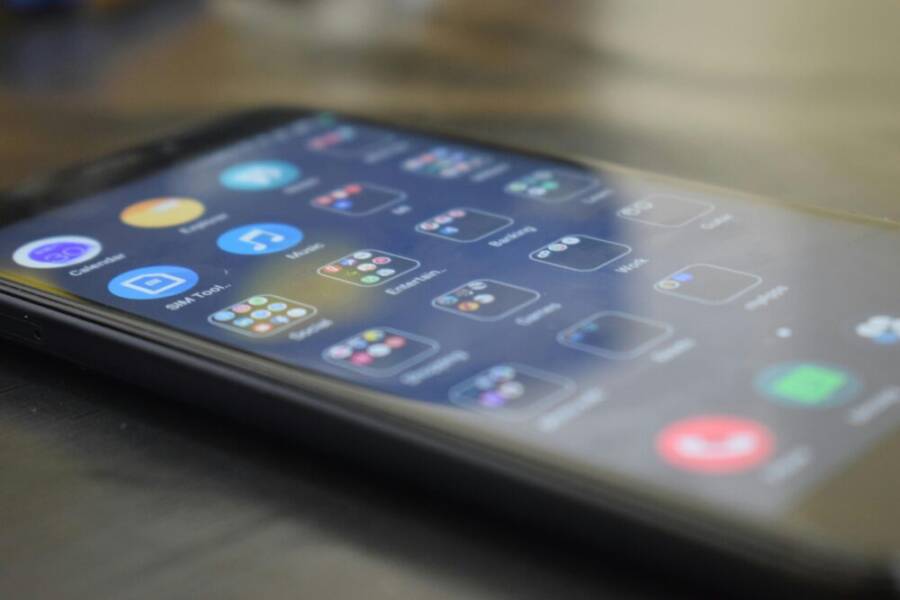
Photo by Amarnath Radhakrishnan
iOS specifics
iOS gives you a clean, consistent way to organize essentials, plus powerful Focus options to keep distractions at bay. Start with a simple layout and build from there.
- Plan the pages: Keep one main home screen with your day’s essentials, plus a second page for focused tasks and quick actions. The App Library can hide less-used apps while keeping them accessible via search.
- Use Focus to block distractions: Set a Work Focus that allows only your work apps and silence the rest. Tie this to a schedule or manual activation.
- Widgets that matter: Prefer a small calendar widget, a to-do or focus widget, and a quick action so you can start a timer or capture notes in one tap.
- Siri Suggestions: Rely on Siri to surface helpful actions based on context, like “Remind me to start a meeting at 9” or “Open Notes for today’s ideas.” These suggestions adapt as your routine evolves.
- App Library and search: When you need a less-used app, App Library is a fast path. You can still use Search to access anything instantly, without crowding the home screen.
- Quick layout tips: Keep your Dock for your four most-used items and place high-priority widgets near the top for fast visibility.
A practical setup example you can try:
- Page 1 Dock: Messages, Calendar, Notes, Shortcuts
- Page 1 Top row: Today’s calendar, a small focus widget
- Page 1 Middle: Folders for Communication, Planning
- Page 2 Focus page: a single focus widget, a one-tap timer, and a shortcuts folder for common actions
If you want more real-world ideas, read about how people structure Focus modes and home screens for productivity. The official support article on setting up Focus on iPhone covers configuration steps you can replicate: Set up a Focus on iPhone. For broader inspiration, see practical layout ideas from experts: 15 iOS home screen layout ideas. You can also explore community setups on Reddit to see what works for others. These resources can help you tailor your own arrangement.
- Set up a Focus on iPhone: https://support.apple.com/guide/iphone/set-up-a-focus-iphd6288a67f/ios
- 15 iOS home screen layout ideas: https://zapier.com/blog/ios-home-screen-ideas/
- How to set up a Focus mode home screen: https://www.reddit.com/r/iphone/comments/135vbhu/how_do_you_set_up_a_focus_mode_home_screen_like/
Tips to keep it smooth:
- Start with one page, then add a second as you confirm what you use daily.
- Use App Library to hide clutter without losing access.
- Let Siri Suggestions surface meaningful actions at the right times.
Android specifics
Android offers more customization at the home screen level, with adaptive widgets, more flexible folders, and gesture options. Use these features to speed up access to your highest priorities.
- Plan the pages and docks: Create a primary home screen with essential tools, a second page for planning and capture, and a dock that holds your fastest actions.
- Embrace app drawers and shortcuts: Use an app drawer to keep nonessential apps out of sight while enabling one-tap shortcuts for common tasks.
- Adaptive widgets: Choose widgets that resize and rearrange based on use, so you get the right information without clutter.
- Gesture controls: Learn gestures for quick actions like opening the camera, launching a timer, or navigating back. These save valuable seconds during focus sessions.
- Group by task: Create clear folders such as Communication, Planning, Capture, and Quick Actions. Keep the most-used items in the bottom dock.
- Use widgets with intent: Prefer lightweight widgets that surface today’s tasks, a concise calendar, and a one-tap action.
A practical setup you can implement:
- Home screen: four quick taps in the dock (Messages, Calendar, Notes, Tasks)
- Page 1: a small calendar widget, a to-do widget, and a weather widget for planning
- Page 2: folders for Communication and Planning, plus a Shortcuts folder for routine actions
If you’re seeking hands-on examples, check guides and roundups that show how others structure Android home screens for speed. Look for widget ideas and practical layouts that stay lean and fast. For reference, explore articles that compare iOS and Android widget placement and real-world setups. These resources help you translate what works on one platform to the other.
- How to place icons on iPhone and Android: guides comparing layouts
- Widgets that boost productivity on Android: top picks
Tips to keep it sharp:
- Keep the number of pages manageable. A cluttered screen slows you down.
- Favor a fixed dock with the most-used actions for instant access.
- Test after a week, then prune anything you don’t actually use.
Images often reveal practical layouts. If you want a visual map, look for layouts that show a lean home screen with a clear dock and focused widgets. Real-world examples provide ideas you can adapt to your routine.
Common mistakes to avoid
Even with a solid plan, small missteps can derail your workflow. Watch for these pitfalls and correct them quickly.
- Overloading the screen: too many icons or widgets create decision fatigue and slow you down. Aim for a minimum viable set that covers today’s tasks.
- Hiding essential apps: burying critical tools under layers or in long folders costs time when you need them fast.
- Chasing every new feature: frequent rearranging wastes time and steals focus. Give a change a week before adjusting again.
- Not using Focus or Do Not Disturb effectively: if you allow every notification, you’ll still get pulled away from your work.
Quick guardrails to prevent issues:
- Limit widgets to a core set: calendar, focus, quick action, and weather if it informs your day.
- Keep essential apps in the primary dock or on the first page.
- Schedule a monthly review to prune and refresh; avoid constant tinkering.
- Use App Library or app drawer to hide nonessential apps, keeping the screen calm.
If you need practical validation, read how others handle focus on their devices. Official guides and community discussions show proven layouts and tips you can borrow. For iOS, explore how focus modes are set up and used in everyday life, or browse practical layout ideas from productivity-focused sources. For Android, look for widget roundups and home screen guides that emphasize speed and clarity.
- Set up and use Focus on iPhone: https://support.apple.com/guide/iphone/set-up-a-focus-iphd6288a67f/ios
- iOS home screen ideas and widget picks: https://zapier.com/blog/ios-home-screen-ideas/
- Focus mode layouts and home screen tips on Reddit: https://www.reddit.com/r/iphone/comments/135vbhu/how_do_you_set_up_a_focus_mode_home_screen_like/
By keeping these principles in mind, you can avoid common missteps and keep your home screen aligned with your workflow. A disciplined setup stays with you through the day, helping you act with intention instead of reacting to every ping.
If you’d like to see more concrete layouts or templates, search for focused home screen examples and widget recommendations. Real-world templates show how a clean page with a small number of widgets can support deep work without sacrificing accessibility.
- Focused home screen examples and widget ideas: https://www.example.com/focused-home-screens
- Practical layouts for speed on iPhone and Android: https://www.example.com/production-home-screens
Note: The links above illustrate how others organize for speed and clarity. Use them as inspiration, then tailor the setup to how you actually work.
End of section image credits and references
- Photo by Amarnath Radhakrishnan on Pexels
Would you like me to tailor these setups to your everyday apps and routines, or provide a printable checklist to guide your personal customization?
Maintenance and iteration
A productive home screen is not a one and done setup. It needs regular checkups, small recalibrations, and a steady rhythm of improvement. This section guides you through a simple maintenance routine and practical signals to prune or reframe when needed. Think of it as a firmware update for your focus, applied weekly and as needed to keep your workflow fast and frictionless.
Weekly review
Set aside 15 minutes at the end of the week to gauge what worked, what slowed you down, and where small tweaks can boost momentum. The goal is to keep the process light, repeatable, and genuinely helpful. Use a lightweight checklist and a calm moment to reflect rather than a deep dive that drains energy.
- What went well this week: Identify the screens, widgets, and shortcuts that consistently supported focus. Did you reach for the calendar snippet first thing or did the quick actions drive most of your progress?
- What slowed you down: Note any bottlenecks like extra taps, misplaced icons, or distractions that slipped through. If you found yourself hunting for an app, that’s a signal to rethink layout or emphasis.
- What to adjust: Choose 1–3 tiny changes you can implement in under 30 minutes. This keeps momentum without overwhelming you.
Keep a one-page note for quick reference. You can print it or save it as a reusable template. The act of writing down tasks and priorities creates a concrete commitment you’ll feel every time you unlock your phone. If you want ready-made templates, look for simple weekly planning sheets and to-do templates that support focus. For example, popular productivity templates provide clean layouts you can adapt to your routine. See examples of weekly planning tools from sources like Wirecutter and productivity roundups for inspiration, which can help you decide what to copy and what to customize. You can explore ideas for weekly planning templates here: The best weekly planner apps, and practical ideas for home screen layouts.
- Quick wins to try next week: move your most used app to the dock, swap a cluttered widget for a concise focus widget, and smoothing the transition from “open apps” to “act now” with a one-tap action.
- How to track changes: keep a tiny log of taps and timing for focus sessions. If a change reduces friction, keep it; if not, pivot quickly.
A weekly review acts as a calibration point. It prevents drift, keeps your home screen aligned with your daily routine, and reinforces habits that actually move tasks forward. When you add or remove apps, notice how your behavior changes over a week. If you notice a pattern that the new layout creates less friction, you’ll have a clear signal to keep it. If not, revert or reframe. For additional context, you can read about weekly planning practices used by productivity apps and communities, which often highlight the benefits of keeping a lean, focused homepage. For inspiration, explore articles like best to-do list app roundups and weekly planning app comparisons.
- Example reference articles: best weekly planner apps, top to-do list apps
When to prune or reframe
Disruptions in your routine, new tasks, or rising distractions signal that it’s time to prune or reframe your home screen. The aim is not to chase novelty but to keep the layout aligned with what actually matters. If you notice several of these signs, it’s time to tune the setup.
- New tasks or priorities emerge: When your daily workflow adds new activities, you may need to reallocate screens or create a dedicated folder for the new area. Prioritize what you do most and shield it with quick access.
- Changing routines: If your day shifts from a morning planning focus to afternoon deep work, adjust widget placement and shortcuts to reflect the new rhythm. A small rearrangement can restore speed and reduce friction.
- More distractions: If notifications or social apps creep back into focus time, prune widgets and tighten focus controls. Consider a dedicated Focus mode, Do Not Disturb with exceptions, or app limits to reclaim your day.
- Battery and performance concerns: If an update slows the device or drains energy, trim widgets, reduce the number of home screen pages, and simplify layouts. A lighter screen often translates to faster action.
Ask yourself these targeted questions during the prune or reframe moment:
- Which tasks do I perform most often, and where should they live on the home screen for fastest access?
- Are there any apps I rarely touch that still sit in the dock or top row?
- Do the colors and icons clearly signal priorities, or do they blend in with noise?
When you prune, aim for a minimal, high-value setup. Fewer but better widgets, a tight dock, and clear folders lead to cleaner taps and less cognitive load. If you want concrete examples of lean layouts, explore guides that compare icon placement and widget ideas for iPhone and Android. These references show practical, real-world setups you can adapt without starting from scratch.
- Real-world lean home screen examples
- Guides on widget selection for speed and clarity
If a change feels risky, test it for a week before finalizing. A stable pattern wins over a bold rearrangement that never settles in. You can document your prune or reframe decisions in a simple tracker: note the change, the reason, and the observed outcome. This creates a small provenance for future iterations and helps you avoid repeating the same mistakes.
Helpful resources to inform pruning decisions include weekly planning apps and productivity tool roundups. These sources reveal which widgets and shortcuts consistently deliver speed and focus across users. For further reading, consider looking at a few curated lists of top productivity apps and home screen ideas to spark ideas you can adapt.
- Weekly planner app roundups
- Home screen idea guides for iOS and Android
By keeping maintenance and iteration intentional, you preserve the calm, fast experience you built. The result is a home screen that evolves with you, not against you. Your phone becomes a reliable partner that helps you act now, stay organized, and move through tasks with confidence. If you’d like, I can tailor a maintenance checklist to your everyday apps and routine, or create a printable iteration journal you can reuse each week.
Conclusion
A productivity focused home screen acts as a small but steady accelerator for your day. It reduces friction, speeds up access to priorities, and keeps your attention on the tasks that move you forward. The result is fewer distractions, quicker decision making, and a calmer start each morning. With a clean layout and a minimal, purpose driven widget set, you’ll gain momentum from the moment you unlock your smartphone.
Start small and build momentum. A focused home screen scales as you test what works, so begin with the essentials and expand only when it saves time. The key benefits are clear: faster taps to get things done, a reliable daily plan visible at a glance, and a design that supports deep work rather than constant browsing. A well crafted setup also reduces decision fatigue, so you spend less time deciding what to do and more time doing it.
Seven day action plan to try the setup
- Day 1: Define your top 3 daily tasks and place them at the core of the home screen. Create a simple to do widget for today’s priorities.
- Day 2: Group apps by task and move the four most used items into the dock. Remove one nonessential widget.
- Day 3: Add a lightweight calendar widget and a one tap action for a common task such as starting a timer or writing a quick note.
- Day 4: Try a second page for focused work. Use a single focus widget on the second page to cue your deep work blocks.
- Day 5: Set Do Not Disturb or Focus mode with clear exceptions to block interruptions during planning and deep work.
- Day 6: Prune any apps or widgets you never tap. Keep the screen lean and fast.
- Day 7: Review results. Note what saved time and what still caused friction. Plan one small improvement for week two.
If you want to keep the process moving, capture a quick log of taps and time in a tiny notebook or a note. A simple tracker helps you see which changes actually boost speed and focus. A lean, reliable home screen is a steady partner that helps you act now, stay organized, and move forward with confidence.
Would you like help tailoring this setup to your everyday apps and routines, or a printable 7 day checklist you can reuse each week?