How to Connect Your Phone to Car Bluetooth (Android & iPhone Steps)
Picture this: safer drives with hands-free calls, clear navigation, and your favorite tunes blasting without touching your phone. Bluetooth car connections make it all possible. Most modern cars and smartphones support this feature right out of the box.
You pull into your car, but the Bluetooth won’t pair. Frustrating, right? Don’t worry. This simple guide fixes that fast.
We’ll cover everything beginners need. First, prep your devices for a smooth link. Then, follow exact steps for Android phones. Next, iPhone instructions that work every time.
Stuck? We’ve got troubleshooting fixes for common glitches. Finish with tips to keep your connection strong on every ride. Your smartphone stays charged and ready.
Grab your phone and keys. Let’s connect now.
Prepare Your Phone and Car for Bluetooth Pairing
Start with the basics to avoid hiccups. Your phone and car must both be discoverable for Bluetooth to work. Turn on Bluetooth on your smartphone first, then switch your car to pairing mode. These steps take just a minute but save you time later.

Photo by Mike Bird
Find Your Phone’s Bluetooth Settings Fast
Locate Bluetooth settings quickly on Android or iPhone. Swipe down from the top of your screen for quick toggles on both. For full access, dive into the menus below.
Android phones: Open the Settings app. Tap Connected devices or Connections. Select Bluetooth to turn it on. Paths vary by model; Samsung uses Connections first, while Pixel goes straight to Connected devices. Search “Bluetooth” in Settings if you get lost.
iPhone: Go to Settings, then tap Bluetooth at the top. Toggle it on. See Apple’s guide on device settings for related privacy options.
If Bluetooth won’t activate, update your phone’s software. Outdated versions cause glitches. Go to Settings > System > Software update on Android, or Settings > General > Software Update on iPhone. Restart after. Your smartphone now scans for cars.
Put Your Car in Pairing Mode
Cars enter pairing mode through buttons or screens. Check your owner’s manual for the exact spot, as models differ. Look for a blinking light or audio prompt like “pairing ready.”
Toyota vehicles: Press the MENU button on the infotainment screen. Go to Setup > Bluetooth > Add Device. It prompts for pairing.
Honda models: From the home screen, select Phone or Settings. Choose Pair or Add Phone. Hold the talk button on the steering wheel for voice setup.
Aftermarket units (like Pioneer or Kenwood): Press and hold the Bluetooth or Pair button on the head unit for 5 seconds. A voice says “pairing” or a blue light flashes.
Park safely before you start. Engines can stay off. Once ready, your phone lists the car. Match the codes if shown. This prep makes the full connection smooth.
Pair an Android Phone to Car Bluetooth Step by Step
Pairing your Android phone with your car’s Bluetooth is usually quick, but a few hiccups can slow you down. This section covers handling the pairing code prompt so you can complete the connection without frustration. You’ll learn common PINs, what to do when a code appears, and quick tips to auto-pair when possible. Think of this as the bridge between turning on Bluetooth and enjoying hands free calling, music, and navigation on the road.
Handle the Pairing Code Prompt
If a PIN or passkey appears, try the most common codes first: 0000 or 1234. Some cars and head units display the code on the screen and prompt you to confirm it on the phone. If the code is rejected, remove any existing pairing for that car from your phone and the car’s system, then start the pairing flow again. In many cases, simply turning Bluetooth off and back on resets the prompt and initiates a clean pair. For auto pairing, ensure your phone is set to remember the device and that you grant the necessary permissions when prompted. If problems persist, consult your car’s manual or the car’s Bluetooth help screen, and consider checking if your Android device has the latest software update. For step by step visuals, you can reference guidance from Google on Find & set up Bluetooth devices near your Android device. Also, if a PIN other than 0000 is required, you might find a forum discussion about alternative codes helpful. Links: https://support.google.com/android/answer/9417604?hl=en, https://android.stackexchange.com/questions/115797/how-do-i-specify-a-different-pin-than-0000-when-pairing-a-bluetooth-device-on-an
Pair an iPhone to Car Bluetooth Quickly
Pairing your iPhone with your car’s Bluetooth should feel effortless. With the right quick steps, you’ll be hands free in minutes, enjoying calls, music, and navigation without fiddling with cables. This section walks you through a fast, reliable setup that works across most makes and models.
Prepare your iPhone for pairing
Start with a clean slate to avoid stubborn prompts. Make sure Bluetooth is enabled on your iPhone and that the device is discoverable. A quick restart can clear minor glitches and help the pairing flow proceed smoothly. If you rely on CarPlay, ensure your iPhone is running a compatible iOS version and ready to connect.
- On your iPhone, open Settings, then Bluetooth, and toggle it on.
- If Bluetooth won’t turn on, try a quick restart of your phone and retry.
For reference, Apple provides clear guidance on car connectivity and Bluetooth basics. You can review how to connect your iPhone, iPad, or iPod touch to your car here:
How to connect your iPhone, iPad, or iPod touch to your car
Put your car in pairing mode
Your car must be discoverable to appear in the iPhone’s Bluetooth list. Pairing mode is usually indicated by a blinking light or an audio message. If you’re unsure, consult your car’s manual or the head unit’s on-screen prompts.
- In many vehicles, go to Settings or Bluetooth on the infotainment screen and choose Add Device or Pair.
- In some cars, you may need to press and hold a dedicated Pair button on the dash or steering wheel to begin discovery.
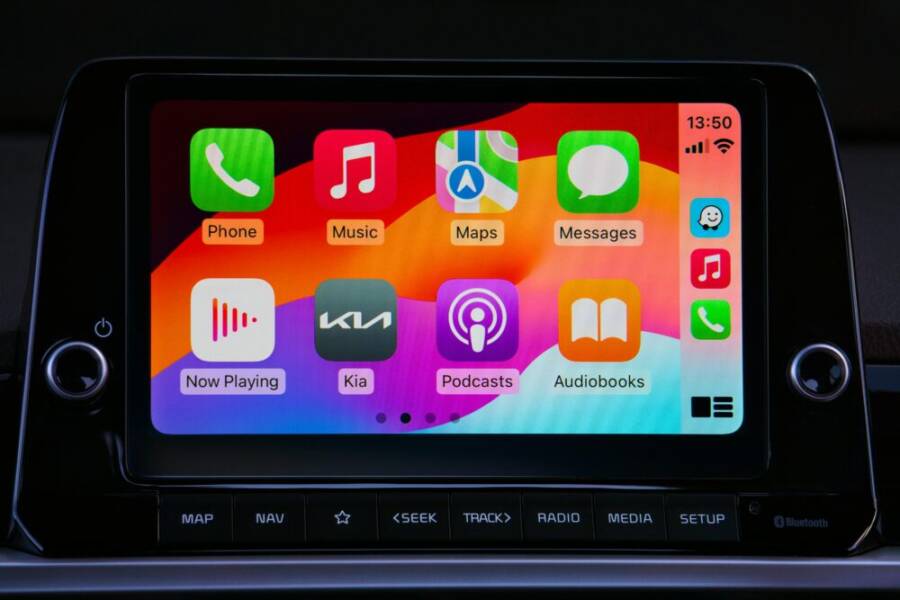
If your car supports CarPlay, you can also streamline the connection by selecting the car’s name from CarPlay options after you initiate pairing.
Connect iPhone to car Bluetooth
Once both devices are in pairing mode, your iPhone will display a list of available Bluetooth devices. Tap your car’s name to start pairing. You may see a prompt to confirm a PIN or passkey; verify that the code matches what’s shown on your car screen.
- Accept any permission requests for Contacts, Messages, or media access. These permissions keep hands-free calling and messaging smooth.
- If your car prompts for a PIN, try common codes like 0000 or 1234 first. If a different PIN is required, check your car’s manual or the Bluetooth settings in the head unit.
- After pairing, set your car as a trusted device and enable Auto-Join if available so future connections happen automatically.
Apple’s official guide also covers connecting your iPhone to CarPlay, which can enhance the experience when available:
Connect iPhone to CarPlay
Troubleshooting quick wins
If the connection stalls or drops, try these fast fixes before diving into deeper troubleshooting:
- Turn Bluetooth off and back on on both devices, then retry.
- Remove the car from the iPhone’s My Devices list and pair again from scratch.
- Restart the iPhone and the car’s infotainment system.
- Make sure any car software updates are installed; some head units benefit from a firmware refresh.
If you’re still stuck, consult the car’s Bluetooth help screen or manual for model-specific steps. Apple’s support pages offer practical steps for CarPlay and Bluetooth accessories, which can resolve many common hiccups:
Use CarPlay with your iPhone
Quick follow-up tips for a stronger, longer connection
- Keep the car’s Bluetooth list clean. Remove older or unused devices so you don’t confuse the system when you’re on the move.
- Enable auto-reconnect where possible. This reduces the chance of a manual retry after a quick phone call or message.
- If you use multiple iPhones in a family car, designate a preferred device for hands-free calling to simplify setup.
- When driving in areas with heavy Bluetooth interference, consider temporarily turning off other streaming devices to improve stability.
By following these steps, your iPhone will pair with your car Bluetooth quickly, letting you focus on the road rather than the setup. For more on Apple’s car connectivity options, see the CarPlay guidance linked above and the general Bluetooth setup references.
Fix Common Bluetooth Connection Issues
Connecting your phone to the car stereo should be a smooth experience, but interference, outdated software, or a stuck pairing prompt can throw a wrench in the works. This section provides focused fixes you can try quickly to restore a reliable Bluetooth link for both Android and iPhone users. Follow the steps in order, and you’ll spend more time on the road and less time tinkering.
 Photo by Erik Mclean
Restart and Reset for Quick Fixes
Sometimes a fresh start is all you need. Begin with simple restarts and cleanups that clear minor software glitches.
- Restart both devices. Turn off your phone, then the car’s infotainment system. Wait a few seconds, then power them back on.
- Clear cached pairing data. On Android, remove the car from Bluetooth devices and clear any saved devices. On iPhone, forget the car in Settings > Bluetooth, then re-pair.
- Reinitiate pairing from scratch. After both devices reboot, enable Bluetooth and start the discovery process again.
- If prompts stall, toggle Bluetooth off and back on, or perform a quick software update. For Android users, you can check guidance on Android Bluetooth troubleshooting here: https://support.google.com/android/answer/9769184?hl=en. For iPhone users, Apple’s car connectivity resources offer solid background: https://support.apple.com/en-us/102521
If you still see a PIN prompt, try codes like 0000 or 1234 first. If the code is different, double check the car’s manual or the head unit screen. A clean restart often resolves most stubborn prompts.
Deal with Interference from Other Devices
Bluetooth operates in a crowded radio spectrum. Nearby gadgets can steal bandwidth or create noise that disrupts pairing and streaming.
- Move away from crowded areas. Keep your car and phone away from crowded charging docks, smart home hubs, or other active Bluetooth devices.
- Separate devices physically. Put keys, charging cables, and other Bluetooth accessories a short distance away from the car’s head unit.
- If your car offers channel switching or a different Bluetooth profile, switch to a less congested option. In many systems, selecting a different audio profile or re-pairing with a fresh profile helps.
- Check for competing wireless signals. If you notice interference or dropouts in areas dense with devices, try pairing in a quieter environment or during a different time of day.
These quick steps often stabilize the link without more invasive troubleshooting. If you want a deeper dive into Android specific remedies, see Google’s guide on fixing Bluetooth problems: https://support.google.com/android/answer/9769184?hl=en. For iPhone related interference, Apple’s CarPlay and Bluetooth pages provide practical paths to smoother connections: https://support.apple.com/en-us/108415.
Conclusion
Connecting your phone to your car via Bluetooth is a small setup with big rewards. You get safer, hands free calls, smoother navigation, and easier access to your favorite music without fumbling with cables. Recap the essentials: make both devices discoverable, start pairing in the car, confirm any prompts, and keep your devices updated to prevent glitches. A quick restart or clearing old devices can fix stubborn prompts fast.
Try these steps today for safer driving and fewer interruptions. If you have tips that helped you beyond what’s covered, share them and help others. A quick comment with your car model and phone type can spark faster solutions for everyone.
If you want to go further, consider enabling auto reconnection and keeping the car’s Bluetooth list clean. Your experience can stay reliable across trips, making every drive a smoother one. Thanks for reading, and here’s to many hands free journeys ahead.