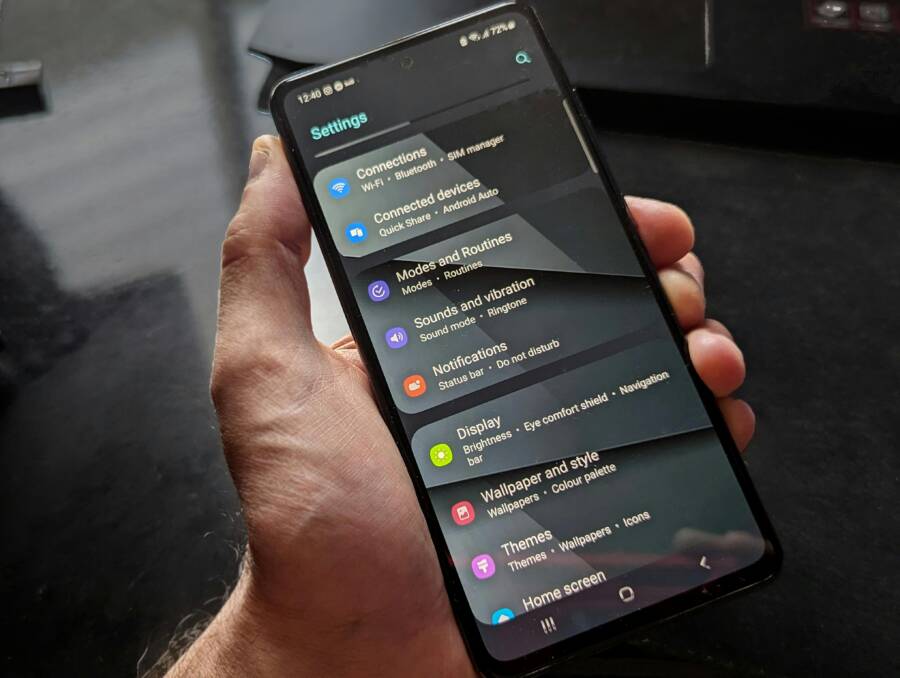
Wonder why your phone keeps showing nearby networks you don’t want to join again. Clearing suggested WiFi networks keeps your list tidy, protects your privacy, and reduces the number of prompts you see in daily life. In this guide, you’ll learn simple steps for both Android and iPhone, plus tips to prevent future prompts.
If you’ve ever connected at home, a cafe, or a library, you’ve seen saved networks and nearby suggestions pile up. This post explains why you might want to clear them and how it can cut down on accidental connections. You’ll get clear, step by step instructions for Android and iPhone, so you can choose the method that fits your device. We’ll also share practical habits to keep your network list lean and secure.
Before you start, a quick note: if you plan a reset that touches saved passwords, back them up first. This will save you time rejoining familiar networks later. By the end, you’ll know how to remove old networks, stop new suggestions, and keep your smartphone running smoothly in airports, coffee shops, and beyond.
Why clearing suggested WiFi networks matters
Clearing suggested networks is a practical habit that keeps your device simpler to use and your data safer. When your phone runs scans for nearby networks, it collects names it has connected to before and shows them up as quick options. Removing old or unused networks helps you avoid clutter, stops accidental connections, and reduces the chance that someone nearby can infer where you’ve been. This section covers what these networks are, why they pose privacy concerns, and how clearing them fits into a smarter, cleaner mobile life.
What are suggested networks and how they appear
Phones routinely scan for nearby WiFi networks. They save networks you’ve joined before so reconnecting is fast. Think of it like a guest list at a coffee shop: the system remembers who you were last time and invites you back. Saved networks are different from open, nearby networks you haven’t joined yet.
In kid-friendly terms, imagine walking into a cafe and seeing a chalkboard with a list of SSIDs you’ve connected to in the past. Those names pop up again because your phone remembers them. You might also see networks you’ve never joined but are nearby, like a familiar cafe name or a neighbor’s router with a generic label. It helps to picture two kinds of networks:
- Saved networks: These are the ones your phone knows. Your phone will try to join them automatically if you’re in range and the password is saved.
- Nearby open networks: These are new or temporary networks you see but haven’t joined. They appear because your phone is scanning the airwaves to find signals.
Note that the exact steps to clear these lists differ between Android and iPhone. Android and iPhone each have their own menus and terminology, so you’ll follow device-specific instructions.
For Android users, you’ll manage saved networks and their passwords in settings that tie to your Google account and device. For iPhone users, you manage known networks through iOS settings, with a separate path for Wi‑Fi networks you’ve joined in the past. If you want to reference official guidance, see how Android walks you through connecting to Wi‑Fi networks and how Apple shows you to connect to Wi‑Fi on iPhone or iPad. These resources offer clear, step-by-step visuals for your device.
- Android support: Connect to Wi-Fi networks on your Android device
- Apple support: Connect to a Wi-Fi network on your iPhone or iPad
Privacy and security concerns with saved networks
Saved networks are convenient, but they carry privacy risks. If someone watches your phone over your shoulder or gains access to your device, they can see the list of networks you’ve trusted. That list can reveal places you’ve been, like your home, work, or favorite cafes. Even without clicking into each network, the names themselves can tell a story about your habits.
Beyond location indicators, saved networks can also expose security details if someone with access to your device can read saved passwords. A compromised phone could leak login information for networks you’ve joined at home or on the go. This is especially true if you don’t use a passcode to lock your phone or if you share your device with others. The risk is real but manageable with straightforward steps.
Clearing saved networks reduces these risks without stopping you from using WiFi in everyday life. You’ll still see open networks when you need them, and you can reconnect to familiar networks quickly by re-entering your password if you want. The goal is to keep your connectivity smooth while limiting exposure from lists that no longer reflect your current routines.
For additional context, official guidance on how to manage connections and privacy features when linking to wireless networks can help. Apple, for instance, outlines Wi-Fi privacy features and how to connect securely, which can inform how you handle saved networks on an iPhone. Android users can also review best practices from Google’s guidance on connecting to Wi-Fi networks on Android devices.
- Apple privacy features when connecting to wireless networks
- Android: Connect to Wi-Fi networks on your Android device
Benefits of clearing for performance and privacy
Clearing suggested networks pays off in several practical ways. First, it reduces prompts. When your list is lean, your phone prompts you less about joining networks you don’t actually use. This makes everyday tasks, like studying or commuting, less interrupted by pop-up decisions.
Second, clearing improves performance. A smaller pool of saved networks means less background scanning and fewer checks for each nearby signal. Your device can focus on real, relevant connections rather than sifting through a long, outdated list. That leads to a smoother experience, especially on older devices or when you’re moving through busy areas like airports or coffee shops.
Third, it clarifies your network list. A clean list helps you spot networks you actually want to join. You won’t confuse a remembered home router with a café’s temporary network. This is especially helpful when you’re in a rush and need to connect quickly.
Clearing is quick and often reversible. If you clear a saved network by mistake, you can reconnect by re-entering the password. You can repeat the process later if you want to refresh your saved networks again. It pairs well with other safety steps like updating passwords for networks you still trust, which adds an extra layer of protection.
Here are simple scenarios where clearing shines:
- Studying at a library or cafe: Fewer prompts means fewer distractions while you focus.
- Commuting: Your phone won’t chase after networks you won’t use during the ride.
- Working remotely: A cleaner network list helps you connect to the right network at a coffee shop or coworking space without fumbling.
If you’re curious about best practices for network management, you can consult official guidance on connecting to Wi-Fi on Android and iPhone. These resources offer practical steps for managing saved networks and understanding how your devices handle wireless connections.
- Android: Connect to Wi-Fi networks on your Android device
- iPhone: Connect to a Wi-Fi network on your iPhone or iPad
- Apple privacy features when connecting to wireless networks
Key takeaways
- Saved networks can reveal travel patterns and preferences if someone observes your list.
- Clearing networks reduces exposure of passwords and location data, while keeping basic Wi-Fi usage intact.
- The process is quick, reversible in many cases, and a good complement to regular password hygiene.
If you’d like to see concise, device-specific steps, the official support pages above provide clear paths for both Android and iPhone users. They’re a handy reference if you want to double-check a setting or confirm the exact menu names on your device. For a quick read, you can start from the sections on connecting to Wi-Fi networks and then move to the privacy-focused guidance to understand how these features work together.
Android devices: how to clear suggested networks
If you’ve noticed a long list of remembered networks or new nearby networks popping up on your Android device, you’re not alone. Clearing these suggestions keeps your device clean, speeds up connections, and protects your privacy in busy places like airports or cafés. The following subsections give straightforward, device-friendly steps to remove saved networks, plus a safety net if you want a full reset for a truly fresh start.
Step-by-step for stock Android
- Open the Settings app on your smartphone.
- Tap on Network & Internet (or similar, depending on your version).
- Choose Wi‑Fi and then look for a section labeled Saved networks or Manage networks.
- You’ll see a list of networks you’ve saved. Tap the network you want to forget, then select Forget or Remove.
- To remove multiple networks quickly, repeat the process for each entry. If you want to wipe everything, some devices offer an option to remove all saved networks in the same menu.
- After forgetting essential networks, you’ll need to re-enter their passwords when you reconnect. This is a good time to verify passwords and update any that have changed.
For reference, stock Android guides from Google explain how to connect to Wi‑Fi and manage saved networks, which align with these steps. If you want a quick refresher, you can review their official Wi‑Fi connection guidance.
- https://support.google.com/android/answer/9075847?hl=en
- https://support.google.com/pixelphone/answer/2819519?hl=en
Notes for the everyday user: clearing saved networks doesn’t just purge clutter. It also reduces the risk of auto-connecting to networks you no longer use. If you’re a frequent traveler or switch between work, coffee shops, and home, this simple reset helps your phone stay focused on networks you actually rely on.
Brand specific paths for major Android devices
Paths here follow a common pattern, with small brand variations. In most cases, you’ll find the route under Settings > Network & Internet > Wi‑Fi > Saved networks or Manage networks, then pick a network and choose Forget or Remove. The brand nuances are slight but worth noting.
- Samsung Galaxy
- Path: Settings > Connections > Wi‑Fi > Manage networks (or Saved networks) > tap the network > Forget.
- Quick tip: Samsung sometimes labels the option as “Forget” directly from the network settings screen or via an ellipsis menu. If you see “Delete,” that’s the same action in effect.
- Google Pixel
- Path: Settings > Network & Internet > Wi‑Fi > Saved networks > select a network > Forget.
- Quick tip: Some Pixel devices show a gear icon next to the network name; tapping it reveals Forget.
- OnePlus
- Path: Settings > Wi‑Fi > Saved networks or Manage networks > choose a network > Forget or Remove.
- Quick tip: Look for a three-dot menu if you don’t see Forget right away. The function is the same even if wording shifts to Remove.
Remember, steps may vary slightly with Android version updates. If you can’t find the exact label, look for keywords like “Networks,” “Saved,” or “Manage” within the Wi‑Fi area. For brand-specific visuals, check official support pages from Samsung, Google, and OnePlus as a quick reference.
Helpful sources:
- Samsung: How to forget a network on Samsung Mobile Device
- Pixel: Connect to Wi‑Fi networks on your Pixel phone
- OnePlus: How to delete saved Wi‑Fi networks on OnePlus devices
Clearing all saved networks (nuclear option) and backup
There are times you want a complete reset of your network memory. This is the nuclear option. Use it when you’re troubleshooting stubborn connectivity issues, preparing a phone for resale, or you’re cleaning up a long history of networks. Before you do, back up essential Wi‑Fi passwords so you can reconnect to trusted networks quickly.
- Path roughly: Settings > System > Reset options > Reset Wi‑Fi, mobile & Bluetooth
- Confirm the action. The reset will wipe all saved networks, and you’ll need to rejoin networks afterward.
- After the reset, rejoin your important networks by re-entering their passwords. This ensures you regain access without surprises.
Why back up first? Passwords saved in your device are the keys to your home or office networks. Re-entering them after the reset keeps your routine fast and secure. If you manage multiple devices, consider exporting or securely saving password lists in a trusted password manager so you can restore access without hunting for forgotten credentials.
If you’re looking to double-check the exact menu names for a nuclear reset, official Android support resources cover the broader reset paths and the potential consequences of a factory-style action. This helps you decide whether a full reset is worth it in your situation.
- Android: Reset your Android device to factory settings
- Android: Connect to Wi‑Fi networks on your Android device
What to expect after a reset: your device will forget all saved networks and you’ll need to reconnect to the networks you still trust. It’s a clean slate that makes sense if you’ve got lingering connection issues or you want to start fresh with your wireless setup.
Key takeaways
- Clearing saved networks reduces clutter and the chance of auto connections to outdated networks.
- Brand-specific paths keep the process straightforward, even when menus vary by device.
- The nuclear option is powerful but resets more than just saved networks; back up passwords first and be prepared to reconnect to essential networks.
If you want a quick reference, use the official support pages for Android and each brand. They provide visuals and exact menu names to match your device’s firmware. For extra context on network privacy and how these features work, you can explore the linked resources.
- Android help: Connect to Wi‑Fi networks on your Android device
- Pixel help: Connect to Wi‑Fi networks on your Pixel phone
- Samsung help: How to Forget a network on Samsung devices
External links
- How to Forget a Network on Samsung Mobile Device
- Connect to Wi‑Fi networks on your Pixel phone
- How to delete saved Wi‑Fi networks on OnePlus devices
- How to reset the network settings on my Google smartphone
- How to delete a Wi‑Fi network on Android and iPhone
- Reset your Android device to factory settings
By keeping these steps in your toolkit, you can maintain a lean, secure, and responsive smartphone experience wherever you go. And when in doubt, a quick review of your Brand’s official guide helps ensure you’re following the exact path for your device.
iPhone devices: how to clear suggested networks
If your iPhone keeps suggesting networks you’ve never joined or no longer use, you’re not alone. Clearing suggested networks helps protect privacy, reduces clutter, and speeds up when you’re trying to connect in busy places. In this section, you’ll find concise, device-specific steps to remove single networks, prune the known networks list, reset network settings, and curb future prompts. These steps are practical for everyday smartphone life, whether you’re at home, traveling, or in a crowded cafe.
 Photo by Watford London Media
Forget single networks
Forgetting a single network is quick and precise. If you’ve connected to a trusted network in the past but don’t want your iPhone to reconnect automatically, this is the right move. Here’s the typical path you’ll follow:
- Go to Settings > Wi‑Fi.
- Tap the information button (the ⓘ or “i” icon) next to the network you want to forget.
- Choose Forget This Network, then confirm if prompted. If you prefer, you can disable Auto-Join for that network instead of forgetting it entirely.
This approach is especially useful when you’re in a shared space where a network name reappears after every visit. By forgetting the network, your iPhone won’t automatically pull it back into focus, making your next connection choice clearer. If you do reconnect later, you’ll be prompted to re-enter the password, which helps keep your credentials under your control.
- If you want to ensure you never automatically join a specific network again, you can turn off Auto-Join for that network. This prevents the device from trying to reconnect without your explicit permission.
- When in doubt, use the same path to review other networks in the future and decide individually whether to forget or keep them.
To explore official guidance on this process, Apple’s step-by-step article on forgetting a Wi‑Fi network is a reliable reference. It covers both current usage and networks you’ve joined before. Learn more from Apple support: Forget a Wi‑Fi Network on iPhone, iPad, Mac, Apple Vision Pro.
- https://support.apple.com/en-us/102480
Remove multiple saved networks
If your iPhone has accumulated a long list of known networks, removing them in a careful, incremental way is best. Apple makes it straightforward to edit the known networks list, and you can do this in small batches to avoid mistakes.
- Open Settings > Wi‑Fi.
- Tap Edit (if available) in the corner to reveal the networks known to your device. Alternatively, tap the network’s info button as you review each entry.
- For each network you want to remove, tap the delete button or swipe left and choose Delete. If you see a More Info option or three-dot menu, use it to access the Delete action.
- Repeat in small batches. This reduces the chance of accidentally removing a network you still rely on.
- After you finish, recheck the list to ensure you only keep networks you actually use. This helps your iPhone focus on relevant connections and reduces unwanted prompts.
If you prefer a quick reference, Apple’s guidance covers managing known networks on iPhone and other devices. It’s a practical resource when you’re cleaning up a long list.
- https://support.apple.com/en-us/102480
A practical tip: performing removals in batches helps you avoid misclicks and allows you to re-enter a password for a network you truly want to keep without slowing down your workflow. Think of it as pruning a hedge—snip a few at a time and watch the list become clearer and easier to navigate.
Reset network settings
Resetting network settings should be considered a last resort. This action clears saved networks, VPN configurations, and Bluetooth pairings. It can solve stubborn connectivity problems that other steps can’t fix. Before you proceed, back up any important credentials you may need to reconnect to trusted networks.
- Path: Settings > General > Transfer or Reset iPhone > Reset > Reset Network Settings.
- Confirm the action. The device will forget all saved networks, and you’ll need to rejoin networks and re-pair Bluetooth devices afterward.
- After the reset, you can re-add your essential networks by entering passwords again. If you frequently switch between devices, consider storing passwords securely in a password manager for quick restoration.
Resetting network settings is effective when you’re troubleshooting persistent connection issues, preparing a phone for sale, or starting fresh with your wireless setup. It’s not something you should do casually, but it’s a reliable option when other steps fail.
For official context, Apple outlines how to reset iPhone settings to defaults and how this action affects network configurations. Review these steps to confirm they’re the right move for your situation.
- https://support.apple.com/en-us/guide/iphone/iphea1c2fe48/ios
Key takeaways:
- Resetting network settings is a powerful reset that affects more than just saved networks.
- Always back up passwords and key configurations before performing a reset.
- After the reset, you’ll re-create your trusted connections, which helps prevent lingering issues.
Stop auto join and reduce prompts
To minimize future prompts, you can fine-tune the Auto-Join behavior and adjust the “Ask to Join Networks” setting. These changes help your iPhone stay quiet about nearby networks while still connecting to networks you know and trust.
- Disable Auto-Join for specific networks: Go to Settings > Wi‑Fi, tap the information button next to a trusted network, and ensure Auto-Join is off if you don’t want automatic rejoining.
- Adjust Ask to Join Networks: In the same Wi‑Fi settings, you’ll find the Ask to Join Networks option. Setting this to Off reduces the number of prompts you see when new networks appear.
- Why this helps: Turning off auto join and limiting prompts makes your device less prone to suggest networks you don’t want to use. It also reduces the mental load during commutes or in busy spaces.
If you’d like deeper context on this topic, several guides discuss stopping automatic connections and prompts. These resources explain the balance between quick access to familiar networks and keeping prompts at bay, which is ideal for smartphone users who want a smoother daily experience.
- How to stop your devices from asking to join Wi-Fi networks
In practice, these adjustments help your iPhone stay focused on networks you actively choose. It’s especially useful when you move between home, work, and public spaces, because the device won’t constantly chase after every new signal. A quieter device means fewer disruptions and faster decisions when you need to connect quickly.
Key takeaways:
- Turning off Auto-Join and limiting prompts reduces clutter and improves connection flow.
- These settings are easy to adjust, and you can tailor them to fit how you move through your day.
- A calmer Wi-Fi experience comes with less guessing and fewer interruptions.
If you want to double-check exact menu names for your device, Apple’s official guidance provides clear, step-by-step visuals for Apple devices and iPhone models. It’s a solid refresher when you’re tweaking your network behavior.
- Apple support: Forget a Wi‑Fi Network on iPhone, iPad, Mac, Apple Vision Pro
- How to stop annoying Wi-Fi network prompts on your iPhone
External resources you might find handy:
- How to Forget a Wi-Fi Network on iPhone, Android, Mac & More
- How to reset the network settings on my Google smartphone
- Reset your iPhone settings to their defaults
In the end, small, deliberate changes add up. A cleaner saved networks list, fewer prompts, and a targeted reset path keep your iPhone ready to connect when you actually need it. If you want to keep your smartphone experience calm and reliable, these steps provide a practical foundation you can revisit anytime.
Preventing future suggested networks
Keeping your device from showing unwanted network prompts is easier when you adjust the core Wi‑Fi behaviors on both Android and iPhone. This section focuses on practical, step‑by‑step tweaks that reduce or eliminate future suggested networks while still allowing you to connect when you want. Think of it as pruning a hedge: a little trimming goes a long way toward a calmer, more predictable Wi‑Fi experience on your smartphone.
Android: disable network notifications and scanning
Android devices frequently scan for nearby networks and push alerts when a high‑quality public network is detected. Disabling or dialing back these features lowers clutter and reduces the chance of accidental connections, especially in crowded places like airports or coffee shops. Here are straightforward options you can configure.
- Turn off notifications for nearby networks
- Open Settings and go to Network & Internet.
- Tap Wi‑Fi and look for a setting labeled something like Notify for public networks or similar. Disable this toggle to stop pop‑ups about nearby networks while you’re out and about.
- If you don’t see an exact label, look for a related toggle under the Wi‑Fi or Network preferences area. The goal is to stop automatic prompts about new or public networks.
- Reduce or disable Wi‑Fi scanning for nearby networks
- In the same Wi‑Fi settings area, search for options like Scanning always available or Wi‑Fi scanning. Turn off scanning when you’re not actively seeking a network.
- On some devices, you’ll find these controls under advanced or developer options. If you do, switch to a more conservative setting so your phone isn’t constantly scanning in the background.
- Practical impact and follow‑ups
- With notifications off and scanning reduced, your device will be less likely to present nearby networks you don’t need. You’ll still be able to connect to networks you choose by manually selecting them from the Wi‑Fi list and entering a password if required.
- If you rely on trusted networks when traveling, you can temporarily enable scanning or notifications again when you’re in a known location, then switch back to quieter settings afterward.
For reference and further details, you can consult official guidance from Google’s support resources on connecting to Wi‑Fi networks and managing saved networks. They explain how to navigate the Wi‑Fi menus across different Android versions and brands, including stock Android, Samsung, and Pixel devices. Also consider checking threads and help articles that discuss stopping open network prompts on specific devices for tuned, device‑specific instructions.
- https://support.google.com/android/answer/9075847?hl=en
- https://support.google.com/pixelphone/answer/2819519?hl=en
- https://support.google.com/pixelphone/thread/273981117/stop-scanning-for-all-available-wifi?hl=en
Key takeaway: a leaner Wi‑Fi notification and scanning setup keeps your daily smartphone use smoother. You get to decide when a network is worthy of attention, not every nearby signal.
iPhone: disable Ask to Join Networks and Auto-Join adjustments
iPhone users have a couple of clear levers to control future network prompts. By turning off Ask to Join Networks and fine‑tuning Auto‑Join, you reduce the number of unsolicited suggestions while staying in control of when you join a network.
- Disable Ask to Join Networks
- Open Settings and go to Wi‑Fi.
- Find the toggle labeled Ask to Join Networks and switch it off. This stops the iPhone from asking you to join networks it detects in the vicinity, which is common in busy areas.
- Adjust Auto‑Join settings for known networks
- In the same Wi‑Fi menu, tap the information icon (the circle with an “i”) next to networks you trust.
- For each trusted network, you can turn off Auto‑Join. This ensures the phone won’t reconnect automatically to that network without your explicit permission.
- Periodically review your list of known networks and disable Auto‑Join for any networks you don’t want to connect to automatically.
- Practical impact and follow‑ups
- With Ask to Join turned off and Auto‑Join limited, your iPhone will not clutter your day with constant prompts in places with many public networks. You’ll still join networks you actively choose and trust.
- If you later want to reconnect automatically to a trusted network, you can re‑enable Auto‑Join for that specific network or re‑introduce the password so it reconnects as you expect.
For authoritative guidance, Apple’s support articles outline how to forget networks and manage known networks. They provide step‑by‑step visuals to help you locate the exact menu names on your iPhone or iPad. If you want to double‑check the exact wording on your device, start from the Wi‑Fi settings and move to the network’s detail screen.
- Apple support: Forget a Wi‑Fi Network on iPhone, iPad, Mac, Apple Vision Pro
- Support article on managing or stopping prompts for Wi‑Fi networks (Apple)
- Related guidance on using captive networks and secure connections with Apple devices
- https://support.apple.com/en-us/102480
- https://support.apple.com/en-us/102554
- Practical tip: don’t forget to run a quick audit of your known networks every few months. Removing stale entries keeps your device focused on networks you actually use, reducing unnecessary prompts and potential password exposure.
Key takeaway: a quieter, more predictable Wi‑Fi experience comes from turning off Ask to Join Networks and tailoring Auto‑Join to your real needs. It’s especially useful when you move between home, work, and public spaces, where too many prompts can disrupt focus.
External resources you might find handy
- How to forget a Wi‑Fi Network on iPhone, iPad, Mac, or Apple Vision Pro
- How to stop annoying Wi‑Fi network prompts on your iPhone
In practice, these settings give your iPhone the room to connect when you want and stay calm when you don’t. A tidy known networks list, fewer prompts, and a targeted approach to network joins make everyday use easier, whether you’re at a coffee shop or traveling through a crowded terminal.
Troubleshooting common problems after clearing networks
Clearing suggested networks can tidy your device, but it can also uncover lingering issues. If reconnecting or seeing new prompts feels off after you’ve cleaned up saved networks, you’re not alone. Use these focused troubleshooting steps to diagnose and fix the most common problems quickly. Think of this as a quick diagnostics run for your smartphone, aimed at restoring reliable connectivity without redoing work you already did.
Can’t reconnect after forgetting networks
Causes often come from stale data or a small software hiccup. When you forget a network, your device loses the password and credentials, which can momentarily confuse the OS during the next connection attempt. A glitch in the Wi‑Fi stack or a stale cache can also block reintegration even after you re-enter the password.
Fix sequence you can follow now:
- Turn Wi‑Fi off, then back on.
- Restart the device. A fresh boot clears temporary glitches that block reconnect.
- When the network reappears, re-enter the password carefully and connect.
If the issue persists, test the network with another device. This helps determine whether the problem is on your phone or with the router. If another device connects fine, focus on your phone’s settings or password storage. If not, there may be a router or service issue worth checking with your provider.
Helpful validation steps:
- Confirm you’re entering the correct password. A wrong password will fail repeatedly.
- Verify that the router is broadcasting the expected SSID and that security mode matches what you expect (for example WPA2 vs WPA3).
- Clear residual network data again only if you’re comfortable re-entering all credentials later.
For reference on similar recoveries, see how to reset network settings on mobile devices. If the problem is rooted in the router or service, you’ll want to test with a different device or run a quick router restart.
- https://www.androidpolice.com/reset-network-settings-android-ios/
- https://support.apple.com/en-us/111786#:~:text=Reset%20your%20network%20settings,device%5D%2C%20then%20tap%20Reset.
No networks show up after clearing
A blank Wi‑Fi list after a cleanup can be alarming, but the main culprits are a delayed scan and a misconfigured setting. Sometimes the phone simply needs to refresh its view of the airwaves, or a minor setting adjustment is required to reinitiate scanning properly.
What to try:
- Turn Wi‑Fi off, then back on to trigger a fresh scan.
- Pull down the Wi‑Fi menu to refresh the list manually on many devices.
- Check for a system update. A recent update can fix scanning bugs and improve reliability.
- If nothing appears, perform a quick reset of network settings as a last resort. This is less drastic than a factory reset and preserves most of your data.
If the blank screen persists, compare behavior across devices. If a tablet or another phone sees networks while your main device does not, the issue is device-specific. If all devices fail, you’re likely facing a router issue or a service outage.
Related resources:
- How to reset your Android or iOS network settings to fix connectivity problems
- If you can’t connect to Wi‑Fi on your iPhone or iPad, check Wi‑Fi settings and router status
- https://www.androidpolice.com/reset-network-settings-android-ios/
- https://support.apple.com/en-us/111786#:~:text=Reset%20your%20network%20settings,device%5D%2C%20then%20tap%20Reset.
Connected but no internet after reset
If a reset clears saved networks and you connect but still have no internet, the issue is usually outside the device itself. It could be the router, the internet service, or a temporary outage in your area. Start by ruling out the simplest causes and then broaden the check.
Diagnosis steps:
- Check the router’s status lights. Look for a solid or blinking light indicating internet activity. A red or orange light often signals a line problem or service outage.
- Test with another device on the same network. If that device sees internet, the issue may be with the original device’s configuration rather than the network.
- Power cycle the router and modem. Unplug, wait 30 seconds, plug back in. Let the devices restart fully.
- Verify the service status with your provider. A local outage could affect all devices, not just yours.
If you still have no internet after a reset, inspect the physical connection:
- Confirm the Ethernet/cable modem is connected and not loose.
- Check if the modem’s power supply is stable.
- If you use a modem-router combo, consider placing it in bridge mode temporarily to isolate the issue.
Quick router checks you can perform:
- Reconnect to the network after the reset and ensure you’re using the correct password for secured networks.
- Confirm that you’re not connected to a guest or captive portal network that requires login via a browser.
For deeper guidance, see official resources on diagnosing and fixing Wi‑Fi connectivity problems on both Android and iPhone platforms.
- https://support.google.com/android/answer/9075847?hl=en
- https://support.apple.com/en-us/111786
If you want a resilient setup, consider enabling a simple, reliable network policy on your iPhone or Android: minimum password strength, unique SSID naming, and a routine to check service status when you travel. These practices reduce the chances of running into this scenario in the future.
Key takeaways:
- A reset can briefly disrupt connectivity; a router check often resolves it faster.
- Always test with another device to isolate issues.
- Keep a quick outage check in your routine when problems pop up.
External references you may find helpful:
- How to fix your Wi‑Fi connection on Android
- If you can’t connect to Wi‑Fi on your iPhone or iPad
- https://www.avg.com/en/signal/how-to-fix-your-wi-fi-connection-on-android
- https://support.apple.com/en-us/111786
By methodically ruling out device, router, and service issues, you’ll pinpoint the cause without spinning in circles. A calm, focused approach helps you stay connected when you need it most.
Conclusion
Clearing and managing suggested networks keeps your smartphone clutter free, improves privacy, and speeds up connections in busy places. A quick check of saved networks, occasional resets, and tweaks to auto join or prompts can make a big difference without sacrificing convenience. The process is simple, reversible, and a small step that pays off over time for both Android and iPhone users. Try one method today, share your results, and see how a lean WiFi list changes your daily device experience.