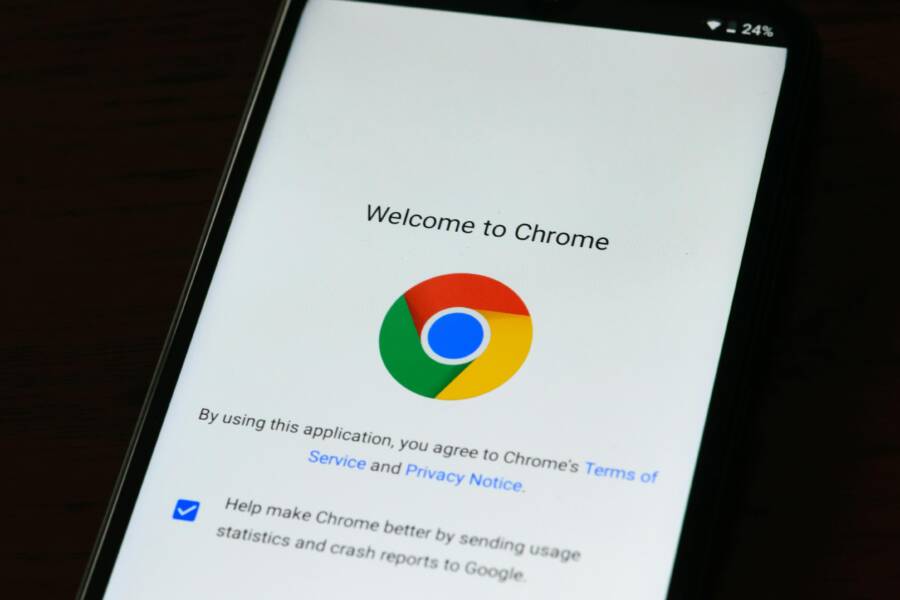
Ready to speed up your phone browser and fix pesky login issues? Clearing cache and cookies is a simple, effective first step. In plain terms, cache stores site data to load pages faster, while cookies keep you logged in and remember site preferences. Sometimes that stored data gets tangled, slowing you down or causing odd behavior.
This guide walks you through the process in a clear, step by step way. Paths vary by browser and device, so you’ll see options for both Android and iPhone. You’ll learn what to clear and what to keep, so you don’t lose important sign in details or preferences.
If you’re new to this, don’t worry. The steps are straightforward, and you’ll get back to browsing in minutes. You’ll also find quick tips to avoid common hiccups and keep your mobile experience smooth. By the end, you’ll know exactly how to perform a clean refresh on any major browser.
We’ll cover practical scenarios you’re likely to meet on a smartphone. Whether you’re troubleshooting slow pages, repeated login prompts, or stubborn pop ups, you’ll come away with a reliable approach. The goal is simple: faster browsing and fewer frustrations, with less guesswork and more control.
What clearing cache and cookies does for your phone browser
Clearing cache and cookies on your phone browser helps restore smooth performance and protects your privacy. It fixes odd page behavior, frees up storage, and reduces stubborn login prompts. Below are the essential concepts you’ll want to know as you decide what to clear and when to do it.
What is cache
Cache is a stash of temporary files your browser saves to speed up page loading. Think of it as a set of shortcuts the browser creates so you don’t have to reload every element from scratch each time you visit a site. Over time, these cached files can accumulate and slow things down, especially if a site updates but your device keeps showing older data. Clearing the cache can help pages load correctly again without touching your saved passwords or form data. For Android users, Chrome offers a “Delete browsing data” option to remove cached items quickly, while you can tailor exactly what you delete. If you want more detail, see how cache and cookies work in Chrome on Android. https://support.google.com/chrome/answer/95647?hl=en&co=GENIE.Platform%3DAndroid
What are cookies
Cookies are small files that remember site settings, logins, and preferences. They let sites recognize you and tailor your experience. Clearing cookies signs you out of most sites and resets any saved preferences on those sites. This can be a good thing for privacy, especially on shared devices, and it helps resolve issues caused by outdated or conflicting cookie data. If you’re curious about how cookies function across devices, you can explore Mozilla and Apple guidance on cookies and privacy. https://support.mozilla.org/en-US/kb/cookies-information-websites-store-on-your-computer
Why you might want to clear them
There are several practical reasons to clear cache and cookies. If pages don’t load correctly, show outdated content, or display mixed up elements, clearing cache can refresh what your browser pulls from the web. If you notice slow performance after a few weeks of heavy browsing, a cache cleanout often helps restore speed. Cookies can accumulate and cause repeated sign-in prompts or personalized settings that feel off, especially after sharing a device. In addition, clearing cookies improves privacy by removing site-specific tracking data. For iPhone users, Safari users can erase history, cookies, and data from Settings, which can free up space and reduce clutter. Apple provides clear steps to manage cookies and cache on iPhone. https://support.apple.com/guide/iphone/clear-your-cache-and-cookies-iphacc5f0202/ios
Step-by-step guide for Android devices
Below are quick, practical steps to clear cache and cookies on the major Android browsers. These actions help fix loading issues, sign-in prompts, and cluttered storage while keeping you in control of what data you remove.
Chrome on Android
- Open Chrome.
- Tap More (three dots) in the upper-right corner.
- Go to Settings > Privacy and security > Clear browsing data.
- Choose a time range, then select Cached images and files and Cookies and site data as needed.
- Tap Clear data.
Tip: If you clear cookies, you’ll be signed out of most sites. You can sign back in later. For more precision, you can clear data for a specific site under Site settings. This keeps other sites intact while you troubleshoot. For a detailed official guide, see Chrome help here: https://support.google.com/chrome/answer/95647?hl=en&co=GENIE.Platform%3DAndroid
 Photo by AS Photography
Samsung Internet
- Open Samsung Internet.
- Tap Menu > Settings > Privacy and security > Delete browsing data.
- Choose Time range, then tick Cached images and files, Cookies and site data.
- Tap Delete.
Note that clearing cookies signs you out of sites. You may want to keep some data if you rely on saved preferences. For more guidance from Samsung, you can consult their help pages. https://www.samsung.com/us/support/answer/ANS10001945/
Photo by AS Photography
Firefox for Android
- Open Firefox.
- Tap Menu > Settings > Privacy.
- Choose Clear private data > Check Cached Web Content and Cookies.
- Tap Clear Data.
This removes local data while leaving password management separate, so you don’t lose saved credentials. If you want a deeper option, Firefox lets you clear data for specific domains later. For a how-to from Mozilla, see their guide here: https://support.mozilla.org/en-US/kb/clear-cookies-and-site-data-firefox
Photo by AS Photography
Step-by-step guide for iPhone devices
Clearing cache and cookies on your iPhone helps refresh how sites load, protect your privacy, and fix stubborn login or display issues. The exact steps vary by browser, but the goal is the same: remove stored data that can slow you down or cause pages to behave oddly. Below you’ll find concise, browser-specific instructions for Safari, Chrome, and Firefox on iPhone. Each guide explains what gets cleared and what to expect afterward, so you’re back to smooth browsing in minutes. If you’re using a smartphone most of the time, a quick data reset can be a real speed boost.
Safari on iPhone
Steps: Go to Settings > Safari > Clear History and Website Data > Confirm. This action clears your history, cookies, and cached content, and it affects all Safari data on the device. After you confirm, you’ll be logged out of sites and will need to re-enter passwords for protected sites. It’s a broad clean wipe, but you’ll regain speed and remove clutter from your browsing trail. If you want to review Apple’s official guidance, see: Delete your Safari history, cache, and cookies on iPhone. For deeper control, you can also selectively delete specific website data from Safari settings: Clear your cache and cookies on iPhone.
Chrome on iPhone
Steps: Open Chrome app > More (three dots) > Settings > Privacy > Clear Browsing Data > Cookies and site data, Cached images and files > Choose a time range > Clear Data. It’s important to know that on iPhone, iOS WebKit underpins Chrome, so the data management is handled through Safari’s engine behind the scenes. Clearing data logs you out of most sites and removes site data you’ve saved. If you want to review Google’s official guidance, check: Delete browsing data in Chrome – iPhone & iPad. You can also manage cookies more precisely with Delete, allow, and manage cookies in Chrome – iPhone & ….
Firefox on iPhone
Steps: Open Firefox > Settings > Clear Private Data > select Cached Web Content and Cookies > Clear Data. This clears local cached content and cookies but stops short of a full browser reset. Your saved passwords and form data stay intact, so you won’t lose everything you rely on. If you’d like a deeper cookie and site data cleanup, Firefox lets you clear data for individual sites later. For more detail, see Mozilla’s guidance: Clear cookies and site data in Firefox – Mozilla Support. Firefox’s approach can feel gentler on your everyday browsing while still reducing clutter.
Common questions and quick fixes
If you’re tackling slow pages, repeated sign-in prompts, or odd site behavior after clearing cache and cookies, this section has you covered. Here you’ll find concise answers to common questions and practical, fast fixes you can apply right away. The goal is to get you back to smooth browsing with minimal friction, whether you’re on Android, iPhone, or a tablet. Think of this as the quick troubleshoot kit you pull out when things feel off after a data clean. We’ll touch on what gets cleared, what to expect afterward, and handy tips to avoid typical pitfalls on your smartphone.
 Photo by Deepanker Verma
What data gets cleared when you reset cache and cookies
When you clear cache, you remove temporary files that help pages load faster. This action resets stored page data so sites can fetch fresh files, which often fixes display glitches or outdated content. Clearing cookies wipes site data and preferences tied to your account on that device. This means you’ll sign out from most sites and lose saved preferences for those sites, which can feel inconvenient at first but can resolve stubborn sign-in or customization issues. Remember, saved passwords are usually managed by the browser or a password manager, not the cookies themselves. Autofill data may also be affected, so you might need to re-enter form details on first visit after the reset. For a deeper look into how Chrome handles cache on Android, see the official guide and related Android tips. https://support.google.com/chrome/answer/95647?hl=en&co=GENIE.Platform%3DAndroid
Common questions you might have include whether clearing cookies signs you out of everything. The short answer is yes for most sites, but you can manage cookies more precisely if you want to keep login states for certain sites. If you’d like to explore cookie management specifics for both Android and iPhone, Google Chrome Help provides clear steps. https://support.google.com/chrome/answer/95647?hl=en&co=GENIE.Platform%3DAndroid
Will I be signed out of websites
Clearing cookies will sign you out of most sites. You’ll need to sign back in to continue using those sites. If you rely on stored credentials, keep passwords in the browser or a dedicated password manager as a reliable workaround. After the reset, expect to re-enter your sign-in details on many sites, and you may be asked to re-verify two-factor authentication on some services. For more precise control over cookies on Android, you can manage them directly in Chrome’s settings. https://support.google.com/chrome/answer/95647?hl=en&co=GENIE.Platform%3DAndroid
If you want to minimize sign-in friction in the future, consider enabling password syncing within your browser or using a password manager that works across devices. This approach helps you sign in quickly even after a cookie reset. For Android users, you can also review broader cookie options and privacy settings to tailor how websites remember you. https://support.google.com/chrome/answer/95647?hl=EN&co=GENIE.Platform%3DiOS&oco=1
How often should you clear cache and cookies
A practical rule is to clear when pages misbehave or show outdated content. If you share a device with others, doing a monthly cache and cookie refresh helps maintain privacy and performance. On the other hand, clearing too often can erase useful site preferences and stored login states, which can slow you down as you reconfigure sites. If you’re concerned about privacy, a more frequent clean can be worthwhile, but balance it with a reasonable retention for sites you trust. For a broad view on how often people clear data, you can check industry guidance and user-focused tips. https://www.cnet.com/tech/mobile/clearing-out-your-android-phone-browsers-cookies-cache-removes-junk-files-fast/
If you want a quick, general framework, consider this approach: 1) clear monthly if you browse many sites; 2) clear sooner if you notice slowdowns; 3) avoid wiping data you rely on for work or shopping on shared devices until you’re ready to re-sign in. For Android users, Chrome can wipe data in controlled chunks, which helps keep essential data intact while removing the clutter. https://support.google.com/chrome/answer/95647?hl=en&co=GENIE.Platform%3DAndroid
Troubleshooting tips after clearing
If problems persist after a cache and cookie reset, start with the basics. Restart your device to refresh system processes that might be lingering in memory. Ensure your browser is up to date, as updates often fix compatibility issues and improve data handling. When retesting, double-check the time range for what you cleared; a too-wide range can remove more data than needed. If one stubborn site keeps misbehaving, clear data for that specific site only, which preserves the rest of your browsing setup. As a final step, try loading the page in another browser to isolate whether the issue is site-specific or browser-related. https://support.apple.com/guide/iphone/clear-your-cache-and-cookies-iphacc5f0202/ios
If you’re curious about cross-device behavior, you can review guidance on cookies and privacy across platforms. This can help you design a consistent experience whether you use an iPhone, Android device, or tablet. https://support.mozilla.org/en-US/kb/cookies-information-websites-store-on-your-computer
Tips to manage cache and cookies long term
Keeping cache and cookies under control is a small habit with big payoff. When you manage data regularly, you reduce slowdowns, keep sign-ins smooth, and protect your privacy on shared devices. This section lays out practical, long term strategies you can adopt on both Android and iPhone. You’ll learn when private mode helps, how to protect data from trusted sites, and how to build a simple cleaning routine that fits into everyday smartphone use.
Private mode for sensitive tasks
Private mode, often called incognito or private browsing, is your ally for sensitive tasks. Use it when you’re handling logins on shared devices, shopping with a temporary account, or viewing personal information you don’t want tied to your history. In private mode, the browser avoids storing cookies, site data, and cached files from that session. That means no permanent traces after you close the window, but it also means you won’t stay signed in or have preferences saved for next time. The trade-off is privacy versus convenience: you get a clean slate, but you’ll sign back in to sites you visit and may need to reconfigure settings when you exit. If you want to dive deeper into how cookies work and how private mode interacts with data, Mozilla’s guidance is a solid resource: https://support.mozilla.org/en-US/kb/cookies-information-websites-store-on-your-computer
Manage site data for trusted sites
If you clear data regularly, you can still keep the data you rely on for sites you trust. This keeps your personalized experiences intact while removing clutter from less-used sites. In Chrome, you can fine-tune site settings to allow specific sites to retain data even after a general clear. On Android, you’ll find dedicated options to keep data for certain sites while cleaning others. The key is to set permissions for trusted sites first, then run a broader cleanup. For precise steps in Chrome on Android, see Delete, allow, and manage cookies in Chrome – Android: https://support.google.com/chrome/answer/95647?hl=en&co=GENIE.Platform%3DAndroid
Set a simple cleaning schedule
A predictable routine beats intermittent guesswork. Aim for a light cadence that stays out of your way. A monthly check works well if you browse many sites, while a quick weekly clean helps keep clutter at bay. Here’s a small, easy-to-follow checklist you can use:
- Check for apps or browsers you rarely use and consider clearing data there.
- Clear cache first, then cookies for sites that cause sign-in prompts.
- Review site data for trusted sites and adjust as needed.
- Sign back into essential services and re-enable any necessary preferences.
- Note any sites that consistently lose saved data and adjust their settings.
For a quick cross-device reference on how often to clear data, you can review guidance from CNET and other tech sources: https://www.cnet.com/tech/mobile/clearing-out-your-android-phone-browsers-cookies-cache-removes-junk-files-fast/
Conclusion
Clearing cache and cookies on your Android and iPhone steadies a noisy browser and speeds up page loads. On Android, you’ll typically clear data from Chrome, Samsung Internet, or Firefox by choosing a time range and selecting cached images, files, and cookies. On iPhone, you’ll clear either Safari, Chrome, or Firefox data through the browser settings, then sign back in as needed. This reset removes stale files and site data that can cause display glitches or repeated prompts.
Remember a reset signs you out of most sites and may erase saved preferences. That trade off boosts privacy and fixes stubborn issues, so plan a quick sign in after the cleanup. To keep a smoother experience, consider a targeted data clean for specific sites or using private mode for sensitive tasks on your smartphone.
Bookmark this guide and try the steps on your own devices. If you share a device, a regular cache and cookie refresh can protect privacy and speed up browsing. A simple routine goes a long way—clear monthly or when you notice slowdowns, then move on with confidence.