Is your phone starting to feel slower and run out of space even though you barely use it? Junk files and clutter from apps can pile up, slowing things down and making it hard to find what you actually need. This guide shows quick wins to free up storage and boost phone performance right away.
You’ll learn where junk lives, from cache and large files to unused apps, and how to safely remove them without losing what matters. We’ll cover simple steps you can follow today, plus deeper cleanups for a longer lasting boost. By the end, you’ll know how to keep your smartphone running smoothly with a regular maintenance routine.
Expect fast wins like clearing cache and deleting large files, plus shortcuts for a deeper clean. We’ll also discuss cloud backup so you don’t lose important photos or app data. If you want more space and a faster phone, this guide gives you a clear, practical path.
Why cleaning junk files on your phone matters
Junk files add up quietly and clutter can hide in plain sight. Clearing them isn’t just about freeing space; it directly affects how smoothly your phone runs and how quickly you can get things done. Think of your device as a desk: the more empty space you have, the easier it is to find what you need and finish tasks without waiting. Here’s a focused look at what counts as junk, how it slows things down, and the red flags that tell you it’s time for a clean.
What counts as junk files
Junk files are the unnecessary clutter that sticks around after apps, browsers, and the system do their work. They come in several common forms:
- Cached data: When you open an app, it stores bits of information to speed up future use. Over time these caches can balloon and become outdated, taking up space and sometimes causing hiccups in performance. Android and iPhone both accumulate cache, especially from browsers and social apps.
- Duplicate photos and media: You might take multiple shots of the same scene or save a file more than once. Duplicates waste storage and can complicate photo management.
- Downloaded files you no longer need: Papers, PDFs, and media you saved for a quick reference may become obsolete. It’s easy to forget these are sitting there until space runs tight.
- Temporary and residual files: Apps generate temporary files during use or after updates. Some devices don’t always tidy these up automatically.
- Old app data: Apps can leave behind data you no longer use, especially after updates or feature changes. This can consume space without offering any real value.
- Browser cache: Web pages, scripts, and media cached by your browser speed up loading times. If you browse a lot, the cache can grow large and slow things down instead of helping.
In practice, you’ll see these on both Android and iPhone. On Android, you may notice large cache and app data folders in Settings > Storage. On iPhone, system caches and large app caches can accumulate behind the scenes, even if you don’t see them at first glance.
To illustrate, consider a phone with several apps that store cached data, a handful of duplicate photos, and a few large downloads from a trip. Removing the duplicates and trimming cached data can immediately reclaim space and reduce clutter that would otherwise slow you down.
- Tip: Use built-in tools to review and remove junk. Android users can inspect storage details in Settings, while iPhone users can offload unused apps and review iPhone storage recommendations in Settings > General > iPhone Storage.
For further reading on how cache and temporary files differ, see guides from reputable sources that explain why caches can both help and hinder performance. You’ll find practical steps to distinguish what to keep from what to delete. More on cache vs temporary files
How junk files slow your phone
Too many junk files act like a roadblock that slows every interaction. The effect is not just about space; it’s about how the system manages memory and storage.
- Apps take longer to launch: When caches grow large, the system spends more time sifting through data to find what it needs. That delay adds up, especially if you open several apps in a row.
- Laggy scrolling and posting: Large caches and residual files can interfere with smooth scrolling and quick updates, making social feeds and messaging feel laggy.
- Slower camera and media saves: If the storage is nearly full, saving new photos or videos can take longer or fail intermittently.
- Longer wake times: A phone with cramped space often wakes up more slowly because background processes compete for memory and storage.
- General battery inefficiency: While not always obvious, excessive background tasks related to stale data can drain battery faster.
These effects show up in everyday tasks. You tap an app and wait a moment for it to start. You snap a photo and wait a beat for the image to save. You stream a video and notice stutters. Reducing junk helps the phone respond more quickly and keep up with your day.
For a practical overview of how junk files impact performance, you can review articles that explain why clearing caches and removing bloat can restore speed. This resource covers typical Android behavior and how cache management ties into overall device performance. How to speed up Android by clearing caches
Signs your phone needs a clean
Knowing when to clean saves you time and prevents bigger problems down the line. Look for these clear indicators:
- Low storage warnings appear frequently: The system prompts you that storage is running short, even if you don’t think you’ve saved much recently.
- Apps take a long time to load: Opening a messaging app or game feels slower than usual.
- Apps crash or lag during use: You experience occasional freezes or sudden closes.
- Camera performance slows: Taking photos or saving videos takes longer than normal.
- Delays in saving new files: New photos, downloads, or documents don’t save right away or fail to save entirely.
- Privacy concerns when junk includes old messages or media: Stored data from old conversations can linger and be accessible in backups or app recoveries.
If you notice any of these signs, a targeted cleanup can often restore performance without needing a full reset. For Android users, signs of memory pressure are commonly linked to near-full storage, while iPhone users may see similar prompts tied to iCloud and local storage balance. A quick review of your most space-hungry apps can pinpoint where to start.
- External resource for recognizing slowdowns and planning a cleanup: Signs That Your Android’s Memory is Almost Full
By paying attention to these cues, you can decide when to perform a light tidy or a deeper cleanup. If you want a step-by-step plan for a thorough clean, the next sections offer actionable methods you can apply today.
Quick wins you can do today to reclaim storage
Freeing up space on your phone doesn’t require a long, config-heavy process. These instant, practical actions help you reclaim storage quickly while keeping your data safe. Start with what takes up the most space and move toward targeted cleanups that prevent clutter from creeping back. You’ll be surprised how much you can gain with just a few focused changes.
Check what takes up space and identify big culprits
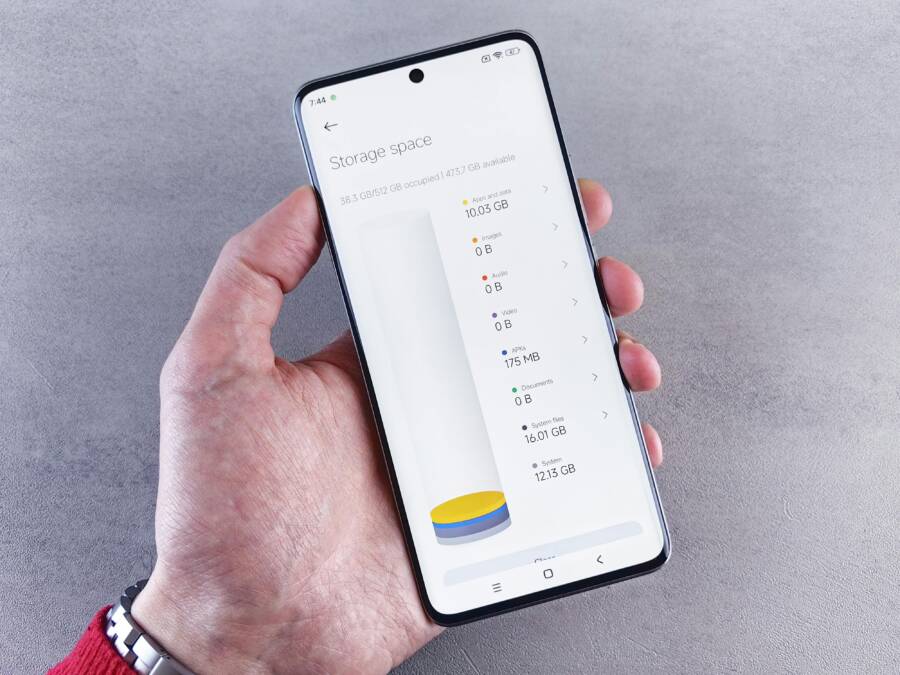
Understanding where space goes is the first step to reclaiming it. Both iPhone and Android offer built-in tools that show storage by category, which makes spotting large files easy.
- On Android, go to Settings > Storage. You’ll see a breakdown by apps, images, videos, audio, and files. Tap each category to drill down and spot the largest items.
- On iPhone, open Settings > General > iPhone Storage. You’ll get a visual chart and a list of apps with their storage usage. iOS also suggests offloading unused apps and offers recommendations to free up space.
How to spot big files quickly
- Look for apps with large data or cache. If a single app uses a lot of space, consider clearing its cache or deleting and reinstalling if needed.
- Scan for duplicate media. Many people save multiple copies of the same photo or video by accident.
- Check your Downloads and Documents folder. Old files there can quietly hog space you forgot you had.
- Use the “Recently Deleted” or equivalent trash bin and empty it. It often holds space you can reclaim with a single tap.
Images can illustrate how storage categories appear on devices.

Photo by Andrey Matveev
Tips to maximize impact
- Focus on the top three culprits first: apps, photos, and downloads.
- Use built-in tools to review and delete junk without risking data loss.
- Review the storage suggestions Apple provides for iPhone users and apply those recommendations as a baseline.
External resources you can consult for a deeper dive into checking storage on both platforms:
- How to check the storage on your iPhone and iPad. https://support.apple.com/en-us/108429
- Manage storage on iPhone. https://support.apple.com/guide/iphone/manage-storage-on-iphone-iph47c931112/ios
Clear app caches safely
Cache is like a temporary backpack that apps carry to speed things up. Over time, it can balloon with stale data and slow your device. Clearing cache frees space and can restore snappy performance, but you should target caches rather than wiping everything.
- Android: Settings > Apps > [App] > Storage > Clear cache. This removes only the temporary files the app keeps, not your personal data.
- iPhone: You don’t clear a global cache like Android. Instead, offload unused apps or clear per-app caches by removing and reinstalling the app or managing in-app storage. If an app stores a lot of media, consider deleting the app data through Settings > General > iPhone Storage and then reinstalling the app.
Why targeted cache clearing matters
- It preserves personal data while freeing space.
- It reduces app slowness caused by outdated temporary files.
- It’s faster than a full reset and safer than deleting important documents.
External links for guidance
- How to clear your Android phone cache. https://www.zdnet.com/article/how-to-clear-your-android-phone-cache-and-say-goodbye-to-slow-performance/
- Clear your cache and cookies on iPhone. https://support.apple.com/guide/iphone/clear-your-cache-and-cookies-iphacc5f0202/ios
Delete unused apps and files
Unused apps quietly drain storage and can also run background processes that nibble at performance. Regularly trimming apps you don’t use helps.
- Uninstall apps you rarely open. On Android, long-press the app icon and choose Uninstall. On iPhone, press and hold the app, choose Remove App, then Delete App.
- Review large apps first. If an app is large but rarely used, consider offloading or removing it.
- Clean up large files in Downloads and Documents. Delete or archive anything you no longer need.
What to keep
- Keep only apps you use at least weekly. Regularly open and rely on them to justify their space.
- Archive or transfer large files to cloud or computer when possible.
External links for removal tips
- How to delete an app easily on both Android and iPhone. https://itarian.com/blog/how-to-delete-an-app/
- Delete, disable, and manage unused apps on Android. https://support.google.com/android/topic/13627086?hl=en&ref_topic=7311596
Move media to cloud or computer
Backing up media is one of the most reliable ways to free up local storage without losing memories. Cloud backups also give you access to your photos and videos from other devices.
- Enable automatic photo backups. For iPhone, iCloud Photos can back up automatically if you turn on iCloud Photos. For Android, Google Photos can back up automatically.
- Consider optional storage optimization. Both platforms offer settings to optimize storage by replacing full-resolution files with smaller versions when space is tight.
- If you prefer local backups, periodically transfer media to a computer or external drive.
Practical note
- Be sure you have a reliable backup before deleting media from your device. If you’re moving to cloud, verify that backups completed successfully.
Helpful resources for backing up media
- Transfer iCloud photos and videos to Google Photos. https://support.google.com/photos/answer/10502587?hl=en
- How to backup iCloud Photos to Google Photos. https://multcloud.com/tutorials/backup-icloud-photos-to-google-photos.html
Empty trash in messaging apps and browsers
Chats accumulate media that you may not need, and browsers store cached pages and cookies that bloat storage over time.
- Messaging apps: In apps like WhatsApp or iMessage, delete old media from chats or remove entire conversations you no longer need. On iPhone, you can manage storage per chat in the app settings and delete media to reclaim space.
- Browsers: Clear history, cookies, and cached data. This can reclaim space quickly and reduces the risk of stale data lingering.
- Regular cleanup cadence: Do this every few weeks to prevent a large buildup.
Examples of quick wins
- Delete old voice messages or media from chats that you no longer need.
- Clear browser data to reclaim space and improve browser speed.
External links for cleaning chat caches and browser data
- Clear message cache on iPhone. https://www.imyfone.com/iphone-space-saver/clear-message-cache-on-iphone/
- Clear cache on Android. https://www.android.com/articles/clear-cache-and-cookies/
Images can help readers visualize a clean storage view
Photo by Andrey Matveev
If you want a deeper cleanup, combine these steps into a 30-day routine. Tidy up once a month, and you’ll avoid sudden storage crunches while keeping performance steady.
External references
- Manage storage on iPhone. https://support.apple.com/guide/iphone/manage-storage-on-iphone-iph47c931112/ios
- How to clear app cache on your phone. https://www.asurion.com/connect/tech-tips/clear-app-cache-on-phone/
Deep clean methods for lasting performance
A thorough clean isn’t just a one-off sprint. It’s a steady routine that keeps your phone fast and your storage from slipping away. Below are focused methods designed to deliver meaningful space gains and sustained performance. Each subsection gives practical steps you can apply today, plus quick tips to decide what to keep and what to move off your device. If you’re juggling multiple apps and files, think of this as a well balanced maintenance plan for your smartphone.
Review and delete large files
Large files are often the first culprits when storage gets tight. Start by identifying items that eat the most space and decide whether to delete, move, or archive them.
- Find files bigger than a threshold: On Android, head to Settings > Storage and look for large files or “Big files” sections within the detailed breakdown. On iPhone, use Settings > General > iPhone Storage to scan by category and spot the biggest items.
- Decide what to keep: Keep only what you actively use. For photos and videos, audition each item. If you have a week of vacation footage that you’ll never revisit, archive it to cloud storage or a computer. For documents, delete duplicates and consolidate what you truly need.
- Move or delete media in two steps:
- Move: Upload high priority content to a cloud service or computer. If you want to keep originals, consider retaining just a high-quality version locally and storing the rest online.
- Delete: Remove redundant copies, and empty the trash or Recently Deleted folder to reclaim space immediately.
- Photos and videos tips: Use the “duplicate” scan on your gallery app or a dedicated tool to identify exact duplicates. If you shoot a lot, enable “Save as new” only for key moments, and use a backup routine to keep originals off-device when possible.
- Quick sanity check: After deleting, review your most space-hungry apps. If a single app still feels bloated, clear its cache or reinstall to reset its storage footprint.
Practical reference and deeper guidance on managing large files can help you target the most impactful areas first. For a thorough look at freeing space on both major platforms, see this guide on freeing up storage without deleting photos. https://techcabal.com/2025/12/01/how-to-free-up-storage-on-android-iphone/
When you’re unsure about a file, it’s safer to back up first and then delete. A simple cloud backup gives you peace of mind while reclaiming local space.
Manage downloads and media
Downloads and media folders accumulate quickly. A simple organization system makes it easy to prevent clutter from creeping back.
- Organize the downloads folder: Create a few subfolders like “Receipts,” “Offline Media,” and “Temporary.” Move files into the appropriate folders, then delete what you no longer need.
- Remove duplicates: Duplicate media is a silent space drain. Use a duplicate finder app or built-in tools to locate and remove copies. Samsung and Galaxy devices offer built-in duplicate scanning in some models, and third party apps work across platforms.
- Set up automatic removal of old files: Schedule a monthly clean that deletes or archives files older than a chosen date. If you rely on cloud backups, set your device to remove local copies after confirmation of cloud storage.
- Create a simple archive system: Keep a short-term local cache and move long-term media to the cloud or a computer. A straightforward approach is to keep the last 60 days locally and back up anything older.
- Practical tips:
- Periodically review the Downloads and Documents folders for items you forgot you saved.
- Use cloud backups as a safety net before deleting locally.
- Enable automatic camera backups if you want to offload new media as you shoot.
For a practical walkthrough that includes duplicate removal on Android, you can explore this guide: https://en.androidguias.com/remove-duplicate-files-android/
If you want to explore general strategies for freeing space on Android or iPhone, this resource provides a concise overview: https://www.compareandrecycle.co.uk/blog/how-to-free-up-storage-on-your-iphone-or-android
Optimize apps and notifications
Apps often contain cached data and background tasks that quietly sap storage and memory. A few targeted tweaks can dramatically improve responsiveness.
- Limit background activity: In Android, limit background data and restrict background activity per app from Settings > Apps. On iPhone, use Settings > General > Background App Refresh to turn off for apps that don’t need it.
- Disable auto downloads: Turn off automatic updates for apps, music, and videos when you’re on cellular data or when you want to control what downloads. This helps prevent unexpected cache growth.
- Review app permissions: Tighten what apps can access, especially location, photos, and microphone. Fewer permissions can reduce unnecessary data storage and background processing.
- Reduce cache buildup: Regularly clear per-app caches on Android by accessing Settings > Apps > [App] > Storage > Clear Cache. On iPhone, you can’t clear a universal cache, but you can offload unused apps or clear in-app caches by reinstalling or managing data inside the app.
- Turn off unused background data: If an app doesn’t need to fetch data in real time, disable background data to prevent it from caching and syncing constantly.
- Benefit snapshot: A leaner set of background tasks means quicker app launches, fewer stutters, and more free space for the things you actually value.
Guidance on optimizing background behavior for mobile apps can help you understand the broader impact of these settings. See this overview of background task management: https://appinstitute.com/how-to-optimize-background-tasks-for-mobile-apps/
For practical tips shared by communities, you can reference this discussion about cache and performance on various devices: https://vibe-studio.ai/insights/implementing-background-fetch-and-silent-push-notifications-on-ios/
When to reset apps or the phone
Sometimes a clean start is simply the fastest path to relief. A fresh install or a device reset can remove stubborn clutter that survives other methods.
- When a reset helps: If your device still feels slow after a meticulous cleanup, a fresh install of essential apps or a factory reset can reclaim significant space and restore responsiveness.
- Signs that it may be time: Persistent lag, apps crashing after updates, or frequent storage warnings despite regular maintenance.
- How to back up before reset: Use iCloud or Google Drive to back up photos, contacts, and app data. For Android, confirm backups to Google Drive or a local PC. For iPhone, ensure iCloud backup is current and secure. Then proceed with the reset, knowing you can restore later.
- Simple approach to resets: Start with backing up, then perform a targeted reset of problematic apps or a full device reset if needed. Keep it calm and straightforward to avoid anxiety about losing data.
If you want detailed, platform-specific backup and reset steps, reliable guidance is available from official sources. For example, restoring a device from a backup on various platforms is outlined here: https://helpdesk.mbts.edu/hc/en-us/articles/30835813238420-Restoring-your-iPhone-or-Android-Phone-from-a-Backup
When you’re ready to reset, consider a factory reset only after you’ve exhausted more conservative options. A reset is a clean slate that can restore speed without sacrificing essential data if you’ve prepared backups properly.
外部連結與資源
- Free up storage on iPhone and Android without deleting photos. https://techcabal.com/2025/12/01/how-to-free-up-storage-on-android-iphone/
- How to remove duplicate files on Android: complete guide. https://en.androidguias.com/remove-duplicate-files-android/
- How to free up storage on your iPhone or Android. https://www.compareandrecycle.co.uk/blog/how-to-free-up-storage-on-your-iphone-or-android
- Clear app cache on Android. https://www.zdnet.com/article/how-to-clear-your-android-phone-cache-and-say-goodbye-to-slow-performance/
- Clear your cache on iPhone. https://support.apple.com/guide/iphone/clear-your-cache-and-cookies-iphacc5f0202/ios
- Manage storage on iPhone. https://support.apple.com/guide/iphone/manage-storage-on-iphone-iph47c931112/ios
- Back up or restore data on your Android device. https://support.google.com/android/answer/2819582?hl=en
If you’d like, I can tailor this section further to align with your preferred voice, add more screenshots or step-by-step checklists, or insert additional platform-specific tips.
Best tools and ongoing habits to keep junk at bay
Keeping junk at bay is a mix of smart built-in tools, careful third party options, and a simple monthly rhythm. This section breaks down practical tools you can use now and habits you can sustain to maintain free storage and fast performance. You’ll learn what to rely on, what to avoid, and how to turn cleanup into a repeatable routine.
Built in tools on iPhone and Android
Both major platforms offer solid, built-in paths to reclaim space without adding any extra apps. Start with the basics, then use the native ideas to guide deeper cleanups.
- iPhone Storage and recommendations: Apple’s built-in tool highlights how much space apps, photos, and media are using. It also suggests options like offloading unused apps and reviewing large attachments. Access it via Settings → General → iPhone Storage to see a breakdown and tailored recommendations. This is a safe first step because it’s designed to protect your data while freeing up space.
- Android Device Care and storage manager: Android devices often bundle storage management under Settings with a detailed breakdown by category. You can tap into each category to see the biggest space hogs and delete or move items. Depending on your ROM, you may find quick options to purge cached data, clear downloads, or manage big files directly from the storage screen.
- How these tools help in plain language: They show you what’s eating space and give safe, built-in actions to free it up. You won’t be guessing what to delete, and you won’t risk removing essential data. If you’re unsure about a category, take a moment to inspect it before deleting.
- Quick tips to access and use:
- On iPhone: Settings → General → iPhone Storage. Review the app list and the recommendations banner. Use the offload option for apps you rarely use, then reinstall if needed.
- On Android: Settings → Storage, then explore the app data, cache, and large files sections. Clear cache for apps you trust and delete large, unnecessary downloads.
- A practical example: You notice a handful of apps with large caches and several duplicate media items. Turning on iPhone’s offload option and using Android’s large file viewer can quickly reclaim several gigabytes without risking important personal data.
For more context on how to use these built-in tools effectively, see Apple’s guidance on managing iPhone storage and the general approach to freeing up space on Android devices. Manage storage on iPhone
Third party cleaning apps and their do’s and don’ts
Third party cleaners promise quick gains, but not every app is trustworthy or worth the risk. There are safe, reputable options, and there are apps that overstep by demanding extensive permissions or sharing data with third parties.
- Safe options to consider: Look for apps that focus on cache management, duplicate file removal, and easy data organization. Prefer apps with solid reviews and transparent privacy policies. The goal is to reclaim space without exposing your personal data or adding unwanted bloat.
- Do’s when evaluating cleaners:
- Read reviews and check the developer’s reputation. Look for consistent feedback about reliability and safety.
- Check requested permissions. If an app asks for access you don’t need to perform its job, skip it.
- Verify data handling. Favor apps that store data locally or clearly state how they use your information.
- Don’ts to avoid:
- Apps that claim to “remove all junk across the device” with sweeping permissions. These can mislead and risk data exposure.
- Tools that push you to subscribe or pay for features you don’t need, or that inject ads.
- Cleaners that require access to contacts, messages, or device security settings just to run basic cleanup.
- How to approach safely: Start with a reputable app for a specific task, such as removing duplicates or clearing cache for apps you trust. After trying one, read the developer’s privacy policy and monitor for any unusual behavior.
- External considerations: If you want to stay informed about the safety of popular cleaners, review articles that examine data practices in cleaning apps. This helps you choose apps that respect your privacy.
If you’re curious about the broader discussion around cleaning apps and data sharing, you can read independent reviews and analyses that explore how some cleaners handle user data. Warning: Popular phone cleaner apps are sharing your data with third parties
Monthly clean checklist
Consistency beats intensity. A simple monthly routine keeps junk from creeping back and makes the big cleanup manageable. Use the following lightweight checklist as a repeating cycle that fits into a busy life.
- Week 1: Quick audit
- Check storage categories and note the top space users.
- Empty the Recently Deleted folder to reclaim immediate space.
- Clear cache for a couple of high-use apps that you trust.
- Week 2: Large files sweep
- Review large files in Downloads and Documents. Archive or delete what’s no longer needed.
- Move important media to cloud or a computer and remove local copies.
- Week 3: Apps and messages tidy up
- Uninstall apps you haven’t opened in weeks and offload the ones you still want access to.
- Delete old voice messages or media from chats and clear browser data where appropriate.
- Week 4: Backup and archive
- Back up essential photos and documents to a reliable service or computer.
- Create a short archive of recent projects or memories to keep locally, with older items stored off-device.
- Quick wins to boost motivation:
- Free up a few hundred megabytes by removing duplicates and old downloads.
- Reduce clutter in your gallery by keeping only recent or favorite moments locally.
- Practical note: If you rely on cloud backups, ensure backups completed before deleting anything locally. A small check helps avoid data loss.
External resources can guide a deeper monthly rhythm. For instance, a practical overview on freeing up storage without deleting photos provides a structured approach that many readers find actionable. How to Free Up Storage on Android and iPhone
Privacy and security tips during cleaning
Cleaning your phone should never come at the expense of your privacy. A careful approach protects your personal information while you reclaim space.
- Back up important data first: Prioritize a secure backup before deleting anything. Use trusted cloud services or a local backup to a computer.
- Don’t share passwords or sensitive credentials: Cleaning steps rarely require these, and they shouldn’t be exposed to apps or services you don’t fully trust.
- Keep OS and apps up to date: Updates fix bugs and close security gaps that could be exploited during cleanup.
- Delete sensitive items carefully: Review items that hold personal information before removal. If something is irreplaceable, back it up securely first.
- Safeguard personal information during cleanup: Prefer built-in tools and well-known apps with clear privacy policies. If you use third party tools, verify their data practices before granting permissions.
A quick way to strengthen privacy during maintenance is to limit what apps can access and to review per-app permissions after uninstalling cleaners or other tools. When in doubt, lean on official guidance and reputable reviews to determine safe practices. For general privacy and speed improvements, this guide outlines essential steps you can follow. Clean up your phone: Speed, storage, and privacy boost
Additional guidance on safe storage management and privacy considerations can help you stay secure while you optimize. If you want a broad take on balancing speed, storage, and privacy, this resource offers practical steps that work across devices. How to clean up and speed up your phone
External links you may find useful
- Apple support on managing iPhone storage: https://support.apple.com/guide/iphone/manage-storage-on-iphone-iph47c931112/ios
- Android device care and storage tips from trusted sources: https://www.zdnet.com/article/how-to-clear-your-android-phone-cache-and-say-goodbye-to-slow-performance/
If you’d like, I can tailor this section further to align with your brand voice, add more screenshots or step-by-step checklists, or insert additional platform-specific tips.
Conclusion
Small, steady steps beat big cleanups every time. Start by identifying the biggest space hogs on your smartphone, then trim caches, remove unused apps, and back up media to the cloud or a computer. These bite sized actions add up fast and keep your device running smoothly.
Keep a simple monthly rhythm to stay ahead of clutter. A quick audit, a large file sweep, and a backup check can reclaim space without drama. When you make this a habit, you reduce slowdowns and extend the time between resets.
If you hit a snag, share what you tried or ask for tips. Your results can help others avoid common missteps and find faster wins. Remember a safe backup before you delete anything, and keep your important files within reach.
Ready to get started today? Take 10 minutes to tidy one category on your smartphone and notice the difference. Your future self will thank you for the small but powerful boost.