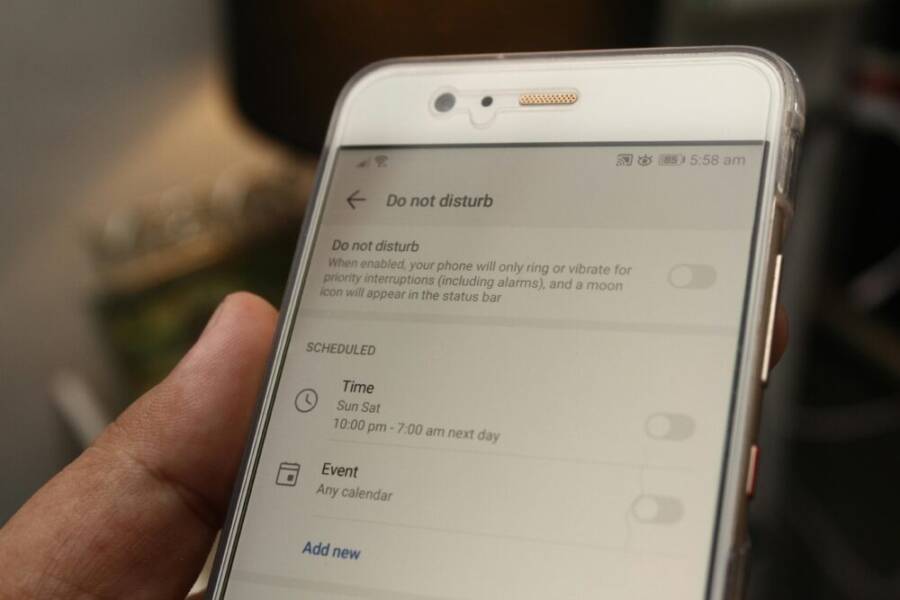
Blocking certain apps on your kid’s phone can feel tricky, but it doesn’t have to be a struggle. This guide explains simple, practical steps to limit access on both iPhone and Android without causing friction at home. You’ll learn why blocking apps matters for safety and healthy phone use, and you’ll get step by step methods you can apply today.
First, we’ll cover the why behind app controls. Blocking or restricting apps helps reduce distractions, protects privacy, and supports thoughtful phone habits. It’s about creating boundaries that are clear and fair, not about shaming your child. The goal is to keep them safe while they learn to use technology responsibly.
Next, you’ll find clear, actionable methods you can follow. From built in parental controls to family sharing options, the approaches are straightforward and easy to implement. We’ll include practical tips for starting conversations with your child so agreement feels collaborative rather than punitive. Whether you’re a seasoned smartphone user or new to this, you’ll walk away with a practical plan that fits your family’s needs.
Why block apps on your kid’s phone
Blocking apps on your child’s phone isn’t about spying. It’s about shaping a safe, focused mobile experience that supports healthy development. You want to reduce exposure to risky content, limit distractions, and give your child room to learn responsible device use. This section breaks down why app controls matter and how to approach them in a practical, nonpunitive way.
Identify which apps to block
To start, create a simple, age-appropriate blocking list. Categories to consider include:
- Games with in-app purchases that can tempt kids to spend money
- Social media apps that encourage overnight scrolling or risky interactions
- Dating or chat apps that aren’t suitable for kids
- Apps that share location or enable covert tracking
- Apps with mature or risky content, even if access feels harmless
Tailor the list to your child’s age and maturity. Younger kids generally need stricter limits, while older kids may benefit from more nuance and choice. A straightforward approach is to draft a short list on a whiteboard or in a note, then review it weekly. For example, for a 10-year-old, block most social media apps and any game with in-app purchases. For a 14-year-old, you might allow certain apps but require approval for new ones and set time limits.
A practical starting point is to write down three questions for each app you consider: What content does it present? Does it include in-app purchases or advertisements? Does it involve location sharing or direct messaging? If the answer to any question is unclear or alarming, add it to the block list or place it under tight supervision. For reference, reputable resources emphasize that parental controls help manage what kids encounter online and how they spend time on their devices. You can learn more about the benefits of controls from trusted sources such as Children and Screens and Norton’s parental control overview.
- Simple short blocking list example:
- Block: apps with in-app purchases, dating apps, location-sharing apps, explicit content browsers
- Block with review: apps that push aggressive ads or invites to spend
- Monitor and reassess: new apps require a quick review before use
Tips for quick setup:
- Create a master list this week, then rotate in new apps for review on a monthly basis
- Use your device’s built-in restrictions and family safety features first, then add third-party controls if needed
- Communicate the rules clearly and document them in a family agreement so everyone knows what to expect
For quick reference, here are credible sources describing why parental controls matter and how they help families.
- All in the Family: How Parental Controls, Monitoring Apps and Family Rules Support Healthy Habits
- 10 reasons to get parental controls from Norton
Protect kids from risky content and in‑app purchases
Blocking or limiting access reduces exposure to mature content and helps curb expensive purchases. Many apps attempt to pull kids in with notifications, prompts, or invite flows designed to spark curiosity or urgency. A quick, practical review helps you stay ahead of those tactics.
Here’s a concise parent review checklist you can use when evaluating apps:
- Content type: Is the content age-appropriate? Does it push sexual content, violence, or explicit language?
- In-app purchases: Are there microtransactions, loot boxes, or premium upgrades that could tempt a child to spend?
- Location sharing: Does the app track or reveal your child’s location or allow sharing with others?
- Chat and social features: Does the app have public or direct messaging that could expose kids to strangers?
Keep the process non-judgmental. If an app seems useful but risky, talk with your child about concerns and set boundaries rather than an outright ban. This helps your child learn to make safer choices and builds trust.
Practical steps to implement protection:
- Start with a core group of apps you block immediately, then gradually expand as your child demonstrates responsible use
- Use content filters and age-appropriate settings within each app when available
- Turn off push notifications for apps that tend to tempt kids to engage or spend money
- Regularly review purchase histories and app permissions to catch changes early
If you want more context on how controls translate into safer online experiences, consider these resources that discuss content filtering, app approval, and permission management.
- 3 Reasons Why Cell Phone Parental Controls Are a Must
- 4 Reasons You Should Have Parental Phone Controls
Balance control with trust and dialogue
The best approach blends clear rules with open conversation. When kids understand the purpose of limits, they’re more likely to respect them. Involve them in setting boundaries so the rules feel fair rather than imposed.
Key steps to balance control with trust:
- Have a family talk about rules, time limits, and what gets blocked. Set expectations for experimentation and accountability.
- Agree on a simple process for requesting exceptions. For example, a monthly review where your child can propose a temporary access to a blocked app.
- Schedule regular check-ins. A brief, ongoing dialogue helps you adjust limits as children grow and their needs change.
- Emphasize transparency over surveillance. Explain what you’re watching for and why. Show that your aim is safety and growth, not catching mistakes.
- Document the agreed rules in a shared place. Post a family “phone rules” list where everyone can see it and refer back to it.
In practice, this means you’ll talk about time limits, what gets blocked, and how the family handles new apps. It also means you’ll revisit the rules as your child gains more responsibility. When you’re transparent, kids are more likely to come to you with questions or concerns rather than hiding activities.
To help you foster trust, you can pair blocks with guided conversations. For instance, after blocking an app, offer a short explanation and invite your child to discuss what kind of content or features would feel safe. You’ll often find that listening is as important as enforcing the rules.
If you want more ideas on how to communicate effectively with teens about device use, look to resources that discuss parental guidance and family communication strategies. These show how conversations can become a collaborative process rather than a one-sided mandate.
- All in the Family: How Parental Controls, Monitoring Apps and Family Rules Support Healthy Habits
- 10 reasons to get parental controls from Norton
In summary, balancing control with dialogue builds a foundation of trust. Your child learns to navigate apps with awareness, while you maintain a steady framework that keeps them safe. The goal is to grow responsible, capable digital citizens who can handle decisions on their own as they mature.
Block apps on iPhone: Simple steps with Screen Time
Setting up Screen Time and Family Sharing gives you a clear, reliable framework to manage apps on your kid’s iPhone. This section walks you through the essential setup, why a parental passcode matters, and how to keep controls synced across devices. Think of Screen Time as your first line of defense for mindful smartphone use, with a straightforward path to protect your child without turning the phone into a battleground.
Set up Screen Time and Family Sharing
Begin by turning on Screen Time on the child’s device. Open Settings, then tap Screen Time and choose “Turn On Screen Time.” If you have multiple devices, enable Family Sharing so you can manage each child from your own device. This makes it easier to apply consistent rules and see usage at a glance. A parental passcode is essential here. It prevents your child from changing settings, bypassing limits, or turning off Screen Time without your knowledge. Use a passcode that your child does not know, and store it somewhere safe so you can reset if needed.
If possible, enable syncing across devices. When Screen Time is linked to Family Sharing, limits you set on the parent’s device automatically apply to the child’s iPhone and other Apple devices signed into the same family group. This reduces the chance of gaps and helps you maintain a predictable routine for daily use. For a step-by-step setup, Apple’s guidance walks you through adding a family member and configuring Screen Time from the parent device. You can start here: Set up Screen Time for a family member on iPhone. For a broader overview of parental controls across iPhone and iPad, see Apple’s parental controls guide.
- Quick start tips:
- Create a strong, distinct passcode for Screen Time that you won’t share.
- Turn on Content & Privacy Restrictions as a follow-up step to block inappropriate content.
- Use Family Sharing to manage multiple children from one place.
If you want a solid reference, Apple’s support articles explain how to manage Screen Time from the family side and how to personalize settings for each child.
- Set up Screen Time for a family member on iPhone
- Use Screen Time to manage your child’s iPhone or iPad
Block specific apps or app categories
Screen Time lets you limit access to individual apps or entire categories. Start by listing apps you want to block or limit, then create custom limits for each item. For example, you can block games with in-app purchases or restrict social media apps after a certain hour. You can apply these limits to the child’s device from your own device, provided you’re using Family Sharing.
To create a limit for a single app or a group of apps, head to Screen Time > App Limits > Add Limit. Select the apps or category, then set the allowed daily time and choose Block at End of Limit. If you change your mind, you can adjust the limits at any time. This flexibility is helpful as your child grows and your family’s routines shift.
You can also tailor limits by category, such as Games, Social Networking, or Entertainment. Categories simplify management when your child uses many apps within the same type. The important part is consistency: start with a core set of limits and expand as needed. Over time you may find it beneficial to review the list weekly and adjust based on behavior and schoolwork.
For quick reference, Apple’s guidance explains how to use Family Sharing and App Limits to manage access to apps. If you prefer a broader tutorial, see the Apple support article on Use Screen Time to manage your child’s iPhone or iPad.
- How to add an App Limit for a single app
- How to block apps by category and adjust limits
Use Downtime and App Limits to manage daily use
Downtime and App Limits work together to shape a healthy daily rhythm. Downtime pauses most apps during set hours, giving your child time to focus on offline activities, sleep, or family time. App Limits cap how long a child can use each app or category within the day, reinforcing boundaries with consistent expectations.
Create a weekday schedule that reflects school hours and after-school routines. For example, set Downtime from 9:00 PM to 7:00 AM on weekdays so devices rest during the night. On weekends, you might shift Downtime later or shorten it to encourage balanced screen time with family activities. App Limits can be stricter on weekdays when homework and chores take precedence, and more relaxed on weekends when kids have more free time.
If a child tries to bypass restrictions, stay calm and follow your chosen protocol. Reiterate the purpose of Downtime and App Limits as safety and focus tools, not punishment. When necessary, review the specific app behavior together and adjust settings to address the issue. Consistent enforcement with a calm, clear explanation helps your child accept the boundaries more readily.
Practical steps to implement these tools:
- Set Downtime to cover typical sleep windows and homework time.
- Apply App Limits to categories like Games and Social Networking, with special exceptions for school-related apps if needed.
- Use a weekly review to adjust schedules as your child’s routine changes.
- Combine with Content & Privacy Restrictions for a holistic approach to device safety.
Apple’s official guidance provides a thorough walkthrough on using Screen Time, Downtime, and App Limits. You’ll also find practical tips on aligning these controls with Family Sharing for a seamless setup.
- Use Screen Time on your iPhone and iPad
- Set up Screen Time for a family member on iPhone
What to expect and how to respond:
- If a child requests more time, use a formal process for exceptions. Propose a monthly review where you can assess the request together.
- When a limit ends, discuss healthy alternatives and how to plan for future use.
- If you notice frequent bumps in usage after a limit ends, consider adjusting the schedule or adding a new, appropriate limit.
For additional context and best practices, consult resources on parental controls and kid-friendly app management. They provide practical ideas for maintaining balance while keeping safeguards in place.
- Apple parental controls guide
- Apple Screen Time overview
By combining Screen Time setup, targeted app blocking, and structured daily limits, you create a practical framework that respects your child’s autonomy while keeping their online world safe. This approach helps your family transition from reactive restrictions to proactive, collaborative device use.
Block apps on Android: using Digital Wellbeing and Family Link
Blocking apps on your kid’s Android phone doesn’t have to be a puzzle. By using built in tools like Digital Wellbeing with Focus Mode and Google Family Link, you can pause distractions, set healthy limits, and keep communication open. This section explains practical steps to access these features, tailor them to your family, and apply real world examples that fit busy schedules.
 Photo by Daniel Moises Magulado
Start with Digital Wellbeing and Focus Mode
Digital Wellbeing helps you see how your child uses their device and focuses on what matters. Focus Mode lets you pause selected apps so your child can study, eat meals, or sleep without interruptions. Here’s how to set it up and use it effectively.
- Access Digital Wellbeing: Open the device’s Settings and find Digital Wellbeing & parental controls.
- Enable Focus Mode: Tap on Focus Mode, then choose the apps you want to pause. You can pause games, social apps, or any distracting tools.
- Pause or silence during key times: When Focus Mode is on, those apps won’t open. Your child can still receive calls or notifications from essential apps if you allow it.
- Schedule and customize: Create a schedule that aligns with homework, meals, and bedtime. For example, set Focus Mode for weekdays during study time and meal hours.
- Add apps to the focus list: Go to the Focus Mode settings and select the apps to pause. You can adjust this list as your child’s routine changes.
Tips for best results:
- Start with a small, manageable list of apps and expand as your child demonstrates responsibility.
- Pair Focus Mode with a family talk about when to use it and why these boundaries matter.
- Review usage weekly to refine the list and the schedule.
For extra context, Google’s official guidance on managing time and Focus Mode offers step by step instructions and examples of how Focus Mode works in practice:
- Manage how you spend time on your Android phone with Digital Wellbeing and Focus Mode.
- Support article on pausing apps during Focus Mode.
If you want a quick read on how to block apps during focused periods, you’ll find practical tips in these HowToGeek guides as well:
- How to Set App Time Limits and Block Apps on Android
Install and use Google Family Link for extra controls
Family Link gives you a parent friendly dashboard to manage apps, screen time, and permissions from your own device. It’s especially helpful if you want to approve or block new apps and set daily limits.
- Set up Family Link: Install the Family Link app on your device, then create your child’s account or link an existing account.
- Connect your kid’s account: Follow the on screen prompts to tie your child’s Google account to your parent account.
- Manage apps and screen time: From the Family Link dashboard you can view app usage, approve or block new app installs, and set daily limits.
- Approve or block new app installs: When your child attempts to install a new app, you’ll receive a notification to approve or deny.
- Set daily limits: Create time limits for apps or overall device usage, and adjust as needed.
Practical tips:
- Use the approval flow to discuss why certain apps require permission. This builds trust and learning about digital boundaries.
- Set a consistent daily limit that fits school nights and weekends.
- Review the list of apps regularly to adapt to changing needs, such as new educational tools or social apps.
If you want step by step instructions from Google, the Family Link setup guide provides clear, actionable steps to connect devices and manage controls from a parent device.
- Set up Family Link for your child
- Manage your child’s Google account with Family Link
Additional guidance can be found in reputable explainers that cover why Family Link complements in device controls and how it scales as kids grow.
Blocking apps vs setting time limits
Blocking an app completely is not always necessary. Often it makes more sense to limit its use at certain times or in specific contexts. Here’s how to decide between a full block and a time limit, plus real world examples you can adapt.
- When to block an app entirely:
- An app is a gateway to content that’s not age appropriate or unsafe.
- A single app is causing frequent conflicts during homework or family time.
- The app has persistent prompts that lure spending or risky interactions.
- When to set time limits instead:
- The app is useful for learning or communication but becomes a distraction at night.
- The child can access the app after a chore or study period.
- You want to teach self regulation, not just restriction.
Real world examples:
- Block: highly addictive games during school nights and heavy social apps during late night hours.
- Limit: games with in app purchases, social media apps after dinner on weekdays, and a longer allowance of time on weekends for connecting with friends.
How to implement these approaches:
- Use App Timers in Family Link to cap daily use for problem apps.
- Create a school night schedule that prioritizes study time and family meals.
- Allow flexibility by setting a “nice to have” window where limited access is permitted after chores and homework are complete.
To reinforce best practices, consult resources that cover parental controls across Android and practical approaches to app timing. The linked articles offer guidance on why app controls matter and how families can implement them successfully.
- Digital Wellbeing overview
- How to manage app time limits on Android
Tips for ongoing management:
- Start with a focused list of core apps to manage and expand as needed.
- Align app controls with school calendars and family routines.
- Maintain open dialogue about why these controls exist and how they help everyone stay on track.
Images can help illustrate how Focus Mode looks on Android. A clear, friendly screenshot showing Focus Mode with a paused app list makes the concept tangible for readers and helps them apply these steps quickly.
- How Focus Mode appears on Android devices
- Family Link’s app management view on the parent device
If you want further context on how these tools work together in a household, the combination of Digital Wellbeing Focus Mode and Family Link provides a layered approach that grows with your child. Use Focus Mode for short, predictable interruptions and Family Link for longer term rules and guidance. This balanced approach keeps the phone a tool for learning, not a source of constant friction.
Best practices for families: talk, plan, and adjust
Creating a healthy and collaborative approach to app controls starts with open conversation. Families that talk about boundaries, plan together, and revisit rules regularly are better prepared to handle the ups and downs of smartphone use. This section offers practical, family-friendly strategies to get everyone on the same page and keep pace with growing kids.
Create a clear parental control plan with your kid
Drafting a simple plan together helps set expectations and reduces friction. Start with three core elements: which apps are blocked or limited, when limits apply, and how exceptions work. Put the rules in kid-friendly language so your child can understand them without confusion.
- Create a one-page family agreement. List blocked apps, time limits, and the process for requesting exceptions.
- Define when limits apply. For example, during homework, family meals, or bedtime, and when there may be school-related exceptions.
- Include a route for review. Schedule a monthly check-in to adjust the plan as needed.
Involve your child in naming and explaining the rules. When kids help write the plan, they’re more likely to follow it. Keep the language clear and positive, focusing on safety and balance rather than control. Use a shared spot at home to display the plan, such as a whiteboard or a family notes app.
References and sample templates can help you get started. For families exploring formal approaches, these resources offer helpful guidance on creating a family media plan and documenting rules in kid-friendly terms:
- Make a Family Media Plan
- How to Create a Family Media Plan
To ensure your plan stays practical, start with a short list and expand gradually. Prioritize apps that pose real risks, like in-app purchases, location sharing, or direct messaging with strangers. Review the plan weekly for the first month, then shift to a monthly cadence.
Involve kids in choosing rules and apps to block
Participation boosts buy-in and reduces pushback. Invite your child to select a few apps that will be allowed and discuss why others should be restricted. Frame this as a collaboration rather than a punishment.
- Start with a short allowed apps list. Let your child pick apps they regularly use and discuss how they would stay safe within those boundaries.
- Explain the reasoning behind blocks. Talk about content, privacy, and focus, so they understand the purpose of limits.
- Establish a simple request process. If your child wants access to a blocked app for a specific reason, agree on a quick, predictable review.
This approach reinforces trust and helps kids learn to navigate digital spaces with caution. It also reduces the feeling that rules are arbitrary. When teens feel heard, they are likelier to comply and offer constructive feedback.
If you want extra guidance on making this process effective, explore family-centered resources that discuss shared media use agreements and collaborative rule-setting:
- Family guide to creating shared media use agreements
- Make a Family Media Plan
A practical tip is to set a regular time for discussing apps. A monthly “tech check-in” can become a routine moment to reassess what’s working and what isn’t, aligning the plan with school, activities, and social needs.
Review and adjust settings as your child grows
Growth means change, and so should your controls. A regular review helps you adapt without drama. Plan a check-in every 4 to 8 weeks, depending on your child’s age and activity level. Use that time to adjust limits, add new apps to the block list, or open up with a structured exception process.
- Schedule predictable reviews. A 30-minute conversation every month or two keeps you aligned with changing needs.
- Track patterns. Note when a limit is consistently bypassed or when a new activity demands access to a previously restricted app.
- Adjust gradually. Instead of sweeping changes, tweak one or two settings at a time and observe the impact.
As children approach adolescence, their app needs become more nuanced. You may shift the emphasis from strict blocking to guided access, conversation, and agreed-upon exceptions. The goal is to maintain safety while giving them more responsibility.
If you’re seeking broader frameworks for ongoing family planning, these resources offer step-by-step approaches to adapting digital rules over time:
- Make a Family Media Plan
- How to Create a Family Media Plan
A practical strategy is to document changes publicly. Update the family agreement and keep a visible log of updates. This transparency reduces friction when you need to revisit a restriction or permission.
Tips for effective adjustment:
- Tie changes to real moments, such as starting a new school term or joining a club that uses apps for coordination.
- Use school calendars or activity schedules to anticipate needs.
- Maintain open dialogue. Encourage your child to voice concerns and propose safe alternatives.
Putting it all together, a responsive approach pairs clear rules with constant conversation. When you adapt the plan as your child grows, you preserve trust and keep smartphone use safe and constructive.
External references you can consult for broader context and templates include family-driven planning and practical templates for shared media use agreements:
- Make a Family Media Plan
- Family guide to creating shared media use agreements
By following these best practices, your family can navigate app management with confidence. You’ll balance safety with autonomy, help kids build responsible digital habits, and keep the conversation ongoing as your child matures. For further reading on establishing healthy tech habits at home, consider resources that focus on consistent rules and collaborative planning:
- 10 reasons to get parental controls from Norton
- All in the Family: How Parental Controls, Monitoring Apps and Family Rules Support Healthy Habits
As you implement these steps, remember that the strongest safeguards come from clear communication, practical plans, and regular adjustments that reflect real life. This is the heart of a smartphone plan that protects kids while letting them learn and grow.
Troubleshooting and common questions
This section addresses the hands-on worries parents run into when blocking apps. You’ll find practical steps to verify controls, handle updates, and know when it’s time to seek expert help. The goal is to keep your child safe while keeping the process smooth and fair. We’ll cover common workarounds, what to do after updates reset controls, and signs that you may need help from the device maker or carrier.
What to do if a workaround is found
If your child figures out a way around the controls, stay calm and use a structured response. Start by confirming the exact steps they used and the time it occurred. Then verify updates and settings to identify where the bypass came from. After that, reinforce the rules and update your plan so it’s harder to circumvent in the future.
- Verify updates and settings: Check that the latest software is installed and that Screen Time, Digital Wellbeing, or Family Link settings are current. Re-examine any bypass methods your child mentions to ensure you didn’t miss a loophole.
- Reconfirm the active profile: Make sure the correct profile or account is actually controlling the device. It’s easy to be using a secondary account or a conflicting profile without realizing it.
- Change key protections: Consider updating passcodes for parental controls, disabling auto-fill for security settings, and enabling stricter content restrictions. Store these in a secure place you can access if you forget.
- Reestablish the rules: Reiterate the agreed boundaries with your child and document any changes in your family plan. Use a simple, kid-friendly summary so everyone stays aligned.
If you want concrete examples of bypass patterns and how other families respond, see discussions about Screen Time bypass attempts and how to address them. For instance, readers discuss passcode changes and by-passing tricks, and how families strengthened their controls over time. Learn more from real-world experiences here:
- How to handle a Screen Time bypass and keep controls intact
- Practical tips for restoring control after an update
What to do after device updates reset controls
Software updates can reset certain settings, which means your rules might slip. After an update, do a quick re‑application of your most important controls and run a brief test to confirm they’re in place.
- Quick re‑setup checklist:
- Open the parental controls app or settings and confirm the profile is active.
- Reapply app blocks or time limits to the previously restricted apps.
- Recheck passcodes and ensure they’re not easily guessed by your child.
- Test by attempting to access a blocked app during typical hours to verify the block works.
- Communicate with your child about what changed and why the controls were reaffirmed.
- Sync across devices: If you use Family Sharing or a similar framework, verify that settings are syncing properly with all devices tied to the child’s account. This helps prevent gaps when the child uses a different device.
- Keep a short log: Note the date and the settings updated after each major OS or app update. This makes it easier to spot patterns and plan ahead for the next update.
If you want to dive deeper on how updates can affect parental controls, you’ll find conversations and practical steps from other parents who have faced this issue. They discuss passcode changes, rechecking active profiles, and how to keep safeguards in place after updates. See relevant discussions and guidance here:
- How updates affect parental controls and what to do next
- Steps to reconfigure Screen Time after a system update
When to seek help from the device maker or carrier
There are times when a persistent bypass, family plan sync issues, or account problems require expert help. If you notice one or more of these signs, it’s wise to contact the device maker or your carrier for support.
- Signs you may need expert help:
- Persistent bypass attempts that you cannot close with settings alone
- Family plan sync issues where controls don’t propagate to all devices
- Account problems such as login errors, locked parental control features, or missing children profiles
- What information to gather before you call or chat:
- Device model and OS version for each child’s device
- Screenshots or description of the bypass steps and time of occurrence
- The exact controls that were set and the last successful update
- Any error messages or syncing issues you’ve observed
- How to reach support effectively:
- Use official support channels (device maker or carrier) rather than third‑party sites
- Have your account details, device serial numbers, and the family group info ready
- If possible, reproduce the issue in real time for the technician to see
If you’re unsure where to start, you can review common bypass methods discussed by families and experts and then contact support with a clear summary. Real world experiences show that many issues resolve after a precise log of events and a guided re‑setup from the official support team. Helpful starting points include:
- Apple support resources for Screen Time and Family Sharing
- Google Family Link support and Digital Wellbeing help
For readers who want a quick path to trusted guidance, consider these two references as your first stop before contacting support:
- How to set up Family Link effectively
- Apple Screen Time and Family Sharing basics
By recognizing the right time to escalate and gathering the right information, you can reduce frustration and get back to a stable, safe smartphone routine for your child. External help is a step toward long‑term reliability, not a sign of failure.
External links you may find useful for deeper context and official guidance:
- Apple support: Set up Screen Time for a family member on iPhone
- Google support: Manage your child’s account with Family Link
In all cases, the aim remains the same. You want a smartphone experience that is safe, predictable, and guided by clear rules your child understands. When you pair professional support with a solid home plan, you create a resilient framework that ages well with your child.
Conclusion
Blocking or limiting apps on your kid’s smartphone is about safety, focus, and trust. Use built in tools on iPhone and Android to set clear limits, then discuss why those rules exist with your child. Keep the tone calm and collaborative so the plan feels helpful, not punitive. Regular reviews help you adapt as your child grows and as new apps appear.
A practical approach combines simple controls with ongoing dialogue. Start with Screen Time on iPhone or Digital Wellbeing and Family Link on Android, then add focused app blocks or time limits as needed. Treat updates and new apps as opportunities to revisit the plan rather than fixed rules. This keeps the conversation open and the boundaries relevant.
Remember, the goal is a responsible smartphone habit. With consistent checks, a clear plan, and a normal, respectful talk about boundaries, your child learns to use apps safely and thoughtfully. The result is a smoother path for growth and independence, with you still guiding every step.
Quick start checklist
- List the apps you want blocked or limited on both iPhone and Android.
- Set up Screen Time on iPhone or Digital Wellbeing and Family Link on Android.
- Create a simple family plan that states blocks, limits, and how to request exceptions.
- Schedule regular 4 to 8 week reviews to adjust as your child grows.
- Start a calm, clear conversation right away to explain the changes and expected behavior.