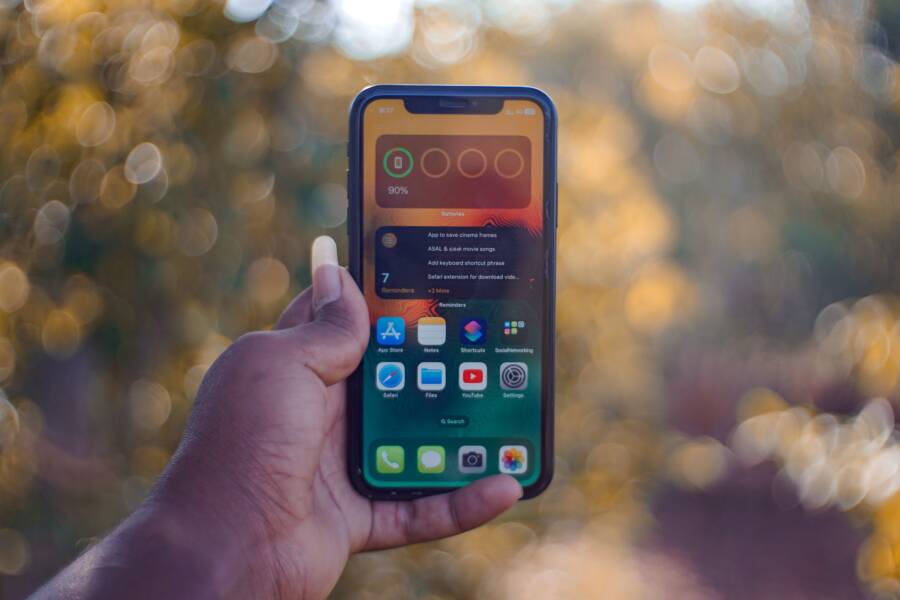
Using a transit card on your smartphone is the fastest way to navigate public transportation. This technology allows you to tap your device at turnstiles and readers without waking or unlocking your screen, saving you precious seconds during every commute.
You no longer need to fumble for plastic cards or worry about paper tickets when you are in a rush. By setting up your transit card with Express Mode, your phone handles payment and entry with a single tap.
Continue reading to learn how to add your transit card and activate this feature on your device.
Adding Transit Cards to Your Digital Wallet
Adding a transit card to your smartphone is a direct path to faster commutes. You no longer need to carry physical tickets or magnetic stripe cards. Your device stores the digital equivalent, which functions exactly like a physical pass at subway turnstiles and bus card readers.
Selecting the Right Transit Card for Your City
Public transit systems operate independently, which means card compatibility varies by location. Most major cities provide a dedicated mobile pass or integrate directly with the transit app on your smartphone. You should check the official website of your local transit agency to confirm if they support digital wallet integration.
To find supported agencies, open your digital wallet app and select the option to add a new card or transit pass. The interface typically displays a list of transit providers based on your current region. If your city is listed, selecting it will guide you through the specific requirements for that agency. Some regions require you to download their proprietary app first to purchase a pass, while others allow you to buy the ticket directly through your phone settings.
Always verify that your specific transit provider uses an open payment system or a proprietary NFC-based pass. If you have trouble locating your city, search for the transit agency name combined with the name of your mobile operating system. This search often reveals whether the agency supports direct wallet integration or if you must use a separate third-party application.
Verifying Your Card and Payment Method
Setting up a digital transit card requires a secure connection to your preferred payment method. Most smartphone wallets use a tokenization process to keep your financial details private during every transaction. When you add a card, the system asks you to link a debit or credit card to cover the cost of fares or balance reloads.
You must authenticate your identity to complete this process. This verification step often involves receiving a security code via text message or email, or using biometric data like a fingerprint or facial scan. These measures ensure that your payment method remains protected from unauthorized access.
Once you link a payment method, you can manage your balance directly within your digital wallet. If your local system uses stored value, you can trigger a manual reload or set up automatic top-ups when your balance drops below a certain amount. This connection allows you to tap and travel without stopping at vending machines to add funds. If a transaction fails, check that your bank has not flagged the transit agency for a security review; this is a common reason for declined payments on new transit passes.
Understanding Express Mode Benefits
Express Mode transforms your transit experience by removing the friction of traditional boarding. You simply hold your smartphone near the card reader, and the terminal processes your fare in an instant. This feature eliminates the need to unlock your device, open an application, or verify your identity with a passcode or biometric scan for every single trip.
How Express Mode Works Automatically
The secret to this speed is Near Field Communication (NFC) technology. When you enable Express Mode, your smartphone keeps the necessary transit pass data active in a special memory area. This area remains powered even when your screen is off or the device is locked. Because the information is ready to broadcast, the transit terminal detects your signal as soon as you place your phone near the sensor.
Reliability is the biggest advantage for daily commuters. You might wonder what happens if your battery runs low while you are mid-transit. Most modern devices reserve a small portion of battery power for this exact purpose. Even after your phone shuts down due to a low charge, the NFC chip often retains enough power for several hours to function at transit turnstiles. This safety measure ensures you can exit the station or board your bus without searching for a backup payment method. The entire transaction takes less than a second, which keeps boarding lines moving quickly during busy morning commutes.
Setting Up Express Mode in Your Wallet Settings
You can configure Express Mode through the primary wallet application on your smartphone. The steps remain similar across most devices, though the exact menu names depend on your specific operating system.
Follow these steps to activate the feature for your transit card:
- Open your wallet application and locate the list of stored cards.
- Select your transit card from the displayed list.
- Tap the settings icon or the menu option often labeled as card details.
- Look for the selection labeled Express Transit or Express Mode.
- Choose the specific transit card you want to use for this feature.
- Confirm the selection by entering your passcode or providing biometric authentication if the device prompts you.
Once you finish these steps, your smartphone treats the selected card as the default option for all transit readers. If you carry multiple transit cards, you can update this setting at any time to match the city you are visiting. Always ensure your device is within a few inches of the reader during your first few uses to get comfortable with the signal range. The system provides a gentle vibration or a visual confirmation on your screen after a successful tap, providing instant peace of mind during your daily travel.
Troubleshooting Common Transit Card Issues
Even with modern technology, you might encounter moments where a reader fails to register your pass. Transit systems rely on precise hardware communication, and minor environmental or physical factors often cause these hiccups. Most connectivity problems have simple fixes you can apply in seconds to keep your commute moving.
What to Do When the Reader Does Not Recognize Your Device
If the terminal fails to scan your smartphone, start by checking your positioning. Your device contains an NFC antenna, typically located near the top edge or the back camera array. You should aim to place this specific area of your phone against the reader target. Holding the phone flat against the scanner for a full second gives the terminal enough time to establish a secure handshake.
Heavy or metallic phone cases can block the radio signal needed for a successful scan. If your case includes a metal kickstand, a magnetic mount, or a thick credit card wallet attachment, it likely interferes with the NFC field. Try removing the case entirely if you notice frequent scan failures. Once you determine the case is the culprit, you might switch to a thinner, non-metallic alternative to maintain both protection and functionality.
If the reader remains unresponsive, try these quick diagnostic steps:
- Adjust the phone angle to see if a slightly different tilt improves the connection.
- Check that your wallet application is active or that your device has sufficient battery life to broadcast an NFC signal.
- Clean the surface of your smartphone to ensure no debris blocks the antenna area.
- Verify that you are holding the device directly over the contact point, as placing it too far away often results in a missed read.
Sometimes, the transit reader itself might experience a temporary system error. If you see an error message on the terminal screen, move to an adjacent gate or bus reader to test if the issue is specific to one machine. If your smartphone fails at multiple locations despite these adjustments, you may need to remove and re-add the transit card within your digital wallet settings. This action forces a fresh download of the transit pass data, which often resolves synchronization errors.
Privacy and Security for Your Digital Transit Data
Using transit cards on your smartphone provides better security than carrying physical plastic. Mobile wallets protect your information through tokenization, which replaces your actual card number with a unique digital code. This code prevents transit agencies or hackers from accessing your primary bank details during a transaction. Even if someone intercepts the data, they cannot use it to make unauthorized purchases elsewhere.
Understanding Data Protection Features
Modern mobile operating systems include hardware-level defenses to keep your financial transit data safe. The chip in your smartphone stores payment credentials in a dedicated, isolated area that standard software cannot access. Your private information stays on the device and does not upload to company servers in its raw form.
Biometric authentication adds another layer of defense for your digital wallet. You can set up your device to require a fingerprint or facial scan before you authorize any changes to your transit card settings. These tools ensure that only you can manage your balance or add new payment methods to your profile.
Best Practices for Your Smartphone Transit Safety
You play a vital role in maintaining the security of your digital transit credentials. Taking basic steps will keep your accounts protected against potential threats throughout your daily commute.
- Enable a strong passcode, pattern, or biometric lock on your device.
- Use two-factor authentication for any transit or banking accounts linked to your wallet.
- Avoid using public charging stations that require a data connection, as these can compromise your device.
- Check your transaction history regularly inside the app to identify any suspicious activity or incorrect charges.
- Turn off remote features if you misplace your device to prevent unauthorized access.
Managing Privacy During Commutes
Your privacy matters as much as the physical security of your data. Most mobile transit systems do not share your travel history or personal details with third-party advertisers. The data remains strictly between you, the transit authority, and the financial institution that manages your payment.
If you lose your phone, you do not need to worry about the transit pass. You can use the find my device service provided by your manufacturer to suspend or wipe all payment information remotely. This capability acts as a digital safety net for your transit funds. Your peace of mind comes from knowing that your financial identity is protected regardless of where you travel.
Conclusion
Adding a transit card to your smartphone provides a secure, efficient way to manage your public transportation needs. By utilizing Express Mode, you eliminate the wait at turnstiles and enjoy a faster boarding process during your daily travels.
This integration is a necessary upgrade for anyone who relies on modern urban transit systems. You no longer need to manage physical cards or worry about paper tickets.
Test this feature on your next commute to experience how much time you save. Setting up your digital pass takes only a few minutes and permanently updates your transit habits.