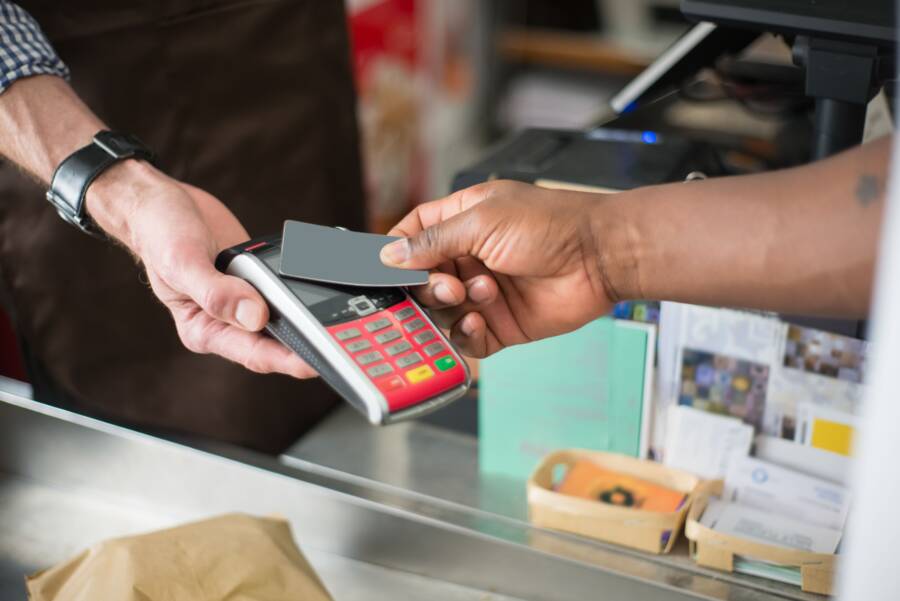
Apple Pay and Google Pay allow you to pay for goods and services quickly using only your smartphone. These digital wallets replace physical cards, which keeps your financial information secure during every transaction.
Setting up these services takes only a few minutes on your device. Once you add your payment cards, you can skip carrying a bulky wallet and make purchases with a simple tap.
This guide explains how to configure your accounts and begin using mobile payments today. You will learn the exact steps to digitize your wallet and secure your daily purchases.
Why Switching to Mobile Wallets Improves Your Daily Routine
Adopting mobile payments simplifies your interaction with merchants and enhances your personal financial security. Instead of carrying multiple physical credit cards, you store encrypted information on your smartphone. This approach removes the need to fumble with a wallet at the checkout counter or worry about losing physical cards. Every payment happens with a quick tap or a simple gaze at your device, which saves time during your busy day.
Top Benefits of Using Digital Wallets
Mobile wallets provide a robust layer of security that physical cards cannot match. When you use your smartphone for a purchase, the system never transmits your actual card number to the merchant. Instead, the service generates a unique, one-time code for that specific transaction. This process keeps your sensitive financial data hidden from potential hackers or compromised point-of-sale terminals.
Beyond this core protection, digital wallets offer several practical advantages for your daily habits:
- Transaction history updates in real-time, which helps you monitor spending habits on your smartphone.
- Biometric authentication, such as facial recognition or fingerprint scans, ensures that only you authorize a payment.
- Lost or stolen devices do not necessarily mean stolen funds, as your card data remains encrypted and requires authentication to access.
- Many apps allow you to store loyalty cards and transit passes, which further reduces the clutter inside your pockets or bags.
If a merchant terminal becomes compromised, your real account details remain safe because they never entered the retailer’s system. This shift in how data moves through the payment network effectively insulates your primary accounts from common retail security breaches.
Is Your Device Ready for Contactless Payments?
Most modern devices include the necessary hardware to process these transactions. The technology enabling this functionality is called NFC, or Near Field Communication. This short-range wireless standard allows your smartphone to communicate securely with a payment terminal when held in close proximity.
You can verify your device support by checking the internal settings or the manufacturer website for your model. Most smartphones produced within the last five years include an NFC chip as a standard feature. If you use a newer device, you likely already possess the required hardware. To confirm, navigate to your connection settings menu and look for a toggle labeled NFC. If the option exists, your device is ready to interact with contactless terminals at shops, cafes, and transportation hubs.
How to Set Up Apple Pay on Your Device
Setting up your smartphone for contactless payments is a simple process that takes only a few minutes. You begin this setup inside the Wallet app, which serves as the hub for all your payment cards. Once you add your details, your device communicates securely with payment terminals at stores, restaurants, and transit stations. This convenience allows you to leave your physical wallet at home while keeping your financial data secure.
Adding Your First Payment Card
To add a card, open the Wallet app on your smartphone and look for the plus icon in the top right corner. The app prompts you to select the type of card you want to add, such as a credit or debit card. You can position your physical card within the camera frame to scan the numbers automatically. If the lighting is poor or the card is worn, you can also enter the details manually by typing the card number, expiration date, and security code.
After you provide the card information, the bank needs to confirm your identity. This authentication step is a primary security measure that prevents unauthorized cards from being added to your device. Your bank might send a verification code through a text message, email, or their official banking application. Enter this code into the Wallet app when prompted to complete the process. Once the bank verifies the information, your card is ready for use at any terminal displaying the contactless payment symbol.
Setting a Default Card for Quick Access
If you store multiple cards in your digital wallet, you need to choose one as the primary option for faster checkout. Your smartphone uses this default card automatically whenever you hold your device near a payment terminal. By setting a default, you avoid the need to open the app or cycle through your list of cards at a busy checkout counter.
You can update your choice at any time within the Wallet settings on your smartphone. Follow these steps to manage your default payment method:
- Open the Settings app on your smartphone.
- Scroll down until you find the Wallet and Apple Pay option.
- Select the Default Card menu item.
- Tap the specific card you prefer to use for your routine transactions.
The device saves this selection immediately. You can now complete a purchase simply by double-clicking the side button and holding the top of your device near the reader. If you ever want to pay with a different card, you can manually select it on your screen before finalizing the transaction. Keeping your most frequently used card as the default ensures that your payments remain fast and efficient throughout your day.
Steps to Activate Google Pay on Android
Activating Google Pay on your smartphone turns your device into a secure payment tool. You gain the ability to pay at millions of stores and websites without carrying physical cards. The setup process connects your financial accounts directly to your phone hardware through an encrypted link. Once you verify your identity, your payment data remains safe and ready for daily use.
Configuring Your Wallet Settings
The first step in setting up your payment system involves preparing the hardware. You must enable the Near Field Communication, or NFC, feature on your smartphone. This technology allows your phone to share data with payment terminals at checkout counters. Without this setting active, the reader cannot detect your device.
Follow these steps to prepare your phone:
- Open the Settings app on your smartphone.
- Locate the Connected Devices or Connections menu.
- Find the option for NFC and toggle the switch to the on position.
- Open the Google Wallet app from your home screen to begin the registration process.
Inside the app, you will see a prompt to add a payment method. You can choose to scan a physical credit or debit card using your camera or enter the details manually. After you input the card number, expiration date, and security code, your bank will request a verification step. You might receive a text message or an email with a code to confirm your ownership. Entering this code finishes the configuration of your wallet.
Managing Multiple Payment Methods
You can store several cards within the app to handle different types of purchases. This feature helps you keep personal and professional expenses separate or maintain different accounts for various merchants. Organizing these cards ensures you select the right payment source before you tap your device at a terminal.
The app displays your added cards in a scrollable list. You can switch between them easily by swiping left or right on the main screen of the wallet. If you prefer to use one card for most daily transactions, designate it as your default payment method. The app uses this primary card for every purchase unless you manually select a different one during the checkout process.
To update your card order or select a new default, follow this path:
- Open the Google Wallet app.
- Scroll to the card you want to set as your primary choice.
- Tap the card image to view its details.
- Look for the set as default option at the bottom of the screen.
If you have loyalty programs, transit passes, or digital tickets, the app stores them in a separate section of your wallet. This keeps your payment cards clean and easy to navigate when you approach a terminal. You can reorder your cards by holding down on a specific card and dragging it to your preferred position. Keeping your cards organized saves time during your busiest moments.
Tips for Using Your Digital Wallet Daily
Moving your payment methods to a smartphone makes daily transactions faster. You can reduce clutter in your pockets and track your spending with ease. Using your device for purchases becomes second nature once you understand how to identify supported terminals and resolve occasional glitches.
Spotting Contactless Payment Terminals
You can identify shops that accept your mobile wallet by looking for specific symbols at the checkout counter. Merchants display the contactless payment icon to notify customers that their terminals support tap-to-pay technology. This icon features a radio wave symbol resembling a tilted Wi-Fi logo, often accompanied by the official branding for Apple Pay, Google Pay, or the universal contactless logo.
Check for this symbol on the payment terminal screen or near the card reader slot. Many retailers place a small sticker on their shop windows to signal that they accept digital payments before you even enter the store. If you are unsure, you can always ask the cashier if their system supports tap-to-pay. Most modern point-of-sale systems updated within the last few years include this functionality as a standard feature.
Handling Common Payment Errors
Technology sometimes fails during a transaction, but most issues are easy to fix. If your smartphone does not trigger the payment terminal, ensure that the NFC feature remains toggled on in your system settings. A common mistake involves holding the phone too far away from the reader. You should position the top of your device within an inch or two of the terminal’s icon to initiate the wireless handshake.
Battery life is another factor to monitor. While many devices retain enough power for a few transactions even after a low-battery alert, a completely dead battery prevents the phone from communicating with the terminal. If a payment fails, check these three areas first:
- Verify that your battery has enough charge to power the NFC chip.
- Confirm that the NFC setting is toggled on in your device menu.
- Hold your phone closer to the contactless symbol for an extra second to allow the signal to transmit.
If the terminal continues to display an error, try removing your phone case. Some thick or metal-based cases block the NFC signal from reaching the reader. Once you find the correct position for your device, future payments will typically process in under a second.
Conclusion
Setting up your mobile wallet takes only a few minutes. This simple adjustment to your routine saves time during every shopping trip while adding a significant layer of security to your transactions.
Using your smartphone for daily payments is a modern, reliable standard. Because it replaces physical cards with encrypted tokens, it keeps your sensitive financial information safe from common retail breaches.
Now that your digital wallet is ready, head to your favorite store and try your first contactless transaction. You will quickly notice how much faster and easier your checkout experience becomes.