He Was Drowning in Bills and Burnout Until a Simple Daily Ritual Rewired His Brain for Wealth in Less Than a Week
>>> Start Your Shift Today <<<

Struggling with headphones that don’t show up as an audio output on your smartphone is more common than you think. If you’re nodding along, you’re not alone, and the fix is usually straightforward enough to try today. In this post, you’ll find clear, step by step instructions that solve the issue for most Android and iPhone setups.
This guide covers the typical culprits behind headphones not appearing on phone prompts—connections, volume and output settings, and occasional software glitches. You’ll learn quick checks you can perform right away, plus OS specific fixes for wired and wireless headphones. By following the steps in order, you’ll likely restore audio in minutes.
Whether you’re dealing with a stubborn wired jack or a Bluetooth pairing hiccup, this plan helps you diagnose without guesswork. It’s designed for fast results and practical tips you can apply to your everyday smartphone use. If you want to keep your music flowing, read on and follow the steps in order.
Quick Checks to Try First on Any Phone
When headphones don’t appear as an output option, it helps to start with simple, universal checks. These quick tests apply to both Android and iPhone and often solve the issue before you dive into deeper settings. By going through volume and output controls first, you can pinpoint whether the problem is a temporary glitch or a misconfigured setting. If you want to keep the music flowing without a long setup, start here and move methodically from one step to the next.
Thousands of People Were Struggling With Money Until They Discovered This One Ancient Secret Hidden in Sound
>>> Unlock It Now <<<

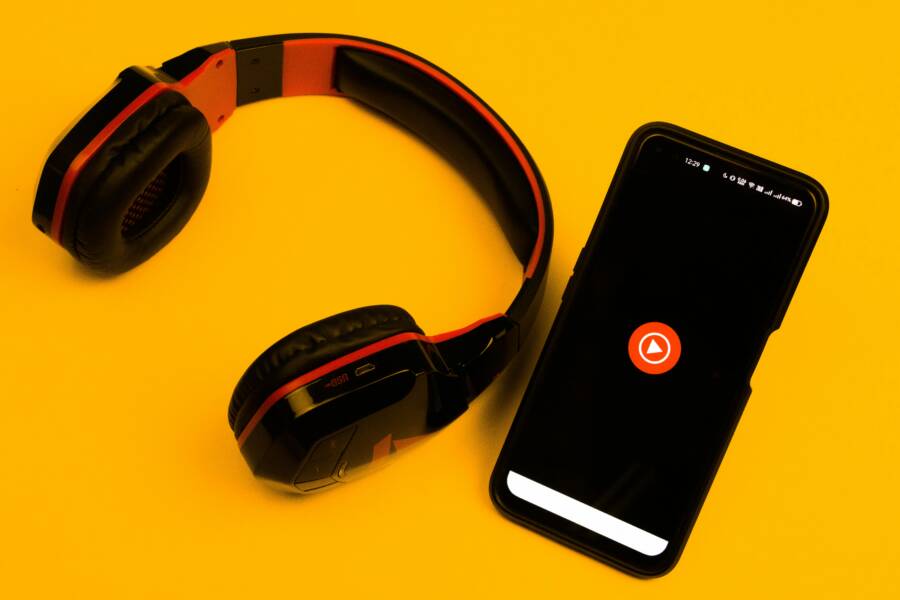
 Photo by Sanket Mishra
Adjust Volume and Media Output Settings
Your first move is to confirm all relevant volume controls are active and that the correct output is selected. On iPhone, open the Control Center by swiping down from the top-right corner and check the volume slider while your headphones are connected. If you’re using AirPods or wired headphones, tap the audio device name in the Control Center to switch output quickly. On Android, pull down the notification shade to access Quick Settings. Tap Media Output and ensure your headphones are chosen as the output device. If the device shows a different option, select your headphones to resume playback. For iPhone users, remember that the ringer and alerts volume can feel separate from media volume, so verify both levels are loud enough. This simple check can fix many cases where sound seems to bypass your headphones.
For more on controlling output on Android, see guidance from Samsung’s media panel how to review and switch devices in Quick Settings. On iPhone, Apple Support has detailed steps to adjust volume across apps and media sources. If you want a quick visual refresher, this video demonstrates how to manage media output on different devices. Video resource on media output control
Reconnect or Restart Basics
If adjusting volumes doesn’t help, reestablish the connection. For wired headphones, unplug them and plug back in firmly to ensure a solid contact. If the device still doesn’t show headphones as an output, try another wired jack or a different cable to rule out a faulty connector. For Bluetooth headphones, turn Bluetooth off, then back on, and re-pair the device. This often clears stale pairings that hide the correct output. If the problem persists, restart your phone by holding the power button until the device powers down and back up. A fresh boot clears minor software hiccups that can misreport audio devices.
A quick restart can address stubborn headphone mode issues and other odd audio behavior. If you’re curious about troubleshooting more advanced Bluetooth problems, you can reference Apple support discussions and Android guidance on headphone mode and device management. For wired fixes, a practical online guide walks you through checking the jack and port cleanliness, which can also help if the output doesn’t appear after replugging. iPhone headphone mode discussions
Fix Wired Headphones on Android Smartphones
Wired headphones sometimes vanish from the audio output on Android phones because of lint, corrosion, or simple build-up in the jack. A clean, careful approach can restore a solid connection without needing tools or replacements. This section covers practical, safe steps you can take to clear the port and ensure your headphones are recognized again. If you want to keep listening without guesswork, follow these focused, device-friendly tips.
Clean the Headphone Jack Properly
A clean headphone jack makes a world of difference. Start with a soft brush or a burst of compressed air to remove visible debris. Gently sweep the inside of the port and around the opening, being careful not to push grime deeper. Check for lint or fibers clinging to the contacts. If you see something, use a wooden toothpick or a cotton swab lightly dampened with isopropyl alcohol to lift it out, then let the port dry fully before testing. Avoid metal objects that could scratch the contacts. A clean port can immediately improve recognition and reliability. For practical how-tos, see guide discussions on jack cleaning and maintenance. https://www.quora.com/How-do-you-clean-a-headphone-jack
Update Your Android Software
Software updates can fix stubborn audio bugs by patching the drivers that manage wired headphone detection. To check for updates, open Settings, then System or Software Update, and choose Check for updates. Install any available updates, then restart your device. After reboot, plug in your wired headphones again to verify they are detected. Updates often address compatibility with third-party headphones and minor sensor glitches that can confuse the system about which audio device to use. If you face persistent issues after updating, a support thread from Google offers additional troubleshooting steps. https://support.google.com/android/thread/355176359/bluetooth-headphones-not-playing-media-after-latest-system-update?hl=en
Fix Wired Headphones on iPhone
If your wired headphones aren’t showing up as an audio output on your iPhone, you’re not alone. This section focuses on quick checks you can perform directly in iOS to get sound back in minutes. Start with the simplest fixes, then move to focused troubleshooting if needed. The goal is to confirm right away whether the issue is a settings hiccup, a dirty port, or a hardware snag.
 Photo by Steve Johnson
Check iPhone Audio Settings and Clean Port
Begin with the basics in the iPhone’s audio controls. Open the Control Center and ensure the media output is set to your wired headphones when they’re connected. If you’re using headphones that connect via the 3.5 mm jack, verify the device name shown in Control Center and switch to it if another option is active. It’s common for the output to flip to a different device when AirPods or other accessories are nearby.
Next, inspect the headphone port for debris. Apple’s guidance covers debris removal and port checks to restore a solid connection. A soft brush or a gentle puff of air can clear lint that keeps the plug from seating properly. If you notice resistance when plugging in, remove the case or try a different cable to rule out a loose fit. For a structured reference, see Apple’s support article on headphones not working and follow their port cleanliness steps. If your headphones don’t work with your iPhone or iPad
If you still don’t see the wired output after cleaning, confirm headphone volume levels are not muted in the device’s accessibility or media controls. Apple’s headphone audio basics also show how to adjust levels, especially when using built-in accommodations or third-party headphones. Check your headphone audio levels on iPhone
If you want a quick visual refresher on managing output and levels, this video guide demonstrates the steps across iPhone models. Video resource on media output control
Troubleshoot Bluetooth Headphones Step by Step
When headphones don’t appear as an audio output, it can throw off your rhythm. This section cuts through the guesswork with a practical, step by step approach. You’ll learn how to re-pair on Android and reset Bluetooth on iPhone, so you can get back to listening fast. Think of it as a quick diagnostic routine you can run any time your headset acts up. The goal is simple: confirm connections, refresh pairings, and verify the correct device is active.
 Photo by Dario Fernandez Ruz
Thousands of People Were Struggling With Money Until They Discovered This One Ancient Secret Hidden in Sound
>>> Unlock It Now <<<
Re-Pair Bluetooth on Android Smartphones
If your Android device isn’t showing your headphones as an output, re-pairing is often enough to reset the connection loop. Start by turning Bluetooth off, then back on to flush stale connections. Go to Settings > Connections (or Bluetooth) and locate the headphones in the paired list. Remove or forget the device, then put the headphones back in pairing mode. Reconnect from the Bluetooth menu and test playback. If the problem persists, remove all Bluetooth devices from memory and perform a full restart of the phone. This clears any lingering settings that might misreport the active audio device.
A few practical tips help prevent future hiccups. Keep your Android OS up to date, since drivers for Bluetooth hardware improve with updates. When you’re pairing again, try to stay within a few meters of the phone with a clear line of sight. If you want additional guidance, Google’s official steps for fixing Bluetooth issues offer solid baseline instructions. For a deeper dive, you can review a detailed Android Bluetooth troubleshooting guide that covers common failure points. https://support.google.com/android/answer/9769184?hl=en
Reset Bluetooth Connections on iPhone
Resetting Bluetooth on an iPhone is a clean, effective way to clear stubborn pairings. Begin by turning Bluetooth off from Control Center or Settings, then restart the iPhone. After the device powers back up, toggle Bluetooth back on and attempt to reconnect the headphones from the list of available devices. If the headphones still don’t appear, reset network settings as a last resort. This steps back network and Bluetooth configurations to factory defaults without erasing personal data. After the reset, re-pair your headphones and run a quick audio test to confirm the correct device is active.
If you want extra context, Apple community threads discuss why Bluetooth may fail after updates and how a network reset can help. You’ll find practical, user-tested steps that align with what you’re doing now. After you finish resetting, rejoin your headphones, then confirm audio routing in Control Center so playback points to the right output. You can also watch a concise video guide that walks through iPhone media output management across models. https://discussions.apple.com/thread/256070270
Advanced Fixes and When to Get Help
If the quick checks didn’t restore headphone output, it’s time to move into deeper, purpose-driven fixes. This section helps you decide which advanced steps to try, and when it’s smarter to call in backup. Think of it as a GPS for stubborn audio issues: you’ll know exactly which lane to take and when to exit for professional help.
She Pressed Play on a Strange Audio Track and Within Days Her Financial Reality Started Shifting in Ways She Could Not Explain
>>> See How It Works <<<

 Photo by Jep Gambardella
Advanced Checks for Android
Even after initial tests, a few tougher steps can clear a hidden audio route. Start with these in order:
- Enable safe mode to rule out third-party apps. Some apps can hijack audio routing or block headphone detection. Reboot into safe mode, then test headphone output. If it works in safe mode, you know a recently installed app is the culprit. Exit safe mode to test again, then uninstall suspect apps one by one.
- Inspect developer options. If you previously enabled any USB or audio routing features, restore defaults in Developer Options. A misconfigured setting can mislead the system about which device should play sound.
- Factory reset as a last resort. If every other fix fails, a full reset can resolve stubborn glitches. Back up data first, then perform the reset and set up the device anew. This step should be used when you have no other viable path.
For more context on safe mode and app conflict resolution, see Google’s guide on rebooting to safe mode and the Android Bluetooth troubleshooting thread. These resources offer practical steps that map to most phones in the US market. https://support.google.com/android/answer/9769184?hl=en
Advanced Checks for iPhone
iPhone users have a few more knobs to turn when wired or wireless audio refuses to appear. Consider these deliberate moves:
- Reset all settings. This restores network, Bluetooth, and display preferences without erasing your data. It’s a safe option when nothing else works, though you’ll need to reconfigure Wi-Fi networks and wallpapers afterward.
- Check accessibility audio routing. Some iPhone models offer routes for mono audio or specific output devices under Accessibility. Ensure the output follows your wired or Bluetooth device.
- Update to the latest iOS version. Apple releases fixes that address headphone detection and audio routing problems in ongoing updates. If you’ve postponed updates, applying the latest version can solve the issue without further steps.
If you want deeper guidance on resetting network settings or handling Bluetooth edge cases after updates, the Apple support community has detailed discussions you can reference. https://discussions.apple.com/thread/256070270
When to Try Safe Mode or Reset
- If a recent app install coincides with audio issues, safe mode helps identify app conflicts. If headphones work in safe mode, remove the offending app and test again after a normal restart.
- If multiple fixes fail, resetting network settings on iPhone or performing a full device reset on Android can clear stubborn routing problems. Always back up data first to avoid losing important information. For broader context on network resets, see related guides from reputable sources. https://softwarekeep.com/blogs/how-to/how-to-reset-network-settings-on-iphone
When to Get Professional Help
If you’ve exhausted software fixes, it’s time to consider hardware and professional support. Seek help in these scenarios:
- Repeated hardware failure symptoms. If the port or jack feels loose, wobbly, or physically damaged, a technician should inspect the device.
- Worsening Bluetooth behavior after repairs. If pairing remains unreliable after multiple attempts and resets, a professional can check the radio module and antenna without risking further damage.
- Under warranty or recent purchase. If your device is still covered, contacting the manufacturer or an authorized service center is the fastest and safest route.
For reference, you can explore official troubleshooting paths on Android and iPhone support pages, and read community threads for practical experiences from other users. Android guidance and iPhone discussions offer real-world context that helps map the next best step. https://support.google.com/android/answer/9769184?hl=en
Practical Data Backup and Preparation
Before any major fix or service, back up your data. A headphone issue can coincide with broader device instability, and you don’t want to lose photos, messages, or app data. Here’s a quick checklist:
- Back up recent photos and files to cloud storage or a computer.
- Export essential contacts and app data where possible.
- Note down recent apps or settings you changed, so you can re-establish them after a reset.
If you need a quick refresher on backing up on Android or iPhone, both ecosystems offer straightforward methods in their official guides. This ensures you can recover your information if a restore becomes necessary. https://support.google.com/android/answer/6002457?hl=en
Quick Reference: When to Seek Help vs DIY
- DIY friendly: minor app conflicts, simple port cleaning, quick re-pairs, volume and output checks.
- Consider help: persistent, hardware-involved symptoms, repeated failures across different headphones, or post-update issues that don’t respond to resets.
- Professional path: obvious hardware failure, earpiece or mic problems tied to the device chassis, or devices still under warranty.
If you’re unsure which path to take, start with the safe mode test and software updates. Those steps often reveal whether the problem is software rooted or hardware related. And if you decide to seek hands-on help, you’ll be prepared with the right questions and expectations. For in-depth guidance on diagnosing hardware faults, see reputable tech support forums and manufacturer service pages. https://discussions.apple.com/thread/253699019
Images and further reading can reinforce these steps, including practical demonstrations of safe mode use and reset y methods. If you’d like, I can pull additional, device-specific resources to tailor this section to your readers’ most common phones.
Conclusion
Start with quick checks to rule out simple issues and get back to listening fast. Confirm volume levels and the current output device, then test wired and Bluetooth connections in turn. If needed, restart the device and re-pair Bluetooth accessories to reset the routing path.
On Android, follow up with a look at the Quick Settings media output, then test after updates or in Safe Mode to identify app conflicts. On iPhone, verify the Control Center output and inspect the port for debris, cleaning gently if needed. Regular updates to the OS and careful device maintenance reduce future headaches for both platforms, so keeping software fresh matters.
A small, practical habit makes a big difference: clean the headphone jack or port periodically to prevent misreads from dust or lint. This simple step cuts a surprising amount of trouble and helps your smartphone recognize headphones more reliably. If you still can’t see the right device, a full reset of network settings or a device reset may be necessary, and hardware issues deserve professional help.
If you tried these steps, share which fix worked for you or describe the issue you’re still facing in the comments. Your tips could save someone else a lot of time, and they help build a stronger smartphone troubleshooting community. Thanks for reading, and happy listening.
He Was Drowning in Bills and Burnout Until a Simple Daily Ritual Rewired His Brain for Wealth in Less Than a Week
>>> Start Your Shift Today <<<