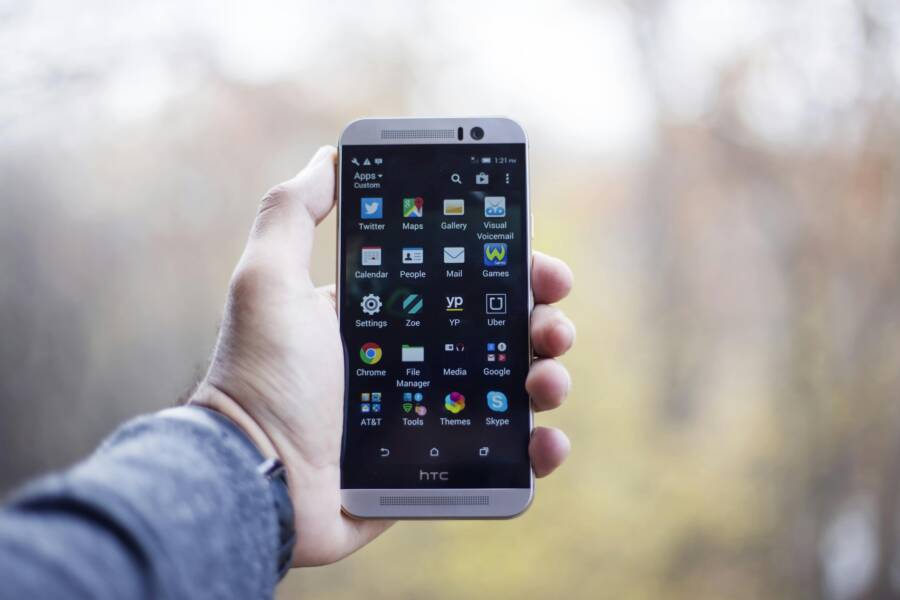
Color issues in videos often pop up after you share clips shot on a smartphone. A clip can look vibrant on the phone screen, then appear washed out, overly saturated, or with odd tints on a computer, TV, or social feed. The cause is usually a mismatch between how the video was captured, how it’s stored, and how a display interprets color. This guide walks you through simple, actionable steps to identify and fix those color problems without getting lost in jargon.
Understanding why colors go wrong helps you prevent issues before they start. Let’s start with the basics and move toward practical fixes you can apply today.
The color space behind your video and why it matters
Video color comes from color spaces and gamma curves. A color space defines the range of colors a device can reproduce, while gamma describes how brightness values are encoded. When you export a video, your phone or editing app chooses a color space and a transfer curve. If the export uses a space that a viewer’s screen doesn’t interpret the same way, colors can look off.
- Rec. 709 is the standard color space for most HD videos. It works well for televisions, computer monitors, and many streaming platforms.
- Rec. 2020 covers a wider range of colors used for some 4K and HDR content. It looks richer on compatible displays but can appear strange or garish if viewed on devices that don’t handle the wider gamut.
- sRGB is common for images and some web content. It’s compatible with most displays but may not match video specifically if a clip uses a broader space.
- HDR content adds brightness and color range. If you export HDR from a phone but watch on SDR gear, tone mapping can shift colors in undesirable ways.
The bottom line is this: consistency across capture, export, and playback devices yields the most predictable results. If you see color shifts, start by asking which color space your video actually uses and how the playback device handles it.
How phones handle color while recording and exporting
Smartphones can capture color in modes that go beyond basic video. They may record in a wider gamut or in high dynamic range. When you export, apps often apply a default color space that best fits the device. That can create a mismatch once you move the clip to a computer, editor, or TV.
- iPhones commonly offer wide color capture and may export in HDR when the setting is enabled. If you later view that footage on SDR gear, the result can look too bright or oddly tinted unless tone mapping is applied.
- Many Android phones can shoot in a broad color space as well and sometimes allow HDR video that carries more brightness and color. If the export is not converted to a standard space, viewers on non HDR screens will see color shifts.
This is why your first checks should be the export settings. If the phone’s default export uses a wide gamut or HDR, you may need to switch to a standard, more universal space like Rec. 709 and SDR transfer when you plan to share widely.
Audit your export settings before you shoot
A little setup goes a long way. Before you hit record or start exporting, inspect these areas:
- Color space and standard: Look for options labeled Rec. 709 or BT. 709 in color space settings. If there is an option for P3 or DCI-P3, and you plan to share on typical screens, prefer Rec. 709.
- HDR on or off: If HDR is on, consider turning it off for general use. HDR can look amazing on capable displays but may look wrong on SDR devices.
- Gamma and transfer: If you see a choice between gamma 2.2 or 2.4, pick a standard like 2.4 for viewing in dark rooms and 2.2 for general daylight viewing. Some apps simply call this “transfer characteristic.”
- Bit depth and compression: 8-bit is common and widely compatible. If you don’t need the extra file size, 8-bit tends to be safer for cross device viewing. Some editors offer 10-bit, which can help with gradients but may require careful workflow to maintain compatibility.
- Output format and codec: H.264 or H.265 with a Rec. 709 color space is usually your safest bet for broad compatibility. Higher-end codecs can be excellent but aren’t always necessary for basic sharing.
If you routinely edit on a different device from where you view, this early alignment saves a lot of headaches. A quick checklist ensures you’re exporting in a predictable way every time.
Pick the right playback environment
Even with correct export settings, playback can alter color. Some media players apply color management, while others do not. The same clip can look different in QuickTime on a Mac, VLC on Windows, or a modern smart TV. Here are reliable practices:
- Use color managed players when possible. Players like VLC and some TV apps handle color information more consistently across devices.
- Calibrate your monitor occasionally. A simple calibration routine helps you judge whether colors in your workflow look correct.
- Test on multiple devices. If a clip looks perfect on your phone but off on a computer, the issue is not your video alone but how a display interprets it.
If you often share videos, a quick cross-device check is worth the time. It gives you a baseline and reduces guesswork.
Practical fixes you can apply today
These steps address the most common color problems. They’re actionable and require only a few minutes.
- Standardize export color space to Rec. 709
- In your camera or editing app, set the export color space to Rec. 709. If the app offers a choice between Rec. 709 and Rec. 2020 or P3, choose Rec. 709 for broad compatibility.
- Disable HDR export if the audience includes SDR devices or non HDR displays.
- Confirm the transfer function is set to a standard gamma such as 2.2 or 2.4, depending on your typical viewing environment.
- Avoid mixed workflows
- Don’t shoot in one color space or HDR mode and export in another without conversion. Mixing workflows creates mismatches that show up after export.
- If you must mix devices, plan a final color space conversion step during editing or transcoding to Rec. 709.
- Use a color management step when editing
- If your editor supports it, apply a Rec. 709 color space profile to the timeline and ensure the export inherits that profile. This reduces surprises when the video lands on other screens.
- Consider tone mapping for HDR to SDR conversions
- If you must deliver HDR footage to SDR devices, apply a gentle tone map. This preserves detail in bright areas without oversaturating or blowing out highlights.
- Re-encode with a color space conversion tool
- If you already have a clip with color issues, a quick re-encode can fix it. Look for tools that offer explicit color space conversion to Rec. 709 and a standard gamma. Do not rely on automatic guesses; choose the settings you want and test.
- Test with a known color reference
- Use a short clip with a color checker or a simple scene with distinct colors. Export or re-encode this clip and compare on a few devices. If the color checker appears consistent, your workflow is solid.
- Keep file names and versions organized
- When you try fix after fix, label files clearly. For example, add suffix like _rec709_sdroff to keep track of the color profile used. A tidy workflow saves time and reduces misfires.
- For more technical users: a simple conversion approach
- If you’re comfortable with a command line tool, a basic conversion to Rec. 709 can be done with color space flags in a transcoding step. This approach gives you explicit control over color primaries, transfer, and matrix. Always test a short clip first to verify the result on multiple screens.
In practice the fix often comes from choosing Rec. 709 and turning off HDR during export. If the problem stays, the issue is usually on the playback side or a mismatch that needs a color management step.
A quick testing checklist you can follow
- Export a short test clip in Rec. 709 SDR from your phone or editor.
- Play it on your phone, computer, and a TV or streaming device.
- Compare the clip against a known color reference or the same scene shot in a color-safe mode.
- If a device shows a different tint, note which device it is and what setting seems to cause the difference.
- Try a second export with HDR disabled and Rec. 709 selected if the first test fails.
- After each change, watch again on at least two screens to confirm the improvement.
By following these checks, you’ll build confidence in your workflow and reduce the time spent chasing color ghosts.
When to seek more help
If color issues persist across multiple devices after you standardize the workflow, you may be facing a deeper problem. Your phone might be applying a unique processing profile that isn’t easily overridden, or your editing tool might not be faithfully preserving color information through export. In that case consider:
- Consulting the app’s support resources or user forums for color space specifics.
- Trying a different video editor to see if the issue is tied to one program.
- Testing on a fresh project with a known color profile to isolate variables.
If you frequently publish content to multiple platforms, this step can prevent recurring headaches. It also helps you deliver consistent results to your audience, no matter what device they use.
Realistic expectations for color accuracy across devices
Color fidelity is a moving target. Even with careful setup, some differences are inevitable across devices. The goal is not perfect color matching on every screen, but consistent results within your typical viewing context. A viewer who knows what to expect will be more forgiving when they see minor variation, while a consistent workflow builds trust over time.
Keep in mind:
- Most viewers will be on SDR displays. Treat Rec. 709 as the default standard.
- HDR content needs careful tone mapping to avoid harsh highlights or color clipping on SDR devices.
- Social platforms sometimes compress color, which can alter tones. Plan accordingly by testing how your clips look after upload.
A simple, repeatable workflow you can adopt
- Before filming: set export to Rec. 709, SDR, 8-bit, H.264 or H.265.
- During editing: keep a consistent color space in project settings; avoid introducing mixed color profiles.
- After exporting: verify on at least two devices. If colors look off on one device, apply a color space conversion or tone map specifically for that device range.
- When sharing: choose a platform that preserves color information well and supports color managed playback.
This approach keeps you in control rather than reacting to color mismatches after the fact.
Conclusion: take charge of color from shot to share
Color issues after exporting video from a smartphone are common but solvable. By understanding color spaces, standardizing export settings, and testing across devices, you gain reliability with every clip you publish. The key is consistency. Align your capture, export, and playback environments with Rec. 709 as a baseline, turn off HDR when needed, and use a color-aware workflow from start to finish.
If you want to keep things simple, start with one camera and one editor you trust, and lock in a Rec. 709 SDR export every time. Your viewers will notice the difference, and you’ll save time chasing color quirks in future projects. Share your success story or a tip that helped you fix a tricky color issue in the comments below.