There Is a Frequency That the Wealthiest Families Have Used for Generations and Most People Will Never Know It Exists
>>> Open the Door <<<

If your phone won’t detect a new SIM card, you’re not alone. This is a common hiccup that often has quick, practical fixes rather than a hardware fault. This guide covers both Android and iPhone, walks you through simple checks, and highlights version specific steps so you can get back online fast.
First, start with the basics. Remove the SIM, wipe it clean with a soft cloth, and reinsert it to ensure it sits snugly. A dirty or loose SIM is a frequent cause of a SIM card not detected issue. If that doesn’t help, restart the device, toggle Airplane Mode on and off, and try the SIM in another phone to rule out a damaged card. These quick checks address most cases of a new SIM not recognized situation.
If the problem persists, you’ll want to dive a bit deeper. Resetting network settings often fixes misconfigured options without wiping your data. Check for an OS update, since some Android SIM not detected or iPhone SIM issues trace back to bugs fixed in patches. If none of these steps work, hardware could be at fault—specifically a faulty SIM reader or slot. In that case, contact support or visit a service center. By following these steps, you’ll know whether the issue is a simple setting, a software bug, or a hardware problem, and you’ll have a clear path to resolution.
Quick checks that fix most SIM detection problems
When a phone can’t see a new SIM, it often isn’t a hardware failure. Start with a few quick checks that cover the majority of cases. These steps are simple, fast, and work on both Android and iPhone. If you need visual context, a quick image below shows a SIM tray and card in action.
There Is a Frequency That the Wealthiest Families Have Used for Generations and Most People Will Never Know It Exists
>>> Open the Door <<<
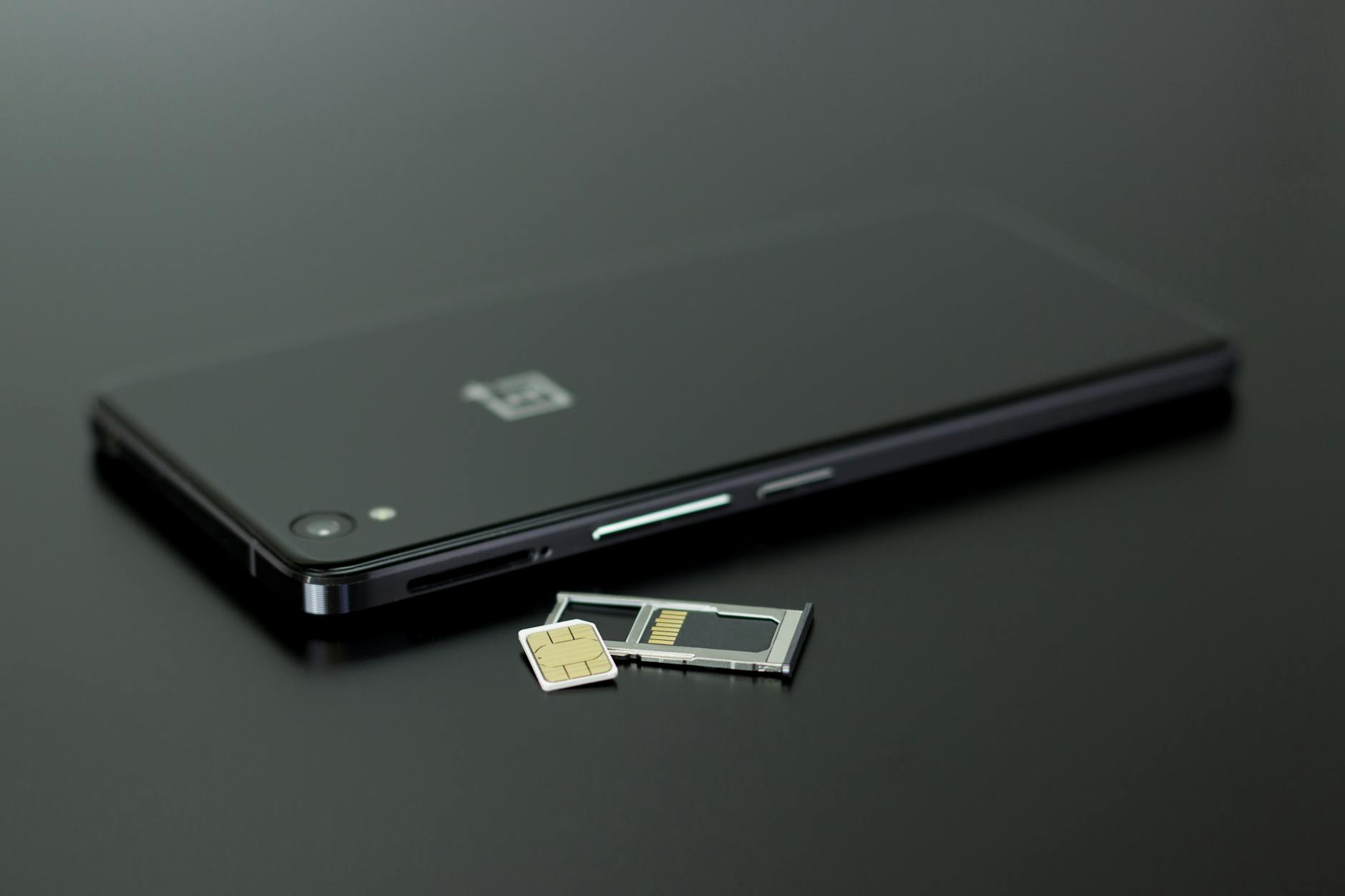 Photo by Silvie Lindemann
Restart and reinsert the SIM card
Power off your device completely. Remove the SIM tray and take out the SIM card. Inspect the card and tray for dirt, dust, or any debris. Clean gently with a dry, lint-free cloth if needed, then reinsert the SIM tray ensuring the card sits flat and secure. Power the phone back on and verify signal. Always handle the SIM with dry hands and avoid touching the metal contacts.
Check SIM activation and carrier compatibility
First, confirm the SIM is active and not tied to a suspended or unpaid account. Then verify the SIM size matches your tray (nano, micro, or standard) and that the carrier supports your device. Some carriers require an activation step when moving a SIM between devices or after a plan change. If you recently switched carriers, confirm the activation status and whether any carrier settings updates are needed. For iPhone users, ensure the device is unlocked if you’re moving a SIM from a different carrier. Helpful resources: Apple support on SIM activation and carrier settings, plus carrier compatibility check guides.
He Was Drowning in Bills and Burnout Until a Simple Daily Ritual Rewired His Brain for Wealth in Less Than a Week
>>> Start Your Shift Today <<<

- For iPhone: If you see a SIM warning, check Settings > General > About for unlock status, then restart and update carrier settings if prompted.
- For Android: Some devices require a manual carrier settings update after inserting a new SIM.
External references:
- Apple Support: If you see ‘invalid SIM’ or ‘no SIM’ on your iPhone or iPad
- AT&T, T-Mobile, and other carrier support pages for SIM activation and unlocking status
Toggle airplane mode and refresh network settings
Turn on Airplane Mode and leave it on for about 10 to 15 seconds. Turn it off to let the device re-scan available networks. If the issue persists, open Settings and review basic network options. A quick network reset (without erasing data) can help clear misconfigured settings. After refreshing, check if the SIM is detected and the network appears. If not, proceed to more targeted checks or consider testing the SIM in another device.
External references:
- Quick guides on Android and iPhone network reset steps
- Carrier-provided steps for refreshing network settings
Notes and quick actions to keep in mind
- Double-check that the SIM tray is clean and free of lint.
- When testing, use a known good SIM from a friend or family member to isolate the issue.
- If none of these steps resolve the problem, the issue might be hardware related. Consider contacting the device manufacturer or your carrier for service options.
Support and further reading
- Apple: If you see invalid SIM or no SIM on iPhone or iPad
- Samsung: No SIM Card Detected on Galaxy devices
- Carrier compatibility checks can help avoid future issues when swapping devices
Images credit: Photo by Silvie Lindemann on Pexels.
Android specific fixes that often work
When a SIM card isn’t immediately detected on an Android device, a few targeted steps can clear up most issues. These fixes address common software and hardware causes without needing a factory reset. Think of your smartphone as a small network hub: a quick reset or cache clean can realign the connections and get you back online. If one step doesn’t help, move to the next with confidence.
Reset network settings
Resetting network settings is a safe, non-destructive move that often resolves misconfigurations blocking SIM detection. This action resets Wi‑Fi, mobile data, and Bluetooth profiles to their defaults, removing conflicting entries that might hide the new SIM. After the reset, rejoin known networks and re-pair Bluetooth devices as needed. Note that saved networks and paired devices will be forgotten, so have credentials handy.
Check SIM related apps and caches
Some Android devices rely on SIM Toolkit and carrier apps to manage network interactions. Clearing their caches can remove corrupt data that blocks detection. To do this, go to Settings > Apps, locate SIM Toolkit and any carrier apps, and choose Clear Cache or Clear Data if available. Clearing cache won’t delete your contacts or files, but Clear Data may remove app-specific settings; use it only if needed and you’ve backed up important info.
Update or roll back software if needed
Software updates can fix SIM detection bugs, but a recent update may also introduce new issues. Check for the latest Android version and install any available patches. If the problem started after a specific update and your device supports it, consider rolling back to a prior build or waiting for a patch from the manufacturer. In some cases, carriers also release settings updates that restore compatibility.
Check the SIM reader hardware
If the SIM works in another phone but not in yours, the problem could be the phone’s SIM tray or reader. Inspect the tray for any visible damage, misalignment, or debris. Ensure the card sits flush with the tray and travels smoothly when inserted. If you notice damage or persistent misreads, a service visit is warranted to test the tray and related components.
External references and additional guidance:
- Learn more about SIM activation and carrier settings on iPhone and Android from reputable sources like carrier support pages and official help centers.
- For hands-on troubleshooting, you can explore practical walkthroughs such as “How to Fix No SIM Card on Android” from well-known tech resources.
- If you’d like a step-by-step visual guide, see tutorials that cover removing and reinserting the SIM tray and verifying activation.
Links for further reading:
- https://www.asurion.com/connect/tech-tips/android-phone-no-sim-card/
- https://support.google.com/pixelphone/thread/235634672/sim-card-not-detected?hl=en
- https://www.ifixit.com/Answers/View/440432/SIM+Card+not+recognized+after+drop
- https://candid.technology/sim-toolkit-error/
Tips to keep in mind:
- Use a known-good SIM to verify the issue is not the card itself.
- Keep a small cloth handy to clean the SIM and tray if you see dust.
- If none of these steps resolve the problem, hardware repair may be needed. A quick chat with your carrier or device maker can outline next steps.
This section keeps you moving with practical, no-nonsense steps that apply to most Android smartphones, whether you’re a power user or casually using your device for everyday tasks. If you’re curious about deeper hardware diagnostics, the next section dives into more precise checks you can perform.
There Is a Frequency That the Wealthiest Families Have Used for Generations and Most People Will Never Know It Exists
>>> Open the Door <<<
External links provided here are for reference and do not replace professional support when hardware damage is suspected. For ongoing issues, consider contacting your carrier or device manufacturer.
iPhone specific fixes that help
If you’re stuck with a new SIM not being detected on your iPhone, you’re not alone. Some issues are specific to iOS updates or carrier settings. The following fixes focus on iPhone-only steps that can restore normal detection without diving into drastic measures. Try these in order, and remember that your goal is to reestablish a clean link between the device, the SIM card, and the carrier network.
Reinsert SIM after update issues
After an iOS update, some iPhone users see SIM errors that disappear after reinserting the card. Power down, remove the SIM, inspect for dust or debris, then reinsert the tray so the card sits flush. Power the device back on and check for signal. If the problem recurs, this can be a temporary fix but it often buys time while you assess other options. For persistent trouble, a carrier settings update may also help. See Apple’s guidance on SIM issues for deeper steps: If you see ‘invalid SIM’ or ‘no SIM’ on your iPhone or iPad.
Reset network settings on iPhone
Resetting network settings can clear misconfigurations without erasing your data. On an iPhone, go to Settings > General > Transfer or Reset iPhone > Reset > Reset Network Settings. This action resets Wi-Fi networks and passwords, cellular settings, and VPN/APN configurations. After the reset, rejoin your known networks and recheck the SIM status. If the SIM still isn’t recognized, a carrier settings update or a software update might be required. Detailed steps are here: If you can’t activate your iPhone or iPad.
Update iOS and check eSIM status
Keeping iOS up to date helps fix bugs that can cause SIM detection issues. Update to the latest iOS version available for your device. If your iPhone uses an eSIM, verify its status in Settings > Cellular or Settings > General > About. If the physical SIM isn’t recognized and you also can’t set up the eSIM, ensure your carrier supports eSIM on your model and follow the carrier activation steps. Apple’s guidance on eSIM and setup can be found here: If you can’t set up an eSIM on your iPhone.
Seek official support if problems persist
If the SIM still isn’t detected after multiple resets and updates, it’s time to escalate. Reach out to Apple Support or visit an Apple Store for hardware diagnostics or deeper software checks. Hardware issues like a faulty SIM reader or slot require expert assessment. Keep a record of what you tried so the support team can jump to the most relevant tests. You can start with Apple’s help resources and activation guidance: If you see ‘invalid SIM’ or ‘no SIM’ on your iPhone or iPad.
When to seek professional help and long term fixes
If you’ve gone through the quick checks and your phone still won’t detect a new SIM, it’s time to separate quick wins from more serious repairs. This section helps you decide when to call in a carrier tech, a repair shop, or consider other long term fixes. You’ll learn how to approach diagnostics, weigh warranty options, and estimate what a repair might cost versus replacing the device. Think of your next moves as a guided path from simple checks to professional care.
Test the SIM with your carrier
Before pulling the trigger on a service visit, test the SIM in your carrier’s equipment or a store. Carriers can confirm whether the card itself is active and functioning. If the SIM works in the carrier’s tester but not in your phone, the fault is likely with the device. Conversely, if the card fails in the carrier’s system too, you know the issue is the card or plan. This step saves time and money by pinpointing where to focus next. For reference, see carrier activation guidance and SIM testing tips from major providers.
- If you’re unsure, consider visiting a carrier store for a quick compatibility check and activation status.
- Bring any related documentation, such as plan details or recent changes, to speed up the test.
- If your smartphone is still in warranty, ask the staff for a calibration or diagnostic check in case settings or software are involved.
Helpful resources:
- Apple Support: If you see ‘invalid SIM’ or ‘no SIM’ on your iPhone or iPad
- Carrier pages on SIM activation and unlocking status
Hardware fault vs software bug
A SIM not being detected can come from a hardware fault in the reader or tray, or from a software bug that blocks recognition. A professional diagnostic will test both angles: hardware integrity and software/firmware behavior. Technicians can check the SIM slot, connector boards, and related sensors, then run software tests to identify corrupted settings or conflicting profiles. Clear results help you choose between a repair path and a workaround.
- Hardware path: tray alignment, loose connectors, or a damaged reader may require component replacement.
- Software path: misconfigured carrier settings, corrupted profile data, or a buggy OS build can need updates or resets.
- Professional steps: a formal diagnostic report often speeds up warranty claims and repair scheduling.
External references for context and next steps:
- Why your SIM card isn’t detected and what to do
- Guidance on hardware vs software issues in mobile devices
Warranty, repair options, and timing
Start by checking your device’s warranty status and any extended coverage. If you’re still covered, repairs or part replacements may be free or discounted. If not, weigh the cost of a paid repair against the price of a new device. Some fixes, like a faulty SIM reader, can be pricey, but they might extend the device’s life meaningfully. In many cases a midrange repair is cheaper than buying a new phone and losing data or app investments.
- Gather receipts and serial numbers to verify coverage quickly.
- Get a written repair estimate and compare with the price of a comparable used or refurbished model.
- Consider long-term value: if your current phone supports essential features and runs smoothly, a targeted repair can be the better choice.
If you’re unsure about the value, a quick comparison with reputable repair guides or a consult from a repair service can help. For further reading on repairability and decision making, see sources that discuss repair versus replace considerations.
Preventive tips to avoid SIM problems in the future
Keeping your SIM card functioning smoothly saves time and money. With a few proactive habits, you can prevent common detection issues before they start. These tips focus on handling, software hygiene, and quick recovery planning so you stay connected no matter where you are.
Photo by Silvie Lindemann
Proper SIM handling and cleaning
Store SIM cards in a soft, dry pocket or small case to avoid bending or bending trays. Always keep the card away from sharp edges and magnetic fields. When cleaning, use a soft, dry cloth to wipe the contacts gently; never use liquids or solvents. Before reinserting, inspect the tray for dust and remove any lint. Handling the SIM with clean, dry hands reduces the chance of poor contact or debris causing a non-detection issue. For extra protection, avoid leaving the tray exposed to extreme heat or pressure.
Keep software up to date and know your network settings
Regular software updates install fixes that can prevent SIM issues from resurfacing. Enable automatic updates if possible and check for patches that address carrier profile glitches. Familiarize yourself with basic network options like roaming, preferred network type, and APN settings. If you travel, ensure roaming is allowed and that your device is set to a compatible network mode. Keeping these settings tidy helps your SIM stay recognized after changes or swaps.
Have a quick recovery plan
Create a simple troubleshooting checklist you can run in minutes. Keep a spare SIM or an eSIM backup plan ready, especially if you rely on your phone for work. Store activation details and PINs in a secure note or password manager. Having a plan reduces downtime when a SIM is temporarily unusable, letting you reestablish service quickly while you sort out a permanent fix. This approach is especially useful for frequent travelers who swap SIMs often.
Conclusion
Most SIM detection problems are fixable with a straightforward, repeatable approach. Start with the simplest steps: power the smartphone off, reinsert the SIM after a quick clean, and toggle Airplane Mode to force a network refresh. If the issue sticks, reset network settings and check for fresh OS or carrier updates. In many cases, a software hiccup from a recent update is the root cause, and a patch will arrive soon enough.
If the SIM works in another phone, the problem is likely the device’s slot or reader. If it fails there too, contact your carrier or bring the phone in for service. Keeping a spare SIM or an eSIM backup plan can save you downtime, especially when you travel. Also note that some carriers require a manual activation after a swap, so confirm activation status before assuming permanent fault.
Save these steps for quick reference and bookmark this guide. Sharing it with friends or colleagues who swap SIMs often helps them cut downtime and avoid unnecessary repairs. This approach keeps you connected without heavy tech work, and it builds confidence should you face future SIM changes. If you have a fresh tip based on your experience, drop a note and help others solve the same problem faster.
She Pressed Play on a Strange Audio Track and Within Days Her Financial Reality Started Shifting in Ways She Could Not Explain
>>> See How It Works <<<
