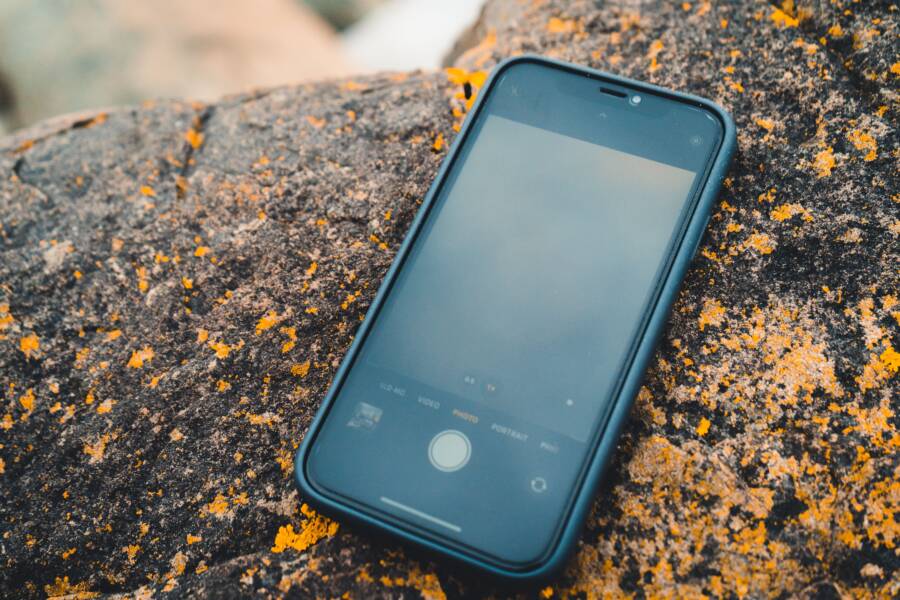
If your smartphone screen dims or flickers constantly while you are outdoors, you are likely dealing with a thermal management feature rather than a hardware defect. When a device senses high internal temperatures, it reduces display brightness to protect the battery and prevent overheating.
This behavior is common on almost every modern smartphone when used under direct sunlight. Although it helps prolong your device lifespan, it makes the screen difficult to read when you need it most.
Adjusting your settings and usage habits will help you regain control over your display brightness. The following sections explain how to troubleshoot these power-saving features and keep your screen visible.
Understanding How Auto-Brightness Affects Your View
Smartphone displays rely on an internal light sensor to detect your environment. This sensor adjusts the backlight intensity so you can read text or view images without manually toggling controls. While this feature is convenient indoors, it often struggles when you head outside. Many users assume their display is broken when the brightness fluctuates or dims unexpectedly in the sun. In most cases, these shifts are intentional design choices meant to protect the internal hardware of your smartphone.
The Role of Thermal Throttling in Dimming
When you use your device under direct sunlight, the screen works harder to overcome glare. This requires a higher power draw, which generates significant heat inside the chassis. If the internal temperature climbs too fast, the operating system triggers a protective mechanism called thermal throttling.
The smartphone limits the maximum brightness to reduce the current flowing through the display panel. By lowering the screen intensity, the device generates less heat and prevents damage to the battery or processor. You might notice the screen dimming abruptly even if you are in a bright area. This happens because the hardware has reached a critical temperature threshold.
Once the device cools down, it typically restores higher brightness levels. However, if you keep the phone exposed to direct heat, it stays locked in this low-power state. Moving to a shaded area or removing a thick protective case can often stop this cycle. If the dimming persists, consider closing background applications that drain power and contribute to heat buildup.
When Software Settings Misinterpret Ambient Light
The auto-brightness feature relies on a tiny sensor located near the top of the display. This sensor measures the light hitting your phone to determine how bright the screen needs to be. Sometimes, external factors trick the sensor into providing incorrect feedback to your display.
Common culprits for sensor confusion include:
Screen protectors: Thick or low-quality glass covers can obscure the sensor window. If the protector covers the sensor or gathers dust, the phone assumes the environment is darker than it truly is.
Dirty screen surfaces: Smudges and oil buildup directly over the sensor area block incoming light. Wiping your screen clean often solves jittery brightness adjustments immediately.
Misplaced cases: Some phone cases have poorly aligned cutouts that partially shadow the sensor. This creates a feedback loop where the phone dims the display because it thinks you are in a dim room.
If you notice your display bouncing between brightness levels, check the area around the front-facing camera or the top bezel. A clean surface allows the light sensor to function as intended. If you use a screen protector, ensure it has a precise cutout for the sensor array. These simple adjustments stabilize the screen output and prevent the software from making erratic changes to your viewing experience.
How to Stabilize Your Screen Brightness Quickly
Stable display brightness outdoors relies on both clean hardware and correct software settings. If your display shifts intensity without a clear reason, the solution often involves inspecting the physical state of your device and reviewing active power management modes.
Testing Your Hardware Sensors for Issues
Your smartphone includes an ambient light sensor near the top bezel, usually positioned close to the earpiece. This component acts as the eyes of your device, constantly measuring incoming light to set the screen intensity. When this area is obstructed, the sensor incorrectly perceives a dark environment and dims the screen to compensate, even while you stand in direct sunlight.
Check your device for the following common physical obstructions:
Debris such as dust, pocket lint, or oil buildup frequently gathers near the earpiece. Use a clean, dry microfiber cloth to wipe the top portion of your screen.
Screen protectors sometimes overlap the sensor window. Ensure your glass or plastic film has a dedicated cutout that remains clear of smudges or trapped air bubbles.
Certain phone cases feature raised edges or poorly aligned cutouts that create shadows over the sensor. Remove the case temporarily to see if the brightness behavior returns to normal while you are outdoors.
If you find that the screen stays bright once you clean the sensor area or remove a bulky case, you have successfully identified the issue. Hardware obstructions are a frequent, yet easily overlooked, reason for erratic dimming.
Adjusting Battery Saver Modes
Power-saving modes on your smartphone prioritize longevity over peak display performance. When you activate these settings, the operating system limits the maximum brightness to conserve power and reduce battery drain. These modes often ignore manual adjustments, meaning your screen will remain dim regardless of how much you try to push the slider up.
Disable your power-saving mode when you head outdoors to ensure your display can reach its full brightness potential. You can typically toggle this in your quick settings menu or via the main battery settings page. Many devices automatically disable this mode once they reach a certain charge percentage, yet some keep it active until you manually turn it off.
Reviewing these settings is a primary step in maintaining a readable screen during sunny conditions. By giving the software permission to draw more power for the display, you stop the constant fluctuation caused by aggressive battery conservation. If the problem persists after disabling power-saving features, focus on moving the device to a cooler area to prevent thermal throttling from overriding your settings again.
Advanced Troubleshooting for Persistent Brightness Drops
Sometimes your display settings fail to maintain a steady level even after you clean the sensors and check power management. When this happens, software conflicts become the primary suspect. You likely have applications installed that attempt to override your system display settings. These programs often interfere with the native brightness logic of your smartphone, creating a tug-of-war between the app and the operating system.
Checking Third-Party Apps that Control Display Settings
Many users install third-party tools to manage screen temperature or tint. While these apps aim to reduce blue light exposure or provide extra dimming features, they frequently conflict with system-level controls. If you experience unexpected fluctuations while outdoors, these programs might be the root cause.
Apps designed to filter light or reduce brightness levels often operate as a persistent overlay. They interact directly with the display controller, which confuses the automated light sensor. Because the smartphone already manages brightness through its own sensor-based algorithms, adding another layer of software creates a stability issue. The system tries to increase brightness for daylight, but the filter app forces a lower intensity to match its own settings.
Follow these steps to identify if an app is responsible for your display issues:
Look for apps that advertise blue-light filtering, screen dimming, or eye-care modes in your application list.
Open your device settings and navigate to the permissions or app manager section. Check for applications with the “Display over other apps” or “Appear on top” permission.
Disable these applications one by one while you are outdoors. If the brightness stabilizes after you close or uninstall a specific app, you have found the culprit.
Review your app settings to see if there is an “Auto” or “Schedule” feature enabled. Sometimes these features trigger based on time rather than light, which causes sudden dimming regardless of your environment.
You should consider if the convenience of a specific blue-light filter outweighs the frustration of a flickering screen. Many modern smartphones now include a built-in night mode or eye-comfort shield. These native features are optimized for your hardware and are far less likely to cause the conflicts associated with third-party software. Using the built-in system settings provides a stable experience that works in tandem with your light sensor rather than against it. If you still require specialized software, ensure the app is updated to the latest version, as developers often release patches to resolve conflicts with newer operating system updates.
Best Practices for Viewing Your Smartphone in Direct Sunlight
Reading your screen under harsh sunlight is often difficult, even with high-brightness settings. Your smartphone display creates reflections that compete with the light produced by the panel itself. By choosing your positioning carefully and optimizing your display behavior, you improve legibility without overheating the device.
Positioning Yourself to Minimize Glare
The angle at which you hold your device relative to the sun makes a significant difference. Direct sunlight bouncing off your screen creates a mirror effect that washes out colors and hides text. Instead of facing the sun, turn your back to the light source so that your body casts a shadow over the screen. This simple adjustment prevents glare from reaching your eyes and allows the screen to appear much clearer.
If you cannot move your body to block the light, tilt the screen slightly to avoid catching reflections from the sky or bright surroundings. Most modern displays look best when viewed straight on, but a slight change in tilt often removes the most intense glare points. You should also find a location where the background behind you is not brighter than your display. If you are standing in front of a white wall or a bright window, the contrast makes your screen look dim by comparison.
Using High Contrast Modes and Accessibility Settings
When ambient light is overwhelming, your operating system offers tools to prioritize visibility over color accuracy. Most mobile platforms include a high-contrast mode that makes text bolder and increases the distinction between different interface elements. You can typically find these settings in the accessibility menu of your smartphone. Enabling high contrast makes your screen content easier to scan quickly because your eyes do not need to work as hard to separate shapes from background noise.
Switching to a light-themed interface while outdoors is another effective strategy. Dark mode looks great in low-light environments, but the lack of white space makes it difficult to read text under bright conditions. A light theme provides a higher overall luminance that cuts through external glare more effectively. If you want to automate this change, check if your settings allow you to tie color themes to your display brightness or time of day.
Managing Thermal Load While Outdoors
Your device will struggle to maintain peak brightness if it becomes too hot to touch. Avoid leaving your phone on hot surfaces like concrete, car dashboards, or direct outdoor furniture in the sun. These surfaces transfer heat directly into the chassis and force your hardware to throttle brightness even faster.
If you plan to spend time outdoors, keep the device in a pocket or bag when you are not using it. When you must use the phone, hold it in a way that allows air to circulate around the back of the case. Removing a thick or insulating case for short periods also allows heat to dissipate more effectively. Protecting your smartphone from external heat sources keeps the display running at maximum capacity for a longer duration.
Summary of Outdoor Viewing Tactics
You can significantly improve your experience by combining simple physical habits with software adjustments. Refer to the following table for quick ways to manage your display output.
Applying these habits ensures that your screen remains readable even on sunny days. If you find yourself constantly struggling to see content, take a moment to evaluate your surroundings before assuming the display settings are at fault.
Conclusion
Most cases of unstable display brightness are not hardware failures. They are usually the result of active power management or thermal protection triggers. By disabling auto-brightness, turning off power-saving modes, and keeping your smartphone sensor area clean, you can regain control over your screen output.
If these steps fail to stop the dimming, prioritize moving your device away from direct heat sources to prevent internal throttling. Managing your environment and your settings keeps your display visible even on the brightest days.