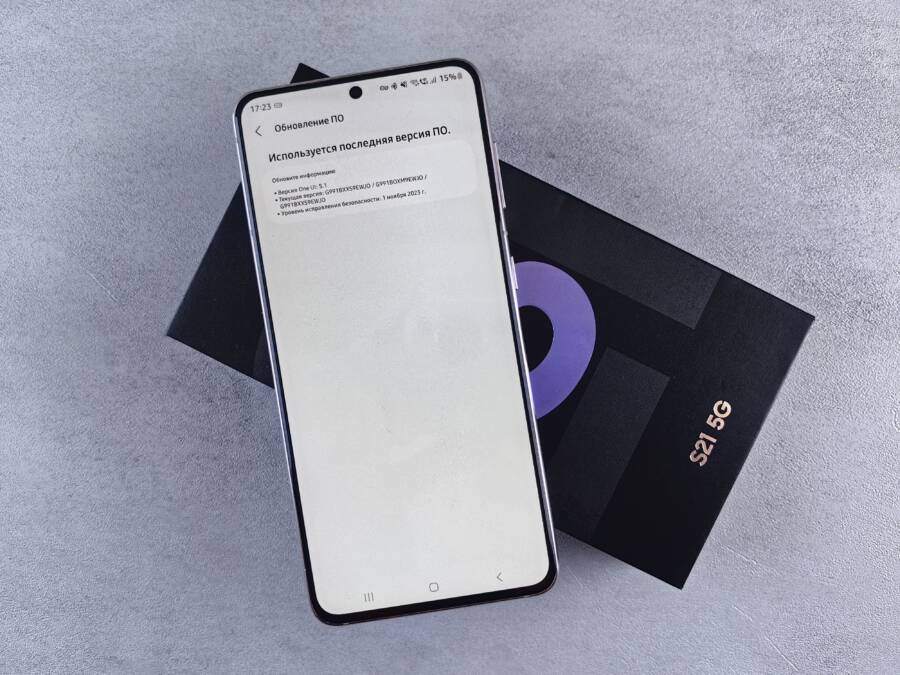
Location history on your smartphone stops updating primarily because of conflicting system settings or aggressive battery optimization features. If your device cannot log where you have been, it usually means the background permission settings are restricted or the location service itself encountered a temporary software glitch.
Most users can resolve this issue by checking the app permissions within the system menu and toggling the location services off and then back on. Adjusting these settings forces the device to re-establish a connection with the GPS and network sensors.
The following sections will guide you through the specific adjustments needed to restore consistent tracking on your phone. You will find that addressing these software conflicts quickly brings your history back online.
Check Your System Location Permissions
Your smartphone relies on a hierarchy of settings to track movement. Even if an individual app has permission to track you, the master switch at the system level overrides every other configuration. If you notice your location history is no longer updating, the system location toggle is the first place you should investigate. When this master switch is off, the GPS and network sensors remain dormant, preventing any app from recording your coordinates.
Verify Global Location Settings
To determine if the master switch is the culprit, you must navigate to your primary device settings. On most modern devices, this is located under the Privacy or Location menu. Once you reach this screen, look for a toggle labeled Use Location or Location Services. If the switch appears grayed out or set to Off, flip it to the On position to reactivate the hardware sensors.
After enabling the master switch, check for a secondary setting often called Location Accuracy or Google Location Accuracy. Enabling this feature allows your smartphone to use nearby Wi-Fi networks and cellular towers to pinpoint your position more effectively than GPS alone. This is particularly helpful if you spend time indoors or in urban areas with tall buildings that block satellite signals.
Open the Settings app on your smartphone.
Scroll down and tap on Location.
Confirm that the main toggle at the top is turned on.
Select Location Services to ensure that Google Location Accuracy is also active.
If these settings are already enabled, try toggling them off and back on again. This simple action forces the operating system to reset the internal location service and re-establish a stable connection with available satellites.
Grant Background Access to Apps
Having the location service active is only half the battle. Your smartphone manages battery life by limiting how often apps can ping your location while they remain in the background. If Google Maps or a similar tracking service is restricted to only function while the app is actively open on your screen, your history log will show significant gaps.
You must specifically grant background permissions to ensure constant monitoring. Within your system settings, locate the App Permissions menu and find your map or tracking service. You will typically see three distinct levels of access:
Deny: The app cannot access your location data at any time.
While Using: The app tracks your location only when it is actively running on your display.
Always: The app tracks your location continuously, even when the smartphone is in your pocket or the screen is locked.
For location history to function reliably, you must select the Always option. Choosing While Using will stop the tracking process the moment you close the app or switch to another task. While some users worry about battery drain, modern operating systems manage these background tasks efficiently. The slight increase in power consumption is a necessary trade-off for maintaining an accurate and uninterrupted record of your daily travels. If you previously set the permission to While Using, switching it to Always should resume the logging process within a few minutes of normal movement.
Resolve Software Glitches and Data Conflicts
Sometimes, your smartphone suffers from minor internal errors that prevent location services from recording your history. These glitches often stem from corrupted temporary files or synchronization errors within the map application. Clearing this stored data acts as a digital refresh, forcing your device to rebuild its connection with location history services without deleting your saved places, home address, or personal settings.
Clear App Cache and Storage Data
Every application on your smartphone creates small, temporary files known as cache. These files help the app load faster, but they occasionally become corrupted and interfere with real-time data reporting. Clearing the cache forces the application to fetch fresh data from the server, which often resolves synchronization conflicts that stop location history from updating.
Follow these steps to clear the cache for your primary map or tracking app:
Open the Settings menu on your device.
Select Apps or Application Manager.
Find and tap on the map application you use for location tracking.
Tap Storage or Storage and Cache.
Select Clear Cache first to remove temporary files.
If the history still fails to update, select Clear Storage or Clear Data to reset the app configuration.
Clearing the cache never removes your actual location history, as that data lives on your cloud account and not inside the temporary app files. Resetting storage data might require you to sign in again or toggle specific settings, but it is a safe way to eliminate bugs that stop the background tracking process.
Keep Your Operating System Current
Smartphone manufacturers release frequent firmware updates to improve hardware performance and fix connectivity issues. These updates often contain patches for GPS stability and background synchronization protocols that your phone needs to maintain accurate location logs. Running an outdated operating system often causes friction between the hardware sensors and the software services responsible for mapping your history.
Checking for updates is a simple process that keeps your device running efficiently:
Navigate to your main device Settings.
Look for an entry labeled System or Software Update.
Tap Check for Updates or Download and Install if a new version is available.
Restart your smartphone once the installation finishes to ensure all new patches integrate correctly with the system kernel.
Developers frequently optimize how the battery management software interacts with GPS sensors in these updates. Keeping your firmware current ensures that your device handles background location requests with the latest stability improvements. If your location history stopped working suddenly, an available security patch or system optimization is often the exact fix needed to restore communication between the operating system and the location servers.
Manage Battery and Power Saver Settings
Smartphone manufacturers include aggressive power management tools to extend your daily battery life. These features often identify background location services as non-essential processes and throttle them to save energy. When your device forces these apps into a deep sleep mode, your location history stops recording movement accurately. Adjusting these power profiles prevents the system from killing the tracking process unexpectedly.
Disable Battery Optimization for Tracking Apps
You need to exempt specific navigation and mapping applications from the default battery management rules. While these power-saving modes are useful for social media or news apps, they directly interfere with the constant, low-power data collection required for accurate location history. By placing your tracking apps on an unrestricted list, you tell your smartphone to prioritize location accuracy over slight battery conservation.
Follow these steps to change the battery management settings for your specific tracking application:
Open your Settings menu and locate the Apps or Manage Apps section.
Search the list for your primary navigation or mapping service, such as Google Maps.
Tap on the entry and select Battery or Battery Usage.
Review the available modes, which typically include Optimized, Restricted, and Unrestricted.
Change the setting to Unrestricted to allow the app to use background resources whenever necessary.
This adjustment provides the app with permission to maintain a connection with the system sensors even when you are not actively interacting with the screen. You might notice a small increase in battery consumption throughout the day, but this is the cost of maintaining a continuous record of your travels.
If your device uses an adaptive battery feature, you should also navigate to the main Battery settings page to confirm that individual app restrictions are not being applied globally. Some software versions group background processes into a single optimization toggle. If you turn off this global toggle, you can usually verify the behavior of individual apps afterward to ensure the tracking services remain active. Many users find that setting the application to Unrestricted immediately solves the intermittent gaps in their history logs. Once you modify these settings, your phone will stop suppressing the location pings, and your history should begin populating correctly again during your next trip.
Verify Your Google Account and Cloud Sync Status
Your location history depends on an active handshake between your local device sensors and Google servers. If the account isn’t syncing correctly, your phone remains unable to upload the breadcrumb trails of your daily movement. You must confirm that your Google Account or Apple ID is fully authenticated and permitted to broadcast data to the cloud.
Check Cloud Sync and Account Restrictions
Synchronization errors occur when the device loses its connection to your profile, even if your account appears signed in elsewhere. You need to inspect the Google settings dashboard to ensure the location feature remains toggled on. If this master toggle is inactive, your smartphone keeps your movement data trapped on the local storage or stops recording altogether.
Follow these steps to audit your cloud settings:
Open your device settings and find the Google menu.
Select Manage your Google Account.
Tap the Data & Privacy tab at the top of the screen.
Scroll to the History settings section and look for Location History.
Confirm the status is set to On. If it shows as Paused or Off, tap it to reactivate the feature.
While checking the status, look for the Devices on this account sub-menu. Sometimes, the sync stops because the cloud server stopped recognizing your specific device. If your phone is missing from the list, sign out of your Google Account in the main phone settings and then sign back in. This simple refresh forces the server to re-verify your device identity and re-establish the sync bridge.
Be aware that certain enterprise or school accounts restrict location tracking as part of their security policy. If your email address ends in a custom domain or is managed by an organization, the administrator might have disabled cloud synchronization for location data. Check with your IT department if the option remains grayed out or inaccessible after you attempt to enable it. Switching to a personal account often resolves these permission conflicts immediately.
When to Reset Network Settings or Seek Professional Help
Resetting network settings is a final measure because it deletes saved Wi-Fi passwords, Bluetooth connections, and VPN configurations. You should only consider this step if all other software-based fixes fail to restore location history updates. Most users find that basic permission and battery adjustments solve their tracking issues without the need for a full network reset.
Recognizing When to Reset Network Settings
If your location history remains stuck despite confirming that background permissions are active and battery optimization is off, your device might hold onto corrupted network cache files. These files can prevent the smartphone from communicating correctly with GPS satellites or cellular towers. A network reset clears these hidden errors and restores the default connection protocols.
Follow these steps if you decide a reset is necessary:
Open the Settings app on your smartphone.
Search for Reset or Transfer/Reset in the search bar.
Choose the option to Reset Network Settings.
Confirm the action when prompted by your security PIN or passcode.
Keep in mind that your phone will restart automatically after this process. Once it powers back on, you must manually reconnect to your known Wi-Fi networks and re-pair your Bluetooth accessories. If the location history still does not update after this step, the problem likely stems from a hardware malfunction or a deeper account-level restriction.
Identifying Signs of Hardware Failure
Sometimes, the physical sensors inside your smartphone stop functioning due to age or accidental damage. If you suspect hardware issues, test your GPS performance by opening a standalone map or compass application. A healthy sensor should pinpoint your position within a few seconds while standing outdoors. If the blue dot stays stuck on a distant location or shows a very large circle of uncertainty, the internal GPS antenna might be failing.
You should seek help from a professional technician if you notice any of the following:
Your GPS fails to lock onto a signal even after a full factory reset of the smartphone.
The location accuracy remains poor across all installed mapping and fitness tracking applications.
Your device exhibits other physical issues, such as overheating or screen flickering, alongside the tracking failures.
Professional technicians can run diagnostic tests to determine if the GPS module has become disconnected or faulty. If your device is under warranty, a service center can often repair or replace these components at little to no cost. Avoid attempting to open the case yourself, as this typically voids any existing coverage and risks damaging sensitive internal hardware.
Conclusion
Restoring location history requires a systematic approach to system permissions, power management, and account synchronization. Most tracking failures stem from aggressive battery settings or disabled background access rather than permanent hardware defects.
Privacy configurations often change with new operating system updates. Make it a habit to check your location permissions and battery optimization settings whenever you perform a system update on your smartphone. Keeping these settings in check ensures your location data remains accurate and consistent over time.