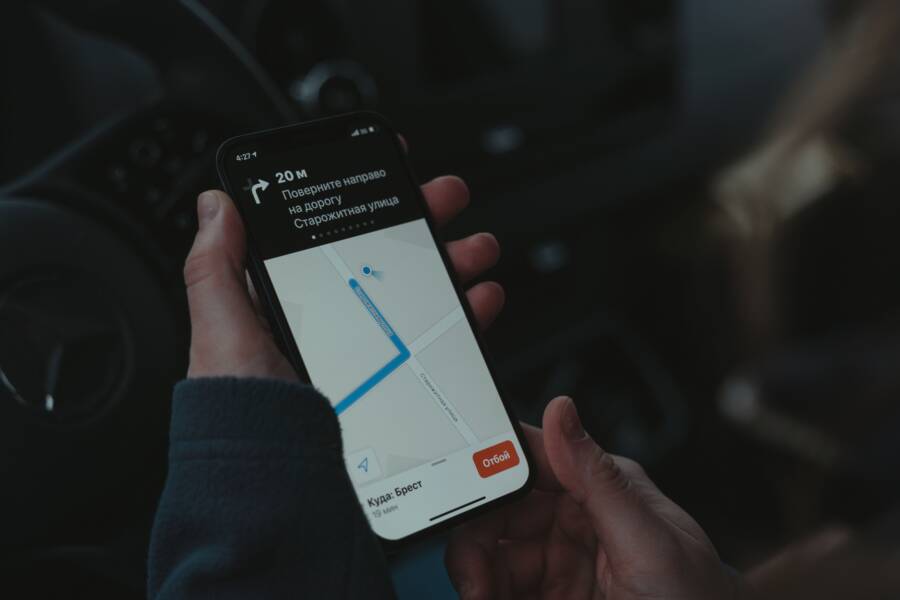
Unstable GPS tracking while you walk is frustrating, especially when your smartphone reports you are miles away from your actual location. This glitch usually stems from outdated location services, battery optimization interference, or physical obstructions blocking the signal.
You can often resolve these accuracy errors by recalibrating your compass, disabling aggressive power-saving modes, and ensuring your device has a clear line of sight to the sky. Understanding these common triggers helps you restore reliable navigation on your next outing.
The following sections explain how to adjust your internal settings and identify physical factors that compromise your connection.
Quick Fixes for Stable Location Tracking
When your smartphone struggles to pinpoint your exact location, the underlying software often holds onto outdated satellite data. Refreshing your connection forces the device to abandon old signal caches and perform a fresh handshake with nearby cell towers and GPS satellites. These minor adjustments often resolve lag or drifting without requiring a hardware repair.
Refreshing Your GPS Data
The quickest way to force a fresh connection is by cycling your radio signals. Airplane mode is an effective tool because it cuts off all incoming and outgoing connections simultaneously. Wait about ten seconds after turning it on before toggling it off. This brief pause allows the modem to clear its memory and re-establish a handshake with the nearest signal sources.
If toggling your settings does not work, third-party applications can assist by clearing the A-GPS cache. These tools serve a specific purpose: they wipe the corrupted or stale satellite data that prevents your phone from locking onto a signal. Once the cache is empty, the smartphone is forced to download fresh assistance data from the network.
Download a reliable GPS status or fix application from your app store.
Open the app and grant it the necessary location permissions.
Select the option to reset or clear A-GPS data.
Keep the app open while the device re-acquires satellites, which typically takes less than a minute.
These steps provide a clean slate for your navigation software. Most users notice an immediate improvement in signal strength once the device successfully clears its stored trajectory logs.
Calibrating the Internal Compass
A smartphone relies on a built-in magnetometer to determine which direction you are facing. If this sensor becomes misaligned, your blue dot on the map might show you heading north while you are actually walking south. Recalibrating this sensor is a simple process that you can perform in seconds.
You should perform the figure-eight motion to force the magnetometer to recalibrate its orientation against the earth’s magnetic field. This movement ensures that the sensor understands its position in three-dimensional space. Follow these steps to complete the process accurately.
Hold your smartphone firmly in one hand with the screen facing up.
Move your arm in a smooth, continuous figure-eight motion through the air.
Repeat this motion at least three times to ensure the sensor captures a full range of movement.
Rotate your phone slightly between each figure-eight to capture data from different angles.
You do not need to perform this movement rapidly. Steady, fluid motions provide better data for the magnetometer than quick, jerky movements. Once you complete the figure-eight, open your map app to check if the orientation arrow matches your actual direction. If it still feels inaccurate, perform the movement one more time in an area away from large metal objects, such as car engines or steel support beams, which often interfere with magnetic readings.
Environmental Factors That Block GPS Signals
Physical surroundings dictate how well your smartphone receives location data. GPS relies on weak radio signals sent from satellites orbiting thousands of miles above the Earth. Because these signals are faint by the time they reach the ground, even minor environmental barriers disrupt the connection. Thick foliage, tall buildings, and heavy cloud cover all absorb or scatter these radio waves before they hit your device. Understanding these physical limits helps you avoid areas where tracking accuracy often fails.
How Obstructions Affect Your Phone
Signal bouncing, commonly known as multipath interference, occurs when GPS signals strike a reflective surface before reaching your smartphone. Instead of traveling in a straight line from a satellite to your receiver, the signal hits materials like concrete, glass, or polished metal. These surfaces act like a mirror for radio waves, causing the signal to deflect or delay. Your device receives the direct signal along with the delayed, reflected version, which creates confusing data for the navigation processor.
Reflective environments often lead to location drift. You might notice your map shows you on the wrong side of the street or stuck in a building you walked past minutes ago. Urban canyons, which are narrow streets flanked by high-rise buildings, are the primary culprits for this phenomenon. The signals constantly bounce off glass windows and steel frames, making it impossible for the receiver to calculate a precise distance. Open areas away from large structures are the most reliable locations for consistent GPS performance.
Choosing the Right Carrying Position
The way you carry your smartphone directly influences signal reception quality. GPS signals struggle to penetrate dense materials, so burying your device deep inside a bag or a thick pocket forces the internal antenna to work harder. These items act as shields, absorbing the radio waves and preventing your phone from maintaining a stable lock on enough satellites to calculate a coordinate. This problem increases if you are also moving through an area with tall trees or buildings.
Maintaining a clear path for the antenna provides better results. If you are navigating on foot, holding your smartphone openly in your hand is the most effective way to keep your position accurate. If you prefer to keep your hands free, consider using a waist belt or an armband designed for exercise. These accessories keep the device closer to the sky without obstructing the antenna with your body or heavy bag materials. Placing the phone in the outer pocket of a backpack also works well, provided the phone faces outward rather than toward your back. By keeping the device in a position with a more direct line of sight to the sky, you allow the internal hardware to process signals without unnecessary interference.
When to Check Your Smartphone Hardware and Software
Tracking issues often persist even after you recalibrate your compass or find a clear line of sight. When basic troubleshooting fails, you must investigate the physical condition of your smartphone and the integrity of its system software. These two areas dictate how your device interprets satellite signals and processes location data. Identifying a hardware defect or a software glitch early saves you from unnecessary frustration and helps you determine if a repair center is the next logical step.
The Impact of Protective Cases
Your smartphone relies on a small, internal antenna to capture faint radio signals from GPS satellites. This component sits behind the frame of your device and requires an unobstructed path to receive data accurately. Thick cases, especially those constructed from metal or containing magnetic components, create a physical barrier that absorbs or deflects these incoming signals. Because GPS signals are already weak by the time they reach the ground, even a millimeter of conductive material can disrupt the connection significantly.
Magnetic phone mounts or cases with integrated metal plates for magnetic car stands interfere directly with the radio waves your antenna needs. These materials create localized electromagnetic interference that confuses the receiver, causing your position on the map to jump or drift while you move. If you suspect your case is the culprit, remove it entirely and test your location accuracy in an open space. If your tracking stabilizes immediately, you likely need a thinner case made of plastic, silicone, or rubber that allows radio waves to pass through unimpeded.
Updating System Software
GPS performance depends heavily on the communication between your hardware and the operating system. Manufacturers frequently release firmware updates that include specific patches for the GPS driver, which governs how your device talks to navigation satellites. If your smartphone runs on an outdated version of its operating system, it may use inefficient protocols for signal acquisition. These outdated drivers often struggle to lock onto modern satellite constellations, leading to slow startup times or inaccurate location reporting.
Check your settings menu to see if a system update is pending. Installing the latest firmware often fixes known bugs that cause intermittent connectivity or poor satellite handshakes. Developers frequently refine how the system manages location services to preserve battery life without sacrificing precision. Keeping your software current provides your device with the latest optimization tools, ensuring the processor handles location data as efficiently as possible. If your smartphone continues to struggle after a full update, you may be looking at a deeper hardware malfunction that requires a professional diagnostic scan.
Advanced Troubleshooting for Persistent GPS Issues
Sometimes your location remains inaccurate even after trying basic resets and adjusting your carrying habits. Persistent errors often point to deep-seated conflicts within your system settings, background process interference, or specific hardware failure. Resolving these issues requires a systematic approach to isolate whether the fault lies in your software configuration or the physical components of your smartphone.
Identifying Background Service Conflicts
Modern operating systems manage power by restricting how often apps access the GPS radio. If your phone aggressively limits these permissions, your location data becomes stale or fails to update entirely while you move. Checking your battery optimization settings is the first step to ensuring your navigation apps maintain a constant link to the satellite network.
You should investigate these common software barriers to restore performance:
Location permissions: Navigate to your privacy settings to ensure your map apps have “Always Allow” or “Allow while using” access. Restrictions here prevent the hardware from initiating a lock when the screen is dark.
Battery optimization: Disable power-saving modes for specific navigation or fitness tracking apps. Systems often force these apps into a low-power state, which disconnects the GPS receiver to conserve energy.
Background data limits: Confirm that your data usage settings do not restrict the download of A-GPS assistance data. Without this supplemental information from cell towers, your smartphone takes significantly longer to triangulate its position.
Testing Hardware Integrity
If your settings appear correct, you might face a genuine hardware malfunction. The internal antenna or the GPS chip itself can suffer damage from drops, moisture, or manufacturing defects. Use a diagnostic application to observe the raw signal strength from individual satellites. If these apps report zero satellites in view even under an open sky, the internal receiver likely has a physical fault.
Consider these signs that your device requires a professional repair:
Consistent failure in open areas: A functioning device should lock onto at least five or more satellites within a few seconds while outdoors.
Sudden signal loss after impact: If accuracy plummeted following a physical drop, the antenna connection might be loose or disconnected from the motherboard.
Temperature abnormalities: A phone that gets excessively hot only when the GPS is active could indicate a short circuit or a struggling power delivery component on the logic board.
Resetting Network Settings
When software conflicts become too complex to isolate, performing a network settings reset is a reliable remedy. This action wipes saved Wi-Fi passwords, Bluetooth pairings, and, importantly, the stored configuration for your cellular and location radios. Your phone then rebuilds these connection profiles from scratch, often clearing out hidden bugs that manual toggles fail to reach.
Remember that this process restores your cellular and GPS configurations to their factory state without deleting your personal files or photos. You will need to reconnect to your home Wi-Fi network and re-pair your Bluetooth devices afterward. This reset effectively forces the modem to re-initialize its entire communication stack, which frequently resolves lingering inaccuracies that frustrate users who have tried every other adjustment.
Conclusion
Stable location tracking depends on a clear line of sight to satellites and accurate signal processing. Most errors occur because of outdated system data, aggressive power management, or physical obstructions that block the antenna of your smartphone. You can usually restore precision by recalibrating your compass, removing bulky metal cases, and confirming that navigation apps have full permission to access your location.
If tracking issues persist, follow this checklist to isolate the cause:
Cycle your airplane mode to reset the radio connection.
Perform the figure-eight movement to recalibrate the magnetometer.
Clear your location cache using a third-party diagnostic app.
Check for system software updates that address driver bugs.
Reset your network settings if performance remains unreliable.
Most users fix their navigation problems through these simple adjustments. If you still see significant drift or signal loss after completing these steps, the internal antenna or GPS chip likely requires a professional hardware inspection.